
Reference: Edit Tenant Setup - Payroll
Manage tenant-wide settings for Workday Payroll in these areas:
Enabled Countries
Option | Description | More Information |
|---|---|---|
Enabled Countries
| Sets the countries where you're licensed and planning to use Workday Payroll. Also determines the values available in the Countries field on various payroll tasks and reports. |
Payroll Input
Option | Description | More Information |
|---|---|---|
Proposed End Date for Ending Payroll Inputs
| Select the date to suggest for the Proposed End Date on the End Payroll Inputs task. When you don't select any values, Workday uses the later of the:
When you run the task, you can edit the date as needed. | |
Payroll Web Services - Do Not Allow Add/Update for Worker as Self
| Prevents workers from uploading payroll input for themselves when they run Enterprise Interface Builder (EIB) integrations using any of these web services:
|
Pay / Retro Calculations
Option | Description | More Information |
|---|---|---|
Enable Continuous Payroll Calculation
| Enables Workday to recalculate on-cycle payroll results automatically as pay-impacting events occur. Applies only to regular run categories. | |
Pay Component Proration for Multiple Jobs
| When a pay calculation includes a midperiod company or pay group transfer and you:
| |
Lock Pay Groups To Block All Pay Calculations on Payroll Results
| When you enable the check box, all on-cycle payroll results must be in In Progress status to lock the pay group detail, and a pay group detail must be locked to run pay complete. On-cycle, off-cycle, and retro can't be calculated, canceled, or completed; and pay accounting can't be run for a locked pay group. Also, you can't complete individual on-cycle results, you can only run pay complete for the entire pay group.If you're a professional employer organization or you want a restrictive workflow for processing payroll, you must enable this check box. If you want the Payroll Processor or Administrator to run payroll calculations while the pay group detail is locked, you shouldn't enable this check box. | |
Maximum Months Allowed For Retro Processing
| Defines the maximum number of months to consider when processing retro transactions. Enter a number between 1 and 72. Example: When set to 24, Workday processes retro transactions up to 24 months in the past.
For optimized performance, Workday recommends that you enter a period of 24 months or less. After a retro pay calculation, Workday advances a worker's No Retro Processing Prior To (NRPPT) Date to respect the maximum number of months for retro processing. Workday finds the current period start date of a worker's primary pay group and sets the NRPPT date to the date that precedes the current period start date by the number of months you define. | |
Maximum Months Allowed For Terminated Worker Retro Processing
| Defines the maximum number of months to consider when processing retro transactions for terminated workers. Enter a number between 1 and 72. Example: When set to 24, Workday processes retro transactions up to 24 months in the past.
For optimized performance, Workday recommends that you enter a period of 24 months or less. After a retro pay calculation, Workday advances a worker's No Retro Processing Prior To (NRPPT) Date to respect the maximum number of months for retro processing. Workday finds the current period start date of a worker's primary pay group and sets the NRPPT date to the date that precedes the current period start date by the number of months you define. | |
Enable Retro Processing in Primary Pay Group
| For workers with retro differences from other pay groups, brings these differences into the pay results of their primary pay group. | |
Exclude Current Period Completed On Demand Additional Results
| When you calculate retro for a completed on-demand additional payment with a supported retro event in the current period:
Workday recommends that you select this check box to avoid unnecessary auditing of unprocessed retro entries. Example: As a payroll administrator, you select the check box. You then calculate and complete an on-demand additional payment for a worker in the current period 6/1 - 6/15. The worker has approved time entry or time off for the current period and then you run retro pay calculation. Workday doesn’t evaluate or list the time entry or time off event as an unprocessed event in retro reports. | |
Disable Automatic Retro Differences Processing for Non-Active Workers
| Disables processing of pay components with retro differences for terminated workers or workers on leave in the scope of the run category.
Select this check box to use your pay component configuration on the Nonactive tab for the run categories when processing retro entries in the pay calculation. | |
Target Next Period When Current Period Replacement Payment is Complete
| For workers with completed off-cycle replacement payments in the current period, targets retro differences in the next period.
Leave clear to process retro differences in the current period. | |
Enable Retro Processing from Different Tax Authorities to On-Cycle Payroll
| Forwards all retro differences to on-cycle payroll and calculates taxes based on your current period tax authorities. You can still forward retro differences to off-cycle payroll when you select this check box. | |
Enable Taxes on Retro Amounts from Prior Tax Authorities
| To enable this feature, you must also select Enable Retro Processing from Different Tax Authorities to On-Cycle Payroll . With both features enabled, Workday forwards all retro differences to on-cycle payroll and calculates taxes for the retro pay based on the tax authorities in effect for the retro period. | |
Enable Negative Tax Withholding for Negative Wages on Payroll Result
| When selected, and you process retro pay input and a negative wage results, Workday calculates the taxes to credit by multiplying the percentage of reversed year-to-date taxable wages against the actual year-to-date tax withheld. |
FLSA and Flat Sum Bonus (USA)
Option | Description | More Information |
|---|---|---|
Disable FLSA Period Alignment for Flat Sum Bonus Coverage Date
| When you input aggregated hours and don't align the hours with an FLSA workweek, Workday automatically aligns the hours with an FLSA workweek. We provide this check box for you to select if you don't want Workday to extend the coverage dates. When disabled, Workday picks up only the hours that are entirely within a workweek and ignores partial weeks.
Note: To achieve compliance with California overtime law, you must either report daily hours with coverage dates or report aggregated hours with coverage dates that align with an FLSA workweek. | |
Disable Company Tax Relationships for FLSA and Flat Sum Bonus
| When you set up a Single Legal Entity or a Common Pay Master Company relationship, Workday automatically calculates FLSA overtime by aggregating the hours and wages worked by a shared worker between 2 or more companies. If you don’t want Workday to automatically calculate FLSA across companies you can Disable Company Tax Relationships for FLSA. When you select the check box, Workday calculates the FLSA overtime independently for each company. | |
Disable FLSA and FSB Insights
| When you select this check box, Workday no longer displays the pop-up containing information or recommendations from FLSA and FSB Insights. |
Tax Elections / Taxes
Option | Description | More Information |
|---|---|---|
Display National ID on Tax Elections (USA-Federal, State, Local, CAN-Federal, Province)
| For security, Workday automatically masks workers' national ID numbers on all tax withholding elections. Select this check box to display national ID numbers for all workers. | |
Enable Hours Worked for Employer SUI
| When enabled:
Before you enable this option, you must configure the Reporting: SUI ER Hours Worked [USA] pay component group. | |
Minimum Wage Background Scheduler
| When you enable the Minimum Wage Background Scheduler:
| |
Enable Canadian Bonus Tax Calculation on Retro Pay Earnings
| When enabled, retroactive payments (configured using the Income Taxable (Withhold Taxes) and Quebec Taxable (Withhold Taxes) pay component groups) are treated as bonus taxable wages when the worker doesn't have an active TD1X configured or pay component groups with QC Commission earnings.Example: A worker receives a retroactive compensation increase. Their retroactive salary increase amount is taxed as bonus income when you select the check box and their pay meets the criteria. Workers who have a TD1X tax election or pay component groups with QC Commissions configured are taxed normally. This option is unchecked automatically. Select it to enable the feature. |
Withholding / Court Orders
Option | Description | More Information |
|---|---|---|
ID Definition for Withholding Orders
| Associates a withholding order sequence generator for the Withholding Order ID field on the Record US Withholding Order for Worker and the Record CAN Withholding Order for Worker tasks.
Use the Create ID Definition/Sequence Generator task to create the sequence generator. | |
Allow Partial Fees
| Select this check box to enable Workday to deduct partial fees when taking the entire fee would cause the deduction to exceed the maximum amount to withhold. | |
Disable Monthly Limit on Electronic Withholding Orders
| Workday automatically calculates the withholding order monthly limit for child support orders issued by the Office of Child Support Enforcement (OCSE) and recorded using the Process Electronic Income Withholding Order (e-IWO) task. Workday annualizes the order amount and then de-annualizes the amount based on pay period intervals. This can result in under-withholding for workers paid weekly or biweekly.
To enable manual entries of monthly limits, select the Disable Automatic Calculation of Monthly Limit check box. |
Arrears
Option | Description | More Information |
|---|---|---|
Enable Countries Where Workers View Arrears Balances
| Select the country or countries where you want to enable employee self-service with arrears balancing. Only the countries where you've enabled payroll in Enabled Countries display for selection in this box.Only workers in pay groups in the selected countries can view their arrears balances on the Arrears tab, which displays on the worker profile, when configured, and in the section. | |
Arrears Tooltip Text - Use Default
| Displays the message provided by Workday when employees view their arrears balances. | |
Arrears Tooltip Text - Override
| Select to create your own tenanted message to employees when they view arrears balances. |
Payslips
Specify whether employees can print or view payslips from self-service pages when the
Self-Service: Payroll (My Payslips)
domain is enabled.Option | Description | More Information |
|---|---|---|
Disable Payslip Printing (Business Form)
| Prevents display of the Print Payslip Image button and PDF version of the payslip. In Workday mobile apps, prevents display of the View PDF Statement button when displaying the mobile payslip details.
Workday Payroll for France recommends that you disable payslip printing in self-service for all workers. | |
Disable Payslip Viewing (Online Version)
| Prevents display of the View Payslip button and online version of the payslip. In Workday mobile apps, the YTD Gross and YTD Net amounts don't display in mobile payslip details.
Workday Payroll for France recommends that you disable payslip viewing in self-service for all workers. | |
Print Payslips Using Report Designer Layout in Self Service
| Enables you to select a Report Designer layout for printing payslips from employee self-service tasks. Not required for XSLT custom payslips.
Not applicable to Workday Payroll for France. | |
Report Designer Layout
| Sets the Report Designer layout for printing payslips from employee self-service tasks. When you don't select a layout, Workday automatically sets the tenant payslip layout to Payslip (Report Design) .
You can override this setting with country-specific Report Designer layouts using the Maintain Payroll Payslip Configuration task.Not applicable to Workday Payroll for France. | |
Enable for Self-Service
| Enables the Print Multiple Payslips task for self-service, so a worker can print multiple payslips to a single PDF. | |
Enable for Administrator
| Enables the Print Multiple Payslips task for administrators so you can print multiple payslips for a worker to a single PDF. | |
Following Pay Complete
| Automatically saves absence balance values for payslips as of the end of the pay period, after Run Pay Complete .
Selecting this check box can improve performance when viewing or printing payslips if you:
Workday recommends that you monitor this process in the Process Monitor to ensure that it completes before you settle payroll. | |
Only for Workers With Check Payments or Payslip Printing Enabled
| Limits the Persist Absence Data for Payslips job to workers who:
Selecting this check box can improve the performance of the job that saves absence balances after Run Pay Complete . |
Payroll Costing
You can configure Payroll Costing options on the
Maintain Payroll Accounting Options
task. The options and your selections display on the Edit Tenant Setup - Payroll
task but in a read-only format.Option | Description | More Information |
|---|---|---|
Enable Mid Period Costing
| When you enable midperiod costing, Workday prorates labor costs according to the costing allocation begin and end dates using the proration rule defined on the pay component. Workday prorates costing allocation by the proration type on the pay component. Costing always prorate regardless of pay component proration.
When you don't select midperiod costing, Workday applies the cost allocations according to the costing rules on the pay period end date regardless of midperiod changes. | |
Enable Related Worktags
| Enables you to configure allowed and required related worktag functionality for costing allocations. | |
Require Position
| Makes the Position field required when allocating a worker's labor costs through the Assign Costing Allocation task or web service.
When Assign Costing Allocation is a subprocess of the Leave of Absence business process, you can allocate costs for positions on leave, but not for workers on leave. Add step condition logic to the Leave of Absence business process to skip costing for worker-based leaves. Otherwise, worker-based leave requests stop the Leave of Absence business process and you need to cancel them. | |
Disable Date Selection for Existing Allocations
| Disables the From and To date fields for the Assign Costing Allocation task and business process. If you disable the date selection, you can't filter through your costing allocations and it might impact your performance if you have a large number of costing allocations. | |
Display Costing Allocation Event Number
| Assigns a unique ID number to completed costing allocation events and displays this number in various reports. Retroactively assigns ID numbers to past costing allocation events with a completed status. | |
Employer Paid Expense Default Costing - Exclude Negative Result Lines
| Enables you to exclude negative earnings while calculating your employer-paid default costing. It ensures that you don't have highly inflated employer-paid expense costing distributions. | |
Disable Forward Accrual Costing to Worker Defaults when Employer Paid Statutory Taxes Over Allocate
| When forward accrual calculations include inflated employer-paid statutory taxes due to negative earnings on the payroll result and:
|
Payroll Accounting
You can configure Payroll Accounting options on the
Maintain Payroll Accounting Options
task. The options and your selections display on the Edit Tenant Setup - Payroll
task but in a read-only format.Option | Description | More Information |
|---|---|---|
Off-Cycle - Use Payment Date as Accounting Date
| Sets the payment date as the accounting date in journal lines for off-cycle payments. By default, Workday uses the period end date.
The accounting date determines which ledger period to post the journal lines to. If this date falls within an open ledger period, Workday posts the journal lines to this period. If the ledger period is closed, Workday posts the journal lines to the next open ledger period. | |
Account Posting Rules - Use Primary Position Attributes when Evaluating
| Uses the primary position attributes of a worker (Position Worker Type, Pay Rate Type, Position Time Type, Job Profile, Job Classification, Job Category, and Job Family) while evaluating these account posting rules:
| |
Intercompany Accounting - Enable
| Enables you to charge payroll expenses between multiple companies within an organization. | |
Adjustments - Enable Payroll Result Type to Default to On-Cycle and Off-Cycle
| Configures both on-cycle and off-cycle as the default payroll result type on the Create Payroll Accounting Adjustments task. | |
Budget Date - Use Period Schedule Payroll Payment Date
| Sets the transaction budget date as the pay period payment date from the Period Schedule when processing on-cycle payments. For off-cycle on-demand payments, Workday uses the payment date related to the process. By default, Workday uses the pay period end date from the period schedule. | |
Grants - Enable Alternate Costing for Begin / End Dates
| Use for awards and grants that you set up in Workday Financials to indicate how to manage grants with begin or end dates within a processing pay period. When selected, Workday prorates the grant journal lines and substitutes costing to the grant with the worker's default organizational assignment. The grant worktag persists on the journal lines with the worker's default organizational assignments.
For grants that have more than 1 begin or end set of dates within the pay period, Workday respects only the first set of dates | |
Grants - Use Position Restriction Costing Override for Begin / End Date
| Use for awards and grants that you set up in Workday Financials to indicate how to manage grants with begin or end dates within a processing pay period. When selected, Workday prorates the grant journal lines and substitutes costing to the grant with the position restriction costing allocation if one exists. If none exists, Workday uses the worker's organization default assignments.
To select this check box, you must also select Enable Alternative Costing for Grant Begin and End Dates for Awards . If you disable Enable Alternative Costing for Grant Begin and End Dates for Awards , then Workday automatically disables this check box. | |
Effort Certification - Enable View Attachments
| Enables you to view attachments that are added with the initial creation of the Effort Certification business process. After you select the check box, Workday displays the effort certification attachments while reviewing the Create Payroll Accounting Adjustment for Effort Certification business process from your inbox. | |
Salary Over the Cap - Enable
| Enables salary over the cap feature for payroll accounting. The Salary Over Cap suballocation grid provides costing based on worker defaults. You can edit this costing as needed.
This feature is available when you've either:
| |
Salary Over the Cap - Allow Grant Worktag in Suballocations
| Enables you to allocate the over the cap portion of a worker's salary to grant worktags other than their parent grant. | |
Salary Over the Cap - Use Academic Pay Annual Work Periods
| Calculates the salary over-the-cap amount for a pay period using the number of work periods in the academic year. Select this check box, when you use specialized configurations of academic pay using both an:
| |
Salary Over the Cap - Use Costing Overrides when Earning isn't in the Pay Component Group
| Enables you to allocate earnings not configured in a Salary Over the Cap pay component group to under the cap override worktags you've configured. | |
Salary Over the Cap - Evaluate 0% FTE as 100%
| Evaluates a worker's scheduled weekly hours of 0 or 0% FTE as 100% to include their earnings in the Salary Over the Cap calculation. | |
Allocate Net Pay Liability Based on Earning Proration
| Enables you to allocate net pay liability, creating journal lines that align with the distribution of earnings paid to the worker. | |
Allocate Net Pay Liability - Exclude Negative Result Lines
| Enables you to exclude negative earnings when calculating the earnings-based proration for net pay liability allocation, preventing inflated distributions or miscalculations. | |
Allocate Net Pay Liability - Exclude Earnings
| Enables you to exclude earnings from the proration calculation that distributes net pay liability across multiple earnings. Workday still processes and pays excluded earnings but they don't influence net pay allocation percentages. |
Payroll Commitments
You can configure Payroll Commitments options on the
Maintain Payroll Accounting Options
task. The options and your selections display on the Edit Tenant Setup - Payroll
task but in a read-only format.Option | Description | More Information |
|---|---|---|
Enable Salary Over the Cap
| Calculates costing and standard salary cap proration for payroll commitment transactions:
| |
Use Earning Frequency Override
| Enables initial commitments and adjustments processes to respect the override frequency on an earning so they align with payroll actuals on a different scheduled pay period frequency.
Applies if the earning has an override frequency, the frequency differs from the worker pay period frequency, and is the same frequency type. Doesn’t apply to academic pay or period activity pay. | |
Enable Journal Details
| Displays commitments in your finance journals in a detailed (nonaggregated) form so you have easier access to detailed commitments data for review and update as needed. By default, Workday displays commitments in the ledger as summarized (aggregated) yearly journal data. | |
Include Payroll Forward Accruals for Budgetary Control
| Enables you to add forward accruals to your budget, to improve budget accuracy. | |
Include Fringe Basis on Fringe Benefit Expense
| When calculating fringe expenses, enables you to:
Note: This feature doesn't impact already liquidated periods for commitments and obligations, and completed journal lines for payroll actuals. | |
Enable Forward Accruals for Payroll Fringe Benefit Expense
| Enables you to create forward accruals and reversals for fringe benefit expense. | |
Allocate Net Pay Liability based on earning proration
| Enables Net Pay Liability Allocation to create multiple actuals journal lines consistent with the distribution of the earnings paid to the worker. | |
Allocate Net Pay Liability - Exclude Negative Result Lines
| Enables you to exclude negative earnings when calculating the earnings-based proration for Net Pay Liability Allocation, preventing inflated distributions or miscalculations. |
ROE (CAN)
ROE (CAN)
Option | Description | More Information |
|---|---|---|
Select Submit by default on Approve ROE task
| Select this check box to select the check box to submit an approved ROE automatically. | |
Preserve ROE period and separation payment overrides when re-creating ROE (default option)
| Select to enable the Preserve ROE period and separation payment overrides check box automatically on ROEs when you enter overrides for period and separation payments. | |
View linked or multiple ROEs for a worker in list view
| When you select the check box and view a worker's ROE or ROEs, Workday displays:
|
Year End
Option | Description | More Information |
|---|---|---|
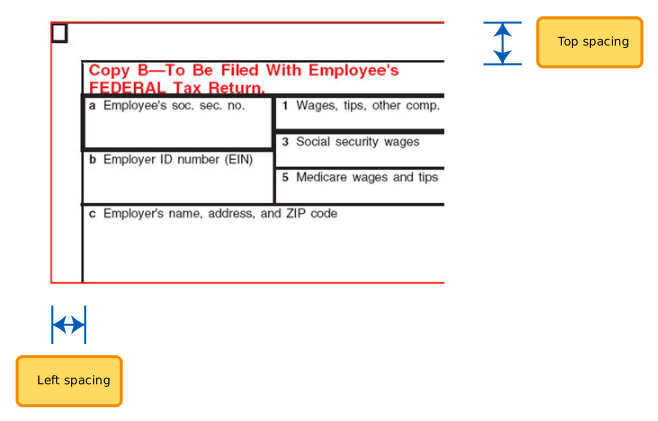
Form Alignment Override Top
| Sets the distance in millimeters between the top margin of the W-2 and W-2C forms and the start of the topmost quadrant boxes.
If necessary, override the default alignment of W-2 and W-2C form stock. | |
Form Alignment Override Left
| Sets the distance in millimeters between the left margin of the W-2 and W-2C forms and the start of the leftmost quadrant boxes.
If necessary, override the default alignment of W-2 and W-2C form stock. | |
Electronic Signature Text - Use Default
| Displays the message provided by Workday when employees change their elections for receiving printed W-2s and W-2Cs. Applicable only when you enable employees to opt out, using the Company Payroll Printing Options task.Clear the check box to enter and display a custom message. | |
Electronic Signature Text - Override
| The message employees see when they change their year-end tax document printing election. | |
Output File - Maximum number of W-2s in each PDF
| Each PDF that Workday creates displays the selected number of W-2s. | |
Electronic Signature Text for T4, T4A, and RL-1 - Use Default Electronic Signature Text for T4A-RCA, RL-2 and NR4 Forms - Use Default | Displays the message provided by Workday when employees change their elections for receiving printed year-end tax documents.
Applicable only when you enable employees to change their elections, using the Company Payroll Printing Options task.Clear the check box to enter and display a custom message. | |
Electronic Signature Text for T4, T4A, and RL-1 - Override Electronic Signature Text for T4A-RCA, RL-2 and NR4 Forms - Override | The message employees see when they change their year-end tax document printing election. |
W-2 Form Margin Alignment Override
Payroll Administrator Results
Option | Description | More Information |
|---|---|---|
Disable Payroll Result Profile
| Workday disables the Export to Excel and View Related Information functions, accessible as icons on the top right of most reports, to improve performance of the View Payroll Results report. Disabling these functions on this report enables data to load more rapidly. Select this check box if you want to use these functions. | |
Disable Pay Worklet on Mobile
| Select to hide the Pay worklet from workers' mobile devices. If selected, workers can't access their pay information using the Pay worklet on mobile. Workers can access their pay information in the Benefits and Pay Hub. The checkbox is cleared by default, making the Pay worklet visible to workers on their mobile devices. |
Data Entry Check Options
Option | Description | More Information |
|---|---|---|
Switch on Data Entry Check everywhere
| Enables you to receive data entry check messages from all areas of Payroll that are enabled for the feature. | |
Select areas to switch on Data Entry Check
| Enables you to choose which areas to receive messages if you turn off messaging for data entry check everywhere in Payroll. |