
Concept: Reports Quick Tour
When you select
Reports
from the main navigation menu, you can see an overview of all the report folders and report details. Use these capabilities on the page to navigate the web reports:
Option
| Description
|
|---|---|
Search | Enables you to search within a folder or across all folders using keywords. Search results display all reports with titles that match your search term. Search results remain until you run another search. |
Folders | Contain sub folders and saved reports for which you can view details. Use the breadcrumbs at the top to navigate the folder structure. |
Report details | Displays a list of sub folders and reports within a selected folder. Also displays details such as report output format, owner, last viewed date, and last updated date. You can:
|
Actions
| Displays context menu options available for managing folders or reports. |
Report icon | Identifies the reports or file types next to the report names. Hover over the icon for more information about the report type. |
Report Folders
You can't delete or rename the default folders, but you can create sub folders within these folders. Subfolders under
Shared
are visible to any users with access to reports. Default folders include:
Option | Description |
|---|---|
All
| Contains all reports across all folders including Personal, Shared, Favorites, and Reusable. |
Personal
| Saves reports that you create to this folder by default. |
Shared
| Contains reports that:
|
Favorites
| Contains reports that you added to your favorites. In the folder, you can select the check box for a report and use the up and down arrow icons to rearrange the reports within the folder. |
Reusable
| Contains reports that you or others have saved as reusable. Use the reusable report elements to create reports with a similar configuration. |
Schedules
| Contains all schedules that you created for snapshots or live report notifications for matrix reports. |
Report Viewer Toolbar
Once you click a report, you can view the data in it. The options for model and transaction reports are similar to matrix reports except these:
Option | Description |
|---|---|
Return to undrilled report
| This option doesn't apply to model and transaction reports and doesn't display for these report views. |
Filter report
| This option doesn't display in the matrix report views. Use this option to filter model and transaction reports results by a specific criteria. |
Report Builder
To create any report type, you use the report builder.
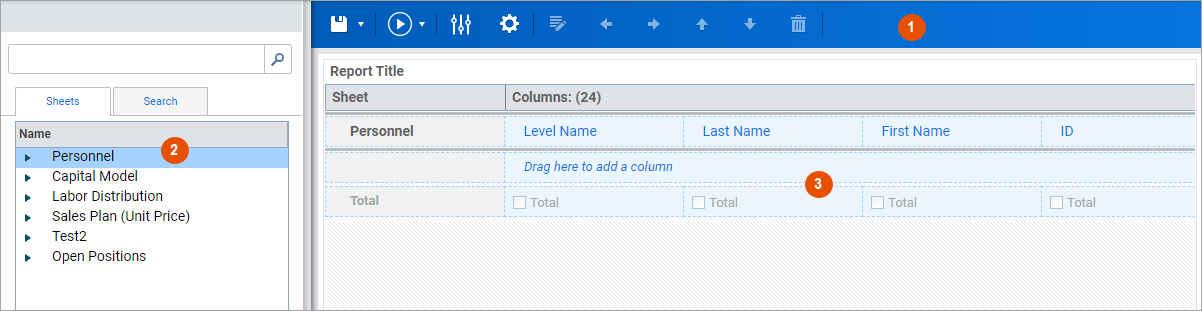
The report builder interface for matrix, model, and transaction reports consists of:
Option | Description |
|---|---|
1 | The icons on this toolbar can vary depending on the report type. |
2 | You can drag and drop reporting elements from this pane onto the design area. |
3 | The design area where you build the report. |