
Concept: Matrix Report Builder
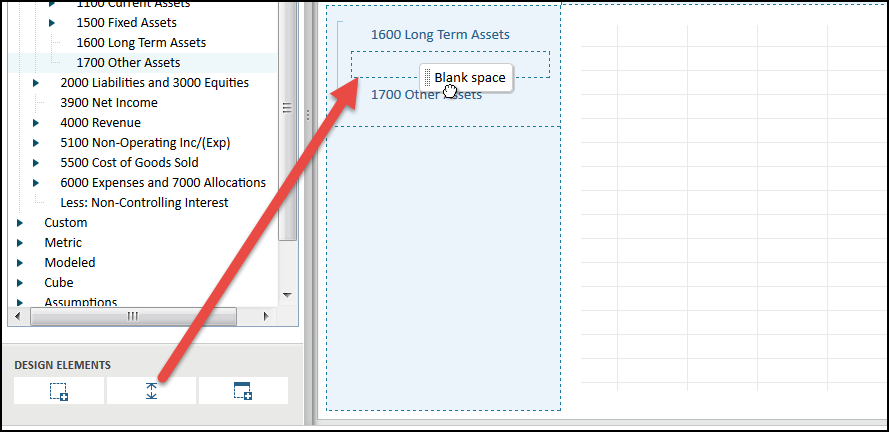
The matrix report builder includes design elements that enable you to create segments, spacers, and customer headers for your report. You can find the design elements at the bottom of the left pane.
To use a design element in a report, you can drag the design element into the rows or columns within the design area.
Report Tiers
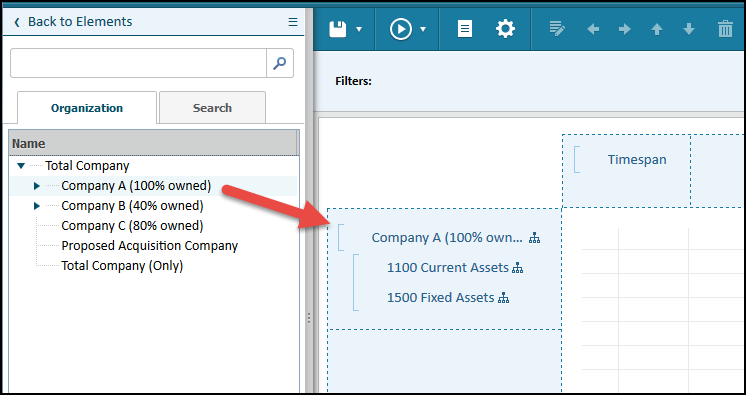
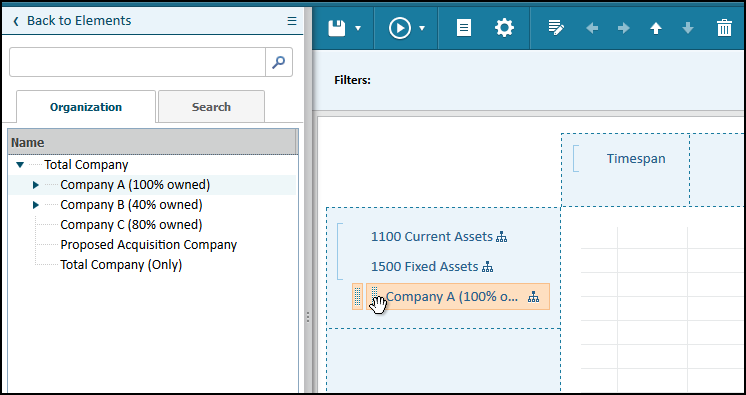
You can nest elements within other elements on the report rows and columns to create tiers. Each tier can include elements of only 1 type such as a tier with all accounts, a tier with all levels, and a tier with all versions.
Example: When you use a time element with a nested version tier on your report, the report displays:
- A column header for time.
- Sub columns below the time column for the versions.
To create an outer tier, you drag an element above other elements.
To create an inner tier, you can drag an element below other elements.
Searching for Elements
You can use the matrix report builder to search for all existing elements in your model. Searching can be helpful when you:
- Want to see a list of all elements with a similar name. You can select theShow account codesreport property to display account elements prefixed with their codes in the report.
- Know the name of an account but don't know its account type or location.
- Find an element referenced in a formula but don't know its location.
The search results return the element names and their locations. You can use this information to determine if an account lives directly in a modeled or cube sheet or in the GL, custom, metric, or assumption accounts hierarchy.