
Worklets and Dashboards
Overview
Worklets provide users quick access to frequently referenced data and tasks common to a specific functional area. Workday delivers worklets typically found on the Home page, such as Pay or Benefits. Worklets on the Home page are also referred to as Applications. Workday can enable custom reports as worklets for use on landing pages and dashboards, allowing users quick access to key reports and analytics. In addition, embed reports in a business process to provide context to the task and enable users to make informed decisions. Display reports on mobile dashboards for easy access to analytics anywhere. This chapter will focus on deploying custom reports as worklets.
Dashboards allow you to easily organize and deploy data to target audiences. You can configure Workday delivered dashboards, and custom dashboards to display groups of custom reports enabled as worklets. You can also use Workday dashboards for more than worklets and analytics. Configure menus and announcements to allow users to access not only reports, but also key tasks, links, and announcements.
Objectives
By the end of this chapter, you will be able to:
- Enable a report as a worklet.
- Configure the design of a worklet to align with dashboard requirements.
- Troubleshoot why users cannot access a dashboard.
- Add a worklet to an existing dashboard.
- Configure prompt sets for dashboards.
- Create custom dashboards that display visual data across multiple tabs.
- Configure menus and announcements.
- Explain how to embed a report into a business process.
Worklet Configuration
Workday displays worklets as a "tile" (square) on dashboards and as a "bubble" (circle) on a landing page (i.e., Home and Workbench). You can enable custom reports as worklets and configure them on landing pages or dashboards. You can also enable advanced, matrix, nBox, transposed, trending, and composite report types as worklets. However, you cannot enable search and simple report types as worklets.
When viewing a report as a worklet, there are a few settings available. Select the Configure icon to access the worklet options. Options can include:
- Refresh: Refresh the data manually.
- Edit Settings: Modify the report prompts if there are any available.
- Restore Default Settings: Return to the default settings, if any.
- Show Chart/View Table: Show the report in chart or table form instead.
- Download to Excel: Save the report to an Excel workbook.
- More Information: View help text, if configured.
- View More: Return the report configured in the Maximize Report Options field.
Enable a Report as a Worklet
You must enable a report as a worklet before you add it to a dashboard or landing page. To enable a custom report as a worklet, go to the Output tab of the report definition and configure the Worklet Options. The available worklet options are:
Field | Description |
|---|---|
Enable as Worklet | Allow the report to be output as a worklet. |
Available on | Specify where the worklet will be available to add. Options include landing pages, dashboards, and mobile reports. |
Maximum Number of Rows | Control the amount of data output on the worklet. The default is 10 rows and the maximum is 100. |
Maximize Report Options | When you select the View More option for the worklet, specify which report to execute. By default, the same report will run, however, you can specify a different report using this field. |
Refresh Data | Indicate if the worklet should refresh the data every time the user accesses the worklet or just once per sign-in. |
Worklet Icon | Specify a worklet icon to display as the "bubble" on a landing page. |
Options | Specify options for hiding the table border or column headings. |
Design Considerations
There are several items to keep in mind when designing reports for use as a worklet.
- Prompts: Configure prompt defaults.
- Space (100 rows displayed): Use charts, sort and filter, and suppress columns.
- Performance (30 seconds): Design your report efficiently and use an indexed data source to reduce performance times.
A best practice is to configure prompt defaults when enabling a report as a worklet if the custom report prompts the user for a value. Report output should display automatically when accessing the page.
Due to space restrictions, consider the amount of data output and number of fields configured. The system restricts worklets to displaying a maximum of 100 rows when displayed as a worklet on a landing page. You can use charts to visualize data and convey a lot of information in a small space. Additionally, sort sequence and filter criteria can help ensure only the essential data is output. A best practice is to start small, giving the user just enough information to determine if they need to select "View more… " to display the maximized report. Optionally, configure a given field (report column) not to display when executed as a worklet. This option becomes available for reports enabled as worklets.
Design worklets to load in less than 30 seconds or else they will not render on a landing page or dashboard. Choose an efficient report design for both performance and display. You can configure up to six worklets on a dashboard tab with a maximum of six tabs.
User-Level vs. Tenant-Level Worklet Configuration
Workday configures worklets manually, by user, on landing pages or dashboards. Also, users can set the worklets as optional or required for authorized security groups at the tenant level.
User Level – Manual Configuration
A user can manually configure worklets on a landing page or dashboard if:
- The user can access the landing page or dashboard.
- The user can access the worklet (e.g., the user owns or shares the custom report).
- The user allows the worklet for that landing page or dashboard. Notice the "Available on" configuration in the report definition/worklet options.
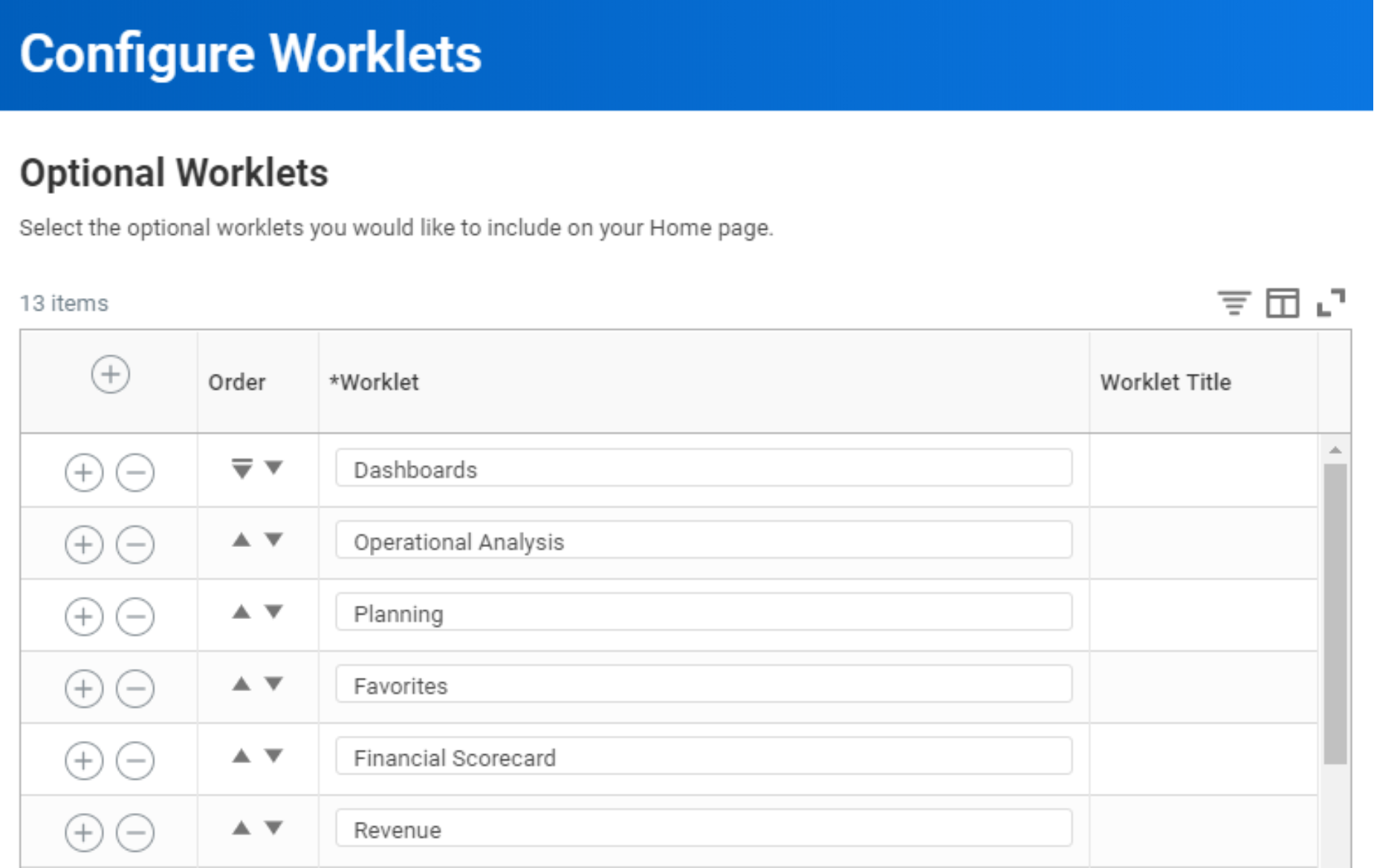
To configure worklets on landing pages or dashboards at the user level, select the Configure this page icon. You can find the icon in the upper right corner of the landing page or dashboard. Add, remove, or reorder worklets allowed for that landing page or dashboard.
You cannot manually configure required worklets (defined at the tenant level). Only users with security access to the worklet can configure and add worklets (i.e., reports shared with them or reports they own).
Tenant Level
You can configure worklets as optional or required for authorized security groups at the tenant level if:
- You allow the worklet for that landing page or dashboard. Notice the "Available on" configuration in the report definition/worklet options.
- The worklet (custom report) owner shares with security groups.
Use the
Maintain Dashboards
report to configure required and optional worklets for a given landing page or dashboard. Use of the Maintain Dashboards
report requires access to the Setup: Tenant Setup - Worklets
domain.Editing a dashboard from this task allows you to configure worklets on that dashboard or landing page, as well as control the worklet display size. You can configure optional and required worklets for all authorized or specific security groups. Authorized security groups include security groups with access to the worklet.
Field | Description |
|---|---|
Required for Groups | This field specifies the security group that can access to the worklet. |
Required? | Selecting this checkbox makes the worklet required for the authorized security groups listed in the Required for Groups field. If you do not select the checkbox, the worklet is optional for the listed security groups. |
Worklet Sizing | You can select 1x or 2x to control the size of the worklet on the page. The size of the worklet will respond to the available viewing area. |
Worklet Title | Specify a worklet title here (different from the report name.) This worklet title only displays on a dashboard and not when the report runs independently. |
You can only configure custom worklets at the tenant level when the custom report owner shares the worklet with other security groups.
Security
As we have seen, the user needs access to the landing page or dashboard as well as worklet access (custom report).
Dashboard Security
Workday secures dashboards and landing pages to domains. A user must belong to a security group with permissions to the domain securing the landing page or dashboard in order to view the page.
To determine the domain securing a given dashboard, select Edit and access the Settings tab from the
Maintain Dashboards
report.You can also get security information for the dashboard using a valuable security report called
View Security for Securable Item
. This report will also show you the securing domain as well as the permitted security groups for the domain. Remember that security in Workday is configurable.You can edit domain security policies to add or remove security groups to meet your requirements.
- Run theView Security for Securable Itemreport.
- Enter the name of the landing page or dashboard.
- SelectOK.
- Find the desired landing page or dashboard.
- SelectView Security.
- Delivered dashboards show as: (Report (XpressO))
- Custom Dashboards show as: (Custom Dashboard)
- View the Permitted Security Groups.
- To add security groups, use theRelated Actionsicon for the domain security policy shown.
- SelectDomain Security Policy>Edit Permissions.
Worklet Security
You can add or configure worklets on "allowed" landing pages or dashboards, per the report's worklet options. The Available On field must specify the landing page.
Once on a given landing page or dashboard, users are able to add worklets they can access:
- Delivered worklets: Workday secures delivered worklets to domains. Users must have a security group with permissions to the domain securing the worklet. Use theView Security for Securable Itemreport to determine the security for a delivered worklet.
- Custom worklets: Since these worklets are custom reports, the owner of the report must grant access to or share the custom report with the user.
The custom report owner can share the report with users or security groups with access to the report's data source.
Menus and Announcements
You can use Workday-delivered or custom dashboards for more than worklets and analytics. Configure menus and announcements using the
Maintain Dashboards
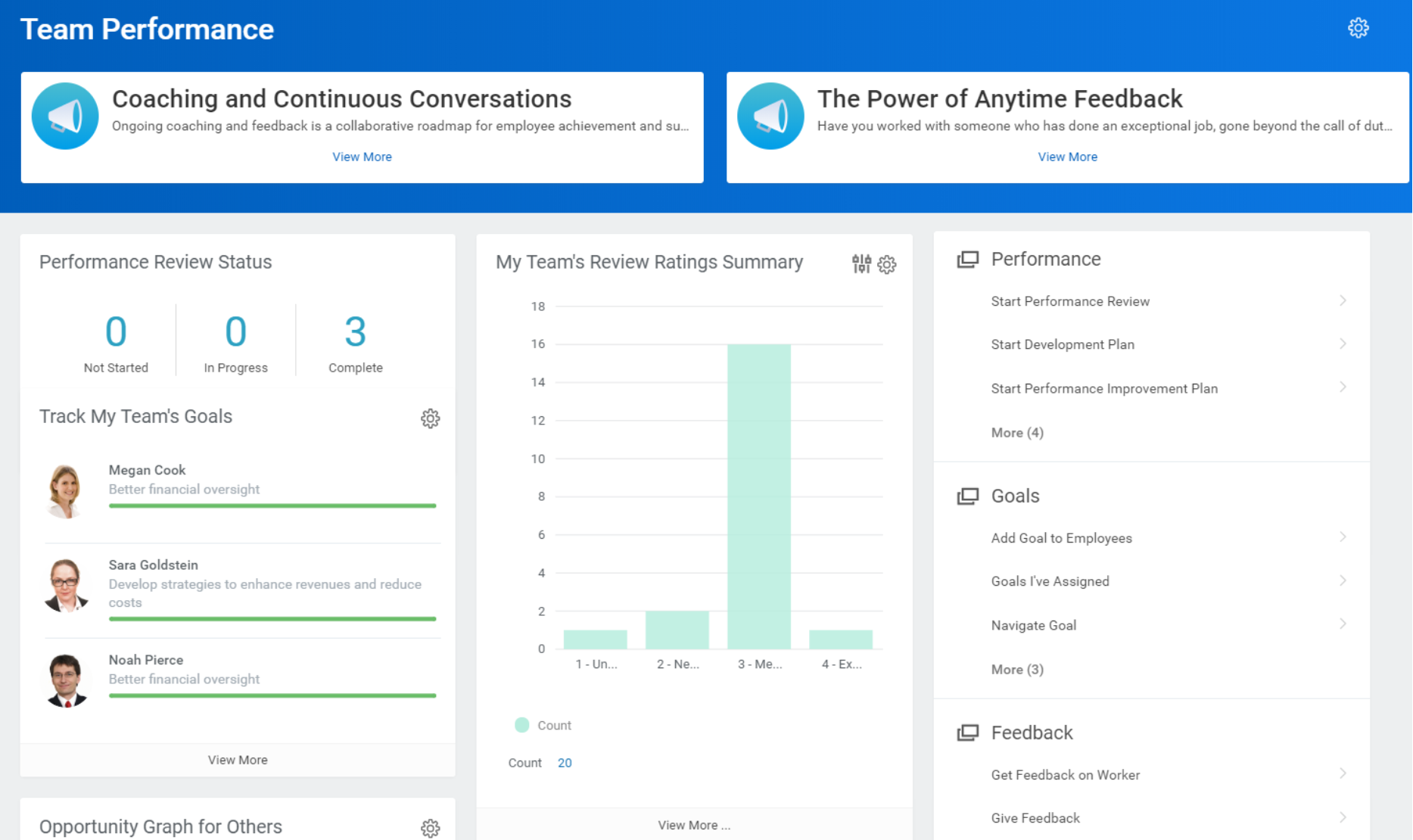
report to allow users to access not only reports, but also key tasks, links, and announcements.Menus are available for dashboards (both delivered and custom), but not for landing pages such as Home or Workbench, and are configurable at the tab level. Workday allows announcements on dashboards and landing pages but are configurable at the dashboard level.
Menus
Menus allow you to configure tasks, links, and custom reports in a dashboard tab.
The
Set Up: Tenant Setup - Worklets
domain security policy secures the Create Custom Allowed Worklet
task option. The same domain security policy also secures the Maintain Dashboards
and Edit Dashboard
tasks. A dashboard user will only access tasks, custom reports, and links for which they have security access. However, anyone with access to edit dashboards can:- Add and rename tasks without affecting the same task on other dashboards.
- Search for any task, including removed tasks, by searching "customworktask:task name."
Example
: The Academic, Invoice and Payments, Report Administrator, and Team Performance dashboards have tasks enabled that you can configure on menus.Announcements
You can configure announcements for all dashboards and landing pages, including Home. They can include an action, report, or link that will display in the announcement box. Similar to allowed Menu tasks, Workday determines the allowed actions.
Some common configurations include:
- A rule to target a specific audience using theCreate Announcement Ruletask.
- An image or video to display with the message.
- An expiration date for the announcement.
Option | Description |
|---|---|
Rule | Select a condition rule that identifies the message recipients. If you leave this field blank, all users access this message. Use tasks:
|
Expiration Date | Set a date where users no longer have access the announcement on the dashboard or landing page. |
Message From / Message Title | Specify who the message is from or enter a message title. |
Show Current Photo / Upload Custom Image |
|
Message | Type the message body of the announcement here. |
Video | Specify a title and description, then select an image preview and enter the URL for the video (hosted outside of Workday). Videos open in separate browser tabs. |
Action/Custom Report/External Link | Select an option for including direct links in the announcement to:
|
Limits and Performance
Limits
The system limits how many worklets landing pages and dashboards display. An alert will display to users attempting to configure additional worklets, and the worklets exceeding the limit will not display in the output.
Example limits include:
- Home: The first 20 configured worklets display, starting with required worklets.
- Workbench: The first 12 configured worklets will display, starting with required worklets.
- Dashboards: You can configure six dashboard tabs, each with a maximum of six worklets. The first six worklets display, starting with required worklets.
Performance
Use the most efficient data source for the worklet's intended users. For example, for worklets designed for the Manager role, you might use a data source like My Direct and Indirect Workers. This data source returns only the relevant workers, rather than initially getting data for all workers (like the All Workers data sources) then filtering out the results. Using a data source specifically built for the audience can improve performance, particularly when using a mobile device.
Where possible, design the worklet using an indexed data source and use indexed fields. For example, use an indexed data source (i.e., Workers for HCM Reporting or Trended Workers) rather than a nonindexed data source (i.e., All Workers or All Active and Terminated Workers). Notice performance improvements using indexed data sources whenever the set of data returned is anything other than the full set of instances or rows.
Use the Optimized for Performance checkbox when creating a report using an indexed data source in order to only select indexed fields in your report definition.
There are several indexed data sources in your tenant that you can extend to include additional nonindexed or even calculated fields. These newly added fields will then become indexed as well. The ability to extend indexed data sources and add new fields you can index provides you with some key benefits:
- Add nonindexed fields to a report without negatively impacting performance.
- Create calculated fields for a report without negatively impacting performance.
- No need to rebuild your reports; After extending a data source, easily edit any reports using that data source to add the newly indexed fields.
To extend a data source, use the
Maintain Custom Data Source
task:- SelectCreate Data Source Extensionto select a data source to add additional fields to.Resource: Please check Community for more information on which data sources are currently available for extension.
- After adding your fields, return to theMaintain Custom Data Sourcereport and selectSubmit for Approval. Doing so initiates theCustom Data Source Extension Approval Eventbusiness process, which you can configure to include any necessary reviews and approvals to suit your business needs.
Not all fields are suitable for indexing. To check if a nonindexed field is suitable for including in an extended data source, use the
Field Suitability for Business Objects
report. This report will display all of the fields on a specified business object, indicating if the field is suitable for indexing or not. If not, the report also displays alternate fields that return the same or similar data suitable for indexing. Use the report as a reference before adding fields to an extended data source.Share worklets using the simplest security groups possible. For example, domains that typically have more restricted audiences like Managers and Talent Partners only secure the My Direct and Indirect Workers data source. However, a data source like All Workers can potentially return all rows. Doing so suggests that this data source is associated with domains that have more security groups, possibly requiring more complex and time-consuming security evaluations.
Where possible, employ user-based security groups rather than job-based security groups. For example, put the CEO, CFO, and any other job-based security groups that have access to All Organizations, into user-based groups. Doing so optimizes worklet performance for these individuals. For example, replace the CEO job-based group with a CEO user-based group, and assign the CEO to the CEO user-based group, and so on. This approach reduces the complexity of the security evaluation required, improving the performance of the worklet.
Inform users to expect shorter worklet response times after their initial sign-in to Workday is complete. Workday executes worklets once per user session (unless you manually refresh). So, when you initially sign in to Workday, any worklets associated your landing pages or dashboards retrieve data as required to render the worklet. However, once you have accessed worklet once, it renders more quickly on subsequent requests since it is now in memory (cached). The alternative (if worklet will take more than 30 seconds) is to create a report that 'lists' the report for execution. So, when the user executes the report, it will run outside of the worklet. Data sources that include the Report Task field (which displays the executable report link) are:
- Custom Reports I Can Run
- All Custom Reports
- My Custom Reports
- All Standard Reports
- Standard and Custom Reports I Can Run
- All Workday-Delivered and Custom Reports
Use a Menu to create a list of reports if there are too many or if they take more than thirty seconds to run.
Resource
: For more information on report performance, refer to the Performance Reporting: 13 Golden Rules for Effective Troubleshooting & Optimization article in Workday Community.Mobile Reports
You can access Workday reports on mobile devices such as iPads or Android phones. Allowing you to key data on the go, when you need it, and where you need it. Workday-delivered and custom dashboards will show automatically on mobile devices if you have secured access to those dashboards.
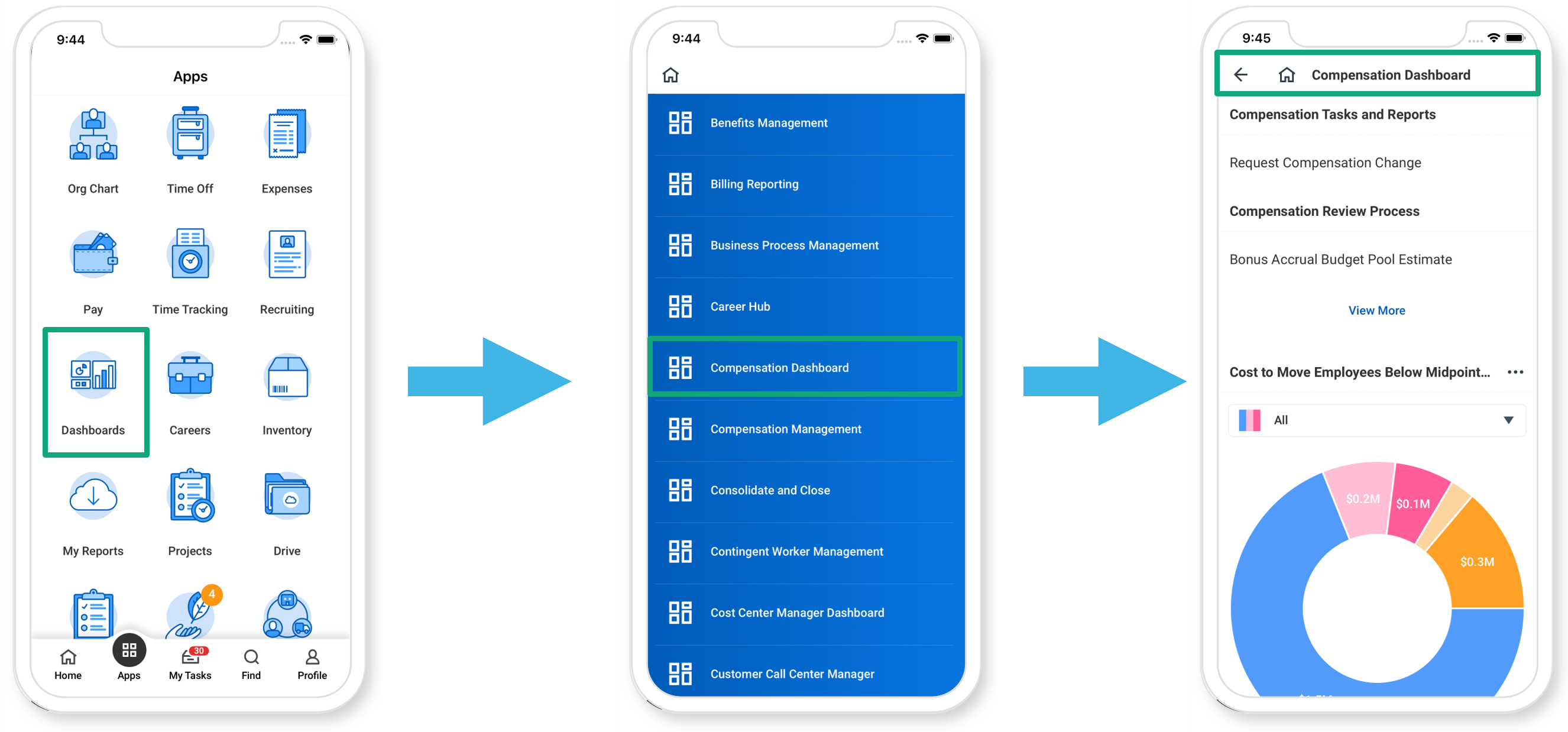
You can also configure individual reports to show outside of dashboards, under the Mobile Reports landing page. Configure Workday custom reports to display under Mobile Reports from a mobile device by following these steps:
- Enable the report as a worklet from the Output tab of the report definition.
- Make the report "available" on Mobile Reports.
- Configure the Mobile Reports landing page.
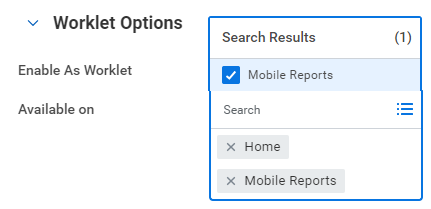
Similar to other landing pages and dashboards, you can configure worklets for mobile at the tenant level, as required or recommended, using the
Maintain Dashboards
report. You can also manually configure which optional worklets you want on Mobile Reports. Doing so assumes that you can access the Mobile Reports landing page and the given Custom Report/Worklet. Run the Configure My Worklet Landing Pages
task (select Mobile Reports), or the Mobile Report Configuration
task. From there, you can add/remove/reorder reports for mobile if the report is:- Enabled as a worklet.
- Available on the Mobile Reports landing page.
- Available to the user.
Mobile Report Considerations
Keep the following pointers in mind when using mobile reports:
- Workday restricts Mobile worklets on dashboards to display a maximum of 100 rows. When configured, the View More button enables you to access the full report without restrictions.
- Your data securely resides in the cloud. We avoid all local data storage except for the three instances listed below:
- PDF viewing features (e.g., pay slips, talent card) require caching the PDF in view and deleting the PDF once you close it. PDFs are encrypted with the data protection API on iOS and by the OS on Android.
- If you configure your Workday tenant to use mobile PIN sign-in and you opt for the feature, a stored, random, temporary application token facilitates authentication via PIN.
- If you enable document sharing in iOS, you can share attachments from the Workday application with other applications on the device.
- You can disable any activity relating to downloadable business data (e.g., emailing annotated reports, viewing pay slip PDFs, sharing documents) at the tenant level.
Embedded Analytics
Embedded analytic functionality enables you to insert worklet reports into specific business process steps such as an initiation step, approval step, or an action step like review. Embedding worklets into business processes allows you to view relevant contextual information as you are performing actions within the process. Thus, you can make more informed decisions and encounter fewer processing mistakes.
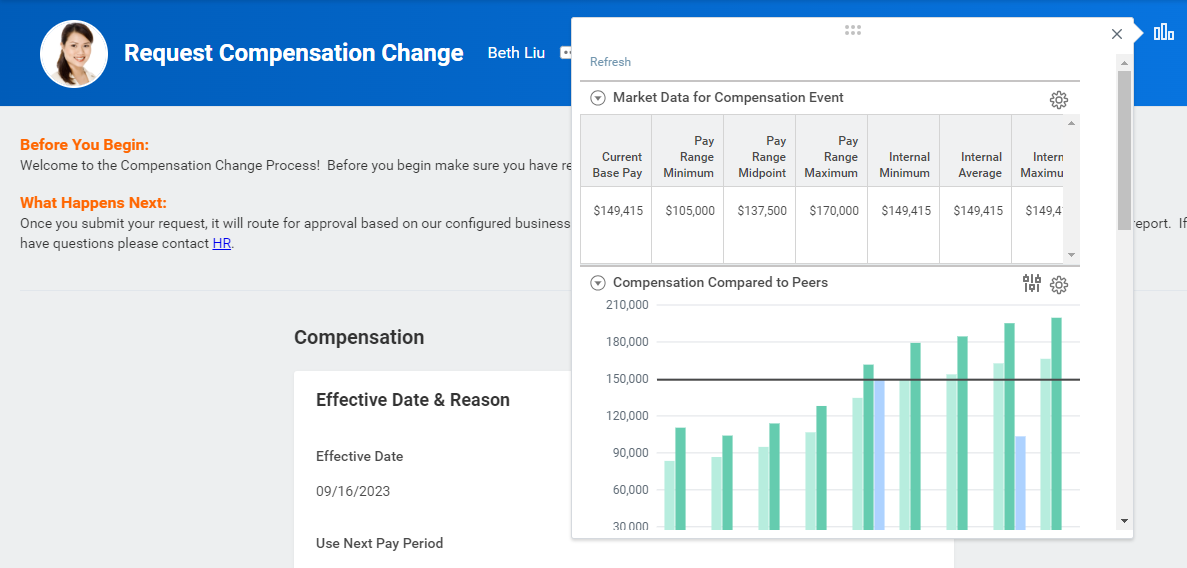
Within the given business process step, you can access embedded analytics for that task (in the upper right corner under View Related Information.) You can configure the window of embedded worklets to open or closed by default. You can also configure each report to collapse or expand by default.
Steps
To embed a custom worklet into a business process, you must first configure the worklet and then add it to the business process step:
- Enable the custom report as a Worklet and select Embedded on Tasks in the Available on field.
- Ensure that you share the report with security groups that need access and have the necessary prompts to use in business processes.
- Add the worklet to the business process step (Business Process > Maintain Related Worklets).
- Configure the worklet display and prompts on the business process step.
Configuration considerations:
- You can configure up to five worklets per business process step.
- To include worklets on an initiation step, you must configure the worklet on the default definition of the business process (rather than a copy of the default definition).
- When configuring the worklet on the step, you can map worklet prompts to the context of the event and also control display options (e.g., expanded, collapsed).
Allowed Business Processes
The
Business Process Steps Enabled for Worklets
report lets you view all of the business processes and related steps enabled for Embedded Analytics.Only the Default Definition of a business process can have an embedded worklet on the Initiation step. Copied business process definitions inherit the Initiation step worklets from the default definition.
Workday delivers several preconfigured worklets for business process steps in areas such as compensation, staffing, and talent. You can also build Custom Worklet reports to use as embedded analytics on business process steps.
Custom Dashboards
Beyond the Workday-delivered dashboards, you can also configure an unlimited number of custom dashboards. The
Maintain Dashboards
report provides a centralized administration view with options to:- View, create, edit, and delete dashboard settings.
- Configure tab, content, menus, and announcements on the dashboards.
This task allows you to:
- View all Workday-delivered and custom dashboards in the tenant.
- View the dashboard settings.
- Configure dashboard tabs, prompts, optional worklets, and required worklets for each dashboard on the tenant level.
- Delete a custom dashboard (only active if the dashboard has no worklets).
- Create a new custom dashboard via the Create Custom Dashboard button.
Additional tasks (the system secures these tasks to the
Setup: Tenant Setup - Worklets
domain):- Enable Worklet for Dashboards: Add delivered worklets to a custom dashboard.
- Remove Worklet from Dashboards: Remove worklets from dashboards.
You can configure and add worklets to each custom dashboard just as you would with preconfigured dashboards. You also have the ability to configure dashboard-specific menus and announcements.
Create a Custom Dashboard
When creating a custom dashboard, you must specify the following:
Field | Description |
|---|---|
Domain | Secure custom dashboards to a delivered or custom domain. Users with security groups permitted for the domain can access the custom dashboard. If a delivered domain does not meet the needed permissions, you can choose from up to 50 custom domains. |
Dashboard Icon | Indicate which icon to display when you add the custom dashboard as a worklet on the Home page. |
Dashboard Tabs | Shows whether or not dashboard tabs are enabled for this dashboard. |
Maximum Worklets Allowed | Indicate the maximum number of worklets allowed on the dashboard. You can create up to 6 tabs in a dashboard, with up to 6 worklets per tab. |
After defining the dashboard settings, configure the dashboard tabs and content for the custom dashboard. Determine how many tabs you need, which worklets should be on the dashboard tabs, and which security groups should have access to each worklet.
Dashboard Tabs
Every dashboard can have up to six tabs, each of which may have six worklets on it. You can configure the worklets from the
Maintain Dashboards
task. To view the configuration of a tab, select it. You can change the order in which the tabs appear on the dashboard by dragging the name of the tab up and down. To add a tab, select the Add
button.Configure the following when adding a dashboard tab:
Field | Description |
|---|---|
Tab Name | The name of the tab as it will appear on the dashboard. |
Configurable By User | Selecting this checkbox indicates whether a user can add or remove worklets from the custom dashboard. Remember that custom dashboards using prompt sets are not user-configurable. |
Prompt Set (Optional) | To enable prompt sets for a dashboard tab, you must clear the Configurable By User checkbox. Then, the user may select or create a dashboard prompt set from this field. |
Dashboard Prompt Sets
Prompt Sets
You can configure dashboard prompt sets at the tab level and provide an enhanced user experience that allows for flexibility with report deployment. Prompt field values set at the dashboard tab level apply to the worklets configured for that tab. Doing so, allows the user to view data across all of the worklets on that tab with one prompt set.
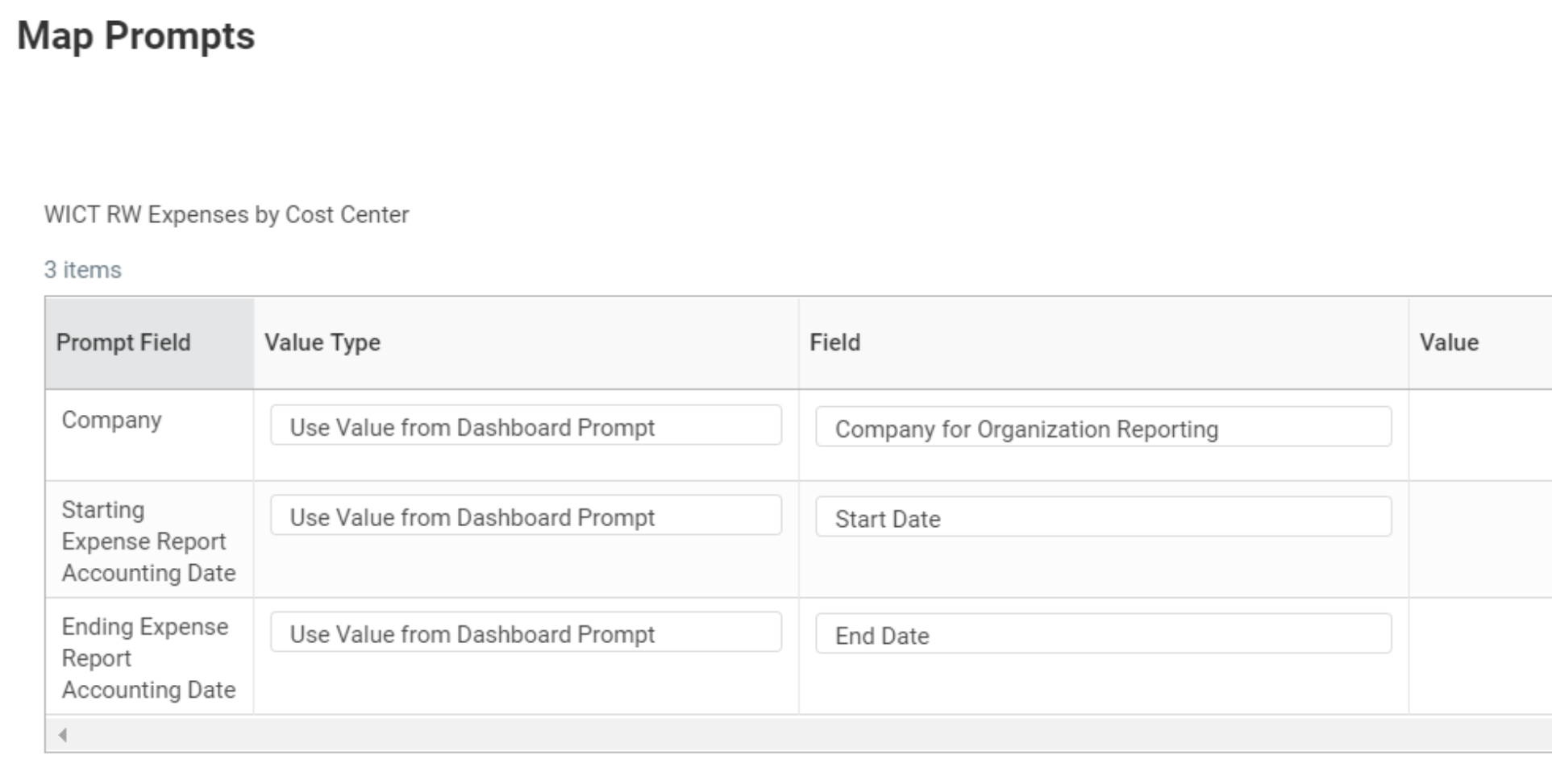
When configuring content for a custom dashboard tab with prompt sets, you can only configure required (not optional) worklets. Dashboard users are not able to add or remove worklets from a dashboard that uses a prompt set. Additionally, the dashboard creator or a user with the appropriate security must Map Prompts to specify from where the worklet prompts should get their values. The options for mapping prompts are as follows:
- Use value from dashboard prompt.
- Use default value from worklet.
- Specify default value.
- Determine default value at runtime.
Chapter Summary
- You can enable a custom report as a worklet and add it to a delivered or custom dashboard.
- When configuring worklets, consider that worklets have space and performance limitations.
- Consider the security of the report and the dashboard when determining which groups should have access to the worklet.
- Use report output throughout Workday by embedding reports in business processes.
- Enable reports as worklets for mobile devices to access analytics anywhere.