Business Processes
Overview
In this chapter, you will create a new business process to approve and update new business object instances.
Objectives
By the end of this chapter, you will be able to:
- Create a new business process in App Builder.
- Launch a business process from a PMD file.
- Define a business process that triggers an orchestration.
Business Processes
Workday-delivered business processes route tasks to authorized users based on their membership security groups and organization hierarchy. With Workday Extend, you can author business processes in JSON that:
- Extend Workday's business process framework to create new business processes.
- Process app data by capturing approvals and triggering orchestrations
- Are fully reportable and auditable.
Workday Delivered vs Workday Extend Business Processes
Make sure to check the developer documentation for the most up-to-date listing of available Extend business process functionality.
Type | Workday-Delivered | Workday Extend
|
|---|---|---|
Step Types
|
| Supported:
Not Supported:
|
Business Process Event API Requests
Each created business process generates an API:
https://api.workday.com/apps/{applicationName}/v1/{businessProcessName}Events
In this example, you would replace the
{businessProcessName}
with the Name of the business process you created in App Builder.The business process event API only supports the HTTP POST method.
You can access the business process event API from an external app by creating an OAuth2.0 client on the developer site and adding the Workday-owned scope to the resources.
Note
: The Business Process Event API does not support bulk operations.Business Process Step Types
Each step in a business process has a step type. These step types are Workday-delivered and control what happens when the business process runs a particular step.
Here are some common business process step types:
- For user input:
- Action - Review: edit data and approve
- To Do: instructions for a task inside/outside Workday
- Action - Subprocess: trigger another business process
- For background processing:
- Service: start a Workday-delivered service (e.g., orchestration)
- For approval:
- Approval: approve or deny the business process
For more details, refer to the Administrator Guides on Business Process Step Types.
Page Routes for Business Process Steps
You can add custom pages to these steps and views of a business process:
- Action steps.
- Approval steps.
- Details pages - custom page that enables you to specify information to display on the business process event details page.
- Revision pages - custom page that displays in a worker's Inbox after an approval step is sent back. Worker can revise business object data and resubmit the request for approval.
For more information, refer to the developer documentation: Concept: Business Process Steps and Page Routes.
Business Process Design Considerations
Just like with all of the other Extend model components, it is important to map out your app and your data model before you begin development.
Consider the following when designing your business process requirements:
Parallel requests
: Will your app require or allow parallel requests? Multiple requests for charity donations are one thing, but submitting multiple reimbursement requests might be another.Business process event history
:As discussed with business objects, Workday does not lock business object data after a business process completes (e.g., approved, denied, etc.). If you want the business process event history to consistently reflect business object data at the time of the business process event, your app configuration should not allow changes to business object data.If you update a business object after the business process completes, the event details in the business process event history could display the updated data.
Important
: The audit trail for the business object reflects the changes.If you need to update business object data after a business process is approved, consider the following:
- Add an action step to the business process definition after the approval step.
- Create an asynchronous orchestration to update the business object after approval.
- Use a scheduled integration to parse daily approval events and update business object data.
Custom pages
: You can add custom pages to these steps and views of a business process:- Action step.
- Approval step.
- Event details - custom page that enables you to specify information to display on the Details page for the business process event.
- Initiation - custom page the enables a worker to initiate a business process.
- Revise - custom page that displays in a worker's Inbox and enables the worker to revise business object data and resubmit the request.
Only the action step and the initiation and revise pages allow for
outBound<span>E</span>ndPoints
from a custom page.Associate a business object with a business process
: Once you associate a business object with a business process, you can no longer delete that instance of the business object.Business processes and constrained security groups
: This is where understanding data modeling and your app architecture will come in. You can route a business process to constrained security groups, like Managers, if you set the secureByTarget
attribute on the target instance of your business object definition.Delegate business processes
: Workday Extend business processes do not support delegation.Launching an Orchestration from a Business Process
To launch an orchestration from a business process, you must do the following:
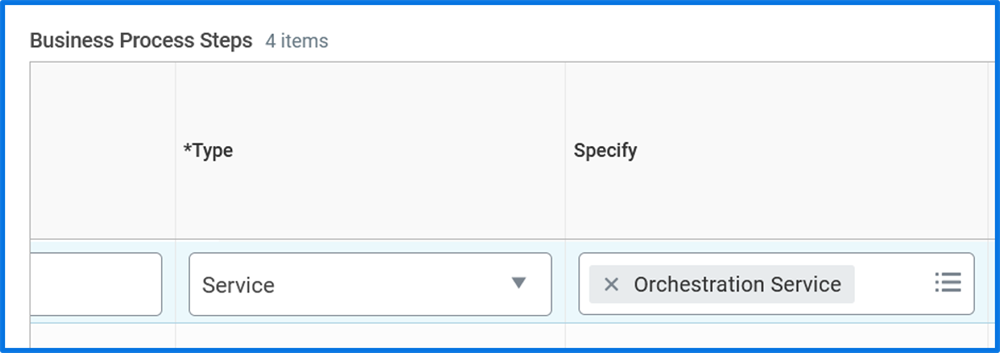
- Add a Service step to your business process definition. For the Specify column, enter Orchestration Service.
- After you save your business process definition, configure the orchestration.
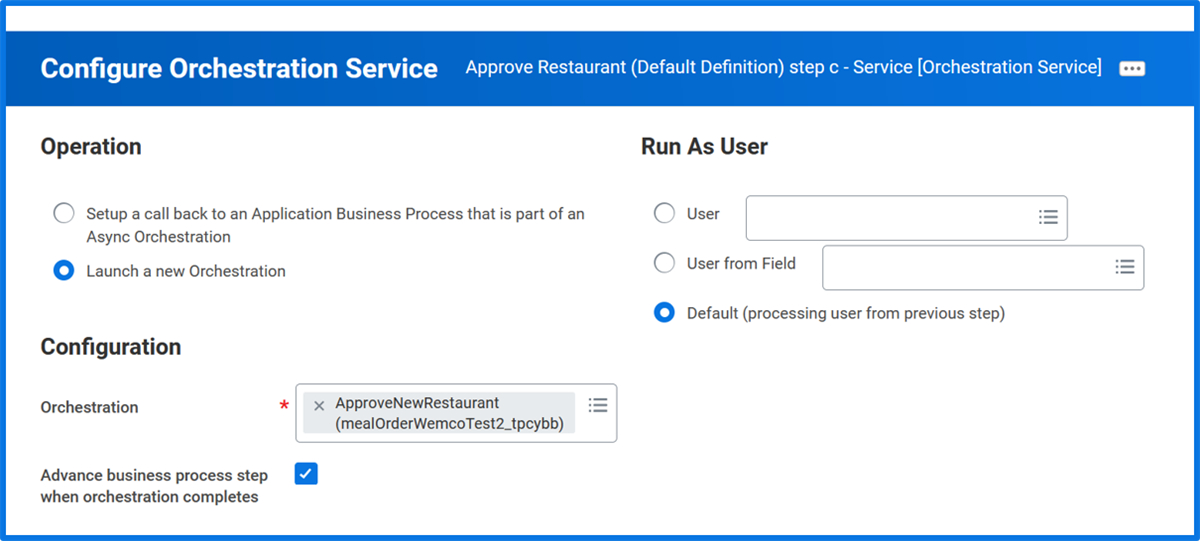
- If your orchestration accepts parameters, configure the values to pass in.