
Advanced Security
Overview
In this chapter, you will configure the security for your Extend app. You will create separate security domains to control which users can interact with different model components. You will also secure PMD pages so that they can only be accessed by certain users.
Objectives
By the end of this chapter, you will be able to:
- Create and configure a security domain.
- Secure a model component using a security domain.
- Add page-level security to a PMD file.
Security Domains
You can define security domains for your Workday Extend data model or app using App Builder.
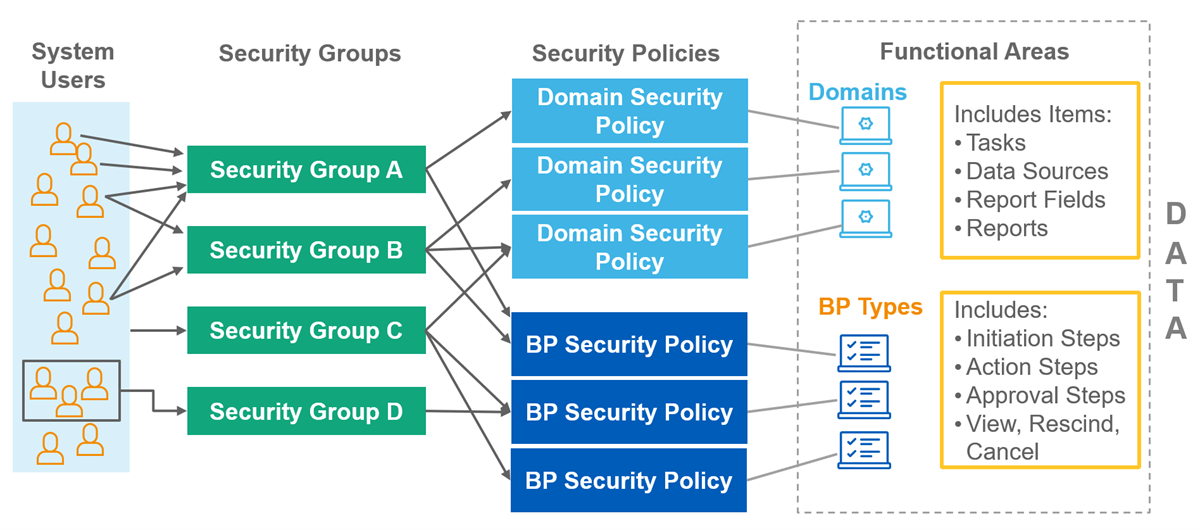
These security domains extend the Workday configurable security model. They enable you to leverage existing security groups and roles, simplifying access controls.
Important
: When you create new security domains for your Workday Extend apps, Workday recommends that you use the same naming conventions as Workday-delivered security domains. Refer to the developer documentation for more details: Reference: Security Domain Naming Conventions.You can define multiple security domains for your app. You must use UpperCamelCase when defining values. Example:
"name": "ExampleSecurityDomain".
After creating your security domain in App Builder, you need to save your changes to App Hub and deploy them to your tenant. From your tenant, you can configure the domain security policy and add the appropriate security groups. Remember to run the Activate Pending Security Policy Changes task to make your changes take effect.
Designing a Security Model
When designing a security model, consider the following:
- What are the securable items in your app?
- What are the different levels of access that users need to those securable items?
For example, the Meal Order app has the following securable items:
- Restaurant business object
- Restaurant Order business object
- Order Item business object
- Restaurant Menu attachment
- Meal Order task
- View Restaurant task
- Approve Restaurant business process
Imagine that you decide the Meal Order app should serve two different user personas:
- The User persona:
- Should be able to view restaurants and create restaurant orders
- Should include everyone in the All Employees security group
- The Admin persona:
- Should be able to create restaurants and upload restaurant menus
- Should include the HR Administrator and the Chief Human Resources Officer
With those two questions answered, you can map out what level of access each persona should have to each securable item in your app:
Securable Item
| Admin:
View
| Admin:
Modify
| User:
View
| User:
Modify
|
|---|---|---|---|---|
Restaurant business object
| Y | Y | Y | - |
Restaurant Order business object
| Y | Y | Y | Y |
Order Item business object
| Y | Y | Y | Y |
Restaurant Menu attachment
| Y | Y | Y | - |
Approve Restaurant BP
| N/A (BP security is configured in the tenant) | N/A (BP security is configured in the tenant) | N/A (BP security is configured in the tenant) | N/A (BP security is configured in the tenant) |
Meal Order task
| Y | - | Y | - |
View Restaurant task
| Y | - | Y | - |
Notice that the user persona has view access to some securable items and modify access to other securable items. This means you need two separate security policies for the user persona: one that grants view access, and one that grants modify access.
Since the HR Administrator and Chief Human Resources Officer are both covered in the All Employees security group (used by the user persona), you only need to create an admin security policy for the access that is unique to admin users. In this case, that includes the Restaurant business object and the Restaurant Menu attachment. Because the admin persona requires modify access to both of these securable items, you can secure them both with the same security domain.
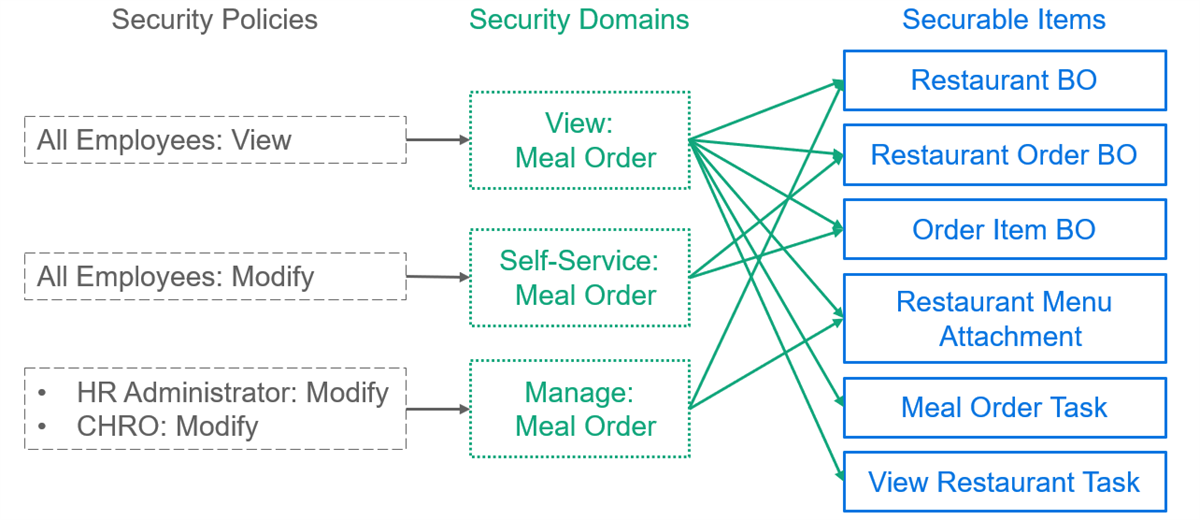
As a result, you determine that you need the following security domains:
- View: Meal Order
- Secures items to which users have view access
- Self-Service: Meal Order
- Secures items to which users have modify access
- Manage: Meal Order
- Secures items to which admins have modify access
Page-Level Security
You are able to grant or block access to certain pages in your app with security domains. Once you configure the security domain policy, only those users with access to the allowed security groups will have access to that page.
Both view and modify permissions grant access to the page.
Important
: A maximum of three security domains can be used on a page.To activate page security, you need to add the
enabledForPageSecurity
attribute to the security domain.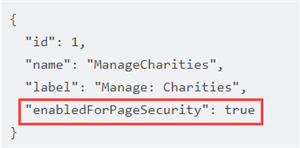
Activate page security with the enabledForPageSecurity attribute.
The page specific security is defined in the header after the PMD id.
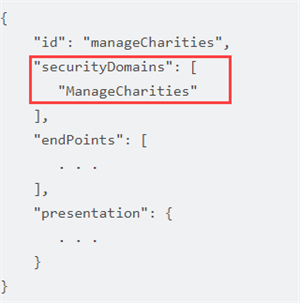
Define page security in IntelliJ.