
Relationships Between Business Objects
Overview
In this chapter, you will take a closer look at data modeling. You will explore how relationships between your business objects impact that model and its reporting capabilities. You will also begin using WQL, displaying data in list widgets, and calling PMD functions.
Objectives
By the end of this chapter, you will be able to:
- Explain the importance of data modeling.
- Use a single-instance field to relate two different business objects.
- Create list widgets.
- Execute WQL queries.
Design Considerations for Business Objects
Data Modeling and App Architecture
Model Component HCM Model
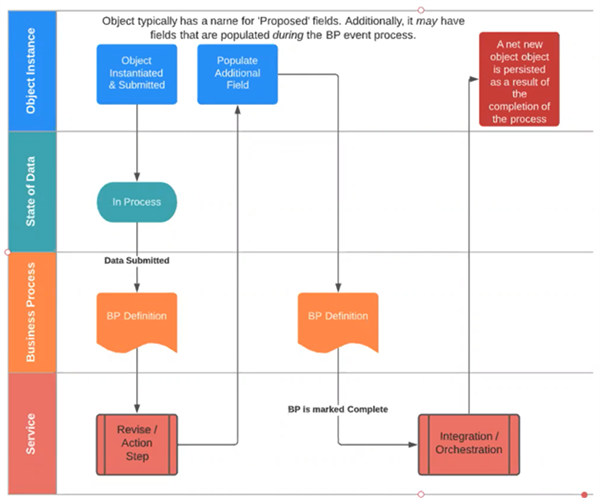
In this example, an object is created with proposed fields or proposed changes to a field. This triggers the business process where the proposed changes can be approved, revised, or denied.
Once the approver accepts the proposed changes, the business process is marked complete and an integration or orchestration kicks off the final step to persist data into a final object.
Model Component FIN Model
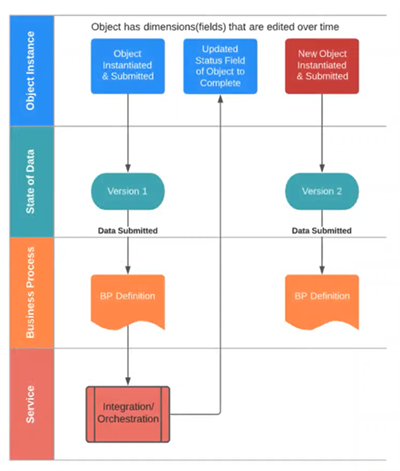
In a typical Workday Financial Management transaction, a user initiates a request and data persists to the business object immediately. There is often a status field to indicate the state of the data, and a business process is needed to approve or deny the object. An example of this is the Create Customer Contract transaction.
- Data is persisted to a contract business object immediately. A status field indicates the state of the data, or contract.
- A business process is triggered for approval or denial. The contract (object) status updates immediately.
- An amendment that creates a "Version2" is essentially another instance of the object, maintaining a history of the object.
Target Attributes
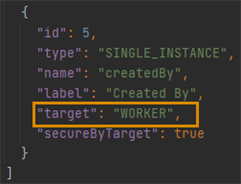
The target attribute of a business object lets you reference another business object or a Workday-delivered business object. This is only available on SINGLE_INSTANCE field types of a business object.
By referencing another business object, you can extend data that is available to your data model.
Secure by Target
When you define a field in a business object with a target attribute, you have the option of securing data from that target object.
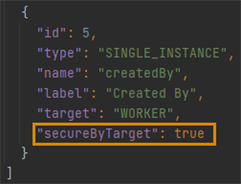
Setting this attribute to true enables constrained security access. Data displayed from this target attribute will follow constrained security at the target level. For example, if a manager is looking at data normally constrained only to their workers, this constrained security setting would hold true.
If you set the securedByTarget attribute to false, a manager and all users would be able to view data for all workers.
Important
: Note the following:- You can only use secureByTarget on one field in a business object definition.
- Do not mix constrained and unconstrained security groups in the same domain.
- securedByTarget drives constrained security access. Consider this access in your initial app and data model design.
Tip
: Do not try to create an object that is similar to an "organization" in Workday. You will not be able to use a hierarchical security model against it.Reporting and Object Dating Restrictions
Reporting Considerations
Important
: When building out your data model and app architecture, make sure you consider your reporting requirements!Reporting requirements are a large part of what will drive your data model. When building reports, if your data model includes one-to-many parent-child relationships, you must base your data source on the child object.
With this reporting structure, you need to consider the following constraints:
- The report will not be able to access other child objects.
- The report cannot identify parent objects without a child instance.
Other options to run reports on Workday Extend business objects include Prism and composite reports.
Workday Extend business objects do not support effective dating.
Workday Extend business objects that target a Workday-delivered business object have a one-way object relationship. This means when creating reports, you must assign your Workday Extend business object as the data source. This allows you to traverse the object model graph from the Workday Extend business object toward the Workday-delivered business object.
Additional Business Object Considerations
Keep the following in mind when mapping your business objects:
- There is no automatic connection between business objects and business processes. The burden is on the developer to ensuring data integrity and syncing to proper states.
- The system does not automatically lock a record after a business process completes, nor does the system automatically persist data to an object once complete. If this is a requirement, consider an orchestration.
- Updating business objects once a business process completes requires additional considerations. A best practice for this requirement is to use a "staging/proposed" business object for the business process. This will ensure data integrity in the business process event history.
- Do not invoke multiple business object events for the same business object instance.
Multi-Instance Business Objects
When designing your data-model, you also need to consider incorporating
MULTI_INSTANCE
fields to your business objects.Multi-instance fields will simplify data models and improve reporting performance.
Use cases for multi-instance fields:
- Vaccination record with a multi-instance field to capture information for all vaccinations
- Pilots license object with a field to capture certificates for each plane/license type.
Guidelines and Limitations
Single-instance and multi-instance fields share the same business object limits: 10 per business object, 25 per app (where the target is a Workday-delivered business object).
Multi-instance objects are not indexed.
Multi-instance fields cannot contain the following attributes:
- enableIndex
- secureByTarget
- useForDisplay
Important
: Contextual security is not supported on multi-instance fields.Getting Worker Data (me)
To retrieve data for the current user, you can use the
/workers/me
endpoint. This endpoint is equivalent to calling /workers/{ID}
and passing in me
as the ID.The fully constructed
workerData
endpoint is GET https://api.workday.com/common/v1/workers/me
.This endpoint returns data specific to the current user, like
businessTitle
, yearsOfService
, or primaryWorkEmail
. The following example shows what the /workers/me
endpoint returns when signed in as Logan McNeil:{ "primarySupervisoryOrganization": { "descriptor": "Human Resources", "href": "https://api.workday.com/common/v1/supervisoryOrganizations/e02485f863ec48d39a082bb95cc4abe4", "id": "e02485f863ec48d39a082bb95cc4abe4" }, "location": { "descriptor": "San Francisco", "id": "d13a7c46a06443c4a33c09afbdf72c73" }, "descriptor": "Logan McNeil", "dateOfBirth": "1971-05-25", "supervisoryOrganizationsManaged": "https://api.workday.com/common/v1/workers/3aa5550b7fe348b98d7b5741afc65534/supervisoryOrganizationsManaged", "primaryWorkAddressText": "3939 The Embarcadero, San Francisco, CA 94111", "id": "3aa5550b7fe348b98d7b5741afc65534", "primaryWorkEmail": "user@workday.net", "primaryWorkPhone": "+1 (415) 789-8904", "href": "https://api.workday.com/common/v1/workers/3aa5550b7fe348b98d7b5741afc65534", "yearsOfService": "24", "businessTitle": "Vice President, Human Resources", "isManager": true }
You can use the REST API Explorer to see what data the endpoint returns when you log into your assigned tenant.
Widgets Displaying Data as Lists
Presentation Components provides many widgets that can display data as lists. This table displays some of those widgets.
Widget | The user can: |
|---|---|
dropdown | Select a single item from a list of items. |
instanceList | Select one or more items from a list. |
checkBoxList
| Select one or more from a list of checkBoxes . |
radioGroup
| Select one in a list of radio buttons. |
Dropdown Widget
The
dropdown
widget allows users to select one item from a list. The list could either come from an endPoint
or it could be hard-coded within the PMD. The developer assigns an id
and a label
. The binding telling the dropdown
what to display is called values
(plural). This binding is different from the text
widget that uses the value
(singular) binding. Here is the most basic code for a dropdown
:{ "type": "dropdown", "id": "ddnSelectExpense", "label": "Select a Mobile Expense", "values": "<% expenseData.data %>" }
In the absence of further code, the
dropdown
will display the descriptor
from the API response. A descriptor
is like a calculated field. In the case of this API, the descriptor
concatenates the expense date, merchant, and amount into one field.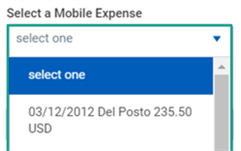
dropdown Widget with Data from the /entries API
In the above example, the
dropdown
data comes from an endPoint
. You can also hard code items for the dropdown
. To hard code the items, add an instanceList
array to the widget code. In the instanceList
array, add an object for each item you want to display. Minimally, each object needs an id
and a descriptor
attribute.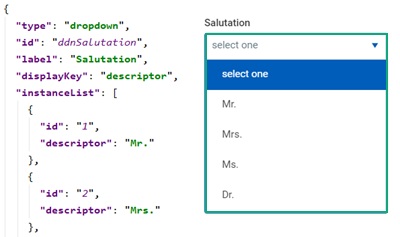
dropdown Widget with Hard-Coded Data
displayKey Attribute
A
dropdown
has additional atrtibutes. You can specify the displayKey
, which allows you to display a specific field instead of using the descriptor
.{ "type": "dropdown", "id": "ddnSelectExpense", "label": "Select a Mobile Expense", "displayKey" : "date", "values": "<% expenseData.data %>" },
The
dropdown
now displays the expense date
from the API response instead of the descriptor
.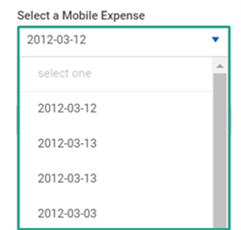
dropdown Widget with date as the displayKey Attribute
idKey Attribute
You can also use the
idKey
attribute when defining a dropdown
. In the code, we added a text
widget to the page containing the dropdown
. We set the text
widget's value
binding to reference the value chosen in the dropdown
. Here is that code:{ "type": "dropdown", "id": "ddnSelectExpense", "label": "Select a Mobile Expense", "displayKey" : "date", "values": "<% expenseData.data %>" }, { "type" : "text", "label" : "Data from Drop Down Widget", "value" : "<% ddnSelectExpense.value %>" }
With this code, the
text
widget receives the WID of the item selected in the dropdown
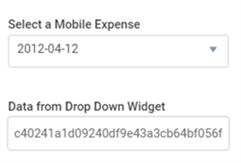
, not the date
. To summarize, the:- DefaultdisplayKeyis thedescriptor.
- DefaultidKeyis the WID.
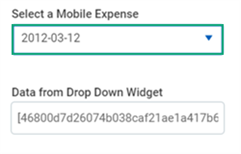
idKey Passed from the dropdown Widget
In the image above, brackets enclose the WID, as if it was in an array. The user can choose only one item in a
dropdown
. That item will be the [0]
item. To avoid this, change the value binding in the text
widget, as displayed here:{ "type" : "text", "label" : "Data from Drop Down Widget", "value" : "<% ddnSelectExpense.value[0] %>" }
The WID is no longer enclosed in brackets.
Corrected: idKey Passed from the dropdown Widget
You may not want to show the WID. Instead, you may want to display the expense's
descriptor
in the text
widget when the user selects a date from the dropdown. To do that, you need to add the idKey
binding in your dropdown
code.{ "type": "dropdown", "id": "ddnSelectExpense", "label": "Select a Mobile Expense", "displayKey" : "date", "idKey" : "descriptor", "values": "<% expenseData.data %>" },
Now, the
descriptor
for the chosen expense appears in the text
widget.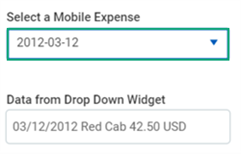
Descriptor Passed in the idKey
InstanceList Widget
The
instanceList
widget allows the user to select an item from a list. The instanceList
can allow:- The user to select multiple items.
- The user to search items in the list.
- The developer to define multiple levels of items within the widget.
From a code standpoint,
instanceList
is like dropdown
. It uses bindings like idKey
and displayKey
. Adding items to the instanceList
is the same as the dropdown
. Items can come from an endPoint
or an instanceList
array placed in the code. A notable exception is the availability of the multiSelect
binding that, when set to true
, allows users to select multiple items.{ "id": "ilRegions", "type": "instanceList", "label": "Regions", "multiSelect": "true", "values": "<% regionData.items %>", "idKey": "name", "displayKey": "name" }
Implementing InstanceList Search
You can implement search in the
instanceList
. By default, instanceList
will display the items per its values
binding. At the top of the list, there is a search box.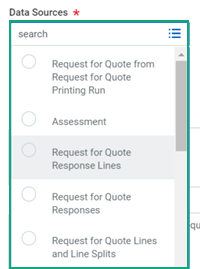
Unfiltered instanceList Widget
The user can enter a value, like "all active", and press Enter to search.
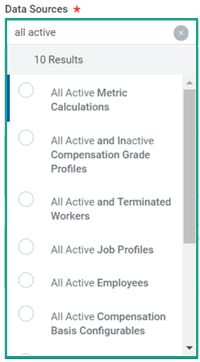
Filtered instanceList Widget
Normally,
instanceList
depends on one endPoint
. To implement search, you will need a second endPoint
."endPoints": [ { "name": "dataSources", "_comment": "Return all dataSources (limited).", "baseUrlType": "WORKDAY-WQL", "url": "dataSources?limit=20", "authType": "sso" }, { "name": "dataSourcesSearch", "baseUrlType": "WORKDAY-WQL", "url": "<% 'dataSources?searchString=' + instanceListQuery + '&limit=50' %>", "authType": "sso", "deferred": "true" } …
The
dataSourcesSearch
endPoint
will return all WQL dataSources
that match the specified searchString
. You will create an expression to define the searchString
parameter in the url
binding. An implicit variable, named instanceListQuery
, contains the search string the user enters in the instanceList
widget. By setting this endpoint's deferred attribute to true
, the endPoint
will not execute on page load. This endPoint
will only execute when explicitly called via another element.The final step is to configure the
instanceList
to be aware of the dataSourcesSearch
endPoint
. In the following code, the values
binding uses the dataSources
endpoint
. Both the searchEndPoint
and searchResultValues
bindings use the dataSourcesSearch
endPoint
.{ "id": "ilSelectDataSource", "type": "instanceList", "label": "Data Sources", "helpText": "Find Data Sources by entering a search string.", "values": "<% dataSources.data %>", "searchEndPoint": "<% endpoints.dataSourcesSearch %>", "searchResultValues": "<% dataSourcesSearch.data %>", "idKey": "id", "displayKey" : "descriptor", "required": "true", "multiSelect": "false" }
CheckBoxList Widget
When using
dropdown
or instanceList
, the user has to select the down arrow, or the prompt, to see the items. The checkBoxList
widget is like an instanceList
because it allows the user to select many items. But, checkBoxList
is different because the list always displays.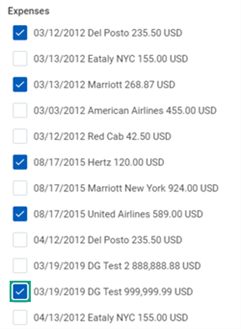
checkBoxList Widget
The
checkBoxList
is like other list widgets. You can use bindings like displayKey
and idKey
. Because this widget allows multiselect, there are other bindings, like maxSelectable
, that let you limit the number of items the user can select.{ "type": "checkBoxList", "id": "cbxListExp", "label": "Expenses", "values": "<% expenseData.data %>", "maxSelectable" : 3 }
RadioGroup Widget
The
radioGroup
is the always-visible version of the dropdown
. This comparison is true because a user can only select one item from the list.{ "type": "radioGroup", "id": "rgListExp", "label": "Expenses", "values": "<% expenseData.data %>" }
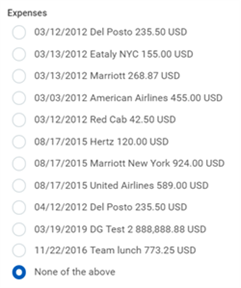
radioGroup Widget
If you do not set the
required
attribute on the radioGroup
, Presentation Components will automatically add "None of the above" to the list. Additionally, "None of the above" will automatically be selected.Workday Query Language
WQL Syntax Overview
WQL only supports the
SELECT
statement, including the following clauses:- FROM: one data source
- WHERE: one or more optional filter conditions
- GROUP BY: one or more optional fields to group data
- HAVING: one or more optional filter conditions for the group
- ORDER BY: one or more optional sort fields
- LIMIT: to optionally restrict the number of rows returned
Here is an example of a WQL statement that would retrieve the top 10 paid employees hired after January 1, 2017:
SELECT employee, hireDate, isManager, supervisoryOrganization, cf_TotalBasePayAnnualizedInUSD_Amount
FROM allActiveEmployees
WHERE hireDate > '2017-01-01'
ORDER BY cf_TotalBasePayAnnualizedInUSD_Amount DESC
LIMIT 10
Note
: You can use calculated fields in WQL.WQL Select Clause
The
SELECT
statement is where you specify the fields you want returned in the response. Commas separate fields. A SELECT
clause can look like:SELECT fullName, hireDate, yearsOfService
The following are restrictions on the
SELECT
clause:- Users must have the proper Workday security to access the fields.
- Fields Authorized Usage must be "Report Writer" or "Default Areas."
- Developers cannot use wildcards, like "SELECT *".
- Fields cannot have required prompts.
- If two or more fields resolve to the same web service alias, WQL will use the first field defined in the system.
WQL FROM Clause
The
FROM
clause is where you specify the data source you want to access. A FROM
clause can look like the following:FROM allActiveEmployees
The following are restrictions on the
FROM
clause:- There is no support for joins since developers can only specify one data source.
- Users must have the proper Workday security to access the data source.
- Data sources cannot use loop effective date processing.
- If two or more data sources resolve to the same web service alias, WQL will use the first data source defined in the system.
WQL WHERE Clause
The
WHERE
clause filters data. WQL does support a WHERE
with nested conditions, including conditions where you can use parentheses to make explicit evaluations.Here is a list of operators that are valid for specific field types:
Field Type |
=
|
!=
| < |
>
| <= | >= |
|---|---|---|---|---|---|---|
Text | Y | Y | Y | Y | Y | Y |
Numeric | Y | Y | Y | Y | Y | Y |
Currency | Y | Y | Y | Y | Y | Y |
Date | Y | Y | Y | Y | Y | Y |
Boolean | ||||||
Single-Instance | ||||||
Multi-Instance |
Field Type | IN | NOT IN | IS EMPTY | NOT IS EMPTY | IS TRUE | IS FALSE |
|---|---|---|---|---|---|---|
Text | Y | Y | ||||
Numeric | Y | Y | ||||
Currency | Y | Y | ||||
Date | Y | Y | ||||
Boolean | Y | Y | ||||
Single-Instance | Y | Y | Y | Y | ||
Multi-Instance | Y | Y |
Supported logical operators include:
- AND
- OR
- NOT
Examples of the
WHERE
clause include:- WHERE hireDate >= '2016-01-01' AND hireDate <= '2016-12-31'
- WHERE (totalBasePayAmount > 50000 AND totalBasePayAmount <= 100000) OR isManager = TRUE
Here are some more examples of
WHERE
clauses supported by WQL:- Filtering on text fields
- primaryAddressCity = 'San Francisco'
- lastName > 'X'
- primaryAddressCity IS EMPTY
- Filtering on numeric and currency fields
- totalBasePayAmount != 0
- age >= 50
- Filtering on date fields
- hireDate > '2017-01-01'
- dateOfBirth IS EMPTY
- Filtering on instance fields
- supervisoryOrganization IN (5b9d7cd02cb84615a683209c9d99d0a9)
- supervisoryOrganization NOT IN (5b9d7cd02cb84615a683209c9d99d0a9, 2eace1eb4d9a4ef48dd74cd5bd8906d9)
- Filtering using reference IDs
- supervisoryOrganization IN (Organization_Reference_ID = Global_Modern_Services_supervisory)
- worker IN (Employee_ID=21001)
- worker IN (Employee_ID=21001, 21002, 21003)
- Filtering using a mix of instance fields and reference IDs
- worker IN (Employee_ID=21002, 21003)
- worker IN (3aa5550b7fe348b98d7b5741afc65534,3895af7993ff4c509cbea2e1817172e0)
- supervisoryOrganization IN (1223ba8478644aa4bd3df3a749792fcf,e50d309a6d8540e3b533219cfa2c330b)
- supervisoryOrganization IN (Organization_Reference_ID ='Global_Modern_Services_supervisory', 'Information_Technology_supervisory')
- supervisoryOrganization_Superior IN (Organization_Reference_ID=Executive_Management_supervisory) <<multi-instance>>
- Filtering on Boolean fields
- isHighPotential = TRUE
- isManager = FALSE
WQL GROUP BY and HAVING Clause
WQL includes the use of the aggregate functions,
sum
, count
, avg
, max
, and min
, in a SELECT
statement. If you use an aggregate function, you need to include the fields in the GROUP BY
clause. You can perform filtering on a group in the HAVING
clause. You cannot group by multi-instance and currency fields.- SELECT location, max(yearsOfService), age FROM allWorkers GROUP BY location, age HAVING age > 5 AND count( ) > 5
- SELECT location, max(yearsOfService), avg(age) FROM allWorkers GROUP BY location HAVING avg(age) >= 10 AND count( ) > 5
- SELECT count( ), location, max(yearsOfService), avg(age) FROM allWorkers GROUP BY location HAVING avg(age) >= 10 AND count( ) > 5
- SELECT count( ), location, max(yearsOfService), avg(age) FROM allWorkers GROUP BY location HAVING avg(age) >= 10 OR count( ) > 5
- SELECT count( ), location, max(yearsOfService), age FROM allWorkers GROUP BY location, age HAVING max(yearsOfService) >= 3 OR count( ) > 5 ORDER BY age DESC
- SELECT location,max(yearsOfService),avg(age) FROM allWorkers GROUP BY location HAVING avg(age) >= 100 AND max(yearsOfService) >= 5 AND count( ) > 5
WQL ORDER BY Clause
The
ORDER BY
clause is where you specify how to sort the data. If you do not specify an ORDER BY
clause, WQL sorts the data by the first field in the SELECT
statement. You can sort in ascending or descending order. Examples of using the ORDER BY
clause include:- ORDER BY totalBasePayAmount DESC
- ORDER BY primaryAddressStateProvince ASC, primaryAddressCity DESC
WQL LIMIT Clause
The
LIMIT
clause allows you to specify the maximum number of rows to return. If you do not specify a LIMIT
, WQL will return all rows, up to a maximum of 1 million rows.The following table explains the behavior of the
LIMIT
clause, based on the number of rows returned by the query:Rows Returned by Query
| LIMIT Clause in WQL Query
| Query Behavior
|
|---|---|---|
>1 million | None | Query fails. |
>1 million | <=1 million | Query succeeds and returns a maximum of 1 million rows. You can view 10,000 rows at a time. |
<=1 million | None or <=1 million | Query succeeds and returns all rows. You can view 10,000 rows at a time. |
Indexed Data Sources
Indexed data sources are a special type of data source optimized for performance, aggregation, and faceted filtering on large volumes of data. Use indexed data sources whenever possible to get the best performing reports.
An indexed data source can contain a list of predefined filters, but depending on security, users may or may not have access to the filter.
WQL allows you to access data from indexed data sources, including passing data source filters and parameters.
SELECT legalName FROM indexedAllWorkers(dataSourceFilter=indexedAllWorkersFilter, location=(Location_ID="San_Francisco_site"))
SELECT worker, workerAdditionalData FROM indexedAllWorkers(dataSourceFilter=indexedAllWorkersFilter, isActive=true, reportWriterProvidedTopLevelEffectiveMoment='2018-11-28') WHERE worker IN (3aa5550b7fe348b98d7b5741afc65534)
Other WQL Considerations
- SELECTstatements can include calculated fields and custom fields defined on the business object.
- SELECTstatements run with Entry Moment and Effective Moment set to the current moment.
- WQL provides no direct access to multi-instance custom objects.
- WQL does not support SQL functions.
- Submit Read-only POST requests queries that are longer in length (2048+ characters) to avoid a query timeout at runtime.
Tip
: Keep the REST API Explorer or the WQL tool in your tenant available when you are writing WQL statements. Either tool allows you to easily search and find data source and field aliases.Workday Query Language (WQL) is comparable to Structured Query Language (SQL). SQL accesses relational databases, whereas WQL accesses the Workday object graph. WQL supports a subset of the features available in SQL. WQL allows you to interact with Workday data in three useful ways. With WQL:
- You can perform specific searches of your organization's Workday data.
- You have more flexibility over how you programmatically export Workday data.
- You can explore available data sources and data source filters and fields.
WQL accesses data from Workday data sources and fields. WQL uses the same security as reporting to leverage data source, row-level, and field-level security. Users must have access to the WQL for Workday Extend domain, which is a subset of the Workday Extend domain, to execute WQL statements.
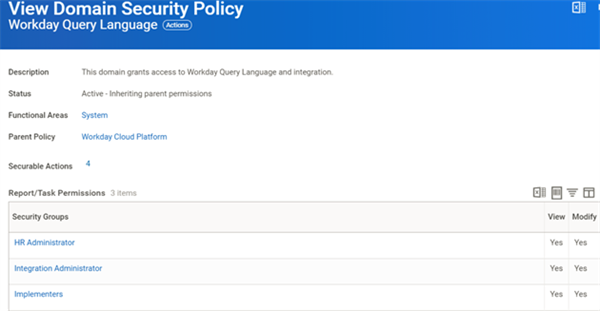
Access Needed to Execute WQL Statements
Using WQL in the REST API Explorer
Access DataSource Information using the REST API Explorer
You can also use the API Explorer to identify data source and field aliases. Under the WQL collection, use the
GET /dataSources
operation to retrieve a list of the available data sources.The Request includes parameters that allow you to:
- Search for data sources by entering a search string, like "employee".
- Get information about a specific data source if you already know the alias.
The Response returns:
- The descriptor (name) of the data source.
- The WID for the data source is needed to locate the fields of the data source.
- The alias for the data source, which you will need in your coding.
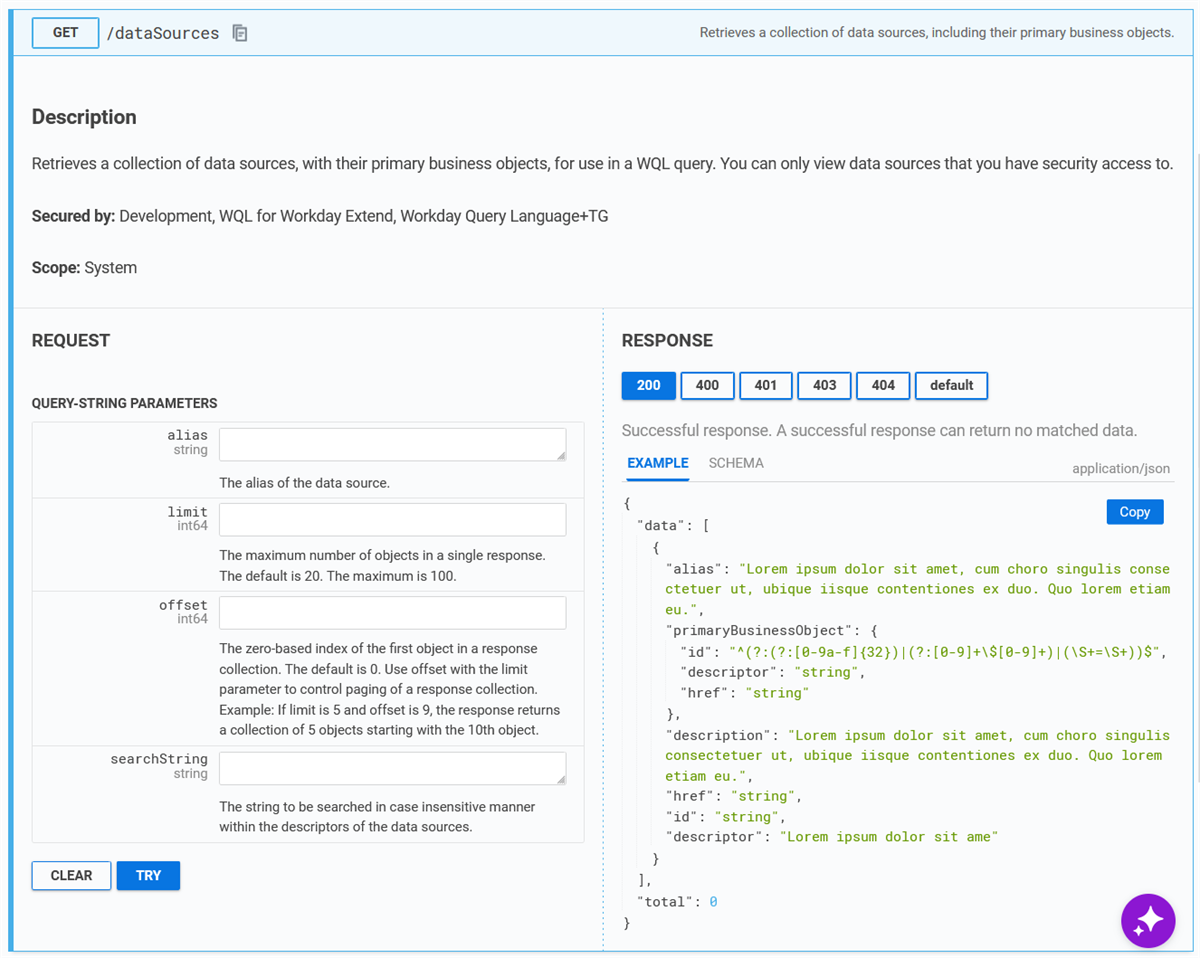
API for Accessing WQL DataSource Information
Access Field Information using the REST API Explorer
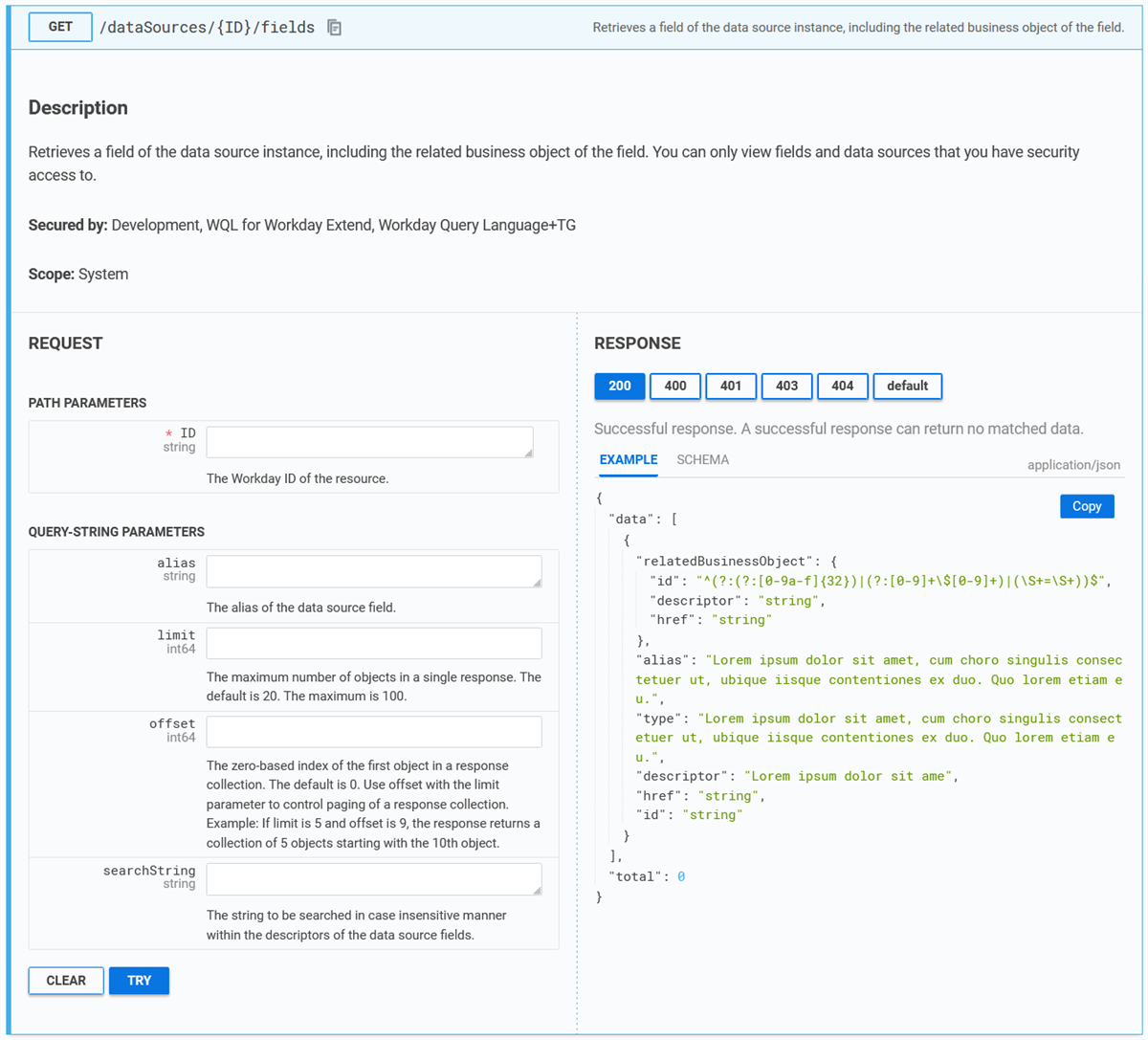
The GET
/dataSources/{ID}/fields
operation returns information for all fields within a given data source.When making the Request:
- You must specify the WID of the data source whose fields you want to retrieve.
- You can optionally enter a search string parameter to only return fields that match a particular pattern.
The Response gives you the:
- Name (descriptor) of the field.
- Alias for the field (needed in coding).
- WID for the field.
API for Accessing WQL Field Information
Testing WQL Queries
Testing WQL Using the REST API Explorer
To test WQL statements using the REST API Explorer, go to the WQL category, then select the Data collection.
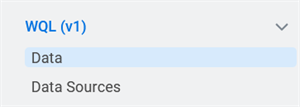
WQL API Collections
There are two available
/data
operations:- GET/data: Returns the data from a WQL query.
- POST/data: A read-only operation that also returns the data from a WQL query. Use this for queries that are longer than 2,048 characters.
When you use the GET request, you must pass in your WQL
SELECT
statement into the query
parameter of the request. This SELECT
statement will be encoded before being placed into the actual GET request URL.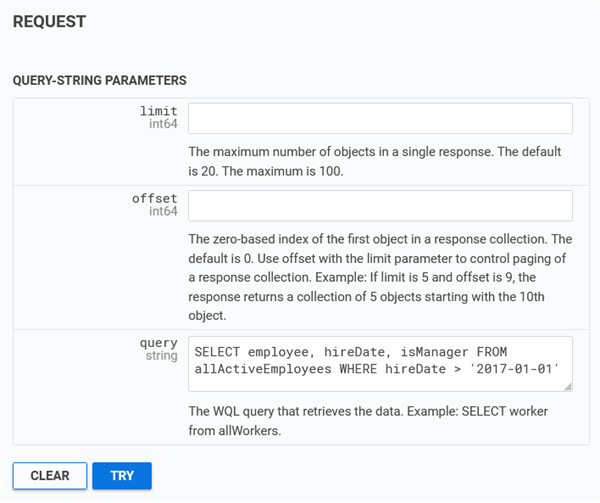
Making a Request to the Data Collection GET Operation
When you use the POST request, you must pass in your WQL SELECT statement in the request body object. Make sure to assign your WQL query string to the
query
attribute of the request body.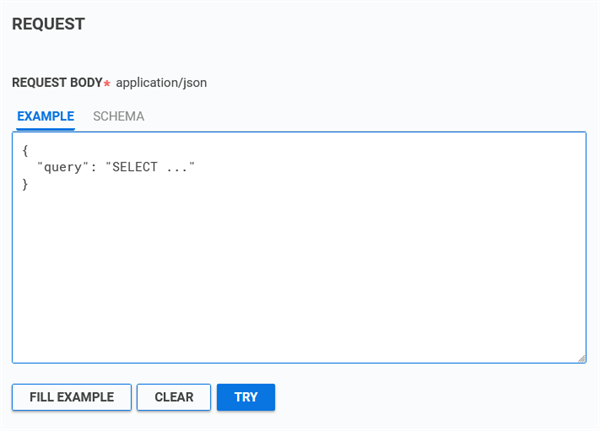
The response will be in JSON format, with items in the
data
array, like most other platform APIs.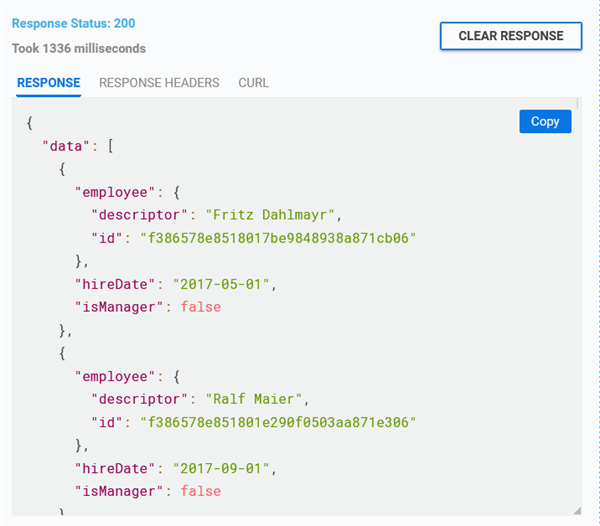
Getting a Response from the Data Collection GET Operation
Testing WQL Queries with View WQL Query Result Report
You can test Workday Query Language (WQL) queries in your tenant as an alternative to testing them in third-party applications. Use the View WQL Query Result report to test queries and return up to 500 rows of results.
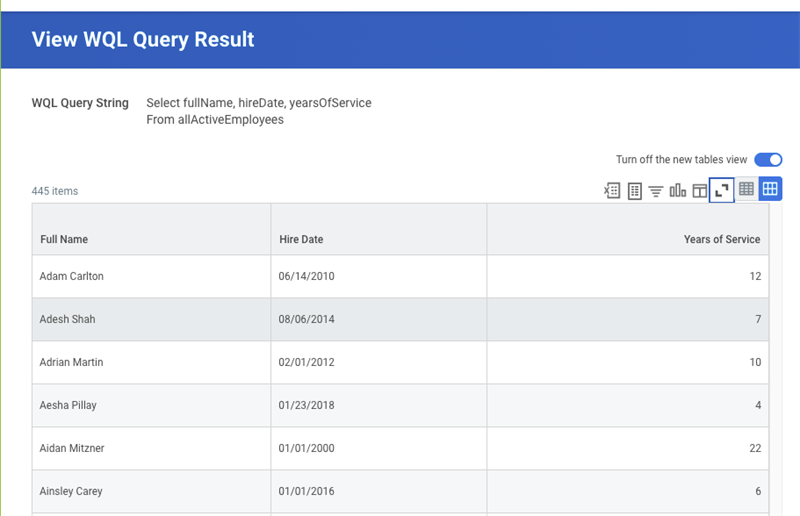
View WQL Query Result Report
Convert Report to WQL
You can convert Workday-delivered reports and custom reports to WQL with the
Convert Report to WQL
task.Search for and select a report in the Report Definition for WQL Conversion prompt.
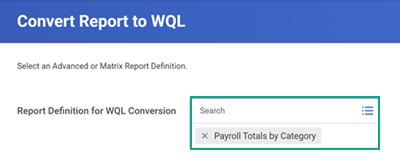
Report Definition for WQL Conversion.
Enter any required parameters, and they will be included in the generated WQL query.
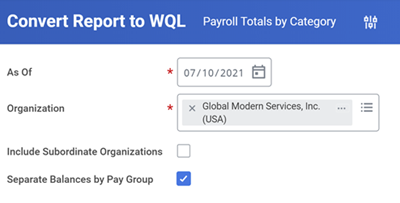
Convert Report to WQL task parameters.
A WQL query string is returned as well as any unsupported report components.
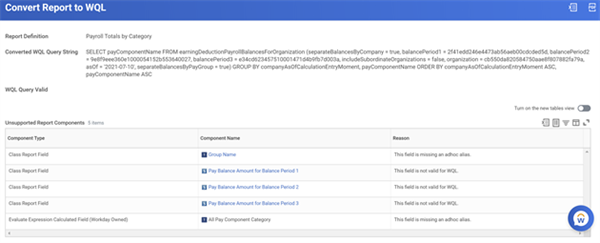
Convert Report to WQL results.
Choosing Between Workday APIs
Workday provides a variety of APIs that you can use to access the data in your tenant. How do you choose which one to use?
The following flowchart provides some basic guidance for choosing the appropriate API for your use case.
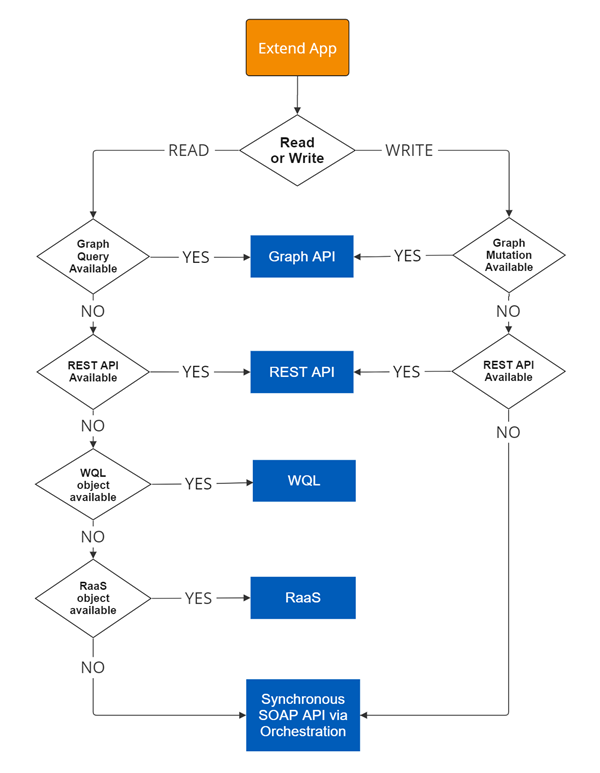
First, determine whether this operation requires your app to read data from or write data to your tenant.
For read operations:
- If there is a Graph query that provides the data required, use the Graph API.
- If there is a REST API that provides the data required, use a REST API.
- If there is a WQL object that provides the data required, use a WQL query.
- If there is a RaaS object available, use RaaS (Reports as a Service).
- Otherwise, use a synchronous SOAP API via an orchestration.
For write operations:
- If there is a Graph query that provides the data required, use the Graph API.
- If there is a REST API that provides the data required, use a REST API.
- Otherwise, use a synchronous SOAP API via an orchestration.
Resource
: For more detailed information, refer to the Developer Documentation: API Decision Guidance for Extend Apps.In this course, you will use REST APIs and WQL queries to work with data. To learn more about the Graph API, refer to the Getting Started with Workday Graph API tutorial on the Developer Site.
When choosing which API to use for your situation, keep in mind the following considerations:
- If you want to retrieve fields on related business objects in a single request, you need to use the Graph API or a WQL query.
- The Graph API lets you define exactly which fields to include in the response, which is helpful for limiting the amount of data sent back. However, not every data source supports the Graph API yet, so you may need to use another API to access the data you need.
- You can use the Graph, REST, and SOAP API Explorers on the Developer Site to see which kinds of data you can get back from each API.