
Feedback Management
Overview
Feedback in Workday allows employees and managers to have more tactical conversations on their own timeline, rather than waiting for a performance review to have these discussions. The ability to give feedback anytime engages employees and gives them a voice for peer recognition. In addition to anytime feedback, Workday enables you to solicit feedback about yourself, about your direct reports, or formalize feedback requests as part of a performance review event.
Objectives
By the end of this chapter, you will be able to:
- Configure feedback options.
- Configure feedback visibility.
- Request feedback.
Feedback Management
Feedback is a valuable component that promotes personal and professional growth by enabling workers to share and express their experiences working with one another. Organizations that enable Feedback functionality in Workday can gather data to support a talent pipeline and help promote employee morale.
Similar to goals in Workday, you can manage feedback separate from the employee review process. You can also manage feedback inside the employee review process, or both.
There are four methods for sharing feedback in Workday:
- Give feedback: Provide feedback to any employee, at any time, using theGive Feedbackbusiness process.
- Get feedback on self: Request feedback on yourself from another employee, using theGet Feedback on SelfandGive Requested Feedbackbusiness processes.
- Get feedback on worker: Request feedback about an employee from other employees (often requested by managers on their direct reports). Use theGet Feedback on WorkerandGive Requested Feedbackbusiness processes.
- Get feedback on worker during performance review: Include a step in thePerformance Reviewbusiness process to request feedback about the performance review event subject. Use theGet Feedback on WorkerandGive Requested Feedbackbusiness processes.
Workers can give anytime feedback to multiple recipients in the same operation in the
Give Feedback
task. When a worker selects multiple recipients for feedback, Workday launches the Give Feedback to Multiple Recipients
business process, which initiates a separate give feedback event for each recipient.Workday supports each method with their own business processes, help text, condition and validation rules, and domain security policies. Domain security allows you to select the feedback options that work best for your organization. For example, you may want to roll out the feedback feature to managers first, and then to employees later.
Feedback Badges
Optionally, workers can give each other Feedback Badges as part of the feedback in Workday. You can create feedback badges to help categorize feedback. These badges display in Workday and highlight the theme of the feedback given. Workday delivers several icons that you can use to create custom badges to reflect the culture of your organization. You can create an unlimited number of badges, configure badge names, and inactivate and delete individual badges.
Use the
Maintain Feedback Badges
task to create, edit, delete, and inactivate feedback badges. You cannot delete feedback badges once they are in use. If you do not want to use Feedback Badges, you can disable them from this task.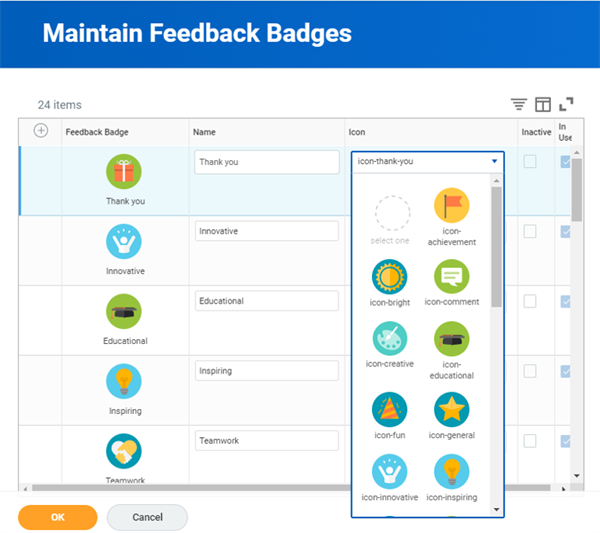
Maintain Feedback Badges
Maintain Feedback Setup
Feedback is highly configurable. The
Maintain Feedback Setup
task allows you to configure your feedback structure to meet your organization's needs. You can disable Anonymity, Confidentiality, and the ability to Decline Feedback. You can also make Get Feedback confidential by default.Unless you disable Expiration Date, users can enter a due date for feedback and can cancel the feedback, if desired. A message will display to the recipient, indicating when feedback is due.
You can request feedback in the form of ad hoc questions, or through feedback templates, which are preconfigured sets of questions. The feedback template provides a more structured approach to soliciting feedback, increasing consistency and quality of feedback. If you have feedback templates created, you can designate default templates for
Get Feedback on Worker
and Get Feedback on Self
. The feedback request will prepopulate with the default template's questions when a worker initiates either of these tasks. As long as the feedback template is not locked, the feedback requestor can edit, delete, or add to the default questions to customize.You can also link feedback to competencies. If you would like the ability to link feedback with competencies, you must configure talent tags for feedback first. Use the
Maintain Feedback Setup
task, then select the Configure Talent Tags button or access it through the Configure Talent Tags
standalone task.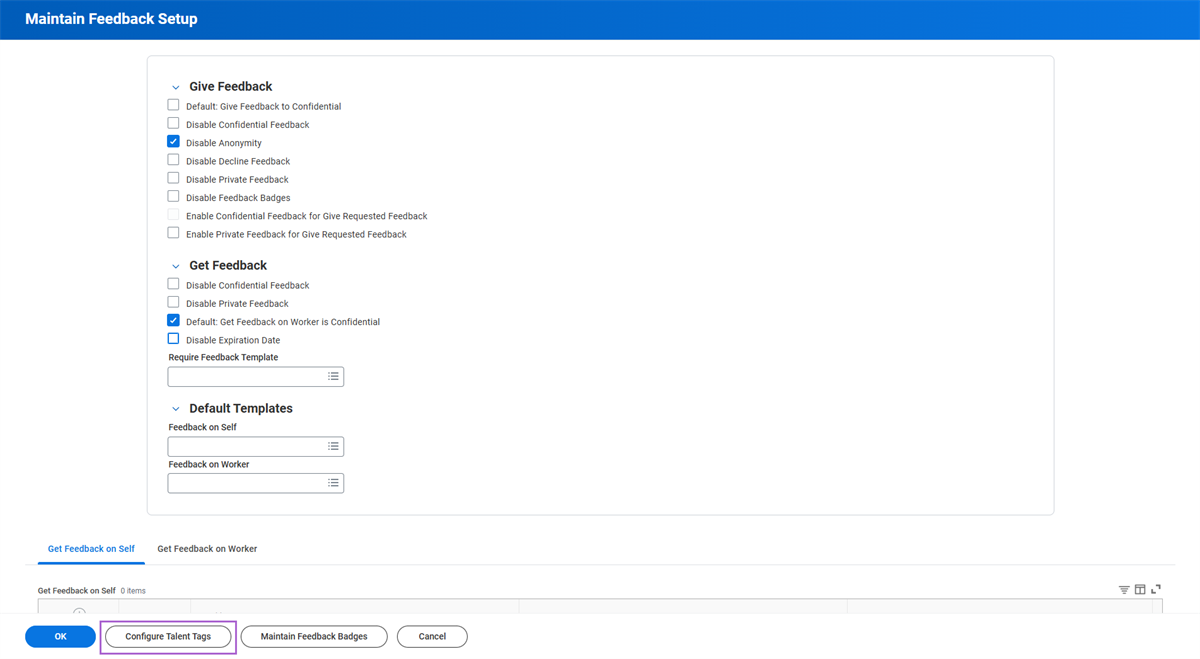
Maintain Feedback Setup
Feedback Visibility
Feedback can be anonymous and confidential or shared with specific people in Workday. When feedback is confidential, only those users with security permissions for confidential feedback can view it.
Feedback can also be private - employees can give each other feedback and the manager will not see it. Enabling private feedback can help to encourage candid feedback.
Use the
Maintain Feedback Setup
task to enable or disable Get and Give Feedback options.If you do not select the Enable Confidential and Private Feedback checkboxes in the Give Feedback section, then the feedback requestor can select sharing options that drive feedback visibility to the recipient.
Alternatively, select the Enable Confidential or Enable Private Feedback for Give Requested Feedback checkboxes in the Give Feedback section to remove feedback sharing options from the requestor. If you select these two checkboxes under the Give Feedback section, then by default, the Disable Confidential and Private Feedback checkboxes in the Get Feedback section will also autoselect. With this configuration, the feedback requestor cannot select feedback sharing options when initiating the
Request Feedback
task.Feedback Template
A feedback template is a preconfigured set of questions that you can select when requesting feedback. When someone requests feedback, they can either select a template that will prepopulate questions, or create their own questions, or both. You can create different feedback templates for:
- Get Feedback on Self
- Get Feedback on Worker
- Get Feedback as part of a Performance Review
Some of the feedback template configuration options include:
- Lock a feedback template to not allow changing the questions in individual feedback requests. Locking a feedback template can ensure consistency when reporting on responses. Note that when users select a locked template from the prompt, the system will give them an alert.
- Inactivate a template to hide it from use if it is no longer applicable to your organization. By inactivating, the template will not be available in the selection list for feedback requests. You can use this option when your template configuration is still in progress.
- From the Relates To prompt, select a competency relating to a feedback question.
Create a Feedback Template
To create a feedback template, you must first create the questions that you will include within your template. Workday allows you to create an inventory of questions. You can pull these questions into the Question section of an employee review template or into a feedback template. You create questions at the tenant level, so it is important to correctly organize questions using question tags.
Use the
Maintain Question Tags
task to create the tags you want to use to organize your question library. Tags are for organizational purposes and can be as generic or specific as required. Generally, you will have one question tag for each review category type and for Feedback on Self, Feedback on Worker, and Feedback for Review templates. Although helpful, question tags are optional because you only need to configure them if you plan to use the Question section in a template.Once you establish the feedback and review question tags, you can then create questions using the
Manage Feedback Questions
task. Once you assign a question tag to a question, you cannot delete it, but you can change it. Questions are optional. You only need to configure them if you plan to use the Question section in an employee review template or for the purpose of requesting feedback.Skill Endorsements and Ratings
When creating feedback templates, you can use the Skills in Feedback prompt to enable either skill endorsements or skill ratings on the template. Feedback providers can then rate or endorse skills for workers during the feedback request.
Once rated, the skill endorsements and ratings are viewable in three places:
- Worker Profile skills section
- Feedback for Skillsreport on the Feedback for Worker Profile profile group
- Feedback section of employee review
Workers can request feedback using any templates configured with skill endorsements or skill ratings. When requesting feedback, workers can select up to five skills based on the feedback recipient's:
- Skills from their worker profile and job profile
- Skill interests
- Critical skills
Based on the selected skills from the feedback request, feedback providers can:
- Select a rating or decline to rate each skill.
- Select up to 100 skills to endorse. Workday provides suggestions based on the skills from the feedback request and the skills of the feedback recipient.
Note
: You must enable Skills Cloud and Suggested Skills to use this functionality. Access to the appropriate domains must be configured, as well.Get Feedback on Self
At any time, any employee can request feedback from someone else about themselves. They can request feedback from one, or multiple people at the same time. There are different ways to find the
Get Feedback
task in Workday. For example, an employee can use their own Related Actions menu, then select Talent > Get Feedback. Alternatively, they can access the task from the Feedback profile group on their Worker Profile.Workers can manually enter in specific questions relating to the feedback they are soliciting from others. They can also choose a feedback template that consists of prepopulated questions. In order for a worker to select from a preconfigured template, you must first configure the questions and the template in the tenant.
A Talent Administrator can also mass launch and schedule the
Get Feedback on Self
task using the Mass Operation Management
task.When initiating the request, you can choose from an existing template to prepopulate your questions, or you can add your own custom questions, or you could do both.
Get Feedback on a Worker
System users with appropriate security access can request feedback about a worker from another worker. HR Partners and managers typically request feedback for worker's besides themselves to stay informed about their direct reports and team performance.
From the worker's Related Actions, select Talent > Get Feedback. As with requesting feedback for yourself, the feedback requestor designates who to request feedback from, what questions to ask, or which feedback template to use for prepopulated questions.
When requesting feedback for another worker, there is an option to restrict sharing the feedback with recipients. If you enable confidential feedback in the tenant, then the feedback provider will be able to select the Don't Share with (Feedback Recipient's Name) option. If you select this option, then only workers with appropriate access to confidential feedback can view the feedback.
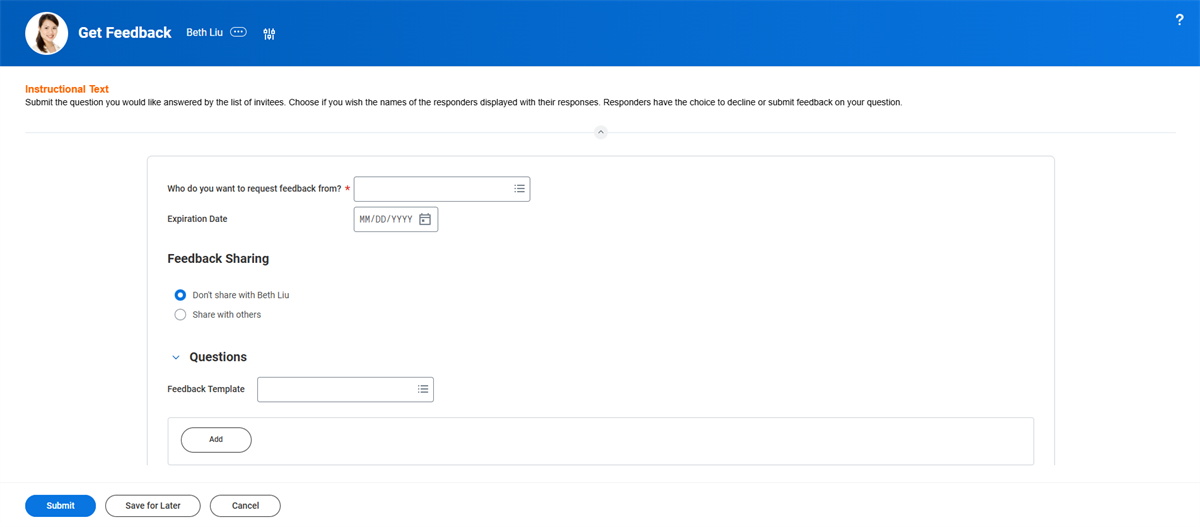
Get Feedback on Worker Image
You can configure the
Get Feedback
business processes to use questionnaires. Questionnaires will give you the ability to request additional information as part of the feedback workflow, so employees and managers can indicate whether the feedback received was valuable.Give Feedback
An employee can give feedback to other employees at any time by searching for the employee in Workday, selecting their Related Actions, and then selecting Talent > Give Feedback. They can also give feedback through the
Give Feedback
task.If the intention of the feedback is to be constructive and not shared with the employee themselves, select the appropriate sharing option under the Feedback Sharing section. The sharing selection will ensure that the right workers will have access to view the feedback given.
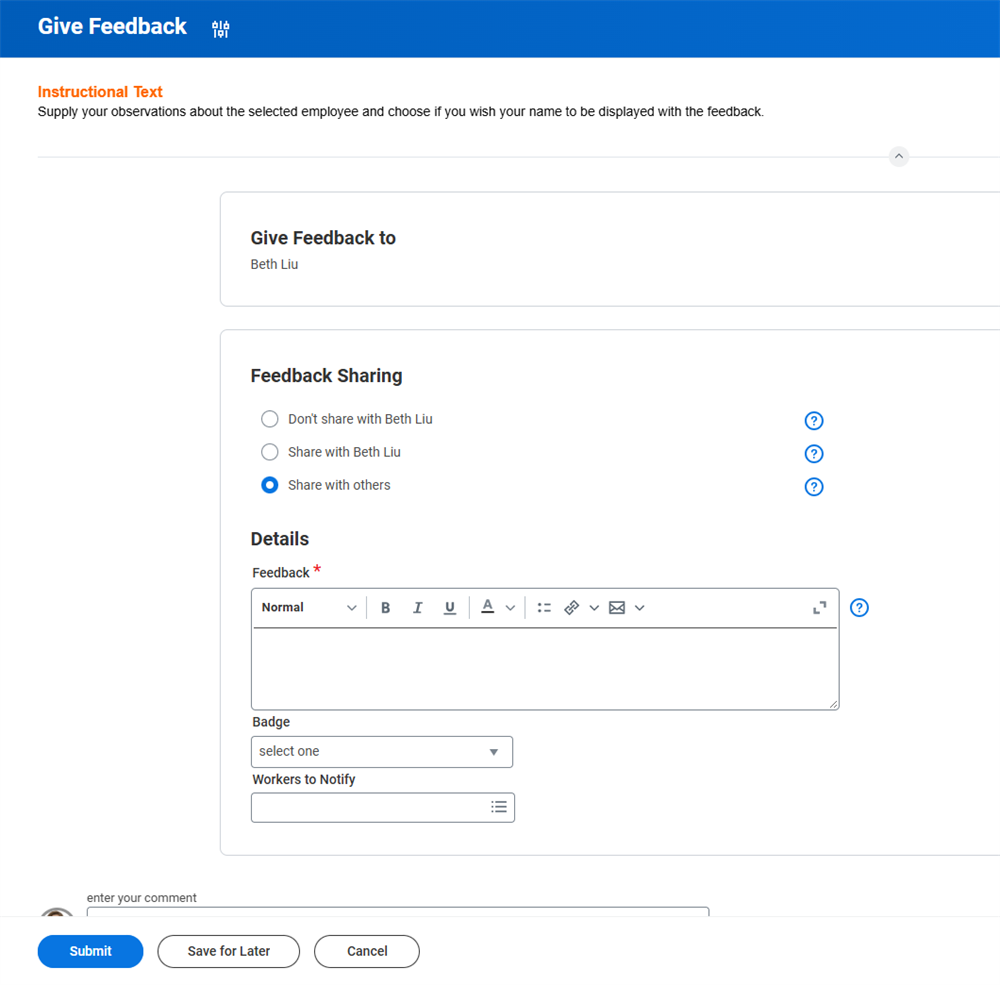
Give Feedback Page Visibility and Badges
Workers can also send anytime feedback to multiple recipients at the same time. When initiating the
Give Feedback
task, select all the workers the feedback is applicable for in the Workers prompt field.Workers can edit anytime feedback up to an hour after submitting the task. To do so, navigate to the recipient's
Feedback Received
or the provider's Feedback Given to Others
reports on the Feedback Profile Group of the Worker Profile.Completing a Feedback Request
When you request an employee to provide feedback, they will receive a task in their Inbox. You can choose to configure your tenant to support the decline feature. The option allows the feedback provider the ability to decline, as well as provide a reason. If the feedback requested is confidential, the task will include text that specifies feedback confidentiality.
Viewing Feedback
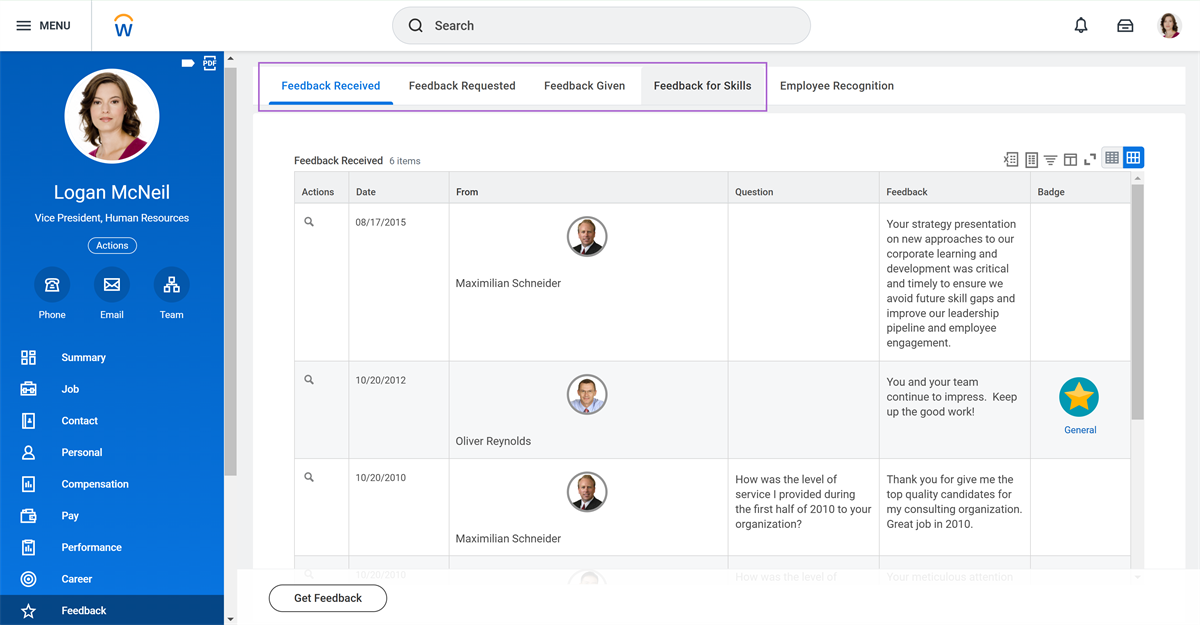
The Feedback section on the worker profile provides one central location to view both feedback requested and feedback received. It also provides the ability to launch more feedback requests and cancel in-progress requests.
Feedback Received shows all feedback received for an employee. This report is helpful for a manager to see for their direct reports. Confidential feedback will not display in this report for everyone. Only if you are a member of a security group with access to confidential feedback will it display in this report.
Feedback Requested shows all feedback requested about the employee and the status of those requests. The Ask Others button will send the same feedback question to additional employees. Use the Get Feedback button to initiate a new request. Use the Cancel button to cancel an in-progress request.
Performance Enablement - Viewing Feedback Requested
Feedback Security Policies
As you deploy and maintain Workday Talent Optimization, you may need to configure several domain and business process security policies to ensure the appropriate security permissions.
Domains |
|---|
Functional Area: Performance Enablement / Worker Profile and Skills |
|
Business Processes |
|---|
Functional Area: Performance Enablement |
|