
Employee Review Business Process Framework
Overview
In addition to configuring employee review templates, you must also consider the business process definitions that drive each employee review category. Workday enables you to drive performance discussions and gather data using highly configurable employee review business processes. There are four employee review categories, which include Development Plans, Performance Improvement Plans, Performance Reviews, and Disciplinary Actions. Each review category has a configurable business process and related subprocesses. In this chapter, you will learn how you can configure the employee review processes and subprocesses to meet your organization's business requirements.
Objectives
By the end of this chapter, you will be able to:
- Configure the performance review business process.
- Identify the performance review sub business processes.
- Launch a performance review.
- Manage performance reviews.
Business Process Framework
Workday drives each review category by a business process. The business process is highly configurable and you can build it to suit your specific business requirements. The business process you build dictates:
- What actions to perform.
- What order to perform the actions.
- Who performs the actions.
- When the actions must be complete.
Business Process Definitions
A business process controls what needs to happen, who does it, and when they do it to accomplish a transaction in Workday.
- What: Tasks, actions, and subprocesses
- Who: Workday security groups
- When: Defined time frame and order
Some common business processes help you hire workers, generate expense reports, and review data entered in Workday.
Subprocess Effective Dating
You can use the
Maintain Business Process Definition Selection
report to enable the subprocess effective dating feature. This feature allows you to change subprocess effective dates to the date the parent business process initiates the subprocess.Performance Review Business Process
The administrator will use the
Start Performance Review
business process to designate the process that workers in an organization will follow when completing performance reviews.When you configure business processes for employee reviews, there are many steps you can include to capture the performance data necessary to measure, assess, and compare workers.
The following is a list of optional steps you can include within an employee review business process:
- Set Review Content
- Complete Self-Evaluation
- Get Feedback from Review
- Get Additional Reviewers (Multi-Rater)
- Get Additional Manager Evaluation
- Assess Potential
- Complete Manager Evaluation
- Complete Questionnaire
These steps are subprocesses within the overall
Start Performance Review
business process. The following image illustrates some of the steps you can include within the Start Performance Review
business process, as well as their underlying subprocess steps.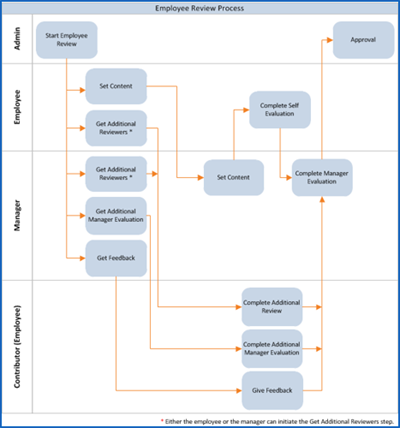
Manager for Majority of Event Security Group
To appropriately route manager tasks during performance reviews, the Manager for Majority of Event security group is available for use in the
Start Performance Review
business process. If an employee had two managers during a review period, you can configure tasks to route to the appropriate Manager or Manager for Majority of Event security groups. If you assign the business process step to the Manager for Majority of Event, the task routes to whomever managed the employee longer during a review period.To determine the Manager for Majority of Event, Workday calculates the midpoint of the review period. Then, Workday determines if the manager at the end of the review period is the same as the manager at the midpoint. If they are the same, Workday will route to the manager at the end of the review period. If they are not the same, Workday will route to the manager at the beginning of the review period.
Configure appropriate security policies to permit the Manager for Majority of Event to participate in the steps of a performance review.
Performance Review Subprocesses
Configure the
Start Performance Review
business process definition to include different action steps, or subprocesses, such as Set Review Content
, Complete Self-Evaluation
, Get Additional Reviewers
, and Assess Potential
.The image below provides an alternative illustration of the steps that you can include within the business process, as well as their underlying subprocess steps.
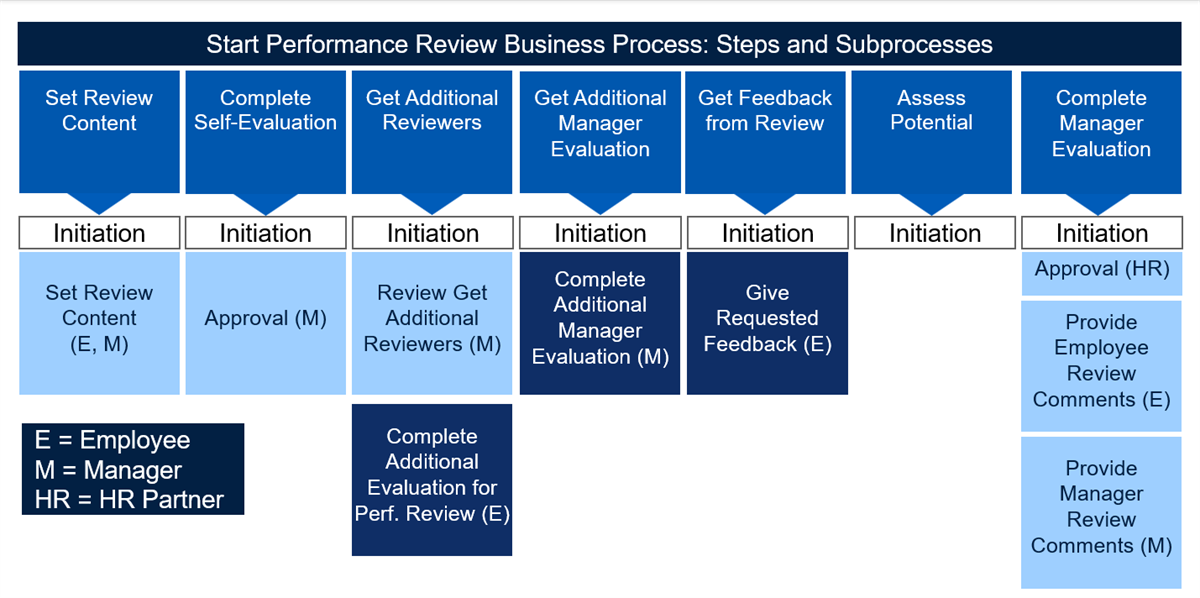
Assess My Team's Potential Business Process
The
Assess My Team's Potential
business process saves managers time and provides a place for comparison of potential across a team. Additionally, it can increase the likelihood that managers will complete assessments. Once submitted, the values shown in the Assess My Team's Potential
task update on the worker's record. You can view this information from the worker's Related Actions, then select Talent > Assess Potential.Note
: If you deny the business process event, the worker's record will not update.Start A Performance Review (Initiate)
Initiate is always the first step in a business process. Employees can have only one employee review template with the same section types for a specific begin date and end date, in progress at one time. To start another review for the employee, you need to either create a new template with different section types or change the dates for the existing template.
Set Content Step
Within the business process, the Set Content step enables the manager and employee to establish the content that will go into the employee review. You will typically include the Set Content step if your organization has a formal goal setting process at the beginning of the year. You can configure your business process so that managers or employees can add, edit, or delete content in many of the template sections. During a review event, employees and managers cannot change questions and competencies (or any other template configuration). An administrator defines these sections prior to the event.
A Talent or HR administrator will determine which sections to include within each review template. Then, the employee or manager may only set content within the sections included in the review template.
If your organization supports ongoing goal management, and employees and managers update goals and development items throughout the year, then you may not need the Set Content step in the business process. Workday can pull the goals and development items automatically into the performance review template if configured.
Complete Self Evaluation Step
The Complete Self-Evaluation step enables employees to complete a self-assessment on the sections you configure in the review template. There is the ability to add new content, enter comments, provide ratings for competencies and goals, and specify an overall rating.
Managing Performance Reviews
During the performance review cycle, there can be a lot of back and forth between manager and employee, particularly during the evaluation phase.
Send Back
During the Complete Manager Evaluation step of a review, the manager can select Send Back to return the employee's self-evaluation for further editing. The manager can also enter comments to explain the reasons for this return.
When employees receive the self-evaluation step again in their Inbox, they can read the manager's comments, make the appropriate changes, and resubmit.
Additionally, if the Manager Evaluation step has completed, but the review process has not yet reached completion, you can send back to the initiation of the Manager Evaluation step. Send back of the initiation step allows managers to make changes to the content of the evaluation after submission.
Pull Forward
There may be times when a manager needs to advance the review process. Managers can pull forward an in-progress performance review to themselves when:
- The review is in the Complete Self-Evaluation initiation step.
- The Complete Manager Evaluation step immediately follows the Complete Self-Evaluation step.
Note
: Send back and pull forward options are not available for development plans, performance improvement plans, or disciplinary actions.Manual Send Back and Manual Advance
Manual Send Back enables administrators and users with appropriate security permissions to reopen a completed performance review and send it back to the Complete Manager Evaluation step only. You can find the action to manually send back from the business process event's Related Actions > Business Process menu.
When sent back, Workday preserves all data in the review.
The Advance Manually feature enables administrators and users with appropriate security permissions to move an in-progress performance review to any step in the business process. You can also find the action to advance manually from the business process event's Related Actions > Business Process menu.
Include the appropriate security groups into the Manual Advance and Manual Send Back actions of the business process security policy. These actions are in the Who Can Do actions on Entire Business Process section of the security policy.
Cancel and Rescind Reviews
For an individual employee review or a group of employee reviews, Workday enables you to:
- Cancel reviews that are in progress.
- Rescind reviews that are past the completion step.
However, be aware of the following restrictions:
- Only the person who started a performance review can cancel it while it is in progress.
- Only those security groups with Rescind access can rescind a completed review.
Mass Cancel, Mass Rescind, and Mass Advance Business Processes
You can mass cancel, mass rescind, and mass advance some business processes. The
Mass Cancel Business Processes
and Mass Rescind Business Processes
tasks allow you to cancel or rescind initiated events with incorrect configuration or effective dates. If the business process events have a status of in progress and you wish to make changes, use the Mass Cancel Business Processes
task. However, if the business process events have a status of complete and you wish to make changes, use the Mass Rescind Business Processes
task.Note
: If canceling or rescinding a business process, Workday requires you to confirm and include a comment before canceling or rescinding the business process.You can use the
Mass Advance In Progress Reviews
report to identify any in progress reviews. Additionally, you can use the task Mass Advance Business Process
to advance any performance review business process.Correct a Review
You can change the content and ratings of a completed employee review if you are a member of a security group with appropriate permissions. The Correct action is securable on the business process security policy for:
- Complete Employee Plan for Development Plan
- Complete Manager Evaluation for Disciplinary Action
- Complete Manager Plan for Performance Improvement Plan
- Complete Manager Evaluation for Performance Review
- Complete Manager Plan for Development Plan
- Complete Self-Evaluation for Disciplinary Action
- Complete Employee Plan for Performance Improvement Plan
- Complete Self-Evaluation for Performance Review
From the review event's Related Actions, select Business Process > Full Process Record. You can then select either the Self-Evaluation or Manager Evaluation steps and choose Business Process > Correct from their Related Actions menu.
Get Additional Reviewers Step (Multi-Rater)
Get Additional Reviewers, commonly referred to as multi-rater, provides a way to solicit ratings and receive feedback on an employee's competencies from other people. Reviewer types are configurable, but typically represent relative roles such as peers, direct reports, or others.
The Get Additional Reviewers functionality is only available for performance reviews and development plans. It is not available for disciplinary action reviews or performance improvement plans.
You cannot deploy
Get Additional Reviewers
as a standalone business process. The Get Additional Reviewers
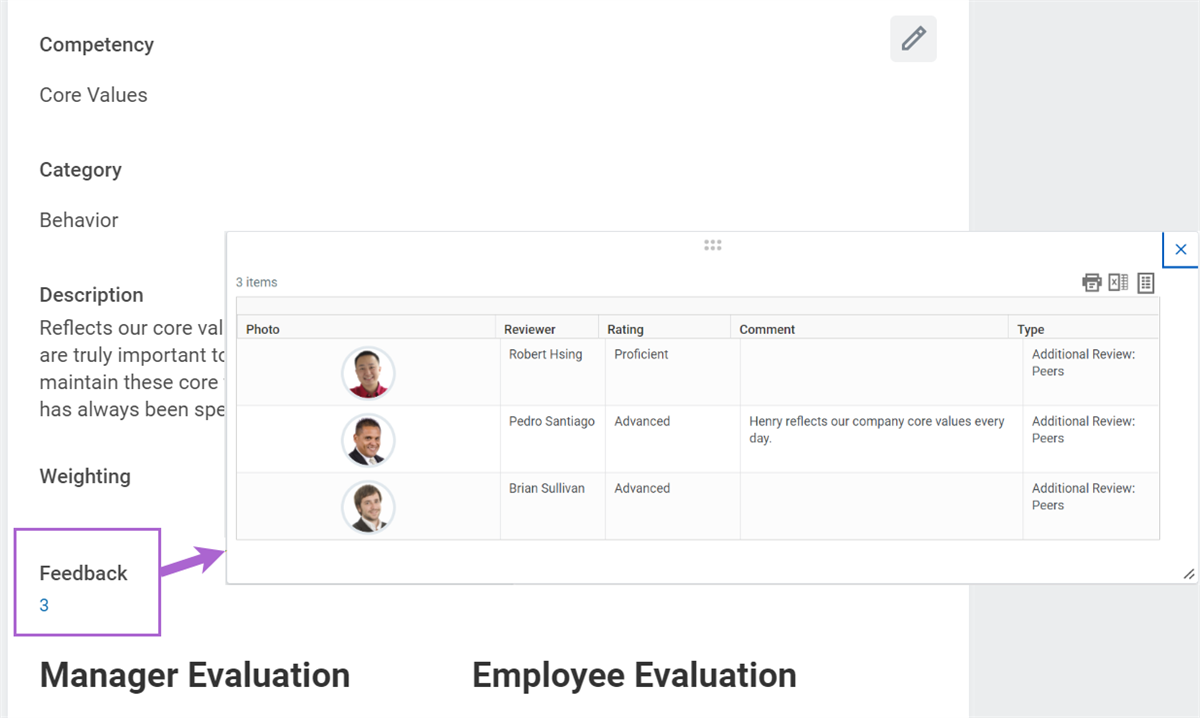
subprocess allows the employee or manager to choose other reviewers to involve in a performance review or development plan process. The subprocess routes an Inbox task to each additional reviewer. The additional reviewer receives a list of the employee's competencies and has an opportunity to provide ratings and comments for each.After the additional reviewers complete their input, managers can view and analyze the data in the performance review's
Manager Evaluation
report. The Manager Evaluation
report provides a description of the different competency sections rated and enables assignment of a level, or rating, for each competency assessed. Comments from both the employee and additional reviewers are available in this view.Below the competency, a number represents how many additional reviewer comments and feedback associated with this competency are available. Select the number to drill into the additional reviewer ratings, comments, and feedback associated with the competency.
Get Feedback Step
When configuring performance reviews and development plans, you can add a step to the business process in which the manager or employee can request feedback. The
Get Feedback
business process is not available for disciplinary action reviews or performance improvement plans.The
Get Feedback
subprocess allows the manager or employee to invite other workers to give feedback on the employee in review. You can request feedback from one or more workers. If you elect to solicit feedback from others, the Get Feedback
subprocess step allows you to select who you would like to provide feedback. You can also enter specific questions for that person to answer, or select a preconfigured set of questions pulled in from a feedback template. In addition, you can indicate if the feedback is associated with a specific competency.Provided feedback is viewable from the worker's Related Actions by selecting Talent > View Feedback, or on the worker's profile on the Feedback profile group. During the review process, if you configure a Feedback section on the template, then feedback will display on the manager's evaluation task. Displaying feedback can aid managers when they are evaluating their direct reports.
Security Note
: Currently, Workday will not prohibit you from inviting workers who do not have a Workday account to provide feedback. For example, you may invite a contingent worker to provide feedback on their manager. However, if the contingent worker does not have access to Workday, the feedback request will result in an error.Get Additional Manager Evaluation Step
Up to two additional managers can provide comments concurrently in a single review. Adding the Get Additional Manager Evaluation step will provide a prompt, which allows you to select two additional managers for the review. Those managers will receive a task in their My Tasks, which opens the review template for the worker in review. The additional managers can provide comments for all items and sections enabled for comments.
You can configure the template to allow the additional managers to view each other's names and comments. The current manager can see all additional manager comments in the Complete Manager Evaluation step.
Complete Manager Evaluation Step
Within the
Complete Manager Evaluation
subprocess, you can add the Provide Employee Review Comments and Provide Manager Review Comments steps. These two steps will allow employees to acknowledge they have viewed their manager's evaluation, and then allow the manager to acknowledge the overall review. These steps serve as a type of electronic signature, and use evaluation feedback statuses, which you configure at the tenant level.Embedded Analytics and Configuring Related Worklets
The
Complete Manager Evaluation for Performance Review
business process allows you to include embedded analytics. These analytics provide managers immediate and relevant information without having to leave the performance review process to find the information elsewhere. You configure these embedded analytics within the business process definition. You can either use preconfigured worklets or create your own custom worklets.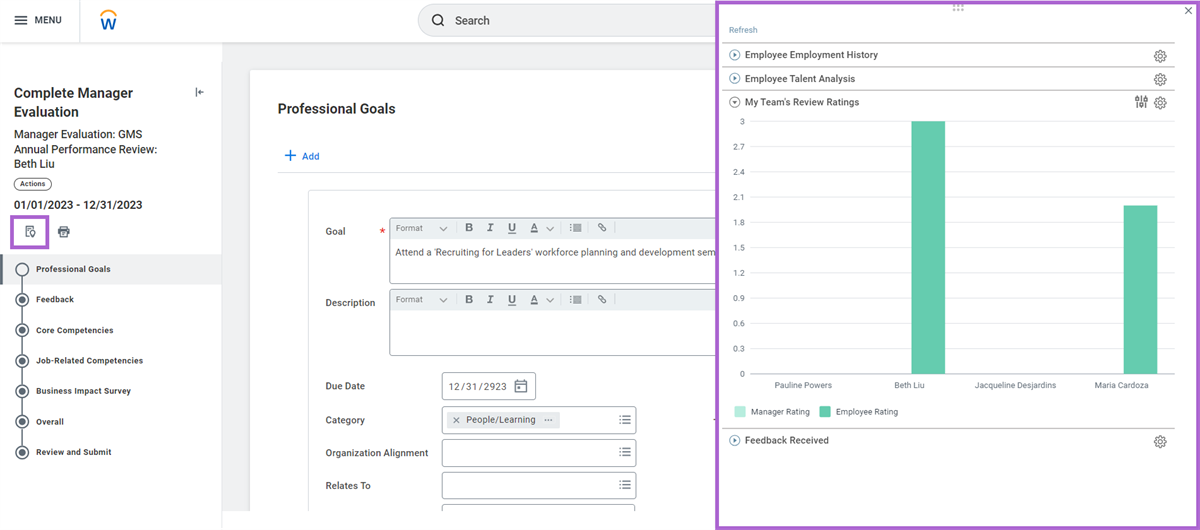
There are a few basic rules regarding the maintenance and configuration of embedded analytics:
- To configure a related worklet or modify an existing worklet, you need to use the Related Actions menu from the default definition of the business process.
- There is a limitation of five worklets per step within the business process.
- The worklet can default to open, allowing the user to manually close it, or default to closed and allow the user to manually open it.
- You can collapse or expand each worklet. You can also set the default behavior for worklets.
- You can hide the worklet if it is not returning values.
- Be sure to configure security so that the security group assigned to complete the task will have access to the worklet. If you do not, the worklet will not display.
- You can use custom reports as well as delivered worklets. The output set on the report must have the Enable As Worklet checkbox selected. Also select the Embedded on Task checkbox for the Available on field.
Employee and Manager Acknowledgment
The final step in the performance review process is to add the Manager Acknowledgment and Employee Acknowledgment steps. These optional steps allow the employee and the manager to acknowledge that they have discussed and agreed upon the contents of the performance review.
Printing Employee Reviews for Different Personas
Workday provides flexible printing options for employee reviews, allowing for both individual and mass printing. The printed output for employees mirrors the visible review sections, while managers retain the ability to print complete versions when some sections are hidden from the employee. Printing can be automated within various employee review business processes. Additionally, Workday enables UI layout print access for Guided Experience employee reviews to the following personas from their My Tasks review event:
- Former managers
- Manager for majority of event
- Additional managers
- Additional reviewers
Employee Review Transactions Security Policies
As you deploy and maintain Workday Talent Optimization, keep in mind that several domain and business process security policies need configuration to ensure the appropriate security permissions.
Domains |
|---|
Functional Area: Performance Enablement |
|
Business Processes |
|---|
Functional Area: Performance Enablement |
|