
Calibration
Overview
Workday supports both performance and talent calibration. You can use performance calibration to ensure managers use ratings consistently across the organization. Similarly, you can use talent calibration to ensure you assess workers' performance and potential consistently across the organization. The goal is for a group of business leaders and HR and Talent professionals to:
- Review all workers' ratings.
- Discuss and adjust those ratings, if necessary.
- Use the calibrated information to develop plans that will effectively manage talent across the organization.
In this chapter, you will learn how to create, configure, and complete a calibration.
Objectives
By the end of this chapter, you will be able to:
- Create and set up a calibration nBox report.
- Create a calibration program.
- Configure the performance review business processes.
- Launch a performance review with calibration.
- Manage and facilitate calibration.
- Define calibration security.
Calibration
A performance calibration is different from a talent calibration in that you are only calibrating one rating - the worker's performance rating. In talent calibration, you are calibrating two ratings - the worker's performance rating and their potential. You can also include calibrations within the
Performance Review
or the Talent Review
business process.The steps to setting up calibration include:
- Create an nBox report.
- Set up the nBox report.
- Create a calibration program.
- Define business processes.
Using the Calibration Tool
Whether launching the calibration independently, or as part of a performance review, the manager will receive a
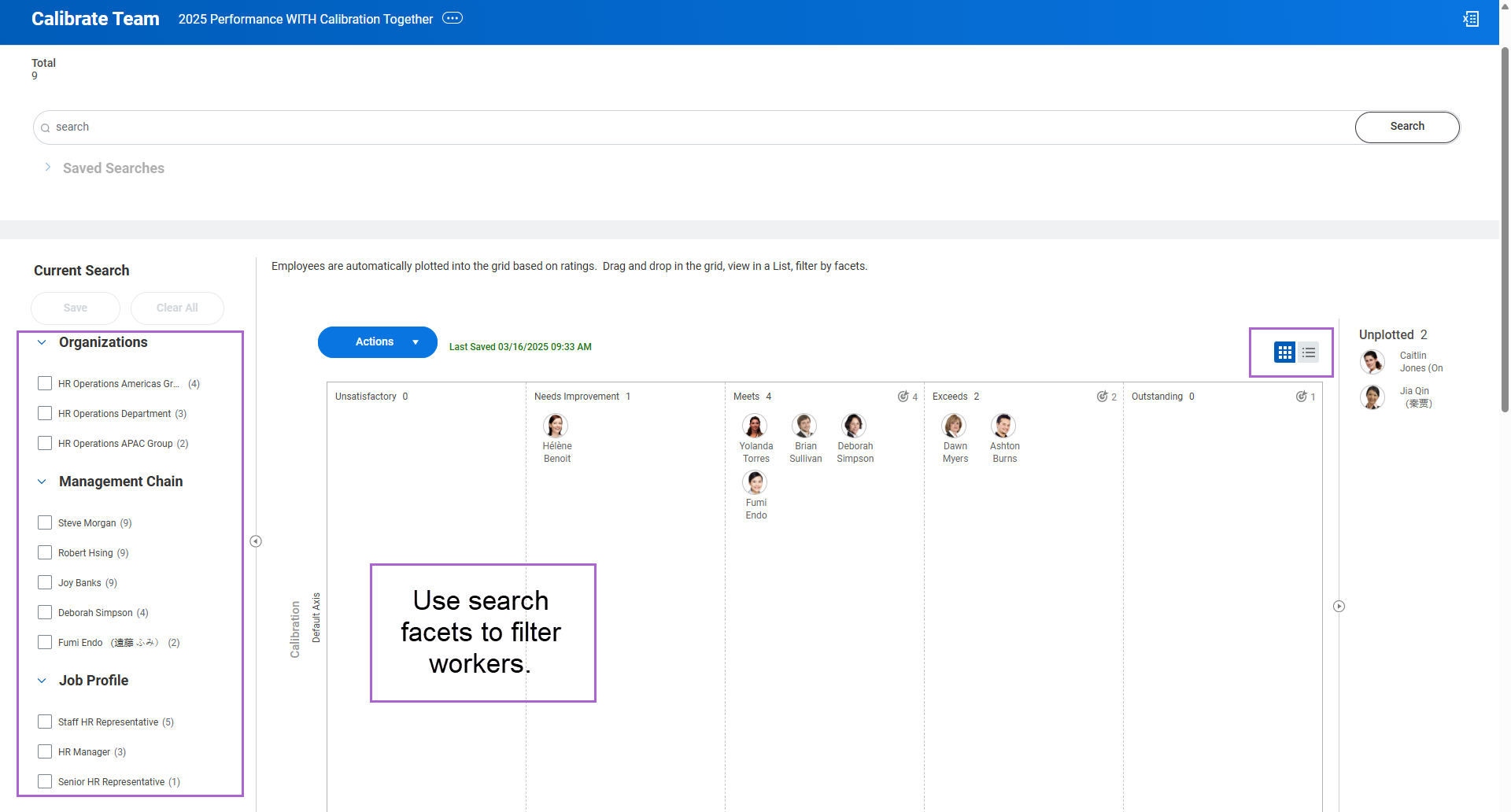
Calibrate Team
task in their Inbox. Managers can drag-and-drop their employees into the correct boxes, eliminating the need to perform calibration on a whiteboard or spreadsheet. Once the manager has submitted their calibration, it can then roll up to the next level of management for them to review and modify. The highest level manager submits the calibration to the controller. The calibration event ends when the controller has submitted the calibration.The Calibration Tool
Workday allows you to skip the first line manager and allow the manager's manager to be the first calibration participant when calibration launches. To enable this option, select the Autocomplete First Participant checkbox on the
Create Calibration Program
task or Edit Calibration Program
task.Calibration Status
If you are a multilevel manager, you can view both direct and indirect reports in the nBox. However, you cannot plot your indirect reports until after their manager has plotted them. Indirect reports that a manager has not yet plotted display grayed out on the nBox report.
To view the status of the calibration process for your entire organization, select the Actions button and select Calibration Status. The calibration status gives you the option to pull events forward or send them back. You can perform the following actions:
- Complete on Behalf Of pulls all subordinate organizations in the selected chain forward for you to complete.
- Send Back returns the calibration event back one level for further action.
- The Submit button will display to the top-level manager when all subordinate managers have submitted their calibrations.
Calibration Status
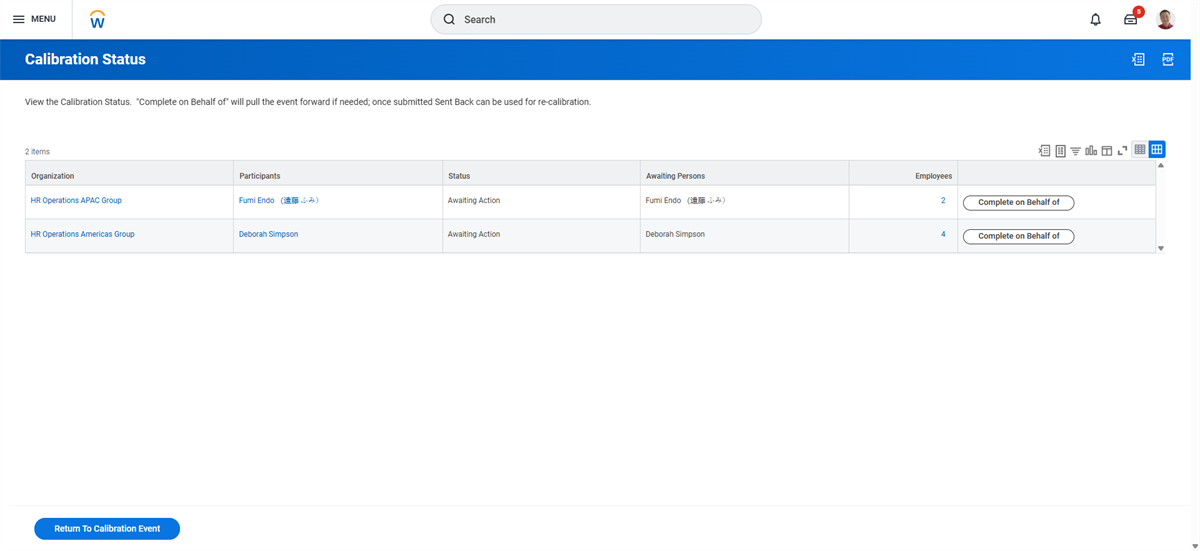
Calibration Status Options
All lower-level organizations must complete their calibration tasks before the higher-level manager can submit their calibration task. You will not receive an Inbox task to approve lower-level calibration events. Instead, you would review worker placements directly in your calibration nBox.
For managers of multiple organizations, the number of Calibrate Team Inbox items they receive will depend on the relationship of the organizations they manage.
Scenario 1: The organizations they manage are in a hierarchy, meaning that one organization is the subordinate of the other. The manager will receive one consolidated Inbox item.
Scenario 2: The organizations they manage are on the same level and share the same superior organization. The manager will receive separate Inbox items, one for each of the organizations they manage.
Scenario 3: The organizations they manage are not hierarchical and do not share the same superior organization. For example, this scenario would apply when a manager manages two disparate teams, like Sales and Marketing. The manager will receive separate Inbox items, one for each of the organizations they manage.
Hiding Workers from the Calibration Session
You can hide your direct reports during a calibration session to prevent them from seeing their own or their peer's placement. This option enables a senior manager to host a calibration session that focuses on lower levels of the organization hierarchy while keeping direct reports out of view. Afterwards, the senior manager can roll up the calibration session results for the entire organization to a superior level.
When you remove individuals from view, they remain hidden for the duration of the calibration session, even if you save and come back later. The box totals exclude hidden workers. To remove workers, select the Actions button in the nBox, choose Hide Workers, and then select the workers for removal. Unhide the workers before you submit the calibration. Select Actions > Hide Workers, then select Restore Original Workers.
Creating the nBox Report
The nBox report type enables you to build a report in a format like the
Talent Matrix
report available in Workday HCM. However, unlike the Workday-delivered Talent Matrix
reports, the nBox report types are fully configurable. For performance calibration, use an nBox report type to determine:- Rating values to calibrate
- Worker display options
- Fields for the detail view
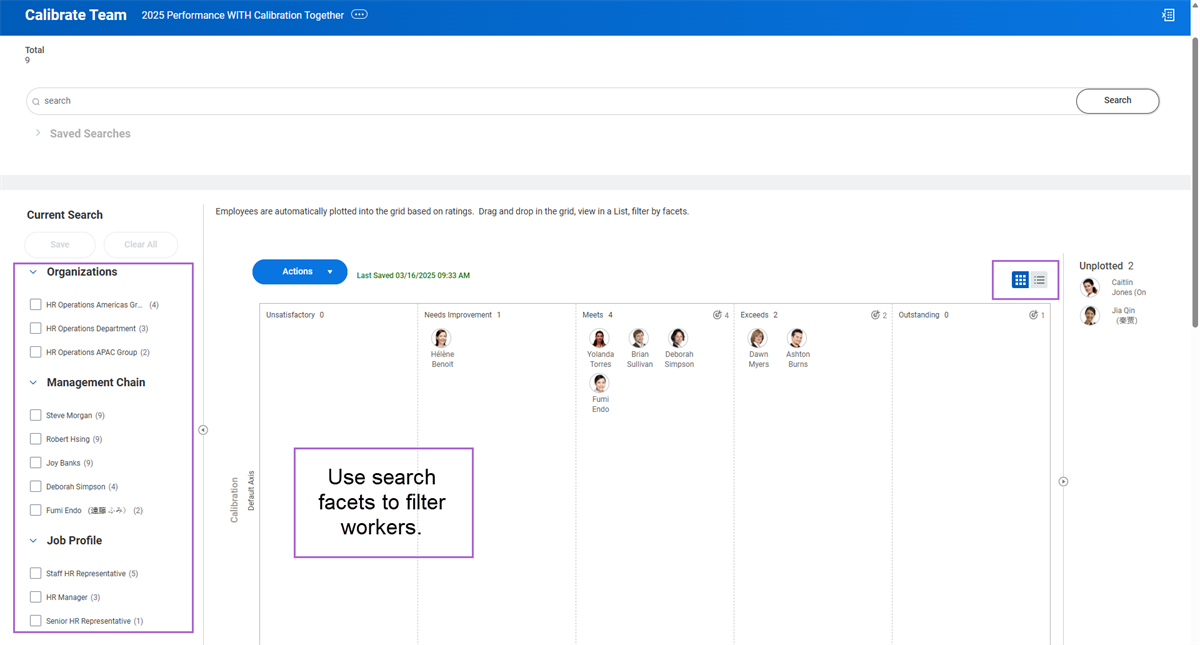
- Search facets to filter workers
- Drillable fields for additional information
You can create a new nBox report by creating a custom report or copying an existing nBox report. You can use the same nBox report for any number of calibration programs. The data source for your nBox report must be Indexed In Progress Worker Calibration Placements.
Within the nBox report definition, there are several tabs for configuring the report. The matrix tab is where you define your rows and columns that will display. The matrix tab defines the structure of the matrix report. There are six fields available for the calibration matrix:
- Competency Section Rating
- Default Performance Axis
- Goal Section Rating
- Overall Performance Rating
- Potential
- Talent-Based Performance Rating
For a performance calibration, the matrix must include the Default Performance Axis as the Row field. The Default Performance Axis is the vertical axis of the matrix. The Column field should contain one of the fields for rating - typically, the Overall Performance Rating. The column field is the horizontal axis of the matrix.
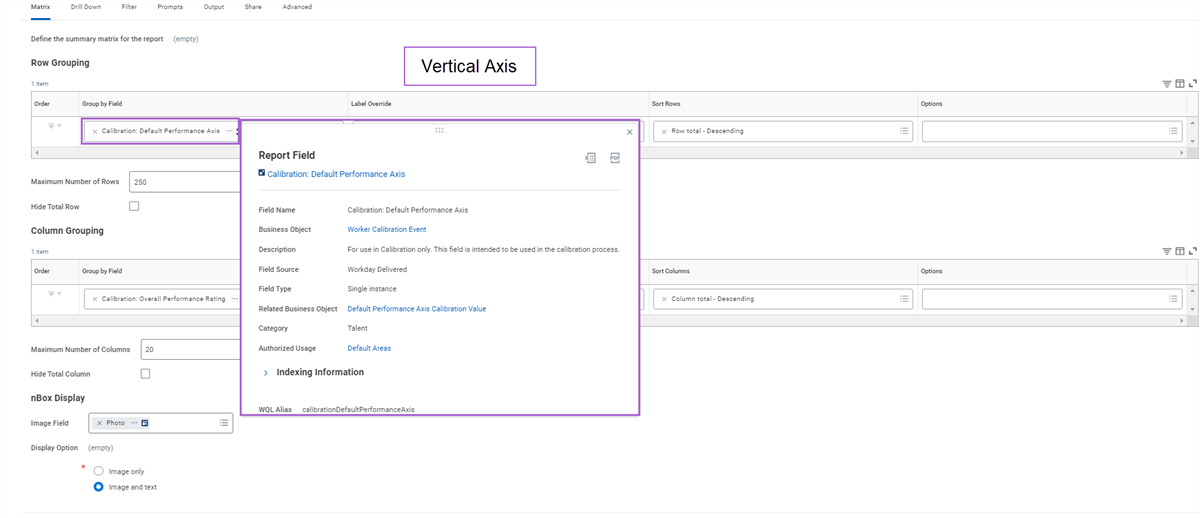
Vertical Axis
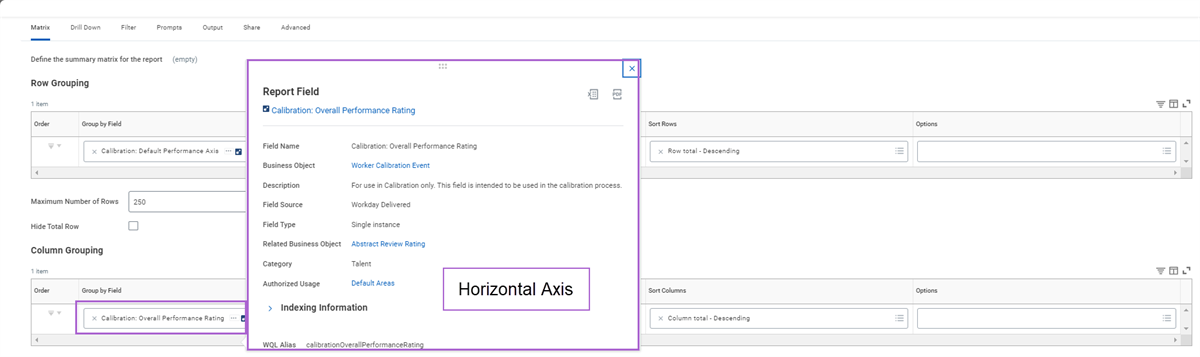
Horizontal Axis
The calibration fields in the report define the rows and columns that will display. They also define how the workers default in the boxes during calibration. Below is a brief explanation of all six calibration fields.
Field | Description |
|---|---|
Calibration: Row Section Rating & Calibration: Column Section Rating | Use this field in the nBox row to pull the value from the employee review template section rating. |
Calibration: Default Performance Axis | Ideally suited for performance calibrations where you do not require the column axis. |
Calibration: Overall Performance Rating | Use this field to pull the employee's overall performance rating during calibration and default them in appropriate boxes. |
Calibration: Potential | Use this field to pull the employee's latest potential assessment during calibration and default them in appropriate boxes. |
Calibration: Talent-Based Performance Rating | Use this field to pull the employee's talent review rating assessment (along with potential assessment) during calibration and default them in appropriate boxes. |
Drill Down and Detail Data
The Drill Down tab contains configuration options for two areas of the matrix. The first is the drillable fields. Drillable fields provide additional search facets for the nBox, such as their job profile, management level, or compensation. You can only access this information in a static nBox report by drilling into the numbers in the plotted and unplotted areas.
The second configuration option is the detail data. In a calibration matrix, you can toggle between a matrix view of the calibration population and a list view. The list view will display the fields configured in the Detail Data section, to provide additional information about the workers in the calibration session.
Calibration nBox Drill Down Tab Configuration:
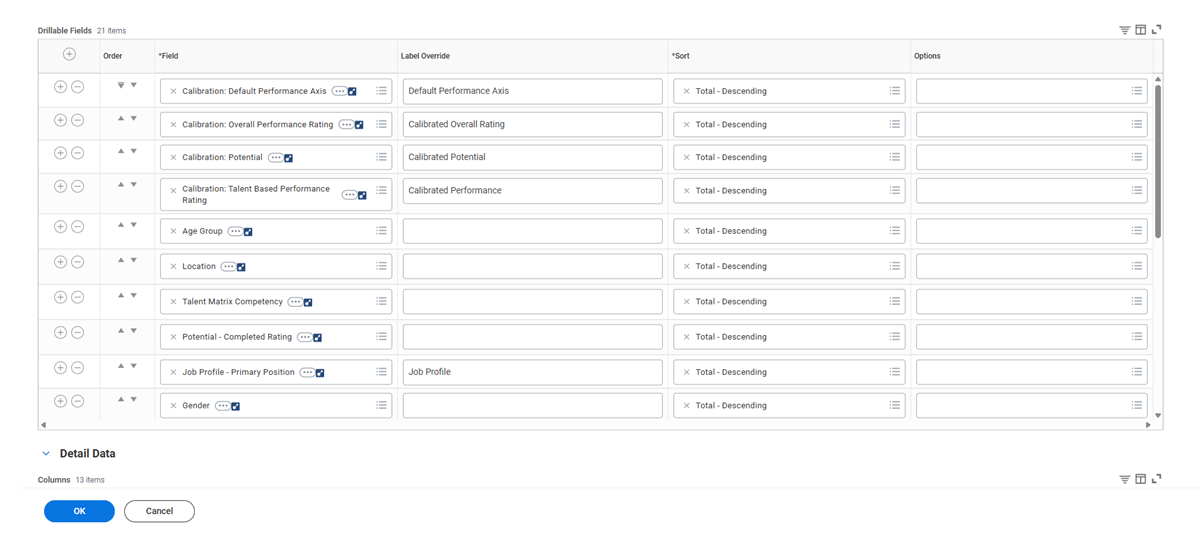
Calibration nBox Drill Down
Calibration Detail View:
Use the icons in the upper right-hand corner to toggle between matrix and detail view.
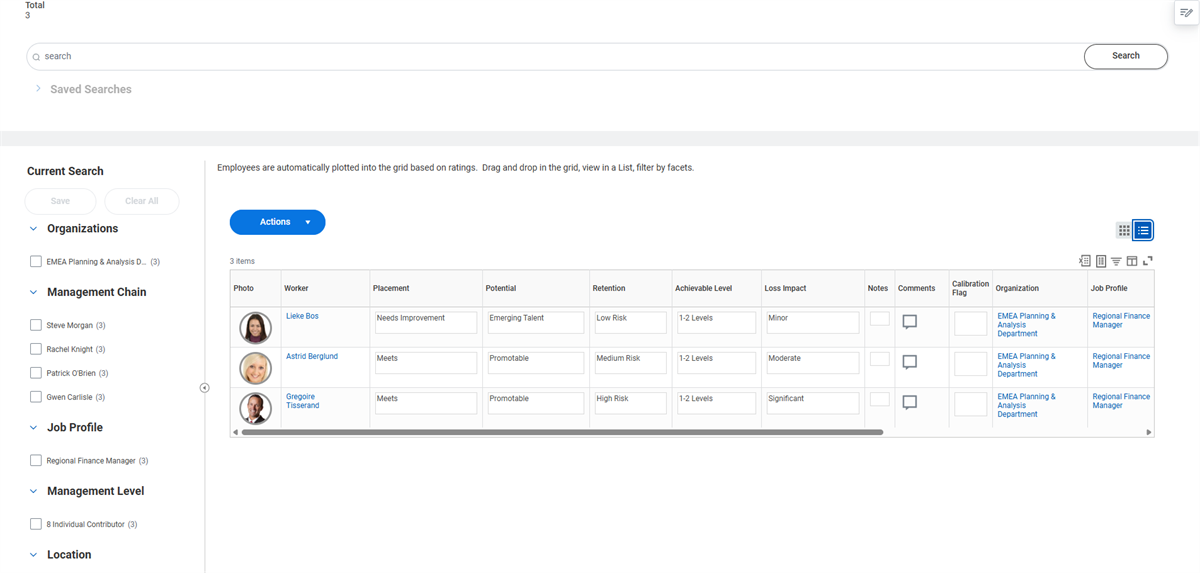
Calibration Detail View
Prompts
Workday requires the prompt Calibration Node for nBox on calibration matrix reports. Together, this prompt combined with the built-in and defined filters determines which organizations display when users launch the calibration from their Inbox.
Calibration nBox Prompts Tab Configuration:
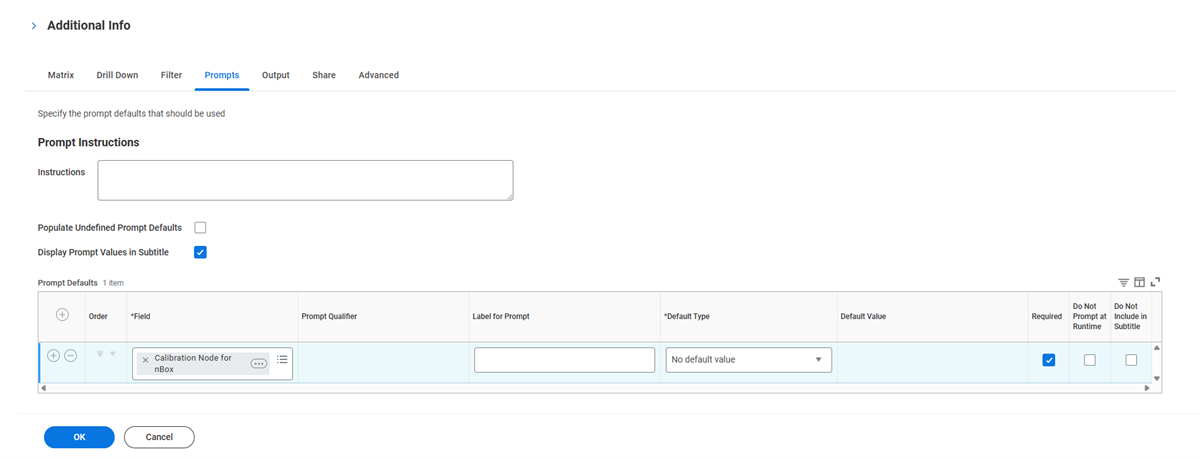
Calibration nBox Prompts Tab Configuration
Output and Share
The Output tab provides options for enabling your matrix as a worklet and entering help text for the matrix. On the Share tab, configure who will have access to the calibration nBox report definition.
Advanced
You can select search facets on the Advanced tab. The fields you set on the Advanced tab allows you to drill down to the target population of the calibration and filter workers on criteria. Criteria may include fields such as supervisory organization, management chain, or talent pool.
Calibration nBox Advanced Tab Configuration:
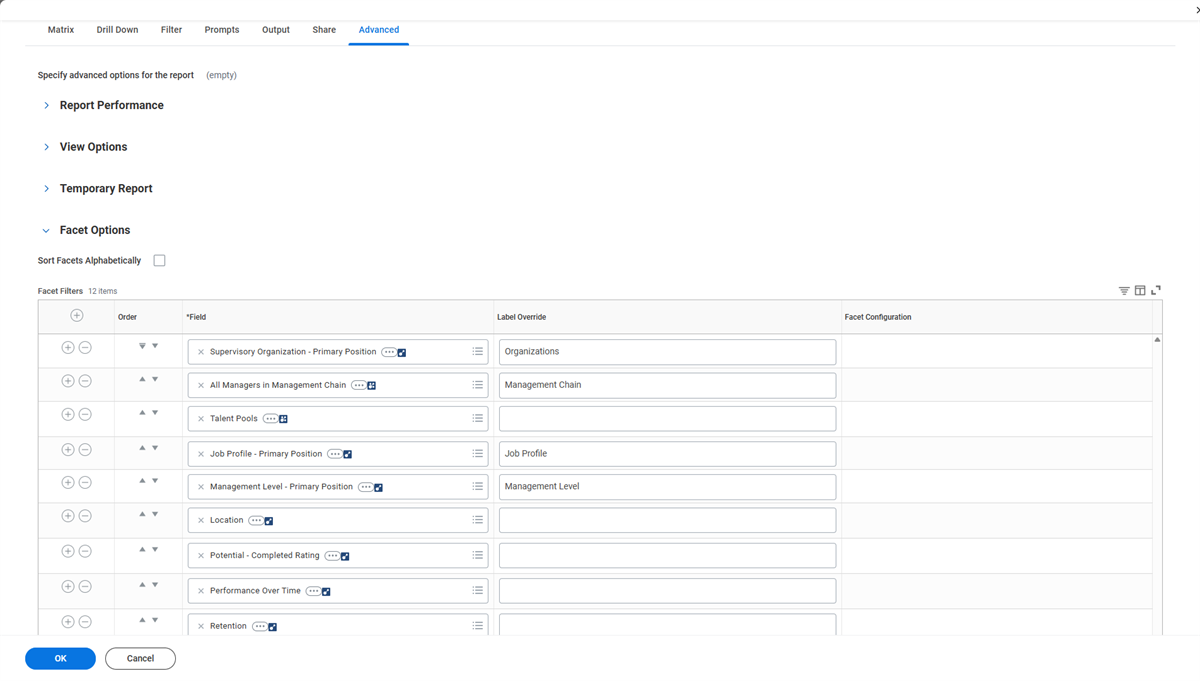
Calibration Advanced tab
Calibration Matrix View with Search Facets:
You can locate Search facets on the left of the Calibration screen.
Calibration Matrix View
Set Up nBox Report
You would use the
Set Up nBox Report
task to map the source values from your calibration matrix. For example, you could use this task to map the performance ratings and potential ratings from their corresponding axis in the matrix. If you are building a 9-box matrix, you must define three values for the horizontal axis, and three values for the vertical axis. The vertical axis would have three defined values for performances, and the horizontal axis have three defined values for potential. These values then map to a source value from performance ratings and potential ratings, respectively. The calibration values you map determine the report fields that Workday updates after calibration is complete. For example:- Calibration: Talent-Based Performance Rating value updates the Talent Matrix Review Rating field.
- Calibration: Potential value updates the Potential field.
The
Set Up nBox
task also allows you to label the boxes in your matrix and add optional help text.Calibration Program
A calibration program defines each aspect of the calibration activity, including:
- The calibration nBox
- The nBox cell limits
- The target population
- The calibration value mappings
- Any target box percentages
- The default calibration values
To set up your calibration program, use the
Create Calibration Program
task. Name the program and assign an nBox report to it. Workday enables you to set a maximum number of workers that are visible per cell in a calibration nBox to optimize performance. Set the nBox cell limit by populating the prompt field on the Edit
Calibration Program
or Create Calibration Program
tasks. Workday automatically displays the maximum number of workers per cell based on the value you set for all calibration events launched with the calibration program. You can change the value during the Facilitate Calibration
task.You can also assign a specific population. A calibration program rule included in the program can define the population. If you leave the Applies To field blank, the program includes all eligible employees selected at calibration launch.
You can select the Allow update of Assess Potential during Calibration checkbox in the calibration program. This configuration allows managers to assess potential during a calibration. If configured, Workday automatically displays the Retention, Achievable Levels, Loss Impact, Promotion Readiness, and assessment notes fields in the Detail Data grid view of the calibration. Use the
Maintain Talent Matrix Setup
task to configure this view.Note
: If you do not select the Allow update of Assess Potential during Calibration checkbox, you cannot update a worker's potential. However, you can update their placement on the grid view.The manager can add notes related to a worker, which can provide more context around a worker's potential assessment. Notes from a previous Assess Potential event, if available, will also display. Notes taken during the calibration will display in the employee's next Assess Potential event.
The Restrict Organization Level View field allows you to limit the number of organization levels that display in the calibration nBox. For managers with several organization levels reporting up to them, this feature can make their calibration more manageable by reducing the number of organization levels that appear. For example:
- Enter "1" to display the manager's direct reports and one level below.
- Enter "2" to display the manager's direct reports and two levels below.
- Enter "0" to display all workers in the organization.
Workday only allows you to restrict the organization level view by 0, 1, or 2 levels.
The Autocomplete First Participant field allows you to skip the first participant when calibration launches.
Select Validation for Unplotted Worker allows you to choose if users will receive an error or warning when workers remain unplotted, based on the Restrict Organization Level view population size.
Select Validation for Target Percentage Population allows you to choose validations for the Target Percentages' populations. When selected users will receive an error or warning if any Target Percentages' populations are not met in each box based on the Restrict Organization Level View population size.
Calibration Value Mapping
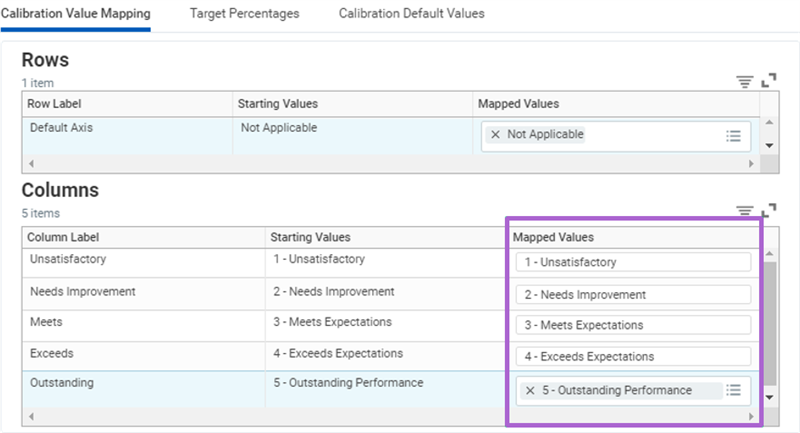
Mapping source values on the Calibration Value Mapping tab will plot employees in an associated box when the calibrate team task opens for the first time. If you leave the mappings blank, the nBox during calibration opens with all employees unplotted.
For a 9-box calibration, map all overall performance ratings to the three performance axis source values defined in the setup. Also map all potential ratings to the three potential axis source values defined in the setup.
Calibration Value Mapping
Target Percentages
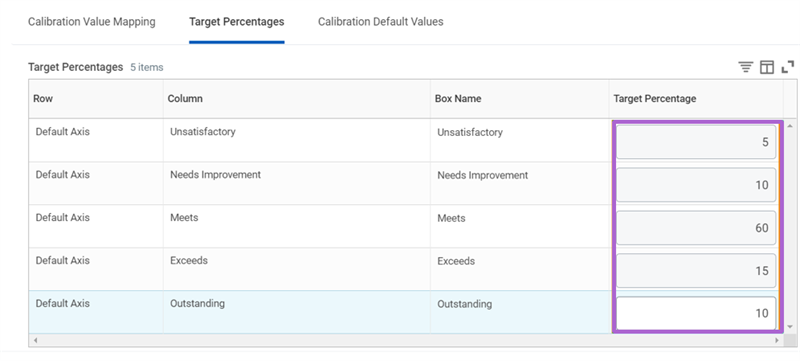
You can assign target percentages to each box if you want to calculate a recommended distribution of workers across the matrix. Workday will take the total calibration population number and calculate a target number of workers for each box you define a percentage for.
Assigning target percentages allows you to build a bell curve, or distribution, which is the recommended percent of employee population for each rating. Target percentages give managers guidance on how their employee population may distribute in relation to their review ratings.
Target Percentages
Calibrate Default Values
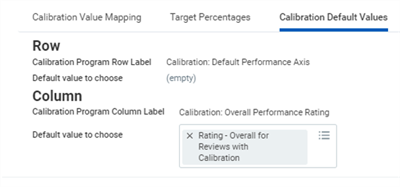
To default workers in the appropriate placements based on data in Workday, you should populate the Default Value to Choose field. If left blank, Workday will plot all employees as Unplotted when the calibration task opens. To pull in-progress ratings into a calibration, configure the default value to choose for the column with Rating - Overall for Reviews with Calibration field. The Default value to choose for the Row should be empty. These options are on the Calibration Default Values tab within the Calibration Program.
Performance Reviews with Calibration
Performance reviews are the only employee review type that can integrate with calibration. Integrating calibration simplifies the review process by allowing you to calibrate the same population as the one you are reviewing. You can also pull the overall rating from a review into calibration and place the review process on hold until the calibration event is complete.
Launching Performance Reviews With Calibration
When you start performance reviews with calibration for your organization, Workday launches the calibration program simultaneously. The rules and dates defined in the review template determine employee eligibility. Rules defined for reviews supersede rules defined for calibration. A To Do step on the
Launch Calibration
business process pauses calibration until the manager evaluations are complete. Workday then pulls the overall review ratings and potential assessment (if configured) from the review into the calibration.Report fields that are specific to reviews with calibration determine the calibration default values for initial worker placement:
- Rating - Overall for Reviews with Calibration
- Potential - Performance Review with Calibration
You can use the overall rating and potential assessment (if configured) from the review to compare, adjust, and plot worker placements in the calibration nBox.
After calibration is complete, the Update Performance Review Ratings for Manager Evaluation step in the
Complete Manager Evaluation
business process displays the calibrated rating in the manager evaluation.The Entry conditions on this step can:
- Prevent it from running when you do not select a calibration program on the Start Performance Review for Organization task.
- Place it on hold when the calibration event has not completed.
- Prevent it from running when including a worker in a different calibration event.
You can use these report fields for:
- Status for Calibration to create a validation rule on the Update Performance Review Ratings for Manager Evaluation subprocess.
- Calibrated Rating - Manager and Calibrated Rating to create an entry condition that skips the Update Performance Review Ratings for Manager Evaluation step when the calibrated rating and overall rating are the same.
You can perform the same actions on the Update Performance Review Ratings for Manager Evaluation step as the Complete Manager Evaluation step except Send Back.
Note
: Workday does not include the calibrated review rating in performance review printouts.Start Reviews with Calibration
When you start performance reviews with calibration for an organization, calibration for the same population starts simultaneously. Workday pulls in the overall review rating and the potential assessment, as configured, into the calibration. After calibration completes, Workday displays the calibrated review rating in the manager evaluation.
To include a calibration with a performance review:
- Launch theStart Performance Review for Organizationtask.
- Select the applicable organization, template, and review period.
- Select the applicable calibration program from the Calibration Program prompt.
Workday uses the rules and dates defined in the review template to determine employee eligibility.
Note
: If you define the review period in the template, then Workday will populate these dates automatically.Other Considerations
- Once the calibration launches, it distributes theCalibrate Teamtask to each manager in the organizations included in the calibration program.
- The calibrate team step can go to managers or another security group, like HR Partners.
- If calibrating an organization hierarchy, once a manager submits their calibration, it then becomes "active" at the superior level up the management chain. Once active, the employees are not grayed out to the manager's manager who views the calibration.
- The calibration is complete once the controller submits the final calibration.
- If a manager changes an employee review rating during calibration, then the manager will change the rating in the employee's record.
Calibration Business Processes
You would use the
Launch Calibration
business process to launch the calibration in mass to one or more supervisory organizations or custom organizations. The Launch Calibration
business process must include a Calibration Participation Details step and the Shared Participation step type. After adding the step, the administrator must select 'Configure Participation.'Note
: You can launch calibration for custom organizations that have a hierarchy of only custom organizations. Alternately, a hierarchy can have two custom organization types, with one as a "container" and the other housing workers.Choose which security groups you will allow, such as managers or HR partners, to perform the calibration activity for an organization. You can also add approval steps, as needed.
If you assign the Calibrate Team step to the manager, they will receive the
Calibrate Team
task in their Inbox. Managers can drag and drop their employees into the correct boxes. Once the manager submits their calibration, the task rolls up the management hierarchy for reviews and modifications.Calibration ends when a controller, typically an HR, or talent administrator, submits the entire Calibration event. The controller cannot submit the Calibration event until the top-level manager has submitted the calibration. Alternatively, the controller has the option to manually advance the event.
You can also streamline the employee review process by integrating the calibration within it. You can:
- Calibrate the same population in the performance review.
- Pull in the manager's overall rating from a review into calibration.
- Place the review process on hold until the calibration event is complete.
- View the calibrated rating in the manager evaluation of reviews.
Additionally, administrators can take the review process off hold, to prevent it from delaying if the calibration event is not complete.
To include calibration within the performance review process, you must meet the required configuration options. The following graphic is the process flow of a performance review with calibration.
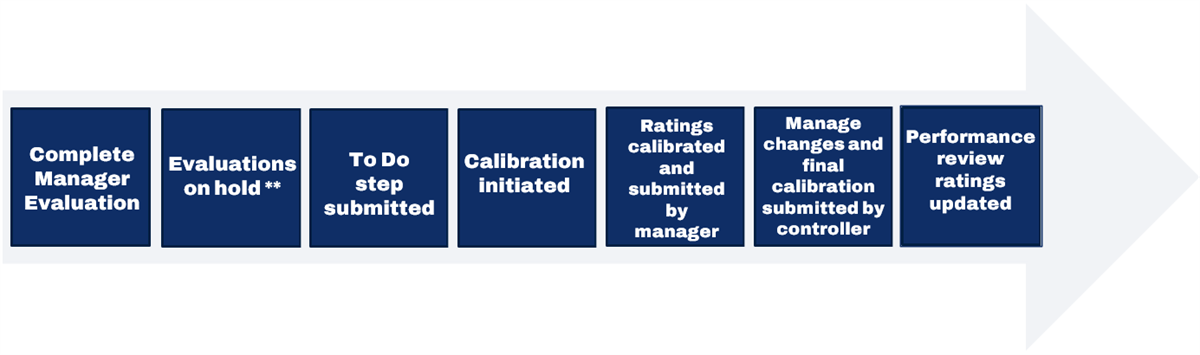
Complete Manager Evaluation for Performance Review Process
The
Complete Manager Evaluation for Performance Review
business process must include the Update Performance Review Ratings for Manager Evaluation step. This step facilitates the calibrated ratings to write back to the performance review and display for the manager to adjust ratings after calibration. Launch the step after the Initiation and approval steps and route it to the Manager security group.To pause the business process, configure the optional Await Calibration Completion Service step after the Initiation step and approvals. Workday will automatically resume the process once managers submit calibration. By adding this step before the Update Performance Review Ratings step, managers will not receive an employee review on hold Inbox task. Once the controller submits the Calibration event, the Service step is complete. Managers will then automatically receive an Inbox task to update employees reviews to match the calibrated ratings.
Launch Calibration Business Process
To ensure that manager evaluations are complete before the calibration launches, include a To Do step in the
Launch Calibration
business process. Place this step before the Shared Participation step. Assign the step to a security group with access to all employees in the calibration, such as an HR partner or manager.The Shared Participation step allows specific individuals to perform actions on a business process step without moving the business process forward. When the shared participation step launches, individuals receive notification of their involvement in the business process. Depending on their role, there may be a requirement for them to perform specific actions. After you save a business process definition that contains a shared participation step, select the Configure Participation button to configure additional options. The options include:
- Effective Date: The default effective data is the current date.
- Time Zone: The default time zone is the user's current time zone.
- Organization Type to Use: Supervisory delivered or other custom organization types.
- Security Group: Individuals who will perform the participant detail events.
Under Participate Detail Step Delay, you can select additional options for the following fields:
- Delay is Based on: A specific report field on which to base the delay.
- Additional Calculated Delay: Calculate the delay based on a specific duration.
Note
: If you copy a business process definition that contains a shared participation step, Workday also copies the participant configuration for that step.If you change a shared participation step to another step type, such as an Action step or an Approval step, Workday deletes the participant configuration for that step.
Updating Calibration Events For Staffing Changes
Once launched, the calibration program will automatically capture worker, organization, or organization role changes. Workday runs a background process periodically to refresh the data. You can use the
Update Manage Calibration Data
task from the calibration event's Related Actions to manually refresh.Before submitting, the controller can manage a calibration to accommodate worker and organization changes and process role assignments. This feature gives HR Administrators greater insights and control during in-progress events. You can assign the controller to more than one security group, if needed.
After initiating a review with calibration, use the
Manage Calibration
task to add or remove workers hired, terminated, or with job changes processed during an in-progress calibration event. Workday will automatically create a review for added workers. If an employee has changes, but remains in the same supervisory organization, add them back into the calibration so the manager can update the employee's placement. If you remove a worker from a calibration, manually cancel or rescind the review.For reassignment, the
Manage Calibration
task will list the events where there have been role changes, including if an event has become unassigned. The task gives controllers the opportunity to reassign events to users in the same security group specified in the Configure Participant step on the Launch Calibration
process.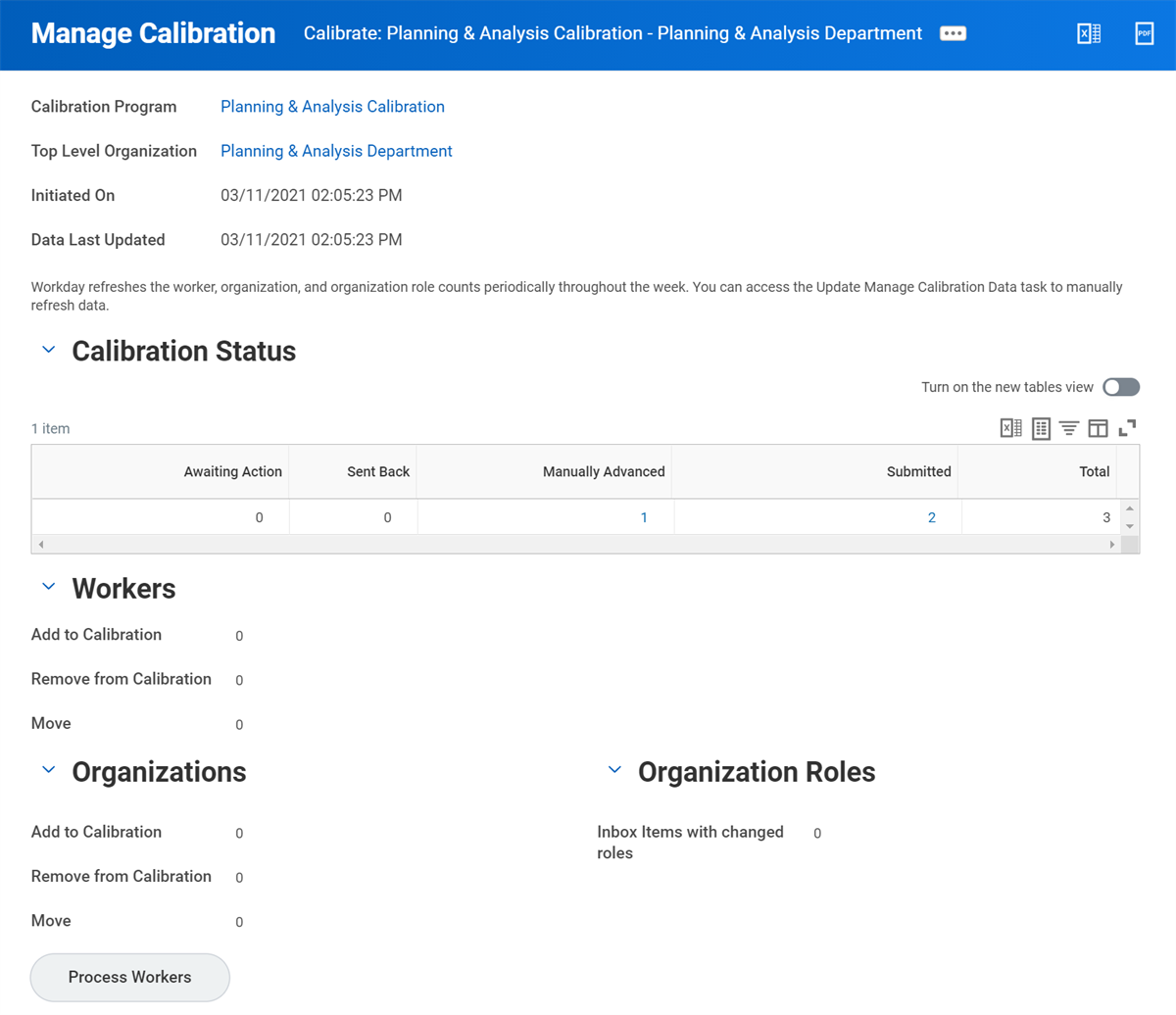
Manage Calibration
Workday supports the following worker changes:
|
|
Workday supports the following organization changes:
|
|
Facilitate Calibration
HR Partners or other users can assist with in progress calibration events when they do not receive
Calibrate Team
tasks in their Inbox. Use the Facilitate Calibration
task to:- Plot employees in the nBox.
- Complete calibration events on behalf of a manager.
- Send back an Inbox item after pulling it forward.
Users with View All permission on the
Launch Calibration
business process security policy and View and Modify permission on the Facilitate Calibration security domain can access the Facilitate Calibration
task.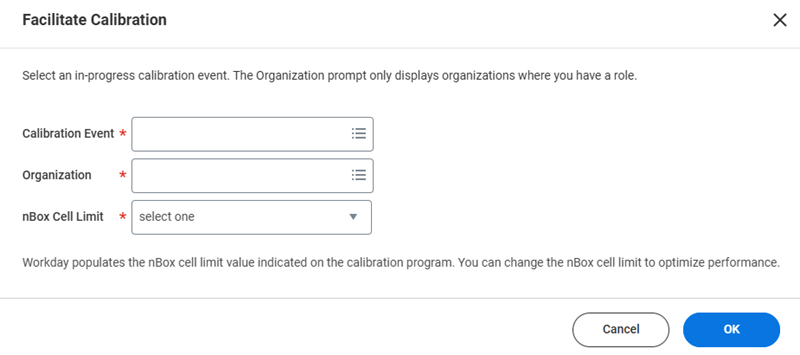
Facilitate Calibration
Calibration Team Members
Use the
Facilitate Calibration
task to calibrate workers for in progress calibrations you have permission to access. This task provides access to view and calibrate workers in the selected organization you have the permission to interact with.Drag and drop workers into the nBox view to calibrate them the same way managers would from the
Calibrate Team
task in their Inbox. You can hide selected workers in calibration to prevent them from seeing their own or their peers' placement during a calibration session.Complete on Behalf of
Use the
Facilitate Calibration
task to pull forward individual calibration events for a subordinate organization one level below the selected organization, including the organization itself. Optionally, you can complete on behalf of all organizations.Pulling forward enables the facilitator to have full control over the calibration event and takes the
Calibrate Team
task out of the manager's Inbox.Send Back
Use the
Facilitate Calibration
task to send calibration back to the supervisory organization one level below the current organization if it has been pulled forward, including the selected organization itself. Facilitators can edit employee's calibration at any point before the controller submits the final calibration, including after the manager submits calibration.Submitting the Calibration
When the manager places all workers in their appropriate boxes, they can submit the calibration by selecting Submit Calibration on the Actions menu.
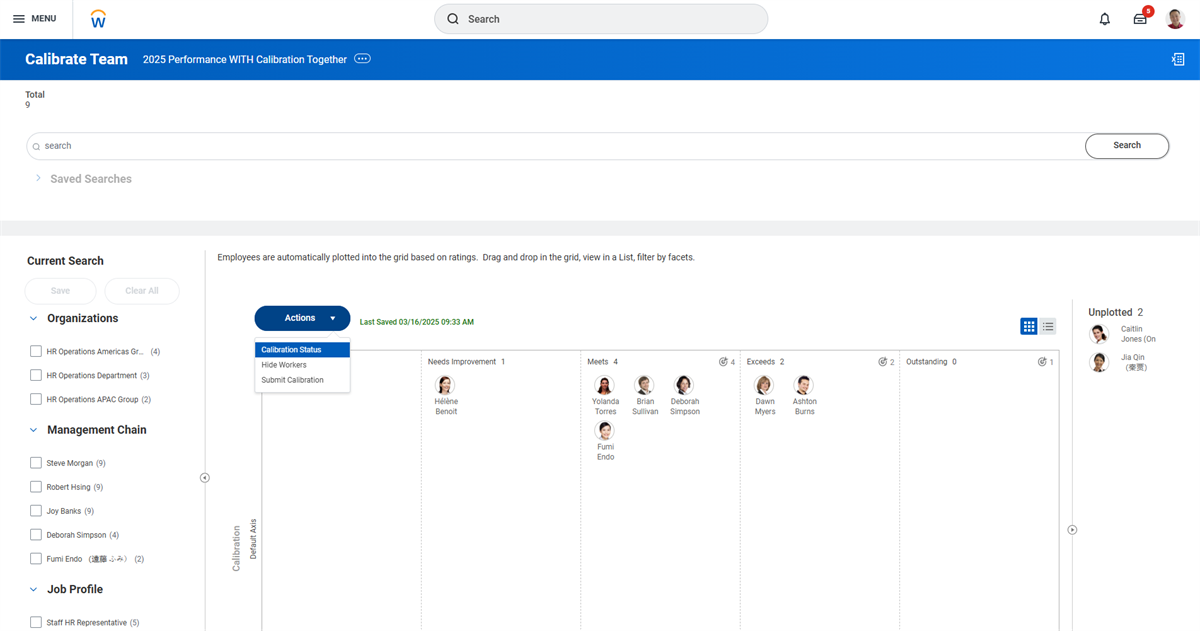
Calibration Status
Then, the controller receives a task to submit the final calibration.
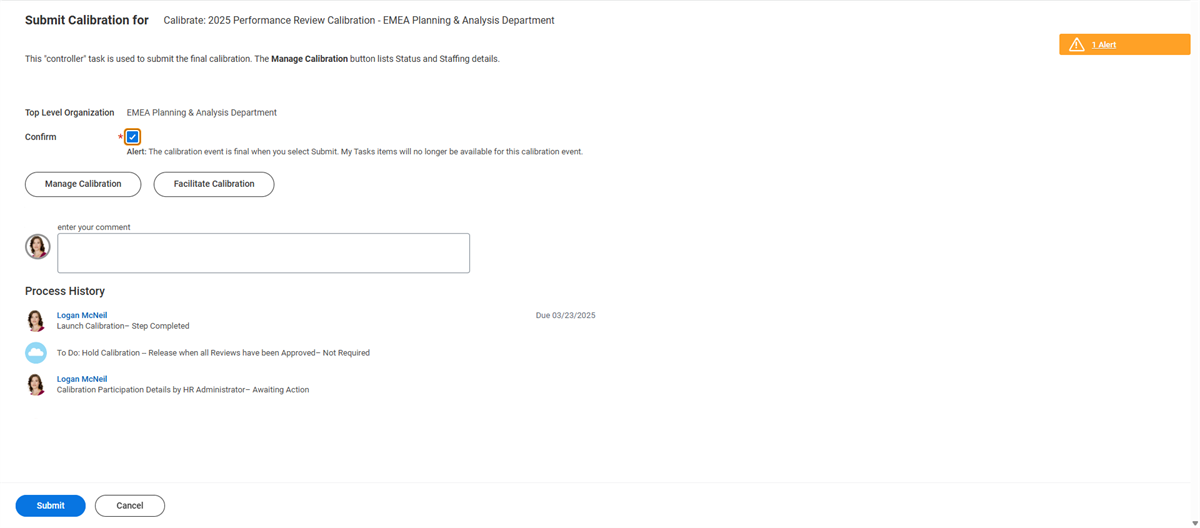
Submit Calibration for
Managers can display and view the calibrated ratings in the employee review or from a custom report. If the calibrated rating differs from the manager's rating, the manager can update the performance rating in the employee's review.
Talent Calibration vs. Performance Calibration
A performance calibration is different from a talent calibration in that you are only calibrating one rating - the worker's performance rating. In talent calibration, you are calibrating two ratings - the worker's performance rating and their potential. Although performed on a limited basis, you can include a calibration within the Talent Review business process. The talent calibration process can help you effectively manage talent across the organization.
Performance Calibration Security Policies
As you deploy and maintain Workday Talent Optimization, keep in mind that several domain and business process security policies need configuration to ensure the appropriate security permissions.
Domains |
|---|
Functional Area: Talent Pipeline |
|
Functional Area: System |
|
Business Processes |
|---|
Functional Area: Talent Pipeline |
|