
Student Recruiting Fundamentals
Overview
Workday Student Recruiting is the first step of the student life cycle. Workday Student Recruiting helps your institution meet its objectives by attracting and managing prospective students. In this chapter, you will explore the Workday Student Recruiting process with a focus on the fundamentals of Workday Student Recruiting.
Objectives
By the end of this chapter, you will be able to:
- Define the Workday Student recruiting process.
- Define educational institutions and associations.
- Identify student prospects.
- Identify student classifiers.
- Define a student recruiting rating scale.
- Define a recruiting region.
- Define admissions counselors.
Student Recruiting and Admissions Overview
Workday Student Recruiting and Admissions provides the framework and tools needed to recruit and admit prospective students. The process from recruiting prospects to admitting applicants in Workday has several steps, as outlined in the following diagram. In this chapter, you will focus on the Student Recruiting process.
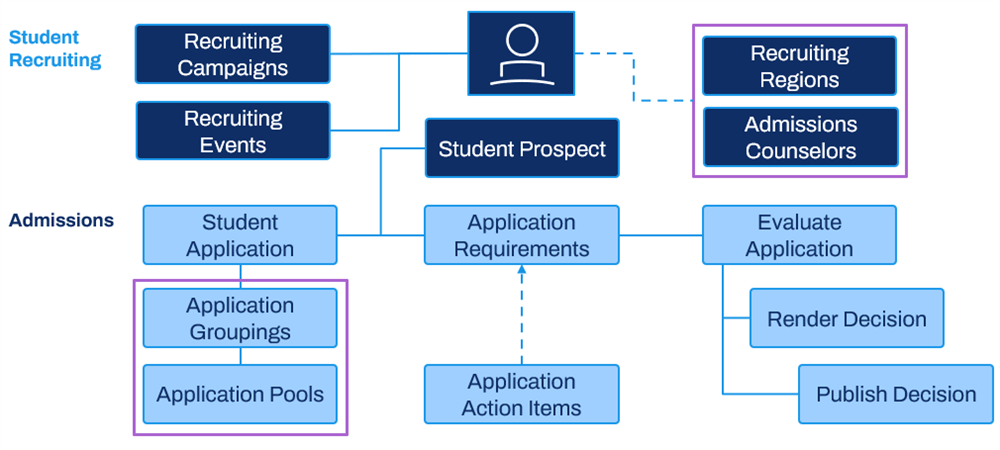
Student Recruiting Foundations
Workday Student Recruiting helps your institution meet its objectives by attracting and managing prospective students or prospects. Once you have outlined your institution's goals and plans, Workday Student Recruiting organizes personnel and resources to locate and attract key prospects. Workday Student Recruiting also helps deliver marketing messages and materials to draw those prospects to the application process. Workday Student Recruiting delivers powerful tools that focus on the following core requirements:
- Development of a recruiting strategy
- Management of recruiters and regions
- Execution of recruiting cycles, campaigns, and events
- Collection and management of prospect data
- Reporting and tracking on campaign progress
To begin, there are a few foundational objects to consider setting up as part of your student recruiting configurations:
- Student Classifiers:
- Educational Interests: Define a list of education-related interests that your institution identifies in a student prospect.
- Extracurricular Activities: Define a list of nonacademic activities that student prospects participate in.
- Student Tags: Define a list of additional tag values that your institution can use to identify, track, and manage student prospects.
- Student Recruiting Rating Scales: Define an internal rating system to categorize potential student recruitments.
- Recruiting Regions: Identify and parse out geographical areas for your admissions counselors to focus their recruiting efforts. This makes your student recruiting processing more manageable.
- Admissions Counselors: Identify the faculty and workers who perform the bulk of recruiting activities for your institution.
- Educational Institutions and External Associations: Define the external institutions that student prospects have attended and the external associations that student prospects are affiliated with.
- Student Prospects: Define prospects who have shown an interest in attending your institution or who you are interested in recruiting.
Student Classifiers
Workday Student uses student classifiers: general educational interests, extracurricular activities, and student tags. Use student classifiers to understand a prospect or applicant's overall educational goals, to track activities or accomplishments, or to categorize prospects you wish to focus on recruiting. Now, take a closer look at each of these classifiers.
General Educational Interests
Use general educational interests to indicate a general academic area of interest to a prospect or applicant. You can also use them as a criterion for matching prospects or applicants to admissions counselors and engagement plans. General educational interests differ from programs of study in that they are not necessarily areas of study offered by your institution. Capturing general education interests can help you better understand a prospect or applicant's general educational goals. This is especially true if a prospect or applicant is not familiar with the specific programs offered by your institution. Understanding these goals increases the effectiveness of your recruiting.
Examples of general educational interests could include:
- A general academic discipline, such as math or science.
- A long-term goal, such as medicine or a PhD.
- Other academic subjects of interest to your institution's prospects and applicants not represented by your programs of study.
You can also assign educational interests a Classification of Instructional Program (CIP) code. Workday maintains the CIP codes. Access the
View CIP Codes
report to see a complete list.Note
: Workday recommends that you include educational interests that are the same or similar to those you receive from third parties, such as search services or test score services. This ensures that when you load prospect data from external sources, Workday retains the general educational interest values.Extracurricular Activities
Extracurricular activities allow you to track the activities and accomplishments of your prospects and applicants outside of their academic career. You can associate extracurricular activities to a prospect or applicant manually or they can be brought in via a third-party load such as a search service or test score. Therefore, Workday recommends you include extracurricular activities with the same or similar names to those you often receive from those services. Extracurricular activities:
- Can be assigned a Workday-defined category, such as sports, arts, or volunteer.
- Are attached to an academic unit and, optionally, an academic level.
Use the
Maintain Extracurricular Activities
task to add and maintain your activities.Student Tags
Student tags enable you to categorize your prospects and applicants and select them for processing, such as assigning them to engagement plans and admissions counselors. Student tags allow you to identify prospects not easily identified, such as a legacy prospect or an athlete. Workday recommends grouping your student tags using categories. Using categories makes locating student tags easier when assigning them.
You can create and inactivate both student tags and student tag categories. You can edit a student tag, but not after it is associated with an academic unit. You can inactivate a student tag at any time. Inactivating a student tag does not remove it from any prospect records, but does prevent you from assigning the tag to any new prospect records. Use the
Find Student Tags
report to locate existing student tag names and student tag categories.Comparing Educational Interests, Extracurricular Activities, and Student Tags
The table below compares how you can use student tags, extracurricular activities, and educational interests in Workday Student and provides examples of each.
Educational Interests | Extracurricular Activities | Student Tags | |
|---|---|---|---|
Available as a filter for the Find Student Prospects report | No | No | Yes |
Can use to match prospects to admissions counselors | Yes | No | Yes |
Can use to assign engagement plans to prospects | Yes | Yes | Yes |
Examples |
|
|
|
Student Recruiting Ratings
In addition to the student tag framework, many institutions also use an internal rating system to categorize potential student recruitments. For example, student athlete prospects often have an associated "star" rating of 1 to 5. Another common scenario for student recruitment rankings is indicating the level of a prospect's interest in your institution.
You can define your institution's internal student prospect rating scales using the
Create Student Recruiting Rating Scale
task. This task enables you to create a set of rating categories and associate a numeric value with each. Determining rating categories for your institution helps identify key student recruitments and better focus student recruiting efforts.There are two ways to configure a student recruiting rating scale. The first method is to use a straightforward numeric scale to gauge a student prospect's rating. This kind of numeric scale is commonly used for athletics, where a student athlete is assigned a value of one to five "stars." To create this kind of numeric scale, select the Use Score Range checkbox on the
Create Student Recruiting Rating Scale
task as shown in the image below. This enables you to define the name of the rating scale, the minimum score, and the maximum score. After a prospect has been created, an administrator can access their student prospect profile and add the appropriate rating.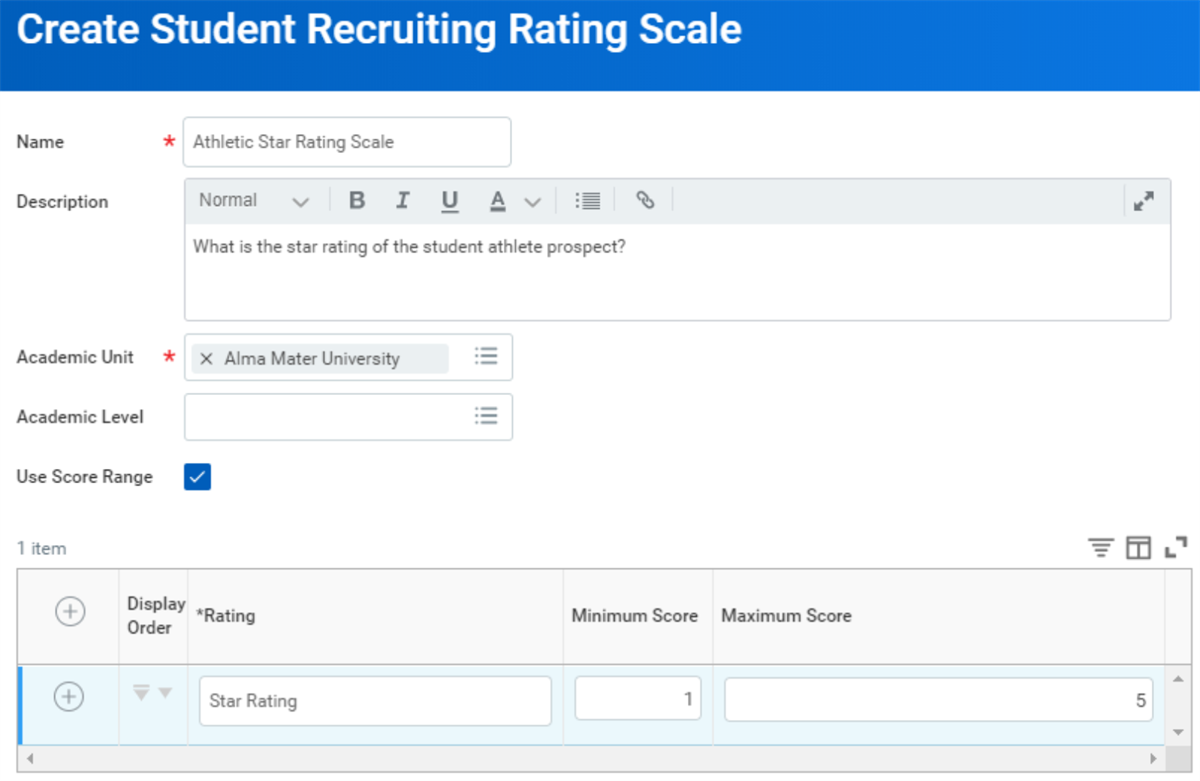
The second method is to populate several rows with different values to assign to a student prospect as shown in the image below. This method is useful for assigning non-numeric ratings, such as
Very Interested
or Not Interested
. You can also give the rating values a numeric value to help your recruiting administrators analyze and prioritize their efforts in recruiting specific prospects.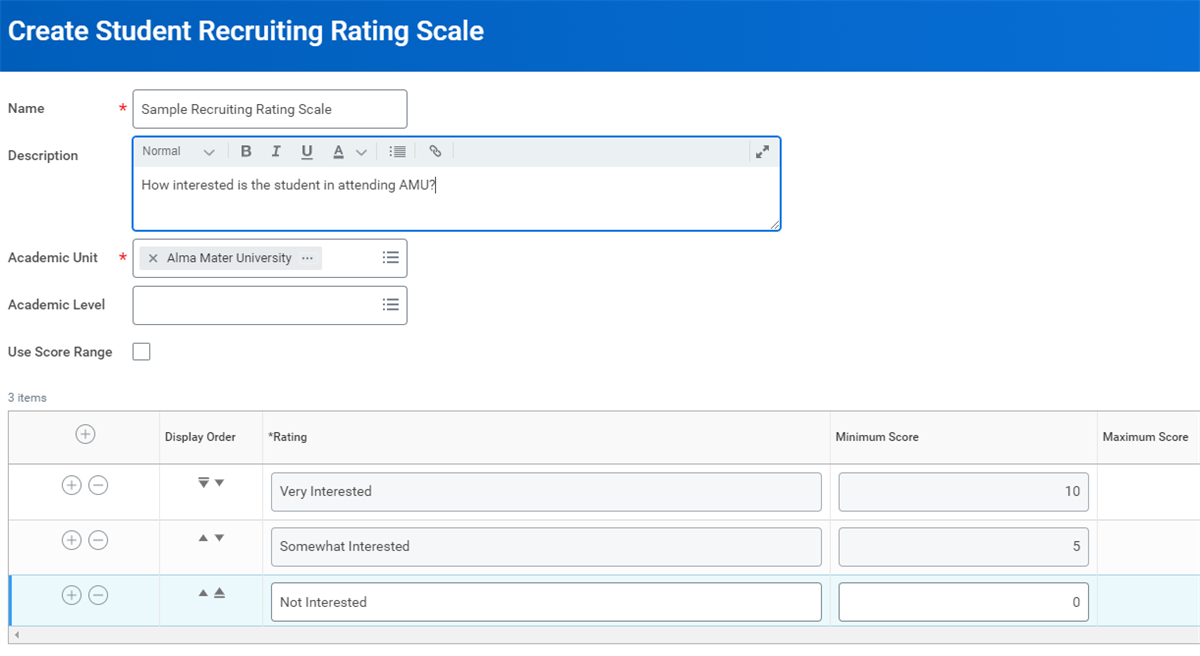
Other examples of this feature include:
- A prospective student at a college fair mentions that your university is their first choice. You can add a rating of "Top Pick" from your custom configured enrollment predictability rating scale. The prospect is then sent an engagement item tailored to the "Top Pick" prospects.
- Your institution purchases lists of prospective students that come with a numeric rating of 0-100. You know that the student prospects with a 70-85 rating are the mostly likely to attend your institution. You create an enrollment rating scale to accommodate: 0-69 (Not a good fit), 70-85 (Best Fit), 86-100 (Top Tier). Using the web service to bring in these scores, assign prospects the various rating groups and enter them into engagement plans tailored to each rating. At the end of the enrollment cycle, you can look back at how many students you got from each rating to determine whether the score ranges best reflect the outcome.
Recruiting Regions
Recruiting regions allow you to group your prospects geographically in a way that makes sense for your institution. You can then assign prospects to admissions counselors and engagement plans, based on those regions.
Recruiting regions are associated with an academic unit and academic level or levels. If your institution recruits graduate students differently than undergraduates, you can create separate recruiting regions for each level.
Recruiting regions are not mandatory, nor required to capture your entire student prospect population. However, they provide additional control over the management of your student prospects. You can use these regions to greatly streamline the recruiting and admissions processes.
You can define recruiting regions by:
- Country
- State or province
- Counties
- Cities
- A range of zip codes
- School districts
- A combination of these
For example, if your institution primarily recruits from the New England region, you may want to break that down into smaller subsections of each state. This process would help you better target New England prospects, while keeping prospects from the western United States grouped by state only.
In general, you should enter the most granular criteria for a region. If you enter a postal code, do not also enter a city and state. The combination of data in a row must be valid. For example, if you enter the state of Maine, but a postal code from New Hampshire, Workday will not automatically assign prospects to that region.
Hints
:- Do not create rows with overlapping criteria. Example: If you create a row for Texas, do not add another row for Austin.
- If you enter a city without selecting a state or province, the region will include prospects in all cities with the same name. Example: Portland will include prospects in Portland, Oregon and Portland, Maine.
Prospect Region Assignment
Workday automatically assigns prospects to a region if they have an address or educational institution that meets the criteria for that region. For regions based on an address (instead of an educational institution), the assignment criteria are as follows:
If a prospect has an address, matching occurs by the student's:
- Primary street address
- Any street address
- Any other primary address
If a prospect does not have an address, matching occurs by the institution's:
- Primary street address
- Any street address
- Any other primary address
The prospect's address always takes priority.
Example
: An AMU prospect, Betty Martin, was originally created without a home address. So, she was matched to a region based on her high school's address in New Hampshire. Betty later fills out an AMU prospect card, providing her home address in Maine. When this address is entered into Workday, the system reevaluates Betty's region, and assigns her to the Maine region instead of the New Hampshire region.Admissions Counselors
Admissions counselors are staff or guests your institution designates to recruit prospective students and review applications. These individuals can be admissions officers, faculty members, volunteer alumni, and others, including nonemployees. An admissions counselor can also be temporary with a start and stop date.
There are a few things to keep in mind regarding admissions counselors in the system:
- Admissions counselors exist as their own business object in the Workday system.
- Admissions counselors are maintained separately from the employee or user business objects.
- Assign admissions counselors to the appropriate security roles on the correct academic unit to ensure access to the correct student and prospect data. The security role determines which tasks and reports the counselor can access, and which prospects the counselor can view.
- Admissions counselors are assigned criteria to determine which prospects they are responsible for.
- Use the Manage Prospect Assignment Criteria task to make these designations. Access this task from an admissions counselor's Related Actions.
Example
: John Douglas is responsible for all AMU hockey prospects from the Northeast region. Therefore, an administrator must assign him to the Student Recruiter security role on the AMU academic unit and have prospect assignment criteria for northeast hockey prospects.Security Note
:After creating the admissions counselor, have your security administrator assign them a role (e.g., student recruiter or admissions reviewer) on an academic unit. For the case of nonemployees, your security administrator may need to create a Workday account.
Workday recommends assigning:
- Guest admissions counselors directly to a guest role on the academic unit, for example, a guest recruiter role.
- Roles you create for staff admissions counselors to position restrictions. For example, assign a student recruiter role on Alma Mater University to the Student Recruiter_AMU position restriction. When workers move in and out of the position, the academic unit assignment stays with it.
Admissions Counselor Assignments
You can assign admissions counselors to recruiting regions, application pools, recruiting campaigns, and recruiting events.
Assign admissions counselors to prospects based on the information specified in the Manage Prospect Assignment Criteria task. Access this task from an admissions counselor's Related Actions, or by selecting Edit on the Recruitment Criteria tab of an admissions counselor profile, as shown in the image below.
Admissions counselors can also add and edit prospects, send communications, and view recruiting details on their mobile devices.
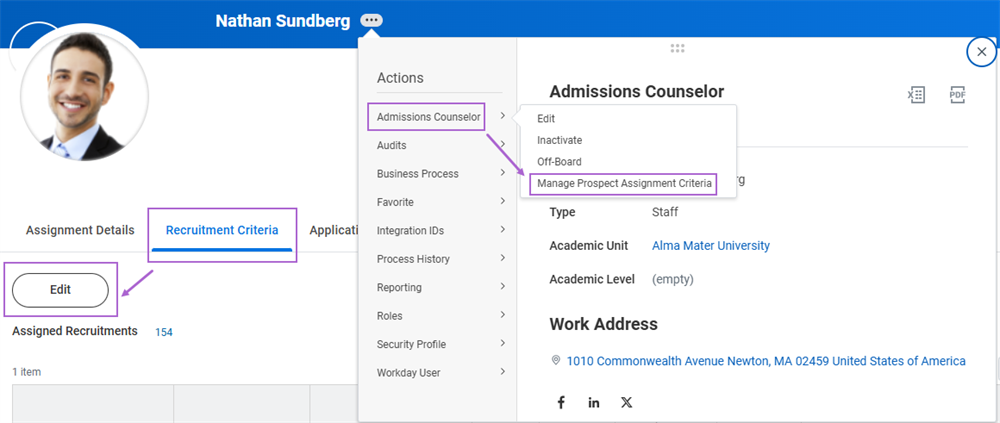
There are several bases you can use to identify assignment criteria, including:
- Academic Unit
- Academic Level
- Recruiting Region
- Student Tags
- Student Prospect Types
- Educational Interests
- Preferred Location
- Student Eligibility Rules
You can use Last Name, Extracurricular Activity, External Association, and Test Achievement student eligibility rules to create even more granular criteria for prospect assignment.
The way Workday designs prospect assignment criteria allows flexibility when assigning recruiters to prospects. This flexibility includes the ability to add multiple matching criteria when assigning prospects and incorporating "and" and "or" criteria. Rows added represent "or" statements and criteria specified within each row represents "and" statements. You can select multiple types of criteria in one row. However, the combination of data in a row must be valid. For example, if you enter a College of Business academic unit but an educational interest of Art History Major, which is in the College of Arts, the system will not assign any prospects to that counselor.
Example 1: AMU Undergraduate Prospects Interested in Biology
Assign Karen Bateman to undergraduate prospects from Maine who are interested in Biology.
For the system to assign a prospect to Karen Bateman, the prospect must be for AMU
and
undergraduate and
from Maine and
interested in Biology.Example 2: Prospects with the Top Prospect Student Tag OR Undergraduate Prospects from the U.S. Western Recruiting Region
Assign Nathan Sundberg to prospects with the Top Prospect student tag, and to undergraduate prospects form the U.S. Western Recruiting Region.
For the system to assign the prospect to Nathan Sundberg: the prospect must have a Top Prospect tag
or
the prospect must be undergraduate and
from the U.S. Western Recruiting Region.Note
: If you change a prospect's information or you receive new information, the system automatically re-evaluates admissions counselors.Educational Institutions and External Associations
Educational institutions allow you to store information about the secondary and postsecondary schools that prospective students, applicants, and current students currently attend or previously attended. You can:
- Associate educational institutions with prospects, applicants, and students.
- Add a transcript from an educational institution for a prospect, applicant, and student.
- Select educational institutions as locations for recruiting events.
- Group educational institutions into districts.
- Define recruiting regions that include specific educational institutions or that are in certain districts.
- Create a catalog of courses offered by the educational institution.
- Enter accreditation history for educational institutions.
You can add education institutions manually or load them via a web service. Below are some examples of educational institutions.
Educational Institution | Category | Level | Type |
|---|---|---|---|
Bath Academy | Private | Secondary | High School |
Massachusetts Bay Community College | Public | Postsecondary | Two to four years |
University of California, Davis | Public | Postsecondary | Four or more years |
External associations are community based or other noneducational organizations that you can:
- Associate with prospects and applicants.
- Identify as locations for recruiting events.
Below are some examples of external associations.
External Association | Type |
|---|---|
American Association of University Women | Nonprofit |
Arlington Community Center | Nonprofit |
Avid Technology | Profit |
Global Address Validation
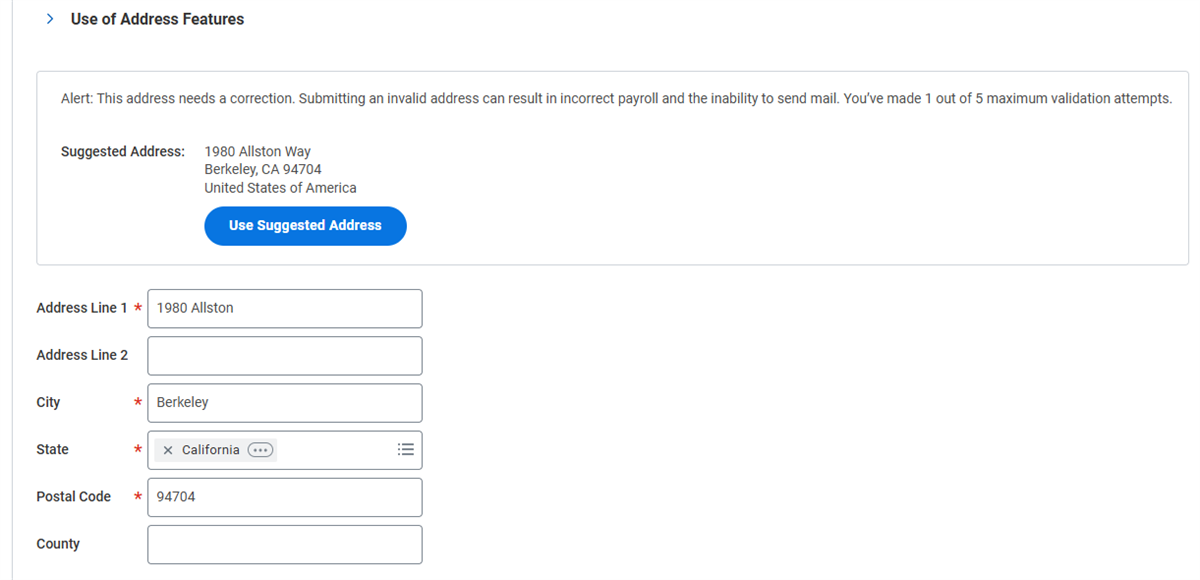
Workday enables real-time validation of an address upon entry. You will receive an alert, such as the one shown in the image below, when an official postal agency does not recognize the address. Workday also suggests a corrected address that when accepted, populates address fields. Global Address Validation improves the quality of address data by increasing accuracy and standardization. It also saves time by eliminating the need to find and cleanse invalid address data.
Student Prospects
Student prospects are individuals who have shown an interest in attending your institution or who you are interested in recruiting. In Workday, you can enter prospects manually or they can come in via a web service such as a search service file load. You can also create prospects from test scores you have purchased from external testing services or received from individuals.
When creating a student prospect, you must provide a name and contact information at the very least. You can also capture additional pieces of information about prospects, such as:
- Educational interests
- Social media information
- Recruitment source
- Current and previous educational institutions.
Referral Source
Many student prospects are referred to your institution by friends, relatives, school programs, or other sources. Track prospect referrals by using the Referral Source field on a student prospect's profile. Note that the Referral Source field is different from the Source field:
- The Source field describes how the student prospect came into the system, e.g., a third-party recruitment source or via email contact.
- The Referral Source field describes the reason why the student prospect has come into the system, e.g., a family member advised them to contact your institution.
You can use the referral source to track why students are interested in your institution for marketing analysis. You can also use the referral source to change how you engage with certain student prospects. For example, you may want to create engagement email items specifically tailored for student prospects referred by their athletic coach or program.
You can define the referral sources available by running the
Create Student Recruiting Referral Source
task. You can also view the referral sources you created by running the Find Student Recruiting Referral Source
report. Find more information on referral source configurations on Workday Community.Prospect Stages
Workday assigns a prospect stage to individuals based on how they became prospects to your institution. The system assigns these stages when creating the prospect. As the prospect submits more material, these stages do not automatically update, except for the applicant and pre-matriculant stages. The system automatically moves a prospect to the applicant stage when the prospect submits an application. Then, the system automatically moves them to pre-matriculant when they accept the offer of admission.
Prospect stages are as follows:
Prospect Stage | Assignment Rule |
|---|---|
Lead | Assigned to prospects whose test scores have been purchased from an external source (e.g., search service). |
Inquirer | Assigned to prospects who have initiated contact with the institution. (e.g., attended a college fair, completed an inquiry card). |
Pre-Applicant | Assigned to prospects who have submitted unsolicited supporting materials (e.g., transcripts, test scores). |
Applicant | Assigned to prospects who have submitted an application. |
Pre-Matriculant | Assigned to applicants who have accepted the offer of admission. Assigned to applicants admitted to a program of study with "Admission Response Not Required" selected on the program of study. |
Student | Assigned this value during the:
|
Student Recruitments by Stage Report
Use the
Student Recruitments by Stage
report to quickly view all of the student prospects for a given academic unit and academic level. This report breaks down the student prospect population by prospect stage and academic period, giving you a fairly comprehensive view of your institution's recruitment populations over time.Prospect Stage Progression Rules
You have two options for managing the stages of your student prospect population. First, you can manually update a prospect's stage whenever they perform specific actions, such as sending in transcripts or test results, or attending a recruiting event. Manually updating can be a daunting task if your admissions counselors are responsible for a high volume of prospects.
The second option is to set rules to automatically progress a student prospect's stage in accordance with certain actions they take. Use the
Maintain Student Prospect Stage Progression Rules
task to designate when the system should automatically change a prospect's stage, and what to change the stage to. For example, you can dictate that whenever a student prospect submits a transcript or a test result, the system should automatically change their stage to Pre-Applicant.Security Note
: This feature is tied to its own security domain, Manage Student Prospect Stage Progression. Configure and enable this domain in your tenant to use the automatic stage progression functionality.Activating or Inactivating Student Prospects
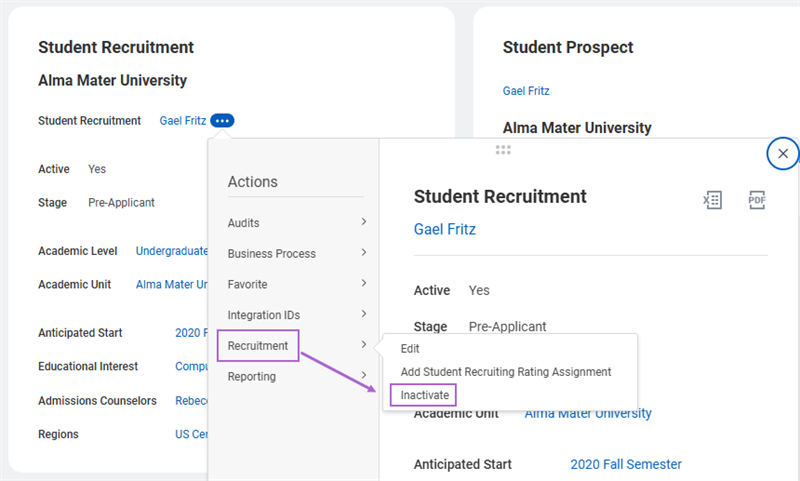
You can activate or inactivate a student recruitment using the Related Actions menu, as shown in the image below. In order to do so, you must configure the Manage: Student Recruitment Status security domain.
These options have guard rails: the Activate option is only available on inactive recruitments, and the Inactivate option is only available on active recruitments.
Note
: Inactivating a student recruitment automatically removes any region or admissions counselor assignment.Unified Duplicate Management Framework
Workday delivers an option to manage duplicate person records, called the Unified Duplicate Management Framework. The Unified Duplicate Management Framework enables you to easily find, match, merge, and unmerge student prospect and student applicant records. You can also use the Duplicate Management Framework to merge matriculated students to workers. Additionally, you can merge and unmerge students and student prospects that have a Universal ID.
The framework enables you to:
- Eliminate confusion associated with multiple records for the same person.
- Simplify record management by having a single record for an individual.
- Increase efficiency by automatically merging duplicate records.
- Lower maintenance costs as a result of fewer records to manage.
Duplicate Management is an enterprise-wide framework. As such, you must opt in to use the framework via the
Opt-In to Duplicate Management
task. Opting in disables the previous Match and Merge feature (the earlier version match tool offered by Workday), so it is important to give careful consideration to the timing of the Opt-in for Duplicate Management.Note
: Match and Merge is the earlier version match tool that has fewer configurable options and is more restrictive than the Duplicate Management Framework. For this reason, Workday recommends using the Unified Duplicate Management Framework.Person Type Combinations
Workday Student supports the merges for many person type combinations in the Unified Duplicate Management Framework. The following are some of these person type combinations Workday supports:
- Student Prospect to Student Prospect
- Student Prospect to Matriculated Student
- Student Prospect to Worker
- Student Prospect to External Student
- External Student to Matriculated Student
- Matriculated Student to Worker
- Matriculated Student to Student Prospect and Worker
The Unified Duplicate Management Framework also enables you to merge student and prospect records that have in-progress and completed business process events. This includes student and prospect records that have in-progress Student Onboarding events. Workday supports the merge for these role combinations wherever applicable: student prospect to student prospect, student prospect to matriculated student, student prospect to worker, and matriculated student to worker.
Notably, you can merge a Student Application Change Decision Event or Student Application Change Published Decision Details Event in progress.
- If merged events have duplicate applications, Workday keeps the oldest.
- If the oldest application does not have a decision, Workday does not keep any published decisions or changes to those decisions.
- If there are no duplicates, Workday appends the application information from Source student prospect to Target student prospect (including in progress events).
Match Configuration
The Unified Duplicate Management Framework allows the configuration of match rules based on delivered data elements. When you configure the Duplicate Management match rules, match the previous Student Match Rules or enhance those rules. Matching or enhancing the previous rules ensures that no surprises occur in terms of expected match behavior. Also consider that the rules configured will apply across the system. Ensure that the match rules reflect all person types and use cases.
In the Unified Duplicate Management Framework, Workday delivers Match Criteria instead of more rigid rules:
- Address
- Date of Birth (cannot be a sole criteria, you must combine it with other criteria).
- Email
- Name - Basic (matches on First Name and Last Name only)
- Name - All (includes Middle Name, Prefix, or other name fields)
- National ID - Basic (uses the ID type and ID value fields)
- National ID - All (uses all ID fields including ID type, issue date, expiration date, and national ID value)
- Phone
- Previous Worker ID
- Previous Location
- Previous Manager
Workday evaluates all rules, and a record may match on more than one rule. Additionally, you can enable Automatic Merge. When enabling Automatic Merge:
- Workday automatically fires this rule when you enter a new prospect/applicant.
- If not automated, the system will fire the rule when the Duplicate management job runs, either manually or scheduled.
You can also:
- Configure Match Rules to individually enable or disable.
- Exclude Person Types from automatic merge.
- Elect to append data to Worker for nonmatching demographic data.
Note
: Match Rules are the same for all person types within the tenant. Ensure that all functional areas have reviewed and tested the configuration in a nonproduction tenant.Managing Duplicates
When managing duplicates within the Unified Duplicate Management Framework:
- You can unmerge merged records.
- You can flag possible duplicate records as do not merge.
- Prevention of Merges occurs when:
- The system prevents the merge for some person type of combinations.
- The system prevents the merge when the merge would cause the system to change data incorrectly.
- An in-progress event prevents a merge. Resolve the event before the merge.
- Both records have birthdates and they do not match.
To enable this feature, you must enable the Unified Duplicate Management Framework and:
- Enable the Duplicate Management functional area.
- Configure domain security.
- Set up match rules.
- Configure businesses processes.
- Schedule and run the Duplicate Management job.
- Run Manage Duplicates Records
Duplicate Match Framework Objects
Configure these domains in the Duplicate Management functional area before you opt in to Duplicate Management:
Domain | Definition |
|---|---|
Manage: Duplicate Records for a Person | Enables constrained and unconstrained access to identify and manage duplicate records. |
Manage: Duplicate Records for the Tenant | Enables unconstrained access to identify and manage duplicate records. |
Set Up: Duplicate Management | Enables administrators to set up match rules and schedule match jobs. |
The following are the commonly used duplicate management business processes:
- Education Test Result Data Load Event
- ISIR Data Load Event
- Student Application Fast Path Event
- Student Application Pre-Matriculation Event
- Student Prospect Update Event
The following are the commonly used duplicate management reports:
- Find Suggested Historical Student Matches
- Manage Duplicate Records
- Manage Merged Records
- View Scheduled Runs for Find Duplicates
The following are the commonly used duplicate management tasks:
- Manage Match Rule
- Resolve Suggested Historical Student Match
Student Notes
The student notes feature allows you to create a note and share it across multiple departments via the student record. For example, you can create a student note to document a conversation you had with a student prospect, reminding the student recruiting administrator to contact the prospect the following week. These notes help you record relevant attributes for your students and student prospects, giving your entire institution greater context and insight into your student population.
Use the
Add Student Note
task to create a student note. When you create a student note, it is visible in the History section of a student or prospect's profile.You can also link student notes together, which helps you to more easily reference previous notes and better organize your documentation of interactions with students.
Use the
Add Linked Notes
task to link student notes. You can access the task by either:- Selecting the new Add Linked Note button that appears when viewing a student note,
- Or accessing the Student Notes tab of the Related Actions menu of an existing note.
The student notes feature also allows you to create custom reports to capture metrics. You can use these notes to create custom reports involving conversations with students. These reports provide additional insight into what questions your students are having.
Student Notes Categories
Workday Student uses multiple student note categories, such as:
- Academic Advising: E.g., Document additional information about a student's appointment with an academic advisor.
- Academic Records: E.g., Document additional information about a student's academic record to share with registrar office staff.
- Admissions: E.g., Document additional information about a student's application to share with admissions counselors.
- Financial Account: E.g., Add details about a student's financial aid package to share with financial aid staff.
- Financial Aid: E.g., Ensure that the student's ISIR information is accurate.
- Financial Aid ISIR: E.g., Add details about a student's financial account to share with bursar office staff.
- Student Recruiting: E.g., Share details with other student recruiters about a conversation had with a student prospect from a campus tour.
However, you can also create and configure your own categories and tenanted topics. Use the
Maintain Student Note Categories and Topics
task to configure and customize your own tenanted categories and topics. For example, for an Admissions note, you can select a specific recruiting event as the topic for the note. You can also select a designated relationship via a Relates To object to provide context to a note.You can also link student notes together, which helps you to more easily reference previous notes and better organize documentation of interactions with students. You can only link student notes that share the same Note Topic category and relate to the same student. Use the
Add Linked Notes
task or the Student Notes tab of the Related Actions menu of an existing note to link student notes together. You can also unlink notes via the Unlink Student Note
task or the Student Notes tab of the Related Actions menu of an existing note that is linked to another note.Student Notes Security
Student notes are driven by segmented security. You can create more granular security and secure notes to the appropriate users, restricting access to only those users who need it. Additionally, students cannot add their own notes, and can only view their own notes on their History profile if the user shares the note with the student.
You can also configure users security to edit Student Notes even if they are not the note creator. This functionality enables administrators to edit the content of student notes created by another user. Enabling administrators to edit notes helps keep Student Notes information current and accurate for auditing and tracking purposes.
Example
: An authorized user can remove sensitive data from a note when the note creator is no longer an active user.Chapter 3 Tasks and Reports
Below are the commonly used tasks and reports for the topics covered in this chapter.
Tasks:
- Activate Pending Security Policy Changes
- Add Student Note
- Create Admissions Counselor
- Create Educational Institution
- Create General Educational Interest
- Create Student Prospect
- Create Student Recruiting Rating Scale
- Create Student Recruiting Referral Source
- Create Student Tag
- Maintain Student Prospect Stage Progression Rules
- Maintain Student Note Categories and Topics
- Manage Match Rules
- Opt-In to Duplicate Management
Reports:
- Find Admissions Counselor
- Find Educational Institution
- Find Extracurricular Activities
- Find General Educational Interests
- Find Recruiting Regions
Chapter 3 Summary
In this chapter, you learned about the Workday Student Recruiting process, focusing on the foundations of student recruiting. This included learning about educational institutions and associations, student prospects, student classifiers, and student recruiting rating scales. You also defined admissions counselors and recruiting regions.
Considerations
- How will your institution manage educational institutions?
- Will your institution use the Duplicate Management Framework?
- What types of educational interests and student tags does your institution use most when tracking student recruitments?
- Will your institution use a student recruiting rating scale?
- How will you group your recruiting regions?
- Who are the admissions counselors at your institution? How will you divide their workload?