
Student Recruiting Configurations
Overview
Every academic institution has goals for student recruiting and attendance. Use Workday Student to define your institution's recruiting goals and strategies, and to find and encourage those students who meet your criteria to apply.
The student recruiting process involves a lot of communication with your institution's prospective students. You need to keep your student prospect population informed about recruiting events, application information, and other institutional information. Keeping prospects informed helps keep them engaged and on track for the admissions process.
In this chapter, you will review the tools and configurations available within Workday Student to reach and recruit prospective students.
Objectives
By the end of this chapter, you will be able to:
- Identify a recruiting goal.
- Define recruiting cycles and campaigns.
- Identify recruiting events.
- Define recruiting event registration.
- Define search services and marketing activity definitions.
- Access campaign yield information.
- Create an external student site.
Recruiting Goals
Use Workday organizational goals to define measurable recruiting goals for an academic unit. Then, link the recruiting goals to those organizational goals to track progress. Access the
Create Student Goal Measuremen
t task to define recruiting goals. After defining a recruiting goal, your institution can then use the Student Goal Measurement Progress Report
report to monitor the completion of that goal.Example
: Alma Mater University has an organizational goal of a 3% increase in STEM applicants. For the College of Arts, Letters, and Sciences, this translates to a goal measurement with these values:Target Number: 75
Educational Interests:
- Mathematics
- Biochemistry
- Engineering
Recruiting Cycles
Recruiting cycles combine an academic date range and one or more levels of an academic unit. This combination enables you to track and measure the success of recruiting campaigns and events.
Academic Date Ranges
Academic date ranges define the start and end dates for a recruiting cycle. For example, if Alma Mater University recruits undergraduate students for the 2026 academic year from January 1, 2025 through January 31, 2026, you would create an academic date range spanning those dates and assign Alma Mater University to that range. Note that you can use the same date range for multiple units and levels.
Recruiting Cycles
Use recruiting cycles to track all recruiting activity for an academic unit and level for a date range. For example, a 2026 - 2027 undergraduate College of Engineering recruiting cycle would contain all the recruiting activities performed to recruit those prospective students. This cycle would allow you to report on their overall efficacy.
Recruiting Campaigns and Events
The bulk of your student recruiting efforts go toward recruiting campaigns and the events included in those campaigns. Next, take a closer look at these components of student recruiting.
Recruiting Campaigns
Workday defines recruiting campaigns within recruiting cycles as specific programs, such as a Summer Campus Visit program. Recruiting campaigns target a specific subset of prospects, such as female STEM applicants. Recruiting campaigns specify targets, overall budget, and ownership, and can have one or more events. A recruiting campaign's start and end dates must fall within the date range defined in the associated recruiting cycle. For example, the Summer Campus Visit program and the Hockey Recruiting Campaign must have start and end dates that fall within the range established in the 2026 - 2027 recruiting cycle.
2026 - 2027 Recruiting Cycle | |
|---|---|
Summer Campus Visit Program | Hockey Recruitment Campaign |
Touchpoint
: Recruiting campaigns and events automatically create associated worktags, allowing you to directly associate costs entered via Workday Expenses.Recruiting Events
Recruiting events are events tied to a recruiting campaign with a specific time, location, owner, and budget. A recruiting campaign may have one or more events associated with it.
Recruiting events use campus engagement to invite prospective students, send out registration confirmations, and send separate follow-up communications. Events can also specify assignment criteria to ensure prospects who meet that criteria get automatically invited to that event.
Schedules for Recruiting Events
You can create individual schedules for recruiting events, which provides flexibility in scheduling events and enables you to send more timely invitations. You can exclude the recruiting events that you choose from the tenant-wide schedule or business process step evaluations, and instead set up individual schedules for your events. Since events with different schedules can launch at different times, students also will not receive multiple emails if they do not meet audience criteria.
Creating a Student Recruiting Event Series
Oftentimes, universities create a series of events to use for student recruiting or other purposes. These events typically take place on a regularly scheduled basis and use the same criteria such as name, type, campaign, and owner. Common examples of this kind of event series include regularly scheduled campus tours or information sessions. Workday Student offers a feature that enables you to create a recurring event series in one simple task.
Using the
Mass Create Student Recruiting Events
task you can establish the parameters for a recruiting event such as location, owner, budget, and associated recruiting campaign. You can also identify a recurring schedule and date range for the event. For example, you can indicate that the event occur weekly on a given day and time.When configuring a student recruiting event series, in addition to the normally required recruiting event information, identify:
- Series Start Date
- Series End Date
- Event Days
- Event Start Time
- Event End Time
When creating a recurring recruiting event series, keep in mind that you can only schedule an event for one time slot per day. For example, if you want to create a daily campus tour that runs at 10:00 AM and again at 3:00 PM, you must create two separate event series. Create one series for the 10:00 AM daily tour, and another series for the 3:00 PM daily tour.
Event Registration
You can register students manually during the event or afterwards by editing the recruiting event. You can also set up an external student site to allow student prospects to register for an event themselves.
Required Fields
The following chart outlines which fields Workday requires when creating a student recruiting cycle, student recruiting campaign, or a student recruiting event.
Item | Required Fields | Used for |
|---|---|---|
Student Recruiting Cycle | Name Academic Level Academic Unit Academic Date Range | Specify the date range for recruitment activities for a particular academic unit and level to facilitate reporting. |
Student Recruiting Campaign | Name Recruiting Cycle Type Owner Start Date | A container for recruitment activities (events, marketing, prospect load purchases, engagement) to track their overall effectiveness. |
Student Recruiting Event | Event Name Event Type Campaign Start Date Owner Academic Level Academic Unit | An activity on a specified date that you can invite and register prospects to. |
Search Service Definitions
As part of your institution's recruitment efforts, you may purchase student prospect information from a search service such as ACT EOS or GRE ETS. You can tie this purchase to a campaign using Workday Expenses or Workday Procurement and use it as the source for the prospects acquired. This allows you to report on the cost and the progress of these prospects through the
Student Recruitments by Stage
report.Marketing Activity Definitions
In addition to holding events and purchasing student prospect information, your institution may also perform a variety of marketing activities. Your institution may use online advertisements or advertising in local or national print, television, or radio outlets. Your institution ties these activities to a campaign. Like search service definitions, you can enter the cost of these activities into Workday via Workday Expenses or Workday Procurement. You can identify these marketing activities as the source for specific prospects, allowing you to report on the success and cost-efficiency of those activities. Use the
Create Marketing Activity Definition
task to create these definitions.The External Student Site
One of the most versatile features of the Workday Student system is the external student site. The external student site is a customizable portal that your students and student prospects can use to interact with your institution without having to sign into your system. You can use this portal to grant users access to public and authenticated tasks.
A public task does not require sign in credentials or an account. For example, viewing a recruiting event calendar is a public task. The recruiting event calendar is available for anyone to see, so anyone can view the calendar, whether logged in or not. On the other hand, authenticated tasks need sign in credentials or an account. For example, filling out an application for admission and viewing a financial aid application summary are both authenticated tasks.
Public Facing Tasks
:- Event Registration
- Inquiry Form
- Recruiting Event Calendar
Authenticated Tasks
:- Application for Admission
- Application Fee Payment
- Application Requirements and Status
- Accept/Decline Admission
- Complete Financial Aid Requirements
- Complete Pre-Matriculation Requirements
- Pay Admissions Deposit
- Residency Questionnaires
- View Preliminary Transfer Credit
- View Residency Status
Any information entered on the external student site pulls directly into your tenant, eliminating the need for duplicate data entry efforts. The external student site can be viewed on a laptop or mobile device. Now, explore the external student site configuration options.
External Student Site Uses
The external student site focuses on tasks done outside of what students do within the Workday tenant or Workday mobile app. For example, for Workday Student Recruiting, prospects can access student recruiting-related engagement items, view information about and register for recruiting events, and apply for admission on the external student site. You can configure event registration on the external student site so that students can view a list of upcoming events and register for them. The events that display are based on a report that you define when configuring the events for the external student site.
You can also use the external student site to allow students and applicants to:
- View upcoming student recruiting events.
- Apply for admission.
- Pay application fees.
- View application statuses.
- View outstanding application requirements.
- Complete certain application requirements with a document upload.
- View admissions decisions.
- Accept or decline offers of admission.
- Pay admissions deposits.
- View preliminary transfer credit.
- Upload any required prematriculation documents.
- View financial aid award packages.
- Complete outstanding financial aid action items.
- View college financing plans and awarding letters.
Student Recruiting & Admissions
Some examples of where you can use the external student site in student recruiting and admissions include:
Use | Description |
|---|---|
Recruiting Event Registration | Enables student prospects to locate and register for upcoming recruiting events. |
Admissions Applications | Applicants can submit their admissions applications in the external site and the information will enter directly into your tenant. |
Recommenders | Enter recommendations for applicants through the external site. Applicants must identify their recommender and provide a valid email address. |
Pre-matriculation Questionnaires | Include custom questionnaires to gather pre-matriculation information such as orientation availability or program-specific information. |
Admissions Deposits | Accepted applicants can submit admissions deposits through the external site and the information will process directly into your tenant. |
Application Fees | Applicants can submit application fees at the time of application through the external site. |
Preliminary Transfer Credit | Applicants can see a preliminary transfer credit report to get an unofficial look at how their completed course work will transfer to your institution. You can also evaluate and assign preliminary transfer credit for education test results. This enables student applicants to see what credit they can receive if they decide to attend your institution |
Student Residency | Students can submit residency information and documentation through the external site as part of the application or onboarding process. |
Configuring the External Student Site
You can use the external student site for a variety of purposes throughout the Workday Student system. However, in order to use the external student site for any purpose, you must first create an external site for a given academic unit and level. You can create an external site for the topmost academic unit in your hierarchical structure and use it for all subordinate academic units. You can also create and customize individual external sites for each school or department at your institution. You have tremendous flexibility in how you choose to deploy the external student site at your institution.
To configure the external student site, first access the
Create External Student Site
task. Here, enter the following required fields:- Academic Unit: Which academic unit will own this external student site? Remember that associating the site with the topmost academic unit in your institutional structure will ensure that all students and prospects for your institution can use the site.
- Academic Level: Which academic level is this external site used for?
- Name: Enter a name for your external site. Keep in mind that you may have multiple external sites, so be sure to create an appropriate naming convention to help you stay organized.
- ID: Enter an ID for the external site.
- Languages: English will be selected by default.
There are several sections of the external student site that you can configure immediately from this task. For example, you can hide sections, such as the Important Dates section, provide payment options on admissions applications, and provide a recommender password reset option. Now, explore a few of the external student site sections.
Branding
Workday requires branding colors for external student sites. The branding section of the external site lets you customize the appearance of the site. Here you can add custom branding for the header, buttons, progress bar, accent bar, and home menu. You can also resize logos, include a customized banner for your institution or academic unit, and include a unique institutional icon. You can configure the header text to display across the banner image, the background color for the banner, and the font color for the text.
Use either the
Create Student External Site Brand
or Edit Student External Site Brand
task and:- Add Hex Color Codes specific to your brand.
- Add a logo and banner images.
- Select button shapes, button colors, and text colors.
- Add a progress bar color.
Then, access the
Create Student External Site Brand
or Edit External Student Site
task and:- In the Branding section, select either Simple Brand Settings or Custom Brand Settings.
- If you select Simple Brand Settings, continue to select logos and banners in this section.
- If you select Custom Brand Settings:
- Select the Brand to use for this external student site.
- Enter a Homepage URL the student selects to navigate back to the home page of your choosing from anywhere on the External Student Site.
- Enter the Home Link Text. This text appears under the student's user id. Select the text to navigate to the homepage URL.
Note
: If you do not configure a brand, the external student site displays with default Workday colors.Landing Page
The Landing Page section determines the text that displays on the external site landing page. You can include text and embedded links to suit your institutional needs.
Follow Us
Include any social media links for your institution or academic units in the Follow Us section. This is a great way to increase interaction and engagement with prospective students.
Terms and Conditions
The Terms and Conditions section of the external site is where you configure the Terms and Privacy text. This text displays when prospects register for events, upload documents, or accept offers of admission. Additionally, the Accept Terms and Conditions text displays along with a checkbox when prospects complete these actions.
Cookie Banner Agreement
Workday enhances cookie banners on external student sites. Users now have the option to explicitly accept or decline cookies for your custom cookie policy, helping to support your compliance and analytics requirements.
In the Cookie Banner on external student sites, there are two button options:
- Accept Cookies. Enables candidates to agree to the use of cookies during the job application apply flow.
- Decline. Enables candidates to indicate they do not agree to the use of cookies during the job application apply flow.
When a user does not accept or decline cookies, Workday does not use cookies for that user.
On branded sites, Workday also adds links to the Cookie Banner to expand or minimize the text that displays:
- Read Full Privacy Policy Message
- Minimize Privacy Message
Engagement Preferences
In the Engagement Preferences section, you can display additional fields for student prospects to opt in or out of additional engagement messages. This is an optional selection, but important if your institution plans to do a lot of marketing engagement messages.
Applicant Immigration Information
You can also configure the immigration information your applicants submit on the external student website to automatically populate on immigration tasks and reports in Workday. Workday enables the process to initiate prematriculation and onboarding business processes, creating a more automatic process that simplifies how you manage student records.
To configure applicant immigration information:
- Set up the Configure Student Applicant Immigration Form for the External Student Site.
- Configure the Student Applicant Immigration Event Business Process policy and definition.
- Add the Submit My Immigration Information Action.
- Configure the business process to approve, cancel, deny, review, and revise the submitted immigration information. (You may need to create the default definition first.)
- Add the Submit Student Applicant Immigration Information allowed action step on these business processes:
- Student Application Pre-Matriculation Event
- Student Onboarding Event
- Configure theMaintain Student Immigration Statustask to add Immigration statuses relevant for your Institution.
Invalid External Student Site Accounts
Workday also enables you to identify invalid external student site accounts and prevent them from automatically matriculating into Fast Path-enabled programs or submitting applications. This saves you the effort of investigating and cleaning up invalid or fraudulent applications submitted through the external site.
Configure rules on the
Maintain Rules for Invalid External Accounts
report (secured to the Manage: Rules for Invalid External Accounts
domain) to identify duplicate accounts using Google aliases or configured email domains and block them from submitting applications or flag for further review.Applicant Home
The external student site is particularly well suited for managing admissions applications to your institution. You can use the external student site to set up an Applicant Home portal for your student applicants. Here, students can complete their admissions applications and pay their application fee. Once submitted, all application information is directly imported into your system. Applicants can return to the applicant home to view their application status and complete any required action items.
Using the external student site in this way streamlines the application process and prevents a lot of manual data entry for your admissions administrators.
Note
: Chapter 6 of this course discusses Applicant home pages in more detail.Waitlist and Defer Decision Statuses
You can also configure custom content on the Applicant Home page when applications have a Waitlist or Defer Decision status. Doing so enables you to communicate what applicants need to know about those statuses. This provides additional clarity to applicants as to why you deferred the decision for the application or put the applicant on the waitlist.
You can also control whether to publish the content, giving you the ability to hide statuses that you do not use or content that is still in progress. Additionally, when you copy an applicant grouping, Workday preserves any content configured for the Applicant Home page, saving you the effort of manually recreating the content.
Event Registration Site
Workday enables you to customize a student-facing external site to use in event registrations. You can create a registration form, called the Student Recruiting Event Registration form, so that potential attendees can register for your recruiting events. When prospective students fill out the information on the external site, Workday uses the data to automatically create a new student recruitment record for that prospect. This provides a convenient, all-in-one process to register prospects for events and capture their prospect records in your system simultaneously.
Use the
Create Student Recruiting Event Registration Form
task, as shown in the image below, to select and configure the fields that display to potential attendees. Workday provides several standard fields on this form. Using this task, you can relabel available fields for clarity, mark them as required for form completion, or hide them from the form completely.
Additionally, you can enter specific values that prospects can choose from using the Selectable Prompt Values options of some attributes. And you can create different forms to use for different academic unit and academic level combinations. These options give you the flexibility to customize your event registration forms to suit the needs of your institution.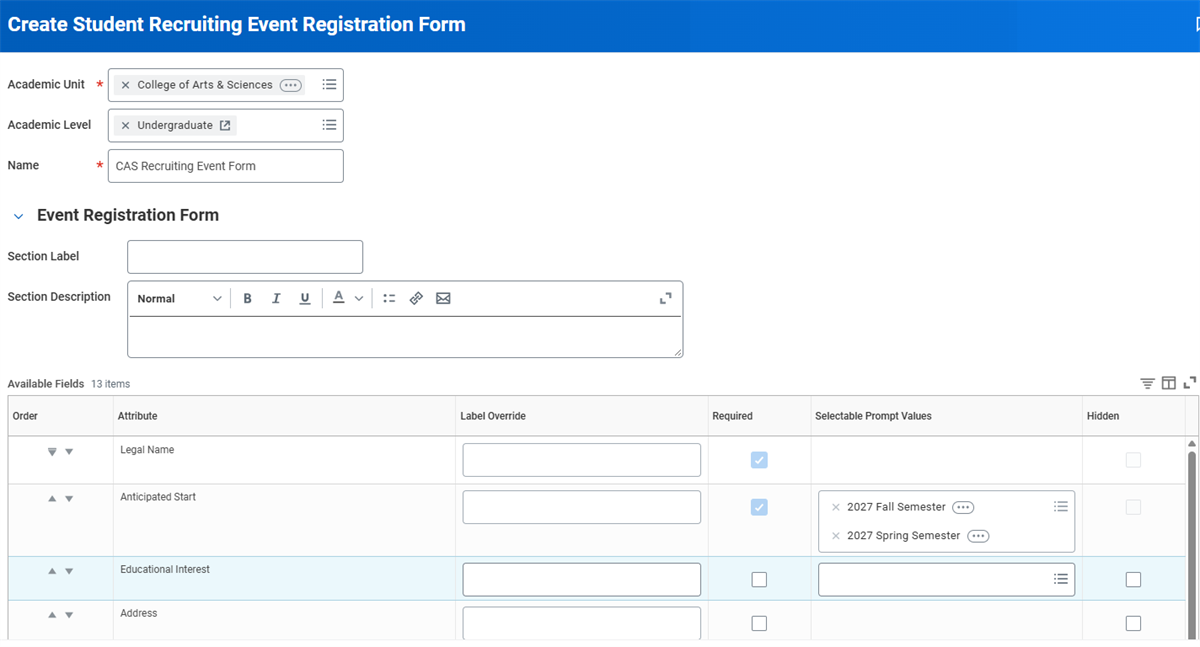
To configure the external event registration site:
- Activate and create a domain security policy for theManage: Advanced Recruiting Actionsdomain, which secures the creation task.
- Use theCreate Student Recruiting Event Registration Formtask to create your registration form.
- Configure a business process security policy and default definition for the Student Recruiting Registration Configuration Policy event.
- Use theMaintain Student Recruiting Event Registration Form Configurationto assign the form to any academic unit or academic level that hosts student recruiting events. If you wish to use the exact same form for all recruiting events across your institution, you can simply maintain the form at your topmost academic unit, and the system will automatically share it with all subordinate units.
Once the prospective student selects to register for the event, Workday displays the configuration for the student as defined on the Student Recruiting Event Registration form. After selecting the event, the prospect can register for it. They can also select the number of guests they are bringing to the event.
After registering for the event, the prospect can create an account so they can return to the external student site to view their upcoming event. With an account, a prospect can access the Admissions site. Institutions can opt to make this account creation required or optional.
Invite Criteria
In addition to identifying the engagement items that you want to send to student prospects, you also need to identify a set of criteria for student prospects to receive these emails. To identify a set of criteria, you must identify a student audience in the Invite Criteria tab of the recruiting event. You can create this student audience from a custom report or saved search criteria.
Reminder
: To use a student audience as invite criteria for a student recruiting event, it must have a Student Recruiting category.Event Engagement
You can use the engagement emails you create to communicate with students or prospects about student recruiting events. Assign these emails to the recruiting event under the Communications tab.
Used For | Definition |
|---|---|
Event - Cancel Notice | Used to inform a student or prospect of a recruiting event's cancellation. |
Event - Invitation | Used to invite a student or prospect to a student recruiting event. |
Event - Post-Event Follow Up | Used to communicate to a student or prospect after a student recruiting event has occurred. |
Event - Registration Confirmation | Used to confirm a student or prospect's registration for a student recruiting event. |
Event - Reschedule Notice | Used to inform a student or prospect of a scheduling change to a student recruiting event that they have registered for. |
Event Management
Rescheduling and Canceling Recruiting Events
If the date, time, or location of a recruiting event changes, you must reschedule rather than edit an event. Rescheduling sends a reschedule communication to those prospects invited or registered for the event.
Similarly, if an event is canceled, you need to cancel the event and specify a cancellation communication.
Access both tasks by locating the event via the
Find Student Recruiting Events
report and accessing its Related Actions.Editing, Rescheduling, or Canceling Multiple Events
There will also be times when you may need to edit, reschedule, or cancel several recruiting events at once. For example, say you have scheduled a series of recruiting events as part of a campaign, but the location that the events were to take place becomes unavailable.
In this case, you can use the
Find Student Recruiting Events
report to select multiple events. After selecting the events you wish to change, you can select one of the following options at the bottom of the report:- Mass Edit Event
- Mass Cancel Event
- Mass Reschedule Event
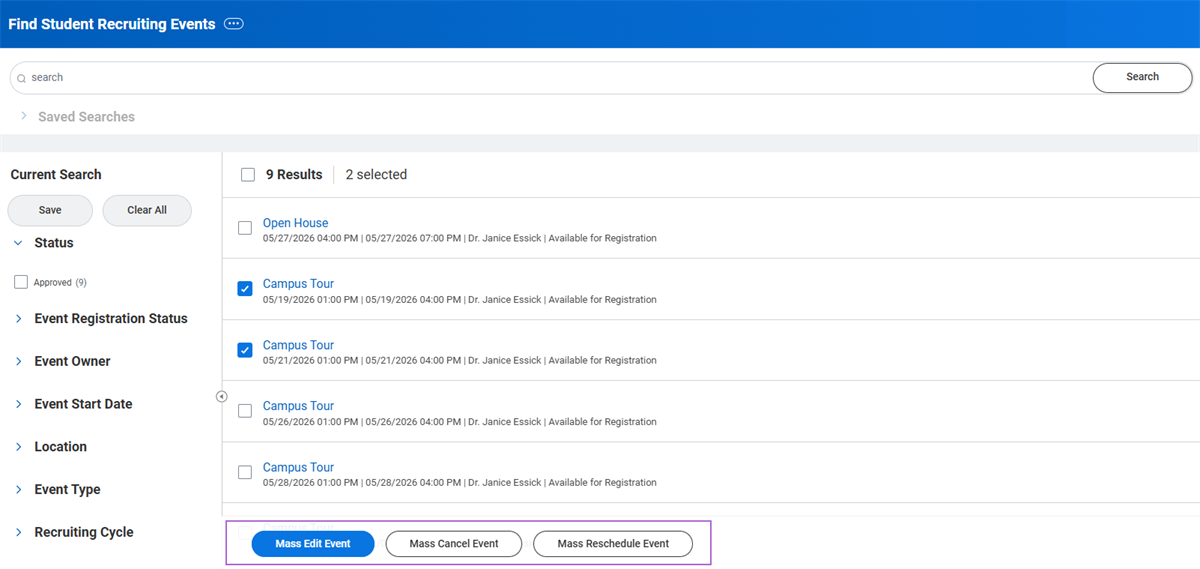
This functionality makes it much easier to edit multiple recruiting events at the same time, saving your administrators a lot of effort.
Note
: In order to use these features, you must set up a default definition and security policy for the following business process types:- Mass Reschedule Student Recruiting Event
- Mass Cancel Student Recruiting Event
- Mass Edit Student Recruiting Event
Student Recruiting On Mobile
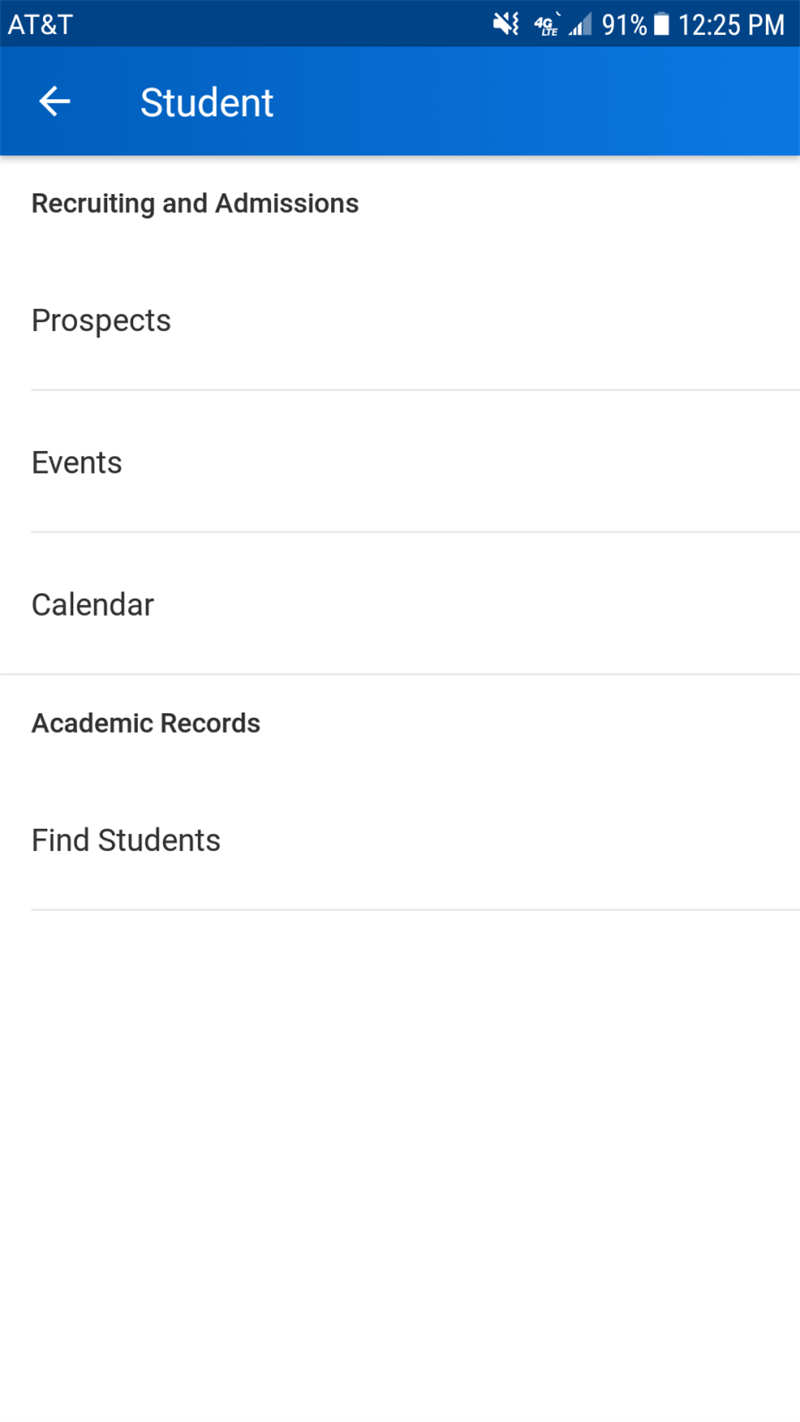
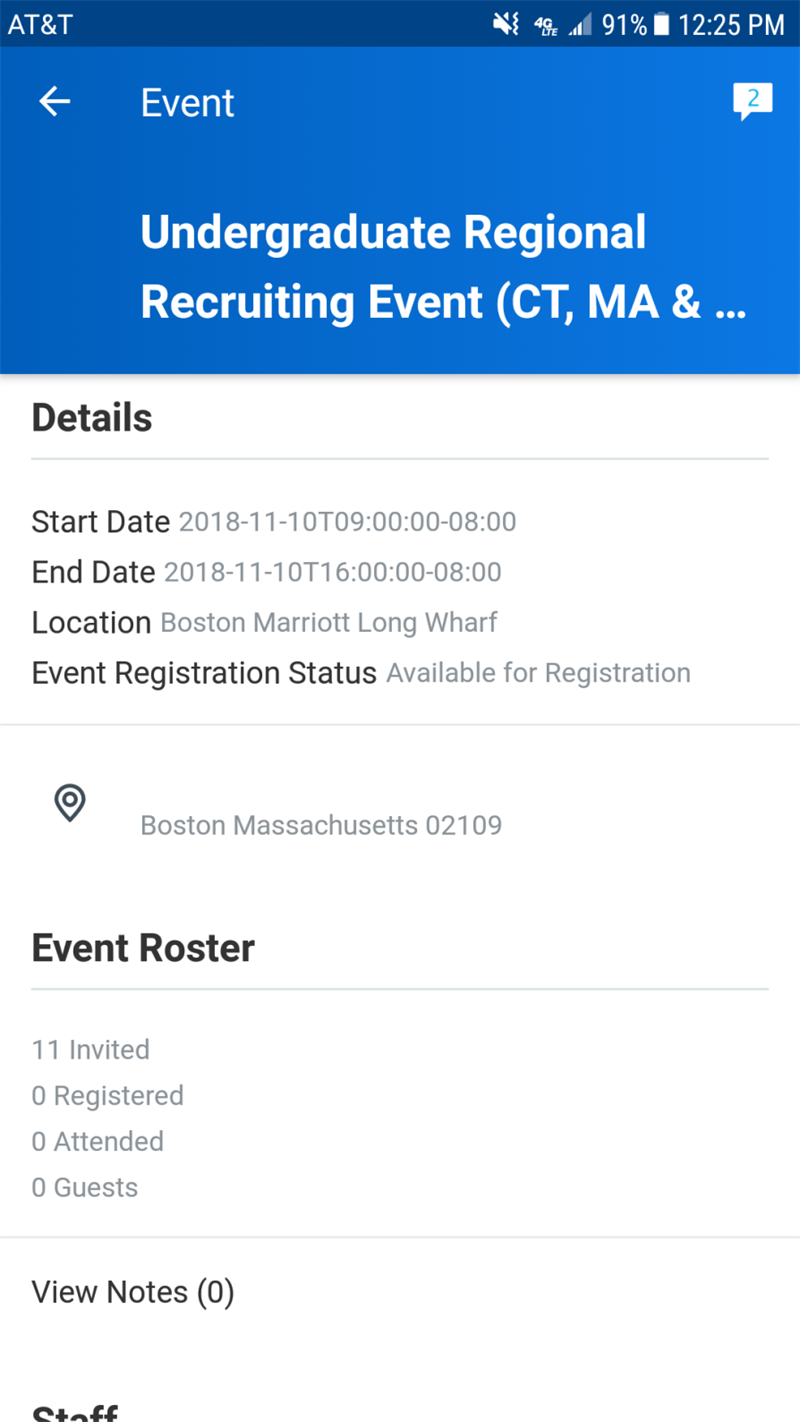
Workday Student is designed with a mobile-first approach. Workday Student provides several tasks and reports for Workday Student Recruiting on mobile devices, including adding and viewing prospects and event management. The following images provide a visual sample of the student recruiting mobile experience.
| 
|
Walk-In Student Prospects
When hosting a student recruiting event, you may have uninvited potential prospects attend and express interest in your institution. For example, an invited prospect may bring a friend or guest, or perhaps the event advertisement attracted additional people.
In these cases, recruiters can use the Add Walk In Prospect button on a student recruiting event roster to quickly add a new prospect into the system. This button allows you to select an existing student prospect or create a new one. Creating a new prospect from here prepopulates the stage, academic level, academic unit, source, and source detail fields to match the recruiting event. After filling out the other fields, Workday adds the new prospect to the event roster and creates their prospect record in your system. You can then use this record to process further engagement just like any other prospect.
Campaign Yield Information
Campaign Yield information provides you with the ability to analyze, track, and report the efficiency of recruiting efforts. You can view information for all your campaigns on the
Campaign Summary Report
report. Here, Workday displays:- Recruiting events, admissions counselors, search services, and marketing activities for the campaign as you add them.
- Total costs, which track all expenses entered with the campaign worktag.
- The yield, which tracks the number of prospects sourced to the campaign through a search service, marketing activity, or recruiting event.
You can analyze how prospect yield appears on campaigns. All prospects associated with a recruiting event related to that recruiting campaign display as part of the yield. You can view the students and how they track into the campaign yield.
Chapter 4 Tasks and Reports
Below are the commonly used tasks and reports for the topics covered in this chapter.
Tasks:
- Configure Events for External Student Site
- Create External Student Site
- Create External Student Site Brand
- Create Marketing Activity Definition
- Create Student Engagement Plan
- Create Student Goal Measurement
- Create Student Message
- Create Student Recruiting Campaign
- Create Student Recruiting Event Registration Form
- Edit Student Engagement Plan
- Edit Student External Site
- Edit Student External Site Brand
- Edit Tenant Setup - Notifications
- Maintain Student Engagement Settings
- Maintain Student Recruiting Event Registration Form Configuration
- Mass Create Student Recruiting Events
Reports:
- Campaign Summary Report
- Engagement Plan Monitor
- Find Academic Records
- Find Student Engagement Plans
- Find Student Prospects
- Find Student Recruiting Campaigns
- Find Student Recruiting Events
- Find Student Recruitments
- Student Goal Measurement Progress Report
- Student Recruitments by Stage
- View External Student Site
Chapter 4 Summary
In this chapter, you reviewed the tools available within Workday Student to reach and recruit prospective students. You defined a recruiting goal, recruiting cycles and campaigns, recruiting events, and recruiting event registration. Then, you defined search services and marketing activities. Finally, you created an external student site.
In this chapter, you also analyzed email analytics for engagement plans.
Considerations
- What are the recruiting cycles that your institution uses?
- What campaigns and events will your institution use for each recruiting cycle?
- How will you market your recruiting events?
- How will you configure your external student site?