
Student Admissions Fundamentals
Overview
The next step in the Workday Student Recruiting and Admissions process is Student Admissions. In this chapter, you will identify the features and functions necessary to manage an institution's admissions process. You will explore the selective admissions and the fast path admissions processes, define application groupings and pools, and identify transfer credit evaluation.
Objectives
By the end of this chapter, you will be able to:
- Describe the student admissions process.
- Define the selective admissions processes.
- Define the fast path admissions process.
- Identify how Workday Worksheets are used to calculate applicant data.
- Define application groupings and application pools.
- Identify preliminary transfer credit evaluation.
Student Admissions Process
When a student prospect submits an application, they automatically move to the applicant prospect stage. Once you receive applications, you can automatically group and divide them for review among your admissions counselors. Your institution can also configure Workday to meet a set of requirements before you consider an application ready for review, and create assessments for application reviewers to complete. Workday provides two options for processing applications that you can determine at the program of study level: the selective admissions process or the open access (also called fast path) admissions process.
Selective Admissions Process
Selective admissions is the standard application process used for programs of study. With selective admissions, applicants must complete a set of requirements before an application is considered ready for review. Once complete, the system routes this application for review and decision according to your institution's business processes.
The selective admissions process includes:
- Application requirements
- Application evaluations
- Application verifications
- Student recommenders
You can record transcripts, test scores, and other information to prepare selective admissions applications for review. With programs of study using the selective admissions process, your institution controls when to:
- Render admissions decisions
- Publish decisions
- Matriculate students
When creating your instution's selective admissions process, there are some prequisitives you, or your institution's administrator, needs to:
- Set up Recruiting and Admissions.
- Create programs of study without selecting the Fast Path Enabled option.
- Create application groupings and application pools.
Additionally, you, or your institution's administrator, needs to configure the following key business processes and their security policies in the Admissions functional area:
- Student Application Recommendation Event (Optional): If an application requires recommendations, this business process initiates automatically when the application is submitted. It sends an email to the listed recommenders with instructions to set up an account and fill out a questionnaire or upload a recommendation letter.
- Admissions Evaluation Event: Once an applicant completes all assigned application requirements and action items (such as submitting test scores or transcripts), this business process automatically launches. It routes the application to an individual evaluator or an admissions committee for review. Reviewers look at the application through a configured Evaluation View and submit an admissions decision recommendation.
- Student Application Decision Event: After an evaluator recommends a decision, an admissions administrator uses this business process to review the recommendation and render an official admission decision, such as Admit, Deny, Defer, or Waitlist.
- Publish Application Grouping Event: To prevent publishing decisions in error, decisions must first be finalized internally. Once finalized, this business process is used to publish the application grouping, which makes the admission decisions publicly available for applicants to view and respond to.
- Student Application Pre-Matriculation Event: When an admitted applicant accepts their offer of admission, this business process initiates. The matriculation process advances the prospect's stage to "Pre-Matriculant" or "Student" and officially creates their academic record in the system.
Institutions may also use application verifications before evaluations take place to confirm that all submitted action items are accurate and complete according to the institution's requirements.
Note
: You can find more information about configuring these business processes on Workday Community.Open Access Admissions Process – Fast Path
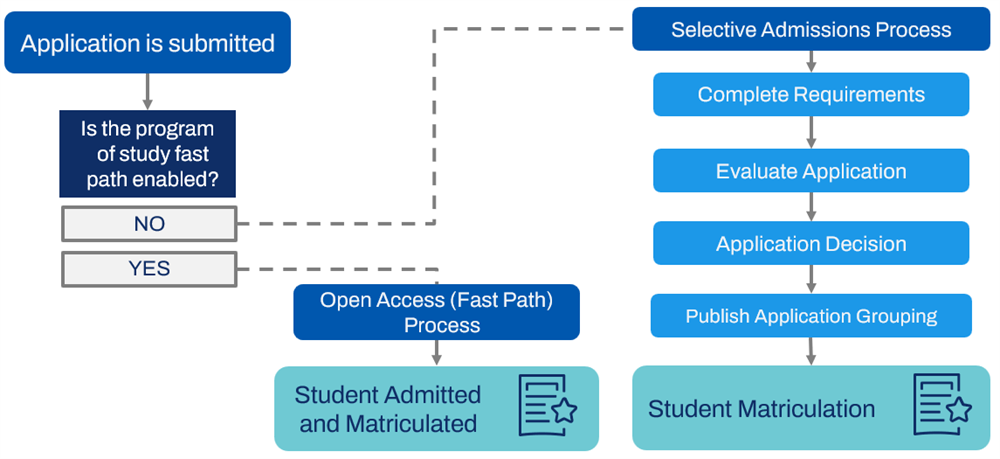
The second type of admissions process is open access, also known as Fast Path. Fast Path is a streamlined business process designed to move applications for admission from submission to matriculation as quickly as possible.
Fast Path programs of study do not require the completion of requirements or review. Instead, applicants are directly admitted and matriculated upon completion of the application.
Fast Path programs of study may also have requirements, but they are not required to progress the application. However, like selective admission programs, Fast Path programs must have an application grouping for the relevant academic unit and range of start dates to receive applications.
When a prospective student applies to a program of study that is "Fast Path-enabled," Workday bypasses the selective admissions process. It does not require the completion of application requirements or an evaluation review. Instead, the system automatically:
- Admits the applicant and sets the Admission Decision to "Admit".
- Advances the prospect's stage to "Student".
- Publishes the admissions decision so that the status is "Publicly Available".
- Sends out any engagement items the student is eligible to receive.
To qualify for this automatic processing, all programs of study on an application must be Fast Path-enabled. If any program on the application is not Fast Path-enabled, the entire application will undergo the standard selective admissions process instead.
The following diagram outlines the steps in the selective admissions and the open access admissions processes.
Fast Path Application Review
Institutions can optionally route specific Fast Path applications for manual review to prevent automatic matriculation for special cases, such as international applicants or those with criminal convictions or academic disciplinary actions. This gives you more control over Fast Path applications by enabling you to prevent applicants with special considerations from automatically matriculating into programs of study.
To enable this, you can add an optional
Flag for Fast Path Application Review
service step to the Student Application Fast Path Event business process. If configured, the new step must be placed after the Reconcile Student Applicant step.
You can configure condition rules to identify which applications to flag; if no rules are configured, all Fast Path applications will route for review. When an application is flagged, Workday cancels the automatic process and allows reviewers to manually render an admissions decision, cancel it, or withdraw it.Workday also delivers a Flagged for Fast Path Application Review report field on the Student Application business object (secured to the Public Reporting Items domain) that you can use in custom reports. When an application is flagged for Fast Path application review, Workday displays the new Flagged for Fast Path Application Review field on these reports on the student application: Application Details and Overview.
Fast Path Admissions and Duplicate Students
Because Fast Path programs automatically admit all applicants, there can be a risk of creating duplicate student records if a prospect applies multiple times. This duplication can create a large number of prospect records. To avoid this scenario, configure the following steps on the
Student Application Fast Path Event
business process:- Find Duplicates for this Person (service step). This step should occur before the Reconcile Student Applicant step.
- Reconcile Student Applicant (action step). This step should occur before the matriculation step and the completion step.
Workday does not notify you when the Find Duplicates for this Person step identifies suggested matches. To prevent unreconciled matches from halting business processes, Workday recommends that you run these reports and reconcile matches on a regular basis:
- Manage Duplicate Records for Student Match and Merge
- Merge or Manage Duplicate Records
Discontinue in Matriculated Status
Workday enables you to discontinue students while they are still in Matriculated status in their program of study. Use the
Mass Update Student Status
report to discontinue students who have a current status of Matriculated and a future status of In Progress on their program of study record.This report provides an efficient and accurate way to handle students who accept their admission but do not attend the institution. Using this report also helps you maintain accurate records of student statuses and dates and ensure timely downstream actions, such as deactivating accounts or rescinding access.
Historical Students
Workday automatically suggests matches between historical and prospective students, saving you time and enabling you to easily access historical data for returning students. Workday delivers exact and suggested matches using rules based on:
- National ID.
- Last Name and Student ID.
- Last Name and Date of Birth.
Workday automatically:
- Identifies a historical student and a student applicant as a match if they satisfy the National ID rule.
- Suggests a historical student as a match to a student applicant if they only satisfy either or both of the remaining rules.
Historical Students and Multiple Institutions
To preserve the integrity of historical records, Workday prevents the merging or associating of historical records and active student records from different institutions. You can only associate an active student's record with the same student's historical academic record if they are associated with the same institution. You can only merge historical records if they are within a single institution.
Applicant Scores
Scoring of applicants is an important factor in the success of your institution . Higher education institutions often use an applicant score to measure applicant admissibility. Applicant scores are configurable, and can be a combination of different measures, such as student grade point average (GPA) and test scores. You can use applicant scores to:
- Analyze trends and assess the likelihood of admission to your institution.
- Use on student eligibility rules and route applicants to specific applicant pools and processes.
- Use on initial internal decision recommendations to better filter applicants for admission.
Application GPAs
Higher education institutions often track several different GPA calculations for their student populations. For example, in addition to the regularly calculated grade point average, many institutions need to record and track Advanced Placement (AP) GPA. Use the
Create Student Application GPA
task to create different types of GPA calculations. You can assign these new GPAs to academic units and programs of study and use them in student eligibility rules. In this way, you can use your own custom GPAs to enforce application requirements as needed.To use this feature, you must perform the following steps:
- Access theCreate Student Application GPAtask to create necessary GPAs.
- Access theMaintain Student Application GPA Assignmentstask to assign different GPAs to a given academic unit or program of study.
- Create student application GPA eligibility rules as desired. You can use these student eligibility rules in application action items.
Workday Worksheets
Worksheets is a spreadsheet technology in Workday that enables ad hoc data exploration, analysis, visualization, and collaboration with live, transactional data.
You can collaborate in the tool using secure, live Workday data. You can also create Worksheets workbooks and import spreadsheets to blend data and perform ad hoc analysis. You do not need to be an expert to use Worksheets and to work with Workday data. The ease of using Worksheets allows your institution to more readily share and perform analysis on data with a wider audience.
When setting up Worksheets, give access to all relevant user groups who might use Worksheets in different areas of Workday. All Worksheets users must also have access to Workday Drive.
Worksheets for Student Admissions
Student Admissions uses the existing Workday Worksheets framework to analyze data and calculate the specifics for an applicant. You can take any live data across the Workday product, that you have permission to see, and use that live data and formula to calculate things to drive processing throughout the system. That data can be sent back to specific attributes in Workday that you can use in specific student eligibility and condition rules.
For Student Admissions, Workday Worksheets enables you to use a configurable worksheet to analyze applicant data and calculate values that help you route applicant pools. This helps you save time and effort during the evaluation process by enabling you to analyze data and historical trends.
To configure this functionality in Worksheets:
- Active and enable the Manage: Student Worksheets security domain.
- Create the student applicant score scale via theCreate Student Applicant Score Scaletask.
- Use theGenerate Workbook for Application Groupingtask to identify the population and score scales to create a workbook for.
- Add calculations or numbers to the field for Applicant Score Scale. Add data from custom reports and use it in the formula.
- Update the grouping application from the worksheet via the Workbook Actions > Application Score Workbook > Update Applications from Worksheet.
- Review the applicant on Application Details.
You can also use custom reports created using the Student Applications report data source to identify more granular populations on the
Generate Workbook for Application Grouping
task.Student Application GPA Calculations
As an alternative to Worksheets, you can calculate student application grade point averages (GPAs) directly on student applications. This makes it easier for you to calculate a GPA for a single application. You can also maintain academic policies to specify how to calculate student application GPAs by academic unit and level or program of study. This streamlines GPA processing and ensures consistency.
Use the
Maintain Student Application GPA Calculation Policy
task (secured to the Manage: Admissions Calculation Policies domain) to define how to calculate application GPAs for an academic unit and level or program of study using the Calculations framework.
Use these web services (secured to the Manage: Admissions Calculation Policies domain) to import and export student application GPA policies:- Get Student Application GPA Calculation Policies
- Put Student Application GPA Calculation Policy
Use the Create
Student Application GPA Calculation
task (secured to the Manage: Admissions domain) to calculate student applicant scores for a student application using the Calculations framework. You can access the new task from the Admissions Calculations
report on the Application profile group of student applicant profiles.Preliminary Admission Recommendations
Workday also enables you to use applicant score scales to create Preliminary Admission Recommendations. You can use Preliminary Admission Recommendations throughout the evaluation process, saving you time and effort when evaluating applicants for admission.
You can create a range of scores and a rating (e.g. presumptive admit, deny, committee review). Then, configure the
Maintain Preliminary Admission Recommendation Policy
task. Use this task to associate these ratings with a Preliminary Admission Recommendations for any academic unit or academic level combinations or programs of study.For any academic unit or academic level or program of study, you can further define the Preliminary Admission Recommendations policy by using combinations of applicant types and campus locations. Workday assigns an applicant the lowest level matching Preliminary Admission Recommendations possible. For example: If the application is for Math, and there is a Math Preliminary Admission Recommendations policy, it takes that policy rather than policies at the AU or AL level available to inherit.
You can also create a Student Condition Rule using these recommendations. For example, you can create Application Pools in an application grouping to automatically sort by decision recommendation.
Applicant Types
Applicant Types enable you to classify, report, engage process, and engage with applicants based on your own values. Applicant Types are first associated with a prospective student on their application. Later, you may associate the applicant types to student audiences, condition rules, application pools, or application groupings. Some examples of applicant types are:
- First Year
- Freshman Transfer
- Graduate
- International
- Non-Degree
- Professional
Applicant Types by Institution
Workday also enables you to configure applicant types by institution or academic units superior to the institution. This allows you to meet the unique requirements of your individual institutions or systems and simplifies access to relevant applicant types.
Creating Applicant Types
You can set up your own applicant types and maintain them using the
Maintain Student Applicant Types
task. You can also use these web services:- Get Student Applicant Types
- Put Student Applicant Type
Reporting for Applicant Types
You can view the applicant types that are currently in your system by using the
View Student Applicant Types
report. This report also enables you with the ability to draw meaningful conclusions about your recruiting efforts based on applicant types. You can access the Applicant Type report fields from these business objects:- Academic Record
- Academic Period Record
- Financial Aid Period Record
- Student Application
- Student Application Original
Application Groupings and Application Pools
Application groupings are mechanisms in Workday that allow you to group your applications by academic unit, level, program of study, and range of start dates. You can then divide that group of applications into application pools for review among your admissions counselors.
Application Groupings
Application groupings are a group of applications for the same academic unit, level, and range of start dates. For example, all graduate applications to the College of Engineering for the Fall of 2026 would fall into the same grouping. Workday defines application groupings with unique combinations of academic unit, academic level, and anticipated start as default application groupings. Application groupings that have the same combination as a default application grouping are subordinate to it.
Note
: A grouping must exist for an incoming class before you begin receiving applications.Use the
Create Application Grouping
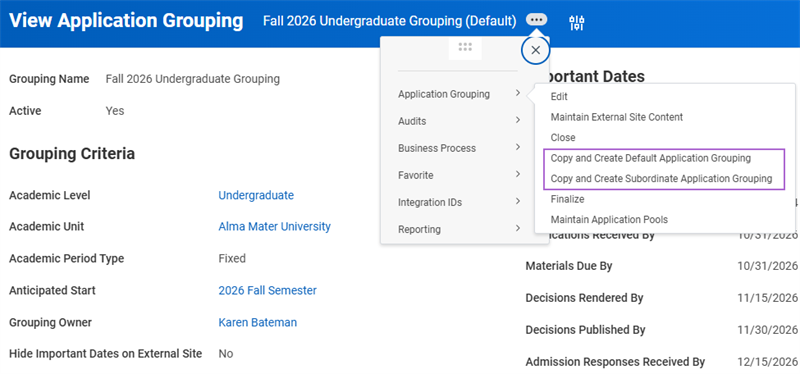
task to create an application grouping for an academic level, academic unit, and academic period. You can also use this task to assign dates to programs of study. You must assign a grouping owner during the creation process. With this task, Workday improves your ability to group student applicants by enabling you to create groupings at a more granular level.You can also copy application groupings and role assignments, helping you to decrease setup costs and increase time saved. You can copy and create default and subordinate application groupings based on existing application groupings. As shown in the image below, from an existing application grouping's Related Actions, you can select Application Grouping and then select either: Copy and Create Default Application Grouping or Copy and Create Subordinate Application Grouping. This allows you to copy an existing grouping and its academic level, unit, period, and owner assignments. For example, you may copy the Fall 2026 Undergraduate Grouping to create the Fall 2027 Undergraduate Grouping. By copying the grouping and changing the academic period, the other configurations remains accurate.
You can also copy an existing application grouping and create groupings for that same academic unit, academic level, and anticipated start at a more granular level, and include Applicant Types and/or Locations, if needed. The applicant types and locations fields are only available when an application grouping using only academic level, academic unit, and anticipated start already exists.
Application Pools
Application pools are a subset of applicants within a grouping. Your institution defines application pools as a means of dividing your applications among admissions counselors for review. When you create an application grouping, Workday automatically creates a default pool. If you do not wish to create other pools, all applications fall into this default pool. An application gets placed into the first pool it is eligible for. Therefore, order the application pools from most restrictive to least restrictive. Review the following example:
Application Grouping
:AMU Undergraduates Fall 2026
Application Pools
:- Hockey Players
- Applicants from NYC
- Last Name Beginning A-M
- Last Name Beginning N-Z
Ordering pools from most restrictive to least ensures Workday places applications in the most appropriate group. Then, you assign one or more admissions counselors to an application pool. This assignment indicates who is responsible for reviewing the applications in that pool.
Student Eligibility Rules and Student Condition Rules
Throughout the Workday Student system, you may face situations where you want to change data to a small subset of a larger student population. For example, you may need to make a change to only undergraduate students in a particular program of study. In another example, you may need to route a specific business process task only for international students. To make these kinds of configurations, use Student Eligibility Rules and Student Condition Rules. These two types of rules perform a similar function, enabling you to create a rule that identifies a specific population of prospects or students. Workday Student uses these two types of rules throughout the system.
Student Eligibility Rules
The student eligibility rule framework is a foundational framework used throughout Workday Student. Student eligibility rules use pieces of data about a student or student prospect to determine if they are eligible for something within Workday. Some examples of student data include: Residency, program of study, student tag, and last name. You can create an eligibility rule that identifies a specific population of prospects or students. You can use these rules to perform many functions across the Student system, including:
- Assigning a specific application GPA to an application.
- Assigning specific prospects to an application pool.
- Defining completion requirements for applications.
- Creating academic requirements for completing a program of study.
- Controlling registration appointments for enrolling in classes.
- Identifying an audience for a campus event.
For example, you can create an eligibility rule to identify all applicants that are at least 18 years old. You can then apply this rule to a specific application pool so that it only contains student applicants over the age of 18.
When creating an eligibility rule, select from one of the Workday-defined eligibility rule types (e.g., Age, Address, Student Tag). You then use an eligibility criteria condition to compare that type to a specific value to identify a target population.
Educational Institutions
Workday provides flexibility for your admissions process by enabling you to create student eligibility rules based on educational institutions on student applications. An Educational Institution eligibility rule type is selectable option on the
Create Student Eligibility Rule
task. It allows you to assign and waive action items based on a student's educational institution.To configure this student eligibility rule:
- Access theCreate Student Eligibility Ruletask and select Educational Institution as the Eligibility Rule Type.
- Access theMaintain Student Application Requirementstask and assign the educational institution Student Eligibility Rule to the desired Application Action Item.
- Create a student application and add an Educational Institution. Go to the Application's Requirements tab to verify that the system has assigned the action item.
Student Eligibility Rule Meanings
You can also override autogenerated meanings for student eligibility rules with your own custom text. Doing so gives you more flexibility and enables you to effectively communicate information about eligibility rules wherever they appear in Workday Student. To override autogenerated meanings, select the Use Custom Meaning checkbox on any Student Eligibility Rule.
Exclusion Eligibility Rules
In addition to eligibility rules that select students or prospects that match selected criteria, you can also create eligibility rules to select everyone except those that match the criteria. For example, a rule that excludes prospects with a birth country of the United States would match anyone born in any other country. You can do this by selecting the Excludes checkbox on the
Create Student Eligibility Rule
task.Combination Eligibility Rules
Occasionally, you may need an eligibility rule that uses more than one type of eligibility rule function. For example, you may need to identify all students in the School of Music who are over the age of 18 and also born in the United States. For these situations, use combination type eligibility rules to combine two or more existing rules, allowing you to create more complex criteria.
To create a combination eligibility rule, do the following:
- First, create two individual eligibility rules (e.g. an Age rule to only select School of Music students over the age of 18, and a Birth Country rule to only select students born in the United States).
- Second, create a new combination type eligibility rule and select the two eligibility rules you want to combine.
Student Condition Rules
In addition to the delivered student eligibility rule types, you can also create student condition rules for a variety of purposes throughout the Workday Student system. Like student eligibility rules, student condition rules also allow you to identify a subset of a student population for a given process or transaction. You can select condition rules in many of the same tasks and processes where you select student eligibility rules.
Student condition rules are also available to use in configuring combination student eligibility rules. Combining student eligibility rules and student condition rules provides you with flexibility in controlling which student populations you want affected in processes throughout your system.
Student condition rules have a wide breadth of use across Workday Student, but they are particularly useful when:
- Defining granular rules for application pools
- Defining application requirements
- Assigning questionnaires as part of evaluation
- Defining other aspects of the admissions process
Throughout your institution's admissions configurations, you will likely need to use a combination of both student eligibility rules and student condition rules.
Business Objects and Source Fields
Student condition rules are based on indexed CRFs and operate in a similar way to filters on a custom report. The business object you select when creating a student condition rule determines what fields are available to use in the condition calculation. For example: If you create a student condition rule on the Student Application business object, you can use fields from that business object in defining the rules of the condition.
Understanding the object model framework of Workday is helpful in configuring student condition rules to be both contextually accurate and readily accessible.
Reporting for Application Entry State
There may be situations where you want to go back and look at an application's original details to compare against subsequent edits. Workday has improved reporting capabilities for application entry state, providing you with greater visibility of what an application looked like when it first entered Workday. Workday has added report fields to the Student Application Original business object, which provide information on original application entry for historical record. Workday secures these fields on the Manage: Student Application Entry State domain. Add the appropriate security groups to the domain to use these new fields in reports, if needed. There are numerous Applicant Entry State fields. The following are some of the Applicant Entry State fields:
Applicant Entry State Fields | |||
|---|---|---|---|
Academic Disciplinary History | Applicant Type Category | Criminal History Comments | National IDs |
Academic Disciplinary History Comments | Application Original Custom Question Attachments | Emails | Phone Numbers |
Academic Level | Application Original Date Custom Question Answer | External Application ID | Postsecondary Educational Institution |
Addresses | Application Original Number Custom Question Answer | First-Generation College Student | Previous College Attendance |
Anticipated Load Status | Application Original Text Custom Question Answer | Hispanic/Latino | Program Focus |
Anticipated Start | Attended this Institution | Homeschooled | Programs of Study |
App Original Gender | Birth Date | Intended Immigration Status | Race/Ethnicity |
App Original Gender Identity | Campus | Learning Mode | Secondary Educational Institution |
App Original Marital Status | Citizenship Status | Legacy | Self-Reported Test Scores (REST) |
Applicant Type | Criminal History | Name | Student Tags |
Incomplete Applications
There also may be situations where you wish to view incomplete student applications. For instance, you may wish to know if a student started filling in an application online, but never finished it. Workday delivers a Report Data Source (RDS) that you can use to report on this information, called
Student Application Originals
. On this report, you can drill into the unsubmitted application and see the details of the application. This RDS is a useful tool in tracking student application progress.Preliminary Transfer Credit Evaluation
Workday Student allows you to set up rules for evaluating transfer credit from external educational institutions so that you can:
- Automate transfer credit evaluation.
- Make transfer credit evaluation consistent across all students.
- Make academic advising easier and more effective.
You can give transfer credit from:
- One course to another course.
- One course to multiple courses.
- Multiple courses to one course.
- Multiple courses to multiple courses.
- Test results.
- Internal articulation across academic units.
Preliminary Transfer Credit for Student Prospects
Transfer credit evaluators and administrators can evaluate preliminary transfer credit for student prospects before they submit an application for admission. Workday also delivers web services that enable you to evaluate and manage preliminary transfer credit from external transcripts and education test results for prospective students. You can use these web services for your external sites for student prospects and applicants, helping you comply with state requirements.
Preliminary Transfer Credit for Student Applicants
As part of the application process, many students need to understand how their completed course work contributes to their academic progress. This is true for students in various situations:
- Transfer students who want to learn how their Community college courses count toward a program of study.
- High school students who want to learn if their AP courses translate into college credit.
- Returning students who want to ensure their past completed course work still applies for a program of study.
When applicants submit their transcripts, Workday can automatically assess and evaluate how their completed course work maps to your institution's courses. Use the
Assign Preliminary Transfer Credit
task to configure this assessment and evaluation. This is a tremendously helpful tool for evaluators to understand how the applicant's preliminary transfer credit appears. It is also helpful for students who are interested in attending but need more information before they commit to your institution. Using this task also eases the effort of your admissions administrators, who would otherwise manually map each course on a student's transcript to an existing course at your institution.In order for an admitted applicant to see this preliminary transfer credit evaluation on the external student site, there are a few configurations you must complete.
- Create the originating educational institutions in the system.
- Create course catalogs for each educational institution.
- Create educational tests (e.g. AP exams).
- Create Transfer Credit Rules for external educational institutions' courses.
- Create Transfer Credit Rules for educational tests.
- Set up Transfer Grade Mapping Policies.
- Set up Unit Type Conversion Rules for your tenant. You must also correctly configure the unit type on any applicable academic calendar policies.
- Access theEdit Applicant Hometask and select the Display Preliminary Transfer Credit Report checkbox and add text for Report Heading Content.
Coordinate any setup related to preliminary transfer credit evaluation with your student records team. This coordination is critical as you can use this same setup for the official Transfer Credit Evaluation once the applicant matriculates. Transcripts are added to the system either manually by the admissions staff, by the applicant, or via integration. After this setup is complete, the system is ready to automatically evaluate transferable credits. The applicant, and your admissions administrators, can then see specifically how their completed course work might apply to a new program of study. An admissions administrator can also manually map any courses that are not automatically associated with the courses at your institution.
Workday also enables you to configure condition rules on transfer credit rules, saving you time and reducing manual effort when assessing if students should receive transfer credit based on certain requirements such as the course start or completion date, or the grade they received. Use the
Maintain Educational Institution Transfer Credit Condition Rule Policy
task to define rules for external educational institutions.Preliminary Transfer Credit for Education Test Results
You can also evaluate and assign preliminary transfer credit for education test results. This enables student applicants to understand what credit they can receive if they attend your institution. Use the following tasks to evaluate preliminary transfer credit for official and unofficial education test results:
- Assign Preliminary Transfer Credit
- Initiate Preliminary Transfer Credit Evaluation
To view the preliminary credit that applicants receive from their education test results, select the Application profile group on the applicant profile. Then, from the Application profile, navigate to the Preliminary Transfer Credit from Exams grid on the Preliminary Transfer Credit report.
You can also find information about coursework and test results that do not receive transfer credit from transfer credit evaluation processes. From the summary page from the
Initiate Preliminary Transfer Credit Evaluation
task and the Initiate Transfer Credit Evaluation
task, you can locate the following:- A Failure Reason column on the No Credit from Coursework and No Credit from Exams grids, to display the reasons why transfer credit is not granted.
- A Transfer Credit Troubleshooting button that enables you to access the transfer credit troubleshooting console for the external record.
Chapter 5 Tasks and Reports
Below are the commonly used tasks and reports for the topics covered in this chapter.
Tasks:
- Assign Preliminary Transfer Credit
- Create Application Grouping
- Create Student Applicant Score Scale
- Create Student Application GPA
- Create Student Condition Rule
- Create Student Eligibility Rule
- Edit Applicant Home
- Generate Workbook for Application Grouping
- Maintain Preliminary Admission Recommendation Policy
- Maintain Student Applicant Types
- Maintain Student Application GPA Assignments
- Maintain Student Application Requirements
- Schedule Applicant Worksheet Updates
Reports:
- Mass Update Student Status
- View Application Grouping
- View Student Applicant Types
- View Student Application Requirements
Chapter 5 Summary
In this chapter, you learned about the features and functions necessary to manage an institution's admissions process. You described the selective admissions process and defined application groupings and pools. You also identified transfer credit evaluation.
Considerations
- What application groupings do you need to track your student applicants?
- What application pools will each grouping contain?
- What will your applicant scores comprise of?