
Student Admissions Application Process
Overview
In this chapter you will explore the application process. You will identify application requirements and create an application. Then, you will configure the applicant home page of an external student site. Finally, you will, optionally, submit an application.
Objectives
By the end of this chapter, you will be able to:
- Identify application requirements.
- Create an application.
- Configure the applicant home on the external student site.
Application Requirements
Application requirements define the additional information an applicant must supply to complete the application. You can attach these requirements to an academic unit and level and to a program of study. Applications inherit requirements from the superior academic unit. The image below is a sample application requirement configuration for Alma Mater University.
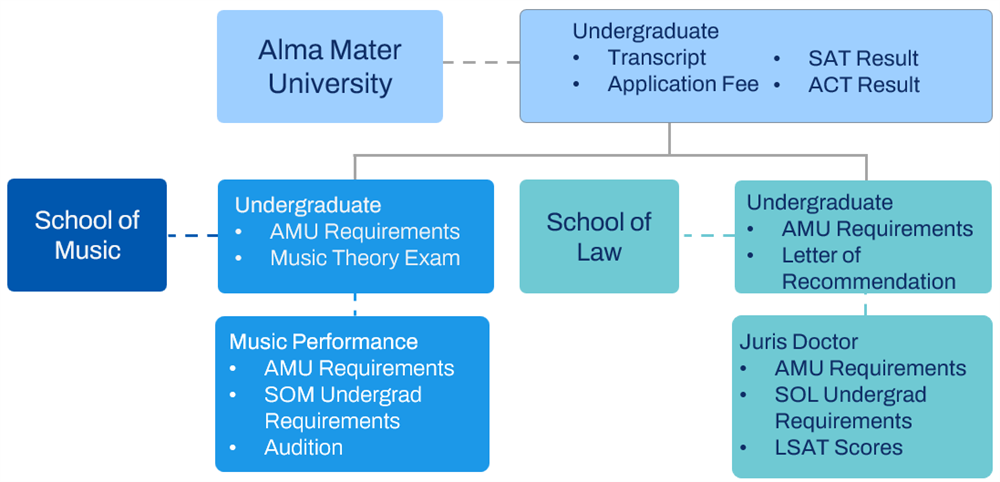
Notice that the Undergraduate requirements inherit down from the Alma Mater University academic unit to each of the subordinate units. Additionally, each subordinate unit has additional application requirements for undergraduate prospects, as well as more specific requirements based on a prospect's program of study.
Action Items
Application requirements combine eligibility rules with application action items to determine who must complete a given requirement. For example, your institution may require all undergraduate applicants to submit a transcript. However, first-year students must submit a secondary school transcript. Furthermore, transfer students must submit a transcript from their current post-secondary institution.
Applicants can complete these application action items by uploading documents, providing URL links to relevant documents online (like a personal statement), paying fees, or completing a test.
Each application requirement has an association and a process delay setting.
Term | Definition |
|---|---|
Association | If the requirement is associated to the application, the applicant must submit one of those items to complete the application. If the requirement is associated to an educational institution, the applicant must submit one item for each educational institution he or she has attended. Example : If the application requirement of transcript is associated with the application, the applicant must submit one transcript regardless of the number of educational institutions attended. If the transcript is associated with the educational institution, the applicant must submit a transcript from each institution, each of which lists separately in the list of requirements. |
Process Delay | The Process Delay field determines when an application requirement is required to complete the application and makes it available for review and a decision. If the process delay is "evaluation," the item is required before the application can be sent for evaluation. If the process delay is "decision," the item is still required, but an application can be reviewed. Upon rendering a decision, if there are "decision" process delays outstanding, the user will receive a warning but will still be able to proceed. Example : An institution requires that a transcript be received before an application can be evaluated. With a process delay of "evaluation," the transcript would hold the evaluation from being triggered until it is marked as complete (received) or waived. |
Workday can autocomplete certain application requirements when it receives an item, for example, an application fee or a transcript. You can configure the autocomplete criteria in your system by using eligibility rules. When you tie an application action item to a configured autocomplete criteria, the system automatically completes that action item when it meets the eligibility criteria. When all requirements with an impact of "decision" are complete or waived, the file status sets the application to complete.
Questionnaires
Workday enables you to include questionnaires as an application action item, making it easier for you to request information from prospective students. You can assign a questionnaire to multiple prospects, and use it to gather information about students as part of the application process.
Use the
Assign Application Action Item
task to configure the application action item. The questionnaire appears on the External Student Site Applicant Home page. Rich text formatting is available for questionnaires; however, it should be noted that for Workday Student, any questionnaire displaying on the External Student Site will be stripped of any rich text formatting.Workday also enables you to configure action items at reevaluation points and provide more process delays, streamlining your admissions process. To do so, create or edit an application action item, review your student application requirements, and assign or waive application action items.
Test Scores and Transcripts
Test scores and transcripts are application requirements institutions commonly request. You can enter both into Workday either manually or via a web service.
Test Scores
Workday currently provides the following standardized test scores:
- ACT
- AP - Advanced Placement Exam
- GED
- GMAT
- GRE
- IELTS
- MAT - Miller Analogies Test
- PERT
- Pre-2016 SAT
- SAT
- TABE
- TOEFL
Workday provides packaged integrations for the following standardized test scores:
- ACT
- AP - Advanced Placement Exam
- Education Test
- GMAT
- GRE
- PERT
- SAT
- SPEEDE
- TOEFL
For institution-specific tests or standardized tests not supported by Workday, you can create a test in your own tenant to record the score. This is useful if your institution has language placement exams, for example.
Transcripts
You can enter transcripts manually or via a packaged integration if they use the SPEEDE standard. If you choose to load the individual courses from the transcripts, you can use them to build the course catalog of that institution in your tenant.
You can also import transcripts into your system using the Get_External_Student_Transcripts web service. This is useful for entering any transcripts that do not conform to SPEEDE standards.
You can configure custom academic areas and course designations, enabling you to record external transcripts with greater accuracy. Workday provides fields that make it easier for you to record and review GPAs on external transcripts. To configure custom academic areas and course designations:
- Access theMaintain Academic Areastask and add Academic Areas. Workday prepopulates the task with academic areas. You can remove Academic Areas that are not in use from the grid. Workday delivers these web services enabling you to import and export academic areas: Get Academic Areas and Put Academic Area.
- Access theMaintain Course Designationstask and add course designations. Workday prepopulates the task with course designations. You can use Course Designations that are not in use from the grid. Workday delivers these web services enabling you to import and export course designations: Get Course Designations and Put Course Designations.
Action Item Associations
Workday provides additional associations for application action items, giving you more flexibility in assigning action items. This enables you to request action items from applicants with more granularity, such as transcripts from credential-granting institutions or the most recently attended institution.
To configure these associations, first access the
Maintain Student Application Requirements
task. Then, for application action items with a classification of Transcript, select one or more of the new associations to further define the transcript:- Credential Granting: Secondary or post-secondary attendances that contain an earned credential.
- Most Recently Attended: The secondary educational institution with the Most Recently Attended checkbox selected.
- Secondary Educational Institution: The level of the educational institution.
- Post-Secondary Educational Institution: The level of the educational institution.
Return Action Items to Applicants
Workday enables reviewers to easily review and send back or return action items to applicants. Reviewers can now add the reason for the send back or return on the review and return tasks. Workday also enables applicants on the external site to view the reason for the returned application item.
Additional Training
: For additional training on this topic, go to Workday Community.Applications
The application process in Workday takes place over several steps. Each part of this process is configurable to suit your institutional needs.
Like test scores and transcripts, you can enter applications manually or via an integration. A student or an administrator can manually enter an application. In either case, when entering an application, include as much information as you can. This helps your admissions teams organize applications into application pools within an application grouping.
You can use the
Find Student Applications
report to view every active student application. You can also use the report filters to hone in on specific applicant populations. You can also use the report to perform mass actions, such as:- Rendering decisions
- Assigning applicant scores
- Canceling student applications
- Adding Preliminary Admission Recommendations
Configurable Applicant Types
One noteworthy way to include as much information as you can when entering an application is by using configurable applicant types. You can create custom applicant types to categorize and group applicants. This enables you to classify, report, and engage with applicants based on the needs of your institution. Applicant types are first associated with a prospective student on their application. Workday displays the applicant type on the student's application details. Later, you can associate the applicant types to student audiences, condition rules, application pools, or application groupings.
You can group applicant types by applicant type category, such as First Year, Freshman Transfer, and International. Access the
Maintain Student Applicant Types
task to define any new applicant types along with the category as needed for the institution. In this task, you can add new values, and edit, remove, or hide existing values. When you update or rename applicant type name values, consider the impact to all existing applications. Existing applications will reflect any updates you make to those values.As with all student prospects, whenever you enter an application or update information, the match and merge process runs to prevent duplicates.
Common Application Inbound Integration
Many institutions use the Common Application in their admissions processes. You can build an integration template for first year students that will import application data from the Common Application. You can use it to create student applicants in your system.
You can include the following categories in this template:
- Profile
- Family
- Education
- Test Results (including self-reported scores)
- Writing
- Attachments
- Questionnaires
To use this integration, you must configure the following fields in your Common Application account:
- Primary Program of Study
- Anticipated Start (preferred Start Term)
- Anticipated Load Status (Student Status)
- Program Focus
- Campus Location
- Program of Study 2 (Major 2)
- Program of Study 3 (Major 3)
- Sexual Orientation
- Pronoun
- Gender Identification
Manual Administrative Entry
You can use the
Create Student Applicant
task to create a student application from scratch when no prospect record for an applicant exists. Here you enter the applicant's personal information, as well as their application details.If an applicant already exists as a prospect in the system, use the recruitment record's Related Actions to select Admissions and then Add Application. Here you enter the details of the application.
Configurable Online Application
In addition to manual entry or integration, Workday also offers the external student site, which can house a configurable online application on the Applicant Home portal. Prospects can submit their information through an external student site to create Workday accounts and advance in their admissions evaluation process.
The configurable online application means you no longer need to create home-grown or external applications to meet the needs of your institution. This enables you to create a comprehensive application so that you only have to send one application to the applicant. This gives you earlier access to enough information to evaluate an applicant for admission.
In addition, Workday enables you to display useful information from applications, helping you to better communicate requirements with students, and making it easier for students to navigate. The application asks applicants for an anticipated start date before anything else so that the programs of study, academic levels, and other fields on the application can filter results based on that date. This enables applicants to easily apply to your institution without hitting dead ends, seeing inaccurate information, or encountering page failures due to performance.
Additionally, useful information automatically available includes:
- Display a navigation path in the student external site.
- Display a new Application Details section when an applicant accesses an application.
- Display a pop-up when an applicant accepts or declines an admission decision.
- Rename the Apply Now button to Start New Application on the home page of the student external site.
- Relocate the Start New Application button below the existing applications.
- Relocate the Important Dates section.
- Update the Maintain External Site Content to support rich text and add 70 merge fields that you can configure for your admittance communications.
The Workday online application functionality improves your ability to gain relevant information from applicants while making it easier for applicants to apply to your institution. Use the
Create Admissions Application Configuration
task to create a customized online application for your incoming student prospects to complete. From a single application, you have the flexibility to choose the types of information you want to ask for, such as:- Contact information for the applicant
- Grades and class ranking
- Extracurricular activities
- Gender
- Programs of study
- Programs of focus
- Program areas
The system separates the application into sections, which you can relabel. Each section contains several fields mapped directly to fields in Workday. You can:
- Relabel these fields.
- Mark fields as required.
- Select a default value to appear in the application.
- Indicate which prompt values display to the applicant.
- Hide a field that your institution does not require.
Additionally, after submitting an application, applicants can return to the Applicant Home portal to view the status of their application. They can also see the application requirements and required action items they must complete from the Applicant Home.
You can also include custom questionnaires for custom question types. You can even specify what type of student applicant or campus location requires completion of the questionnaire. This provides tremendous versatility in configuring your online application in precisely the way your institution requires. The system enters data on the application directly into Workday, which ensures accuracy without the need for integrations.
Additionally, you have the option of configuring an application fee section. Configure the application fee section to specify a fee that must be paid or a waiver request that must be requested at the time of application. You can configure the payment amount based on one or more programs of study, applicant type categories, and student applicant types. This functionality requires you to configure a relevant Student Charge Item for each fee you wish to include. You must configure a Waiver Questionnaire that displays to the applicant if they select 'Waiver' for the Fee Payment Option. You can also create custom application fee waiver reasons that applicants can select. This enables you to capture reasons that are specific to your business requirements and more effectively assess application fee waiver requests. The Application Fee Details section displays after the Custom Questionnaires grid.
You also have the option of configuring a Terms and Conditions section to allow you to add application-specific text.
Recommenders for Student Applicants
As part of an application, student applicants can include recommendations for your admissions reviewers to evaluate. Applicants can list up to five recommenders on their application. Applicants provide the recommender names and contact information. In turn, each recommender receives an email containing a link to create their account and access the external student site where they can complete a questionnaire. All Workday questionnaire functionality is available. This includes document upload, if you wish to have recommenders upload a letter of recommendation, in addition to, or instead of, any other questions. After this process is complete, the recommendations appear on the application. You can view recommendations as part of the application evaluation process.
Applicants can also view recommendation statuses, edit recommender information, and change recommenders, enabling them to keep recommenders accurate and up to date. Administrators can also configure custom text to display to recommenders on the student external site, enabling administrators to provide guidance to recommenders and enhance their experience.
Note that this functionality requires configuration of the
Student Application Recommendation Event
business process.Application Management and Reporting
Workday helps you manage a high volume of applications at once, by enabling you to perform the following mass actions on applications:
- Mass Render Decision
- Mass Add Initial Internal Decision Recommendation
- Mass Assign Applicant Score
- Mass Cancel Student Applications
These mass actions help save you time and effort when you review admissions applications. For example, you can use the Mass Render Decision action to recommend a decision to several applications at once.
Application Withdrawals
Workday enables you to create custom reasons for withdrawing a student application to give you more flexibility in tracking application withdrawals. Workday also automatically cancels student application action items to streamline the withdrawal process.
You can configure custom reasons for withdrawing a student application in the
Maintain Student Application Withdrawal Reasons
task.Applicant Home on the External Student Site
You can use the external student site to set up an Applicant Home portal for your student applicants. This external portal allows student applicants to submit applications directly into Workday, eliminating the need for a lot of manual data entry.
Additionally, the applicant home allows your applicants to:
- Create an account
- Apply for admission
- Pay their application fee
- Check the status of their applications
- View application requirements
- Upload documents to satisfy requirements
- View admissions decisions
- View their preliminary transfer credit
- Accept or decline offers of admission
- Pay their admission deposit
- Submit prematriculation materials
Creating the Applicant Home
You can create an applicant home for each admitting level of an external student site. For example, the Alma Mater University (AMU) student site can have different applicant home pages for graduate and undergraduate applicants. The following screenshot outlines an example of an AMU applicant home page.
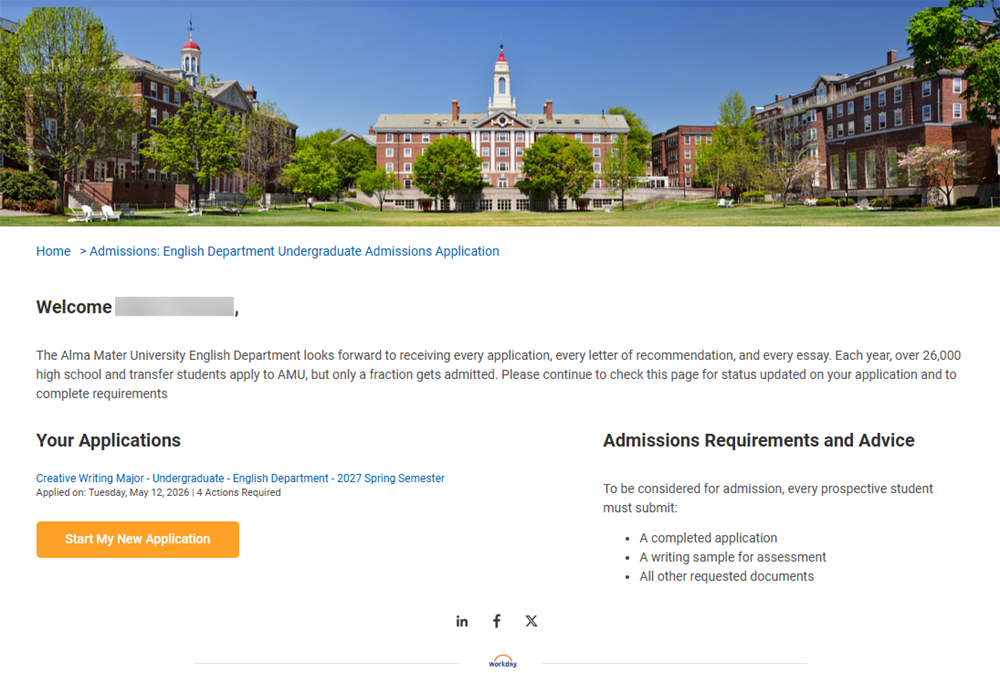
To create an applicant home, first create an external student site using the
Create External Student Site
task. Then, create an applicant home using the Create Applicant Home
task, as shown in the image below, where you tie the applicant home to the external student site.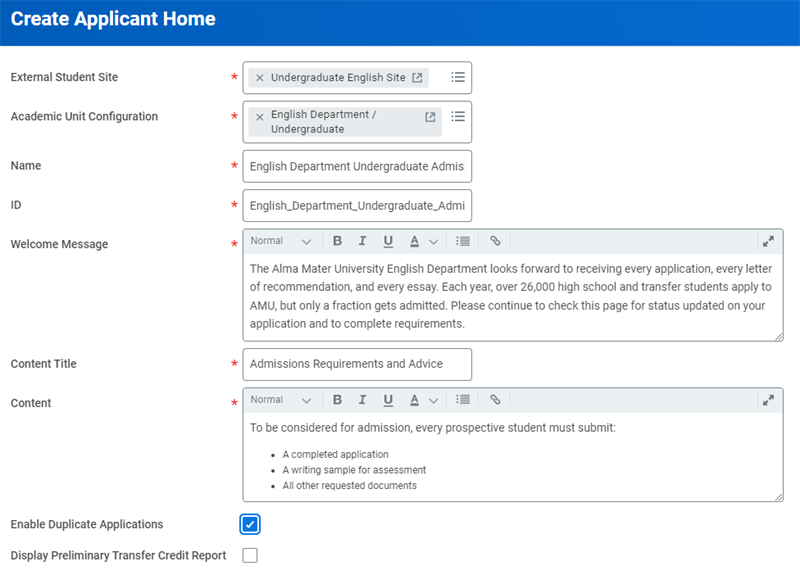
When using the
Create Applicant Home
task, you can also make additional configurations to the Admissions Application Initiating Page Configuration. This allows you to override labels and predefine prompt values for specific fields. These configurations can be helpful for students initiating the application process from their mobile devices.Duplicate Applications
You can also enable the submission of duplicate applications on the Applicant Home. You enable this functionality by selecting the Enable Duplicate Applications checkbox on the
Create Applicant Home
task.Waitlist and Defer Decision Statuses
You can also configure custom content on the Applicant Home page when applications have a Waitlist or Defer Decision status. Doing so enables you to communicate what applicants need to know about those statuses. This provides additional clarity to applicants as to why you deferred the decision for the application or put the applicant on the waitlist.
You can also control whether to publish the content, giving you the ability to hide statuses that you do not use or content that is still in progress. Additionally, when you copy an applicant grouping, Workday preserves any content configured for the Applicant Home page, saving you the effort of manually recreating the content.
Preliminary Transfer Credit
You can also configure the external student site to display preliminary transfer credits for student applicants. This informs student applicants of how much credit they will have earned before they decide whether or not to attend your institution. To enable this functionality on the external student site, you must select the Display Preliminary Transfer Credit Report checkbox on the
Create Applicant Home
or Edit Applicant Home
tasks.You can also view an applicant's preliminary transfer credit on their prospect profile. Additionally, you can manually assign preliminary transfer credit from the student's application's Related Actions, as shown in the image below.

Review Application Page
There is also a conclusion page for admissions applications on external student sites that provides opportunities to review and edit applications and confirm successful submissions. The Review Application page enables applicants to review their applications and correct any errors before submitting. The page also confirms successful submissions, providing more confidence to the applicant that they submitted the application correctly.
A Review Application button on the Application Overview page that takes applicants to the Review Application page. From this page, applicants can submit the application or make additional edits.
The page displays:
- All of the information that the applicant entered on the previous pages, grouped into collapsible sections by page.
- The Terms and Conditions section.
- Error messages, if the applicant attempts to submit the application with errors or missing required fields.
When the applicant successfully submits an application, Workday displays a confirmation message.
Delaying External Student Site Creation
You can prevent Workday from creating external student site accounts for applicants until you have rendered admissions decisions, enabling you to limit external student sites to admitted students. Use the
Maintain Delay Student External Account Creation Polic
y task to configure whether an academic unit and level or program of study delays the creation of external student site accounts for applicants.
When a policy is in effect:- Workday does not create external student site accounts for applicants until you run the new Create External Account for Student Applications service.
- Application action items are assigned to the applicant or prospect and made viewable and actionable once they get an external student site account.
Workday also enables you to delay external student site account creation for applicants to Fast Path programs of study. Workday delays creating external student site accounts for applicants to Fast Path programs of study that have been flagged for application review when you use the
Maintain Delay Student External Account Creation Policy
task to configure delays for those programs of study or the academic unit and level that contain those programs of study.Create External Account for Student Applications Service
You can also add the Create External Account for Student Applications service as a step on the Publish Application Grouping Event business process. This service creates an external student site account for admitted students. Configure this step after the Publish Application Grouping Decisions step.
Workday delivers a Student External Account Created report field on the Student Application business object (secured to the Public Reporting Items domain) that you can use in custom reports to identify account creation issues.
Reporting for Student External Account Creation
Workday also delivers a Student External Account Created report field on the Student Application business object (secured to the Public Reporting Items domain) that you can use in custom reports to identify account creation issues.
Chapter 6 Tasks and Reports
Below are the commonly used tasks and reports for the topics covered in this chapter.
Tasks:
- Assign Application Action Item
- Create Admissions Application Configuration
- Create Applicant Home
- Create Application Action Item
- Create Education Test
- Create External Student Site
- Maintain Academic Areas
- Maintain Admissions Application Configuration Policy
- Maintain Course Designations
- Maintain Student Applicant Types
- Maintain Student Application Requirements
Reports:
- Find Student Prospects
- Maintain Dashboards
- View Admission Response Reason
- View Application Grouping
Chapter 6 Summary
In this chapter, you learned about application requirements. Then, you configured the applicant home page for an external student site. Finally, you created an application and defined the fast path admissions process.
Considerations
- What are the application requirements for your academic units?
- What are the application requirements for your programs of study?
- What exams or assessments do you need to configure for your application requirements?
- Which programs of study will you configure for fast path admission?