
Student Admissions Application Evaluation and Decisions
Overview
After an applicant has submitted all required items for an application, an administrator can review an application and make a decision. In this chapter, you will review the processes involved in evaluating and rendering decisions on student applications. You will also configure admissions business processes, create admissions questionnaires, and close a grouping. Finally, you will explore dashboards.
Objectives
By the end of this chapter, you will be able to:
- Identify the application evaluation and decision processes.
- Configure admissions business processes.
- Create admissions questionnaires.
- Evaluate applications.
- Render application decisions.
- Close an application grouping.
- Identify Workday dashboards.
Application Evaluation and Decision Processes Overview
The application evaluation and decision process are the final processes in the Student Recruiting and Admissions life cycle. The application evaluation and decisions processes begin with the application submission. When a student prospect submits an application, the system evaluates the identified primary program of study and configures the appropriate application requirements on the applicant's profile. When application requirements are completed on an applicant's profile, the system automatically launches the application evaluation process.
Then, the admissions decision is rendered, and the applicant either accepts or denies the admissions offer. The following diagram outlines the application evaluation and decision processes.
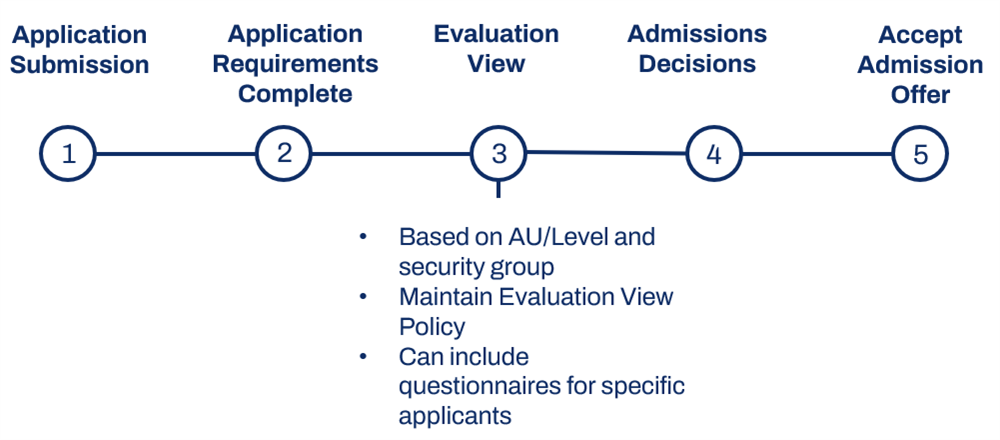
Application Evaluation Process
After all of the application requirements with a process delay of evaluation are complete on an applicant's profile, Workday automatically launches the application evaluation process.
A few different components drive the evaluation process. These are:
- Evaluation View Policy for an academic unit/level combination
- Manage: Student Application review security domain
- Student Application Decision Eventbusiness process definition
Configure each of these elements in your system to ensure that admissions reviewers have the correct access to the elements of the application they need to evaluate. Next, take a closer look at these configurations.
Evaluation View Policy
The Evaluation View Policy for the appropriate academic unit and academic level combination or program of study controls the actual evaluation of the student's application. The evaluation view is a configurable layout that you can customize so that admissions reviewers can streamline the evaluation experience.
As part of your admissions configurations, use the
Create Evaluation View
task to specify what fields from an application should be available to all, some, or no applications evaluators. You can choose to hide entire sections of the application as well.After you create the evaluation view, assign it to an academic unit and level combination using the
Maintain Evaluation View Policy
task. Doing so presents admissions reviewers with the configured evaluation view when it comes time to review the application.When creating an evaluation view for a given academic unit, you configure the view for each of the sections on an application:
- Application Details
- Personal Information
- Academics
- Application Questionnaires
- Application Requirements
- Additional Information
- Previous Assessments
You can choose to hide an entire section from the evaluation view. You can also select to hide any of the fields in that section from all users, or from security groups that you specify. For example, in the following image all of the application information pertaining to gender, race, and marital status has been hidden for all users. Anyone evaluating an application using this view will not see these fields.
On the other hand, the Citizenship Status field is only hidden for several selected security groups. If a worker in the Student Admissions Reviewer security group is evaluating an application using this policy, they will not see the Citizenship Status field. However, if a Student Administrator is reviewing that same application, the Citizenship Status field would appear in the evaluation view. The following image shows the Personal Information section of an evaluation view. Note that Citizenship Status is hidden only for certain security groups.
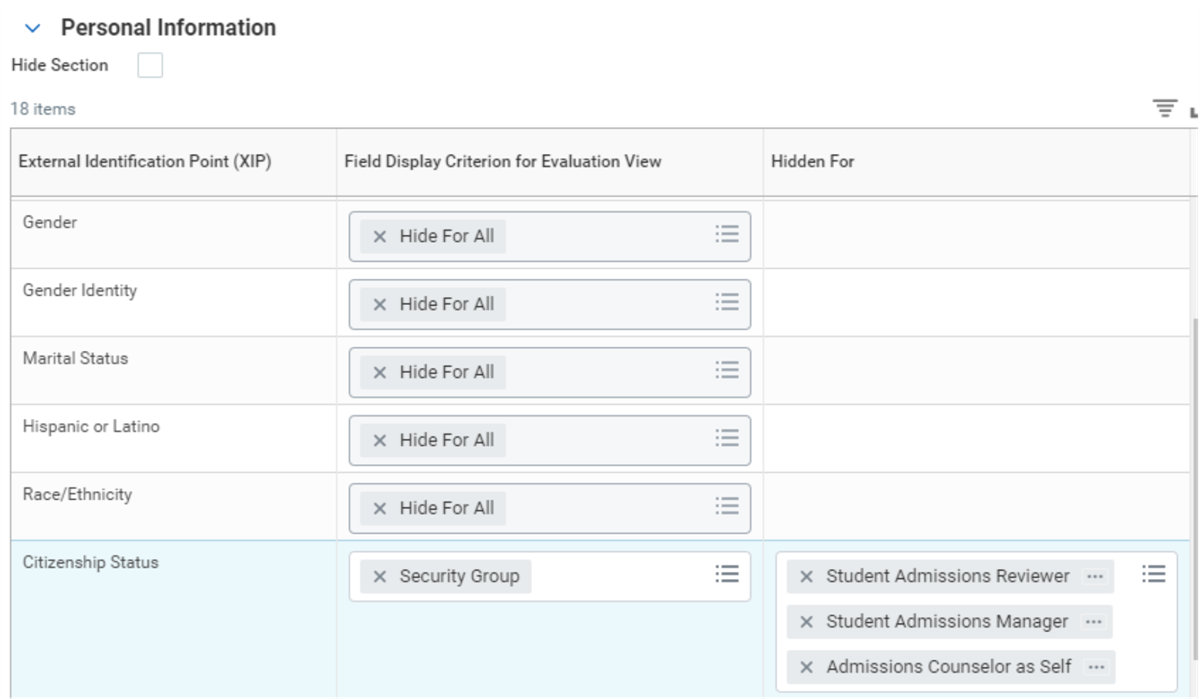
If you leave the Field Display Criterion for Evaluation View field blank, the default system behavior is to display the field for all users. This provides your institution with a great deal of flexibility when enforcing the privacy of information on an application, as well as streamlining the application evaluation process.
Assessments Configuration
Assessments are questionnaires that can help admissions counselors evaluate applications. They can include different types of queries, such as multi-select, text entry, and dates. When you assign assessments to an application view, reviewers can add information. Reviewers can enter interview observations, evaluate a portfolio or audition, assign a score, or add other relevant information while reviewing applications.
When creating questionnaires, Workday enables you to configure up to six follow-up branching questions to a multiple-choice, single-select question. This allows you to gather additional detailed information from respondents based on the preceding answers. Configure the security policy for the
Reports: Questionnaires
domain and then configure additional branched questions as needed using the Configure Questionnaire
task. When adding a branched question, create the question first.As shown in the image below, the Evaluation View also includes a section to include questionnaires that the evaluators must complete. Additionally, you can associate these questionnaires with student eligibility rules and student condition rules, if only certain applications require the questionnaire. You can then tie the evaluation view to the Evaluation View Policy.
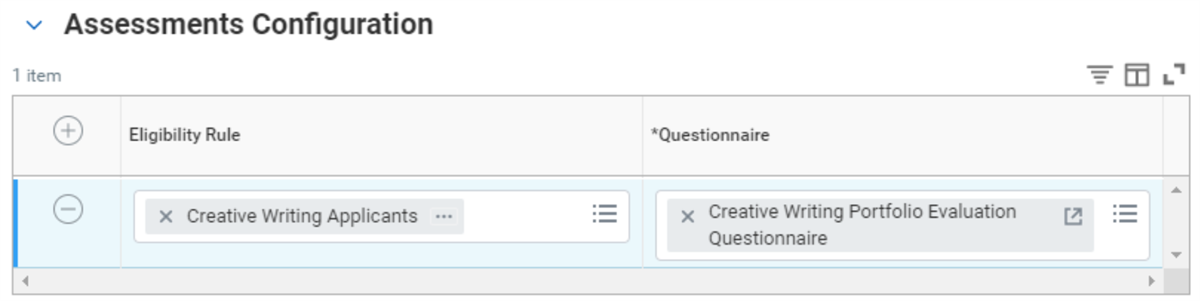
Admissions Committees
Workday also provides you with the option of forming admissions committees to have multiple reviewers evaluate the same application at once. Using admissions committees saves you time and effort by making it easier for multiple reviewers to provide feedback for a single application. Assign admissions committees to an academic unit. Admissions committees are responsible for reviewing applications within an identified application pool.
The Manage: Admissions Committee Evaluation domain supports role-based security groups, enabling you to more granularly secure access to admissions committees.
To configure admissions committees, follow these steps:
- Configure the Admissions Committee Evaluation domain.
- Use theMaintain Assignable Rolestask to verify the Admissions Committee Evaluator role is configured. Be sure to change Assigned by Security Groups to Security Administrator.
- Run theCreate Admissions Committeetask to tie a committee to application pools and set the required number of evaluations. Use the related action Roles > Assign Roles to select the committee members.
- Update the business process security policy and definition for the Admissions Evaluation Event to include the Manage Admissions Committee Evaluation step. The users on the policy for this step are the ones that oversee the Committee Evaluation process and can move the event to the next step if needed. Note: You do not need to configure the security groups for all committee evaluators here, as that is taken care of through the role assignment.
Security Configurations
After you configure the Evaluation View Policy for each necessary academic unit and level combination, ensure that the correct security configurations are in place. To check the security configurations, review the Manage: Student Application Review security domain. This domain controls access to the
Admissions Evaluation
process as well as the various sections within the application evaluation. Make sure that any relevant security groups have view and modify access to this domain.Business Process Configurations
In addition to the security configurations, there are a couple of business process configurations that you need to make to ensure that the evaluation process runs smoothly.
Admissions Evaluation Event Business Process
First, review the
Admissions Evaluation Event
business process definition. Make sure that there is at least one default definition configured for this business process type. Verify that you have included the Admissions Evaluation action as a step in this business process definition. This business process automatically launches the Admissions Evaluation
process as soon as all application requirements are marked complete in the system.Student Application Decision Event
In addition to the
Admissions Evaluation Event
business process definition, review the definition for the Student Application Decision Event
business process type. In this business process, make sure you add a step for the Render Application Decision for Admissions Evaluation Event Flow action. This ensures that a decision can be rendered for an evaluated application.Evaluator Experience
Workday delivers reports that enable evaluators to easily access and keep track of their evaluations in one location, saving them the effort of searching their My Tasks for applications to evaluate.
The following table lists these reports and their corresponding functions.
Report | Functions |
|---|---|
Manage Evaluation Assignments |
|
Manage My Evaluations |
|
View Evaluation Assignments |
|
To use these reports, you must set up the security policies for these domains:
- Manage: Evaluation Processing:This domain grants access to views and reports that you can use to evaluate student applications for admission.
- Manage: Evaluation Assignments:This domain provides access to reassign application evaluations to another evaluator in a security group or to other members in an admissions committee.
Student Application Verifications
Student application verifications are independent of application evaluations. This enables you to make application evaluations an optional part of the application review process. This also gives you the flexibility to verify applications at any point before applicants matriculate. Use the
Maintain Application Verification Policy
task to configure application verification policies. You can also use the Verify Application
task to verify that applications are accurate and complete, and set their status to verified.You can automatically assign applications for verification, saving you time and effort. When you configure automatic verifiers for application pools, Workday assigns applications to them for verification as soon as the applications are ready, helping the applications reach evaluations more quickly.
As soon as an application is ready to be verified, it will be assigned to the verifier who has been assigned the fewest number of applications that day. The count for the applications assigned to a verifier will be reset daily at midnight (tenant local date and time). The automatic assignment does not take into account previous application assignments.
If verifiers are tied in the number of assignments for the day, the system will randomly choose one of the tied verifiers and assign the application to them.
Once the Automatic Assignment task setting is configured with verifiers, it will take effect from that moment forward:
- Any applications already assigned to a verifier will continue to be assigned to the current verifier.
- Any application not assigned to a verifier will remain unassigned.
- Any new applications ready for verification will follow automatic assignment configuration.
To configure automatic assignments for student application verifications, use the
Manage Application Verification Assignments
report.Concurrent and Consecutive Evaluations
The Workday application evaluation process provides flexibility as you review applications. You can concurrently evaluate applications to joint programs of study, and set up a consecutive evaluation process to enable evaluators to make changes to applications, restart the evaluation at any point, and skip steps.
Change Decision Details Policies
You can create policies that define rules for updating campus locations and programs of study for specified applications. This enables you to automatically modify campus locations and programs of study in mass when you render decisions, reducing manual effort.
This functionality provides automation options for use cases such as:
- Applicants who lack admissions requirements who can be admitted into remedial or preparatory programs
- Applicants who lack program requirements who can be admitted into a more general program, such as nursing program applicants who could be admitted to a prenursing or biology program
- Applicants who meet admission requirements but have applied to a limited access program that is full and need to be enrolled in an alternative program or campus location.
- Schools that evaluate all first year applicants for particular program requirements but admit them all into a general studies or undeclared program.
To use this feature, configure the sub business process called
Student Application Decision Policy Event
, which is a part of the parent business process, Student Application Decision Event
.Then, use the following tasks when creating these policies:
- Maintain Program of Study Decision Policy
- Maintain Campus Location Decision Policy
Decisions and Decision Reasons
Workday provides the following application decisions: Admit, Deny, Defer, and Waitlist. Your institution defines the reasons associated with each of those decisions to provide further context for a decision. The academic unit and level defines these reasons.
Use the
Find Admission Decision Reasons
report to view the admission decision reasons for a given academic unit and academic level.Admissions Decision Details and Admissions Response Reasons
Workday enables you to change admissions decision details and to capture admissions response reasons, improving accuracy and allowing visibility directly from the external site.
Admissions Decision Details
Configure the
Student Application Change Published Decision Details Event
business process and security policy to change information for an admitted applicant who has not yet matriculated. You can change information such as: The admitted program of study, admitted anticipated start, campus location, and decision GPA. For example, use this feature if a student's GPA updates, or if a student wants to defer their admission to a later academic period.Admissions Response Reasons
Admissions response reasons give you more insight into why a student is declining or accepting an admissions offer. Use the
View Admission Response Reason
report to create admission response reasons to collect information when an applicant accepts or declines. When an applicant accepts or declines admission, they select their response, and the response reason. It is important to note that the response reason field only appears if you have configured the reason for a response.Messages to Applicants
You can create messages for applicants when you are rendering decisions, as well as share messages through engagement items or on the student external site. This enables you to communicate custom information about an application to the applicant, such as the reason for the decision or any required actions.
Custom Reports for Admission Decisions
You can also use custom reports to create a list of applications and to render and finalize decisions. These reports help you process multiple applications at a time for a specific group of applications. This also enables you to surface key information about applications, such as test scores or GPAs. Administrators can then review that information at a glance and verify that the applications are ready for processing.
To use custom reports, configure segmented security to define who can use the
Mass Operations Management
task to render and finalize decisions and create custom reports to identify applications to process.Use the Mass Operation Management Types to:
- Finalize Decisions for Student Applications.
- An application is eligible when you have rendered a decision but have not made it publicly available yet and have not already started finalizing a decision for it.
- The input report must use the Eligible to Finalize Decision report field as a filter and the field must evaluate to True.
- Must create a segmented security group using new delivered security segment Finalize Decisions for Student Applications and add it to Mass Operations Management domain security policy.
- Workday provides a Set Decisions to Publicly Available checkbox that enables you to bypass all manual review and approval steps of thePublish Application Groupingbusiness process and make admissions decisions publicly available to applicants on the input report immediately.
- Render Decisions for Student Applications.
- An application is eligible when the application is active, does not have a decision hold, and you have not already started rendering a decision for it.
- The input report must use the Eligible to Render Decision report field as a filter and the field must evaluate to True.
- Decision Reasons must be valid for the Academic Unit and Academic Level of the applicants in the report.
- Applications may belong to multiple Application Groupings, but the Application Groupings must be Active.
- Must create a segmented security group using new delivered security segment Render Decisions for Student Applications and add it to Mass Operations Management domain security policy.
Finalizing and Publishing Application Decisions
After an evaluator evaluates an application, the evaluator recommends a decision. An administrator can either accept or change that decision recommendation.
Workday Student provides several secured steps to prevent publishing application decisions too soon or in error. Before an applicant can see the decision on their application or receive any decision communications, the decisions must be finalized and published. You can restrict these actions to select individuals (e.g., the Director of Admissions) to prevent errors.
Render the decision, and then the Finalize step indicates that your admissions office is satisfied with the overall class makeup and decisions. This makes the decision final, but still only visible internally. The Publish step makes that decision publicly available and allows the system to send decision communications to applicants. Once there are applications with decisions in an application grouping, those who have access see the Finalize Decisions option from the application grouping's Related Actions.
Once decisions are finalized, the Publish Application Grouping Event appears as a My Tasks task for the appropriate person to submit when it is time to make decisions public.
Publishing Fast Path Decisions
You can configure Fast Path applications to automatically become publicly available as soon as they are completed.
Closing Groupings
When you have processed all of the applications in a grouping's application pools and have published the grouping, it is important to close the application grouping. Closing a grouping means that each of the following occurs:
- All of the application pools for that grouping close.
- Each application in the grouping has a status of Inactive, including applications without a decision.
- Each corresponding recruitment record also has a status of Inactive, unless the recruitment is linked to another active application.
- Workday cancels all business process events, and removes all My Tasks items.
To begin the closing process, use the
View Application Grouping
report to view an application grouping. As shown in the image below, from the grouping's Related Actions, select Application Grouping > Close.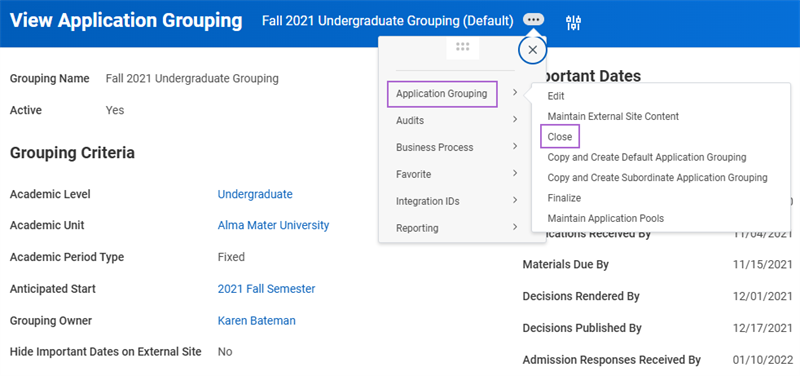
Dashboards
Dashboards are worklets that you can include on your Home landing page. Workday provides preconfigured dashboards for distinct functional areas. In addition to using the preconfigured Workday-delivered dashboards, you can also create an unlimited number of custom dashboards. Each custom dashboard can display a set of custom reports that you have enabled as worklets. Workday allows you to have an unlimited number of types under Dashboard, but only six worklets per type. Use the
Maintain Dashboards
report to set up which dashboards you want to allow users to set up.Grouping Management Dashboard
One dashboard you should familiarize yourself with is the Grouping Management dashboard. This dashboard is a useful tool that gives you a quick glimpse into the student application information you use most often. Workday offers this convenient dashboard to enable admissions counselors to see and interact with their assigned application groupings and application pools. You can configure this dashboard to include a variety of useful worklets that give you convenient access to all kinds of admissions information from the same screen.
The table below includes the available worklets and a brief description.
Worklet | Description |
|---|---|
Admitted Applications by Response | Displays the counselor's applicants who have had their applications accepted, and groups these applicants based on their response. |
Applications Awaiting My Review | Displays the counselor's applicants, sorted by those that need to be reviewed. |
Applications by Academic Unit | Displays the counselor's applicants, sorted by academic unit. |
Applications by Application Grouping | Displays the counselor's applicants, sorted by their application grouping. |
Applications by Level | Displays the counselor's applicants, sorted by their academic level. |
Applications by Pool | Displays the counselor's applicants, sorted by their application pool. |
Applications by Review Status | Displays the counselor's applicants, sorted by their application's review status. |
Applications by Type | Displays the counselor's prospects, sorted by their prospect type. |
Applications Pending Action by Others | Displays the counselor's applicants, sorted by those that are pending actions by others. |
Completed Applications by Decision & Status | Displays the counselor's applicants with completed applications. These are sorted by both the application's decision and status. |
My Applications by Pool | Displays the counselor's applicants, sorted by application pool. |
My Applications by Type | Displays the counselor's applicants, sorted by application type. |
Application Review Dashboard
The Application Review dashboard is another useful tool that provides admissions administrators easy access to the applications they need to review and process. This dashboard also includes delivered worklets, customer-defined worklets, delivered tasks, and customer-defined tasks.
The table below describes some of the available worklets and their description.
Worklet | Description |
|---|---|
Admitted Applications by Response | Displays the counselor's applicants who have had their applications accepted, and groups these applicants based on their response. |
Applications Awaiting My Review | Displays the counselor's applicants, sorted by those that need to be reviewed. |
Applications by Academic Unit | Displays the counselor's applicants, sorted by academic unit. |
Applications by Application Grouping | Displays the counselor's applicants, sorted by their application grouping. |
Applications by Level | Displays the counselor's applicants, sorted by their academic level. |
Applications by Pool | Displays the counselor's applicants, sorted by their application pool. |
Applications by Review Status | Displays the counselor's applicants, sorted by their application's review status. |
Applications by Type | Displays the counselor's prospects, sorted by their prospect type. |
Applications Pending Action by Others | Displays the counselor's applicants, sorted by those that are pending actions by others. |
Completed Applications by Decision & Status | Displays the counselor's applicants with completed applications. These are sorted by both the application's decision and status. |
My Applications by Pool | Displays the counselor's applicants, sorted by application pool. |
My Applications by Type | Displays the counselor's applicants, sorted by application type. |
Chapter 7 Tasks and Reports
Below are the commonly used tasks and reports for the topics covered in this chapter.
Tasks:
- Create Admission Decision Reason
- Create Admissions Committee
- Create Evaluation View
- Create Questions
- Create Questionnaire
- Maintain Assignable Roles
- Maintain Evaluation View Policy
Reports:
- Find Admission Decision Reasons
- Maintain Dashboards
- Maintain Student Documents
- View Admission Response Reason
- View Application Grouping
Chapter 7 Summary
In this chapter, you learned about the application evaluation and decision processes. Specifically, you learned how to configure admissions business processes and admissions questionnaires. You evaluated an application, rendered an application decision, and closed an application grouping. Finally, you learned about Workday dashboards.
Considerations
- What are the reasons that constitute each application decision?
- What kind of reviews and approvals are part of your application review process?
- What reports and tasks should you include on the Grouping Management dashboard?
- What reports and tasks should you include on the Application Review dashboard?
- Does your institution have a set date for publishing admission decisions?
- When will you publish those decisions?