
Student Registration
Overview
In this chapter, we explore the methods, configuration, and procedures required for student registration. We also discuss the registration philosophies in Workday Student, as well as the various ways that registration occurs. Next, we configure the core elements of registration that dictate when students can register. Then, we explore registration from the student's perspective and troubleshoot registration issues. Finally, we examine waitlisting as registration activity increases.
Objectives
By the end of this chapter, you will be able to:
- Explain the core concepts of course registration and downstream impacts.
- Configure all aspects of registration access and setup.
- Register for courses as both a student and administrator across multiple methods of available registration.
- Navigate and resolve barriers to successful registration.
Registration Philosophy
One of the most important tasks a student completes in Workday is registering for classes. Course registration is at the pinnacle of the Workday Student journey. Registration leverages the entire curriculum you create, and can trigger financial aid and student charge processing. Since registration is critical to the institutional operation, all registration activities complete instantaneously and do not use the business process framework. Understanding the implications of registration is a key element of successfully leveraging Workday Student.
Student Registration
When configuring student registration in Workday, consider the answers to the following questions:
Who Can Register?
The enrollment access policies you define determine the set of students who can register for courses. Enrollment access policies are assigned to either an academic unit or level, a program of study, or a student cohort.
What Can They Register In?
Students can register in course sections that:
- Tie into fixed academic periods in the academic calendar.
- Do not tie into academic periods, but fall within a standard academic period.
The enrollment access policy assigned to an academic unit and level determines:
- The courses students can register in.
- The grading scheme used when you grade students for courses.
The enrollment unit limit policy determines the number of units students can register for.
When Can They Register?
Your institution can use date controls to specify registration-related dates, such as:
- Enrollment window
- Open enrollment
- Last day to add a course
- Last day to drop a course without a record
- Last day to withdraw from a course with a withdraw grade
Registration appointments control when different sets of students can register during the enrollment window.
Where Do They Register?
Students can register for courses via the:
- Academic plan
- Saved schedule
- Find Course Sectionsreport
- Course listing (Find Coursesreport)
Administrators can register student for classes via the:
- Register Student for Coursetask
- Mass Register Studentstask
- Academic plan
Why Do They Register?
Students should plan the courses they register for. To help ensure that students register for courses that satisfy their degree requirements, they can refer to the
Academic Progress
report. Registration ensures proper enrollment tracking and uses the academic curriculum to help ensure students graduate on time.Downstream Impacts
It's important to consider how registration can have significant downstream impacts to other areas of Workday Student. Student financials, academic progress, and financial aid are all highly involved with the registration process. For example, after a student registers for courses, charges may be added to the student via nightly orchestration. Additionally, in order for a student to receive financial aid, the registered classes should also satisfy academic requirements laid out in their
Academic Plan
.Methods of Registration
Registration can occur in many ways, but ultimately, either a student or administrator completes it. Workday tracks all registration events and behavior, including registering, dropping, or withdrawing from a course section. Since course registration activity is immediate, students and administrators can see all registered courses on a student's academic profile. Registration can occur by individual section or for an entire academic period and can be completed individually by students and administrators, or in mass by an administrator.
Register from Course and Course Section
Students can register from the
Find Courses
or Find Course Sections
reports. Both reports are available for students on the Academics Dashboard
. These reports serve as the institutional course listing, and you can copy and edit them to match institutional needs.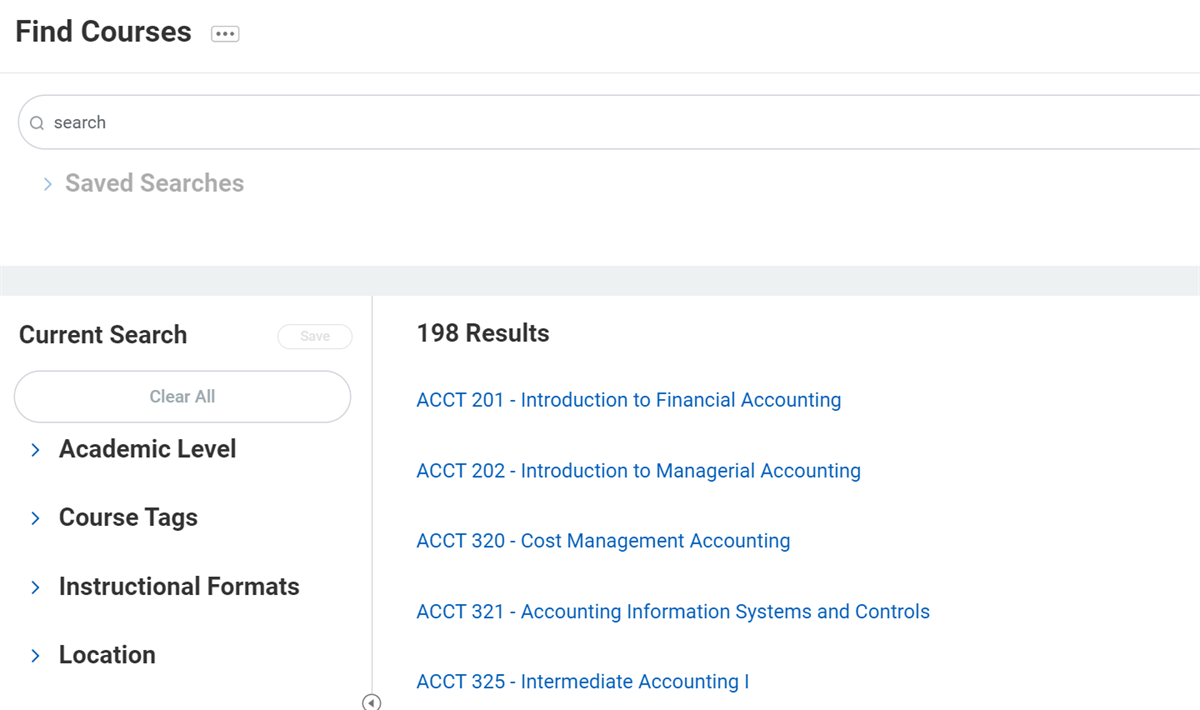
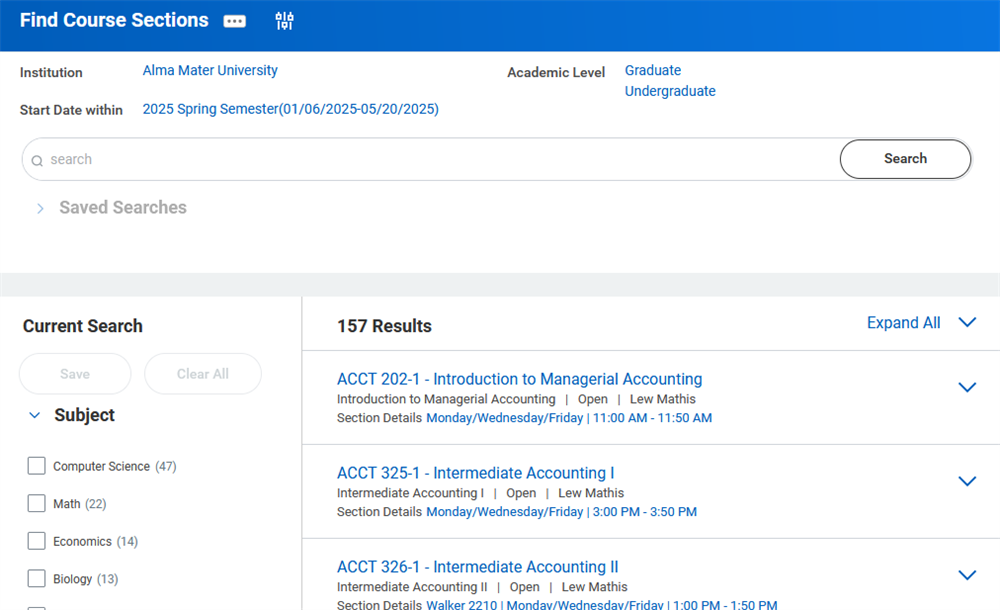
From either report, students can use the facet filters to find the course sections they are looking for.
Register from Plan and Schedule
Students and administrators may also choose to register from their academic plan. Select the Register From Plan option when viewing an academic plan. By registering from the academic plan, students can ensure their registrations also meet their academic requirements.
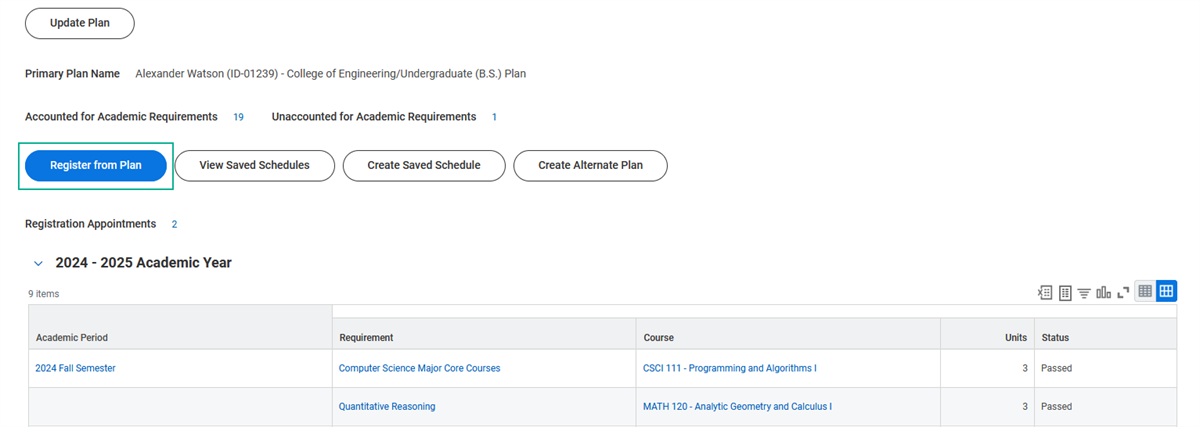
Students can also create course schedules. Course schedules allow students to identify the course sections they are interested in prior to registering. When the students' registration appointment begins, they can access the
View My Saved Schedules
report and register. Administrators cannot create, edit, or register from saved schedules.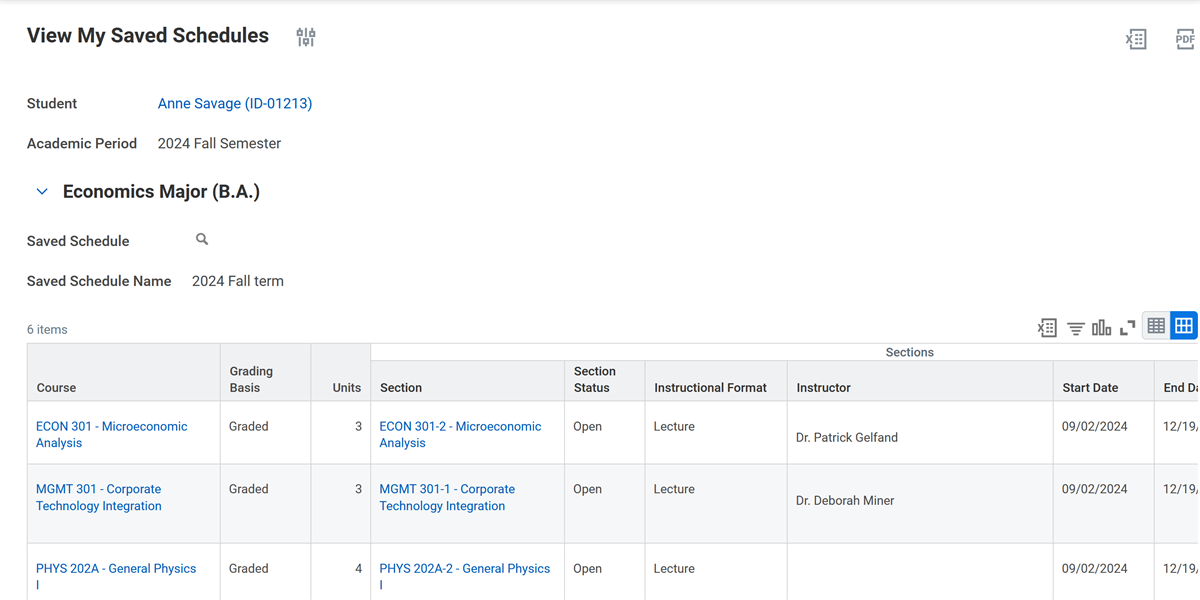
Note
: There must be at least one course included in the academic plan or saved schedule in order to use either as a registration option.Register Student for Course as an Administrator
At times, an administrator may need to quickly register a student for a class without restrictions. For example, a registrar that needs to easily register a student, regardless of whether or not the student has met the course prerequisites.
Those with security access to the Manage: Registration Actions domain may use the
Register Student for Course
task. When using this task, the administrator will be able to review and override any of the restrictions that would otherwise prevent registration. Since the Register Student for Course
task can override all restrictions, Workday suggests great care in determining which users have access to this functionality.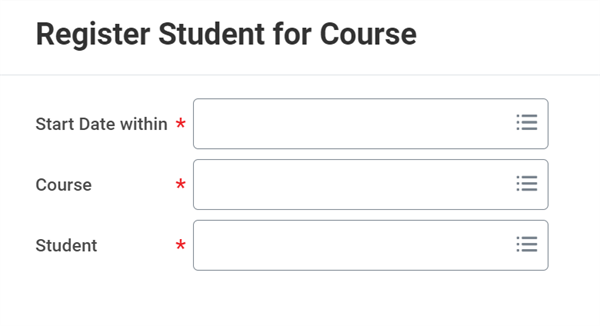
Core Elements of Registration
Registration has three separate areas of configuration, which are all required in order for a student to register:
- Enrollment-Related Academic Policies
- Academic Period Date Controls
- Registration Appointment
Registration Policies
Before students can begin registering, you must configure several policies and date controls to determine who can enroll in which courses, and when they can do so:
- Enrollment Access and Grading Policy
- Enrollment Unit Limit Policy
Enrollment Access and Grading Policy
The enrollment access and grading policy defines which students can enroll in which courses, as well as the grading scheme used for the courses. For example, you may wish to restrict undergraduate students from taking graduate courses or allow graduate students to take undergraduate courses as pass/fail only. Note that Workday reads policy sets in a waterfall format, so be sure to order your policies from most to least restrictive.
Enrollment Unit Limit Policy
The enrollment unit limit policy limits the number of units a student can enroll in during the two stages of the registration process, including:
- Enrollment appointment
- Open enrollment
Students are subject to enrollment unit limits based on the rule set you assign to their academic unit and level or program of study. You can also use student cohorts to apply enrollment unit limits to specific student populations. For example, you may wish to limit the number of units international students or students on academic probation can take in an academic period. During registration, Workday ensures that a student enrolls only in the eligible number of units that apply to them.
Academic Period Date Controls
Academic period date controls indicate when certain activities happen during an academic period, such as enrollment windows, last dates to drop with a W grade, and grade assignment. Academic period date controls follow both inheritance and the academic unit, academic level, and program of study configuration sets.
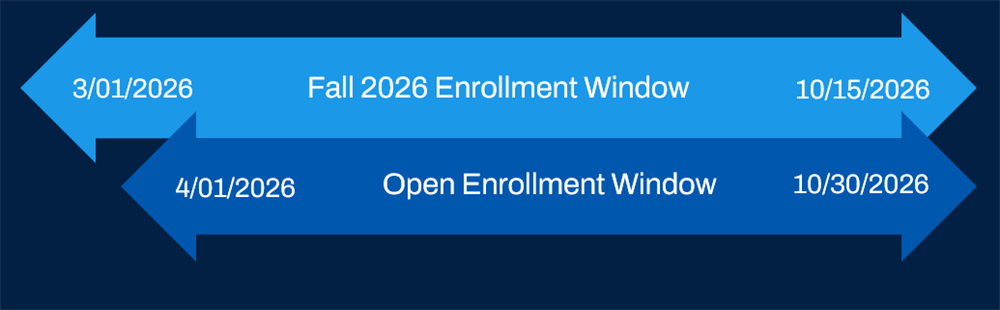
For the purposes of registration in this class, you will set up date controls for the enrollment window start and end, as well as the open enrollment window. The enrollment window specifies the date range in which any registration activity can occur. The open enrollment window specifies when enrollment can happen without a registration appointment.
Academic Period Date Control Rules
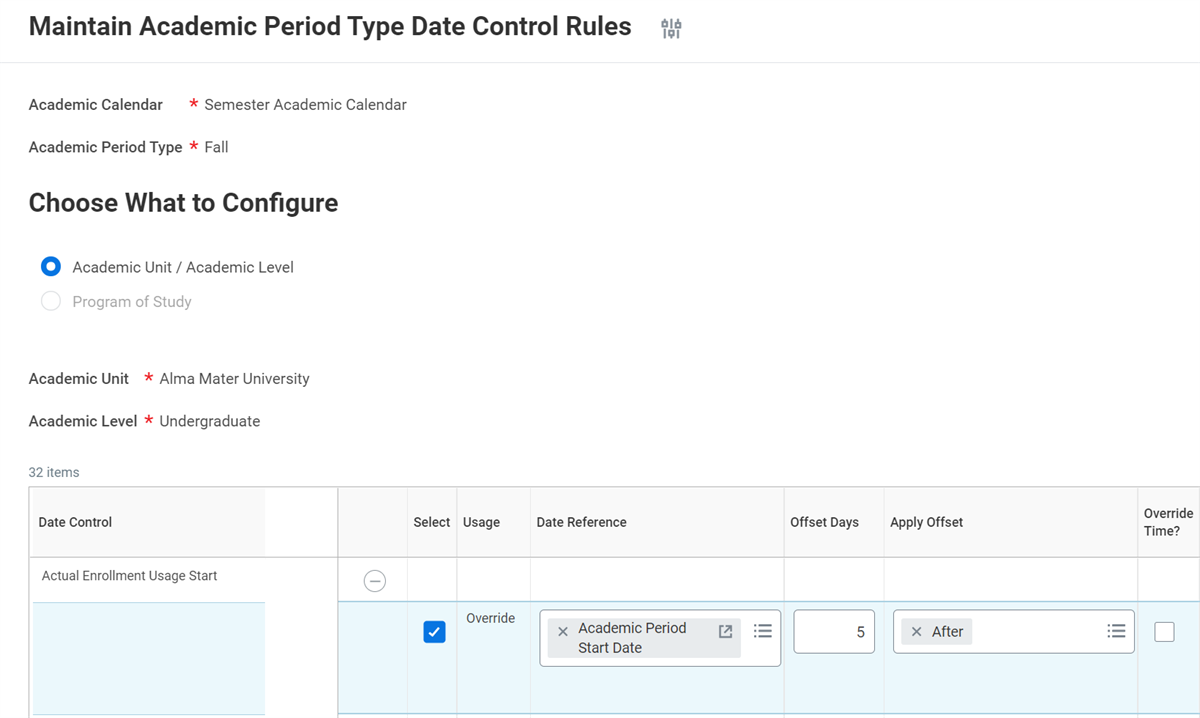
Academic period date control rules enable you to configure rules that tell Workday to auto-generate individual dates for each option within academic period date controls. Date control rules are an optional configuration that saves significant time in setup. Date control rules may reference the academic period start and end or the academic period standard start and end for a given academic calendar. All academic period type date control rules follow inheritance. You can create rules using the
Maintain Academic Period Type Date Control Rules
task.For example, Alma Mater University has a policy that final grading ends five days after the end of the academic period. Therefore, you can create a rule set to begin five days after the academic period end date for the final grade ending date. For the academic period specified and all subsequent academic periods, the date control rule applies.
Dynamic Course Section Date Controls
Dynamic course section date controls allow you to control processes or events associated with course sections that do not tie into a fixed academic period. You can offset the process to occur at a specified number of days before or after the:
- Start date of the course section
- End date of the course section
- Date control from the standard academic period during which the dynamic course section starts
Use the
Maintain Dynamic Course Section Date Controls
task to configure these dates.Override Course Section Date Controls
You can override the date controls inherited by course sections, ensuring that date-sensitive events associated with them occur at the correct time. Access the
Override Course Section Date Controls
task to change control dates for a specific course section.Registration Appointments
After you configure the date controls and enrollment policies, you can use the
Maintain Academic Period Registration Appointments
task to define the registration appointments for your students. For the academic period intended for registration, you can create registration appointments and assign students to them. The eligibility rule you select determines which students can register during the appointment period. When students meet more than one eligibility criteria, Workday assigns the earliest appointment to them.Registration Appointment Limits
When planning for registration, keep in mind that Workday restricts appointments to 3,000 students within a 15-minute period. This will ensure optimal performance throughout your registration window.
Registration Assignments
By default, student course registrations roll up to the academic period in which the standard start date for a course occurs. In some instances, this does not meet an institution's reporting needs. In order to allow administrators to choose assignment logic that provides greater control over student records, Workday provides the
Maintain Registrations Assignment Policy
task, which allows administrators to configure how registrations roll up to academic period records.Important
:
Registrations will always roll up to financial aid period records by their course section start date.Troubleshooting Registration
When students register for course sections, they can occasionally run into issues preventing them from completing the registration. It can be frustrating when the problem with registration is unclear. There are two tools to help students and administrators overcome these issues.
Troubleshoot Registration Task
For students, Workday offers a self-service
Troubleshoot Registration
task. This task enables students to select a course and course section for an academic period. It also displays the student's eligibility for the course section. You can view some of the restriction reasons in the image below. The system displays whether or not any of the restrictions listed are preventing the student from completing the registration.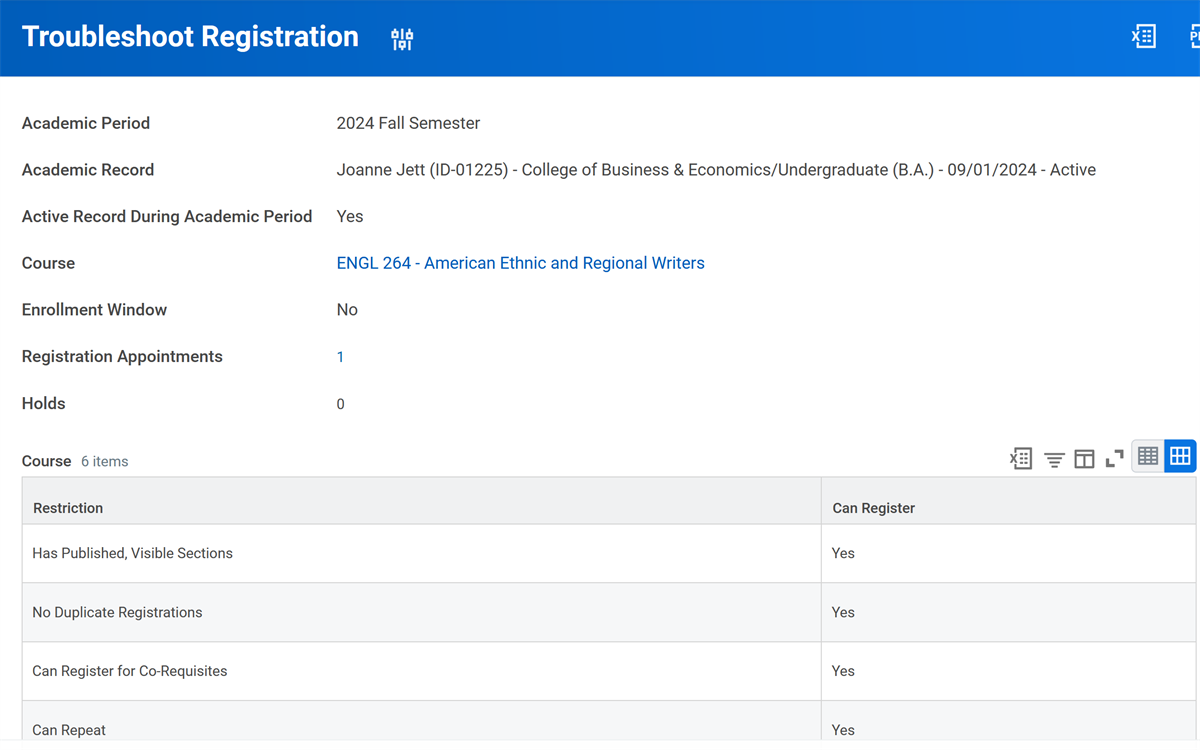
The
Troubleshoot Registration
task automatically opens when a student attempts to register for a course section that they are ineligible for. Registration troubleshooting is meant to help students have more informed discussions with their enrollment advisors and administrators when a registration issue occurs. To assist students as they complete registration, administrator involvement in the system is required.Registration Troubleshooting Console
For administrators, Workday provides a similar task called
Registration Troubleshooting Console
. This a central report that administrators can use to manage registration issues and show if a student has access to the course, and if not, explain why. You can troubleshoot a student or a program of study, and optionally, filter on start date range, course, and course section. The report displays a list of reasons that a student might not be able to register for a course:- Holds
- Registration Access
- Current Time Valid
- Eligible for Course
- Eligible for Section
- Published Sections Exist
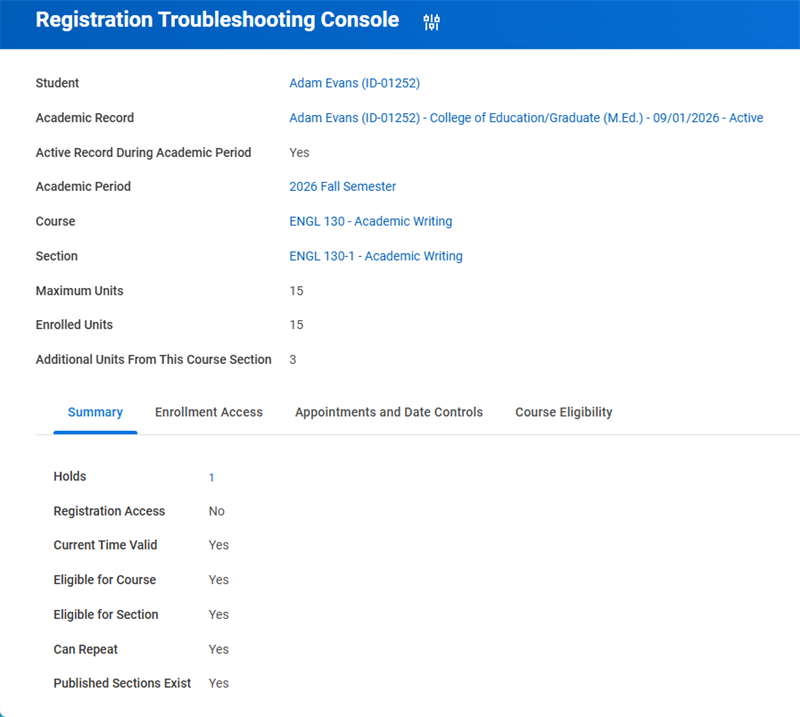
Review the following table for a description and some suggested solutions for each of the possible reasons listed.
Reason | Description | Possible Solution |
|---|---|---|
Hold | The student has a hold placed on their account. The hold prevents them from registering for a course. | Student must resolve the hold before they can register. A common example is a student needing to pay a fee or make an overdue tuition payment. |
Registration Access | The Enrollment Access and Grading Policy for the student's academic unit and academic level does not grant access to registration for the selected course. | You may need to create or edit the Enrollment Access and Grading Policy used in the policy assigned to the appropriate academic unit and level. |
Current Time Valid | The enrollment window has ended for the course selected. | You may need to edit the academic period date controls for the academic period in question. Otherwise, identify an alternative academic period for registration. |
Eligible for Course | The student does not meet the eligibility requirements defined for the selected course. | Check the eligibility rules included on the course definition. Consider adding to or modifying the eligibility rule to include the student, if appropriate. |
Eligible for Section | The student does not meet the eligibility requirements defined for the selected course section. | Check the eligibility rules included on the course section definition. Consider adding to or modifying the eligibility rule to include the student, if appropriate. |
Published Sections Exist | There are no course sections published for the selected course during the identified academic period. | Create and publish a course section for the selected course during the identified academic period. Use the Find Course Section Definitions report to verify that sections have an Open status. If not, select the section and select Mass Publish Sections. |
The
Registration Troubleshooting Console
also provides quick access to relevant enrollment access policies and date controls. Quick access enables administrators to update necessary system information to diagnose specific issues and resolve them immediately.Mass Student Registrations
In addition to individual registration, you can use the mass student registration feature to register groups of students into specific course sections or course section clusters. Mass student registration provides a quick way to register large groups of students by overriding the student-by-student registration process.
To use this feature, access the
Mass Register Students
task. Here you can select the academic period in which the start date falls, the courses to register the students for, and then the students to register. You can select specific students or select a student cohort to register all students within the cohort for the class. You may also exclude cohort students from the mass registration.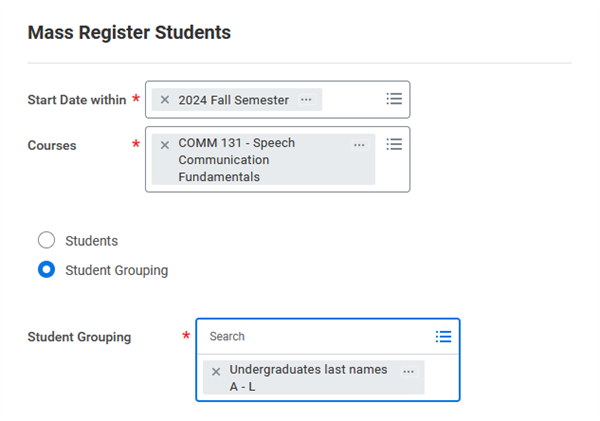
Mass Drop Student Registrations
Your institution can mass drop students who no longer satisfy a prerequisite for a course. For example, BIOL 102 might be a prerequisite for BIOL 201. Students currently enrolled in BIOL 102 can preregister for BIOL 201 for the next academic period. However, at the end of the current academic period, some students might fail BIOL 102 and then would not meet the prerequisite for BIOL 201.
Mass Drop Invalid Registrations
In order to mass drop for prerequisite failure, first configure the
Pre-Requisite Failure Mass Drop Registrations Event
business process. Next, access the Run Post-Grading Jobs
task so that Workday can calculate the invalid registrations. This job will also affect students' financial aid Satisfactory Academic Progress (SAP).Finally, access the
Mass Drop Invalid Student Registrations
task to initiate the business process.Mass Drop for Non-Payment
If you need to mass drop students due to nonpayment, begin by configuring the
Mass Drop Registration for Non-Payment
business process. You will also need to configure the security policy in the Student Records functional area.Then, access the
Mass Drop Registrations for Non-Payment
task to initiate the business process.Mass Drop Notifications
When students are mass dropped from a course registration, you can send notifications to students about their dropped registration. You will configure these notifications on the
Mass Drop Registration for Non-Payment
and the Pre-Requisite Failure Mass Drop Registrations Event
business processes.Registration Soft Drop
Registration soft drop allows you to indicate to students that they have been dropped from specified registrations without actually removing their enrollments. You must configure date controls per academic period to accommodate your institution's registration soft drops. Use the
Maintain Academic Period Date Control
task to configure the Anticipated Aid Consideration Deadline for Registration Soft Drop date control.To set up the registration soft drop for past due balances, use the
Configure Course Registration Soft Drop for Past Due Balance
task. Here you identify the student population to apply soft drops for past due balances, along with an email informing students about their soft drop registration status. You can also identify the threshold for an individual student charge, where Workday will not soft drop students from their registrations. You will need to identify charge types to determine which types will count toward soft drops, and if any charge items should be excluded. The Grace Period Days Per Charge field allows you to tell Workday that a charge is considered past due after the grace period has ended.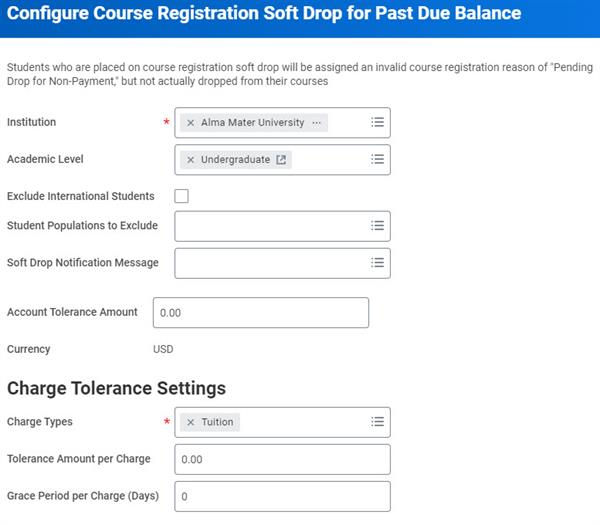
Override Registration Restrictions
With configured security access, administrators can override the registration restrictions for students. There are two ways to override registration restrictions. First, administrators bypass restrictions via manual override by taking registration actions on behalf of the student. Alternatively, administrators can set up a proactive override, or "token" for a student to allow students to register themselves.
Manual Override
Administrators with the proper security access can temporarily override restrictions that prevent a student from registering in a course section. Possible restrictions include:
- Hold
- Time conflict
- Maximum enrollment units limit
Use the
Register Student for Course
task to override these restrictions for one student or the Mass Register Students for Courses
task to override restrictions for a group of students. Before completing the override, you can review the details of the restrictions and course section.Note
: Workday displays these overrides on the Registration Audit History
report.Proactive Override
An administrator may choose to override a registration restriction in advance of a student's registration appointment. Once assigned a registration override, Workday allows the student to register for the course section regardless of any active registration requirements.
In order to perform this proactive override, the administrator must perform the following steps:
- Configure theEligibility Override Eventbusiness process.
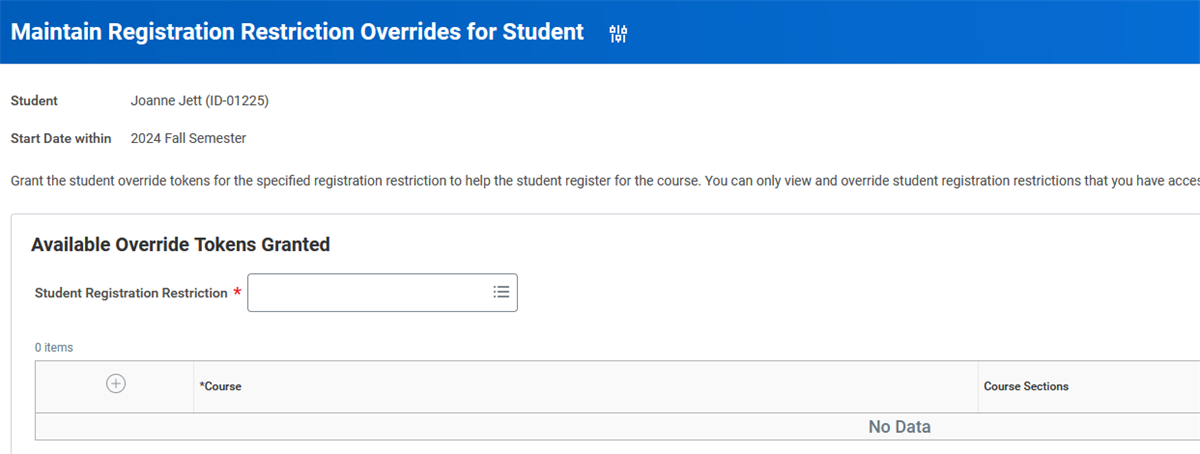
- Run theMaintain Registration Restriction Overrides for Studenttask.
Note:
This only bypasses restrictions related to enrollment access or eligibility.Students can also use the
Request Course Section Prerequisite Override
task to submit an override request before registering for a course, triggering the Eligibility Override Event
business process.Registration Tokens
An administrator can choose which specific restriction they are proactively overriding for a student. For example, Alma Mater University has an Enrollment Access and Grading policy that states that undergraduate level students can only enroll in undergraduate level courses. However, an administrator may decide to grant a token (override) and choose the Enrollment Access restriction to allow an undergraduate student to register for a certain graduate level course.
Student Charge Wash Periods
You can define wash periods that prevent registrations from impacting student charge prorations for a period of time. This allows students to swap registrations without charge prorations. Use the
Maintain Student Wash Period Policy
task to create student charge wash periods. After you configure the policy, the Assign Student Charges
job takes into account the defined student charge wash periods when it assigns and updates student charges.Section Waitlisting
Waitlisting in Workday
When a course section has reached capacity, additional registrations will be placed on the waitlist. Waitlisting in Workday is configurable and allows the institution to determine several factors, including: the waitlist policy, how to manage promotions, notifying students, and more. First, we will review how to configure your waitlist policy.
The course waitlist policy controls whether students can view their position on a course registration waitlist, and the total number of students on the waitlist. When creating a course and course section, you specify whether there is a waitlist, and if progression occurs automatically or manually. The
Registration Waitlist Availability Event
business process defines how a student moves from the waitlist into an open seat.
Administrators can also edit a waitlist for a course section. When space opens up in the course, the system provides the student at the top of the waitlist the option to enroll. Use the
Maintain Course Waitlist Policy
task to configure institutional preferences for waitlist promotion. Additionally, you can set a last date to waitlist in a course section within a defined academic period. On the Maintain Course Waitlist Policy
task, you can view the students who have registration restrictions that may prevent them from registering.Waitlisting Multiple Courses
Students can also waitlist for multiple, corequisite course sections or course section clusters at the same time. When registering for course section clusters, students must enroll in all courses included in the cluster. The system will prevent students from only partially enrolling in a course section cluster. If one or more of the course sections are full, students can waitlist in all course sections included in the cluster.
When a waitlisted student is promoted to the active roster, they will receive an inbox item that allows them to register for all courses in the cluster at once. For example, let's say a student needs to enroll in a Biology course section cluster that includes a Lecture section and a Laboratory section. If these course sections are full, the student can waitlist for both course sections. When a spot opens up, the student can register for both course sections at once from the same task in their Inbox.
Resource
: For more information on managing waitlists, visit Workday Community and search for Student Records: Manage Student Course Registrations.Waitlist Promotion
When creating or editing your course sections, you can decide whether or not Workday will manage waitlists automatically.
If you do not decide to manually manage your waitlists, Workday will automatically manage it, based on your configuration of the
Registration Waitlist Availability Event
business process. When the course section capacity becomes available, Workday promotes waitlisted students to enrollment in sequential order, and notifies students of their eligibility to now enroll.Waitlist Notification and Expiration
In the waitlist policy, an institution can decide how many hours a student will have to respond to the waitlist notification. You can specify what occurs to the student after a student's waitlist promotion notification expires on the After Notification Expires section on the
Maintain Course Waitlist Policy
task. Additionally, you can adjust the Expiration Limit field on the task to specify how many times a student can allow their waitlist promotion notification to expire before they are removed from the waitlist.Course Withdrawals and Drops
Along with registration, students also have the ability to drop or withdraw from courses. These are essentially the same process, but the configured academic period date controls will determine whether or not a student's record will reflect the drop or withdrawal. Consider the implications on student records when configuring the following date controls:
- Drop without Record End - Determines the last date a student can drop a course section without it appearing on their student record.
- Drop with W Grade End - Determines the last date a student can withdraw from a course section, while earning a "W" grade on their record. Students who withdraw from a course after this date will recieve a failing grade for that course section.
These configurations impact a student's Satisfactory Academic Progress (SAP) calculations, which can have additional downstream impacts on Financial Aid and Student Financials.
Commonly Used Tasks and Reports – Student Registration
The following tables list the useful and commonly used reports and tasks for the topics covered in this chapter.
Student Registration
Tasks |
|---|
Drop Student from Course |
Maintain Academic Period Date Controls |
Maintain Academic Period Registration Appointments |
Maintain Dynamic Course Section Date Controls |
Mass Drop Invalid Student Registrations |
Override Course Section Date Controls |
Post-Grading Job |
Register Student for Activity |
Register Student for Course |
Register Student from Waitlist |
Remove Student from Waitlist |
Verify Attendance |
Waitlist Student in Course |
Reports |
Registration Audit History |
Registration Troubleshooting Console |
View Student Enrollments |