
Academic Records
Overview
This chapter covers managing academic records for students, including student status, grading, transfer credit, leaves of absence and institutional withdrawals, program completion, and transcripts.
Objectives
By the end of this chapter, you will be able to:
- Configure and assign various student statuses, including special populations.
- Manage historical student records.
- Award transfer credit and create transfer articulation rules.
- Configure grading and enter grades.
- Configure, apply for, and manage program completion from the student and administrator perspectives.
- Request transcripts and process transcript orders.
Student Status
As students move through their academic career at your institution, they may have several different statuses. Statuses on the program of study enable you to know:
- Where a student is in their program of study.
- Whether their overall record is active or inactive.
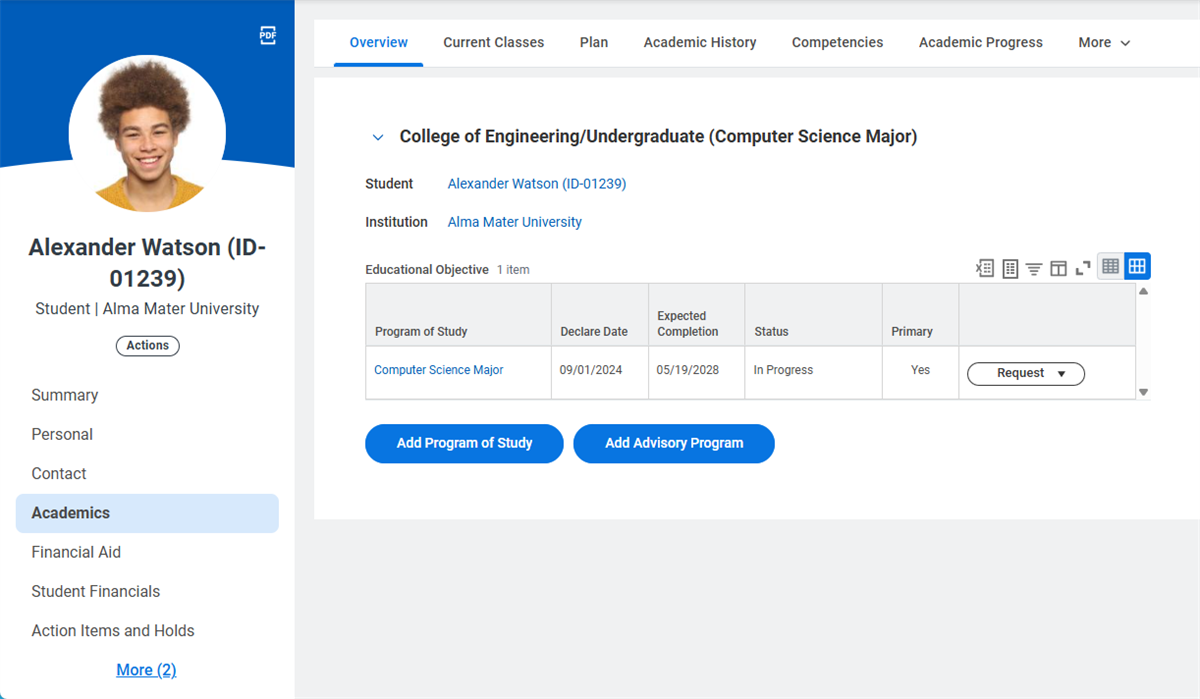
With these statuses, you can identify, process, and report on specific populations of students. Workday displays the status on the Overview tab on the Academics profile group of the student profile.
Students have a status for every program of study they have at your institution. The status of the primary program of study takes precedence in all processing and reporting.
Program of Study Status | Description | Student Record Status |
|---|---|---|
Matriculated | Set when the matriculation process completes and Workday creates the student record. | Active |
In Progress | Begins when the program of study starts. Corresponds to the declare date on the program of study. | Active |
Leave of Absence | Begins on the leave start date specified on the Request Leave of Absence task after the Student Leave of Absence Event business process completes.Changes to In Progress on the return date. | Active |
Institutional Withdrawal | Set on the withdrawal date specified on the Request Institutional Withdrawal task after the Student Institutional Withdrawal Event business process completes. | Inactive |
Pending Completion | Begins when the student applies for program completion. | Active |
Completed | Set when the program of study completes. | Inactive |
Deceased | Set via task on the student profile. | Inactive |
Discontinued | Set with the Mass Update Student task. Used to track students who accept admission, but do not attend the institution. | Inactive |
Historical Students
Historical students are inactive student records, typically converted from legacy systems. Historical students have a historical academic record in Workday. The historical academic record is a collection of student information, past academic performance, and student financial data. This historical file is stored in Workday and can support basic functionality, including transcript generation. By design, historical records are view-only records, and lack the majority of the Workday functionality designated for active academic records.
Activating Historical Student Records
To activate a historical record, you must merge it with an active record. Use the
Maintain Historical Student Connection
task to manually merge (and unmerge) historical and active student records. Workday also provides a job schedule, the Schedule Match Historical Students to Students
job task, to automatically match historical records to active student and student applicant records on a predetermined basis. Use the Find Suggested Historical Student Matches
report to review and manage historical records that the system has matched to existing records. You can use the Related Actions from these matches to resolve each suggested match and merge the record. You may also ignore suggested matches and leave the records separate by using the Remove Historical Student Match
.Holds may exist on a historical student record, preventing a historical student from completing various actions. Those holds can be brought forward to active student records. You can configure these holds to automatically activate once a historical student matriculates or you can manually activate them.
A significant aspect of historical student management lies in academic credit articulation. Use the
Maintain Historical Credit Activation Mapping
task to create articulation rules to match historical academic coursework to current courses. You can launch articulation using the Activate Historical Student Credit
task. Workday displays activated historical credit on the Academic History and Academic Progress tabs of the student profile.Resource
: For more information on historical students, visit Workday Community.Special Populations
International Students
Workday Student has dedicated functionality for international students. Users can track a variety of data required as part of the international student experience, including citizenship, visa, passport, and foreign address information. Workday also provides dedicated support for SEVIS tracking. The
Student Immigration Event
manages international student information. As international student data is robust and not all fields may apply to all students, use the Configure Optional Fields
task to determine which fields display and are required when submitting international student-related data. You can view and edit student international data on the international card of the student profile.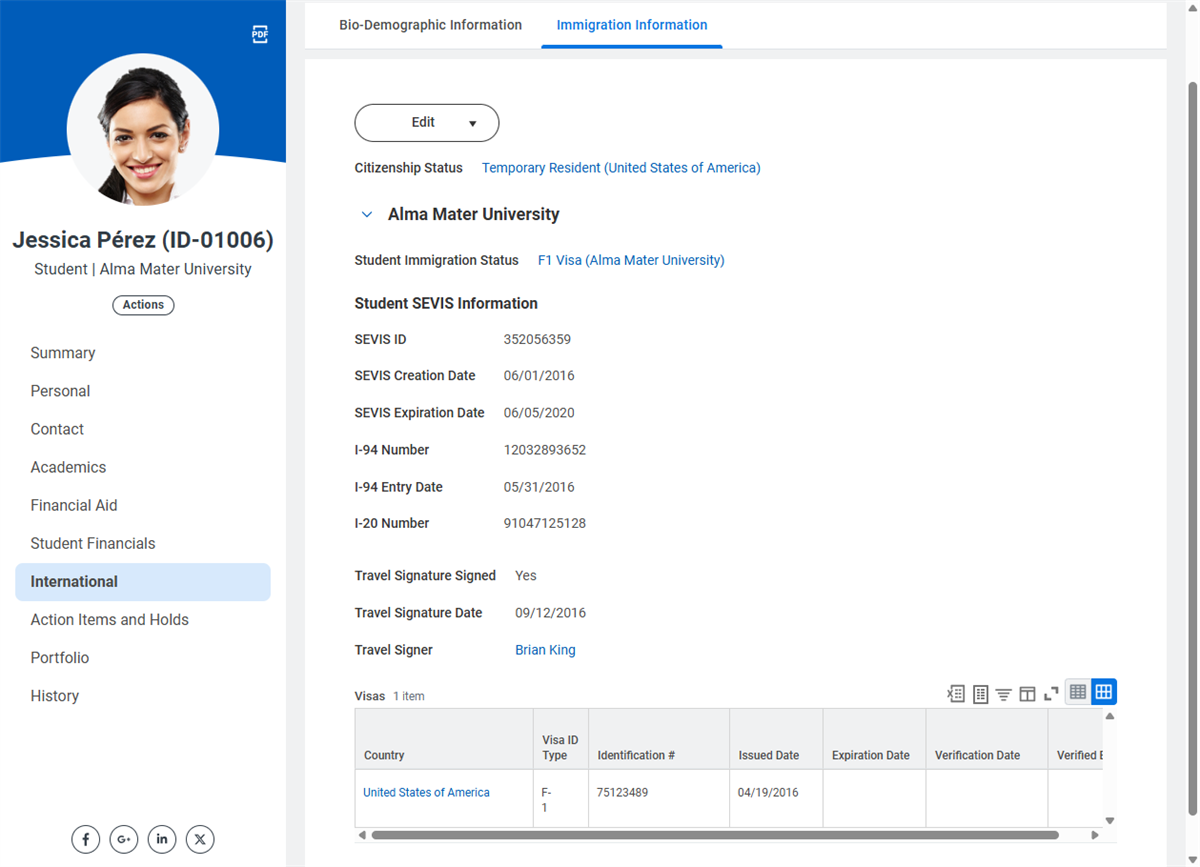
International Student Designation
There are many definitions of international students. Use the
Configure International Student Logic
task to create and assign logic that determines what constitutes an international student. Assign this international student logic, which follows effective-dating, at the institution-level only. The logic you create uses the condition rule framework.Student Athletes
Workday provides dedicated functionality for managing the student athlete experience. This includes using athletic teams, roles, and statuses to track your individual student memberships within athletic teams. Create your athletic teams using the
Create Athletic Team
task. Once created, use the Add Student to Athletic Team
task to add students (by academic record) to an athletic team. The Add Student to Athletic Team
task controls the Athletic Team Membership Event
business process. You can also use the Maintain Athletic Team Members
task to assign students by academic record to an athletic team in bulk without using the dedicated business process. Once assigned to teams, use the Create Athletic Role
and Create Athletic Status
tasks to assign team role and status markers to individual students.Military and Veteran Students
Workday Student provides specific functionality for military-connected students, including active duty and veteran students. This designation assists in financial aid business processes that certify veteran benefits. Additionally, if your institution offers advance registration timelines for military-connected students, you can create a cohort and eligibility rule based on the military designation. To add designations to individual students, navigate to their academic record and edit their Personal Information. There you will see a Military Service section where you can add their status, a discharge date, and notes. The student-as-self may also change their designation.
Additionally, can provide benefits information, such as chapter benefits or relationship to a military-connected individual, for an individual student via the
Edit Veterans Benefits
task.Student Leave of Absence, Institutional Withdrawal, and Deceased Students
Workday provides two tasks for students to request leave:
- Request Leave of Absence:For temporary leave of absence requests.
- Request Institutional Withdrawal:For full institutional withdrawals.
These tasks initiate the following business processes and appropriate dates for processing as required:
- Student Leave of Absence Event
- Student Institutional Withdrawal Event
Note
: The administrator-managed Edit Programs of Study for Student
task can also manage student status and triggers all relevant business processes.Occasionally, a student may need to withdraw from an institution while currently enrolled in courses. If a student requests a leave of absence or institutional withdrawal during the allowed Drop with a W grade period, Workday:
- Withdraws or drops them from their current course registrations.
- Posts the grade element associated with the Academic Period Withdraw category type in the grading scheme on their academic record.
Note
: The Maintain Academic Period Date Controls
task houses all date control configurations.Workday provides functionality for managing student data in the event of a student's passing. From the student profile's Related Actions, you can access the
Designate Student As Deceased
task. This affects academic records, registration, student accounts, and financial aid. Designating a student as deceased triggers six actions via the business process framework:- Apply Student Hold
- Set Student to Private
- Discontinue Academic Records for Student
- Withdraw Student Applications
- Write Off Student Charges
- Disable Workday Account
When the Workday account is disabled, engagements will not be sent to the student account nor to any related third-party accounts that receive communications from the institution. Additionally, the student will appear as deceased in the National Student Clearinghouse (NSC) enrollment report.
Student Reactivation
When a student requests a leave of absence, they also need to identify a date when their leave of absence will end. By default, the system automatically reactivates their student record on this date. However, many institutions require students to submit a request to return from a leave of absence. If your institution requires this official request, you can perform the following configuration:
- Set up theStudent Request Return from Leave of Absence Eventbusiness process definition to include necessary reviews or approvals.
- Use theMaintain Return from Leave of Absence Policytask to indicate that students must request reactivation after a leave of absence.
With this configuration, returning students can use the
Request Return from Leave of Absence for Students
task to request an official return to your institution.Suspensions and Dismissals
When your institution needs to suspend or dismiss a student, it can be a sensitive and time-dependent process. Fortunately, Workday provides two configurable business processes to automate these workflows and help ensure correct reviews and approval.
Upon suspension or dismissal of a student, Workday Student drops or withdraws them from any current and future course registrations, in accordance with the date controls configured for each academic period. You configure dismissal and suspension reasons in your system using the
Maintain Program of Study Status Reasons
task.Student Dismissal Event
For dismissals, you need to configure the
Student Dismissal Event
business process and related security policy. After adding the appropriate review and approval steps to the business process definition, you can use the Initiate Dismissal for Student
from the Academic Records task on the student's profile to initiate the process.Student Suspension Event
For your institution's student suspensions, you need to configure the
Student Suspension Event
business process and related security policy. After business process configuration, you can use the Initiate Suspension for Student
task to initiate the process.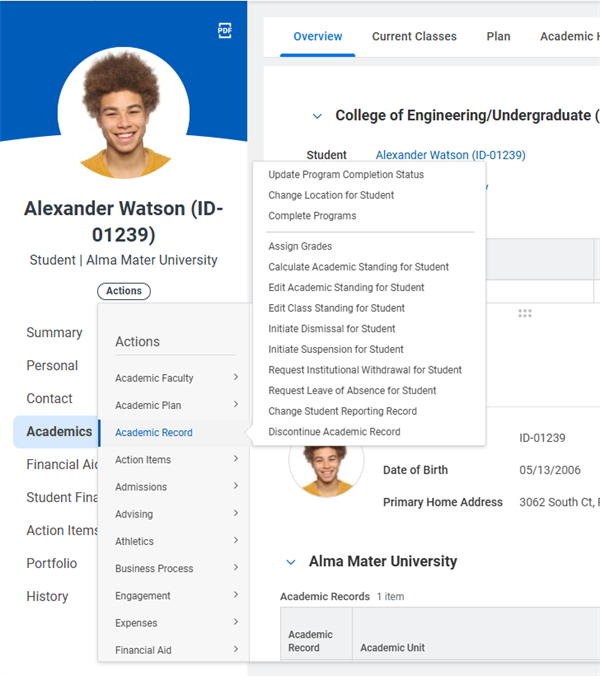
Mass Student Status Changes
In addition to dismissing or suspending a single student, you also have the option to perform mass changes to your student population. You can use the
Mass Update Student Status
task to perform a Discontinue, Dismissal, or Suspension on multiple students at once. You can use this report to identify the student population for this action, and then select which mass action to take.In order to use this functionality, you need to configure the following business process definitions:
- Mass Discontinue Event
- Mass Dismissal Event
- Mass Suspension Event
Student Privacy
Students and administrators can update a student's privacy settings to prevent a student's information from displaying in the student directory. Additionally, you can indicate refusal for any requests for information from those not affiliated with your institution, as required by FERPA (Family Educational Rights and Privacy Act).
Administrators specify this setting using the
Manage Privacy Settings for Student
task, secured to the Manage: Student Privacy domain. Students specify this setting using the Manage My Privacy Settings
task, secured to the Self-Service: Academic Records domain. Managing privacy settings may also be an action step in the Student Onboarding Event
business process.Students who choose to not release directory information have (Private) appended to their name throughout the system:
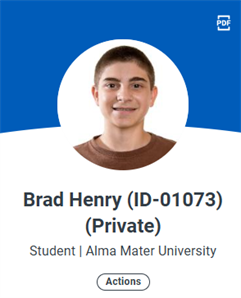
Third party access enables students to designate an external party access to their own student financial and academic information. Students designate a contact on their student profile as a third party user. The
Manage Permissions for Third Party
task then enables a third party-designated contact access to the following tasks:- Make a Payment.
- View Financial Aid Package
- View Account Activity
- View Student Statement
- View Current Classes
- View Student Grades
- Generate Unofficial Transcript
Students complete an institutionally configured waiver, created using the
Configure FERPA Release Authorization Waiver
task, to grant third party access. Upon completion, Workday will generate and communicate sign in information via the Third Party Permissions Event
business process. The third-party user then has direct tenant access to view only the information enabled via the third party permissions tasks.The Faculty Experience
Accessing course rosters is central for instructors of all roles to manage their student populations. Rosters provide access to student data, attendance tracking, and, in particular, grading.
Accessing Rosters
There are a few ways that instructors can access their course section rosters in order to assess and grade their students.
View Course Section Roster
Instructors can use the
View Course Section Roster
report to access the registered roster for a given course section. This report displays a list of students, their programs of study, and a photo of the student if one is available in Workday. You can optionally configure or restrict access for instructors or administrators to see a student's email address on this report.View My Teaching Schedule
Instructors and administrators can view an instructor's schedule and roster for each of their course sections. Instructors can access the
View My Teaching Schedule
report and administrators can access the View Instructor's Teaching Schedule
report.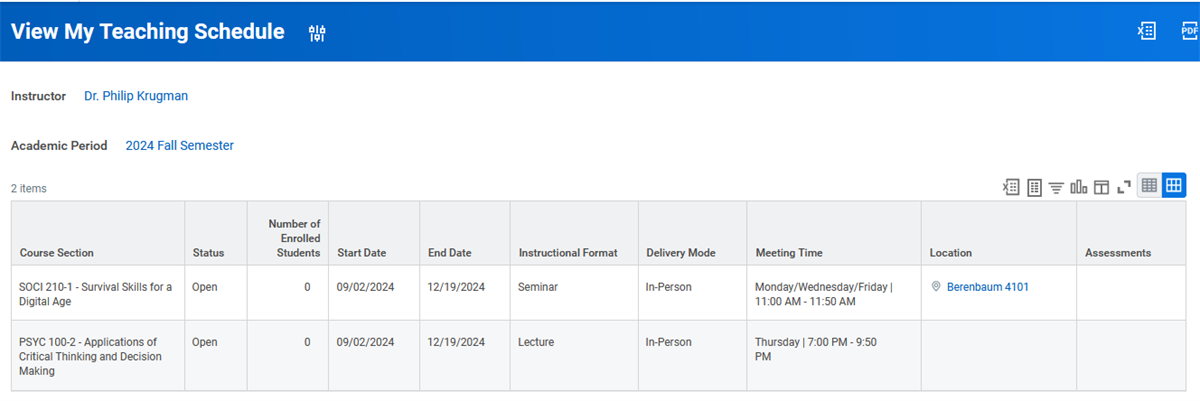
Teaching App
You can include the Teaching app on an instructor's Home page. This app is a great resource for an instructor's roster-related needs. In this dashboard, you can access the following tasks and reports:
- View Teaching Schedule
- View Course Section Roster
- Assign Final Grades
- Verify Participation
Configuring Grade Rosters
Workday delivers a standard grade roster that displays students enrolled in a given course section and relevant information. You can configure the grade roster to meet your institutional needs. Use the
Create Grid Configuration
task to create a grade roster display grid with desired fields. You can create these grids on the following tasks:- Create Course Section
- Edit Course Section
- Edit Published Course Section
- Review Course Section
- Revise Course Section Event
Once created, use the
Maintain Grade Roster Configuration Policy
task to assign your created grid to an academic unit and level by effective date. Note that once you make custom grid configurations on a course section, you will see these instead of the grade roster policy on the following tasks:- Assign Student Interim Grade for Student Course Section
- Assign Student Grades for Student Course Section
Note
: The View Course Section
report displays any grid configurations added on a course section.Grading
Like other important processes in Workday Student, grading time frames use date controls. Once within the grading window, an instructor or administrator with the proper security access can enter, change, and submit grades.
Instructors can use the grade roster to:
- Enter interim and final grades for students.
- Change grades.
The following business processes control how grading happens and who performs grading:
- Student Course Section Grade Event- An instructor or administrator submits a student's final grade.
- Student Course Registration Change Grade Event
- An administrator changes a student's previously posted grade.
- An administrator changes an incomplete grade and the date associated with it.
You can set up the business processes with different approval routing. For example, grade assignments by teaching assistants may need instructor approval, and changing a student's grade after submission may need department chair approval.
Student grades display on the Grades report on the Academics profile group of the student profile. You can set the date when students can view their final grades by academic unit and level or by course section. You can set the Final Grade Publication date control on the following tasks:
Maintain Academic Period Date Controls
, Maintain Dynamic Course Section Date Controls
, and Override Course Section Date Controls
.Note
: You can grading-related business processes to notify students when grades have been assigned or changed. For more information, search for Grade Event Business Process Notifications in Workday Community.Overriding Repeat Courses
Sometimes a student completes a course and the course repeat policy prevents the student from earning additional credit. You can override the course attempt that previous earned credit. Use the
Override Repeated Courses for Student
task to identify the student and course to override.After processing the override, Workday re-calculates the student's statistics, including GPA and units earned. The Academic History tab of the student's profile displays these results.
Lapsed Student Grades
Lapsed grades allow for mass action on incomplete or unresolved grades from a prior academic period. You can configure the
Mass Lapse Student Grades Event
business process to manage any submitted lapsed grades. Using the Find Student Grades to Lapse
report allows for a search of all incomplete and unresolved grades and assigns a new grade element. Workday updates class standing, GPA, units earned, and academic progress.Verify Attendance
Your institution can specify the attendance status for each student registered in a course section. Instructors and administrators can verify attendance using the
Verify Participation
task. The Instructor Verify Participation Deadline date controls access to attendance verification. Use the Maintain Academic Period Date Controls
task to edit this date. Access verifies participation via a number of methods, including the Verify Participation for my Course Section
task or from a course section's Related Actions, as displayed below: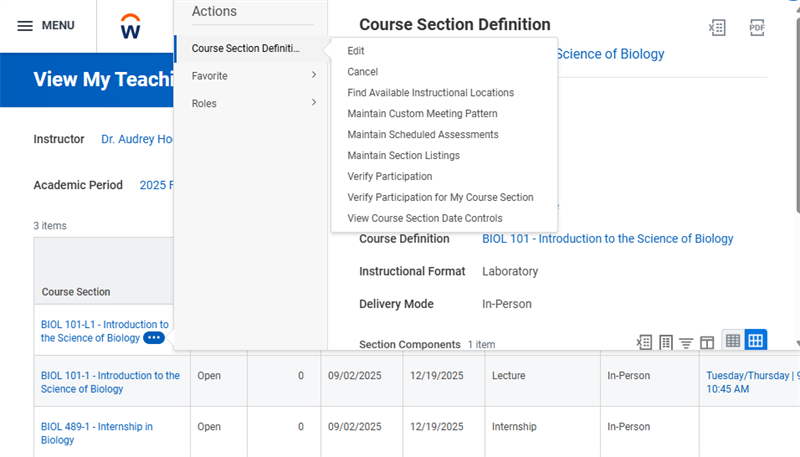
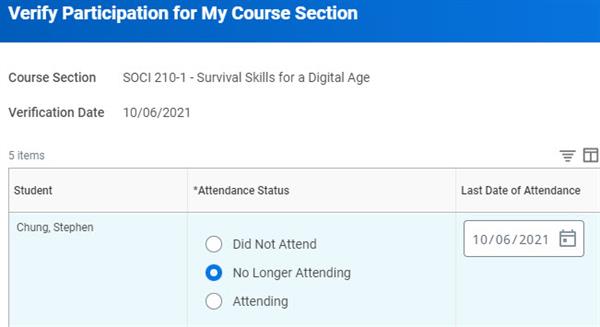
If you select an attendance status of No Longer Attending, the Last Date of Attendance field becomes active.
Important
: Verifying participation for a course section tracks overarching course section enrollment, not per-session, or positive attendance tracking.Transfer Credit
Workday Student allows you to set up rules for evaluating transfer credit from external educational institutions so that you can:
- Automate transfer credit evaluation.
- Make transfer credit evaluation consistent across all students.
- Make academic advising easier and more effective.
You can give transfer credit from:
- One course to another course.
- One course to multiple courses.
- Multiple courses to one course.
- Multiple courses to multiple courses.
- Test results.
- Internal articulation across academic units.
Transfer Credit Configuration
Transfer credit evaluation enables students to use previous educational credit and tests toward completing their educational objective at your institution. You equate external credit or tests students have earned (such as Advanced Placement, IB, etc.) to internal credit at your institution. Students can also satisfy their academic requirements with transfer credit. To process transfer credit:
- Create educational institutions.
- Select grading schemes for the institutions.
- Determine how external grades will map using theMaintain Transfer Grading Mapping Policytask.
- Create course catalogs.
- Create student grading schemes with one or more transfer grades.
- Create educational tests (e.g. AP exams).
- Create transfer credit reasons.
- Create transfer credit rules.
Tip
: You can add condition rules for transfer courses based on an educational institution's accreditation or to consider related courses in granting transfer credit. For more information, visit Workday Community and search for Condition Rules for Transfer Credit Rules.You can then optionally add the Transfer Credit Evaluation Service step to the following business processes:
- Student Prospect Data Load Event
- Mass Matriculation Event
- Student Onboarding Event
Educational Institution Grading Schemes
Workday accounts for institutions' use of different grading schemes when evaluating credit for transfer students. Use the
Maintain Educational Institution Grading Schemes
task to configure external grading schemes for use in transfer credit evaluation. This feature enables you to accommodate unique grades along with grade points and other behavior in transfer credit evaluation. You can also use the Edit Educational Institution Grading Scheme
task to quickly access and change a specific existing educational institution grading scheme in the system.Note
: You can customize the grade point values for an external institution grading scheme. Use the Maintain External Transfer Grade Point Values
task to set up custom grade point values. For more information, visit Workday Community.Unit Conversion
When articulating transfer credit, the incoming course may have award credit in a different metric than what your institution uses or what is required for graduation. Unit conversion policies, used for both external and internal credit articulation, allow you to define the conversion of credit from one metric to another (e.g., clock hours to units). Use the
Maintain Unit Type Conversion Policy
task to define your unit conversion rules by educational institution and effective date. Use the Maintain Course Unit Type Policy
task to configure course unit type policies for a specific academic unit and level.Automatic Transfer Credit Evaluation
If your institution receives a high volume transfer credit request from specific educational institutions, you can configure articulation rules for those institutions. You can create the following types of transfer credit rules:
- Education Test:Define the scores required for a given test to qualify as completed course credit. For example, a score of 5 on an AP Biology exam will count as having completed the institutional equivalent of the Biology 151 course.
- Educational Institution:Define the course mapping from an external institution to your own. For example, a student who has completed the Business 301 course at Bristol Community College has earned units for the equivalent of completing the Management 201 course at AMU.
When using the
Create Transfer Credit Rule
task to create these articulation rules, you can additionally define specific conditions for each transfer credit rule. This allows you more granular control of specifically which students will receive the listed credit. For example, you may qualify that an external course only counts for transfer credit if it has been completed before a certain date.The transfer credit rules you define will apply to the academic unit and level you select when creating the rules. View the current transfer credit rules by selecting an educational institution's Related Actions, or by using the
View Transfer Credit Rules
report.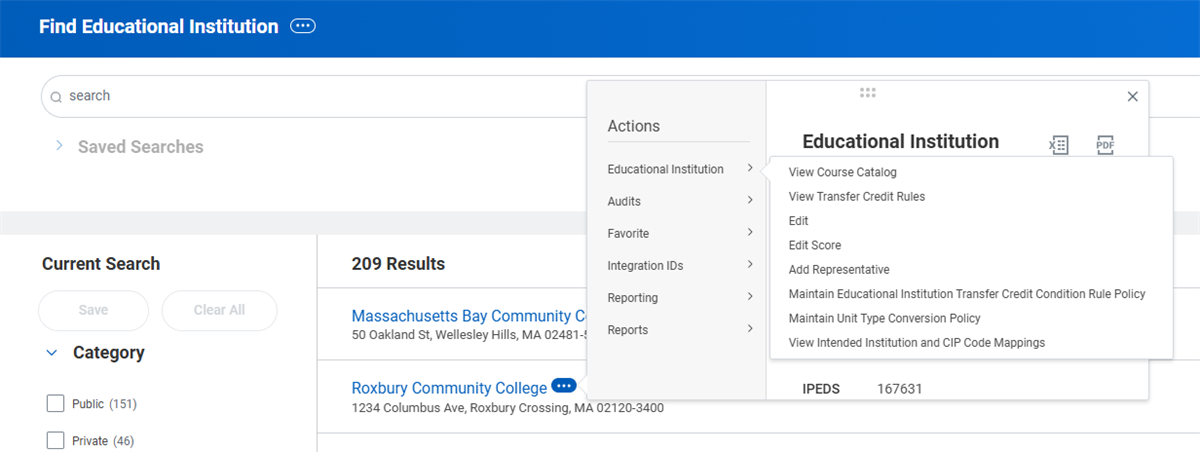
You can configure automatic transfer credit evaluations to lock transfer credits by default. Locking transfer credits prevents changes to previously granted transfer credits, removing the need to reassign transfer credits for updated external transcripts.
Manual Transfer Credit Evaluation
You can also process individual transfer credit requests for a student using the
Assign Student Transfer Credit
task. You can process credit from a transcript, test results, or a historical student record if this student has one with your institution. To articulate transfer credit internally across academic units, use the Articulate Internal Credit for Student
task.On this task, you have two options of what type of credit to transfer:
Option | Description |
|---|---|
External Transcript | Displays the transcript with the most recent issued date. In the Transfer Credit grid, Workday:
|
Education Test Results | Select to evaluate transfer credit from test scores. In the Transfer Credit grid, Workday:
|
Tip
: If a student completed an external course and it did not receive transfer credit, you can create a transfer credit rule by selecting the Assign
button the student's Academics profile group.Mass Transfer Credit Evaluation
Previously, you learned about individual transfer credit evaluation. Mass transfer credit evaluation allows you to articulate transfer credit, for both transcripts and test score, for multiple academic records. Use the
Launch Mass Transfer Credit Evaluation
task to initiate the transfer credit evaluation job for multiple students. You can run the job by any number of filterable criteria. Once initiated, Workday begins the job and displays the results via notification. Your results display successful and unsuccessful articulations, and allow you to drill into each articulation instance.Transfer Credit Troubleshooting
Workday offers two reports to help identify issues with granting transfer credit. The
Student Transfer Credit Troubleshooting Console
report is a self-service console that provides information on issues with processing transfer credits. You can access the console by navigating to the Related Actions from any external record. The console displays the evaluation requirements for the transcript or educational test result to be evaluated. These requirements evaluate the following:- Is this the latest official transcript?
- Does a transfer grade mapping policy exist?
- Do transfer credit rules exist?
From this report, you can also review the policies related to evaluating an external record.
If all evaluation requirements have been met, the report displays a chart containing three tabs with the following information:
- Coursework With No Transfer Credit: Displays the coursework that cannot be evaluated. This displays which evaluation requirements are not met, what applicable transfer credit rules exist and the effective rule date, and the primary reason a rule does not apply.
- Projected Transfer Credit: Displays all credits that could be assigned if the evaluation runs on an external transcript. From here, you can review the grade mapping policy in detail and the assigned transfer grade.
- Assigned Transfer Credit: Displays all transfer credits that have been assigned.
Additionally, the
Preliminary Transfer Credit Troubleshooting Console
report provides transfer credit evaluators similar abilities to troubleshoot issues with granting preliminary transfer credits for propsective students.Resource
: Check out the helpful video resources on the Student Transfer Credit Troubleshooting Console and the Preliminary Transfer Credit Troubleshooting Console on Community.Program Completion
When students near completion of their program, your institution can allow them to apply for program completion. Additionally, your institution can define the program completion application rules for an academic unit and level as well as the
Apply for Program Completion Event
business process.Program Completion Application Policy
The program completion application policy allows you to define when students can apply for program completion, and what options they can select when they apply.
Applying for Program Completion
Students use the
Apply for Program Completion
task to apply for program completion. You can configure questionnaires on the Apply
for Program Completion Even
t business process to solicit additional information from students. Questionnaires display as a second step after a student applies for program completion. Administrators use the Apply Student for Program Completion
task to submit applications on behalf of a student.Once submitted, administrators and students can edit applications for program completion using the associated edit task. If denied, a student can resubmit an application for program completion.
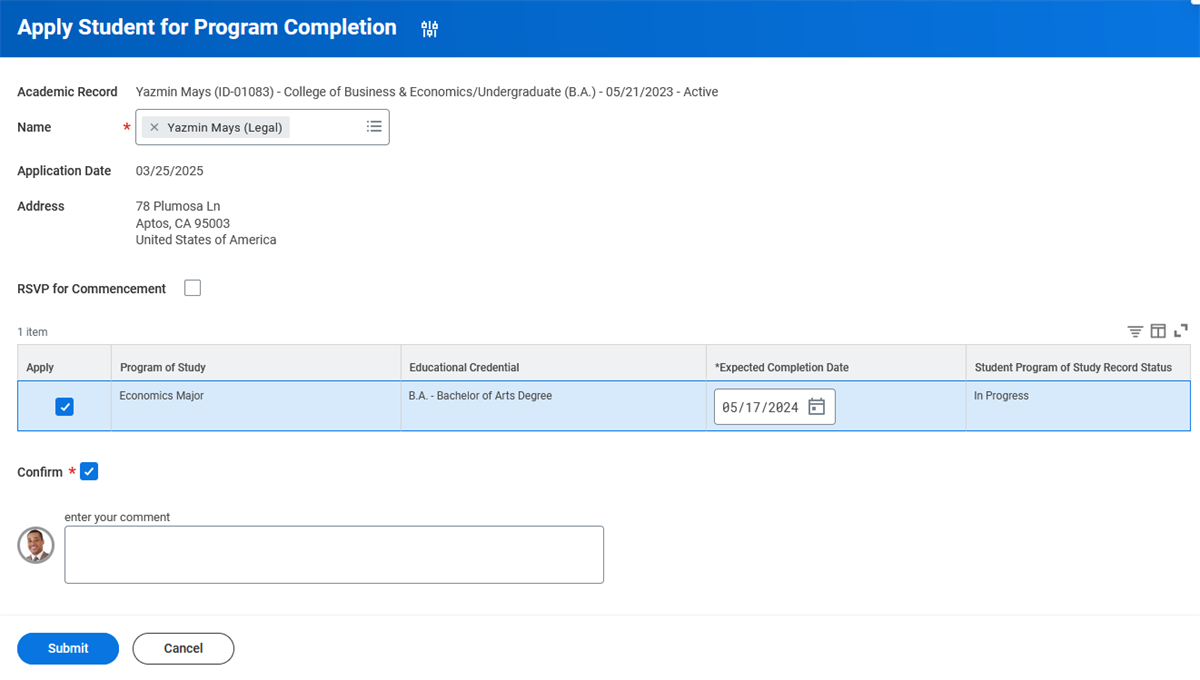
Image of the Apply Student for Program Completion task
Manage Program Completion
Once a student applies for program completion, an administrator reviews that application. Administrators can either update program completion for a single student using the
Update
Program Completion Status for Student
task or they can select a group of students using the Manage Program Completion
report.This task contains many fields that you can use to narrow down the results and only evaluate the program completion for students that meet your criteria.

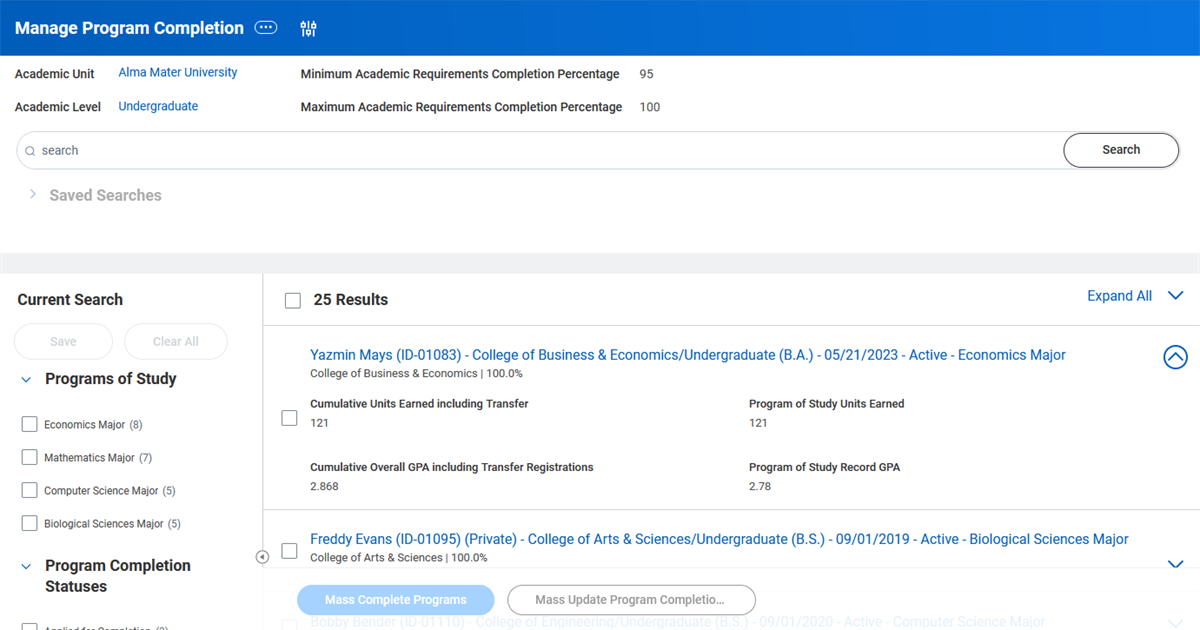
Transcripts
Workday Student enables you to generate unofficial and official transcripts for current and historical students.
Unofficial Transcripts
Administrators and students can generate unofficial transcripts in Workday. To create an unofficial transcript:
- Create a custom layout using the Business Intelligence and Reporting Tools (BIRT) Report Designer in Workday Studio.
- Select a custom layout on theEdit Tenant Setup - Studenttask.
- Use theGenerate Unofficial Transcript for Studenttask.
Students can use the
Generate Unofficial Transcript
task. Additionally, you can use the unofficial transcript task to generate transcripts for historical students.Note
:
Students and administrators can select specific academic records when generating unofficial transcripts, reflecting only the specific requirements of the selected academic record. For more information, search for Transcript Layouts for Students with Multiple Academic Records in Workday Community.Official Transcripts
Workday also allows administrators and students to request official transcripts:
- Administrators can use theRequest Official Transcripts for Studentstask to request one or more transcripts for one or more students.
- Students can use theRequest Official Transcripttask.
- To fulfill transcript requests, use thePrint Official Transcriptstask. You can print all or selected transcripts. You can also select a Hold option to delay the transcript print until Final Grades or Degree Conferral are complete. Transcripts will display attachments, the requesting user, comments, and hold reasons if any exist.
To identify transcript layout, allowed delivery methods for self-service, and other options, use the
Create Transcript Configuration Rule Set
task.When you print official transcripts, Workday:
- Launches a background job that you can monitor on theTranscript Requestsreport.
- Generates a PDF for the selected transcripts.
- Uses the Workday-delivered business form layout.
Purge Transcript Orders
Workday provides the functionality to purge student transcript order data to help institutions better comply with institutional and governmental document retention policies. This requires configuring a custom report that uses the Purge report tag.
Important
: Once you purge documents, you are unable to reverse the action. Additionally, if you purge a historical student who is connected to an active student, Workday will not purge the historical student transcript documents.Commonly Used Tasks and Reports – Academic Records
The following tables list the useful and commonly used reports and tasks for the topics covered in this chapter.
Academic Records
Tasks |
|---|
Activate Historical Student |
Assign Student Grades for Student Course Section |
Assign Student Honor or Award |
Assign Student Interim Grade for Student Course Section |
Assign Student Transfer Credit |
Generate Unofficial Transcript for Student |
Maintain Program Completion Application Policy |
Manage Privacy Settings for Student |
Print Official Transcripts |
Request Institutional Withdrawal |
Request Leave of Absence |
Request Official Transcripts for Students |
Update Program Completion Status for Student |
Reports |
Find Academic Records |
Find Historical Student Records |
Find Students |
View Academic Standings |
View Historical Student Record |
View Instructor Teaching Schedule |