
Academic Advising
Overview
In this chapter, we explore the advising features that allow you to configure your degree requirements, academic plan templates, and student cohorts. We will also discuss related advising functionality. Additionally, you will create academic requirements and assign them to students in specified academic units or programs of study. You will also create academic plan templates that will be attached to programs of study and automatically assigned to new students. Lastly, you will create student cohorts that advisors can use to easily manage a group of students and assist them in their academic progress.
Objectives
By the end of this chapter, you will be able to:
- Create and manage different types of academic requirements.
- Manage rules, eligibility, and groups for academic requirements.
- Manage academic progress and academic planning functionality.
- Create and manage all aspects of a student cohort, including advisor assignment and access to student data.
- Configure new student onboarding.
The Student and Advisor Experience
In Workday Student, students and advisors can track academic progress, exchange communications, view outstanding holds, and manage third-party access, among other tasks. Additionally, Workday Student provides a holistic view of students and allows them to manage their student experience through their student profile. Advisors can establish appointment times, message students, and create advising appointment notes to foster their relationship with their advisees. Additionally, advisors may view students from special populations, such as military-connected students, student athletes, and international students.
Academic Requirements
Programs of study are built with specific educational objectives in mind. These objectives measure the educational progress and competencies of students enrolled in the program. Academic requirements act as validations of the education objectives of enrolled students. These requirements can be as broad or as granular as your institution requires. You can configure academic requirements for your institution's:
- Academic units and academic level.
- Programs of study or program focus.
- Program areas.
- Program focus.
You can also configure a total academic requirement to determine the total number of units or credits that students must earn to complete a program of study. We will discuss total academic requirements in more detail later in this chapter.
Note
: Academic units inherit academic requirements from their superior academic units. Therefore, you should assign requirements that apply to all students at an academic unit at the highest level.The process of creating academic requirements begins with creating an eligibility rule to define the criteria. Then you create an academic requirement that specifies which academic unit (and, optionally, level) owns that requirement. Finally, configure academic requirements to attach to an academic unit and level, program of study, or program area. Requirements configured for a program of study or area will only apply to that particular program or area. Additionally, requirements configured to an academic unit and level, and all subordinate academic unit and level combinations, will receive said requirements.
Note
: You can assign or exclude particular students from an academic requirement in the academic requirement condition rules using student eligibility rule types.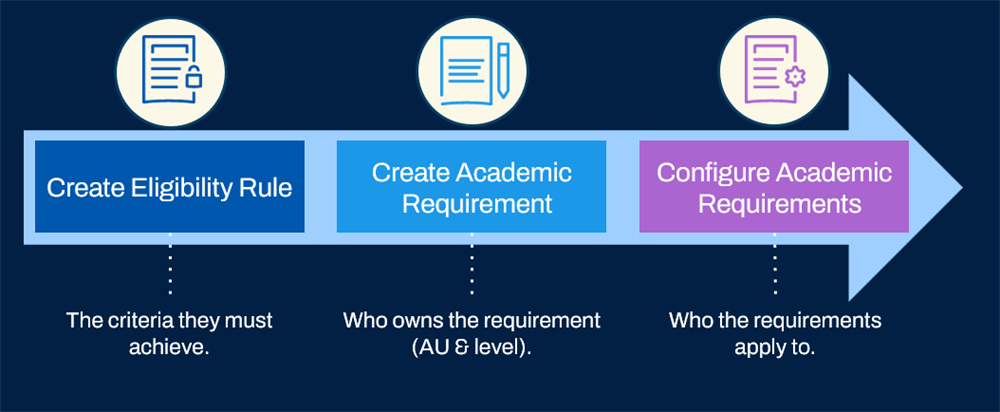
Keep in mind that Workday assigns academic requirements to students according to the declare date of their assigned programs of study.
There are five aspects of academic requirement configuration available:
- Conditional Academic Requirements: Academic requirements that are assigned unless a specific assigned condition is present.
- Academic Requirement Groups: A group of institutionally-related academic requirements.
- Academic Requirement Areas: Grouping of multiple academic requirements with an overarching requirement number of units for all requirements.
- Total Academic Requirement: Total number of units required across a broad number of academic requirements.
- Processing Order: The order in which a course applies to the elements within the academic requirement configuration if no restricted requirement group is in place.
On the
Configure Academic Requirements
task, you can also configure academic progress limits, including course count limits, for both internal registrations and external credit articulations. Additionally, you can configure limits for grades and grading basis in evaluating a student's program completion. These apply to academic unit, academic level, or program of study. Use the View Academic Requirement Configurations
task to view requirement configurations for a given academic unit or institution, POS, or program area.Eligibility Rules
Workday provides a wide array of options for you to control the requirements for your units and programs. Use eligibility rules to create academic requirements for specific subsets of your student population. The following types of eligibility rules can define academic requirements:
Eligibility Rule Type | Description |
|---|---|
Course Requirement | Verifies completion or enrollment in all or a certain number of specified courses. You can further specify grade criteria for the completed courses. You can also use course smart lists to easily identify many courses. |
Unit Requirement | Verifies completion of units with multiple characteristics. Also determines if the unit requirement is used in the calculation of academic standing and, if so, what characteristics will follow:
Example : A student has completed 12 units in residence from Biology courses 300 - 499 with a grade greater than a D. |
Test Achievement | Verifies scores from tests or test sections. Example : ACT, SAT, or AP Exam |
Grade Requirement | Verifies:
|
Competency-Learning Outcome | Verifies the achievement of any or all specified competencies and learning outcomes. |
Activity | Verifies completion of one or more activities such as an internship, orientation, or study abroad. |
Combination | Verifies a set of multiple eligibility rules. Combines any number of rules using AND/OR logic. Example : Student must take at least three 200-level biology courses or one 200-level biology course and one 300-level biology course. |
Accomplishment | Verifies the completion of one or more academic accomplishments such as a dissertation, performance, project, or thesis. |
Smart Lists
You can use the
Create Smart List
task to create lists of courses that satisfy the same requirement. Smart lists can make it easy to correlate applicable courses to a particular program of study requirement, especially when there are many applicable courses available.Academic Requirement Effective Dates
Before configuring academic requirements, it is important to understand the role that effective dating plays in configuration. As university curricula grow and change over time, so do academic requirements. Because of this constant change, an institution can have multiple versions of the same academic requirement across different effective dates.
Workday assigns the most recently effective dated academic requirements when a student declares a program of study (not the institutional enrollment date). However, if those requirements change later, the student's version of the requirement will stay the same. Below is an example scenario:
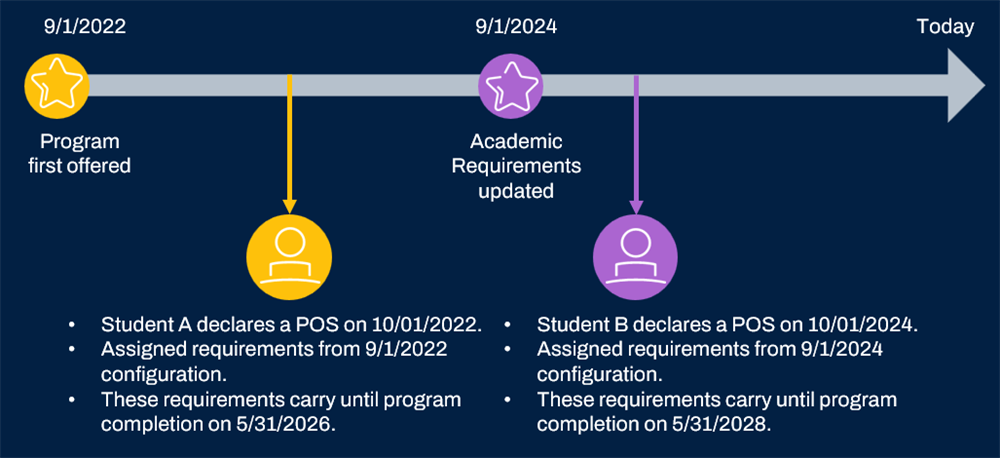
You can also view previous versions of an academic requirement, which helps you continue to support students as your academic requirements change over time.
Academic Requirement Effective Start Date
When configuring academic requirements for an academic unit and level, or program of study, consider setting the effective date to just before the start of the academic period.
Example
: Perhaps new requirements go into effect for students with the 2025 - 2026 academic year and beyond, and that year begins on 9/04/2025. Then you would set the effective date for 09/01/2025 to assign the academic requirement to the most accurate group of students.Eligibility Rule Meaning
Conveying the meaning of the logic you create is critical to providing an intuitive, easy-to-understand view of what is expected from the requirement. While creating an eligibility rule, Workday automatically derives a statement or "meaning" that reflects what population your rule captures. Select the Use Custom Meaning field to create your own description of the logic for the eligibility rule.
Managing Academic Requirement Assignment
Academic Requirement Groups
Another helpful way to categorize academic requirements is to create academic requirement groups. This method of categorization allows you to track the academic progress of students on a more granular level. By grouping academic requirements, you can help your students and advisors assess academic progress and prioritize certain academic requirements in a student's course schedule.
Some common types of academic requirement groups include:
- General Education (GE)
- Upper Division
- Major-specific
- Minor-specific
Many institutions also have requirement groups for specific topics like History, Culture, or Language.
When you use the
Create Academic Requirement Group
task, you can select an academic requirement and a group to include the requirement in. By creating academic groups and using them to categorize your configured academic requirements, you are essentially creating comprehensive lists of requirements. These groups make it easy to review how much progress a student has made toward completing their program.Academic Requirement Areas
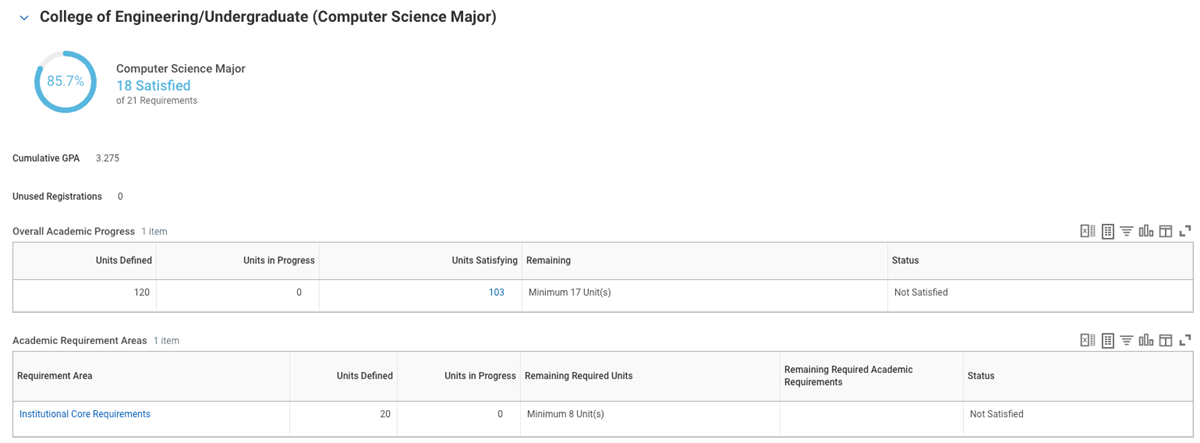
Academic requirement areas allow you to bundle individual academic requirements together for tracking across a set number of units. Workday follows the required units in the total required, not the individual units for each requirement. Additional subsets of units/requirements within the total is also possible.
For example, the university groups eight different academic requirements together to form an Institutional Core Requirements area, with a total of 20 required units. Workday evaluates the completion of the requirements against the total units required.
Academic Requirement Areas display on the Academic Profile for students (following all effective dating rules), showing the area as another aspect of requirement tracking for the student.
Configuring Total Academic Requirement
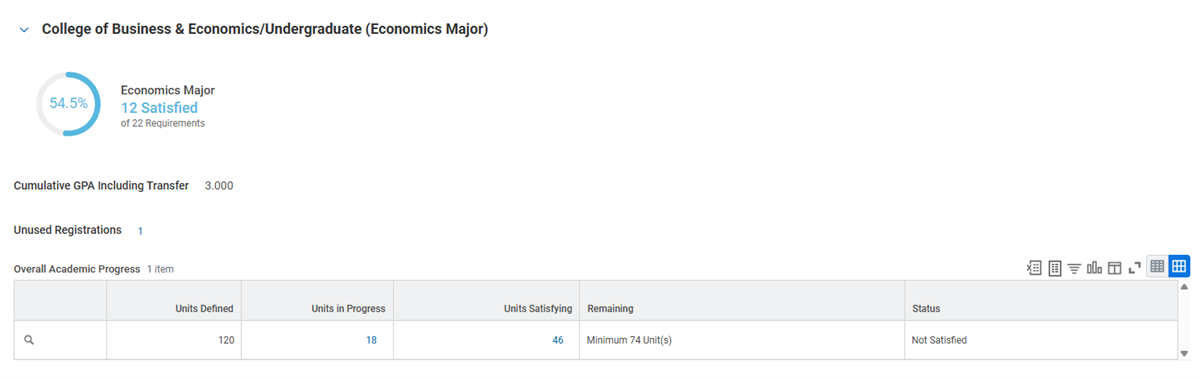
A total academic requirement represents the total number of units a student must complete. This total includes all academic requirements for a program, providing administrators and students with an overarching view of degree completion to track progress.
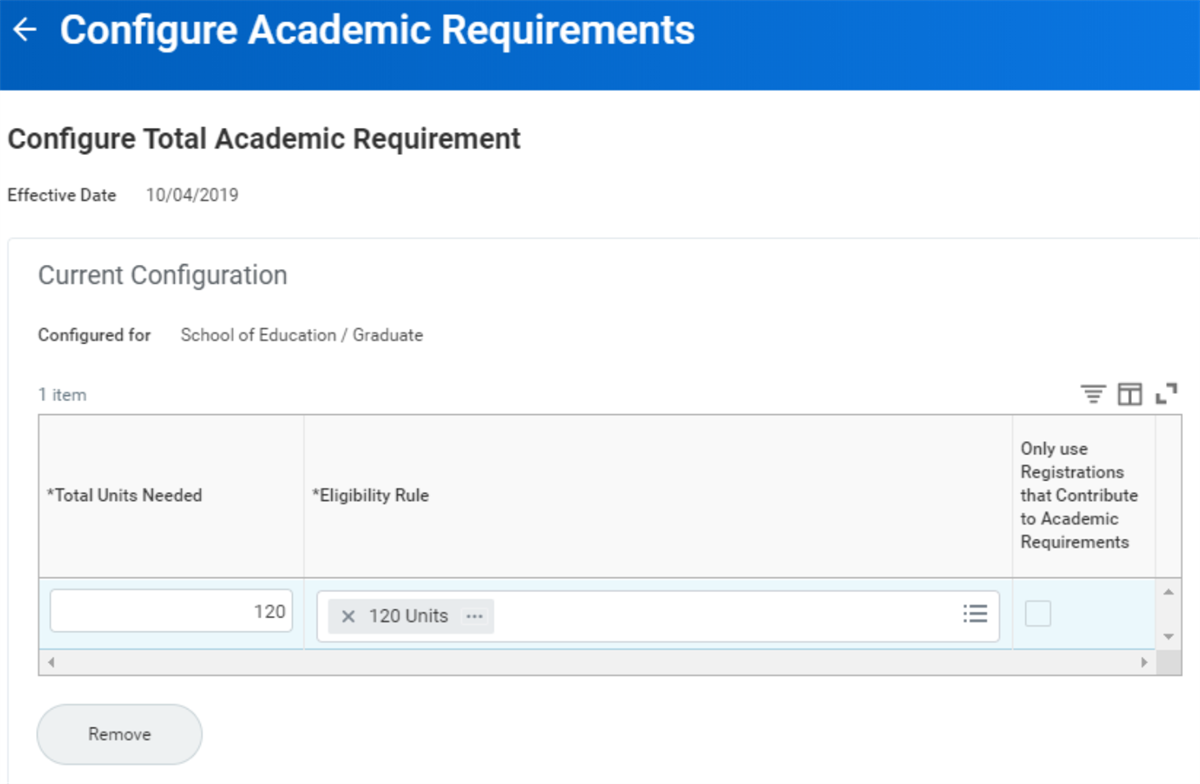
After configuring a total academic requirement, Workday tracks a student's progress based on their primary program of study. The system evaluates the total academic requirement after evaluating the individual academic requirements for that program. All programs of study can contribute to the total academic requirement units you configure here. Students can see their overall progress on the Academic Progress tab of the Academics Profile group of their student profile.
Processing Order
Academic progress processing order controls the order of academic requirements when a course fulfills multiple requirements. The academic progress processing order processes a student's primary program of study first when the student has multiple programs of study. This allows consistent process progress reports for those students who have registrations under multiple programs of study.The academic progress processing order for students with more than one non-primary program of study will first process the non-primary program of study with the earliest declare date.
The
Maintain Academic Progress Processing Policy
controls display of course repeats and restriction of courses to fulfilling one requirement. If selected, you then determine the overarching order of processing requirements across academic unit, program of study, program focus, and program area.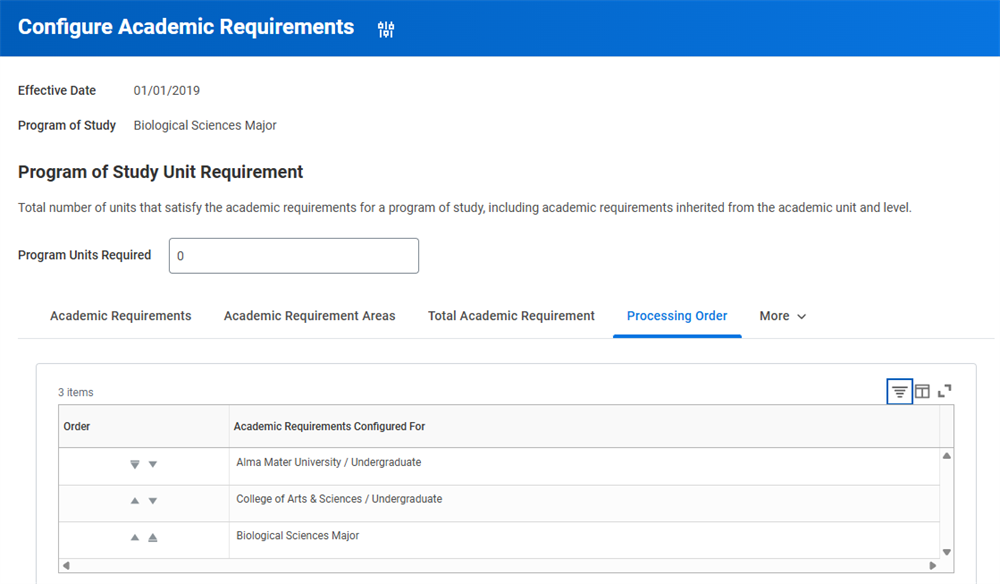
Restricted Requirement Groups
Restricted requirement groups allow you to specify which requirements take precedence when courses can satisfy multiple requirements. You can also use restricted requirement groups to permit a certain amount of overlap between requirements.
The example below shows the requirements for the Economics major and Business minor, and both include ECON 102.
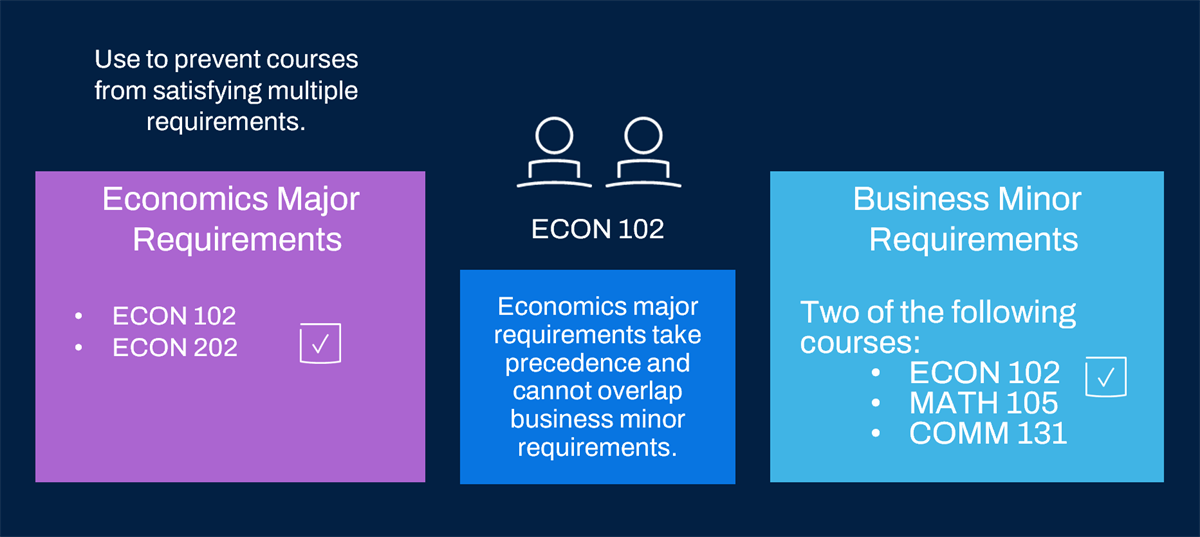
Without a restricted requirement group, ECON 102 applies to both requirements. You can create a restricted requirement group where Economics major core courses take precedence over Business minor core courses and none of the items can overlap. ECON 102 will then only apply to Economics major requirements for students with both sets of requirements. Restricted requirement groups can involve both the number of items (courses) or the number of units that can count across requirements.
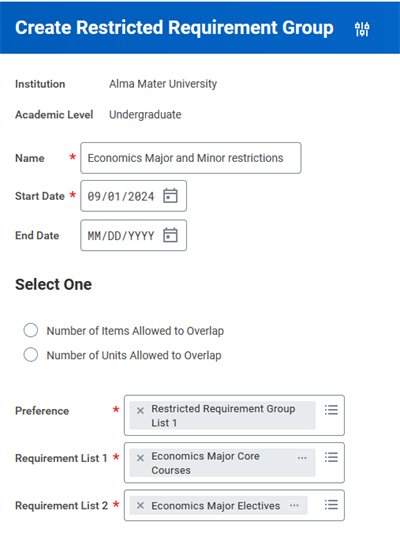
Restricted requirement groups enable you to configure exceptions to your institutional sharing policy for academic requirements. You cannot delete or inactivate restricted requirement groups. The restricted requirement group applies to students when their Requirements Effective Date is:
- On or after the Start Date of the group.
- On or before the End Date of the group.
When creating restricted requirement groups, you determine if Workday references overlap across courses or overlap across units. You then create requirement groups and determine which group's requirements have preference.
Note
: You can configure the system to allow courses marked as Repeatable for Credit to count for multiple course requirements, even if they are in restricted requirement groups that prevent sharing.To do this, access the
Maintain Academic Progress Processing Policy
task and select the Share Repeatable Courses in Restricted Requirement Groups that Prevent Sharing checkbox. For more information on this feature, visit Workday Community.Academic Plans and Plan Templates
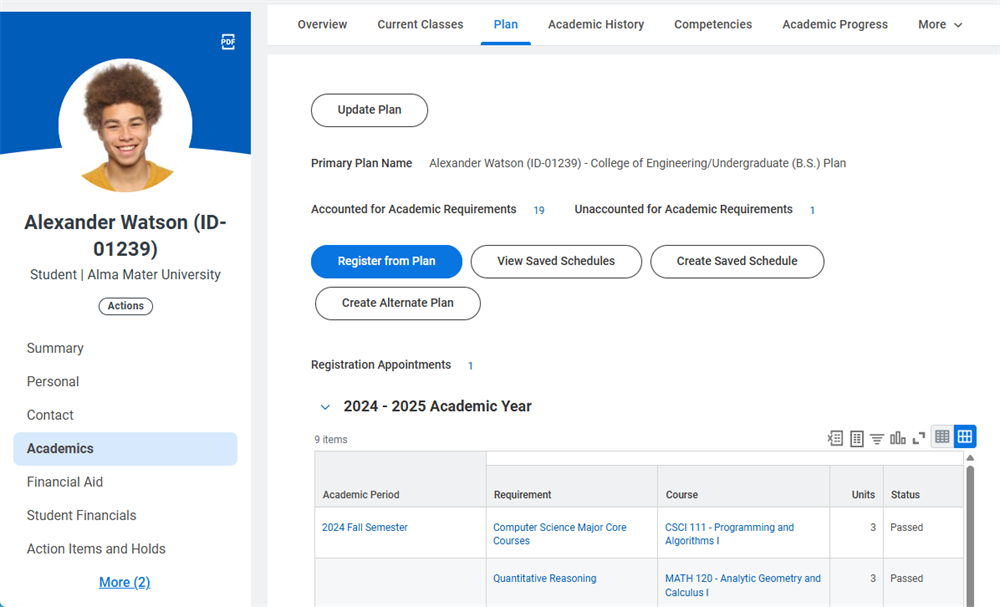
Academic plans allow students to determine when they will complete each of their requirements during their educational experience. Academic plan templates allow administrators to define recommended plans for students. Students who are new to that program of study can automatically receive the academic plan.
The academic plan status displays the academic period in which a student satisfied an academic requirement or if they met the requirement with transfer credit.
Note
: Configure the New Student Onboarding
business process with a step to automatically assign academic plans to incoming students.Just as academic requirement configurations are effective-dated, so are academic plan templates. Workday assigns academic plans based on the most recently effective-dated academic plan template. Changing an academic plan template will not change already-assigned academic plans due to effective-dating. Just like academic requirement configurations, previous versions of an academic plan template are viewable at any time.
After being assigned to an academic plan, students still have the option to update their plan at any time using the
Edit My Academic Plan
task. Students can also design multiple schedules from their plan and use the saved schedules to register for courses during their registration window. Additionally, students can register directly from the plan during their registration window. If a student does not have a previously assigned academic plan, they can use the Create My Academic Plan
task and drag-and-drop courses into their plan before having it approved.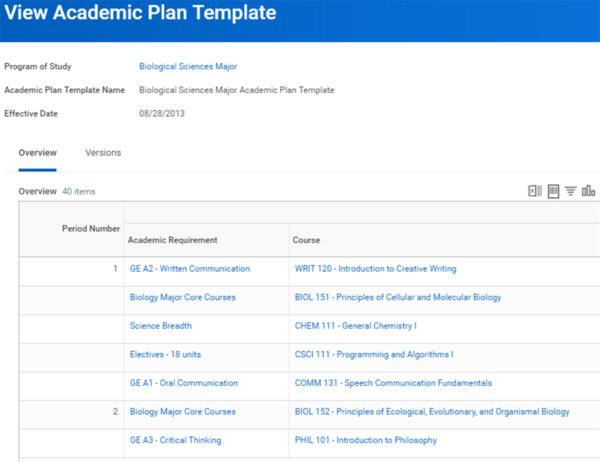
Important
: To enable the drag-and-drop feature for editing and creating academic plans, you must opt-in via the Maintain Feature Opt-Ins
report.Editing Academic Plans
Students can use the
Edit My Academic Plan
task to customize their academic plans. This task uses drag-and-drop functionality, allowing you to click and drag one of your remaining academic requirements directly onto an academic period. You can then use the Course field to select a course that fulfills that requirement. You can also move course selections between academic periods. Use the academic year tabs across the top to view, edit, or add additional years to your academic plan.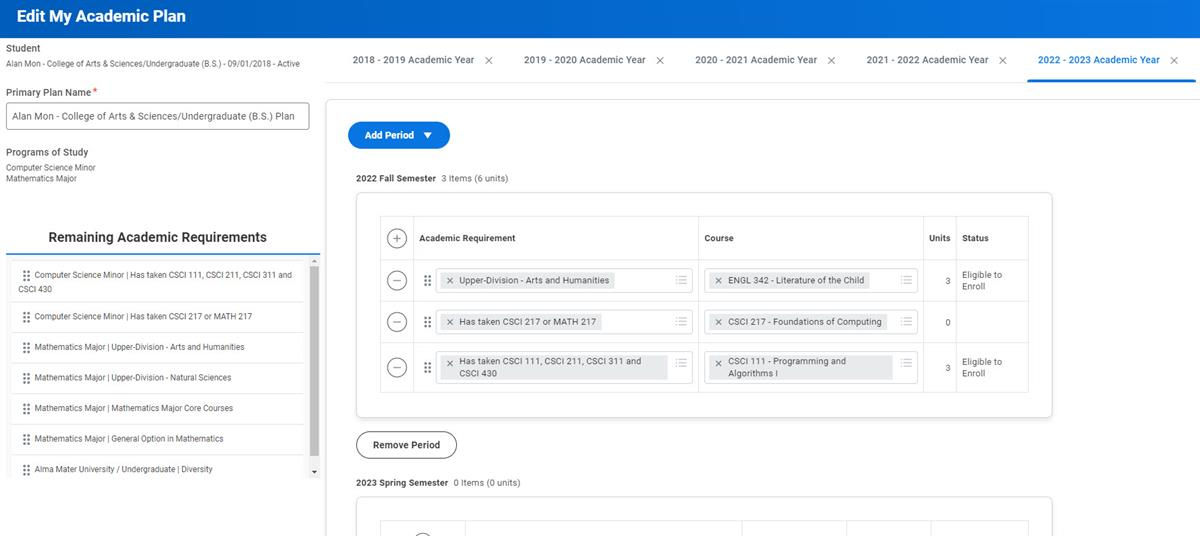
This function makes it easy for students to create and customize additional academic plans to suit their needs.
Academic Plan Template
Academic plans include the academic requirements assigned to a student, the courses intended to fulfill these requirements, and a timeline of when to take courses. The timeline contains academic periods that fall between the student's start date and expected completion date. The academic plan timeline provides the student a framework of courses to take over the course of their academic tenure at the institution.
The structure for these academic plans is detailed in an academic plan template. You can use the
Create Academic Plan Template
task to create academic plan templates for a given program of study. This template provides a framework for a student's academic plan timeline and academic requirements.For example, a student starts a new 4-year program of study at AMU in Fall 2023. Workday assigns an academic plan, using the appropriate template given the student's program of study, for each subsequent academic period (Fall 2023, Spring 2024, etc.).
Note
: Workday adds academic periods to the attendance plan if the student's program of study or academic record reporting status is: In Progress, Pending Completion, or Leave of Absence.Alternate Academic Plans
In addition to the system-assigned academic plan, students can create additional academic plans using the
Create Alternate Academic Plan
task. Alternative academic plans provide students with the ability to freely explore alternative academic routes to satisfy their program requirements. Students can also update their alternative plans as they continue their academic careers by accessing the Edit My Alternate Academic Plan
task.Additionally, students can request that their alternative academic plan become their primary academic plan, either in its entirety or by specific academic periods. These features give students increased flexibility and autonomy in creating an academic plan that suits their personal and academic needs.
Note
: For students to create alternate academic plans, you must perform the following configurations:- Enable and configure the Self-Service: Alternate Academic Plan Planning security domain.
- Set up a default definition for theChange Primary Academic Plan Eventbusiness process type.
- Configure the business process security policy permissions for this business process type.
For more details on this feature, search Workday Community.
Student Cohorts and Advisors
To meet the advising needs of your student population, you will likely divide the advising load among several advisors. Student cohorts provide an easy way to group students for a variety of purposes. Assign students to cohorts using selected criteria such as grade, program of study, or class standing. Student cohorts use roles, allowing you to assign different advisor roles to different sets of students. Limit the information that advisors have access to with appropriate security configurations, or Workday can automatically limit security by role in a cohort.
You can create student cohorts in two ways: manually and criteria-based. Create cohorts in these two ways using the Create Student Cohort task.
Manual Student Cohorts
Create a student cohort using the
Create Student Cohort
task. By default, student cohorts are manually created unless otherwise specified. Manual cohorts do not employ automatic student assignment. From the student cohort's Related Actions, you can add students to the cohort. You can also use the Find Academic Records
report to identify and select specific students to add to or remove from the student cohort. The manual cohort membership management method is simple, but can require more effort when handling large student populations.Criteria-Based Student Cohorts
Criteria-based cohorts allow for automatic assignment of students using logic derived from a custom report or saved search. Automatic assignment can occur immediately, as part of a nightly process, and can have membership controls based on date or by academic period.
For example, when creating a cohort for the Fall semester, identify the following Spring semester as the stopping point for the cohort. The system stops evaluating and adding new students into the cohort when the Spring semester starts.
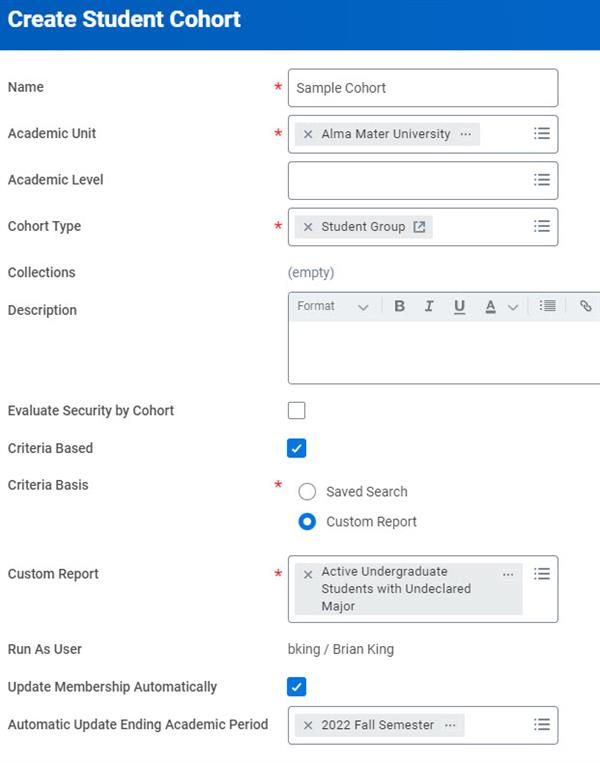
Criteria-based cohorts can be a time-saver when managing large populations of students. If using a custom report as your student cohort criteria, please be aware that the custom report used must:
- Be an Advanced, Simple, or Search report type.
- Use only fully indexed fields as the filter criteria.
- Use the Academic Records data source and have the Fully Indexed Report checkbox selected.
You can still manually add or remove students as necessary with criteria-based cohorts. Use the
Add Student to Cohort
or Remove Student from Cohort
tasks to make changes now or at a future date to both manual and criteria-based cohorts.Note
: When overriding the membership of a criteria-based student cohort by adding a student, you can optionally specify a specific future date for that membership to expire. For example, you can temporarily add a student into a cohort and set their membership to expire at the end date of the following semester.This allows you to automate temporary cohort assignments and reduce manual maintenance.
Assigning Advisors
Assigning Advisors to Cohorts
After creating and populating a student cohort, assigning roles to the cohort enables faculty and staff assignment to the cohort. To assign roles, from the cohort's Related Actions, select Roles > Assign Roles. Each role can then have a separate security configuration to limit data access for specific advisors.
When creating advisor roles:
- Create the assignable role enabled for the student cohort.
- Use theMaintain Advisor Role Optionstask to indicate if this role is an advisor role and visible to students, and if this role applies to a cohort or individual assignment.
- Assign a worker to that role on a cohort.
Example
:Create a student cohort for students in the History Major undergraduate program at Alma Mater University. Assign three roles:
- Faculty
- Professional
- Peer
Based on your security configurations for these different roles, the faculty and staff might be able to view a student's courses and grades. However, the peer advisor can only view their courses.
Direct Advisor Assignment
In addition to assigning advisor roles using student cohorts, you can also directly assign an advisor to a student via their academic record. Direct assignment is a simple way to assign an advisor to a student. The process for direct advisor assignment also uses the
Maintain Assignable Roles
and Maintain Advisor Role Options
tasks. Thus, roles assigned to student cohorts can also be used for direct advisor assignment. Use the Create Advisor
task to assign your created role to a user.Create a role-based security group for the advisor role to determine what the data and functionality the role has security access to. To directly assign an advisor to an academic record, navigate to the record's Related Actions, and select Roles > Assign Roles.
Student Cohort Collections
As the primary driver for advisor assignment, student cohorts provide many options for advisor management. However, you can assign one advisor to many cohorts, each with different security assignments. Student cohort collections allow you to group cohorts together. They can also have their own security assignment, enabling easy access to student data. Use the
Create Student Cohort Collection
task to create student cohort collections.Note
:
To ensure appropriate access to cohort data, assign users to the appropriate security groups within Student Data: Student Cohorts for Academic Records or Manage: Student Cohort Membership for Academic Records domains.Advising Tools
Program of Study Advising
Your institution's academic advisors can use several tools in the Workday system to support your student population. In this section, we explore these resources and learn how they can help students track and manage their academic progress.
Exploring Programs of Study
Exploring programs of study is similar to a traditional "what-if" analysis. Students use Workday to launch academic progress for a program of study, providing a view into what courses, requirements, and lengths result in completion.
Find Programs of Study
Students can access the
Find Programs of Study
report to view the programs of study at your institution. Additionally, students can review a variety of details regarding the program, all configured using the Create Program of Study Exploration Details
task.Note
: Select the Enable Program of Study for Exploration checkbox on the program of study definition to enable a program for student exploration.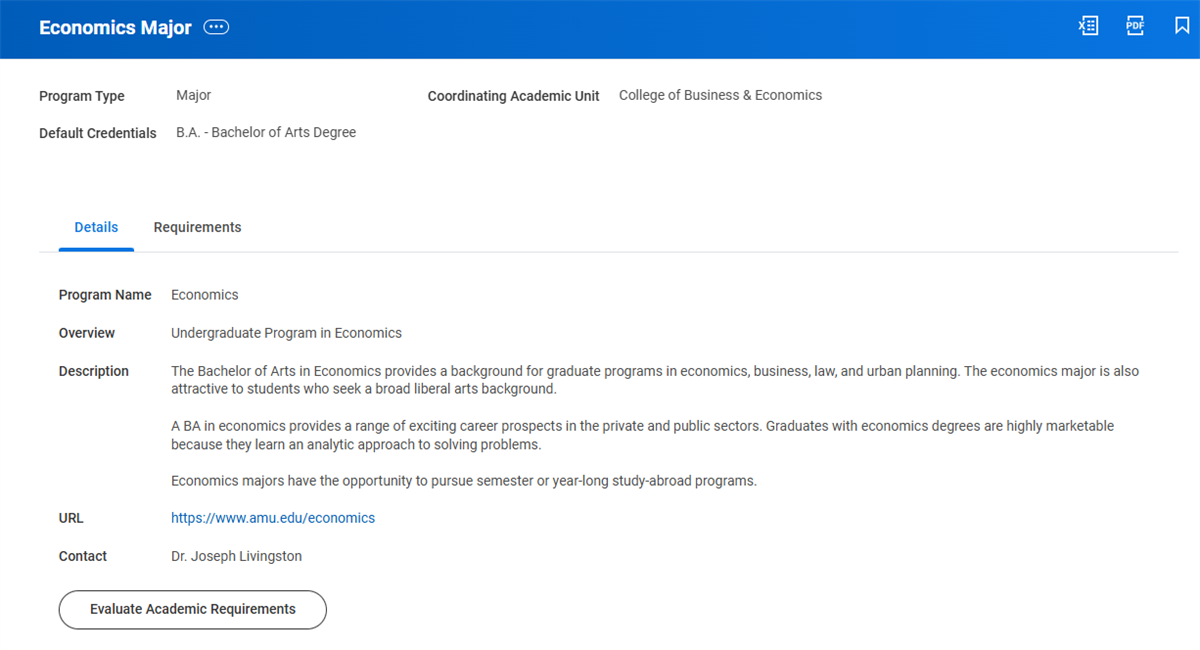
Students can also manually run the standalone
Evaluate Academic Requirements
task and select any program enabled for exploration. Manually running the Evaluate Academic Requirements
task initiates a process that runs in the background. The process checks the student's academic progress against the requirements of the new program.Override Program of Study Date
For instances where a student's program of study definition needs do not align with their formal declaration date, Workday offers the ability to override a student's program of study effective date without changing the original declare date. This allows administrators to select a specific program version based on the configured effective date. For example, if a student needs to follow a program definition from 2020, but declared the program in 2022, the administrator can access the
Override Program of Study Effective Date
task to initiate an override by selecting the Student, Program of Study, and a New Effective Date.
For more information, visit Workday Community and search for Override Program of Study Date for a Program of Study Record.Program Completion Date
The expected program completion date acts as a key driver for much of the functionality in academic planning. The expected program completion date is logic from a students' start date, and the number of academic periods assigned to the program of study. You can override the expected program completion date from the student profile's Related Actions.
Note
: Other functional areas in Workday Student use the expected program completion date, including financial aid disbursements and degree conferral.Program of Study Changes
Managing programs of study is a central component of academic advising. An academic record ties to programs of study. Adding and changing a program of study follows the concepts of addable and stackable programs, as well as program bundling. The primary program of study controls bundling and stackable and addable rules. Programs of study without a credential (e.g., academic minor) must bundle with a POS that is credential-granting. You can automatically assign holds by using the
Change Program of Study Event
business process.The following tasks control programs of study for individual students:
- Add Program of Study: Adds a program of study to the academic record. The current primary POS triggers which programs display.
- Change Program of Study Record: Updates one or more already-assigned programs of study across completion date, primary POS status, and POS.
- Change Expected Program Completion Date: Changes the completion date of a given program of study.
You can route your program of study changes through the business process framework and role-based security. This means that you can route program change requests to specific administrators for review if required.
Remember also that a Program of Study can have a security role assigned to it directly. This allows you to route POS changes and additions to a role assigned to a POS, not an academic unit or level. Use the
Maintain Assignable Roles
task to enable the security for programs of study, then enable the Program of Study: Roles domain.Future changes to programs of study (e.g., a POS change slated to take effect in the following academic period) display on the Overview report of the Academic grid in the student profile.
Academic Progress Advising
Tracking Academic Requirements
As your students move through their programs of study, both students and advisors will want to access their academic progress. There are a couple ways to manage academic requirements:
Academic Progress Report
The
Academic Progress
report it is an automated (or manual) check of a students' progress toward completing their degree requirements and relevant educational objectives.The
Academic Progress
report processes and applies registrations towards fulfilling academic requirements. The report prioritizes course registrations to where they are most beneficial in fulfilling a student's program of study requirements by evaluating each course registration for its potential to satisfy a requirement. Course prioritization considers the Academic Progress Processing Policy in effect when assigning course registrations to academic requirements.Resource
: For more information on the academic progress evaluation logic used by the Academic Progress report, visit Workday Community.To view a student's academic progress report, access the student profile and select the Academics tab. This report displays:
- The completion status of the requirements (Not Satisfied, Satisfied, or In Progress)
- The percentage of satisfied requirements of the total (including inherited) requirements needed to complete the program of study
- The cumulative GPA, program of study GPA, and GPA across a specified range of courses.
- Academic requirements
- Courses, tests, or activities that satisfy the requirements
- Remaining courses, units, tests, or activities
- The status of the requirements
- Original and converted units
Note
: Administrators can use the Set Up Academic Progress Display
task to configure the academic progress display. Use this task to hide or show any of the following information on the academic progress report for a given academic unit/level or program of study:- Academic Progress Visualization Circle
- Academic Requirement Areas
- Program Required Units
- Total Academic Requirement
- Academic Period for Registrations Used
- Registration Grade
- Registration Units
Students can also select the Academics application on their Home page to access several useful reports, including the
View My Academic Progress
report. This academic progress evaluation occurs automatically after:- Submission of final grades
- Transfer credit evaluation
- Academic requirement overrides
- Program of study changes
Launching Academic Progress Evaluation
Automatic academic progress evaluation occurs when one of several underlying events takes place. Many of the processes involved in academic progress evaluation cause the system to immediately launch the Academic Progress Job to re-evaluate a student's academic progress. Other times, the underlying process flags the student's academic progress for re-evaluation as part of a nightly job. The table below lists the most common triggers for academic progress evaluation and the type of job launcher associated:
Action | Immediate Job Launch | Nightly Job |
|---|---|---|
Admin Student Grading | X | |
Course Section Grading | X | |
Manual Per Student | X | |
Manual Per Program Area | X | |
Manual Per Academic Unit/Academic Level, or Program of Study | X | |
Matriculation business process | X | |
Program Change (Add) | X | |
Program Change (Remove) | X | |
Program Change (Change) | X | |
Registration Event Add/Drop/Withdrawal Class | X | |
Articulation (from External Transcripts)
| X | |
Override Requirements Date | X | |
Override Academic Requirement for Student | X | |
Academic Plan is Saved | X |
Instead of waiting for an event to trigger evaluation, you can use the
Launch Academic Progress Evaluation for Student
task to manually run a student's evaluation. For programs of study with a future effective date, the Academic Progress
job will run on the night of the effective date; this ensures a student's course registrations show up accurately on the student's Academic Progress report.Academic Progress Evaluation for Inactive Records
When running the
Launch Academic Progress Evaluation
task for students with inactive records, an Evaluate All Programs of Study checkbox appears if the student has an inactive program of study. You may either evaluate all programs of study, including those that are inactive, or evaluate only active records.Important
: Workday does not update the academic progress report for inactive program of study records.View Evaluated Academic Requirements
Students can use the
View Evaluated Academic Requirements
task to view completed evaluations. The generated report displays the academic progress report configured for that individual program. Workday stores up to five evaluations for a student at a given time.Important
: Remember, this report is purely informational. The Change Program of Study
task (administrator or student access) is the only way to change a program of study.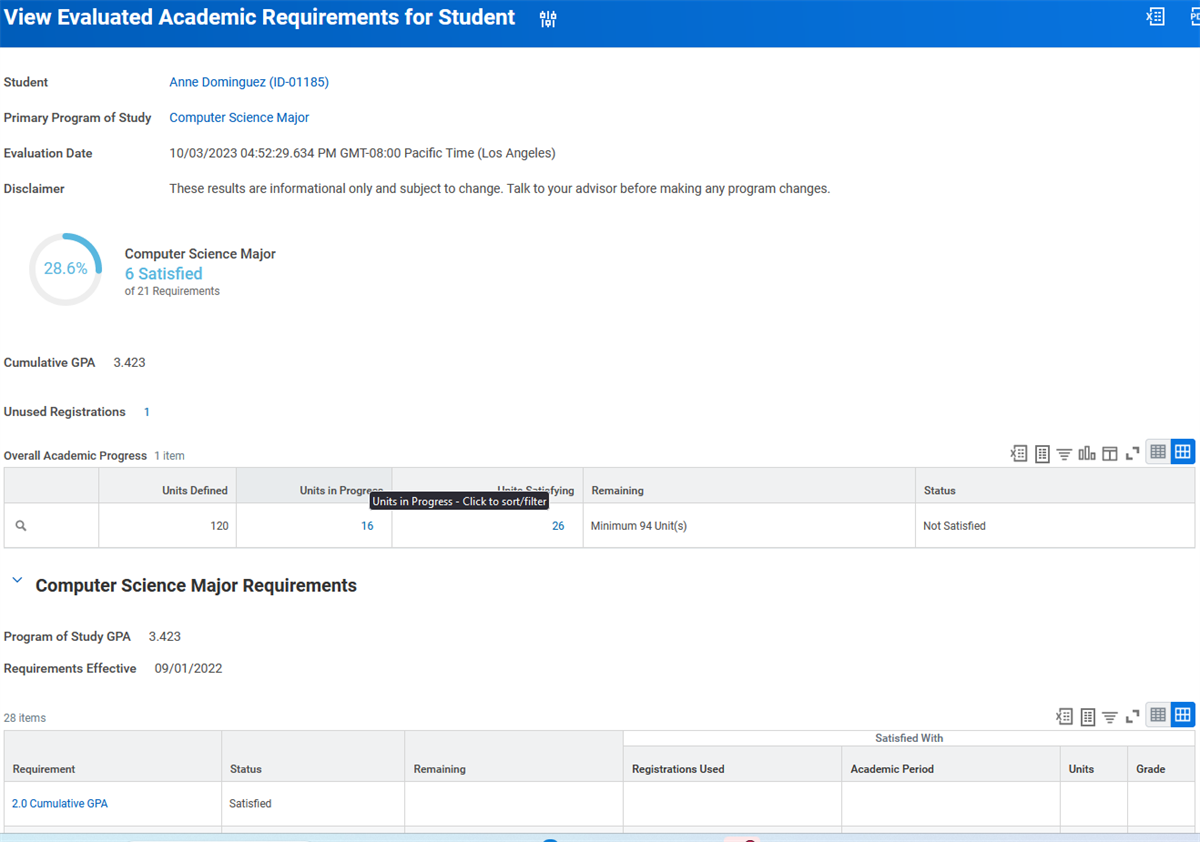
Academic Requirement Overrides
Often, assigned academic requirements are not applicable, or may have been completed in an alternate manner. In these cases, you can override or substitute the academic requirements to reflect a students' unique situation. There are a few ways to override a student's academic requirements.
Overriding Academic Requirements
Administrators can use the
Override Academic Requirement for Student
task to perform one of the five override actions below:- Add Course: Add a required course for completion of the academic requirement.
- Adjust Units: Adjust the necessary units for completion of the academic requirement.
- Assign Course to Requirement: Assign a completed registration for completion of an academic requirement.
- Substitute Course: Substitute a course or set of courses outside of those defined in the logic to complete the academic requirement.
- Waive Requirement: Waive the academic requirement.
- Adjust Course Count: Adjust the number of courses needed to satisfy an academic requirement.
Note
: You can create custom academic override reasons when waiving a requirement using the Maintain Academic Requirement Override Reasons
task. Learn more about required setup steps on Workday Community.Overriding Academic Requirements Date
When a program of study's requirements change, a new effective date tracks these changes. Assigning the new requirements' effective date overrides the version of academic requirements that applies to a student. To update the version of requirements assigned to a particular student, navigate to their student profile and select the profile's Related Actions. Then, select Override Academic Requirements Effective Date.
Important
: Workday uses effective-dating, rather than traditional catalog years, to track requirement changes. Effective-dating allows for a much more granular approach to requirement changes.Course Advising
Drop/Withdraw Course Sections
Beyond registration, students can manage their enrollment during course drops and withdraws. Students and administrators manage current course enrollment via the Student Profile > Academic Profile card > Current Classes tab. These are the main methods of course enrollment management:
- Edit Registration: For each section enrolled, you can change the units registered (for variable unit sections) or grading basis (for sections with multiple available grading bases).
- Drop: Removes the student from the section. There is no impact to the student's grade.
- Withdraw: Controlled via the business process framework. When the business process completes, the student is removed from the section. The impact to their grade follows the grading scheme that is assigned.
The drop and withdraw buttons display contextually pending the requested change date. The
Maintain Academic Period Date Controls
task controls all dates related to course management:- Drop Without Record End: The date by which "drop" no longer becomes an option. Withdraw is the only option on the drop date.
- Drop with W Grade End: The date by which "withdraw" no longer becomes an option.
Student Appointments
Students, faculty, and staff can create, schedule, and manage appointments in Workday. Student appointments allow students to collaborate with administrators and faculty as students progress through their educational experience. Additionally, student appointment tracking happens through institutionally created appointment categories and reasons. You can manage all scheduling for this feature, including employee availability, within Workday.
Both students and staff can manage conflicts in schedules by canceling existing appointments. Workday enables staff and students to provide a cancellation reason at the time canceling an appointment. Workday updates staff availability, once a student, or staff member cancels an appointment.
Appointment categories are the overarching areas of appointments. Appointment reasons detail the purpose of an individual appointment. The
Maintain Student Appointment Categories
task and Maintain Student Appointment Reasons
task configure both categories and reasons. For example, an appointment category of academic advising might have three appointment reasons of course planning, course drop/withdraw, and graduation discussion.Manage administrator availability using the
Maintain My Student Appointment Availability
task. Students can only view the posted availability for a given administrator or faculty member, including approved time off.Student Notes
The student notes feature allows you to create a note to share with different users. Notes track individual interactions with students. Student note tracking employs the use of institution-created note categories and topics to track individual notes across groupings and to regulate security.
Contextual security applies to student notes, enabling individual security setting for each note topic and category. For example, you can create a student note category of "Disability Services." Then you can use the
Create Student Note Security Segment
task create subsequent security groupings for all student note categories and topics that you created.Student note categories and topics have designated relationships to aspects of a student or student prospect's experience in the following ways:
- Academic Advising: A note applies to academic advising-related actions (e.g., major advising).
- Academic Record: A note applies to specified academic record-related actions (e.g., graduation clearance).
- Admissions: A note applies to admissions-related information (e.g., application inquiry).
- Financial Account: A note applies to student financial services information (e.g., refunds).
- Financial Aid Award Year: A note applies to a specified award year for a student or prospect (e.g., SAP).
- Instructor Notes: A note applies to course-related feedback or concerns (e.g., tutoring referral).
- Student Recruiting: A note applies to a specified recruitment of a prospect (e.g., event inquiry).
Create a student note using the
Add Student Note
task. After you create notes, they are visible (pending user contextual security) via the History profile card of the student profile.Note
: The creator of a student note can edit the note. A student note can also be edited by other users if you configure the Edit Notes Created by Others
domain security policy. Student notes will display information on who last edited the note and the date and time it was last edited. Visit Workday Community for additional details on this configuration.Student Note reporting can employ segmented security groups to ensure only those with appropriate security permissions can view only student note reports permitted by their security group. For more information, visit Workday Community.
Purge Student Notes
Workday is designed to have limitless storage, thus eliminating the need to delete data for retention purposes. However, you may need to permanently delete data related to students for confidentiality or data integrity purposes. Permanently deleting data in Workday is referred to as a purge. To purge students' notes, you will first create a report of notes you wish to purge using the student notes data source and tagging the report with the purge tag. Use the
Purge Person Data
task to purge student notes. The Manage
Purge Settings
task allows you to mark notes as Do Not Purge.Student Engagement
Student Engagement in Workday allows you to send individuals or groups of recipients messages regarding topics like registration reminders, important program deadlines, and opportunities for campus engagement. You can send ad-hoc, one-off messages to students or form an engagement plan to create a series of communications to send to recipient groups.
You can create messages for:
- Engagement plans, such as campus involvement campaigns.
- Recruiting events, such as:
- Email invitations.
- Registration confirmations.
- Event cancellations.
- Ad hoc communication with a student prospect or matriculated student.
You can also create emails and push notifications for your assigned academic units. To create emails, use Email Templates or Notification Designer Templates.
Tip
: Notification Designer templates provide more flexibility in design, including the ability to add images and social media icons.Engagement Plans
Engagement Plans allow you to create a series of coordinated communications to students, prospective students, parents, guardians, and others. Each plan is specific to an academic unit and outlines the:
- Plan start and end dates.
- Digital or printed items to send.
- Recipients.
- Mailing schedule for engagement items.
To create a student engagement plan, access the
Create Student Engagement Plan
task. Within this task, you may create the student audience you wish to send the communications to. To create student audiences, you can either create saved searches or use custom reports.Ad-Hoc Engagement
Ad hoc engagements allow you to easily communicate with a group of students without needing to set up an engagement plan. The
Send Ad Hoc Engagement
task offers the option to send an existing engagement item or compose a new email to students. It also provides you with the ability to select emails containing merge fields. Ad hoc engagements do not need prior setup, making it a quick option to message an individual student or multiple students through Group Ad Hoc engagements.Security Note
: To set up security roles that permit Group Ad Hoc Communications, access the Manage: Group Ad Hoc Communications domain. You may access child domains such as student, academic records, and student recruitments to customize security roles.Campus Engagement for Multiple Institutions
The campus engagement functionality also supports multiple institutions partitioning. Multiple institutions partitioning enables you to manage campus engagement across multiple institutions.
Student Holds
Student holds prevent processes from completing in Workday, such as registering for classes or receiving financial aid. Students can view hold reasons that explain why they received a hold and how they can resolve it. After hold removal, students can proceed with the stopped process.
You can apply a student hold:
- Automatically through the Apply Student Hold Service step in certain business processes (e.g., a registration hold through theStudent Onboardingbusiness process).
- Automatically through theConfigure Past Due Balance Hold Assignmentstask.
- Manually using theApply Student Holdtask. You can apply multiple hold types for the same hold reason.
Workday provides the following holds:
- Charge Assessment
- Diploma
- Disbursement
- Full Registration
- Merit Packaging
- Need Packaging
- Refund
- Registration Add
- Self Service Registration
- Silent Full Registration
- Transcript
Admissions, Records, Financial Aid, and Student Financial Services (Bursar's Offices) may all apply student holds for various reasons.
Hold Reasons
Use the
Create Student Hold Reason
task to create hold reasons, including descriptions and resolution instructions that are visible to the student. For example, a Registration Add hold with a reason of "Advisor Registration Access Hold."Hold Security
Security permissions control hold reasons, enabling you to grant certain users hold permissions (such as apply, remove, or override holds) based on certain hold reasons. This security type, called segmented security, and helps ensure that certain workers at your institution have access to specific hold reasons. Segmented security allows you the flexibility to make certain hold reasons available to respective owning offices and departments on your campus.
Note
: For more information on segmented security, check out Workday Community and the Advanced Configurable Security course in the Workday Learning Center.Hold Overrides
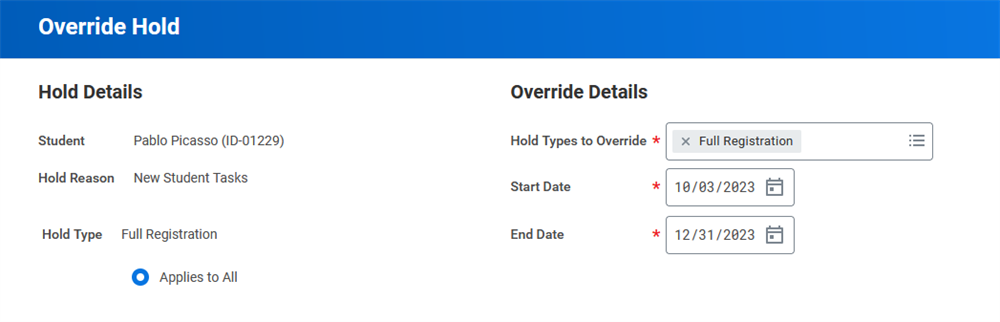
A hold on a student's record prevents completion of certain activities, such as registration. However, it is possible to temporarily override a student's hold assignments to allow them to complete some of those restricted activities. When overriding, you identify an end date, at which point the hold automatically resumes if the underlying hold logic is still active.
Viewing Holds
Students can view their active registration holds, along with any other outstanding tasks from onboarding, on their
Academics
app. The Academics
app displays a description, date assignment, and resolution instructions for each hold assigned.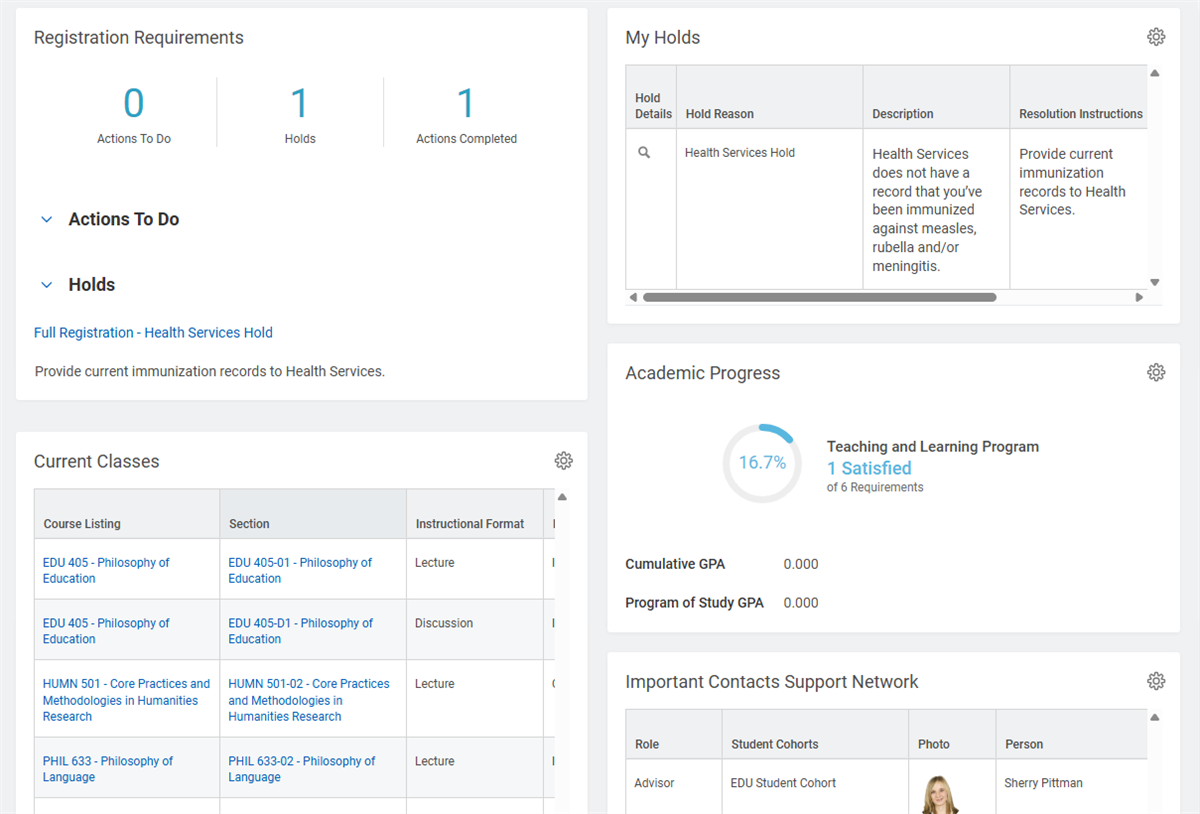
Mass Applying Student Holds
Academic administrators can also mass apply and remove holds to multiple students, for instances where you must assign a large number of students a manual hold. The Mass Operation Management (MOM) framework powers mass hold assignment. Custom reports act as the audience for mass hold assignment and removal by determining the desired population of students for the mass hold.
For example, you may want to target students who have reached a credit threshold, but have not declared a major, by placing a registration hold so they meet with an advisor about their record. You can create a custom report to identify this group of students and use the MOM framework to apply holds.
Student Onboarding
Student Onboarding in Workday refers to two specific processes: matriculation for new students and continuing registration for active students. Each of these processes guides students through tasks necessary to matriculate and register.
New Student Onboarding
Before the new student onboarding processes begin, students must matriculate. The
Student Application Pre-Matriculation Event
begins once an applicant accepts their offer of admission. The matriculation process moves students from the Applicant or Pre-Matriculant to the Student stage, creating an academic record for the student each time they matriculate into a program of study.Students can have multiple academic records. Examples of multiple records for a student include:
- Consecutive: A student completes an undergraduate degree in 2022 and returns for a graduate degree in 2024.
- Overlapping: A student begins a graduate program while in a certificate program.
- Concurrent: A student works on two undergraduate degrees concurrently.
You can configure the Student Application Pre-Matriculation Event business process to matriculate the student upon accepting their offer of admission. The
Mass Matriculation Event
business process and the Matriculate Student Applicants
task allow staff to control the matriculation of multiple new students per academic unit, academic level, or program of study.The Student Onboarding process for new students relies on the
Student Onboarding Event
business process to onboard students to your institution after they accept their admission offer. You may configure this process to meet the specific needs of your institution.You can configure the business process so that reviewers and students can:
- Access self-service tasks.
- Change Student Directory Information.
- Complete action items.
- Create academic plans.
- Evaluate and apply transfer credits.
- Review documents.
- Request materials
- Request that students register for orientation.
Configuring the
Student Onboarding Event
business process allows you to define the order in which each action occurs.Continuing Student Registration Onboarding
The
Continuing Student Registration Onboarding
business process allows your institution to specify the steps students must complete to be eligible to register for the next academic period. For example, you can configure the business process so that before registering, students must:- Answer advising questionnaires.
- Review relevant policies.
- Review and update personal information.
Commonly Used Tasks and Reports – Academic Requirements and Planning
The following tables list the useful and commonly used reports and tasks for the topics covered in this chapter.
Academic Requirements
Tasks |
|---|
Configure Academic Requirements |
Create Academic Requirement |
Create Restricted Requirement Group |
Edit Restricted Requirement Group |
Edit Academic Requirement |
Edit Academic Requirement Override for Student |
Launch Academic Progress Evaluation for Student |
Override Academic Requirement for Student |
Reports |
Find Academic Requirements |
View Academic Progress for Student |
View Academic Requirement |
View Academic Requirements |
View Academic Status for Student |
View Restricted Requirement Group |
Academic Planning
Tasks |
|---|
Create Academic Plan |
Create Academic Plan Template |
Create Student Cohort |
Edit Academic Plan |
Maintain Academic Plan Templates for Program of Study |
Reports |
Find Academic Plan Templates |
Find Student Cohort |