
Curriculum Management
Overview
In this chapter, we dive into the curriculum management features that allow you to create your courses and course sections. Additionally, we also discuss instructor assignment and configure your overarching course catalog. Lastly, we examine the configuration of learning activities, such as orientation or study abroad, that students can participate in during their time at your institution.
Objectives
By the end of this chapter, you will be able to:
- Create courses and course sections.
- Apply the concepts of course versioning and roll over.
- Create course variables, such as corequisites and prerequisites.
- Create clustered courses with multiple formats.
- Create practical learning offerings.
Academic Curriculum
The academic curriculum contains numerous elements that, when stacked together, allow students to successfully register in and complete their academic endeavors. The academic curriculum includes:
- Programs of Study
- Course Definitions
- Course Sections
- Course Schedule
- Course Eligibility (prerequisites, co-requisites, cross listing, and co-locations)
- Instructor Assignment
In addition to these elements, you will use the business process framework to create and manage all aspects of your academic curriculum. The
Course Event
and Course Section Event
tasks enable you to follow your institutional curriculum processes.The remainder of this chapter offers a dedicated look into each of these functional areas as you build your academic curriculum.
Courses
The first and most fundamental component of your university's curricula are the actual courses. Courses in Workday Student are part of a broader definition, called the activity framework. The activity framework includes courses and course sections, but also course-like offerings called practical learning (e.g., internships or career credit) and study abroad. You will learn more about non-course activities later on in this course.
A course is a series of lessons related to a subject, typically leading to qualification. You can teach them in multiple formats (e.g., lectures, labs) and you can require students to enroll in multiple instructional formats to complete the course.
The remainder of this section includes information on creating and managing courses and course sections.
Courses and Course Definitions
Use the
Create Course
task to create a new course. When creating a course, Workday generates a course definition.The course definition includes all the data about this course, including its controls and relationships with other courses or objects in Workday. It is the central source for data related to the individual course. The course definition view enables administrators to have a comprehensive view of a course separate from the view a student has.
Workday also creates a separate view designed for students and those not directly related to the course function. This separate view, called the course view, is a limited display from the course definition and only contains data relevant to students, including information about prerequisites and course descriptions.
Use the
Find Course Definitions
and Find Courses
reports to access the respective course views. These reports function as your course roster and you can edit them to display data unique to your institution.Creating a course initiates the
Course Event
business process. This workflow controls all course creation and updates. When you update a course, Workday also updates the View Course Event Changes
report, which you can access from the Inbox event item's Related Actions. This report highlights all proposed changes, making it easier to manage curriculum updates.Editing vs. Versioning
When creating a course, be sure to identify all relevant details. You can track course changes in two ways: editing and versioning. Both options are only accessible from the course definition's Related Actions, not the course view.
Editing a Course
: Allows for changes to all aspects of the course with the previous version overridden.Versioning a Course
: Allows for a new version, or instance, of the course definition. Creating a new course version does not override any previous version.Workday recommends that you track substantial changes that impact the nature of the curriculum in a new version. Doing this retains previous curriculum function. Track changes such as spelling errors with editing, not versioning.
Elements of a Course
When accessing the
Create Course
task, you will notice the full list of fields and functionality available for course creation. Courses have many fields and configuration options to match your institutional needs. The following topics discuss the various elements of the course creation process.Resource
: For more information about each field that is available when you create a course, search Workday Community and the Administrator Guide.Course Definition Effective Date
When you first create a course, you will choose an effective date. This date determines the version of the course for the academic period. When you create a new version of the course using a different effective date, you can no longer offer the previous version of the course.
Course Format and Delivery Modes
The format and allowed delivery modes define the nature of the course. In the Course Components section of the course definition, you can select one or more Workday-delivered instructional formats for the course. This identifies a course as including component sections such as Lecture, Discussion, Laboratory, or Workshop. Later, when you create course sections, you will select a format for the course section offering from the available formats listed on the course definition.
Delivery modes identify where students can access a course. For each instructional format on the course definition, you must select an allowed delivery mode for the course. These delivery modes are Workday-delivered, and include In-Person, Online, and Hybrid. If your institution uses different names for these delivery modes (e.g. "Virtual" instead of "Online"), you can use the
Maintain Delivery Mode Values
task to create custom names for the Workday-delivered modes.Special Topics Course
Special topics enable you to track instances where individual course sections differ in title and curriculum from one another, but still fall under the same course definition.
Example
: An institution might have a first year seminar course called FYS 101. Each section could have a different title and topic, but all sections are instances of FYS 101. Selecting special topics enables you to enter the individual topic titles for each instance of the course.After you create a course with special topics, you can create individual course sections using the
Create Course Section
and Manage Offerings for Course
tasks.Course Tags, CIP Codes, and Educational Taxonomy Codes
Course tags allow you to group courses using descriptors that you determine. You can then use course tags to:
- Filter courses in search reports.
- Enable reporting.
- Identify attributes of a course.
- Create smart lists.
As a best practice, group tags into categories to make them easier to find in prompts.
Additionally, be sure to tie course tags and categories to academic units designated as institutions. Workday shares these tags among all academic units subordinate to that institution. You can create course tag categories and mark them as "private" to hide the tags from public reports such as the
Find Courses
or Find Course Sections
reports.In addition to the Course Tags field, you can use the CIP Code and Educational Taxonomy Codes fields to identify relevant CIP and Educational Taxonomy codes for a course definition. Note that Workday regularly maintains CIP codes. For more information on configuring Educational Taxonomy codes, visit Workday Community.
Competencies and Learning Outcomes
Many institutions have additional competencies and learning outcomes as further measures of course success. Competencies are the planned student result of the course experience. Learning outcomes are the dedicated learning objectives for given content. Learning outcomes can be separate from or contain competencies.
For example, a Spanish 101 course could strive for a student's competency in basic Spanish fluency. Two of the learning outcomes for the course could be to:
- Successfully use and conjugate verbs.
- Read and pronounce Spanish-specific diction.
Course Materials
Course materials enable you to define the books and other materials a student needs as part of a course. You can link course material with an institutional bookstore or other third-party service using Workday integration functionality.
Course Restrictions
Prerequisites
Prerequisites identify requirements students must satisfy before they can register for a course. You can use the eligibility rule framework to define prerequisites on the course or course section definition. The eligibility rule framework is a foundational framework used throughout Workday Student. Eligibility rules use pieces of student data (e.g., student cohort, program of study, competency, course requirement) to determine eligibility for additional functionality in Workday. You use these rules to:
- Create academic requirements for completing a program of study.
- Control registration appointments for enrolling in classes.
- Identify prerequisites for courses.
For example, you can create an eligibility rule to identify all students in a program of study to restrict a course to only those students.
When creating an eligibility rule, select from one of the Workday-defined eligibility rule types (e.g., course requirement, student cohort, athletic team, grade requirement). You then use an eligibility criteria condition to compare that type to a specific value to identify a target population. Use combination eligibility rules to combine two or more existing rules.
Activity |
Athletic Team |
Combination |
Competency - Learning Outcome |
Course Permission |
Course Requirement |
Grade Requirement |
Program of Study |
Student Cohort |
Test Achievement |
Unit Requirement |
Course Permission
Course permission eligibility rules use the
Registration Permission Event
business process. If a course has a course permission prerequisite, when viewing the course, students have the option to request permission to enroll in the course. This request then routes for approval according to the business process definition. Designate course permission via an eligibility rule on the Create Course
task.Co-requisites
Co-requisites identify courses that students must take along with this course. For example, a student is required to enroll in Accounting 225, a math-heavy course. To supplement their math needs, the student's co-requisite course is Math 201. When designated as a co-requisite via the
Create Course
task, Workday enforces enrollment in a course section for each course in the same academic period. Workday prevents students from registering for this course without the co-requisite courses.Course Equivalency Groups
Often courses overlap in content to an extent that institutions deem them academically equivalent. When creating equivalency groups, courses can be considered equivalent for the following purposes:
- Grade Replacement
- Academic Requirements
- Enrollment Requisites
- Specified Maximum Units
For example, a Business Statistics class and Introductory Statistics class cover many of the same concepts. For this reason, the AMU faculty has decided that either course could count as the Statistics requirement for a mathematics minor program of study. Use the
Add Course Equivalency Group
task to designate a course equivalency.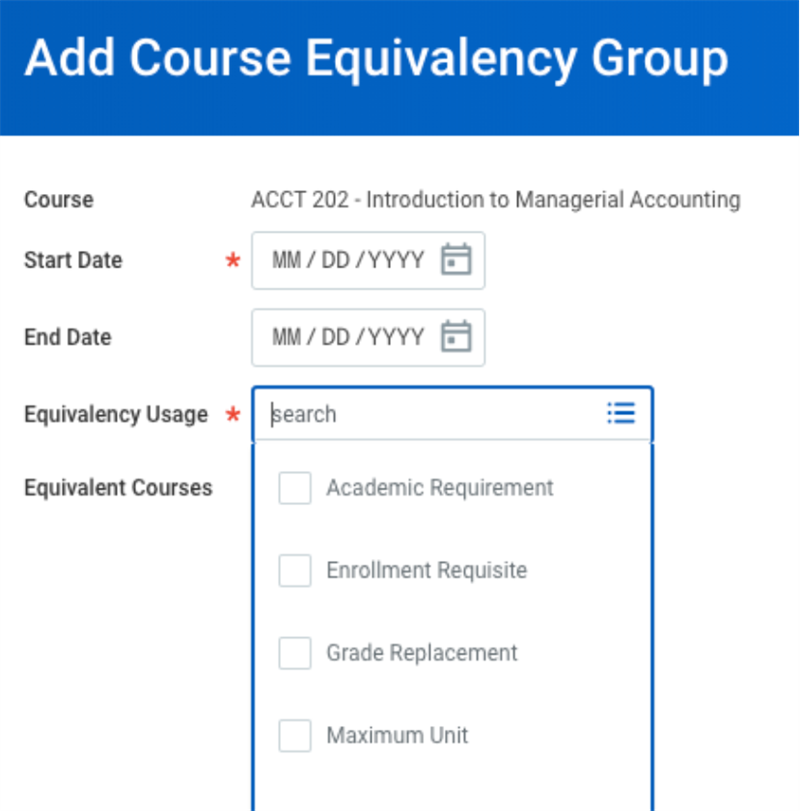
Cross-Listed Courses
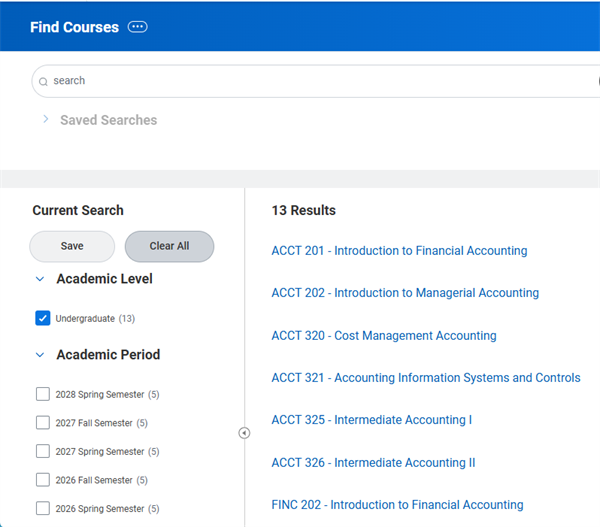
Cross-listed courses are courses that have the same content, instructor, roster, time, and location, but may have different listings in the course catalog. For example, you might list an Introduction to Financial Accounting course as both ACCT 201 and FINC 202. Accounting majors would register for ACCT 201, while finance majors would register for FINC 202. Designate a cross-listed course via the
Create Course
task.Both courses will show as one definition on the
Find Course Definition
and Find Course Section Definition
reports. However, both courses will show as two separate courses for students on the Find Courses
and Find Course Sections
reports.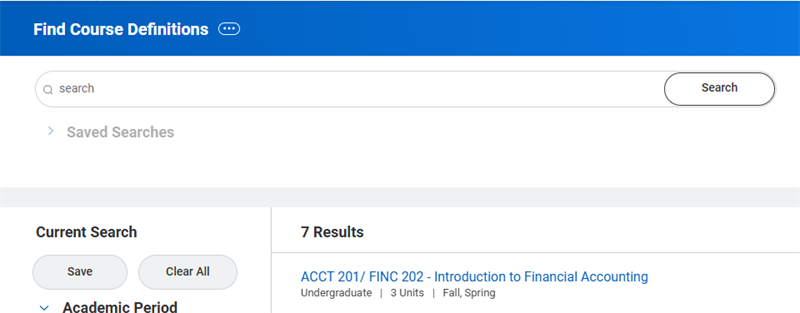
Course Sections
The second part of defining your institution's offered courses is to create course sections. Course sections are the registration-eligible offerings of courses, and include the specific times, days, and date ranges in which the course offering takes place. Review the
View Offerings for Course
report for all offerings of a given course across different academic periods.There are three ways to create course sections: individual, in mass, and rollover. After you create course sections, you must then publish the course sections to enable them for viewing and registration. You can change course sections individually or in mass, by pushing changes from a course definition to a course section.
The remainder of this section discusses course sections, the elements of course sections, and how to create them.
Course Section Timeline
Workday offers two types of timelines for your course sections: fixed and dynamic.
The majority of course sections typically follow a fixed timeline, where the course section operates within the standard start and end dates of an academic period. Fixed period courses occur by default when using any of the methods to create course sections.
Dynamic course sections have dates that fall outside of the standard start and end dates of an academic period. For example, a course might start one month after the standard date of the academic period in which it occurs. When creating a course section, you can specify a start and end date without selecting an academic period. However, these course sections must have start and end dates within a standard period on the academic calendar.
Course Section Elements
Course sections are the offerings of courses. When creating a course section, Workday pulls from only the most recent course definition. As such, the fields and structure of the course section mirror that of the course definition, with a few additional configuration areas:
- Reserved Capacity
- Section Components
- Instructional Locations
- Scheduled Assessments
Reserved Capacity
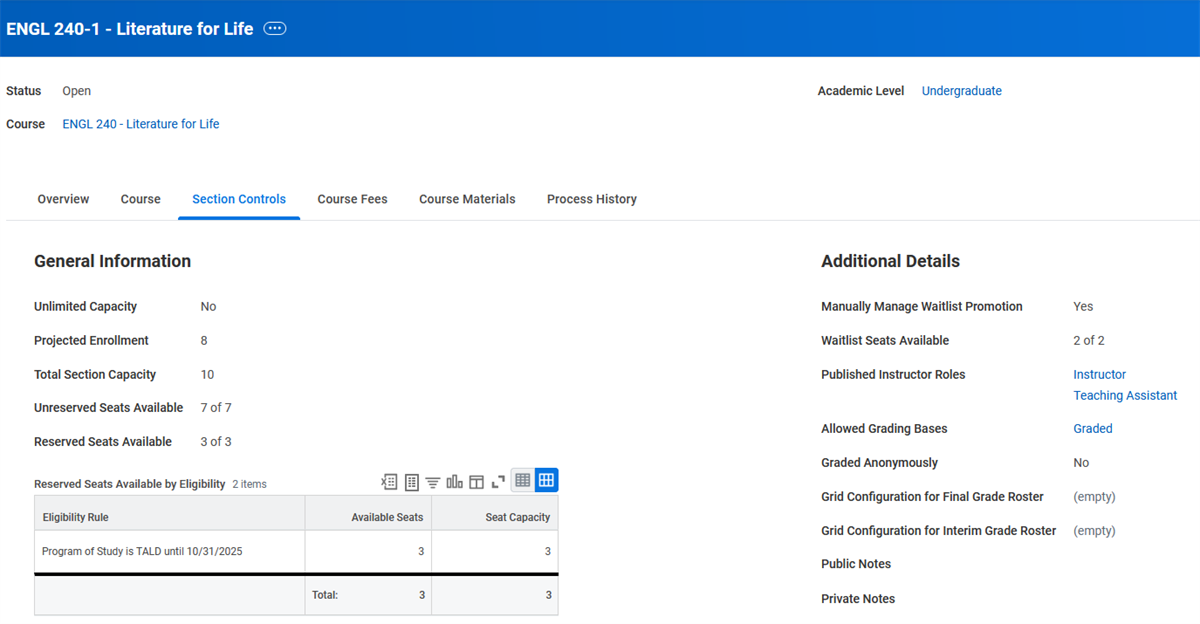
Reserved capacity allows you to reserve a number of seats for one or more specified groups of students from the total section capacity. For example, you may create a course section with a capacity for 25 students, but hold 10 seats for students with a senior class standing. Additionally, you can reserve capacity to students with an approved, future-dated program of study that takes effect before the start date of the course section.
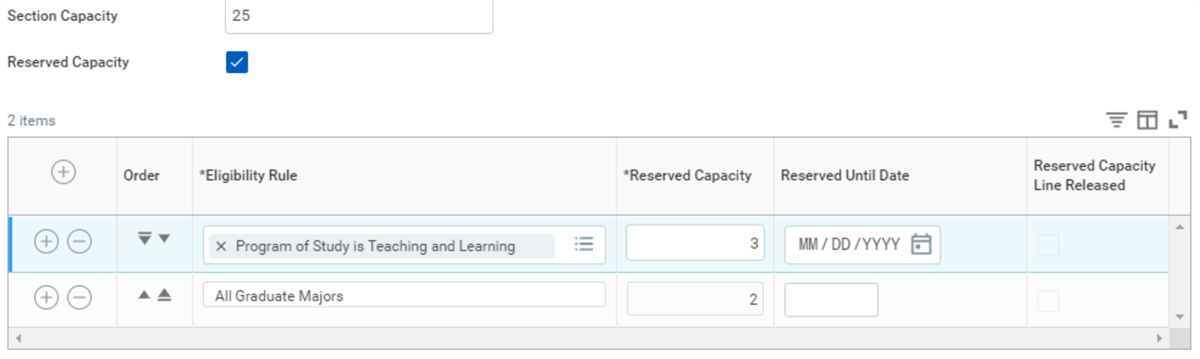
By selecting the Reserved Capacity checkbox, you can use eligibility rules to define logic to reserve seats for your desired student populations, including seat reservation dates. You can also use the
Release Remaining Reserve Capacity
task to release all unfilled reserved seats for a specific academic unit and level. Releasing reserve capacity makes those formerly reserved seats generally available to all applicable students.Once a course section is published, you can review the available seats in a course section. In the Section Controls tab on the course section definition, you can review reserved and unreserved seats available, waitlist seats available, and the total capacity for the section.
Section Components
Meeting patterns specify which days and times a course section meets during the week. When creating meeting patterns, first use the
Maintain Meeting Day Patterns
task to specify the days of the week and the recurrence. Use the Maintain Meeting Patterns
task to then create a meeting pattern that combines the meeting day pattern with a start and end time.Instructional Locations
A course section must be both identified as an instructional location and be subordinate to a location identified as a campus. To view all the instructional locations in your system, use the
Find Instructional Locations
report. To find a location for a specific course section, use the Find Available Instructional Locations
report. Note that a section must have a meeting pattern defined to use this report. Select the Location not Required checkbox to override the location requirements for creating the course section.Security Note
: You can configure locations to have restricted access. For example, you can configure the sytsem to only allow administrators to create course sections at specific locations, depending on the administrator's assigned campus. For more information, visit Workday Community.Scheduled Assessments
You also need to consider the course configurations for scheduled student assessments. The most common examples are midterm and final exams.
You can use the
Maintain Scheduled Assessments
task to track course assessments for a given course section. Here you record the scheduled date, time, place, and delivery mode for the scheduled assessment.Instructor Access
When creating your course sections, identify which workers will be responsible for the academic roles (e.g. instructor, teaching assistant ) assigned to a given course section. To be eligible for an academic role, a worker must have an active academic appointment assigned.
Touchpoint
: Academic appointments are part of the Workday HCM product area. To find more information on how to configure academic appointments, visit Workday Community.Use the
Designate Instructor Eligibility
task to specify a worker's course instruction eligibility. You can specify the eligibility at the highest level of academic unit, or use more granular criteria such as specific courses, course subjects, and delivery modes.Once you assign an instructor to a course section, Workday grants them information only on that course section. Thus, instructors can only view and edit the grading information for students in their own sections.
The
Manage Instructor Course Section Load
task enables you to review all course sections, instructor roles, units, and unit types. In this task, you can assign and view a specific instructor's load value and unit type for each of their course section assignments. If you make any changes, the business process initiates and is subject to any reviews and approvals in the workflow. You can also view any conflicting course sections for an academic appointee using the Instructor Conflicts by Academic Period
report. Additionally, a validation message displays when you double book an instructor for courses with conflicting times. These messages will display on the following: Create Course Section
task, Edit Published Course Section
task, Maintain Custom Meeting Pattern for Course Section
task, and Manage Offerings for Course
task.Instructor assignment can occur in several ways. Use the
Create Course Section
and Edit Published Course Sections
tasks to manually assign an instructor to a given section. The Manage Offerings for Course
task enables you to assign instructors to multiple sections of the same course and academic period at once, saving time. Use the Manage Instructor Course Section Load
task to track instructor section assignment, designate units, and determine sections within a given academic period deemed an overload status.Changing Course Sections
Editing Course Sections
After you create a course section, the
Course Section Event
business process manages all changes. To make changes, use the Edit Published Course Section
task, or navigate to the course section definition's Related Actions, and select Edit. Workday displays course section suggested changes via a report in the Inbox of each user according to the business process configurations. This report displays the proposed changes side by side.Propagate Changes
After you create course sections, you can propagate changes to a course definition to each individual course section in a single task. Edit the course definition, then use the
Propagate Course Changes to Sections
task to push said changes to course sections. When using this task, you will choose an effective date for the changes, as well as the course definition changes you wish to push to the course sections.Creating and Scheduling Course Sections
Course Section Management
Course sections are the core building blocks of your course schedule. Workday has many ways to create and manage your course sections to match your institutional needs. It is important to note the difference between creating a new course section and editing an existing one.
To create a course section, you use a task, not a business process. However, when editing or canceling course sections, you use their respective business processes: the
Course Section Event
or the Course Section Cancel Event
.After you create a course section, you can access it directly from search, the academic plan, or the respective "Find" reports:
- Find Course DefinitionsorFind Courses
- Find Course Section DefinitionsorFind Course Sections
These "Find" reports act as your course schedule. You can copy and edit each report to match how you want the data to display and also use the search criteria your institution requires.
Note
: You can optionally hide course sections from student view. To do this, you can either:- Select the Hide Course Section checkbox on theCreate/Edit Course Section Definitiontask.
- Use theFind Course Section Definitionsreport, and select the checkboxes next to one or more course sections. Then, select Manage Student View. This allows you to select theHide Selected Course Sectionsoption.
Creating Course Sections
There are many ways to create a course section. To create a single course section, you can use the
Create Course Section
task or use the course section definition's Related Actions. This task allows you to manually create a course section and also edit any course section elements that populated from the course definition.Since creating individual course sections can take some time, you can also create multiple sections of the same course using the
Manage Course Offerings
task. Here, you have one grid to create multiple sections and assign all relevant section elements, including enrollment, capacity, location, and instructor information. You can access the Manage Offerings for Course
task by searching for it or from the course definition's Related Actions.At many institutions, the course catalog is similar across academic periods. For continuity over several course sections, Workday provides roll over functionality. Roll over enables you to choose a group of course sections from current or past academic periods and then roll them forward to a future academic period. You can choose which data elements roll over to new course sections. The
Roll Over Course Offerings
task allows you to copy course sections, and their respective data elements, from one academic period to another.Overlapping Course Sections
Occasionally, different course sections occur at the same time in the same location. These overlapping courses allow multiple sections to be taught in the same meeting pattern and instructional location. Workday automatically detects scheduling conflicts between course sections that have overlapping date ranges, meeting patterns, and instructional locations, preventing you from publishing courses with these types of conflicts. However, you can use course section overlap groups to allow for and configure course section overlaps when appropriate.
For example, Art 101 and 102 share an instructor, meeting pattern, and instructional location. Each course has students working on different projects and skills. In this example, the university created each course section separately with the same instructor, time, and location. A course section overlap group must then be created before these course sections can move from a Preliminary status to a Published status.
To configure overlapping course sections, you must complete the following steps:
- Access theFind Course Sections to Overlapreport. Select the conflicting course sections that you want to overlap.
- Select the Manage Course Section Overlaps button on this report. From here, you can configure several options for the course overlap.
- Create One Registration Roster:Combine rosters from the overlapping course sections for ease of roster management. Note that an instructor must have access to all course sections included to view the combined roster.
- Create One Grade Roster:Allows primary instructors to grade the course sections that they have permission to access in a single place.
- Create One Participation Roster:Combine rosters from the overlapping course sections for ease of participation verification.
- Share Section Capacity:Allows for registration to impact all course sections in the group. For example, MATH101-01 and MATH101-02 both have a section capacity of 10. When a student registers for either course section, the section capacity for each section decreases to 9.
- Overlap:Select the checkbox to include this course section in the overlap group.
In order to add course sections to an overlap group, they must:
- Conflict with all of the course sections within that group.
- Not have any registrations or in-progress system events.
Section Clusters
Course section clusters enable groupings of course sections that students must register for together with limitations on section eligibility. For example, Biology 101 has three lecture and three lab sections. You can use course section clusters to restrict students to registering for specific pairs of lecture and lab sections. Course section clustering is available for courses occurring during fixed academic periods only.
Note
: Use the Maintain Course Section Clusters
task to create your course section clusters. For more information about this feature, visit Workday Community.Course Scheduling Conflicts
To track course sections and view any conflicts as you schedule your curriculum for a given academic period, use the
Find Course Sections to Overlap
report. Workday displays a course section and all conflicting course sections, enabling you to adjust your curriculum to best create a cohesive course schedule.Student Activities and Accomplishments
In addition to courses and course sections, institutions often provide education offerings that behave similarly to courses, but occur outside the classroom. For example, students studying abroad must have enrollments for financial aid eligibility, but are not registering for courses taught by their institution.
You can create the following student activities in Workday:
Orientation
: Create, edit, or view an orientation, as well as configure different orientation offering times. Orientations can have the following behaviors:- Billable & Load Status
- Enrollable & Eligible
- Schedulable
Study Abroad
: Create, edit, or view a study abroad offering. Study abroad activities can have the following behaviors:- Billable & Load Status
- Enrollable & Eligible
Practical Learning
: Create, edit, or view a practical learning opportunity, as well as configure different practical learning offering times. Practical learning activities can have the following behaviors:- Billable & Load Status
- Enrollable & Eligible
- Schedulable
Note
:To assign credit and to display the activity on the academic history of a student's Academic Profile, it is suggested you create a course for practical learning activities like an internship or study abroad.Institutions often note student milestones, such as a completed thesis, on student transcripts or on a student's academic plan and progress. For example, a student may need to complete a thesis in order to complete their academic program. You can find the following student accomplishments in Workday:
- Dissertation
- Performance
- Project
- Thesis
You will apply these accomplishments directly to a student's record through the
Manage Student Accomplishments
task. If you wish to view a student's completed accomplishments, you can do so through the View Student Accomplishments
report.Commonly Used Tasks and Reports – Curriculum Management
The following tables list the useful and commonly used reports and tasks for the topics covered in this chapter.
Courses and Course Sections
Tasks |
|---|
Maintain Program of Study Types |
Create Program of Study |
Maintain Program Areas |
Add Course Equivalency Group |
Cancel Course Section |
Create Course |
Create Course Section |
Designate Instructor Eligibility |
Edit Published Course Section |
Maintain Course Section Clusters |
Maintain Course Subjects |
Maintain Meeting Day Patterns |
Maintain Meeting Patterns |
Maintain Scheduled Assessments |
Manage Offerings for Course |
Propagate Course Changes to Section |
Reports |
Find Available Instructional Locations |
Find Course Definitions |
Find Courses |
Find Course Offerings |
Find Course Section Clusters |
Find Course Section Definitions |
Find Course Sections |
Find Course Tags |
Find Learning Outcomes |
View Course Subjects |
View Instructor Eligibility |
View Meeting Day Patterns |
View Meeting Patterns |
Student Activities
Tasks |
|---|
Create Orientation |
Create Orientation Offering |
Create Practical Learning |
Create Practical Learning Offering |
Create Study Abroad |
Create Study Abroad Offering |
Reports |
View Orientation |
View Orientation Offering |
View Practical Learning |
View Practical Learning Offering |
View Study Abroad |
View Study Abroad Offering |