
Academic Foundation
Overview
Before learning about Workday Student Records and Advising, you need to have a solid understanding of the academic foundation features and concepts. This foundation determines both the structure of your institution, as well as ownership and access to data.
Objectives
By the end of this chapter, you will be able to:
- Configure the academic unit structure and policies.
- Create an academic calendar and calendar policy.
- Create academic periods.
- Create applicable policies across enrollment, advising, grading, and records.
- Define and create programs of study.
- Create instructional locations.
Basic Navigation
In Workday, there are multiple ways for you to complete the same task. To navigate the system, you need to be familiar with:
- The Home page
- The application header
- Home page sections, applications, and dashboards
- Icons
- Prompts
- Additional navigation features
Now, explore each of these topics in more detail.
The Home Page
When signing in to Workday, all users will arrive at the Workday Home page. This landing page provides users with easy access to applications, tasks, and reports all in one place. This page is tailored based on the user's role, access, and content permissions.
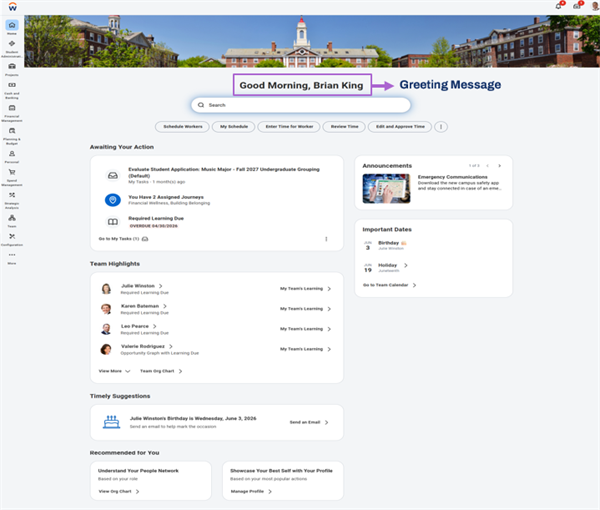
The Home page displays a personalized Greeting Message, as shown in the image below. This dynamic greeting message can rotate throughout the day, depending on the time users sign in.
Home is the primary and most often used landing page in Workday. However, there is also an optional landing page called Workbench, which is intended for technical users to do maintenance and configuration.
Application Header
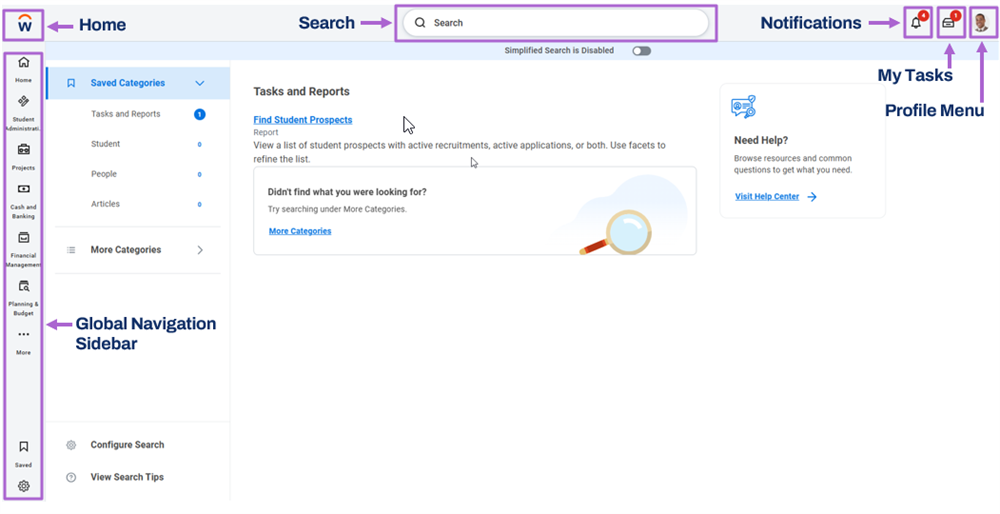
At the top of the Home page, the application header always displays while you navigate in Workday. The application header includes the Global Navigation Sidebar, the Home icon, the Search Bar, the Notifications icon, the My Tasks icon, and the Profile Menu icon.
Global Navigation Sidebar
The Global Navigation Sidebar intuitively enables you to navigate across the system and allows you to view and select applications. You can use the global navigation sidebar to consistently access tasks, reports, and applications, anywhere in Workday. You can manage applications and add, remove, and even reorder your applications.
Home (Workday Logo)
Selecting the Workday Logo will return you to the Workday-delivered Home landing page. You can also use the
Change Preferences
task to select a different preferred Home page.Search
Workday provides powerful search capabilities, allowing you to quickly access tasks, reports, business objects, and more. When you use the Search box in the application header to perform a search, Workday displays type-ahead results and saves your recent searches.
The search bar allows you to search for tasks, objects (such as workers, pre-hires, and organizations), and reports.
You can indicate a category to target your search to a specific area of interest. Doing so produces faster and more accurate results. You can set a preferred search category in your preferences that defaults when you sign in. If you manually select a different category, that category applies only for that search.
Search prefixes also allow you to narrow down your results to a specific type of search result. When using a search prefix, Workday searches all items of that type and returns all the results available to you. Examples of common search prefixes include "org:" for organizations and "bp:" for business processes. To find all search prefixes you can use, enter "?" in your Search box.
The system stores your recent searches, which helps you find results more quickly and easily. Workday displays additional details on search results, and saves your recent search queries. You can also clear recent searches. Additionally, Workday has 'type ahead' enhancements. These enhancements allow you to see additional information about your search result. For instance, if you search for an employee in Workday, you will also see their location and position in the search details.
Predictive Search
Predictive search suggestions return common matching results. This functionality give you the best matches for your search results with minimal typing. Using the Search box, enter at least three characters to display predictive suggestions. Workday processes each term or character string separately. So, if you enter two terms separated by a space, the system searches for objects containing both terms regardless of whether the terms are next to each other. Note that search suggestions and results are based on your security configuration, meaning you will only see results you can access.
Here are some Predictive Search best practices:
- Keep searches simple.
- Avoid general terms like "find," "edit," "maintain," or "create." Using a general term returns more results, making it harder to find what you are searching for.
- Search for multiple terms to narrow down your search.
Contextual Search
Workday enables you to use categories to search for specific items and filter results, reducing the number of out-of-context search results. Global search categories are not configurable. The following categories are available to users based on their security access:
- Tasks and Reports
- Learning
- Drive
- Knowledge Base Articles
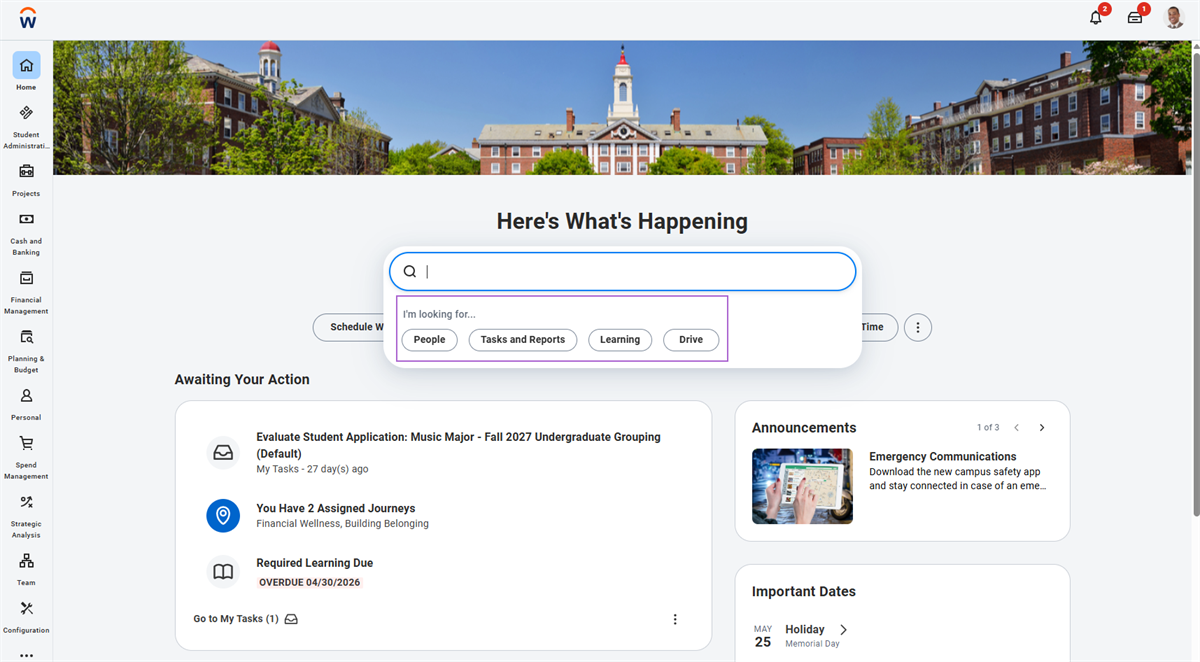
Select the category, and then enter your query in the search bar. For example, if you select the Tasks and Reports category, Tasks and Reports displays in the search bar. When you type your query, the system will show results filtered on the Tasks and Reports category.
Notifications
The Notification icon displays a badge count for your unread notifications and takes you to your Notifications page. Selecting the Notification icon will display reports you have run, processes that are complete, and documents that are available for review. When working with notifications, you can "Mark all as read" or refresh.
My Tasks
The My Tasks icon Displays a badge count for your incomplete tasks and takes you to your Inbox. My Tasks contains actionable items related to the user's role. My Tasks contains All Items, Saved Searches, Filters, and Archive tabs. The All Items tab is an activity stream that displays business process tasks, approvals, and to-dos that require an action. The Archive tab displays historical actions and business processes within the last 30 days.
My Tasks has both filter options and sorting capabilities. You can choose to edit your own filters using condition rules you configure. Under the Archive tab, you can refresh or view more processes. The standard filters located under the Filters tab are Favorites, Overdue, and Delegated to Me.
- Favorites: Items you starred as favorites.
- Overdue: Business process items past their due date.
- Delegated to Me: Business process tasks, approvals, and to-dos delegated to you for a period of time.
Bulk Approvals
The bulk approvals option allows you to approve multiple My Tasks items. It only appears if a user has at least one approval step awaiting review. Here you have the option to Bulk Approve items in your My Tasks inbox, refresh your My Tasks inbox, or begin delegations.
When you select this option, a Bulk Approve screen displays with approval items from your My Tasks inbox. You can select the Select All checkbox, or you can select individual items to approve in bulk.
Profile Menu
You can select your profile photo or name to view your profile. Here you can access all menus including your My Tasks and notifications, manage your user preferences, or sign out of your Workday session. Now, explore the Profile Menu standard screen elements and descriptions.
Standard Screen Element | Description |
|---|---|
View Profile | Provides quick access to your worker or student profile. |
My Account | Allows you to change your password and user account preferences, and view signon history. |
Workbench | Provides technical administrators and implementers easy access to all the tools needed to create and manage custom reports, calculated fields, analytic indicators, and other administrative tasks and reports. |
Sitemap | A list of the standard reports and tasks available to you, sorted by functional category. |
Favorites | Provides access to a configurable list of favorite business objects, reports, and tasks. You can also use favorites when searching in prompts. You can mark any item in Workday as a favorite by using the Favorite link, then selecting Add from an item's Related Actions icon. Marking items as favorite allows for easy access to frequently used items and reports. |
Drive | The single place in Workday to store, share, and collaborate on all of your Workday content within the security of Workday. It enables users to organize content into folders and quickly attach their Drive content to relevant points within your Workday transactions. |
My Reports | A virtual drive that can store your generated reports. When a new report is available, a notification displays in the header and in your My Tasks. You can also tag reports sent to My Reports to make them easier to locate. |
Documentation | Links users to the Administrator Guide section of Workday Community. Use this guide to obtain information on objects, system configurations, and procedures. |
Help | Directs your end users to your training and help documents. Use the Edit Tenant Setup - System task and enter your training and help website's URL in the 'Help' link field. To add other links, such as a link to your support center, create Quicklinks worklets and include them as required worklets on the Home page. |
Home Page Sections, Applications, and Dashboards
As a reminder, when signing in to Workday, all users will arrive at the Home landing page. You can configure your landing page to show multiple sections.
Home Page Sections
Home Page Sections are the different sections on the Home landing page. They provide access to various tasks and reports that are related to that application type. Sections provide users quick access to frequently referenced data and tasks common to a specific functional area.
For instance, in the following image there are multiple home page sections such as Awaiting Your Action, Team Highlights, Announcements, and Important Dates. You can also organize your sections in an order that works best for your particular role and responsibilities.
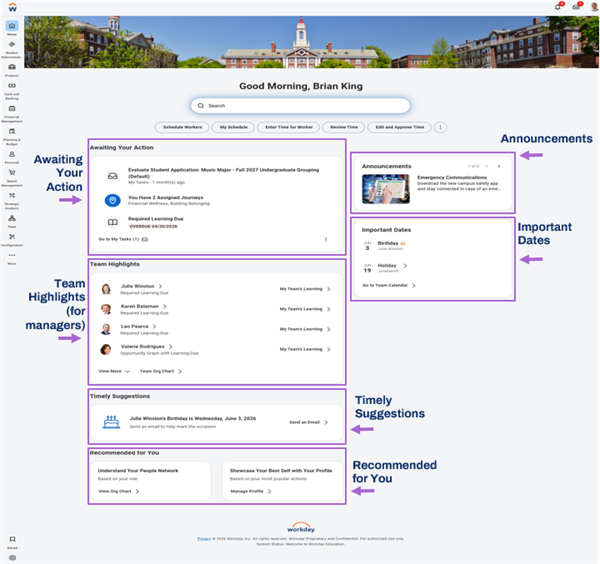
You can identify sections as required or optional on landing pages, based on the user's security groups. You cannot remove or rearrange required sections. However, you can add or remove optional sections. Security determines which applications are available.
Let's review each of the sections shown in the image above.
Awaiting Your Action
The Awaiting Your Action section displays up to four tasks that require immediate attention. This includes items from My Tasks and journey items or additional cards, if applicable. Note that if your organization has not enabled My Tasks and the user has no Journeys, this section won’t display.
Team Highlights
Team Highlights display information about team members. This information is specific to managers.
Timely Suggestions
The Timely Suggestions section displays up to three cards configured by your organization, with an option to view more cards. These cards display recommendations based on user activity.
Recommended for You
The Recommended for You section displays personalized content based on user behavior. This section displays the Manage Profile and View Org Chart cards, by default. You can personalize this section by adding one or more relevant cards, or removing this section by unpublishing the cards.
Announcements
The Announcements section displays important updates and notifications. This section displays three announcements by default. You can select View More Announcements to display additional items. When you select an announcement, a pop-up card appears where you can take additional actions. For example, you can open a link to a new browser or navigate to a task within Workday. Announcements can also display an embedded video.
Important Dates
The Important Dates section is designed to keep users informed about significant events, such as anniversaries and time-off dates.
Dashboards
You can include dashboards on your Home landing page. Workday provides preconfigured dashboards for distinct functional areas. In addition to using these dashboards, you also can create an unlimited number of custom dashboards. Each custom dashboard can display a set of custom reports that you can enable as applicatons. Workday allows you to have an unlimited number of types under Dashboard, but only six applications per type. You can use the
Maintain Dashboards
report to set up which dashboards you want to allow users to set up.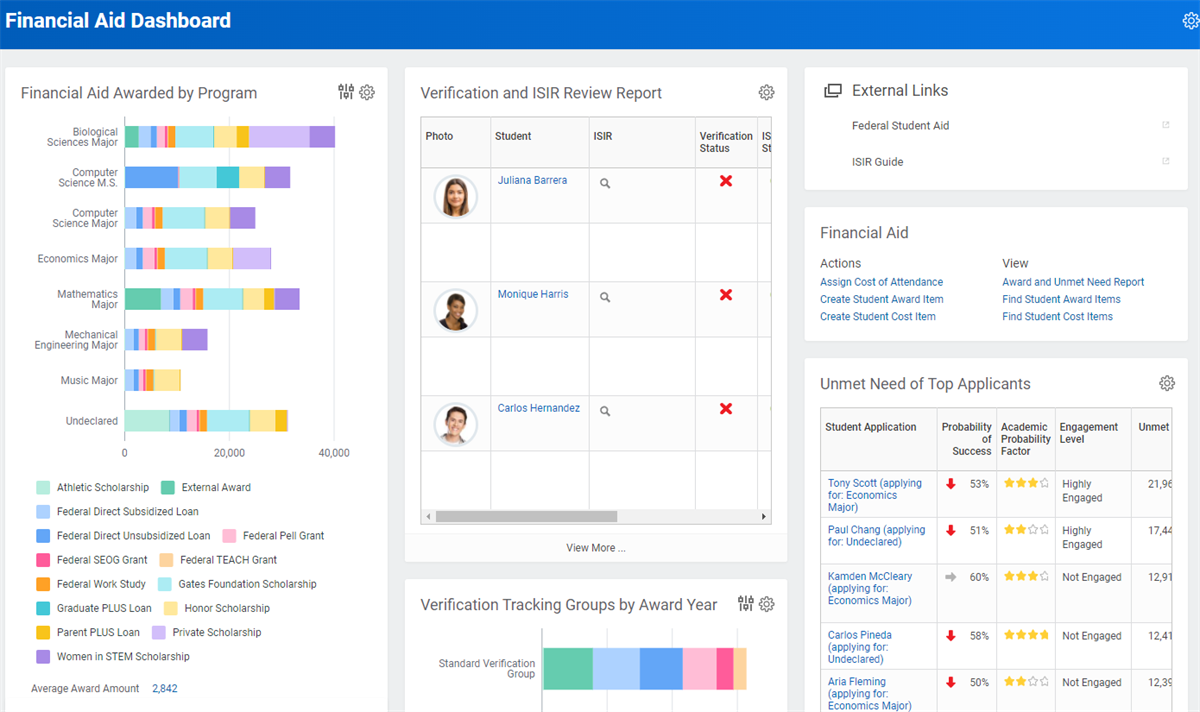
Academic Progress Dashboard
Students can add the
Academic Progress
dashboard to their Home page to track their academic progress quickly and easily. You can configure applications for the dashboard based on your institutional requirements. By configuring the information on the dashboard, you can help students easily access the information most important for their success and enhance their overall experience.Applications
Applications are the icons on the Home landing page, located in the Global Navigation Sidebar. They provide access to various tasks and reports that are related to that application type. Applications provide users quick access to frequently referenced data and tasks common to a specific functional area. For example, the Personal Information application contains tasks and reports such as Change Contact Information and View Worker Documents.
Student Example
The My Academics application is an example of a student application. This application is available to the Student-as-Self security group that every student is a member of. However, another example, the Advising & Records application, is only available to student records administrators.
Home Page Configuration
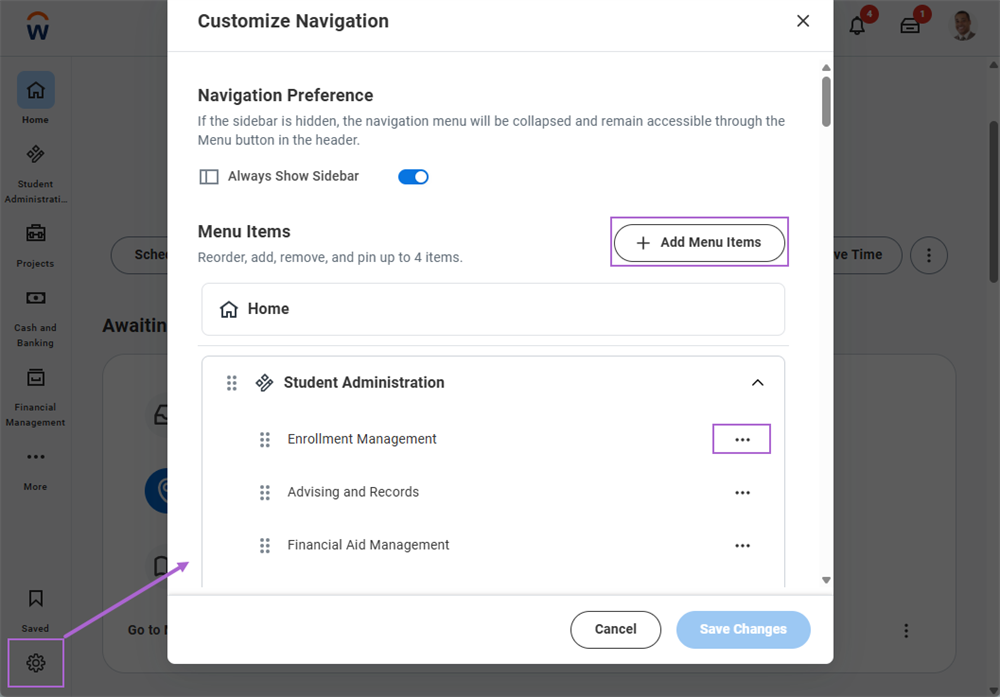
On the landing page, review the Global Navigation Sidebar to view the applications currently configured for your landing page. To customize your applications, select the Customize icon located in the Global Navigation Sidebar and then select Add Menu Item to add items your landing page. You can also remove any applications on this page. You can also specify the order in which you would like these applications to appear.
Icons
Now, let's explore some of the standard screen and task page icons in Workday.
Standard Screen Icons
The following icons are some of the standard screen icons you will encounter in Workday.
Icon | Description |
|---|---|

| Brings you back to your Home page. |

| Select your photo from the Home page to open the Profile menu. |

| Opens My Tasks, which includes both pending and archived tasks. |

| Opens your notifications. |

| Displays the Related Actions menu for an object (available only if the user has permission to perform additional actions on that object). |

| Opens the Related Actions menu for an object. |

| Allows you to add a filter to the report data displayed. |

| Select to view this page as a PDF file that you can print. You can restrict this option using the Export to PDF and Excel domain. |

| Select to view this page as an Excel file. You can restrict this option using the Export to PDF and Excel domain. |

| Indicates that you can view a report as a chart. |

| Returns to the previous page and allows you to rerun a report or task with new values. |

| An up or down arrow will appear in the column heading of a report if you have selected it to change the sort direction. |

| Appears in applications, worklets, and landing pages and acts as a menu or settings option. |

| Opens an associated business object instance. |

| Alerts you about system limitations based on the entered configuration. You may continue your process or configuration when an alert message displays. |

| Alerts you to a critical error. You must correct the error to move forward in a process or to save and enable your configuration. |
Task Page Icons
The following icons are some of the standard task page icons you will encounter in Workday.
Icon | Description |
|---|---|

| Indicates that you must enter a value for this field before saving or submitting the page. |

| Displays a list of available values sorted into folders (if applicable). |

| Opens a calendar to select a date. |

| Removes the current row from a grid. |

| Adds a row to a grid. |

| Accepts your changes. |

| Accepts your changes and moves to the next step in a business process. |

| Closes a confirmation screen. |
| Disregards all changes. |
| Saves the item in My Tasks until you take action. |

| Gives you additional choices, depending on the user and the business process. |
Prompts
Workday uses prompts to help users navigate in search fields. Prompts display all content available to that field, allowing you to navigate through levels to find information more easily. As you navigate through prompts, the top of the pane displays which level you are currently in, allowing you to return to a previous level. If the prompt only contains one folder or available level to choose, it defaults to open.
Single-Select Fields
If a field displays a prompt list icon, you must use one of the prompt values. In single-select fields, you can only select one value, and the prompt list will disappear once you choose a value.
Multi-Select Fields
If a field permits more than one value, the prompt list will stay open to allow you to choose as many values as necessary. The field expands as you enter additional values, and you can select the X to remove entries.
Additional Navigational Features
Now, explore some additional navigational features regularly used in the system.
Frequently Used Apps and Shortcuts
You can access your most frequently used applications and shortcuts anywhere within Workday. Workday displays a quick access icon in the header, that links to frequently used tasks and worklets. This icon contains two sections - My Shortcuts and My Most Used Apps. You can configure up to 10 custom shortcuts in the My Shortcuts section. The My Most Used Apps section displays your top three most used applications. This quick access enables you to quickly and conveniently switch between tasks without having to access the home page.
Frequently Used Related Actions
Workday identifies the Related Actions you use most. Once you take actions on a worker, the system begins to recognize the Related Actions you use. When you log back into Workday and access Related Actions, you will see a Frequently Used section with those Related Actions you use most frequently. This simplifies how you complete frequently used tasks and enables quick access to common actions related to workers.
Guided Tours
You can set up guided tours to help users complete tasks by displaying customized help text for selected fields. Guided tours display customized instructional text for selected fields as part of business processes. Unlike step help text, which appears at the top of the page, guided tours appear next to each respective field.
When you configure guided tours, a question mark icon displays on the task header to indicate that help text is available for fields on the current screen. If the user would like to expand and view the help text, they can select the question mark in the upper-right corner of the screen. Doing so causes descriptions to display on each configured field to help the user complete the information.
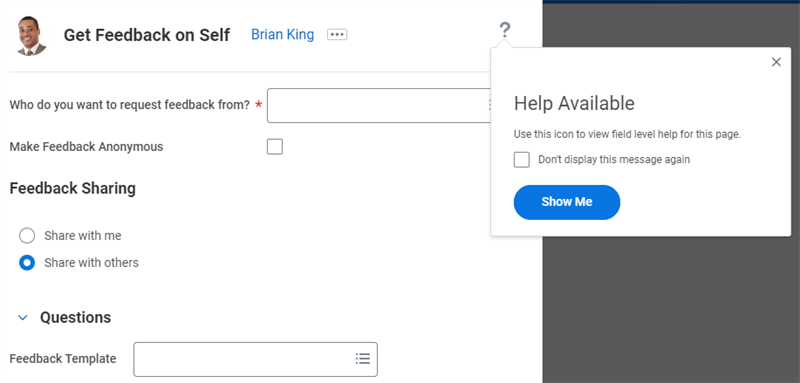
Configuring Guided Tours
Use the
Configure Guided Tours
task to add tenanted titles and text that you want to appear on specific fields within a selected business process. The Translate Guided Tours
task allows you to manually translate the guided tour title and text into any of the language translations that Workday supports.Introduction to Records and Advising
Workday Student Records and Advising is the central control for all aspects of a student's academic performance. Student Records and Advising (also called Student Academic Services or SAS) contains the following functional areas:
- Academic Structure
- Curriculum
- Registration
- Academic Advising
- Academic Records
- Transfer Articulation
- Instructor Experience
- Student Experience
Student Records and Advising is a heavily connected product within Workday Student. There are various ways each configuration element relates to and builds upon another to achieve a complete administrator and student academic experience.
The Academic Unit Structure
The academic structure consists of several components. You will stack each piece together, like building blocks, to create your institutional hierarchical structure. This structure serves as the heart of your Workday Student configuration; it has many areas of functionality, such as security, business processes, curriculum, financial aid, and so much more.
The academic structure consists of the following parts:
- Academic Units
- Academic Unit Subtypes
- Academic Levels
- Academic Calendars
- Academic Periods
- Academic Years
- Academic Time Periods
- Educational Credentials
- Programs of Study
- Programs of Study Types
Academic Units and Subtypes
Academic units are the foundation of Workday Student. They represent a distinct entity in your institution, such as the School of Medicine or English department. Academic units drive ownership and access to data within your institution. Designating an academic unit as an institution enables special functionality for multi-institutional academic structures.
Academic Unit Subtypes
Use academic unit subtypes to classify your academic units. Examples include school, department, institute, center, or college. Define these subtypes to reflect the different organizations at your institution. You can then create academic units appropriate for your institution's academic unit structure.
Use the
Maintain Academic Unit Subtypes
task to edit or add academic subtypes. Access the View Academic Unit Subtypes
report to view a full list and the details of academic unit subtypes.Academic Unit Hierarchy
Academic Unit Structure
When building your academic structure, first create any academic units that your institution uses. After creating academic units, you connect each academic unit to a superior academic unit. These connections result in a hierarchical structure that reflects your organization's academic structure. On the
Assign Superior Academic Unit
task, you can review any conflicts that may occur should you need to reorganize your academic unit structure.Each academic unit may contain one or more academic levels. Additionally, each academic level may control any of the following: admit students, configure financial aid, offer courses, offer programs of study, and recruit prospects. An academic unit inherits role assignments and business process definitions from the superior academic unit. Level configurations from a superior academic unit can inherit down to a subordinate academic unit.
At a minimum, you must configure the highest academic unit if you wish to recruit students, admit students, configure financial aid, and offer programs of study and courses.
You can assign workers to specific roles within an academic unit, such as Student Records Analyst or Student Advising Manager. This role applies to that academic unit and any subordinate academic units.
Note
: For Workday Student, we recommend that you assign roles and configure business processes for the topmost superior academic unit. You can then modify business processes and directly assign roles for subordinate units where necessary.Touchpoint
: Academic units also hold academic appointments in Workday Human Capital Management (Workday HCM) to track a person's academic career with your institution. Appointments could be for any number of appointment types. A faculty member may have more than one concurrent academic appointment.Institution Designation
You can designate academic units across a variety of types, including institution. Other academic unit designations function largely as labels and you can edit them at a later date, the institution designation can only be edited if there is no data or superior academic unit tied to the institution.
Designating an academic unit as an institution triggers that academic unit to function as the overarching academic unit (AU) in a hierarchy. Only designate an AU as an institution if said AU is truly a different institutional identity. The majority of Workday Student customers will not designate multiple academic units as a separate institution unless the Workday Student customer operates as a multi-institution.
Important
: To designate an academic unit as an institution, you must first create the academic unit, then from the Related Actions button, select Edit Institution.Note that you can only edit an institution if there is no data associated with the academic unit and it has not been assigned a superior academic unit. If an academic unit has historical academic records, you are unable to remove the institutional designation from that academic unit.
Effective Dating
Workday employs a concept called effective dating to manage a point in time for your configurations to take effect. You may often find effective dating within Workday, Workday Student, and Records and Advising. In general, with few exceptions (largely within financial aid), a configuration will not take place until the effective date you provide.
Effective dating allows you to make changes now that then go into effect in the future, saving time and allowing for a greater degree of updating flexibility. Additionally, you can edit past effective dates and make changes to an existing configuration without creating a new effective date.
Typically, a Student Information System relies upon a catalog year system to track annual changes to the academic catalog. A catalog year often refers to each academic year. For example, a change to academic requirements may take effect for the "2022-2023 Academic Year."
Workday Student does not follow a catalog year, and instead uses the effective dating concept to track academic changes. Using effective dates for academic year changes provides a much greater degree of flexibility for when changes take place and what students said changes apply to. For institutions that still wish to follow the catalog year format, a common practice is to select an effective date for all changes that is the first day of the academic period in which the change is to happen.
Related Structures
Workday contains a number of organizational structures, like the academic unit structure, for example. These structures relate to one another in a number of ways.
- Accounting Structures (i.e. company, supplier, etc.)
- Organizational Structure (i.e. departments, colleges, etc.)
- Employee Org Chart (i.e. reporting hierarchies)
In the image below, you can link a company to an academic unit, connecting the Workday HCM organizational and academic structures. During your deployment, much of your initial work will focus on making the foundational configuration decisions that have impact across your Workday instance.
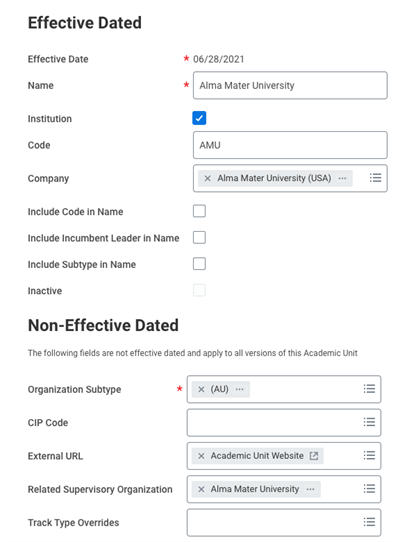
Image of the Edit Academic Unit task. Note the other organizational structures and characteristics you can associate with the academic unit.
Academic Unit Hierarchies
After you create academic units and academic structures, Workday automatically creates a hierarchical structure in which all configuration operates. However, you may want to create additional groupings of your academic units for reporting or configuration purposes. Academic Unit Hierarchies allow you to create these additional AU groupings. When you create them using the
Create Academic Unit Hierarchy
task, the additional hierarchy does not replace the structure you created when you originally used the superior/subordinate academic unit designations that are assigned to the academic unit.Multi-Institutional Academic Unit Structures
Some Workday Student customers are considered multi-institutional customers. Multi-institutional customers have multiple, separate academic entities within a single tenant. Typically, these are institutions that are partners in a purchase of Workday Student or state systems of institutions. Workday Student has dedicated functionality for multi-institution customers.
Resource
: For more information, search Workday Community for "multi-institution."Academic Levels
Academic levels are the level of an education objective achievable by students at your institution, such undergraduate, graduate, professional, associate, or continuing education.
Each academic unit can have one or more academic levels associated with it. Level configurations determine the behavior of the academic unit across security, curriculum, and allowed tasks. Level configurations enable you to:
- Admit students: Controls how you make admissions decisions on applications for admission.
- Offer courses: Controls how you offer courses and course sections.
- Offer programs of study: Controls the program of study ownership.
- Recruit prospects: Controls student recruitment.
Configuration options are level-dependent and follow inheritance. For example, the configuration for College of Arts & Sciences (CAS) at the undergraduate level is to offer programs of study. The CAS configuration does not allow you to recruit and admit students at this level, thus CAS follows AMU, the superior academic unit, for recruiting and admission configuration.
Academic Calendar Structure
Academic periods are the fixed date ranges defined by your institution. These periods make up an academic year and typically consist of semesters or quarters. You can define these fixed periods down to a specific date. You can then associate these academic periods with an academic year. An academic calendar serves as a template that defines the standard format for an academic year, e.g., a semester containing a fall, spring, and summer period. The table below provides examples of how you can configure a semester or quarter academic calendar for an academic year.
Academic Calendar | Academic Year | Academic Periods |
|---|---|---|
Semester Academic Calendar | 2025 - 2026 Academic Year | 2025 Fall Semester 2026 Spring Semester 2026 Summer Session |
Quarter Academic Calendar | 2025 - 2026 Quarter Academic Year | 2025 Fall Quarter 2026 Winter Quarter 2026 Spring Quarter 2026 Summer Quarter |
Note
: You must assign a calendar to the program of study, academic unit, or a superior academic unit to be available for selection.To define your institution's date ranges, define, in order:
- Academic Period Types
- Academic Calendars
- Academic Years
- Academic Periods
Academic Periods and Academic Years
Academic Period Types
To define your institution's calendars, years, and periods, first define the academic period types that your system will use. Period types are typically a seasonal date range associated with a specific period in your academic year. These standard periods serve as the reporting window or windows for your academic calendar. They are usually the main periods, such as Fall, Spring, and Summer. Each calendar must have at least one standard period. If your calendar has multiple standard periods, they should be contiguous with no overlap.
Before you can create an academic calendar structure containing these periods, you must define these individual period types in your system. You can use the
Maintain Academic Period Types
task to configure these period types in your system before you create your calendar structures.Academic Periods
In Workday Student you can create fixed academic periods or dynamic academic periods. Now, explore each of these period types in more detail.
Fixed Academic Periods
Most often, you will create fixed academic periods. Fixed academic periods have a defined start and end date. Workday Student has many tasks and processes that prompt you to select an academic period. When you select a fixed period, the system uses the defined start and end dates for that period. For example, if you create a student prospect for the Fall 2026 academic period, Workday automatically populates the anticipated start date as the defined Start Date of the Fall 2026 academic period.
Dynamic Academic Periods
In addition to selecting fixed periods, users can select dynamic period entry dates. Dynamic period entry dates let you select a specific date instead of an academic period.
For example, you can configure an academic unit to recruit and admit students using both fixed and dynamic periods. If a student prospect applies to an academic unit you configured for fixed periods only, they must select an academic period (e.g., Fall 2026). If a student prospect applies to an academic unit configured for dynamic periods, they can instead enter a date that they anticipate starting.
Dynamic period entry allows you to create a student prospect or application without tying them to an academic period. The system uses the anticipated start date to sort students into application groupings and pools based on whatever academic period includes the anticipated start date. Additionally, you can create dynamic course registration dates for any courses that you did not specifically tie to a fixed academic period in your system.
Nonstandard Academic Periods
Nonstandard periods are fixed periods that do not represent the main periods of the year. Nonstandard periods may overlap other fixed periods (e.g., intercessions or express periods). Workday defines these nonstandard academic period types in the same way as standard periods. However, you will not select the Standard checkbox when adding nonstandard periods to an academic calendar.
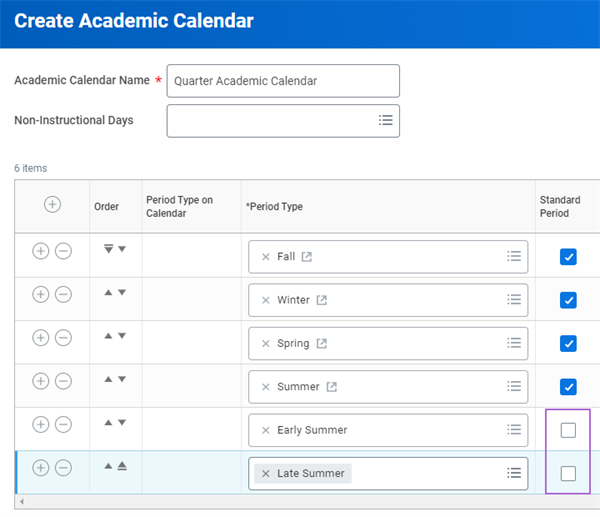
Defining Nonstandard Academic Period Dates
When you create an initial academic year using a calendar with identified nonstandard periods, you can also identify the date ranges for these periods. Note that you can add nonstandard periods to an academic calendar structure at any time, even if there are already academic years using that calendar.
For example, you can use the
Add Nonstandard Periods to Academic Calendar
task to add a new nonstandard period to the Semester Academic Calendar at AMU. Doing so adds the new nonstandard period to all academic years using that calendar structure. This functionality provides tremendous flexibility for your institution. You can create nonstandard periods to represent any period of time in an academic year to suit your institution's needs.Nonstandard Academic Period Records
You can configure distinct academic period records for your nonstandard academic period types. This enables you to process coursework and student statistics based on nonstandard academic periods. It also allows you to display them separately on students' academic history and transcripts, giving you more flexibility to meet your unique institutional needs.
Additional Training
: For more information on Nonstandard Academic Period Records, go to Workday Community.Displaying Non-Standard Academic Periods
When viewing a student's academic progress, non-standard academic periods do not explicitly display on a student's academic history or transcripts by default. The system includes the coursework from a non-standard period in the most appropriate standard academic period by date. For example, a student's progress from a non-standard "Early Summer" period will be included in the standard "Summer Semester" academic period on their student record.
You can also configure your student's academic period records to display non-standard periods separately from the standard academic periods that default in, regardless of overlapping dates. To do this, you can:
- Create or edit theTypical Attendance Patterntask, then select the Configure Nonstandard Period Types for Academic Period Records checkbox. This allows you to define the academic period types you want to display on the academic profile for students.
- Create or edit the Load Status Rule Set to define the full time/part time parameters for your non-standard academic periods.
- Create or edit the Class Standing Rule Set, then select any non-standard academic period types you want to include in the class standing calculations.
Note that the configurations described here only affect how the system displays non-standard academic period information. These configurations will not impact Student Financial or Financial Aid configurations or calculations. For more information on these feature configurations, visit Workday Community.
Date Controls
Date controls indicate when certain milestones, events, or deadlines happen during an academic period, such as enrollment windows, last dates to drop with a W grade, and grade assignment. Date controls follow both inheritance and the academic unit, academic level, and program of study configuration sets.
Set up date controls with the
Maintain Academic Period Date Controls
task. This requires an academic unit and level or program of study.Date Control Rules
You can create date control rules on academic period types and define individual date controls for an academic unit level configuration or program of study. Additionally, you can apply date rules to your date controls for academic period types on a calendar. This means you can set up generic rules that calculate actual dates and times for your date controls on all periods of that period type throughout that academic calendar. Date control rules are an optional configuration that helps you save significant setup time and enables you to configure multiple sets of date controls under the same academic calendar.
Date control rules may reference the academic period start/end or the academic period standard start/end for a given academic calendar. All academic period type date control rules follow inheritance. Create date control rules using the
Maintain Academic Period Type Date Control Rules
task.For example, Alma Mater University has a policy that final grading ends 5 days after the end of the academic period. Create a rule set to begin 5 days after the academic period end date for the final grade ending date. For the academic period specified and all subsequent academic periods, the date control rule applies.
Changing Academic Periods
Academic calendars have broad, system-wide impacts. As such, changing academic calendars is a controlled process meant to limit disruption to operations and prevent unintended downstream impacts. Using two separate tasks, you can change the shell of the academic period as well as the contents. Additionally, Workday provides general flexibility for editing calendars. To this end, you will have automatic uptake and manual tasks to manage calendar edits.
You can use the
Edit Academic Period
task to make changes to the shell of the academic period, such as name and time zone. Editing the shell of the academic period has little or no downstream impacts.You can use the
Edit Academic Period Dates
task to edit the dates of the academic period. After changing the dates of an academic period, Workday automatically updates:- Athletic team assignments and student residency data.
- Student applications, student application evaluation information, and student recruitment data.
You can use the
Refresh Financial Aid Based on Configuration Changes
task to apply calendar-based changes to financial aid configurations. As financial aid has independent cycles, processes, and time lines separate from academic records, this task provides greater control for when and how financial aid uptakes calendar-based changes.Academic Years
When establishing the academic years for your institution, start by creating an initial academic year. Here, identify the academic calendar structure previously configured to contain all of the necessary academic period types. This allows you to define the specific dates for the academic year. When creating an academic year, define the start, end, and standard end dates for each period defined in the academic calendar.
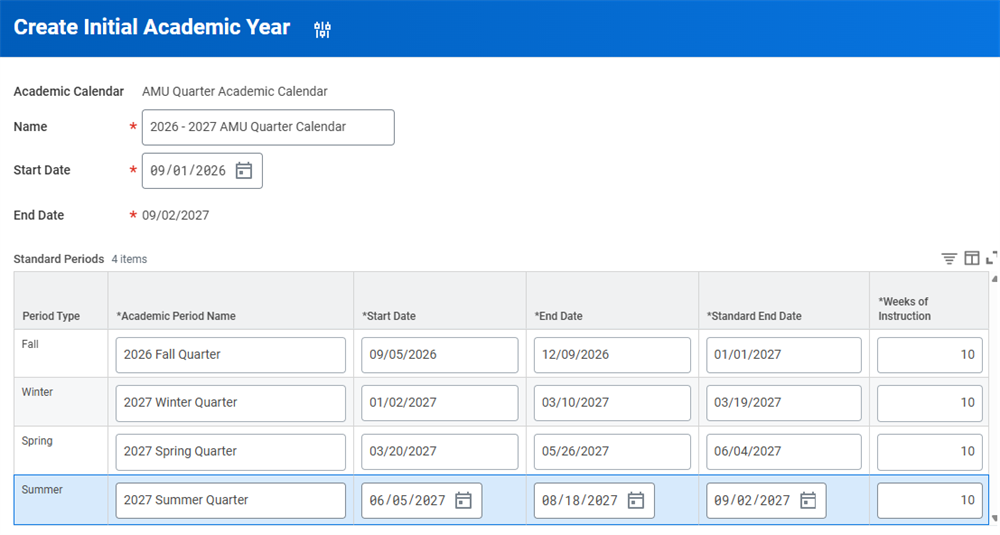
The Start and End dates mark the date range for academic instruction during an academic period. The Standard End Date field represents the end of the reporting window for an academic period.
Note
: By default, Workday automatically sets the standard start date as the day after the previous standard end date.After configuring the initial academic year, subsequent academic years inherit the date parameters from the initial year. You can edit the dates as necessary when creating new academic years.
Academic Calendars
After you configure academic period types, you can create an academic calendar structure. Use this calendar structure to create your institution's academic years. When creating an academic calendar, identify each of the period types you will use in an academic year. You can reuse this structure to create multiple academic years.
With an academic calendar structure in place, you can create an academic year that defines the specific dates for the academic periods within that year. The institution will continue to use this calendar structure for subsequent years.
Holiday Calendars
In addition to the period types you include on an academic calendar, you can also add a set of noninstructional days to an academic calendar. This allows you to identify national holidays, winter break, spring break, and other noninstructional days on an academic calendar. The system automatically adds these days to any academic years that use this calendar.
To configure these noninstructional days, use the
Create Holiday Calendar
task to create a list of planned academic holidays. Afterwards, you can identify this list in the Non-Instructional Days field on the Create Academic Calendar
task.Academic Period Configuration Considerations
There are additional aspects of academic periods that are important to consider when configuring your institution's academic calendars. Remember, academic periods drive many of the key processes that your institution runs on.
Workday Student Area | Academic Period Impact |
|---|---|
Student Recruiting | Anticipated Start : A prospect's anticipated start period can affect campus engagement plans and eligibility rules used in recruiting events. |
Admissions | Application Grouping : Workday sorts a student prospect into application groupings based on their Anticipated Start academic period or date. When you publish admissions decisions for that grouping, make sure the system correctly included the student. |
Academic Advising | Use academic periods to create attendance patterns to indicate if students at your institution typically attend the fall and spring semesters, for example. Use typical attendance patterns to create academic plans for students, which recommend what courses to take or academic requirements to satisfy for each academic period. |
Student Records | Curriculum management ties directly to academic periods; your institution needs to offer a certain number of sections per year to ensure student success. It is important to keep in mind how many academic periods are available to allow students to successfully complete a program of study within an allotted time. |
Student Financials | Creating multiple academic calendars with a variety of academic period types can create serious issues with your institution's financial management. The standard academic periods you define in your academic year determines all the tuition charge dates, due dates, and rolling due dates. |
Financial Aid | The dates defined in standard academic periods determine financial aid. Create and configure any non-standard periods with this fact in mind. Ensure students will be able to receive financial aid in a timely matter so that they will not become ineligible for course sections they need. Additionally, the system calculates financial aid awards based on weeks of instruction and cost of attendance. The academic periods configured within an academic year determine these aspects. Configure the periods to ensure that students receive the full financial aid package they require. |
Academic Calendar Policy
After defining your institution's academic periods and years, use an academic calendar policy to associate a calendar to an academic unit and level combination, or program of study. For each academic calendar policy configuration, identify the following details:
- Academic calendar (Semester calendar)
- Typical attendance pattern
- Student unit type (Units, Semester Units, Quarter Units)
- Starting academic year
You can change an academic calendar for a given academic unit and level combination, or program of study, using an academic year after the initial configuration.
Typical Attendance Pattern
The typical attendance pattern represents the number of academic periods and units per period that a full-time student typically enrolls in at your institution. Typical attendance patterns span one or more calendar policies as determined by you.
Academic Calendar Configuration Considerations
When creating the academic calendars for your institution, here are a couple considerations to keep in mind.
Academic Calendar Policy Considerations
Academic calendar policies define:
- The academic calendar
- Typical attendance patterns
- Student unit type for an academic unit and level or program of study.
Subordinate academic units then inherit these configurations. Workday effective-dates these policies, enabling you to change the calendar over time without impacting earlier academic years. For example, your institution can move from a quarter calendar to a semester calendar as of a given effective date.
Also consider the typical attendance pattern and student unit type policy defined on a calendar policy. The typical attendance pattern policy defines the periods a student usually attends in the standard periods of an academic year (e.g., fall and spring). The student unit type policy defines the type of course units the students within this academic unit earn by default (e.g., units, clock hours). If students take courses with a different unit type, those courses convert to the unit type defined in this policy.
Programs of Study Considerations
Make sure you have enough academic calendars and academic years to accommodate the longest program of study that your institution offers. For example, if your institution offers four-year programs, you must have at least four years' worth of academic calendars and years configured. This aspect of the configuration is especially important when building an initial deployment of Workday Student. Having enough calendars and years configured is crucial for curriculum management, attendance plans, student financials, and financial aid.
Multiple Calendar Configuration Considerations
At times, your institution may need to define additional calendar structures that differ from the set of standard periods you set for an academic year. This often occurs when specific programs of study in your institution operate on a different timeline than the standard set of academic periods. For example, your institution may have medical school, law school, or international programs that require students to perform coursework during date ranges that differ from the standard dates used by other programs.
You can create additional academic calendars for these types of programs and configure them using academic calendar policies. Remember that doing so may create issues later when managing student financials. Be sure to consider aspects like tuition due dates, rolling due dates, or charge dates when planning the academic calendars for your institution.
Grading
Grading is accomplished by creating a number of layered and stacked grade-related configurations:
- Grade Elements: Individual grade items. Grade elements can be any combination of letter or number.
- Grading Bases: Graded, Audit, Pass/Fail, and Credit/Non Credit are the options available.
- Grading Schemes: Collection of grade elements and the behaviors of grade elements.
- Enrollment Access and Grading Policy: This policy assigns grading schemes to academic units.
GPA calculation happens via delivered or custom calculations. Delivered GPAs include cumulative, academic year, academic period, institutional, and program of study. Custom GPA calculations occur via courses you choose. All GPA calculations use the grading-related items assigned using the Enrollment Access and Grading policy.
Grade Elements
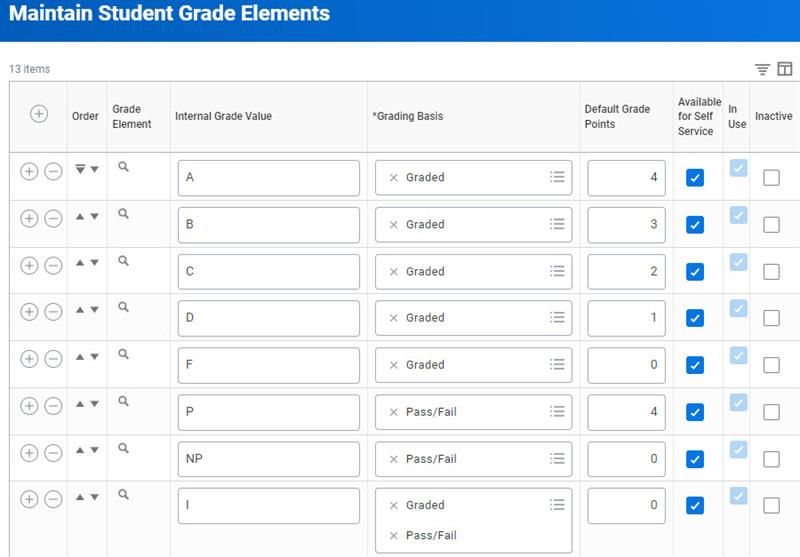
Grade elements are the individual grades assigned to a student to measure and determine academic completion. The
Maintain Student Grade Elements
task allows you to define all the grade elements used at your institution. When creating these grade elements, you can select:- The default number of grade points.
- Which of the grading bases the grade element is available for.
- Whether the grade is available in self-service for instructors to select.
Grading Bases
Grading bases determine the grading eligibility for a course section and the students within a course section. Workday delivers four grading bases: graded, audit, non-credit, and pass/fail. The grading basis for a course determines which grades are available to select when grading a student in a course section. Students also select from the grading bases available on the course when registering. When grading, the instructor can only select the grade elements associated with the grading basis the student selected during registration.
Example
: Biology 101 has allowable grading bases of pass/fail and graded. Alan Mon registers for Biology 101-1 and selects graded for his grading basis. The instructor can only assign grade elements from the graded grading basis for Alan. Conversely, Anthony Hines selects pass/fail. The instructor can only select pass/fail as an option when grading Anthony.Grading Schemes
A grading scheme defines the grades that a student can earn upon completion of a course. Grading schemes also define the behavior of the grades in depicting the academic record of a student. The following chart describes the fields to complete when creating a grading scheme:
Option | Description |
|---|---|
Grade Element | Select from grade elements you already defined on the Maintain Student Grade Elements task or create new grade elements. |
Grading Basis | Automatically populates from what you defined on the Maintain Student Grade Elements task. |
Grade Points | Automatically populates from what you defined on the Maintain Student Grade Elements task. |
Earns Units? | Workday uses this grade as a passing grade when evaluating the academic progress of a student. |
Include in GPA? | Workday can include this grade element in delivered GPA calculations. |
Repeated for Grade Improvement? | Workday permits course repeat registration when the student receives this grade under these circumstances:
|
Grade Category Type (Optional) | Workday uses the grade for the process you select here. For example, for a Grade Element of W, you select the Grade Category Type of Course Section Withdraw. When a student withdraws from a course section during the withdraw period, Workday:
|
Grade Note Required | You can only select this checkbox when you select Allow Grade Notes for Grade Category Type. When selected, a final submission of grades will require grade notes. Grade notes enable you to store important information for certain grades such as incomplete or failing grades. |
Last Date of Attendance Required | Workday will require a last date of attendance during grading. |
Public Grade Display | Enter how the grade displays on the academic record when it is different from the selected grade element (i.e., when used in transfer evaluation mappings). |
Display Grade Notes to Student | Workday will display all grade notes entered to students on their academic history. |
GPA Calculations
Workday has two types of GPAs: delivered and custom. Workday builds and maintains all delivered GPAs, which include:
- Academic period GPA
- Cumulative GPA
- Program of study GPA
You can create custom GPAs using courses you select. GPA calculation occurs automatically after many events, such as final grading. Additionally, GPA calculations include all courses taken by a student, and factor in the grade elements, grading schemes, and the Enrollment Unit Limit policies you set up.
You can also use smart lists in your GPA calculations. For delivered GPA calculations, you can use smart lists to determine which courses, if any, to exclude from GPA calculations. Use the
Configure Grade Point Averages Policy
task to identify a smart list of courses to exclude from a GPA.For custom GPAs that your institution defines, smart lists work in the opposite way. For these custom GPAs, you can use smart lists to identify which courses should be included in the custom GPA calculation.
Grading Business Processes
Grading students can take place in a number of different ways. Workday provides two types of grading: interim and final.
Interim grades serve as progress tracking and do not have any downstream impacts. You would typically use interim grades to track common mid-academic period grading times such as midterm exams. Only tasks that reference interim grading assign interim grades.
Final grading signifies completion of a course section and triggers all relevant downstream impacts.
You can use the following tasks to assign grades to students:
- Assign Student Grades
- Assign Student Grades for Student Course Section
- Assign Student Interim Grade for Student Course Section
You can also use an individual course section's Related Actions to access grading. The
Student Course Section Grade Event
business process controls grade submission. Changes to submitted grades use the Student Grade Update Event
business process.You can also process lapsed grades in Workday. Lapsed grading involves resolving an incomplete grade from a prior academic period. Use the
Find Student Grades to Lapse
task to initiate the lapsed grade process.Post Grading Job
Upon completion of the grading processes, as deemed by your institution, you will run the
Post Grading Jobs
task. This is a manual task in Workday that serves as the bridge to trigger other areas of Workday Student to leverage submitted grades in their own functionality. The other areas triggered by the Post Grading Jobs
task are:- Academic Standing
- Invalid Registrations
- Satisfactory Academic Progress
Academic Unit Policies
Academic unit policies allow you to define various policies for an academic unit. Students are subject to the policy you assign to their academic unit, level, or program of study. Academic units inherit academic policies from superior units, unless overridden.
Run the
Academic Unit Policy Viewer
report for a history of policies by academic unit or academic level across effective dates. The Academic Unit Policy Viewer allows you to select more than one policy when you select an institution. You can also select more than one policy when you select Academic Unit/Academic Level or Program of Study. Once you select your criteria, you can select multiple academic units, including their subordinate academic units and programs of study, or multiple programs of study. You can view all academic policies, except for institutional policies, if you leave the Academic Policy field blank. Additionally, you can filter by policies effective as of a particular effective date.Below is a list of the common academic unit policies, along with a brief description of each.
Academic Policy | Description |
|---|---|
Class Standing Policy | Defines rules for Workday-delivered class standings, such as Freshman, Second Year, or 3L. Class standing classifies students so that Workday can correctly process registration and financial aid. |
Load Status Policy | Defines minimum units that constitute the Workday-delivered load status values: part-time, full-time, and not enrolled. Financial aid load status determines the minimum number of units for load statuses used in financial aid packaging and the attendance plan. |
Enrollment Access and Grading Policy | Defines which students can enroll in which courses, as well as the grading scheme used for the courses. |
Enrollment Unit Limit Policy | Determines the minimum/maximum number of units students can register in during their enrollment appointment and open enrollment. |
Academic Standing Policy | Defines the rules to evaluate the academic standing of a student for an academic period. For example, define the grade requirements to identify students who meet minimum honors grade requirements. The Calculate Academic Standing for Student task can recalculate a student's academic standing at any time. You can optionally configure an Internal Review step to review academic standing changes before exposing the updated information to students. |
Student Transfer Grade Mapping Policy | Determine how grades from external institutions map to the grades at your institution. Students are subject to the grade-mapping rules you assign to their academic unit and level or their program of study. |
Course Unit Type Policy | Defines the default and allowed unit types for courses by academic unit and level. Workday uses this information in unit conversion. When the course unit type is different from the unit type of the program of study, Workday converts the units based on rules you set up. |
Course Repeat Policy | Defines the number of times a student may repeat a course for credit. |
Course Attempt Limit Policy | Defines the number of times a student may attempt a course for credit. |
Transcript Configuration Policy | Defines the transcript layouts and configuration for official and unofficial transcripts. |
Calendar Policy | Defines the calendar, typical attendance pattern, and student unit type. |
Program Credential Policy | Determines whether to grant credentials from a student's primary program of study, programs that are stackable with the student primary program of study, or from all programs of study on a student's record. Also determines whether to grant multiple credentials of the same type when applicable. |
Enrollment Access and Grading Policy
Grading Basis Selection Options
When configuring the
Enrollment Access and Grading Policy
task, you have a couple of different options to set specific grading bases as Default or Request Only.- Identifying a Grading Basis as Default will pre-populate that grading basis for students attempting to register for a relevant course section.
- Identifying a Grading Basis as Request Only means that students attempting to register for a course section with that grading basis will need to complete a questionnaire to explain why they are requesting that grading basis. This allows an administrator to review their responses and approve the request.
Note that this configuration is also flexible. You can use the Academic Unit Configuration column to identify which specific academic units and levels to apply each enrollment and grading rule to.
Enrollment Unit Limit Policy
The Enrollment Unit Limit Policy determines the minimum and maximum number of units that students can register in during their enrollment appointment and open enrollment.
Example
: You may determine that undergraduate students can register for a maximum of 15 units during their registration appointment, and a total of 18 units during open enrollment. Conversely, graduate students may only be able to register for 9 units, regardless of registration appointment status.Course Attempt Limit Policy
The Course Attempt Limit Policy sets limits on how many times a student may repeat a course to improve their course grade. You create these policies for academic units and academic levels through the
Maintain Course Attempt Limit Policy
.Important
: If you do not set up a course attempt limit policy, students may repeat a course without any restrictions.Academic Standing Policies
Academic standing policies measure student performance by assigning statuses based on students' academic achievement. Examples of these academic statuses include: Academic Warning, Good Standing, and Dean's List.
In order to set the criteria for a particular status, you must first create eligibility rules through the
Create Student Eligibility Rules
task. You can use the following types of rules to calculate academic standing: grade requirement, unit requirement, or combination.After creating your eligibility rules, you will use the
Create Academic Standing Rule Sets
to determine a student's status progression based on eligibility rules. For example, if you want to designate a student on Academic Warning if they have a period GPA of less than 2.0, you will assign that eligibility rule to that status.Once you have created these rule sets, you will use the
Maintain Academic Standing Policy
task to assign the academic standing rule set to an academic unit, level or program of study.Programs of Study
Programs of study (POS) represent the educational objectives offered by your institution. For example, a POS could be a Biology Major through which a student can achieve a Bachelor of Science degree, or a Culinary Arts program that results in a certificate.
Programs of study have wide-ranging implications across all of Workday Student. Therefore, it is important to properly configure the system and account for all the ways programs of study are used. From applications for admission requiring a POS, to financial aid eligibility and awarding, to financial tracking, programs of study are not just a central element of your curriculum, but are at the heart of your Workday Student configuration.
Note
: When creating a Program of Study, you will need to identify the owning academic unit and the owning academic level. You can update the owning academic unit as long as the new academic unit has its own calendar policy. To do so, use the Edit Program of Study
task. If you need to assign a new superior academic unit for a program of study, you can use the View Reorganization Conflicts for Program of Study
task to identify any barriers.Program of Study Type Categories
Program of study types determine the behaviors of programs of study. Each program of study type must be assigned a Workday-owned category, which includes information about whether the program can be:
- Standalone for entry: Stand alone as the program of study a student applies to.
- Standalone for exit: Stand alone as the program of study a student graduates from.
For example, an admitted student is in the Undeclared program of study, as this program is deemed standalone for entry. However, they must change to a standalone for exit program of study in order to graduate.
This table shows different program of study types and their standalone ability:
Category | Standalone for entry? | Standalone for exit? | Program of Study Type Examples |
|---|---|---|---|
Advisory Program | No | No | Pre-Professional, Transfer |
Auxiliary Program | No | No | Minor, Cluster |
Formalized Joint Program | Yes | Yes | Dual Program, Joint Programs, Dual Degree |
Non-Degree Program | Yes | No | Non-Degree, Visiting Students |
Official Programs | Yes | Yes | Program, Major |
Program Focus | No | No | Concentrations, Specializations |
Undeclared Program | Yes | No | Undecided, Exploratory |
Program of Study Types
Program of study types classify the programs of study offered by your institution. They also control the configuration options available to programs of that type. You can configure a program of study type to standalone, grant credentials, and have concentrations, e.g., Certificate, Major, Non-Credit, or Program (often used at the graduate or professional level).
Use the
Maintain Program of Study Types
task to configure your programs of study types.Program Focus
If a program of study has a concentration or focus, you can indicate it by selecting the Program Focus required checkbox. You then indicate whether an individual program of study for that type requires a program focus.
For example, if the Music Performance major has a bass concentration, you need to make sure the following configurations are in place:
- For the major program of study type, you must select the Program Focus Required checkbox.
- For the Music Performance major, you must select the Program Focus Required checkbox.
- A program of study for bass must exist, with a designation of program concentration, and you must associate it with the music performance major.
Educational Credentials
Educational credentials are the credentials a student at your institution receives upon completing a program of study, such as a Master of Arts or a Health Care certificate. Workday supports the following credential types:
- Award
- Badge
- Certificate
- Certification
- Degree
- Diploma
- License
- Licentiate
When creating a program of study, you can specify which educational credential or credentials, if any, the program confers upon completion. For example, a student with a Biology major may choose to pursue a Bachelor of Arts or Bachelor of Science degree.
You can configure the educational credentials used for entering external transcripts, student applications, and transcript eligibility rules. This enables you to print commencement bulletins, evaluate requirements, and generate reports with greater accuracy. You can also define the educational credential usage as internal or external, making it easier to maintain the educational credentials used by your institution.
When creating or editing a program of study, you can also indicate whether or not the program is capable of conferring multiple credentials upon completion. Select the Grant Single Credential checkbox to indicate that this program will only confer a single credential, identified in the Default Credentials field, upon completion. Conversely, use the Other Available Credentials field to select one or more additional credentials that the program can confer in addition to the default credentials. This allows you to confer multiple credentials for that program upon completion.
This configuration works in conjunction with the Program Credential Policy configuration in your tenant. For more information on configuring this policy, visit Workday Community.
Program Areas
Program areas allow you to group programs of study that may belong to different academic units. For example, your institution may wish to group all science, technology, engineering, and mathematics (STEM) programs together. These programs may include programs in the College of Engineering and the College of Arts and Sciences.
First and Last Entry Dates
When creating a program of study, you should indicate the first entry date - the earliest date that students can matriculate into the program. This date can affect your recruiting and admissions processes.
If you select a last entry date, this indicates the last date that students can matriculate into the program if it's being discontinued. This end date does not affect students currently enrolled in the program.
Program Duration
Programs of study must also have a program duration. You can specify a program duration in weeks, months, or years and indicate the typical amount of time a student requires to complete this program of study. A number of areas within Workday use program duration, including financial aid (attendance plans, SAP) and advising (program completion date).
Intended transfer institutions and programs of study enable a student to designate an institution and program they wish to transfer to as part of their declared POS at your institution. Use the
Add Intended Institution and Program of Study
and Add My Intended Institution and Program of Study
tasks to manage intended transfer institutions for administrators and students.Program Minimum Coursework
You can configure Program Minimum Coursework on the Program of Study directly on the definition using the
Create Program of Study
task. The Program Minimum Coursework field displays the default value inherited from the federal student aid program policy, if any. You can override the default value for a standalone program of study.You define this field so that a Financial Aid administrator knows the defined program length. Use this field to evaluate if a student is making satisfactory academic progress, so they can continue to get awards properly, within the right allowances, boundaries, and rules.
Coordinating Academic Unit
Coordinating units enable different reporting and security functionality. Therefore, you can have a program of study and coordinating academic units with different owning academic units. An individual can view students in that program of study with an assigned role and the proper access on the coordinating unit. The
Create Program of Study
and Edit Program of Study
tasks follow routing of the owning AU, coordinating AU, or both.Program Of Study Relationships
When a student enrolls in one program of study, completing that program closes that academic record. However, many students sign up for multiple programs of study. Some examples include:
- A student completing both a major and a minor program concurrently.
- A student enrolling in a Nursing program with an immediately subsequent Pre-Med program.
- A student double majoring in Computer Science and Electrical Engineering.
In these instances, students can add multiple programs of study. Enrollment in multiple programs follows the addable/stackable relationships determined on the
Create/Edit Program of Study
tasks. Once created, you can manage the relationship between programs of study and relevant academic records through program bundling on the Add/Change Program of Study for Student
tasks.Addable Programs
Addable programs of study are programs that students can enroll in and complete in the same time frame. Consider all new programs of study you create addable, by default, to all other programs in your system. When a student enrolls in multiple programs of study, they choose which program is their primary program of study. Students must complete any additional addable programs within the same time frame as their primary program of study.
Example
: Amalia Zavala is enrolling in a Biological Sciences Major program of study as their primary program with an Applied Chemistry program as a minor. If the Applied Chemistry program is addable, they must complete it at the same time as the Biological Sciences Major program.This functionality provides the basic framework for students who want to complete multiple programs of study concurrently.
Stackable Programs
Students can complete stackable programs of study independently from one another, including the primary program of study. That means a student can complete a secondary stackable program before or after completing their primary program of study. As determined on the program of study definition, only stackable programs enable completion of a different program outside of a primary program's completion date.
Example
: Amalia Zavala is enrolling in both a Biological Sciences Major program and a Teaching Credential Certificate program. Amalia begins coursework for the Teaching Credential Certificate program at the end of their junior year. Amalia does not complete the certificate until at least one year after they complete their Biological Sciences Major. For this scenario to work, the Biological Sciences Major program must identify the Teaching Credential Certificate program as a stackable program.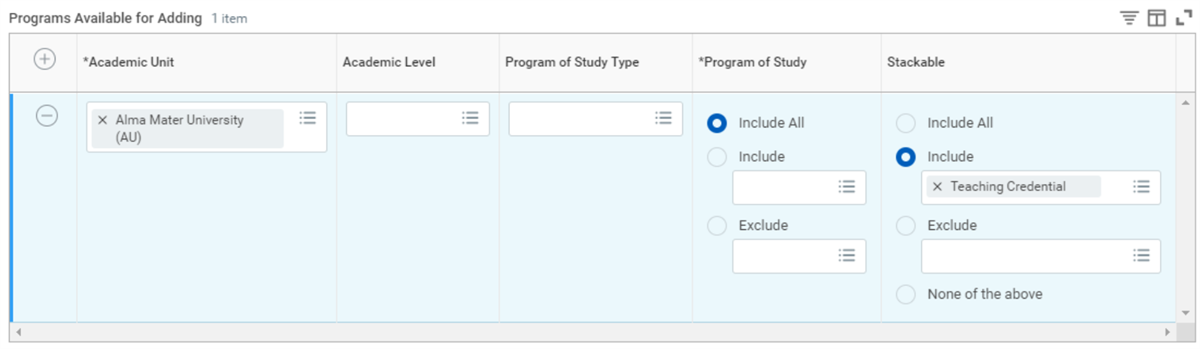
Program Of Study Bundling
Program bundling defines relationships between programs of study, and happens through addable/stackable programs. While addable/stackable defines the rules of a program relationship, program bundling applies these rules for individual students. Program bundling exists across all POS types, including advisory programs. A few examples of program bundling include:
- A major has a minor, that students cannot complete as a solo program, bundled with it.
- A student completes one program of study and adds another program to the same academic record.
Both administrators and student self-service can complete program bundling via the
Add/Change Program of Study
tasks.Program Credentials
Program entry requirements allow for additional logic post-admissions to determine program admission. Program entry requirements use eligibility rules to allow you to determine set criteria students must meet in order to add a program of study. The
Configure Program of Study Entry Requirements Policy
task manages all program of study entry requirements. Additionally, you may also assign questionnaires to solicit additional information in the program change approval process.Programs Of Study Change
Programs of study evolve over time to meet your institutional curriculum changes. Making changes to programs of study occurs in one of two methods: editing and versioning. Deciding which method to reflect POS changes is important, as you must consider downstream impacts and auditing changes.
Editing
: Using the Edit Program of Study
task (available from the program of study's Related Actions) allows you to make changes to fields within the POS. Workday does not track these changes as part of an audit, and all changes override current data.Versioning
: This displays on the last tab of the POS definition. Each version allows you to create separate instances of the POS, separated by different effective dates, that can exist simultaneously within your curriculum.When making a change to a POS, Workday suggests that you use the edit task for inconsequential, noncurriculum changes. An example would be editing an abbreviation, fixing spelling errors, etc. When you make a more major change to the structure of the POS, consider using versioning to create a new instance of the POS. Students can use different versions of a POS, pending the effective date (catalog year).
Program Of Study Entry Requirements
Program of study (POS) entry requirements determine a student's eligibility to add or change into a program of study. POS entry requirements help ensure the right students enroll in the right programs. For example, you might want to prevent undergraduate students from adding or changing into graduate programs. Use the
Configure Program of Study Entry Requirements Policy
task to configure entry requirements for a POS. View the Academic Advising chapter of this course for instructions on creating eligibility rules.Assigning Program Of Study
Workday has five ways you can assign (or remove) programs of study to a student:
- Add a Program of Study: Access via theOverviewreport on the Academics profile group.
- Change a Program of Study: Access via the Request option on theOverviewreport on the Academics profile group of the student profile.
- Remove a Program of Study: Access via the Request option on theOverviewreport on the Academics profile group of the student profile.
- Add an Advisory Program: Access via theOverviewreport on the Academics profile group of the student profile.
- Make a Program of Study Primary: Access via the Request option on theOverviewreport on the Academics profile group of the student profile. Select Request > Make Primary Program of Study.
To control the assignment of a POS to a student, use these four business processes:
- Add Program of Study Event
- Change Program of Study Event
- Remove Program of Study Event
- Change Primary Program of Study Event
Program of Study in Workday Student
With configurations, programs of study can drive actions for multiple areas of Workday Student beyond records and advising. For example:
Recruiting
: Identify student prospects with a specific program of study interest.Admissions
: Create selective admissions processes to evaluate a student based on program of study criteria.Financial aid
: Produce financial aid record snapshots to calculate a student's program of study load status to include units for certain courses that apply to the POS.Student financials
: Create charges or differential tuition specific to a program of study.Cross-Student Configurations
Cross-Student Configuration Impacts
Workday Student is a singular system of record across all aspects of the student life cycle. The core architecture of Workday Student connects each of the functional areas together, creating a seamless experience. As such, many configurations in one functional area can have potentially significant downstream impacts to another functional area. Records and Advising serves as the central hub of Workday Student. Areas of configuration discussed in this class typically impact other functional areas significantly. Below are some examples of the areas of consideration where configuration and changes to date will impact other functional areas within Workday Student.
- Program of Study:Student recruiting and admissions leverage programs of study in the recruitment assignment, interest tracking, and application submissions. Financial Aid also uses program of study configurations to determine satisfactory academic progress for award eligibility.
- Date Controls:Financial Aid and Student Financials use several dedicated date controls (e.g. Returning/Entering Student Awards Display, Pell Recalculation, Anticipated Disbursement, Payment Plan Sign Up Window). Date controls for students withdrawing from courses without a record impact and relating to registration fees can have additional impacts to a student's financial status as well.
- Academic Policies:Many of the academic unit student policies impacting academic progress, class standing, and student payment plans have far reaching impacts in Student Financials and Financial Aid. There are several required Financial Aid-specific policies in your system.
- Academic Progress:The combination of program of study configurations and related academic policies will impact a student's ability to qualify for financial assistance.
Student Privacy and FERPA
The Family Education Rights and Privacy Act (FERPA) determines individuals' access to student data. Students have the option to invoke their FERPA rights and limit data access in Workday by using the
Manage My Privacy Settings
task (Manage Privacy Settings for Student
task for administrators). Students can then elect which data displays in the public directory, if any. If a student chooses not to display their data, Workday appends "(private)" next to their name on their student profile.Configure Student privacy settings by using the
Configure Student Privacy Description
and Configure Directory Information for Institution
tasks.Locations
Workday uses locations throughout the system, such as a worker's office location. In Workday Student, locations identify a campus, the locations of student recruiting events, or course sections.
For course usage, consider these specific location configurations:
Business Site
: Use Business Site if the location has an owning address, such as a building.Instructional
: Use Instructional if the specific location hosts teaching a given course section.Location Type
: Use Location Type to determine the type of location (i.e., classroom, campus, building)To use an instructional location with a course section, a given location must be subordinate to a location with a campus usage, and assigned to an academic unit.
Locations are designed to form a hierarchy by indicating which location is a part of another.
Note
: Assigning course locations is different from a location hierarchy, which is an object in Workday that facilitates security assignment and can group locations geographically.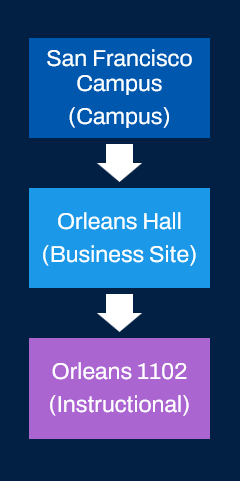
Note
: Course sections may also use a campus location. Campus as a course section location provides a general location before assigning a final location. Time and room conflict checking does not apply to campus locations.Commonly Used Tasks and Reports – Academic Foundation
The following tables list the useful and commonly-used reports and tasks for the topics covered in this chapter.
Academic Structure
Tasks |
|---|
Maintain Academic Unit Subtypes |
Create Academic Unit |
Maintain Academic Levels |
Configure Academic Unit for Level |
Edit Academic Unit for Level Configuration |
Create Application Grouping |
Configure Calendar Policy |
Reports |
View Academic Unit Subtypes |
Find Programs of Study |
Find Academic Levels |
Find Academic Unit Level Configuration |
View Academic Levels |
View Academic Unit |
View Application Grouping |
Academic Calendars
Tasks |
|---|
Maintain Academic Period Types |
Create Academic Calendar |
Create Initial Academic Year |
Create Next Academic Year |
Create Previous Academic Year |
Reports |
View Academic Calendar |
Find Academic Calendars |
Find Academic Periods |
View Academic Period Types |
Find Academic Years |
Academic Unit Policies
Tasks |
|---|
Maintain Academic Standing Policy |
Maintain Class Standing Policy |
Maintain Enrollment Access and Grading Policy |
Maintain Typical Attendance Pattern Policy |
Maintain Academic Standing Policy |
Maintain Student Transfer Grade Mapping Policy |
Maintain Course Unit Type Policy |
Maintain Course Repeat Policy |
Maintain Course Attempt Limit Policy |
Maintain Program Completion Application Policy |
Reports |
View Academic Unit Policies as of Date |