
Reporting Overview
Overview
Workday delivers many standard reports that you can use for your institutional analytics. Workday Report Writer also allows you to create custom reports by either copying and modifying a standard report or creating your own report from scratch. All reports adhere to your security configurations, so you have the comfort of knowing that only people with access can see critical data. In this chapter, you will review Workday reporting capabilities and see how they can apply to your institutional needs and processes.
This chapter will only begin to scratch the surface of Workday reporting capabilities. After reviewing this chapter and completing this course, Workday encourages you to check out the Report Writer class. This class is on the Workday Learning Center. The Report Writer class will teach you how to build custom reports from scratch and really unlock the power of the Report Writer tool.
Objectives
By the end of this chapter, you will be able to:
- Describe the report types delivered by Workday.
- Run a standard report.
- Copy a custom report.
- Create a custom report.
- Identify the security options for a report.
Reports in Workday
Workday designs report for the functional user. They are easy to deploy, with a simple-to-use, consumer-friendly interface. The application builds in reports, allowing users to act on the report output directly from the user interface. Reports in Workday also use your security configuration. This allows you to access real-time, relevant data where you need it and how you need it.
You can use reports in integrations, access them from mobile devices, and embed them in business process transactions to provide relevant data for decision-making. You can also further format reports into business forms and pixel perfect layouts using the Report Designer tool in Workday Studio.
Workday delivers reports in two ways:
- Standard (Workday-delivered) reports made with the Report Writer or XpressO tool.
- Custom reports made with Report Writer tool.
Report Navigation
There are a few ways to access reports in Workday. Here are some common methods:
Navigation Method | Description |
|---|---|
Search | You can use the Search box to find and run reports in Workday. You can use the categories along the left side of the Home screen to further refine the results. You can use an object definition's Related Actions icon to act on a given object. For a custom report, you can use the report definition's Related Actions to edit the report. |
Sitemap | The sitemap in the main menu lists available reports and tasks for different functional areas within the Workday system. Selecting a report name runs the report. Note that using the sitemap, users only see delivered reports and tasks that they have access to. You must have access to Landing Page Sitemap security domain to access the sitemap. |
Workbench | The Workbench landing page provides quick and easy access to existing tasks and reports that technical administrators and implementers need. You can access all the tools you need to create and manage custom reports, calculated fields, and analytic indicators from one, convenient location. This landing page also helps to highlight new and existing functionality you may not be familiar with. |
Note
: Note that a report is an object. Once you find your report, you can use the Related Actions menu to initiate the additional report tasks.Search Prefixes
When navigating to reports using the Search box, you can use search prefixes to limit the results. To view a list of all supported search prefixes in Workday, enter "?" in the search box. To search using a search prefix, enter "<search prefix>: <specified string>" in the Search box. For example, you can enter "rd: student" to search for custom reports using a search string. The following table lists common reporting search prefixes:
Search Prefix | Search Results |
|---|---|
rd | Searches for custom reports using a search string. |
rdt | Searches for custom report definitions using a report tag. |
field | Searches for fields (including report fields) using a search string. |
Standard Reports
Workday delivers standard reports developed and provided to all customers. You can define the two types of reports delivered by Workday as either Workday Report Writer or in XpressO, which is an internal development tool in Workday. You can copy standard reports designed with Report Writer to create a custom report and then modify as needed.
You can use the
Workday Standard Reports
report to view Workday-delivered reports. When you run this report, it asks you to select the category whose reports you want to list. You can select as many categories as you want. Security Note
: The Workday Standard Reports
report shows all standard reports and categories, even if you do not have security permissions to access the menu category or the report. You must have access to the Custom Report Administration security domain to run the Workday Standard Reports
report.Workday Standard Reports Display
Below are the columns displayed in the report:
Term | Definition |
|---|---|
Category | The category for the standard report. |
Report | Contains the related actions you can take on the standard report. |
Name | Name of the standard report. |
Description | Description of what displays in the report. |
Type | The type of report: either XpressO or Report Writer. XpressO reports are created using a proprietary programming tool that provides special capabilities for building reports. You cannot copy and then modify these reports using the Report Writer tool. Report Writer reports are created using the same Report Writer tool that is available to you. You can make a copy of a Report Writer report, change it any way you want, and then save it. |
Schedulable | Indicates whether a report can be scheduled. |
Domain | Shows the name of the domain where the report is secured. Users must have access to one of the security domains to run the report. |
Custom Reports
You can design and build custom reports using the Workday Report Writer tool. You can create new reports in the system, or copy another standard or custom report. As with standard reports, you can obtain additional information on report results and use related tasks to perform actions within a custom report. You can also download the information to an Excel sheet or PDF document or enable it as a worklet. Additionally, you can use advanced reports for web services.
Every custom report has a report owner, which is the user who originally created or copied the report. This user is the only person who can make changes to the report definition or share the report with other users. Only the report owner and the report administrator can transfer the ownership of a report from one user to another.
Locating Custom Reports
The
All Custom Reports
report displays all custom reports in the tenant. You can use these custom reports as a starting point for new custom reports.Custom Report Types
Workday Report Writer provides the following report types for creating custom reports and custom analytic solutions:
Report Type | Description |
|---|---|
Simple | Simple reports provide straightforward design options for the beginning or occasional user to create reports quickly and easily with limited options. You cannot share simple reports with other users. When you create a simple report, you will not have access to advanced filtering. Once you create a simple report, you can convert it to an advanced report. |
Advanced | Advanced reports provide all the features of a simple report, as well as more advanced features. For example, you can use an advanced report to access related business objects and produce multiple levels of headings and subtotals. Enable the use of subfilters, runtime prompts, charts, worklets, report sharing, and the ability to expose the report as a web service. |
Matrix | Matrix reports form the foundation for custom analytics. Allow you to group data, summarize metrics for those groupings, and then further drill into the summarizations by other dimensions or fields. |
Search | Search reports display search results based on values selected for facet filters on the report. |
Transposed | Transposed reports interchange the rows and corresponding columns on the report. |
nBox | nBox reports count data and display the results in a two-dimensional matrix. |
Trending | Trending reports are similar to matrix reports but with a time period element. Used to report and analyze trended worker data over a period of time, such as headcount, attrition, or trended journal data (e.g. supplier invoice accrual or sales averages). |
Composite | Composite reports allow you to combine several existing matrix reports into one report. Each matrix report is considered a sub-report and can have its own data source. The resulting composite report can then display data across multiple data sources. |
Data Sources
The first and most important step in developing a custom report is choosing a data source. The report data source is the view or selection of instances of a given primary business object. This is essentially the starting data for your report.
A Workday business object can have several standard data sources associated with it, each representing a different filter or selection into instances of that object. A data source can contain all instances of the primary business object, or it can have built-in filtering logic defined by Workday. If it has built-in filtering, you can build the filtering comparison values into the data source. You can also design them to prompt the user for the comparison value when running the report.
Example
:The Student Prospect Records data source contains all prospect records that a user can access. For that data source, you can also use the Active Student Prospect Records data source filter to only return prospect records with an active recruitment or active application.
The Student Prospect Records for Printing data source includes built-in logic to return student prospect records along with printed item engagement runs. Reports using this data source include built-in prompts for users to select a Student as well as Printed Engagement Item Printing Run.
Workday delivers and defines the data sources. Custom reports can only have one data source. Each data source has a primary object, as well as many secondary objects that have a one-to-one (1:1) or a one-to-many (1:M) relationship to the primary object. The result is that when you report against a particular data source, the output yields one instance (row) for every instance of the primary object.
Choosing a Data Source
When creating a report, choose the data source that returns the smallest dataset that still includes all needed data. This is more efficient than using a data source that returns a larger dataset and applying filters to only display a subset of the data.
Security domains control access to data sources. The security access defined for a data source controls whether a user can create or run a custom report based on that data source. Workday may deliver different data sources for a single primary business object to allow reporting on different sets of instances, based on the user's security access. Only data sources authorized for security groups assigned to you will display in the prompt list.
The
Data Sources
report lists all Workday-delivered data sources grouped by their primary business object. This report is a valuable resource determining which data source to use in your report. It gives a description of each data source, lists built-in prompts, and displays which security groups have access to it. For indexed data sources, the report also list data source filters.Indexed Data Sources
Workday optimizes indexed data sources for performance, aggregation, and faceted filtering on large volumes of data. For optimal performance, use these whenever possible.
When creating a custom report based on an indexed data source, a prompt enables you to select from a list of predefined filters, if available. Like data sources, data source filters secure filters so users will only use filters that they have access to.
To gain the performance benefits of indexed data sources, use indexed delivered fields. Though you could use nonindexed fields, you would not have indexing benefits. Additionally, you can index fields for different purposes. The biggest impact to performance would be using a field for grouping, aggregation, or filtering that is not indexed for those purposes. Nonindexed fields in detailed reporting do not have as great an impact to the overall performance.
Resource
: To find a list of indexed data sources, run the Data Sources
report in your tenant. You can then filter the results by data source type or category to find a list of indexed data sources that are applicable to your report needs. You can find more information about report performance on Workday Community.Student Indexed Data Sources Examples
The following is a sample list of indexed data sources available in Workday:
- Academic Plan Items
- Student Academic Requirement Assignments
- Student Application Action Items
- Student Applications
- Student Prospect Records
- Student Records
- Student Recruiting Events
- Students
Identifying Data Sources
In Workday, one of the most difficult parts of creating custom reports is identifying the correct data source to use. Ideally, you want to use a data source that contains the information you need without too much extraneous data. Using a focused data source and data source filter helps your reports run quickly and efficiently.
Report Resources
The following reports are valuable resources for helping you explore and choose an appropriate data source and primary business object for your report.
Data Sources
The
Data Sources
report gives you insight into the details of each data source in the system. This report gives a brief description of each data source and the data that it contains. Locate a data source here and you can see details such as:- Built-in prompts
- Data source filters and descriptions
- Permitted security groups
- Primary business object
This report should be your first stop for evaluating a data source before creating a custom report.
Business Object Details
The
Business Object Details
report provides a comprehensive breakdown of each business object in the system. This report gives you details about the business object such as:- Custom and standard reports that use the business object.
- Data sources using the business object as the primary business object
- Fields associated with the business object
- Related business objects
This report is a great place to start when you are not sure where the data you need is contained in the system. Review the fields associated with each business object to identify which is best suited for your report. After identifying an appropriate business object, review the data sources associated with that business object to see which is right for your report.
Primary vs. Related Business Objects
Remember that the data source you select determines the Primary Business Object (PBO) for your report. The PBO determines which fields are initially available to include on the report as columns or filters.
On certain report types, such as advanced reports, you can also bring in fields from Related Business Objects (RBO). This gives you the flexibility to tie data from multiple data sources into one report. The
Business Object Details
report provides insight into which business objects are related to your PBO. Review this report before selecting the data source and PBO for your report to ensure that you can also access any necessary RBO fields.Commonly Used Student Data Sources
These commonly used data sources in Workday Student can serve as a starting point for your report creation. Remember to review the
Data Sources
report for a given data source before creating a custom report.Student Recruiting & Admissions Data Sources
Data Source | Description |
|---|---|
Student Applications | Accesses the Student Application object and returns one row for each application. Includes data source filters with built-in prompts. Use this data source to list student applications and related data. |
Student Prospect Records | Accesses the Student Prospect Record object and returns one row for each prospect record. Includes data source filters. Does not include built-in prompts. Use this data source to report on student prospect records and related data. |
Student Engagements | Returns instances of Student Engagement Record, which hold the basic information related to an engagement record between a Student, a Student Engagement Container (Plan, Recruiting Event, etc.), and a Student Engagement Item. Information for the returned objects include Engagement Category, Academic Unit, Academic Level, etc. as well as date-related information such as Standard Academic Period and Academic Year. |
Student Records & Advising Data Sources
Data Source | Description |
|---|---|
Students | Accesses Student as its primary business object and returns one row per student. Requires a data source filter. For reporting on student prospects, student applicants, or matriculated students, please use another data source. |
Academic Records | Accesses the Academic Record object and returns one row for each record. Includes all academic records. Includes data source filters. Does not include built-in prompts. You can use this data source to generate reports on students. |
Academic Period Records | Accesses the Academic Period Record object and returns one row for each student and academic period. |
Student Financials and Financial Aid Data Sources
Data Source | Description |
|---|---|
Student Charges | Returns all Student Charge instances. |
Student Payments | Returns all Student Payments that are created once a student makes a self-service payment, or if an administrator records a payment manually for a student. |
Financial Aid Period Records | Accesses the Financial Aid Period Record object and returns one row for each student and academic period. Includes all Financial Aid Period Records. Includes data source filters with built-in prompts. Use this data source to generate reports on student by academic period. |
Student Financials Period Records | Accesses the Student Financials Period object and returns one row for each student and academic period. Includes all Student Financials Period Records. Includes data source filters with built-in prompts. Use this data source to generate reports on student by academic period. |
Student Awards | Student awards for financial aid packaging. |
Report Fields
Like data sources, report fields can have access restrictions, although not required. Restricted fields only allow users in the appropriate security groups to access the field in a report definition and see data in that field when running the report.
When working with Workday custom reports, you can select available fields depending on your security. Workday can deliver these fields as report fields, calculated fields, or custom fields.
Business Object Report Fields
Workday stores your data as business objects, which are similar to database tables or worksheets in Excel. Just as a database table or worksheet has columns and rows, a Workday business object has fields and instances. Instances of a business object in Workday are like rows in a table or spreadsheet. Each instance represents a unique occurrence of that type of object, such as a given academic unit or student. A business object can have no instances, one instance, or many instances.
In addition to text, date, currency, numeric, and Boolean fields, a report's primary business object can include:
- Related business objects described by either single instance or multi-instance field types
- Single instance with a one-to-one relationship between the primary business object and the related business object (e.g., a student prospect is associated with only one application grouping)
- Multi-instance fields with a 1:M relationship between the primary business object and the related business object (e.g., an employee can have roles on many academic units)
The
Business Objects by Category
report displays the main business objects that capture and represent the data for a given search category. When you select a listed business object in the report output, you see the details of the business object. These details include available fields and related business objects.Calculated Fields
Calculated fields are configurable field definitions that allow users to perform simple arithmetic, date calculations, text manipulation, and logical expressions. They also allow users to retrieve of related data, formatting, and transformations of their existing data. You can use calculated fields in reporting, business processes, integrations, recurring processes scheduling, and other areas within Workday. You can also base calculated fields on existing Workday-delivered fields, other calculated fields, or available custom fields.
Custom Fields and External Data
Custom fields allow you to enter, maintain, and report on additional data not managed in Workday. Workday enables custom fields for a select list of business objects such as Worker and Job Profile. Please see the latest documentation for a full and complete list of supported business objects.
Integrations allow you to report on external data outside of Workday with custom fields. Workday provides access to a limited amount of external data that is a natural extension of Workday business objects. You can report on data that originates outside of Workday by creating an integration to a custom field (or set of custom fields).
Class Report Fields
Each data source has many class report fields (CRFs). These fields are the main source of information for your report. Each contains a different piece of information about the business object you identify with your data source. CRFs can be simple or object types. Simple types are not actionable and appear as black text. Object types are actionable and appear as blue text. System security controls access to class report fields.
A field type icon accompanies each class report field (CRF). Their icons and definitions are as follows:
Icon | Definition |
|---|---|

| Primary Object : This icon represents the primary object from the report data source. Using this field in a report, represents the outcome as a link accompanied with a Related Actions icon. The object's instance ID passes through to the XML output once the report publishes as a web service. This is also referred to as a self-referencing object. |

| 1:M Object : Adding a CRF with this icon produces output that could potentially contain a list of values. It is also called a multi-instance or multi-value field. This type of output usually links and includes an accompanying Related Actions icon (unless security offsets). The object's instance ID passes through to the XML output once the report publishes as a web service. |

| 1:1 Object : Adding a CRF with this icon will produce output represented as a link and usually include an accompanying Related Actions icon (unless security offsets). This field is often referred to as a single instance field. The object's instance ID passes through to the XML output once the report publishes as a web service. |

| Currency Field : This type of CRF represents a currency field. |

| Boolean Field : This type of CRF represents a Boolean or true/false field. |

| Date Field : This type of CRF represents a date field. |

| Numeric Field : This type of CRF represents a numeric field. |

| Text Field : This type of CRF represents a simple text field. |
Related Business Object Fields
In an advanced report, you can add fields from the primary business object, as well as fields from the related business objects. In the Columns tab, you specify the business object and field for the related data. A given custom report definition can include fields from more than one related business object. Additionally, you can select a field that links the primary business object (PBO) and the related business object (RBO) together.
Note
: When building a report using the Advanced report type, you can only access fields from related business objects that are one level deep. To access fields from related business objects that are more than one level deep, you will need to create a calculated field.Student Example of Related Business Object Fields
An Education Test Result field is linked to a report using the Student Prospect Record PBO to the Student RBO. This allows you to pull fields from the RBO into your report as well.
Copying Reports
Rather than create a new report, often you can copy an existing report. Let's explore how to copy both a standard and a custom report.
Copying a Standard Report
You can use Workday-delivered reports as a starting point for custom reports by copying and modifying them to meet your needs. However, you cannot copy all delivered reports. You can copy and modify Workday-delivered reports initially built using the Report Writer. You also cannot copy reports built in XpressO, a proprietary tool used by Workday developers. Use the
Workday Standard Reports
report to identify whether standard reports built using Report Writer or XpressO.There are two ways to copy a standard report. From the report's Related Actions, select Standard Report, and then Copy. You can also use the
Copy Standard Report to Custom Report
task. Note that to copy reports, you must have access to the Custom Report Creation security domain.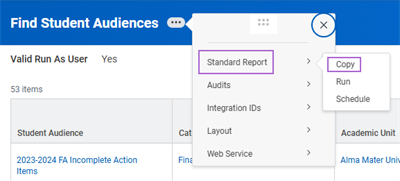
Copying a Custom Report
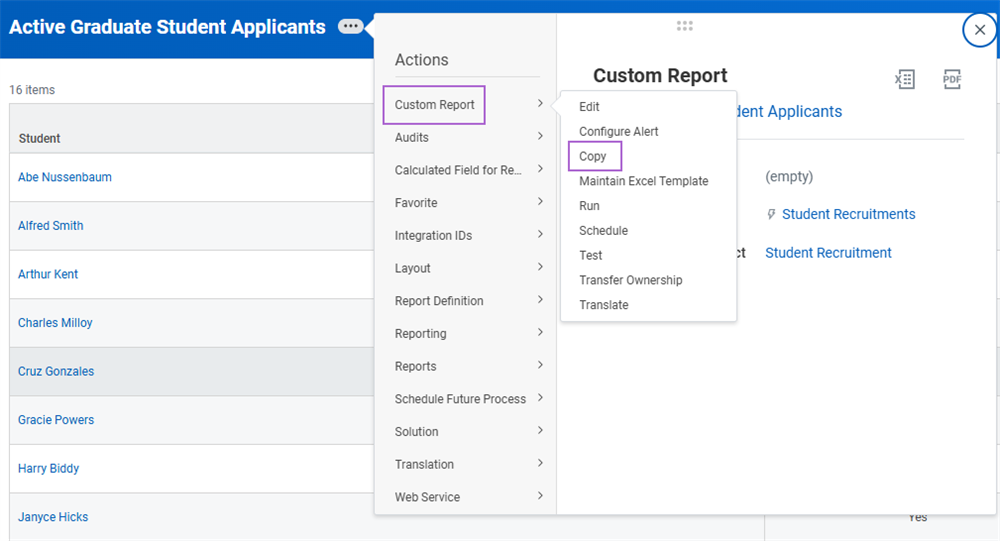
You can also copy existing custom reports that were initially written with Report Writer. From the report's Related Actions, select Custom Report and then Copy.
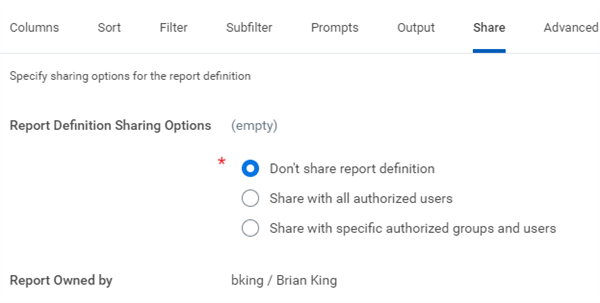
By default a new custom report is not shared with other users. Only the owner can view and run the report.
Creating Custom Reports
With Report Writer, you can create numerous types of custom reports to help you meet reporting needs not addressed by Workday-delivered reports. There are several ways to create a custom report:
- Copy a custom report.
- Copy a Workday standard report.
- Create a new custom report from scratch.
- Create a custom report based on the context of where you are in the application.
Once you create a report, you own it and can modify it as needed. If you share your report, other users can see the results of your changes immediately.
Create a New Custom Report
You can create a new custom report from scratch using the
Create Custom Report
task. When creating a report, you must specify the report name, report type, and data source. You can also select whether your report will be a temporary report, or if it will be web service-enabled. The Optimized for Performance checkbox is populated by default to limit available fields on the report to indexed fields only. However, you can unselect this checkbox if you wish.The data source you select on the
Create Custom Report
task determines the primary business object for the report and you cannot change it. You can only change the report's data source to another data source on the same primary business object.Temporary Reports
You can mark a report as temporary. Doing so means that the report has a defined period of time before it expires and becomes eligible for deletion in the tenant. By default, a report expires after seven days. For reports that are not the Simple report type, you can change the expiration information on the Advanced tab.
You can use the
Delete My Temporary Report Definitions
or Delete All Temporary Report Definitions
tasks to delete temporary reports that have expired and are eligible for deletion. You can schedule this task to run once or on a daily, weekly, or monthly recurrence. This process permanently purges expired reports from your Workday tenant.Security Note
: You must have access to the Custom Report Administration security domain to schedule reports for deletion.Note that if you create a custom report and then cancel the report, or if your session times out, your report saves as a temporary report. Be sure to either delete the report or change the report options so it is no longer a temporary report.
Additionally, you may not want to give all report writers the ability to create permanent reports that consume system resources indefinitely. Therefore, you can restrict specific Report Writer users so that they only have the ability to create temporary report definitions. Report Administrators can still access these temporary reports to mark them as permanent or change the expiration dates as needed.
Security Note
: The Ability to Create Only Temporary Reports security domain limits users configure to that domain to use only temporary reports. This access can support ad hoc reporting needs and can help separate groups of report writers in the tenant.Web Service-Enabled Reports
To use a custom report in an outbound integration (Reporting-as-a-Service), select the Web Service Enable checkbox. Selecting this checkbox also makes the report available to the Business Intelligence Reporting Tool (BIRT). You can set additional web services options on the Advanced tab.
Contextual Reporting
You can use contextual reporting to create and view related reports directly from the context of a given business instance. It can enhance your knowledge of fields, business objects, and data sources associated with a given instance. It also allows you to view existing related reports repurposed or customized in the context of a given business object.
You can create a custom report directly from many Workday business objects, in the context of where you are in the application. This option enables you to quickly build a report using data familiar to you. When viewing an object, such as a given employee or student, select Reporting from the Related Actions.
Contextual Reporting Options
The contextual reporting options are below:
Option | Description |
|---|---|
Create Custom Report from Here | Used to create a custom report from the context of where you are in the application. Workday automatically restricts the data sources available for the report to those that are based on the selected business object. |
Related Reports | Used to view the standard and custom reports that use this business object as the primary object on the report. You will only see a list of related reports that you have security access to. |
Report Fields and Values | Used to display all the report fields and values related to the selected business object and instance. It only displays fields that you are allowed to view. For each field, you can also see data sources that include those fields for reporting. |
Custom Report Options – Advanced Reports
When creating or modifying a custom report using the Advanced Report type, you can configure the report using these tabs:
Option | Description |
|---|---|
Columns | Specify the fields to include on the report and the sequence in which they should display. The columns grid contains one row for each field that should appear as a column on the report. Each row in the grid defines the business object, field, column heading overrides, and options for how the field should display. Security Note : You can only add fields that you have access to. |
Sort | Control the order in which data will be presented and grouped. This tab controls sorting data on the primary business object and sub-sorting data on related business objects. You can also specify options for displaying subtotals, grand totals, and outlines. If no sorting or grouping criteria is specified, the report will sort the data based on the first (leftmost) column associated with the primary business object, and the data will not be grouped or totaled. |
Filter | Specify how you want to filter the primary business object. A filter consists of one or more filter conditions, defined as rows, in the filter grid. |
Subfilter | Specify how you want to filter the related business objects. You can add subfilters for multiple related business objects. Each subfilter row corresponds to filter conditions for the particular related business object you select. |
Prompts | Specify prompt-related data about your report, including populating undefined prompt values. You can set default values for prompts so users do not have to enter values when running a report. You can also hide prompts that have default values, so users do not see them at runtime. |
Output | Override the default output options, including output type, worklet options, and help text. By default, a custom report renders as a table. You can change this to display the report as a chart, chart and table, or gauge. By default, a custom report is not enabled for use as a worklet, but you can change this setting. |
Share | Share the report with other users or groups. By default, a custom report is visible only to its owner. You can only share a report with users who have access to the report data source. Sharing a report with other users allows them to run and copy the report. Once they have copied the report, they can edit and share their version. |
Advanced | Define additional report options, such as enabling save parameters, enabling a report as a web service, or changing the expiration information for temporary reports. |
Report Security
The Workday security model controls access to reports and report data. Security domains control predefined sets of related securable items that include reports, tasks, report fields, data sources, and data source filters. You cannot change the securable items that make up a domain. Each domain has its own domain security policy that controls access to the securable items, including reports and report fields, in the domain.
For example, a report that uses the Student Prospect Record Workers data source might include the Full Name field and the Primary Home Address field. Whoever can access this data source can access the prospect's name, but Workday restricts the Primary Home Address field to its own set of security groups. Users viewing the report can only see the address if they are also in a security group authorized to do so.
Furthermore, there can be data sources or fields secured by role-based security groups, meaning that viewers can see only the instances that pertain to their organization. For example, administrators in separate academic units might each see the same report using a particular data source and fields. However, they can only see instances of students in their respective academic units.
The
Data Sources
report shows which security groups can access each data source. You can select a data source to see the report fields associated with it and which security groups have access to each.Creating Reports
To create a custom report, you must assign the Report Writer user-based security group to users and allow access to the
Custom Report Creation
security domain. In addition, users must have access to:- A security domain for the data source used.
- Security domains for any report added.
During report creation, prompts only show the data sources and report fields that you have access to.
The report owner and users with access to the
Manage: All Custom Reports
security domain can edit and delete a custom report. After you create a report, you are the only person that can see or run it. If you want other users to run or modify a copy of the report, then you must share that report with other security groups or users.Sharing Reports
A custom report is visible only to its owner and users who have access to manage all custom reports. By default, Workday does not share custom reports. When configuring a report, the Share tab allows you to share a custom report with authorized users. You can share a custom report with all users who have access to the report data source. Alternately, you can share a report with specific groups and users who have access to the report data source. The domain securing the custom report's data source determines which security groups you can share the custom report with.
Security Note
: You can control if report writers can use the different sharing options. Report writers must have access to these security domains to use the sharing options:- Domain: Report Definition Sharing - All Authorized Users
- Domain: Report Definition Sharing - Specific Groups
- Domain: Report Definition Sharing - Specific Users
Users can run any report shared with them, but they cannot edit the report. Only the report owner, and users who can manage all custom reports, can edit their own custom reports. However, a shared user can view the report definition and copy the report definition if the shared user is also a report writer.
Viewing Shared Reports
When a user runs a report shared with them, they see the report results based on their security access to the data source and report fields. To view a shared report, a user must have at least one of the security groups associated with the data source used to create the report.
Transferring Report Ownership
Users that create custom reports become the owner of that report. You can share the report with other users. Otherwise, owners (and users who can manage all custom reports) are the only users who can see and modify their custom report. If a report owner leaves the company or changes jobs, you must transfer ownership of reports to another user.
Use the
Transfer Ownership of Custom Reports
task to change the owner of one or more reports to a different user. The new owner must have access to the report's data source and report fields and have access to the Custom Report Creation security domain.Security Note
: You must have access to the Custom Report Administration or Manage: All Custom Reports security domain to transfer ownership of reports owned by other users.Scheduling Reports
You can use the
Schedule a Report
task to schedule a report or report group to run in the background. Report groups allow you to run multiple reports as a single unit.You can set the run frequency to run now; run once in the future; or set a daily, weekly, or monthly recurrence. When the report completes, the output stores in a user's My Reports section, accessible through their profile icon.
When scheduling a report, you can configure several options, including:
- Default values for prompts
- Recurrence criteria
- Report output
- Sharing the scheduled report with other users
Sharing Scheduled Report Output
If you choose to share a scheduled report's output with another user, they can access the report output from their My Tasks or their My Reports section. When running the
My Report Output Files
task or viewing My Reports
, users can search for report output using report tags.It is important to note that sharing a scheduled report's output is not the same as sharing the report itself. By sharing report output, you are specifically authorizing the specified users the right to view the report and its data exactly as you see it, regardless of their Workday security.
Configurable Alerts
Workday enables you to generate configurable alerts based on a custom report. You can configure alerts to send relevant business information to users based on virtually any condition for which you can create a report in Workday.
Use the
Configure Alert
task to tie together an alert with a custom report. The filter criteria in the custom report should define the conditions that trigger an alert. You can set the alert to run immediately, once at a specified date/time in the future, daily, weekly, or monthly. At the specified time, the system sends the alert to the target worker's My Tasks.Chapter 5 Tasks and Reports
Below are the commonly used tasks and reports for the topics covered in this chapter.
Tasks:
- Configure Alert
- Copy Standard Report to Custom Report
- Create Custom Report
- Delete All Temporary Report Definitions
- Delete My Temporary Report Definitions
- Schedule a Report
- Transfer Ownership of Custom Reports
Reports:
- All Custom Reports
- Business Objects by Category
- Data Sources
- Find Academic Unit Level Configuration
- My Report Output Files
- Student Nightly Job Orchestration Results
- Workday Standard Reports