
Business Process Configuration
Overview
The Workday business process framework lets you define and deploy business processes to suit the way your institution works. You can choose the tasks that compose a business process and in what order students must complete them. You can create variations of behavior within a business process using business intelligence. You can also create different configurations of the same business process for different organizations.
You can also configure business processes for any academic unit. Subordinate academic units automatically use the business process defined for the superior academic unit, unless the subordinate unit has its own version of the process. In this chapter, you will examine the structure of business processes and learn how to make common configurations to suit your institutional needs. You will also learn how to locate and modify business process events that have occurred in the system.
Objectives
By the end of this chapter, you will be able to:
- Describe the business process framework and configuration options.
- Make modifications to steps in a business process.
- Add configuration options to a business process.
- Identify the difference between a notification and business process step.
- Create a notification.
- Review a business process using the business process diagram.
- Describe the functionality and use cases for rule-based business process definitions.
- Manage business process events in the system.
Configurable Business Process Introduction
A business process includes tasks that when executed in order, cause a business event to occur. The business process definition specifies the security group responsible for each task or step in the process. The business process also notifies the workers in these groups and gets feedback on when each step is complete. Steps can also be conditional.
Workday includes many predefined business processes that the system identifies as default definitions. These default business processes provide customers with examples of business process definition configurations. The defaults are editable and users should update them to meet specific requirements.
Workday Student Business Processes
Here are some examples of configurable business processes used in Workday Student:
Functional Area | Business Process |
|---|---|
Academic Foundation |
|
Admissions |
|
Financial Aid |
|
Student Financials |
|
Student Records |
|
Student Recruiting |
|
Business Process Framework
The business process framework uses security groups to control who performs the activities that make up a business process. All activities are associated with security groups and not specific people. Therefore, workers can move in and out of those security groups and positions without disrupting the business process logic.
Business process definitions determine:
- Who approves or defines something that happened.
- What additional tasks are needed, and who completed them.
- Who needs to know something happened.
- Any additional system events that Workday needs to initiate.
Create business processes using a combination of: Approvals, approval chains, to-dos, checklists, and actions.
An action can be a single task or a subprocess. Within the process, defined conditions determine which steps the system initiates. You can also notify a Workday user or email address that a step has begun or been completed. Business process notifications can also indicate that a particular review response was selected (e.g., approved, denied, canceled).
Business Process Terminology
The following table lists common business process terminology and their definitions.
Term | Definition |
|---|---|
Business Process Definition | The list of steps (tasks) that comprise the business process and the security groups responsible for completing them. Workday includes several predefined business processes for different purposes. These are called default business process definitions. |
Business Process Instance | A business process that the initiator has started. For example, the Student Application Create Event business process definition becomes an instance when the initiator uses it to create a student application. |
Business Process Type | A business process delivered by Workday that can be automated using a workflow (e.g., Student Onboarding Event, Program of Study Event, Student Payment Event). |
Event | A transaction that occurs within your company, such as creating a program of study or admitting a student. Workday business processes represent how Workday should respond to one of these events. |
Initiator | The user that initiates the business process instance. |
Security Group | A group of people with specific responsibilities and permissions. When a business process runs, the step or task is sent to members in the security group configured for that step. In a role-based security group, the step includes all the workers in that role in the organization of the business process target. |
Target | The object affected by the business process. For example, for business processes that deal with a student record, the target is the student. For business processes that deal with a program of study, such as a create or edit event, the program of study is the target. Since the target determines the organization, it controls which business process custom definition Workday uses. |
Task | A business process step that a user must complete. For example, task alert notifications are triggered by steps in a business process. |
Business Process Definition Overview
Business process definitions include many different characteristics. The header section of the business process definition contains the following:
- The effective date
- The security groups allowed to initiate or kick off the business process event.
- A button to launch a visual representation on the process flow.
The body of the business process definition includes the following tabs of information:
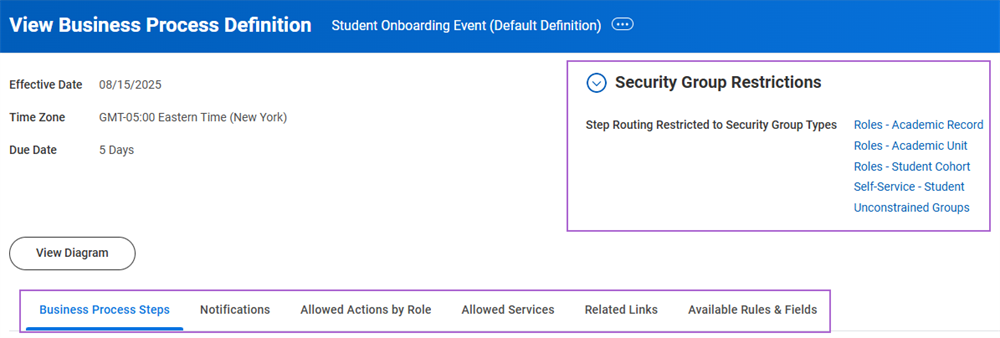
Business Process Definition Tabs
The following table provides a brief explanation of what is contained in each tab of the business process definition:
Term | Definition |
|---|---|
Business Process Steps |
|
Notifications |
|
Allowed Actions By Role | List of actions (i.e., review, sub-processes) allowed in the business process. |
Allowed Services | List of services (i.e., Create Workday Account) allowed in the business process. |
Related Links | Links to external web pages. |
Available Rules & Fields | List of fields and rules that can be used in a conditional rule. |
Business Process Steps
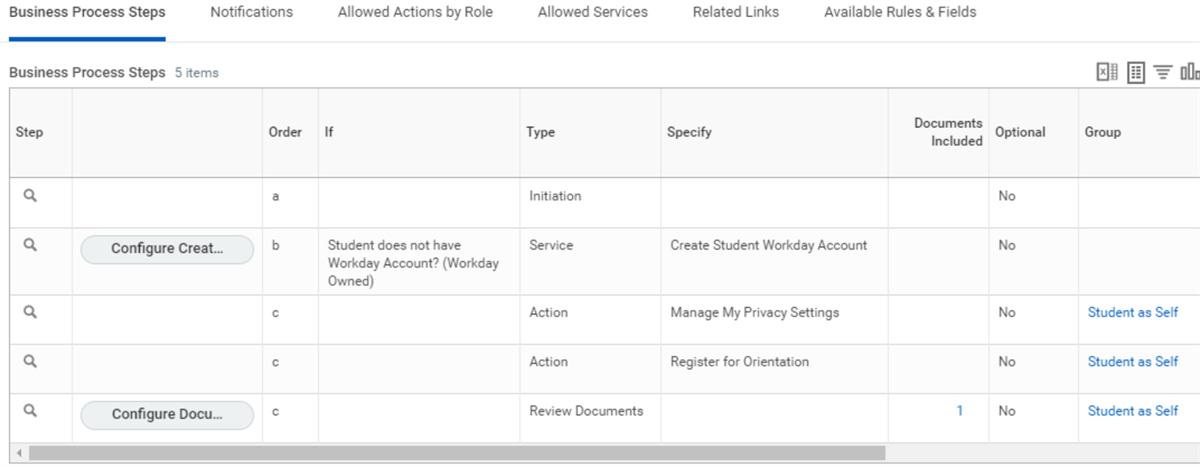
The business process steps identified in the business process definition represent the flow of the task controlled by that business process. These steps determine when a task is reviewed or approved, when an additional action will take place, or when a To Do step is executed. These steps also define which security groups are responsible for completing each step and by when.
Copying or Linking Business Process Definitions
Workday allows you to decide how to use business process definitions. Typically, Workday recommends using the default definition and condition rules to determine the execution flow. However, some situations require separate definitions for academic units where the execution steps vary greatly.
When creating a copy of a definition, you can edit the copy definition independently from the original definition. You can add steps and logic configurations pertaining to the specific organization. You can also link definitions to academic units. This results in a shared configuration.
Note
: You will not often copy or link business process definitions unless the execution steps vary greatly for a particular organization.Business Process Hierarchy Logic
Since you configure the organization-specific business processes in addition to the default definition, Workday uses a process hierarchy to determine which business process to use.
When the system initiates a business process, Workday checks within the transaction to see if a business process exists associated with the academic unit. If there is a specific business process for that unit, then Workday uses that one. If no specific business process exists for that unit, Workday checks the hierarchy looking for an associated business process definition tied to the superior academic unit. If a business process does not reside with any superior units along the hierarchical chain, Workday uses the default business process definition.
Copying Business Processes to Academic Units by Level
Creating an organization-specific business process for an academic unit allows the option to select an academic level to associate with that business process definition.
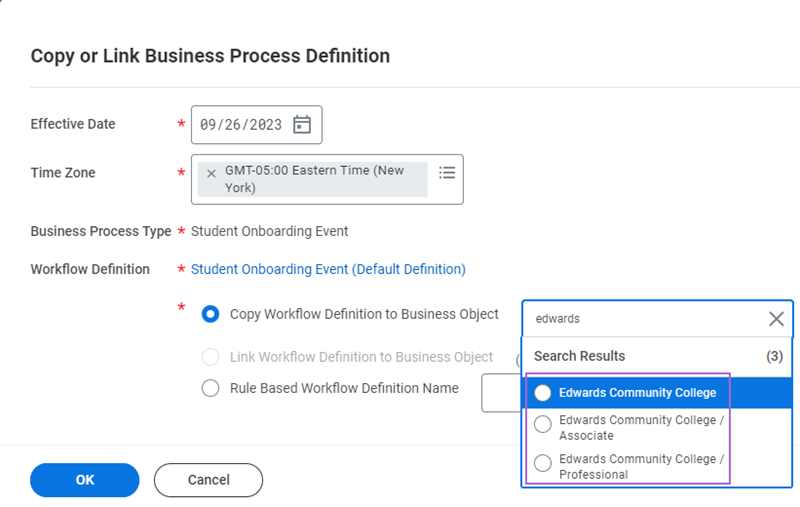
This option occurs when the academic unit selected is configured for more than one academic level. Selecting one of these options only applies to this business process definition when the academic level involved in the process matches that of the business process.
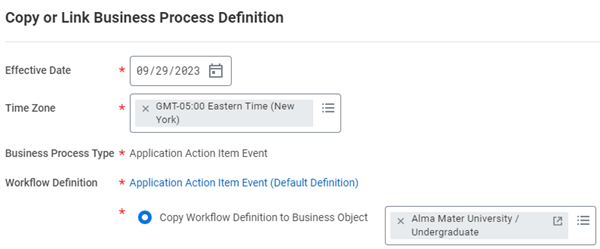
In the image above, the Alma Mater University academic unit was selected with the Undergraduate academic level designation. This selection means that the resulting business process definition only applies when the academic level of undergraduate was selected when the initiator created a new application action item.
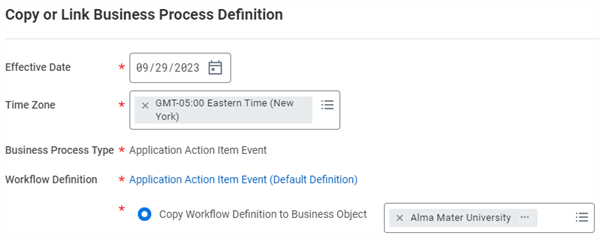
By selecting the Alma Mater University academic unit with no academic level designation next to it, the business process applies to any new application action item for the Alma Mater University, regardless of academic level.
Copying Business Processes to Supervisory Organizations
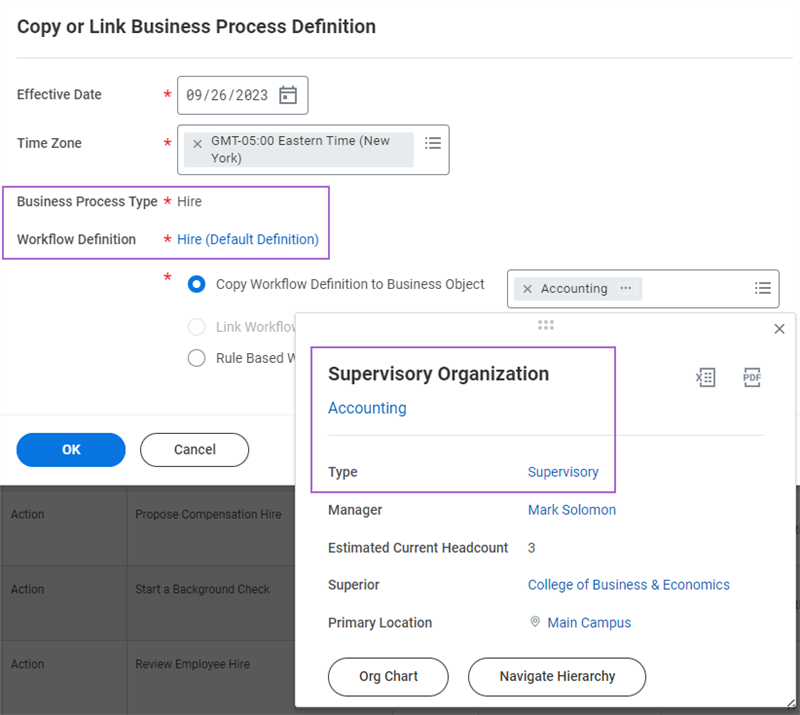
Depending on the business process type, you can also link or copy a business process definition to a supervisory organization. Doing so involves the same process as linking to an academic unit, without the need to select an academic level.
Note that you cannot copy many of the Workday Student-specific business processes to a supervisory organization. However, many of the Workday HCM or Financials-related business process types in your tenant are linked to supervisory organizations.
Defining Business Processes
Though you cannot create business process types, you can create and edit new definitions for Workday-delivered business process types. The Workday business process framework allows for configurations of new and existing business process definitions and their individual workflow steps.
Permissions, restrictions, and security groups included in a given business process definition are determined in the Business Process Security Policy for the business process type. Your institution's security administrators can edit your security policies.
All edits to a business process definition are effective-dated. New edits made to a definition do not affect business process transactions or events that have initiated and are already in progress. Only newly initiated transactions occurring after the edit pick up the new definition.
Depending on the desired action, there are several ways to edit a business process. You complete some business process configurations in Edit mode. You can complete these configurations in Edit mode:
- Add or remove steps
- Order steps
- Assign security groups
- Assign a due date
- Flag steps as optional
- Require all to act on a step
You complete other configurations in View mode, using the step's Related Actions. You can make these configurations in View mode:
- Add notifications
- Configure steps:
- Condition rules
- Step delays
- Advanced routing
- Step label override
- Step-help text
- Set as completion
Business Process Configuration Options
You can run the
Business Process Configuration Options
report for any business process or subprocess. The report returns all business processes that can use the subprocesses, detailing all available actions. It displays allowed approval options, usable subprocesses, and the options for saving after an available action, restriction, prerequisite action, and more.This sample
Business Process Configuration Options
report shows some of the available actions in the Student Onboarding Event
business process, along with options for saving those actions. The report also shows subprocesses that you can initiate, prerequisite actions that occur before the actions, and restrictions.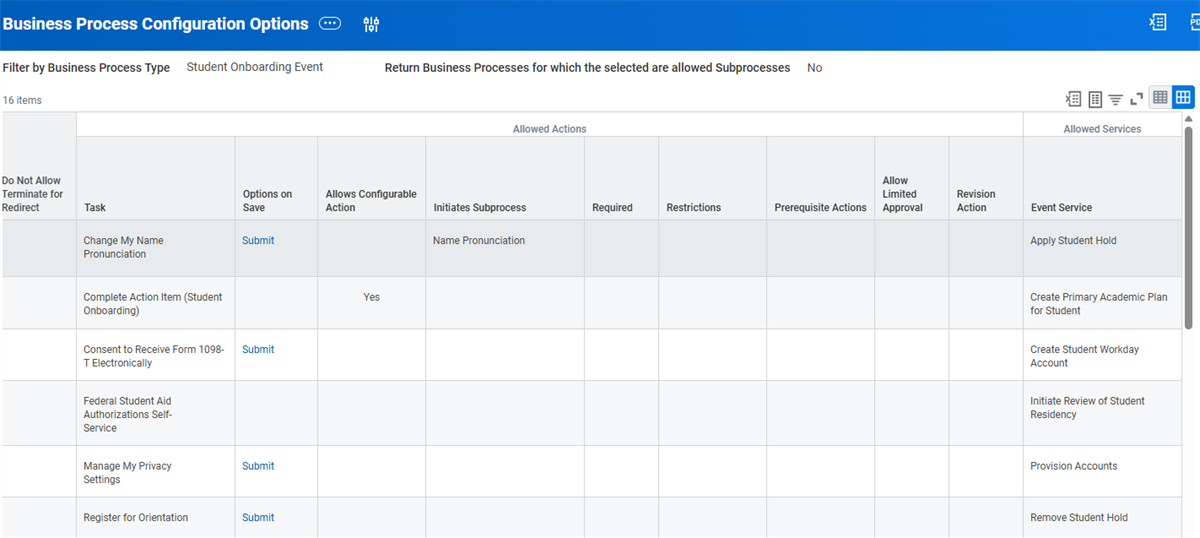
Business Process Steps
Each step in a business process definition represents an action required to complete that process. When defining your institution's processes, the order of these steps is crucial. Each step has several configuration options that you can use to define the specific aspects of the step. Now, take a closer look at some of these options.
Business Process Step Types
When you add a new step to a business process definition, there are several Workday-delivered options for what type of step you can designate it to be. The most commonly used business process step types used in Workday Student are:
Step Type | Description |
|---|---|
Action | Either prompts the users to review the process or initiates a subprocess. For example: An Action step of Register for Orientation within the Student Onboarding Event definition. |
Approval | An approval step gives the designated approver the opportunity to approve, deny, or send back the entire business process. |
To Do | A to do step is an activity that is linked to a task within the Workday system. It can also remind you to complete something outside of Workday, such as sending a reminder email to faculty when you have created a new program of study. You can associate to-dos with any active security group in the tenant, and you can configure instructions to help the user complete the task. Use the Maintain To Dos task to edit and manage to-dos in the system. |
Service | A service step kicks off a separate processing thread (e.g., creation of a Workday user account). |
Checklist | A collection of to-dos. Select one of the checklists available to this organization. |
The following table includes a brief description of additional types of business process step. Note that some of these step types are not available in Workday Student. However, you may see some of them in HCM-related business processes in your system.
Type | Definition |
|---|---|
Initiation | The initiation step is always the first step in a business process. |
Approval Chain | An approval chain also approves the entire business process. An approval chain is a sequence of approvals that starts with an individual, then goes to that person's manager, and up the management chain until it gets to the top or until some exit condition is met. |
Batch/Job | You can specify that a batch process be run as a business process step. To do so, when creating or editing a business process, simply add a step for the batch process (set the step type to Batch and specify the batch process to use). |
Complete Questionnaire | You can add questionnaires to a business process to gather additional data that is relevant to the process. Once the questionnaire is completed, you can include the answers on review and approval steps as supporting information. |
Consolidated Approval | Enables you to combine multiple approvals for the same person into a single approval task notification. When the approvers link to the approval page, they see simplified information for each step, but with a link to more information if they need more detail. As with a single approval, if the approver denies the approval, the entire business process is denied and terminated. |
Consolidated Approval Chain | This step combines the properties of an approval chain with the properties of a consolidated approval. |
Edit Additional Data | You can use the Edit Additional Data business process step type to edit custom fields within the context of a business process. Note that validation rules do not apply to this step. |
Integration | An integration step is a Workday system operation that transfers data to or from an external application. An integration step would also kick off a separate processing thread. |
Mass Approval | Provides a dashboard for multiple approvals from a single process. This option is only available for processes that deal with multiple organizations, such as bonus, merit, and salary actions. |
Report | It is also possible to run a report as a step in a business process. When you run a report as a business process step, Workday automatically sends the output to the My Reports section, rather than displaying it immediately. You can optionally create a To Do step within the business process that consolidates the links to one or more reports within a single To Do step. |
Report Group | Same as the Report step, but for a report group, which allows multiple reports to run as a single unit. |
Review Documents | This step enables you to use a business process to distribute documents to workers. |
Shared Participation | Shared participation steps enable specific users (participants) to perform specified actions in a business process step without moving the overall business process forward to the next step. Shared participation steps also enable improved collaboration between participants for business process types that have this functionality enabled. |
Tasks | The Tasks step type addresses the handling of tasks that contain multiple relevant tasks within a single step and presents these tasks as separate sections on a single screen. For a Tasks step to be added to a business process, all of the tasks within the business process step must be available in both guided and summary editor modes. |
Business Process Definition Columns
In a business process definition, there are several columns that you can use to configure the workflow of the business process steps or view the configuration options. The following table provides a brief description of each of these columns. Note that not all of these columns appear by default. For example, the If column only appears if a business process step has a configured condition. When no steps in the business process definition contain a condition, then the If column does not appear.
Term | Definition |
|---|---|
Step | The magnifying glass icon for each step has a Related Actions icon, which contains the available actions for a specific step of the business process. |
Order | Determines the order of execution for the steps within a business process. Workday uses letters to sequence steps since numbers sort alphabetically, not numerically - so 10 (ten) sorts before 2 (two). The initiation step is always step "a" and subsequent steps use the characters b through z. Note that if you label three steps as "d," they will run in parallel, and each step requires completion to kick off the next step. You can also skip letters. For example, a, b, c, d, f is acceptable, even though "e" is missing. In addition, if you want a step to run after step "c," but before step "d," you can label the step "ca." |
Parallel Step My Tasks Order | Use this option while editing a business process definition to control the order that business process parallel steps display in My Tasks relative to other parallel steps. |
If | A condition is part of a business process step and consists of one or more rules. A condition rule is considered an If statement. If you do not satisfy the condition, the step will not occur. |
Type | Here you can identify the type of step (e.g., an action, service, or to do). |
Specify | Here you can indicate the specifics based on the type of step. For example, if the step type is an action, you must specify the type of action (either a review or a subprocess). |
Optional | An optional step does not require completion. The notification message contains a link that the recipient can select to skip the step. The next step does not begin until the recipient either chooses to skip or complete it. |
Group | Specify one or more security groups responsible for this step. You can limit the available security groups to those allowed by the security policy. Available security groups control the security policy for business process if the step is an action step that runs another business process. This step appears in everyone's My Tasks automatically and the system removes the step when someone completes it. |
All | Checking the All column requires all persons in the security group to approve the request. If you do not select the All column, once one person in the role approves the request, the notification disappears from everyone else's My Tasks, and the business process continues. |
Run As User | Used to identify the user for a batch or integration step type. |
Due Date | The elapsed time from when you initiate the process until the process should be complete. Business process administrators can configure business processes with due dates and step delays that include business days only (and excludes weekends and holidays), rather than purely consecutive calendar dates. |
Due Date is Based On Effective Date | Refers to the effective date that the initiator specifies when starting an instance of the business process. When you do not use an effective date, the due date references the business process initiation date. |
Routing Restrictions | Routing restrictions enable you to configure individual workflow steps to exclude elected individuals from the workflow routing based on your selections. Alternate routings enable you to identify alternate security groups for routing the transaction or to identify alternate security groups for those users specifically excluded from the transaction. |
Complete | When a completion step finishes, Workday lists the business process as complete, even if there are more steps in the process. For example, the system lists a student as accepted even if the steps for the student to set up a Workday account or confirm residency are not complete. Completion makes the data for this business process available to other systems, like student records or financial aid. Make sure all approval steps and review action steps come before the completion step. If there is no completion step, Workday considers the business process complete when the last step finishes. |
Due Dates
Each business process can have a due date. The business process due date is the elapsed time from when you initiate the process until when the process should be complete.
Individual business process steps can also have a due date. Workday calculates a step due date from when you assign this step to a worker in the specified role. Due dates can be from the effective date of the event step or the transaction or event, or from the initiation date.
Due dates do not impact the flow and functionality of the business process. For example, a step with a missed due date remains in the appropriate user's My Tasks. The business process does not cancel or automatically transfer to another group as a result of the due date passing.
Due dates can be helpful for reporting purposes and for setting up alerts around overdue tasks. Administrators and users (if enabled by administrators) can configure their settings regarding the delivery frequency of notifications via email and opt for immediate delivery or daily digest delivery. These notifications can help keep your business processes from stalling in one person's My Tasks for too long.
Optional Steps
You can add optional steps to a business process and allow the user to skip the task. Workday lists the step task in the user's My Tasks and displays Skip This Task as a review option. If the user assigned to the role skips the step task, the business process then proceeds to the subsequent step.
Approvals for Business Processes
Approvals are used across all Workday applications and are a common inclusion in business process definitions. Examples of approvals include approving new programs or course sections, and approving financial transactions such as student payments and refunds. There are a few different types of approval steps used in Workday Student business process definitions:
- Review (Action Step)
- Approval
- Consolidated Approval
Review (Action Step)
The Review action step allows the person receiving a transaction to approve the task. This action step also enriches the process by editing data related to that task on the approval page. Configure validations on review steps.
Approval
Approval steps allow the person receiving a transaction to approve, send back, or even deny a task. The approval options in the
Business Process Configuration Options
report determine these choices. Note that on approval steps, the approver does not have the option to edit any of the data on the page.Approve
If an approver selects Approve, the business process step completes. The business process then routes to the next step owner according to the relevant business process definition.
Deny
If an approver selects Deny on an approval, then the business process terminates or ends. All Workday data changed as part of the business process up to that point restores to its previous state before the business process started.
Send Back
If an approver selects Send Back as an approval step, additional options display to send the step back to any step in the parent process. This includes the initiation step of the current process or the initiation step of any sibling of the current process. For some business processes, approvers can send the task to additional approvers (i.e., ad hoc approvers) if you configure the business process security policy with allowed security groups.
Ad Hoc Approval
You can configure business process security to allow users assigned to a task the ability to add additional approvals. You can complete this configuration while the business process is in progress, using the Add Approvers button on the business process toolbar and My Tasks. For example, a department chair, approving a new course offering as part of the Course Event business process, wants the provost to also approve the creation of this course. To do this, you can add the provost as an additional approver.
In addition to approving a business process, added approvers can also send back, deny, delegate, and reassign a business process. However, a step can have only one additional approval added at a time. This prevents those added as additional approvers from adding more additional approvers to the business process.
Ad hoc approval is not available on an approval chain or consolidated approval chain business process steps. When adding approvers, you can only select workers that belong to security groups granted permissions to the Ad Hoc Approve action in the business process security policy.
Consolidated Approval
A consolidated approval links data from previous individual steps in a business process and then presents that data in a dynamically generated custom approval page. The user can then approve or deny several previous steps as a single action. You can also configure the consolidated approval step to display data in the custom approval page from only selected previous steps. The consolidated approval step can also display custom field labels and custom instruction text.
Business Process Step Configuration
There are frequently specific conditions, routing restrictions, and other configurations required for individual steps on the business process. Each step in a business process has its own Related Actions menu, allowing you to configure that particular step. You must configure these steps while viewing the business process definition. Defining the order of these steps completes the business process configuration.
Common Business Process Step Configurations
The following are descriptions of some common step configurations:
Configuration Option | Description |
|---|---|
Create Condition Rule | Allows creation of a condition rule, which the system saves to a library of rules. This task creates the rule but does not add the condition to the step in the process. |
Maintain Advanced Routing | Used to prevent approvals on one's own behalf because you are the initiator, prior approver, or the subject of the event. |
Maintain My Tasks Display | Used so that Workday doesn't deliver My Tasks notifications for high-volume business process steps: Action, Approval, or To Do. |
Maintain Step Conditions | Allows you to select a condition rule and add it to the step. |
Maintain Step Delay | Allows a delay in time before the system executes the next sequential step in the process. |
Maintain Step Help-Text | Allows you to configure instructional text, guiding users through the step in the process. |
Maintain Step Label Override | Allows you to replace the label of the step, as it appears in My Tasks, with a label you define. |
Set as Completion | Indicates the step is the Completion step. |
Condition Rules and Validation Conditions
A condition rule is a method of checking specified values with logical comparison operators to determine whether an action should run or continue. You can define entry conditions for any non-initiation steps on a business process. If the condition is true, the step runs. If the condition is false, the step is not required and will not run.
Example/Scenario/Business Case
: You can configure an Approval step to run on a personal information change business process, but only if the event subject is a fully matriculated student.Business process step conditions evaluate at the entry to the step. The step will not initiate if all of the configured validation conditions are not satisfied.
Validation Conditions on Initiation Steps
On initiation steps, you can include validation conditions to block a step from exiting if the condition is true. Unlike other business process steps, the system validates conditions on initiation steps after the step has run. If all the initiation step's configured validation conditions are not met, the process will not progress past the initiation step. This means that a task with an associated business process can be initiated but the process will not continue if the initiation step's validation conditions are not met.
Predetermined Validation Conditions
Some business process definition steps have entry conditions delivered by Workday, which you cannot edit. However, you can still specify additional entry conditions for steps that have predetermined entry conditions. The system evaluates both the Workday conditions and your conditions when performing the business process. Workday skips any step that does not satisfy all the entry conditions.
To add or change the condition associated with a business process step, navigate to the View Definition page of a business process. From the desired step's Related Actions, select Business Process, then select Maintain Step Conditions and add or edit the step's conditions as needed.
Creating Condition Rules
To create a new condition rule to use as a validation control on a business process step, use the business process step's Related Actions. Using the Related Actions, select Business Process and then Create Condition Rule. When creating a condition rule, the condition rule can include one or more "and/or" statements. These statements may be complex, and can include multiple "and/or" statements and parentheses to control the order of operations.
Examples of fields commonly used in Workday Student-related condition rules include:
- Academic Level
- Initiator
- First Entry Date
- Job Profile
- Location
- Program Type
- Academic Unit
Configure the following fields to control the behavior of the condition rule:
Field Name | Description | Example |
|---|---|---|
And/Or | Logic between conditions | And |
Source External Field or Condition Rule | The field or condition rule used to validate the condition | Academic Level |
Relational Operator | Determines how to compare the source to the Comparison Values you choose. | in the selection list |
Comparison Type | Determines whether to compare the source to another field or to a value that you enter in the Comparison Value column. | Value specified in this filter |
Comparison Value | A comparison field or value to compare to the source | Graduate, Professional |
Routing Restrictions
Routing restrictions enable you to configure steps so that the system excludes selected security groups from the workflow routing. This configuration helps ensure that certain people at your institution are not approving their own requests, or approving the same item twice. If the routing restrictions exclude all assignees, the system skips the step.
Select the Exclude Initiator, Exclude Prior Approvers, or the Exclude Event Subject checkboxes to ensure that an action occurs, but is not performed by someone who:
- Initiated the business process.
- Previously approved in the business process.
- Is the subject of the event.
You can identify alternate security groups for routing the transaction when a restriction occurs, and identify users specifically excluded from the transaction. The Alternate Security Groups prompt includes the security groups for the step (from the security policy for the business process definition), plus the Manager security group.
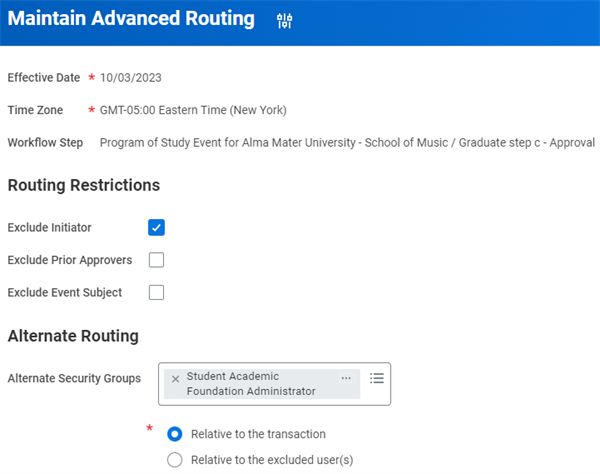
Relative to the transaction
: Specify alternate security groups based on the context of the transaction or event when routing the transaction (e.g., Manager of the Target). If Manager is not an allowed security group on the business process security policy, the "Relative to the transaction" option is not selectable.Relative to the excluded user(s)
: Specify alternate security groups based on the context of the excluded user (e.g., if excluding the initiator, the initiator's Manager).Note
: You cannot reroute Initiation and Checklist business process step types.Step Delays
A step delay puts the business process into a background mode until the specified delay is complete. During the delay, the remaining steps disappear from My Tasks of the responsible groups. These steps reappear upon completion of the specified delay. You can base step delays on the prior step completion date, the process initiation date, or an external field (a class report field) from the Workday system. Step delays can be useful for certain steps that frequently require a lengthy period, such as weeks, to complete.
When configuring the step delay, you can opt to select the Recalculate Delay Upon Correct checkbox. Select this checkbox if you want step delay time to recalculate, should you correct the business process.
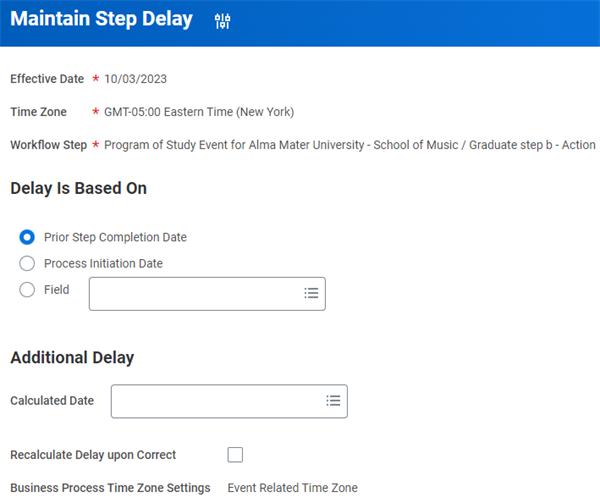
To cancel or change a business process transaction that is within a specified delay period, you can force the completion of the step by using the
Reschedule Delayed Business Process Transactions
task.Resource
: For information about time zones for step delays and rule-based calendars, visit Workday Community.Step Label Overrides
You can use the Maintain Step Label Override function to change the label on a step within a business process. Step label overrides are useful if you need to change the step name for end-user visibility.
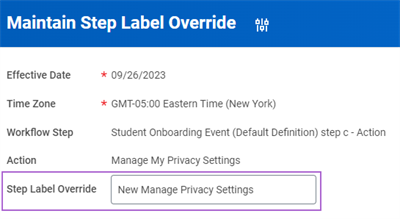
Step Help Text
You can define and configure step help text that guides users through business process transactions. Help text may be valuable for users who access Workday less frequently or who may not be familiar with performing certain tasks. The help text appears at the top of the page.
You can add help text to any step of any business process by accessing the
Maintain Step Help-Text
task from the Related Actions menu on a step. You can make step help-text conditional or display for all users who enter the step within a business process transaction.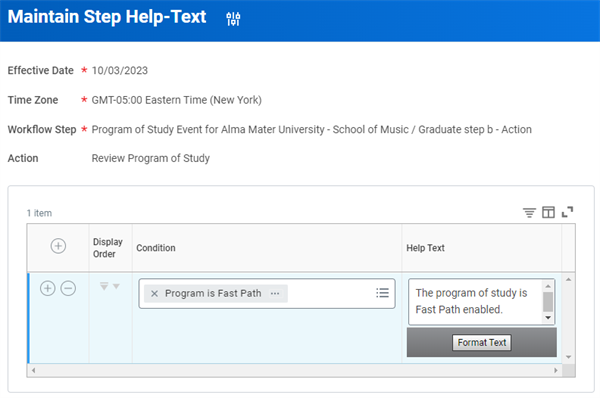
Student Example of Help Text
You can configure a common example of help text for students who want to change their program of study. A student initiating a
Change Program of Study
business process may not be familiar with how to use the task or know what data the system requires. You can configure help text to appear at the top of the page to serve as a guiding tool.Completion Steps
You may need to configure a completion step within a business process, even if there are more steps to do in the process. You may need a completion step to ensure the system lists a transaction as complete. If there is no configured completion step within a business process definition, the business process completes when the last step finishes. Any action steps of Approval and Review types must come before the completion step. To designate a completion step, use the step's Related Actions and select Business Process, and then select Set as Completion.
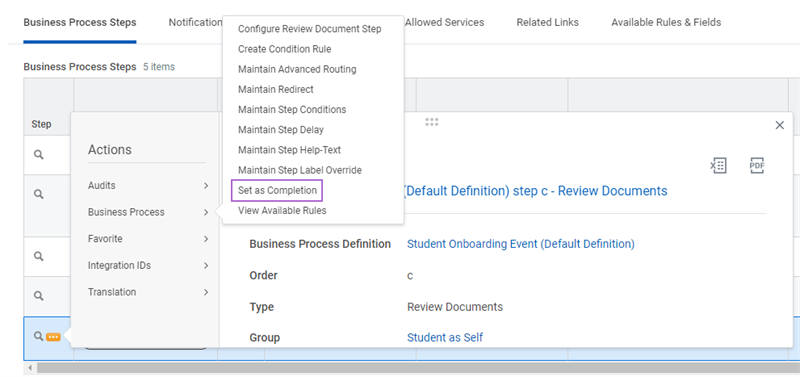
Student Example of Completion Step
For example, after the Completion step within a
Student Matriculation Event
business process transaction, the system lists an applicant as a Student in Workday. This occurs even though there may be additional onboarding tasks to complete, such as creating a Workday account for the student.Business Processes and Subprocesses
Within a business process, action steps initiate separate business processes, or subprocesses, within the bigger business process. When you include a subprocess within your main business process, the system completes the steps in the subprocess before moving to the next step in the main business process. For example, as part of a
H
ire
business process, you could have a step that kicks off the Create Workday Account
business process. The system requires the Create Workday Account
subprocess workflow to complete before the Hire
business process continues.You can include these types of subprocesses as needed to support your requirements. Workday delivers the allowed subprocess for each business process.
There are two places to find the allowed subprocesses for each business process. They are:
- From the business process, select the Allowed Actions by Role tab.
- Run theBusiness Process Configuration Optionsreport.
Business Process Notifications
You can use business process notifications to alert users when the status of a business process changes, or upon entry or exit from a specified business process step. You can also schedule notifications to send when a task or process is overdue.
Configuring Business Process Notifications
Notifications can be delivered to a user's My Tasks or external email account based on their preferences. You can create notifications using the business process definition's Related Actions menu.
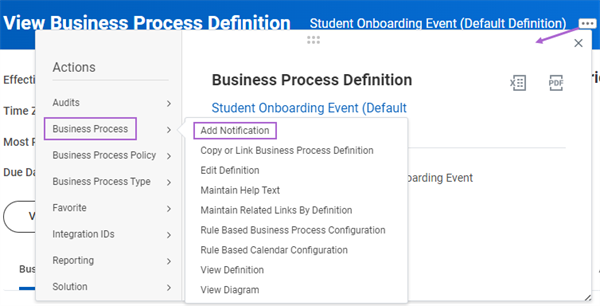
Required Notification Fields
When configuring business process notifications define the following fields:
Term | Description |
|---|---|
Effective Date | Prevents the notification from unexpectedly changing in the event record of the business process after triggering. |
Override Email Template | You can only associate one email template with a business process definition. Use the Maintain Email Templates task to designate which email template is the default and which templates are active. |
Do Not Include Notification Details Link | Select this option if the notification's recipients do not have Workday accounts (the details link navigates the recipient to sign in to Workday). |
Triggers | Specify if system triggers the notification by the status of the business process as a whole, or when the business process begins or exits the step you specify. |
Conditions and Rules | Notification triggers include the trigger specification and the rules you specify. Both triggers must be met before the notification is sent. |
Email Options | You can change the email option for all custom notifications defined for one or more business process types with the Mass Update Email Address Option on Notifications task. Recipients of business process notifications do not automatically receive access to the business process itself. |
Message Content Section
Configure the Message Content to include simple text or class report fields with instance-specific data, such as program of study. You can use any report field to create business process notifications. Workday evaluates your security permissions to determine if you have access to the report field. This evaluation applies both to selecting the field for your notification and for the recipient target. For the recipient, if you have access to the report field, you see the report field value. If you do not have access to the report field, you see the message, "[not available]."
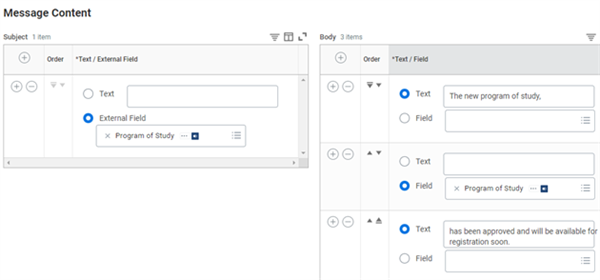
The Preview option allows you to view a sample of the configured notification in your My Tasks. The sample notification contains field names, not actual instance values.
If you translate the notification messages, users can view the notifications in their preferred language. If a translation is not available, users see the notification in the base language of the tenant.
Rule-Based Business Processes
In addition to the default and organization-specific business processes, you can also create rule-based business processes definitions. Rule-based business processes trigger based on condition rules. These condition rules work in the same way as conditions attached to individual business process steps.
Rule-based business processes center around the condition rules that you configure, allowing you to designate a specific business process to trigger only in certain situations. The system evaluates condition rules at the beginning of the process to determine which rule-based business process definition to run. When a system event meets certain conditions, the appropriate rule-based process triggers instead of the organization-specific or default business process that would otherwise start.
Configuring a Rule-Based Business Process
Rule-based business process definitions can help improve your business process performance, ease visibility into historical records of business process events, and make maintenance more straightforward. Remember, you can only use one entry condition for each rule-based business process, and you must base the condition on fields available at initiation of the process.
To configure a rule-based business process, perform the following steps:
- Identify the relevant business process type and definition that matches closest with your desired outcome. Note that this may be the default business process definition for this type.
- Copy the business process definition and select Rule-Based Workflow Definition Name. Be sure to name the group for this business process appropriately, so it indicates the underlying condition. Examples of names could include "Students" or "Non-Workers."
- Define the business process steps that apply to the rule-based process. Note that you can still include entry conditions or routing restrictions for steps on a rule-based business process definition.
- After saving the new business process definition, from the definition's Related Actions, select Business Process > Rule Based Business Process Configuration. Here you define the condition that will cause this business process to initiate. Note that you can use an existing condition or create a new one from the prompt.
Once these steps are complete, the system evaluates which business process to use based on the condition you defined.
Student Example of Rule-Based Business Process
One commonly used rule-based business process configuration involves creating separate definitions for the Legal Name Change business process type. Workers, students, and instructional staff often have different requirements when it comes to reviewing and approving these changes. Therefore, institutions frequently use unique business processes for each type of person evaluated. As a result, an institution may have the following business process definitions, each with its own set of steps:
- Legal Name Change (Worker)
- Legal Name Change (Student)
- Legal Name Change (Student Prospect)
This is just one example of a common rule-based process configuration. Your own institution may require these or other rule-based business process definitions to suit your needs.
When to Use a Rule-Based Business Process
Using rule-based business process definitions can be very advantageous but may not be appropriate for every situation. For example, for simple business process definitions that do not require a variety of step conditions, configuring several rule-based definitions would be redundant. Business processes that operate the same no matter where the workers involved are or who initiates the process are likely better suited for a simple condition rule.
However, if you have many condition rules on your business process steps, then a rule-based configuration might be more appropriate. Consider using the rule-based method if your business process definition meets one of the following criteria.
Uses the Same Condition Rule in Three or More Steps
Instead of making the system evaluate the same condition at each step in the business process, you can improve performance by evaluating the condition at the beginning of the business process. Doing so allows the system to route the transaction to the appropriate rule-based definition. This is a good rule to follow when evaluating your company's business process definitions.
Has Multiple Varying Paths for Different Initiators or Locations
Consider using a rule-based business process in these scenarios:
- If a business process uses condition rules to route to different steps depending on who initiates the business process.
- If a business process uses different rules for users in different locations.
Building and maintaining a complex business process definition with many branching steps and condition rules can be cumbersome and overly complicated. In this case, it becomes much easier to build and maintain several rule-based definitions for different initiators or locations.
Business Process Analysis
In addition to the configuration of your business processes, you need to understand how to review and analyze your business process definitions before, during, and after a transaction has taken place in your system. Now, explore some of the methods of business process analysis that you can use.
Visualization
Business process diagrams provide a high-level graphic representation of your business process. This visualization of the business process definition makes it easy to check if your configurations route in the way you intended. To view a diagram of a business process, select the View Diagram button on the business process definition to trigger the visual. There are multiple 'swim lanes' that represent the various security groups that participate in the process, along with the action.
Step conditions, step delays, and routing restrictions (including alternate routing groups) display as annotations on the diagram. The system also represents the completion step as a green check on the diagram. If more than one role can perform the steps in a lane, hover over the displayed role to see a list of all roles that can perform these steps. Similarly, if a business process step defines multiple alternate routing groups, hover over the step annotation to see all the alternate routing groups defined on that step.
Select any step in a business process to view more information about that step. If that step has notifications configured, you can also view the entry and exit notifications when you select the step.
Step History and Remaining Steps
For a business process with multiple steps, after completing the initial task, you come to a confirmation screen. On this confirmation screen, you can see the previous and remaining steps in the business process.
Up Next Section
In the Up Next section of the confirmation screen, you can see the next designated step of the current business process. The confirmation screen displays the step type along with the due date and the user responsible for completing this step.
Note that any step label overrides appear here as well. If there are no users in the security group assigned to a step, the task appears as Unassigned. You need to sign in as a business process administrator to reassign this task to complete the business process step.
Process History and Remaining Processes
Expanding the Details and Process section of the confirmation screen displays the process history. Here you can see each step of the business process that the system has initiated, along with who completed the step and when, if applicable.
Selecting the Remaining Processes button brings up a list the remaining steps of the business process, as well as the users assigned to complete each step. This option provides a clear view of the process and helps troubleshoot your business process configurations.
Business Process Events
Whenever Workday initiates or completes tasks or processes, the system tracks these transactions as events. As events in the system occur, you may need to edit or remove the event entirely. Workday gives you multiple ways to manage events that are either in progress or successfully completed. Workday also gives you the ability to delegate and reassign tasks.
Finding Events
To make changes to an event, such as rescinding the event or correcting a program change, you need to first locate the event. The ability to view an event depends on your organization and administrative roles. For example, a manager can view the hire event of an employee in an organization they manage. If an employee transfers out of a manager's organization, any future events will not be visible.
You can find events using the following methods:
- Use the Search box using the seach prefixEvent:.
- Look through the Archive tab in your My Tasks if you were part of a business process in the past 30 days.
- Access theView More Processesreport from the Archive tab in My Tasks to see historical events from the past 30 days or during a particular time period.
- Use theFind Eventsstandard report, which shows events by business process and allows for filtering with facets - one place to find all events without having to create custom reports every time.
Workday Student Business Process Event Examples
Any transaction that has an associated business process creates a new event in your system. Some common Workday Student events include:
- Program of study changes
- Student application evaluations
- Student payments
Event Management
You can manage system events in several ways. The following event management options are available:
Action | When is the Action available | Example of who is responsible |
|---|---|---|
Reassign a Task | Task must be "In Progress." | Business Process Administrator |
Request Reassignment | Task must be "In Progress." | Whoever is assigned a task. |
Request Delegation Change | Task must be "In Progress." | Whoever is assigned a task can request a task is delegated. |
Cancel | Task must be "In Progress." | Process Initiator |
Rescind | Task must be "Successfully Completed." | Business Process Administrator |
Correct | Task can be "In Progress" or "Successfully Completed." | Business Process Administrator HR Partner HCM Corp Partner Implementer |
Task Reassignment
Occasionally, a task is assigned to a user who is no longer responsible for it, or assigned to a security group with no members. In cases like these when you need to reassign a task, use the
Reassign Tasks
task to send the task to a new user. For example, a manager might have a number of tasks in their My Tasks they need to complete for their direct reports. If the manager moves to a new position with new direct reports, you can reassign the tasks to the person filling the previous position.Your institution's Business Process Administrator can also reassign tasks. Use
Reassign Tasks
to select a worker and review the tasks assigned to them. You can also add optional filters, such as a specific business process or a start or end date. Select OK to run the report and see a list of current My Tasks for the worker. Reassign the task to the new worker, and the reason for the reassignment. The system then permanently removes the task from one My Tasks and moves it to the other.Request Delegation Change
Delegation temporarily reassigns your tasks to another user, enabling that user to perform individual actions on your behalf. Your delegate has access restricted to the tasks you have delegated, in addition to any tasks specified in the Business Process Type Delegation Configuration. They can only access tasks that you can access.
Use the business process,
Request Delegation Change
, to define your business process steps related to delegation. You can choose to have managers, as an example, to review and approve delegations defined in the business process definition.Anyone in the Workday system can delegate their work to another person, using the
My Delegations
report. Depending on your configuration, work can be delegated for an open-ended period of time with no end date specified. Alternatively, you can configure, in Edit Tenant Setup - Business Process
, an end date be required for delegations.This is a great reason to include a review and or an approval step in the business process definition
Request Delegation Change
to ensure delegations are used appropriately. In addition, you can use configurable security to specify which business process can or cannot be delegated.Routing Restrictions with Delegations
Workday provides a means for customers to prevent a delegate from approving events where they have configured routing restrictions. You can set up this configuration to allow Advanced Routing during Delegation. For example, an academic dean may approve all transactions for tenured instructors, but you would not want the dean to approve their own time off requests, expense reports, etc. You can now route this to an 'Alternate' approver instead of the delegated worker. Here are some important things to be aware of when delegating tasks:
- You can Exclude Initiator, Exclude Subject, or Exclude Prior Approver.
- With feature not enabled, Delegate is evaluated as the "on behalf of" worker for Routing Restrictions.
- With feature enabled, Delegate is evaluated "as self" for routing restrictions.
- My Tasks Notifications go to either Delegate or Alternate but not both.
- Opt in feature with flag in Tenant Set-up: Business Process.
- Only comes to play when Routing Restrictions are configured on a step.
- Introduces Alternate Delegate when Delegate is excluded.
Cancel and Rescind Business Processes
You can cancel or rescind most business processes. If you have not completed a business process, then you can cancel it. You can rescind a completed process. Rescinding a completed business process means that the system reverses the business process, as if it did not happen. There are two primary differences between rescind and cancel:
Rescind
- Use when a process is in a status of Successfully Complete.
- Security groups with the appropriate business process policy permissions can rescind.
Cancel
- Use when a process is in a status of In Progress.
- Security groups with the appropriate business process policy permissions, as well as the worker who initiated the business process, can cancel.
Business Process Administrators can rescind a business process by accessing its Related Actions and selecting Rescind. You can also configure your business processes to automatically send notifications to specific roles when the business process cancels or rescinds.
There are a few additional types of cancellations you can perform in your system as well. The
Mass Cancel Business Processes
and Mass Cancel To Do
functions allow you to pull back events initiated with an incorrect configuration or effective dates. These processes also allow you to remove To Do steps that have accumulated and are overwhelming a worker's My Tasks.Correcting Business Processes
Workday offers the ability to correct many business process types across a variety of functional areas. Use the
Correct
task to change information entered during the business process. This is an administrative task, and the system does not trigger any approvals when correcting. However, for audit purposes, you must enter a comment and confirm the correction in Workday.The fields that are available for correction are the same ones that are available when the process initiates. Some of the most common corrections are the effective date of the event or fields such as position, time type, or standard weekly hours.
Note
: You can make a correction while the business process is still "In Progress" or after it is "Successfully Completed."Using this functionality requires adding the appropriate security groups to the Correct action for each business process type you wish to correct. First, identify the security groups who should have the ability to correct a business process. Then, edit the business process security policy by adding the security groups to the Correct action.
Tip
: Not all types of business process events are correctable. Use the Business Process Configuration Options
report to view what actions can be taken on a given business process type. After confirming that you can correct, rescind, or cancel a business process type, be sure to complete the required security configurations for that business process security policy.Chapter 4 Tasks and Reports
Below are the commonly used tasks and reports for the topics covered in this chapter.
Tasks:
- Create Program of Study
- Maintain Email Templates
- Maintain To Dos
- Mass Update Email Address Option on Notifications
- Reassign Tasks
- Reschedule Delayed Business Process Transactions
Reports:
- Business Process Configuration Options
- Find Events
- Find Events by Date
- Find Program of Study Definitions
- My Delegations
- View More Processes