
Campus Engagement Overview
Overview
One of the most important functions of the Workday Student system is to provide the ability for institutions to communicate, or engage, with students and prospective students. The campus engagement framework provides a flexible set of tools to help you recruit students, communicate deadlines, enforce holds, request information, and more. In this chapter, you will explore the campus engagement framework and examine some of the key configurations involved.
Objectives
By the end of this chapter, you will be able to:
- Configure the campus engagement framework.
- Configure engagement items and plans.
- Create student audiences using custom reports and saved searches.
- Evaluate delivered engagement analytics.
Campus Engagement Overview
Workday Student uses campus engagement, a framework for your institution to communicate with your prospective and matriculated students, and to record these communications. These types of communication can include:
- Emails you send as part of campaign to recruit a set of student prospects.
- Invitations to recruiting events.
- Mobile push notifications of holds on student accounts.
- Printed letters sent to admitted applicants.
You can also use campus engagement to create action items for prospects and students to complete, such as submitting a transcript or paying a fee.
Campus Engagement for Multiple Institutions
The campus engagement functionality also supports multiple institutions partitioning. Multiple institutions partitioning enables you to manage campus engagement across multiple institutions.
Notification Types
Each campus engagement category can have its own notification type. Notification types specify how and when the system sends student messages. For example, immediately, as a daily digest, or as a push notification. Configure notification types using the
Edit Tenant Setup - Notifications
task.Notification Type | Use For |
|---|---|
Academic Advising | Includes student emails with a category of Academic Advising and a use for of: Plans and Ad Hoc |
Admissions | Includes student emails with a category of Admissions and a use for of: Plans and Ad Hoc |
Financial Aid | Includes student emails with a category of Financial Aid and a use for of:
|
Student Financials | Includes student emails with a category of Student Financials and a use for of:
|
Student Records | Includes student emails with a category of Student Records and a use for of:
|
Student Recruiting | Includes student emails with a category of Student Recruiting and a use for of:
|
Engagement Items
When communicating with prospects, you can divide campus engagement into two parts: engagement items and engagement plans. First, let's explore engagement items.
Engagement items are the communication items themselves. Engagement items can be SME messages, printed items, notifications, or emails.
Common examples of engagement items are an invitation email or an admission offer letter. You build these communication items in the system and mark them for specific purposes, such as student recruiting. You can then attach them to recruiting events or engagement plans, and the system will send them out in accordance with the configurations made.
Common usages of engagement items include:
- Student recruiting event communications (e.g., Invitations, schedule changes)
- Student prospect or application communications (e.g., Application requirements, document due dates)
- Student financials communications (e.g., Charges due, financial holds)
- Student records communications (e.g., Registration dates, academic plan changes)
Email Items
Most of the student engagement items you create will be student emails. When creating a student email, identify the category (e.g., Admissions or Student Recruiting). This category determines what options are available in the Use For field. Your selection in the Use For field determines where the email will be available for use. The following table includes a description of the Admissions and Student Recruiting categories and the different Use For options for each.
Category | Use For | Description |
|---|---|---|
Student Recruiting | Event - Cancel Notice | Notifies a prospect of a recruiting event's cancellation. |
Student Recruiting | Event - Invitation | Invites a student prospect to attend a recruiting event. |
Student Recruiting | Event - Post-Event Follow Up | Engages with a prospect after they have attended a recruiting event. |
Student Recruiting | Event - Registration Confirmation | Notifies a prospect that they have successfully registered to attend a recruiting event. |
Student Recruiting | Event - Reminder | Provides pre-event reminders or event details for an upcoming recruiting event. |
Student Recruiting | Event - Reschedule Notices | Notifies a prospect of a schedule change for an upcoming recruiting event. |
Student Recruiting | Plans and Ad Hoc | Provides prospects or students communication relating to engagement plans and provides for quick one-time emails, push notifications, or printed communication. |
Admissions | Plans and Ad Hoc | Provides prospects or students communication relating to engagement plans and provides for quick one-time emails, push notifications, or printed communication. Push notifications are available for matriculated students only. |
SMS Messages
You can also send engagement items via SMS messages to students. SMS, which stands for Short Message Service, is a text messaging service enabling users to send short text messages between mobile devices via a cellular network.
You must enable Workday Messaging to be able to send SMS messages. Enabling Workday Messaging in your tenant provides you with greater flexibility for sending engagement items and simplifies communication with students and applicants. View the SMS Compliance section on the
Edit Tenant Setup - Notifications
task. This section enables you to set up your SMS configurations and Terms and Conditions. For more information on how to configure Workday Messaging for Workday Student, go to Workday Community.You can also use a Messaging Opt-In mass action to manage SMS opt-in preferences for users in bulk. You can add this mass action to copies of the following reports.
- Find Workers
- Find Students
- Find Candidates
- Find Student Prospects
- Find Academic Records.
Use this mass action to initiate the process of opting in users to or opting out users from SMS messages.
When you run the Messaging Opt-In mass action from a report, Workday displays the
Messaging Opt-In Mass Action
task.Note
: At this time, Workday Messaging is only available for U.S. and Canadian mobile numbers.Printed Items
You can create customized, printed engagement items to use in an engagement plan. You can use printed engagement items as part of engagement plans, recruiting events, or even ad hoc communications. You can use the Workday Studio tool to create personalized print communications, such as mailing labels and letters, that include prospect names and addresses.
When you use printed engagement items, Workday notifies a designated mail coordinator when communications are ready to send. The mail coordinator is responsible for physically mailing off a given printed engagement item. When the schedule for a printed item is met, Workday sends a list of up to 1,000 eligible recipients to the mail coordinator's My Tasks. The coordinator then chooses to print the selected items, launching a background job that creates the PDF files.
Notifications
In addition to SMS messages and print engagement items, you can also send engagement items via notifications. Engagements can take the form of:
- Push Notifications
- Business Process Notifications
Now, explore each of these in more detail.
Push Notifications
You can engage with students using mobile push notifications for non-recruiting and admissions plans and ad hoc messages. When activated, these push notifications appear on a student's mobile device as an alert. You can create these notifications by using the
Create Student Message
task, just like email items.Note that push notifications are not available for Student Recruiting or Student Admissions purposes.
Business Process Notifications
You can use the business process notification functionality to include additional notifications that appear in a student's My Tasks. The system uses these for a variety of purposes. For example, you may create a To Do step to remind students to purchase a cap and gown when they apply for graduation.
Many business processes have prebuilt notification steps. Many financial aid and student financial business processes notify students of updates to their accounts or financial aid information. Another common use for business process notifications is in student holds. Student Hold business process definitions frequently include notifications to send to a student's My Tasks, letting them know about their hold and how to resolve it.
Message Templates
You create emails using templates. There are two different message templates that exist in Workday: Email templates or Notification Designer templates. Next, you will explore each of these templates.
Email Templates
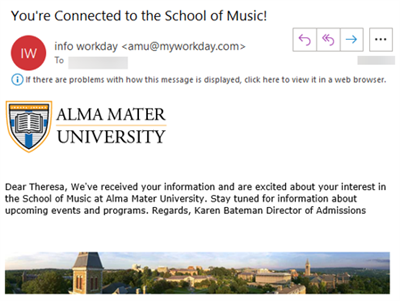
Email templates are the default templates that get sent with any message you create in Workday Student, unless you override it, when you create a message.
You can use these templates throughout Workday. Use the
Maintain Email Templates
task to maintain your active email templates.The following image is an example of a student email using a default email template:
Notification Designer Templates
You can use Workday Notification Designer templates as an alternative to standard default email templates. You can then use these templates to send notifications for specific Workday tasks, job alerts, and custom business processes. You can create multiple notification templates for each type of notification.
To use Notification Designer for student emails, you, or your administrator, will need to complete some initial configuration steps. You must:
- Enable Workday Drive and Notification Designer domains.
- Opt in to the Notification Designer Service using theInnovation Services Opt-Intask.
- Obtain and sign the Innovation Services agreement.
Once the initial configuration steps are complete, you can create and manage the layout, design, and content of a notification template. What is especially powerful about Notification Designer is that it enables you to craft personalized and engaging student messages. To configure a Notification Designer template, follow these steps:
- Create the Notification Designer template file in Workday Drive. Select a prebuilt notification layout or you can design your own.
- Design the template. You can insert images, dynamic and static buttons, rich text, social media links, and other content areas. You can also share the notification template with others, and collaboratively edit the template with other who have edit access.
- Publish the template. Publish the notification template so you can use it when sending notifications.
- Activate your template to make it available for selection across categories. Use theMaintain Notification Templatestask to maintain your active notification designer templates.
- Attach the template to the messages you create.
Calls to Action
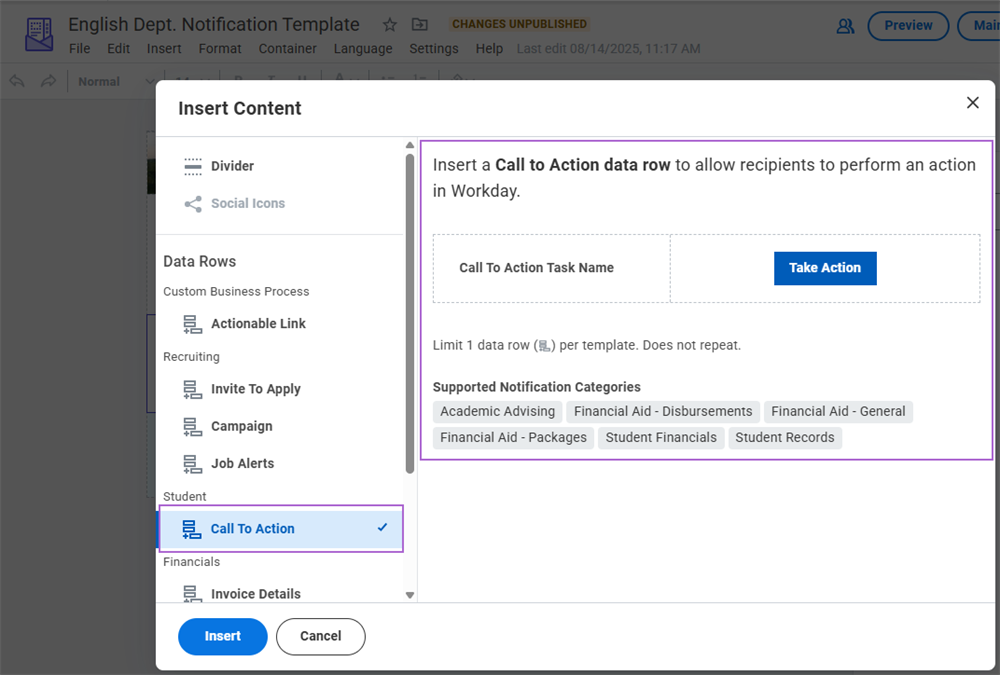
When using Notification Designer templates, you can include a call to action. For instance, you might create a call to action for students to make a payment, or view classes. When students get the message, they can select the corresponding button to complete the action. Calls to action makes it easier for you to prompt responses from students in a wider range of contexts.
Because this feature uses Notification Designer templates, you need to create, publish, and enable a Notification Designer template to be able to use it. To include a call to action, you need to complete these steps:
- Enable Notification Designer.
- Create and publish a notification designer template with a call to action row.
- Activate the Student notification types that can use your notification designer template via theMaintain Notification Templatestask.
You can include a call to action row for Academic Advising, Financial Aid, Student Financials, and Student Records functional areas as shown in the following image. Note that you can use the notification designer template for Admissions and Student Recruiting messages but you cannot include a call to action.
Composer Format
You can view your Notification Designer template design as you compose a message, helping you better visualize what the final message looks like. Composer Format for Student Messages lets you see the email as you create it, giving you a preview of what it will actually look like with graphics, colors, and text included.
You can also include conditional content in student messages that use the Composer Format message type. When you create a Composer Format message, you can tag portions of the message with student condition rules that are based on business objects that are eligible for the category of the student message.
Because this feature uses Notification Designer templates, you need to create, publish, and enable a Notification Designer template to be able to use it. After you have created, published, and enabled your Notification Designer template, use the
Create Student Message
task to use Composer Format. On the task, in the Message Type field, select Composer Format. Selecting Composer Format allows you to view a preview of the message. You can type in to the preview display to directly edit text, subject, display names, and reply to fields. You can use Composer Format to create a student message of any category.Creating Engagement Items
You can use the
Create Student Message
task to create new engagement items. When creating engagement items, there are several fields you need to be aware of. Keep in mind the following considerations when creating your engagement items.Name
Consider the naming convention that your institution wants to use for engagement items. Remember, there may be many engagement items in your system. Including the intended engagement plan use, academic period, or other information in the name may help you stay organized.
Category
You can select from a set of Workday-delivered functional area categories for your engagement item. This determines which options are available to select in the Use For field.
Use For
This field selection determines where in your system the engagement item is available. Remember, the options here depend on the Category you select. Pay close attention to the selections you make here to ensure that your engagement item is available in the correct context.
For example, selecting a Category of "Student Records" and a Use For of "Holds," only allows you to select that engagement item when configuring hold notifications. Selecting a Category of "Student Recruiting" and a Use For value of "Plans and Ad Hoc," enables the engagement item available for use in student recruiting engagement plans or ad hoc engagements.
Academic Unit
This field determines which academic units the engagement item is available for.
Contact Methods
This field determines what type of message the engagement item will be: email or mobile push notifications. If you select Email, an Email Format field appears. You can select either:
- Plain Text or HTML
- Rich Text
- Composer Format
Workday recommends that you use either the Composer or Rich Text format when creating emails. The Composer format enables you to select the Insert Data Field icon and the Rich Text format enables you to select the Insert tag icon to use report fields as email merge fields in your emails.
Once you make this selection and select OK, you can configure the body of your email item on the subsequent page.
Override Email Template
At the Override Email Template field, select either an email template or a Notification Designer template.
Student Audiences
One of the first things to understand when discussing campus engagement is student audiences.
Student audiences allow you to define groups of prospects and students. You can then use this audience to specify who receives an engagement. You can also reuse student audiences for other engagement plans and in other areas of Workday Student. There are two methods of creating student audiences:
Student Audience from Custom Reports
One method of creating a student audience is to create a custom report that returns the specific audience you want to target. You can use a simple, search, or advanced type of report. You can also use targeted filters, and calculated fields along with these reports to make your student audience as broad or specific as you want.
After you create the report, you can use the
Create Student Audience
task to identify that report as a student audience.The following table outlines which data sources to use for each engagement category and the use for purpose.
Category | Use For | Allowed Data Sources |
|---|---|---|
Academic Advising | Plans and Ad Hoc |
|
Admissions | Plans and Ad Hoc |
|
Financial Aid
| Plans and Ad Hoc Plans - ISIR |
|
Student Financials | Plans and Ad Hoc |
|
Student Records | Plans and Ad Hoc |
|
Student Recruiting | Event - Invitation Plans and Ad Hoc |
|
Student Audiences from Saved Search
Another method of creating a student audience is to use one of the Workday-delivered search reports, such as
Find Students
or Find Student Prospects
. Run one of these reports and use the search facets to narrow down the results to the population you want to target. Once you narrow your results down, you can save your search parameters. After saving your search parameters, you can once again use the Create Student Audience
task to identify that saved search as a student audience.Once you have designated a student audience, use it to create an engagement plan to send communications to that particular group of recipients. From your student audience's Related Actions menu, you can:
- Inactivate your student audience. Inactivating will not affect existing plans but will prevent future plans from using your audience.
- Reactivate your student audience to allow use on future engagement plans.
Engagement Plans
Engagement plans specify who receives a set of engagement items, when they receive them, and where they receive them. Each engagement plan includes information about which items to include in the specific engagement plan, whether they be email or printed letters. An engagement plan may contain one or more engagement items. The engagement plan identifies where to send the items. Typically, this is either the primary home address or the primary email address for the student or student prospects included in the audience. However, you also have the option of sending to secondary addresses or business addresses, if there are any listed. You can also indicate alternative addresses to send to if one is missing from the student or prospects record. The following images shows these components in an example AMU Undergraduate Email Campaign.
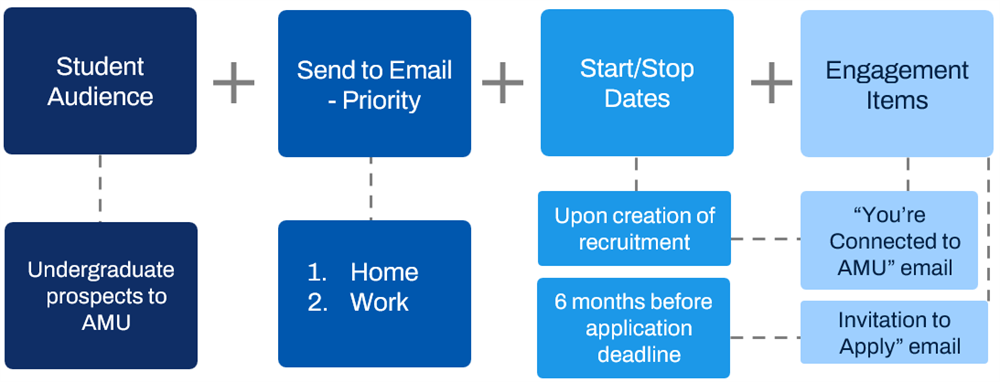
Student Audience
To define a specific set of recipients for the items in your engagement plan, create a student audience using either a custom report or saved search parameters from a delivered report (such as Find Student Prospects).
Creating Engagement Plans
To create engagement plans, use the
Create Student Engagement Plan
task. Remember, to build an engagement plan you need to have the following elements configured:- Engagement Items: Create each student message that you want to include in your engagement plan. You can have as many steps and engagement items in a plan as you want.
- Student Audience: Create a student audience either from a custom report or saved search.
When creating an engagement plan, you need to identify several components of the plan.
Component | Description |
|---|---|
Name | The name of the engagement plan. Consider a naming convention to identify the time and purpose of the engagement plan. |
Start/Stop Date | Determines when the engagement plan will be active. Start Date is a required field, but you can optionally predetermine a stop date for the engagement plan during creation as well. |
Category | Select from:
|
Academic Unit | Determines which academic unit this engagement plan is targeting. You can optionally select an academic level to narrow down your target audience here as well. |
Recipient Type | Determines who the recipient type of the engagement plan is. Multiple types can be selected. |
Student Audience | Determines which students will receive items in this engagement plan. |
Engagement Items | These are the messages that will send as part of your engagement plan. You can determine specific dates or time differentials between items to determine when to send each item. |
Recipient Thresholds
For each engagement plan you create, you can identify a recipient threshold. This represents the total number of recipients that can receive your engagement items. This optional configuration is great for ensuring that your engagement items are not exceeding the expected recipient count. You can identify a recipient threshold during engagement plan creation. You can also use the
Maintain Student Engagement Settings
task to determine the default threshold limit for your institution's engagement plans.If your engagement plan's audience is larger than the configured threshold, Workday presents you with an approval task. Here you see the audience count compared to the configured threshold. You then have the option to change the threshold settings.
Estimating Audience
You can estimate the audience for each step in an engagement plan based on the student audience you select. When creating steps on the engagement plan, select the Estimate Audience button. This displays:
- A count of the total audience pending the item.
- A count of the total audience that the system has already sent the plan to.
This is a good tool to use before sending an engagement plan out. This provides a quick look at the recipient numbers for your engagement administrators to evaluate. If the numbers are much higher or lower than expected, double check your student audience configurations and engagement rules.
Engagement Plan Steps
When creating an engagement plan, add one or more engagement plan steps, which include individual engagement items. These steps are a crucial component to your engagement plan configuration. The order of these steps in the engagement plan represents the sequential order in which to distribute engagement items. For each step of an engagement plan, you can configure the student message to trigger:
- At a specific date and time.
- At a specified interval relative to another step in the plan. (Example: Send the second email item in an engagement plan two days after the first email.)
Engagement Rules
You can use student eligibility rules to only trigger certain steps if a student meets the criteria. This gives you additional flexibility in your engagement plan configuration, letting you use the engagement plan across a wider audience.
Duplicate Checking for Engagement Items
You can send some engagement items to the same student more than once. For example, you can send registration reminders or annual notices to students on a regular basis. To account for these duplicate emails, you can configure email items with different duplicate delivery settings. On the Create Student Message task, locate the Duplicate Delivery Settings section. Here you have two options:
- Send per Plan- Enables you to send the email to all audience members, even if they receive this same email from another plan.
- Send per Target in Audience- Enables you to send this email multiple times to audience members, based on the number of times they display in the engagement plan audience. For example, if a student applies to two programs within the same engagement plan, the system sends the relevant engagement email to the student for each program they applied to.
Note that these options are only available for the following Use For types:
- Plans and Ad Hoc
- Plans - ISIR
Unsent Engagement Items
Workday provides details for engagement items that remain unsent. This enables you to take the appropriate action to send them. It also enables you to maintain an accurate count of the student audience who receives communications from the plan items. Workday provides the reason descriptions for items in a plan when the item:
- Is awaiting an action from the mail coordinator. (Awaiting Mail Coordinator)
- Is canceled. (Canceled)
- Is pending processing. (Still Processing)
- Audience member is missing either an email address type or address type in their contact information. (Missing Address)
- Audience member has unsubscribed from the type of email. (Missing Email)
- Audience member has an inactive Workday account. (Inactive Account)
The system also flags when the reason for the unsent engagement item is not specific and requires an administrator in order to send successfully.
Ad Hoc Emails and Messaging
In addition to scheduled email items for student recruiting, admissions, and registration, institutions often need to send one-off email items to remind or inform students of important events. To accommodate these needs, Workday Student provides the ability to easily send groups of students or student prospects ad hoc emails.
To send group ad hoc emails, configure the following security domain:
- Manage: Group Ad Hoc Communications
Once configured, use the
Find Academic Records
or Find Student Recruitments
reports to select multiple student or recruitment records. Doing so enables you to select the Send Message button, where you can indicate if the message should be an email, push notification, or both. When working within Student Financials, you can also send Ad Hoc emails via the Run Student Financial Processes by Student
report.When sending ad hoc emails in this way, the systems does not restrict you to using pre-existing email items. You can create the email content from within this task, providing a quick and efficient method of sending emails on an ad hoc basis.
Workday also enables you to communicate with groups of students without the need to set up engagement plans. Workday extends functionality available in creating student messages to individual and ad hoc group messaging, enabling you to send messages to a smaller subset of students.
To access this functionality, enable the proper security domains and configure them to allow users access:
- Manage: Group Ad Hoc Communications - Student Applications
- Manage: Group Ad Hoc Communications - Student Recruitments
- Manage: Group Ad Hoc Communications - Student Financial Aid Period Records
You must grant users the proper security access, and enable the domain security, for users to use this group ad hoc message functionality.
You can also configure the order that Workday emails ad hoc communications to applicants and students via the following tabs on the Maintain Student Engagement Settings task:
- Send to Email Priority - Applicant
- Send to Email Priority - Student
These tabs enable you to configure which email types Workday prioritizes when delivering ad hoc communications to applicants and matriculated students. If the applicant or student doesn't have an email address of the first type, Workday sends an email to the next type on the grid. Workday prioritizes applicants' home email addresses and students' institutional email addresses by default.
Email Analytics
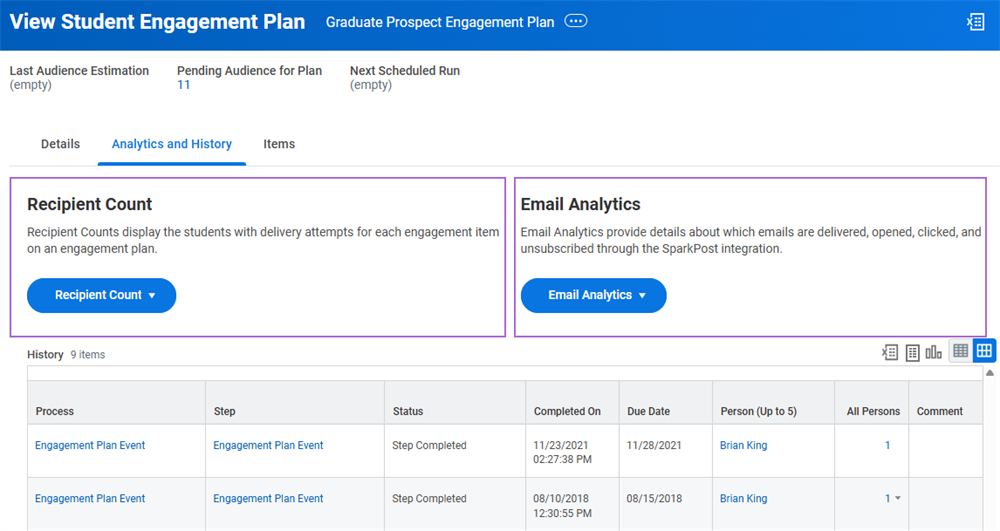
Workday offers a set of analytics tools that you can use to evaluate how your engagement plans are performing. You can access the delivered analytics in the
Find Student Engagement Plans
report. Select the Analytics and History tab to see a list of the historical data for your engagement plans. As shown in the following image, you can also use the Recipient Count and Email Analytics sections to view additional information about the engagement plan.These analytics help your institution see which email items are being sent, opened, clicked, or unsubscribed. You can use this data to help improve your communication with prospects and students. When you select email analytics as a delivery type for any Student or Learning notification type, you can track the delivery and engagement metrics on all email events sent for that notification type, including delivery, open, click, drop/bounce, and spam. For more information, please refer to Workday Community.
Engagement Plan Monitor
Occasionally you may have engagement plan failures that prevent you from distributing your engagement items successfully. You can use the
Engagement Plan Monitor
report to preemptively address these issues. This report displays all engagement plans with issues in your system. There are three levels of severity to be aware of:- Critical- The engagement plan will not work as intended with the current settings.
- Warning- The engagement plan will run, but there are issues you should be aware of.
- Informational- The engagement plan is running as intended, but there is an upcoming stop date on the plan or an item.
Some commonly occurring engagement plan issues that may display on this report can include:
- The run as user for the report used in the student audience is invalid.
- The report used in the student audience is marked as Temporary.
- The report used in the student audience has an included prompt.
- There is an invalid Mail Coordinator identified for print items.
Engagement Plan Failures
The Engagement Plan Monitor also enables you to view and troubleshoot plans that have failed to send communications to their intended audience. Additionally, you can use the
Maintain Student Engagement Settings
task to identify a set of security groups who receive a notification when an engagement plan does fail. This allows you to quickly alert your engagement administrators when an issue arises.Configure Notification Groups
If an engagement plan fails, you want to route notifications to the appropriate security groups. To accomplish this, access the
Maintain Student Engagement Settings
task. On the Engagement Plan Failures tab, add the security groups to notify. These security groups must be active and have access to the Manage: Sending Campus Engagement domain in the Campus Engagement functional area. Workday sends notifications only to the security groups that have access to the engagement plan category.View Failed Engagement Plans
If the plan fails or has errors, Workday sends:
- A notification to the Workday My Tasks.
- An email, if you have configured the System tab for Student Engagement Monitoring on theEdit Tenant Setup - Notificationstask.
The
Engagement Plan Monitor
report displays all failed engagement plans, the issue causing the failure, and how to resolve the specific issue. View the number of individual plans that have failed from the Instances Affected column. When you select the number of instances, view all the plans that have failed. From there, you can use the Related Actions menu to navigate to the issue and fix it. The engagement plan itself also displays critical errors and warnings.Causes and Resolutions
Workday displays alerts and warnings, which could prevent your engagement plan from sending communications if the:
- Assigned Run As User no longer has access to the report or saved search.
- Custom report that defines the student audience now contains prompts.
- Report that defines the student audience is Temporary.
- Mail coordinator for printed items is inactive.
- Recipient threshold for engagement plans has exceeded the number specified.
- Engagement plan has a stop date within the next week.
Engagement Tenant Configuration
As part of your institution's campus engagement configuration, you need to edit the tenant settings. Use the Student section of the
Edit Tenant Setup - Notifications
task to determine if engagement items should be sent:- Immediately when a relevant system transaction occurs (e.g. a student prospect is created).
- As part of a nightly job run.
- On a regular schedule you determine.
This task also lets you configure the default routing settings. For example, you can configure the system to send all email messages to the identified primary home email address for a student or student prospect. The default routing settings you configure apply to all types of Student notifications. However, you can override the default settings for any of the notification types listed in this section.
Chapter 7 Tasks and Reports
Below are the commonly used tasks and reports for the topics covered in this chapter.
Tasks:
- Create Student Audience
- Create Student Engagement Plan
- Create Student Message
- Create Student Prospect
- Edit Tenant Setup - Notifications
- Find Course Sections
- Maintain Student Engagement Settings
Reports:
- Find Academic Records
- Find Student Engagement Plans
- Find Student Prospects
- Find Student Recruitments
- Find Students