
Configurable Security Overview
Overview
The Workday configurable security framework provides a comprehensive model for access across Workday. Configurable security controls everything from the user interface pages, to custom reporting, to business processes and integrations. The framework supports access to data in various organization types and across multiple locations.
Configurable security enables customers to modify or accept the delivered Workday default security groups and security policies that control view and modify access to Workday. You can configure which security groups and roles participate in a business process and which security groups are granted access to tasks and reports.
In this chapter, you will review the concepts and configurations involved in configuring the security access for your institution. You will also review methods of identifying security access for users and specific data, and learn how to troubleshoot some common security issues.
Objectives
By the end of this chapter, you will be able to:
- Identify the components of configurable security.
- Explain the implications of configurable security on system users.
- Identify types of security groups.
- Assign security groups and roles to users.
- Use security reports to identify security configuration attributes and permissions.
Configurable Security Introduction
Workday application data is accessible only through group-based security. The Workday Object Management System (OMS) enforces this security. As such, Workday users gain access when you assign them to a security group with access to certain data or a business process.
Components of Configurable Security
Consider and configure these components when setting your institution's security settings:
Component | Description |
|---|---|
Security Groups | Groups of users who need to perform actions or access data. |
Domains | Defined tasks and reports that are functionally similar. |
Domain Security Policies | Rules that dictate which security group can view or modify data within the domains. |
Business Processes | Workday-delivered processes. |
Business Process Security Policies | Rules that dictate which security groups can participate in the business process and how they can participate. |
Configurable Security Framework
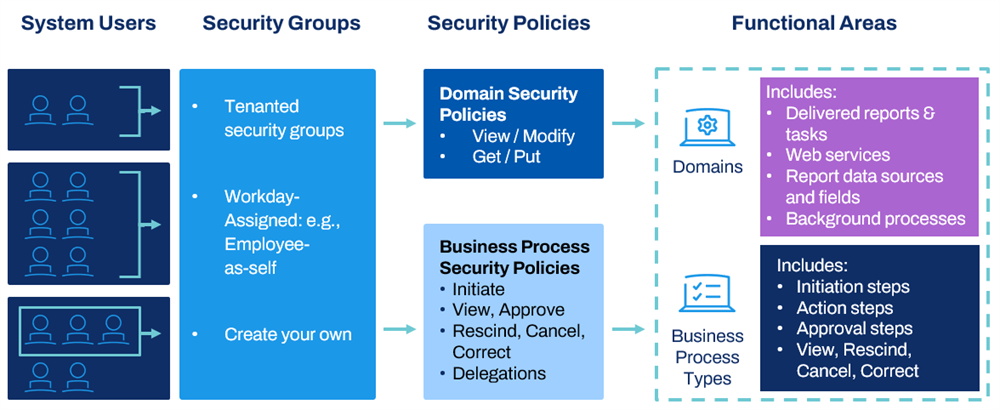
Configurable security allows you to provide system users with access to reports, tasks, and business process steps. You give security groups permissions to domain and business process security policies. When you make users members of security groups, they gain access to these securable items.
Functional Areas
Workday delivers product applications in functional areas. Some examples of functional areas in Workday Student include Academic Foundation, Student Recruiting, and Student Records. Each functional area houses a list of domains and business process types. Workday controls how the functional areas are delivered and cannot be changed.
The
Functional Areas
report shows a top-down view of the Workday-delivered functional areas and the domains and business process types in each.Note
: Depending on the scope of your Workday deployment, Workday does not enable all functional areas. Use the Maintain Functional Areas
task to enable or disable functional areas.Security Groups
A security group is a collection of system users, which Workday uses to grant access to specific parts of the system. Group users explicitly (e.g., user-based) or derive membership from other relevant information about the user. This information includes the user's role assignment, job profile, or organization membership.
When configuring security in Workday, first identify users via a security group. You can then add or remove the security group from a desired Security Domain or Business Process Security Policy. Doing so grants or denies access to the set of users in the security group to that particular area of Workday.
Domain Security
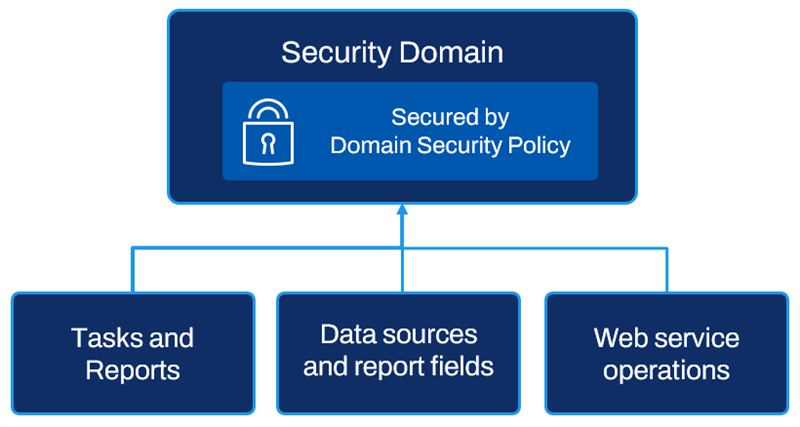
The security domain is one of the primary security mechanisms in Workday. Each security domain controls access to a set of tasks, reports, and web services. Every domain uses a security policy to control which security groups can view or modify the items secured to each domain. Now, explore each of these aspects of domain security.
Security Domains
Domains are collections of items that share the same security. These items include tasks, delivered reports, report data sources, and web service operations. Workday determines the secured items within each domain. You cannot change what delivered items are in which domains.
Domain Security Access
One or more security groups can access each domain. Workday divides the securable items in each domain into three categories:
Security Policy Categories | Controls |
|---|---|
Securable Actions |
|
Securable Reporting Items |
|
Web Services |
|
More than one domain security policy can secure the same items. Users granted different levels of access permission in different domains get the most access granted.
Domain Security Inheritance
Some domain security policies have a hierarchical relationship with child domains, also called subdomains. Subdomains can inherit the security policy settings of the parent domain, or super domain. The parent security policy controls which security groups have access permissions in all the child security policies. If you add or remove a security group in the parent policy, the change appears in all the child security policies.
You can turn off inheritance in any child security policy by editing it. After that, changes made in the parent security policy no longer have any effect in that child policy. Editing a child security policy does not affect inheritance in any of the other child policies.
After editing a domain security policy, when you later view the policy you can restore inheritance in a child policy by selecting the Use Parent Permissions button. When viewing the policy, you can also see when a child security policy is inheriting permissions from its parent policy. The Status field under the security policy title will read "Active - Inheriting parent permissions."
Note
: There is no inheritance for business process security policies.Domain Security Policies
Every domain has its own domain security policy. Domain security policies determine which security groups can access the items in the domain. Remember, you configure security access at the domain level, not item-by-item. Users with access to a domain can access all items secured in that domain. However, you can determine whether users have view, or view and modify access to those items.
Domain Security Permissions
Define domain security for report, task, or integration permissions. For report and task permissions, you designate permissions for security groups to either view, or view and modify, tasks within the policy. For integration permissions, you designate permission to get, or get and put, data.
For example, you can assign which security group or groups should set up application groupings or access a student's academic requirement progress or financial aid data. Edit the security policy for the domains to accomplish this configuration.
Domains contain securable items that require either view or modify permissions to access the item. You can grant a security group with view only access, or with view and modify permissions to a given domain security policy.
View Only Access
View-only grant users with access to the domain items designated with "View" as the permission required. These items are typically reports and report fields. Security groups with view-only permissions cannot access any domain items that require modify permissions.
Modify Access
Modify permissions grant users with access to the "Modify and View" permission items. Security groups with modify permissions, therefore, have access to all of the domain items.
Accessing Domain Security Policies
You can view domain security policies using the
Domain Security Policies for Functional Area
report. To determine which domain an item is in, use the View Security for Securable Item
report.Enabling Security Domains
During a deployment, or when you create new security domains in Workday, you may run into times when a security domain is not enabled or configured. This can be problematic when the domain secures a task or data that you need access to. In these cases, enable a security domain and configure the permissions on that domain.
If a security domain has a status of "Suspended - Policy not enabled," enable it to be able to grant access to the items it controls.
From the domain security policy's Related Actions, select Domain Security Policy, and then Enable.
You confirm the change and then select OK to enable the domain. After you enable the domain, you can edit the permissions to grant View and View/Modify access to the appropriate security groups in your system.
Important
: Enabling a security domain, like any other security change in your system, requires activation. Anytime you enable a security domain, be sure to use the Activate Pending Security Policy Changes
task to activate your changes.Business Process Security
Business processes represent the events or transactions that the system can automate using the Workday business process framework. There are many business process types in the system, and each business process type has an associated business process security policy. This business process security framework is one of the primary methods of securing tasks and approvals in the system.
Business Process Types
Workday represents most of the tasks and transactions you use by a type of business process. For each delivered business process type, configure one or more business process definitions with the steps required to complete that type of transaction.
Student Business Process Type Examples
Some business process types commonly used in Workday Student include:
- Program of Study Event
- Course Section Event
- Student Recruiting Campaign Event
- Student Onboarding Event
- Student Application Create Event
- Student Charge Event
Business Process Step Security
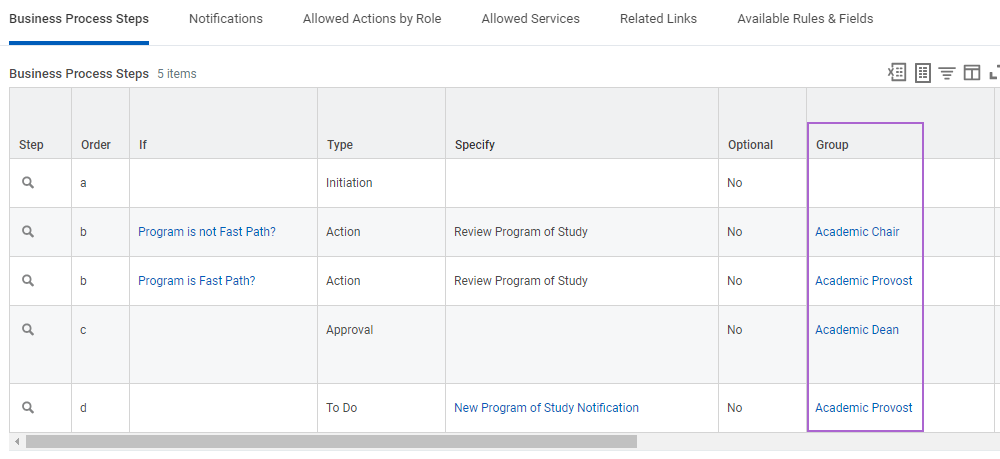
On each business process definition, define the steps required to complete the transaction. Examples of business process steps include approvals and actions. Steps in a business process definition route to security groups, not individual users. Configurable security allows you to control which security groups can, for example, initiate, approve, act on, or cancel each type of business process.
Business Process Security Policies
Each business process type has its own security policy. In these business process security policies, you can configure which security groups can:
- Initiate the business process.
- Perform allowed actions.
- Approve, rescind, or cancel an event.
Business process security policies allow you to configure the following types of permissions:
- Who Can Start the Business Process (including what actions initiate the business process)
- Who Can Do Action Steps in the Business Process
- Who Can Do Actions on Entire Business Process
- Who Can View All
- Who Can Approve
- Who Can Cancel
- Who Can Rescind
- Who Can Manually Advance
- Who Can Deny
A business process security policy also allows you to delegate a specific business process to others. In the example below, there are multiple initiating actions for the given business process type. You can configure the permitted security groups for each initiating action, controlling who can start this business process via what action. Initiating actions can also include web services.
Note
: If you have multiple copies of your business process definitions for a given business process type (e.g., multiple Program of Study Event business process definitions for different academic units), there is only one business process security policy for the business process type (e.g., Program of Study event). Each definition uses the same business process security policy configuration.Accessing Business Process Security Policies
Use the
Business Process Security Policies for Functional Area
report to view business process security policies. You can also use a business process definition's Related Actions to view the relevant business process security policy for that business process type. Select Business Process Policy > View when using the business process definition's Related Actions.Security Policy Change Control
Workday records the date and time as you modify, enable, and disable security policies and functional areas. This record acts as a time stamp. Workday security evaluates the security configuration as of a time stamp, ignoring any security changes made afterwards. As you make changes, Workday saves them as inactive, pending changes until you activate them.
To activate security changes, use the
Activate Pending Security Policy Changes
task. When you activate them, Workday records the time stamp. If you discover a problem with your security configuration that you cannot quickly fix, use the Activate Previous Security Timestamp
task. This task activates a previous time stamp while you make corrections. Business Process Security Policies with Pending Changes
and Domain Security Policies with Pending Changes
allow you to view security policies with pending changes.The steps are as follows:
- Modify Security Policy
- Activate Pending Security Policy Changes
- Security Evaluation Moment
User Proxy
Workday enables you to configure proxy access in nonproduction environments, such as Sandbox. This allows defined groups to act on behalf of another user. This functionality allows users to test business process and security configurations before moving them into production. Security Administrators can create proxy access policies specifying:
- The security groups that have proxy access to Workday.
- On whose behalf users can act once they sign in.
- The security groups that users cannot proxy into.
When you act on a user's behalf in Workday, you can perform any action that user can access. Use the
Start Proxy
and Stop Proxy
tasks to sign in to and terminate proxy sessions.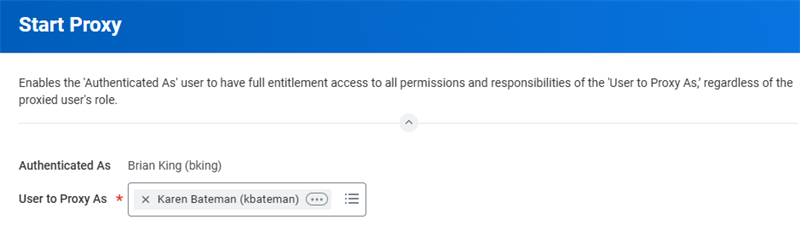
Note
: In this course, you can use proxy access to easily change sign-in credentials to ease testing and activities. In your own production tenant, you will likely not have this ability.Security Group Configurations
Configured security groups enforce constraints on what instances of data members see when accessing a secured report, task, or event. Security groups are unconstrained, constrained, or mixed. The security group type determines the constraint.
Type of Access | Description |
|---|---|
Unconstrained
| Users have access to all target instances when accessing an item. |
Constrained
| Users have contextual access to a subset of data when accessing an item. Target constraints in Workday are typically based on organization but you can also determine them by level or segment. |
Mixed | Users have combined access depending on security group constraints included in an intersection or aggregation security group. |
Unconstrained vs. Constrained Student Examples
Unconstrained
:
A Student Administrator (user-based security group) sees personal information for all students in the system.Constrained
: An Academic Chair (role-based security group) only sees grade data for students in the academic unit you have assigned them to. Alternately, a Student (self-service security group) only sees his own home address and not the home address of any other student.Security Group Types
Workday delivers several security group types. However, you can also create new security groups of these delivered types.
The following table describes the security type, how a user becomes a member, and whether you constrain or unconstrain a member's target access when accessing secured items.
Type | When would you use this type? | How does a user become a member? | Context Type (Members are...) | Examples |
|---|---|---|---|---|
User-based | To identify a specific user in a specific responsibility and give them unconstrained access to a given area of Workday. | Manually assigned. Follows user. | Unconstrained | Academic Administrator, HR Administrator |
Role-based (Constrained) | To individually identify your support and leadership staff and constrain their target access to the organizations that they each support or lead. | Based on role assignment. Workers in a position (or job) assigned to the role used in the security group are automatically members. | Constrained to target data in the organizations where they have the role assignment. | Academic Chair, HR Partner, Student Admissions Reviewer |
Role-based (Unconstrained) | To identify your support or leadership staff and give them unconstrained access to certain areas of Workday. | Based on role assignments.
Workers in a position (or job) assigned to the role used in the security group are automatically members. | Unconstrained | Academic Chair, HR Partner, Student Admissions Reviewer |
Conditional role-based | To determine how many subordinate levels of target access to grant Managers depending on the location of the worker. | Evaluates a condition based on the target worker's location and applies one of two constrained, role-based security groups to the member. | Constrained to a configured number of subordinate organization levels. | |
Job-based (Constrained) | To identify workers in a given job criterion, and constrain them to target data for organizations they themselves are in. | Based on job details (e.g., job profile, management level). Automatic membership. | Constrained to target data in organizations that they themselves are in. | President, Manager |
Job-based (Unconstrained) | To identify workers in a given job criterion (e.g., job profile, job family, exempt jobs) that do not require a target constraint. | Based on job details (e.g., job profile, management level). | Unconstrained | President, Manager |
Segment-based | To configure access to values (e.g., values in a prompt). | Based on included security groups. | Constrained to allowed segments of values. | Documents - Benefits Categories Unrestricted Expense Items |
Location Membership | To identify members based on their location. | Based on location membership. Automatic membership. | Unconstrained | All USA Workers |
Organization Membership (Constrained) | To identify members based on their membership in given organization types and constrain their access to only target data in that organization. | Based on organization membership. Automatic membership. | Constrained to target instances in the organizations to which they themselves are in. | Student Academic Unit Membership Information Technology Organization |
Organization Membership (Unconstrained) | To identify members based on their membership in given organization types. | Based on organization membership in any organization type. | Unconstrained | Student Academic Unit Membership Information Technology Organization |
Aggregation (Mixed) | To combine membership across several included security groups. | Members are those in any of the included security groups. | Members are workers in any of the included security groups. | Those in HR Partner OR Benefits Partner |
Intersection (Mixed) | To determine members that are common to all included security groups where their target constraints are also common. | Members are those in all of the included security groups. | Members are workers in all of the included security groups. | Those in HR Partner security group and HR Partner by location |
Service Center-based (Constrained) | To identify third-party users (not workers in your organization charts and headcounts) and constrain their target access to a defined organization. | Based on Service Center. Service center representatives in service center will automatically be members. | Constrained to target instances in configured organizations. | Third-Party Help Desk that only supports workers in Europe. |
Service Center-based (Unconstrained) | To identify third-party users with unconstrained access. | Based on service center.
Service center representatives in the service center will automatically be members. | Unconstrained | Third-Party Help Desk that supports all workers. |
Integration System (Constrained) | To identify Integration System
Users (ISUs) that integrations run as and constrain target access to defined organizations. | Manually assigned to Integration System Users | Constrained to target data in configured organizations. | Student Integration System |
Integration System (Unconstrained) | To identify Integration System
Users (ISUs) with unconstrained access. | Manually assigned to
Integration System
Users. | Unconstrained | Credit Card System, |
Manager Level-based | To identify members based on management levels and constrain their access to targets in lower levels regardless of organization. | Based on included levels. | Members can access targets in lower management levels regardless of organization. | Those in Manager management level can access talent card data for all those in lower management levels. |
Workday-Assigned (C/U) | Uses vary by security group. | Workday automatically assigns to members of a specific population, such as All Employees or All Academic Counselors. | Constraints vary by security group. | All Employees All Users Student as Self |
Commonly Used Workday Student Security Group Types
When working with the Workday Student product, you typically use role-based, user-based, and segment-based security models. In this class, the focus is on the configuration and utilization of these three types of security groups.
User Security Group Assignments
Workday allows security groups assignment in one of three ways - automatically, manually, or derivatively - based on security group criteria. Examples of security group assignments include:
Method | Security Group Examples |
|---|---|
Automatically assigned | All Employees, All Students, Student as Self |
Manually assigned | Report Writer, Payroll Administrator, Finance Administrator |
Derived based on security group criteria | HR Partner (role-based), VPs (job-based), U.S. Locations (location membership) |
Workday Assigned Security Groups
When you create a Workday account for a user, Workday automatically assigns security groups to the account depending on the type of account (e.g., employee, student, and prehire). These automatically assigned security groups ensure the common access a user needs in the system. You cannot remove automatically assigned security groups from the Workday account. However, you can change which domain and business process security policies you assign the groups to, and thus the access that the members have in the system.
Workday Student Examples of Workday Assigned Security Groups
For example, a new student receives the Student as Self security group, which allows the user to perform self-service tasks. Workday automatically assigns the Student as Self security group to a student matriculated into the institution.
Similarly, Workday automatically assigns the Employee as Self security group to an employee when hired. Use this security group when assigning Self-Service permissions. More examples of automatically assigned security groups include:
- Student as Self
- Employee As Self
- Contingent Worker As Self
- All Students
- All Users
- All Employees
- All Contingent Workers
- Implementers
- Initiator
- Manager's Manager
Tip
: For a complete list of Workday-delivered / assigned security groups, run the View Security Group
report, and select Workday-Delivered Security Groups from the prompt.User-Based Security Groups
User-based security groups are collections of users that allow for specific access permissions to secured items and business processes. Institutions commonly use user-based security groups to provide administrators system-wide access to data in permitted security policies. You can manually assign user-based security groups to a user that stay with the user, regardless of job changes.
User-Based Security Group Examples
Examples of user-based security groups include:
- Academic Administrator
- HR Administrator
- Professorship Administrator
- Security Administrator
- Report Writer
- Student Administrator
- Student Finance Auditor
User-Based Security Group Permissions
User-based security groups are granted permissions through domain and business process security policies. If a user-based security group has access to a domain, then the members of the security group have unconstrained access to items within that domain. This unconstrained access means that they see all target data available for that item.
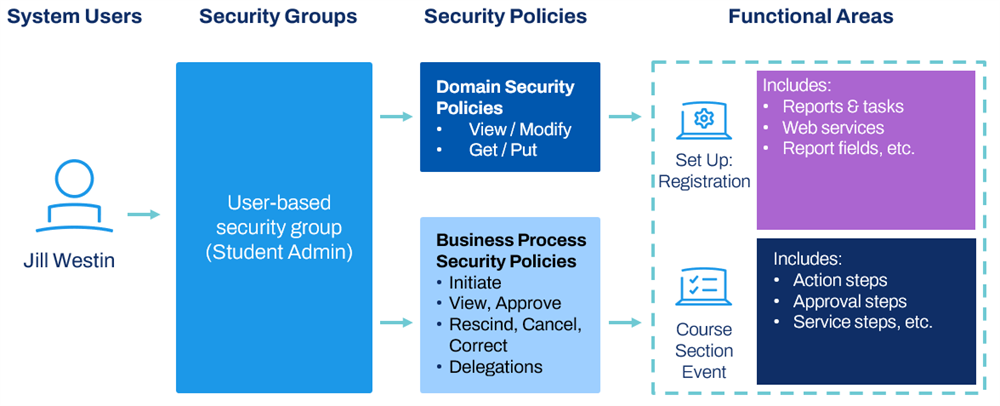
User-based security groups are the least restrictive security group type. They are not context-sensitive, in that there is no attempt to match the context group members with the context of secured items. This security group type is appropriate for administrators or specific individuals who need system-wide access for their areas of responsibility.
Workday provides factory defaults of several user-based security groups as starting points that you can use and assign to your workforce. You can also create your own user-based security groups as needed.
Assigning Users to User-Based Security Groups
User-based security groups are assigned directly to a user, not a job or position. Multiple people can be members of the same user-based security group. You can assign users to user-based security groups in several ways:
- Using theAssign Users to User-Based Security Grouptask.
- Using theAssign User-Based Security Group for Persontask.
- View a user-based security group and use the Related Actions to select Assign Users.
- View a user and use their Related Actions to select Security Profile, then Assign User-Based Groups.
- Use a web service.
Important
: User-based security groups are assigned at the Workday account level and follow the user. Therefore, it is important to address user-based security group assignments in your staffing events where workers are changing jobs or leaving the institution.Role-Based Security Groups
Role-based security groups are an essential method of granting needed access in Workday. You can use these security groups to identify users in key support or leadership roles supporting different organizations.
You can define role-based security groups as either constrained or unconstrained. Constrained role-based security groups are a common way to identify and constrain your support staff to target instances in organizations or academic units that they support or lead.
For example, a Student Admissions Reviewer has restricted access, enabling them to support only the academic unit you assign them. Alternatively, you can restrict an Academic Chair to only seeing scheduling information for professors in a particular department or school.
Assignable Roles
Role-based security groups use a concept called an assignable role (or "role"). Role-based security group members have assigned positions referenced in the role-based security group definition. Role assignments involve assigning a role to a position or job for a given academic unit, organization, or role-enabled instance.
Workday ties organizational assignable roles to positions, not people. This association enables the security access to remain with a position when a worker terminates or transfers. When this kind of transaction occurs, security access can carry over to a new worker filling the position. You can assign those assignable roles to academic units, supervisory organizations, or other role-enabled instances.
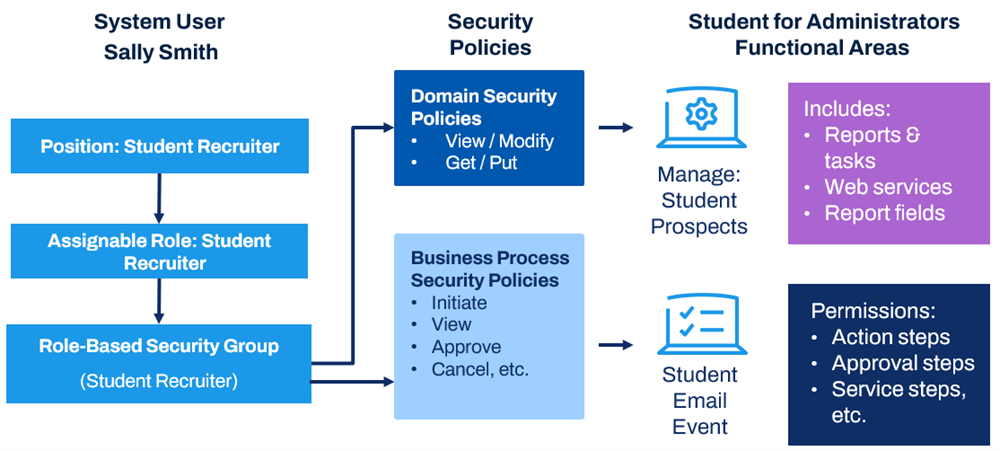
Finally, these assignable roles are linked to role-based (constrained) security groups, which you can add to domain and business process security policies. This last step allows workers (who are in a job or position tied to an assignable role) to access the data in the system.
Workday delivers some starting assignable roles and role-based security groups. You can also create your own assignable roles and role-based security groups.
Workday Student Role Based Security Group Example
The image below shows the Student Recruiter role-based constrained security group. It is linked to the assignable role of Student Recruiter and includes domain and business process security policy permissions.
Role Inheritance
Subordinate units without an existing role assignment inherit assignments from the academic unit. This occurs when you assign a worker's position or job to a role. The target access that these role assignees have depends on the configuration of the security group.
There are four options for configuring access rights to academic units on a role-based security group. You can constrain members to targets for units they are assigned roles to, as well as subordinate units, in the following ways:
- Current organization only
- Current organization and unassigned subordinates
- Current organization and all subordinates
- Current organization and subordinates to a specified level
Assigning Roles
Role assignments allow you to identify and assign your support and leadership staff organization by organization. Role assignments involve associating a user's position with a given assignable role for a given academic unit.
You can assign roles in several ways:
- At the academic unit (or role-enabled organizational instance) level
- At the worker position (or job) level
- To an unfilled position
- As a step in a business process (a subprocess)
- Via a web service
Many tasks in Workday allow you to maintain role assignments. These tasks initiate the
Assign Roles
business process.Assigning Roles to an Organization
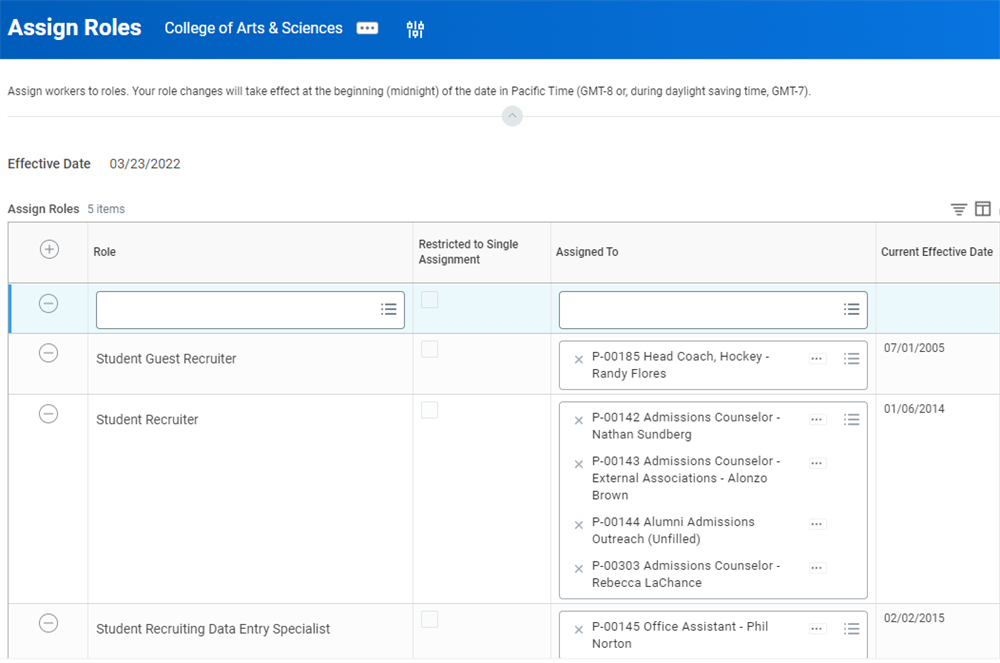
You can assign roles as a related action for a given role-enabled instance (e.g., academic unit, supervisory organization, student cohort). From a given organization, use the Related Actions and select Roles, then Assign Roles.
Assigning Roles to a User
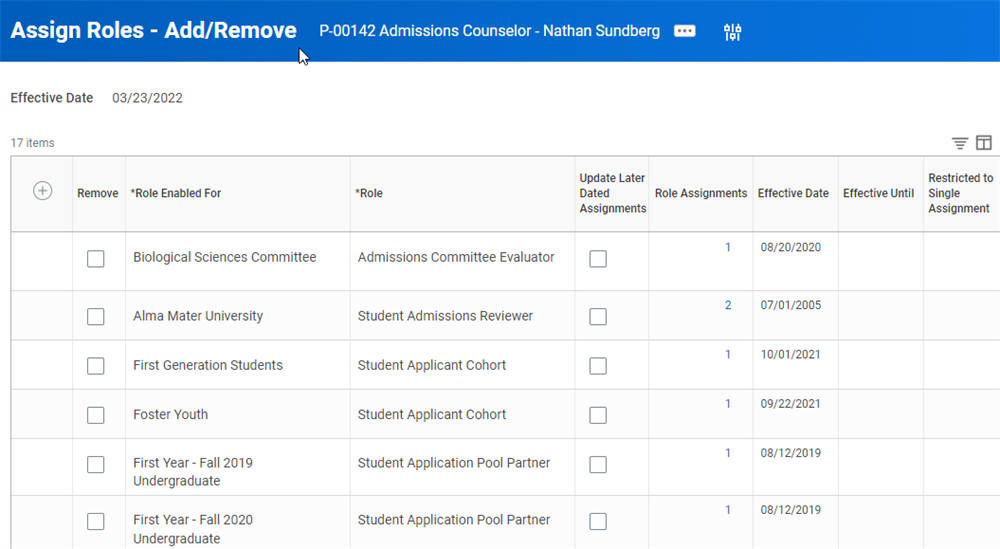
You can also assign roles using tasks on a user's profile. From a user's Related Actions, select Security Profile, then Assign Roles - Add/Remove or Assign Roles - Change Assignments.
Student Cohort Role Security
You can configure more security for users with a role on a student cohort. This gives you the flexibility to grant people with cohort roles more access so they can appropriately support their students.
You can add role-based security groups, created for student cohorts, to security policies on more domains. You can also create an initiating action on an additional business process.
Role-Based Security: Constrained vs. Unconstrained
There are both constrained and unconstrained role-based security groups available in your tenant. Role-based constrained security groups are more commonly used, but there are instances where you might want to give unconstrained access to a given role.
For example, say you wanted to give all Academic Deans throughout your institution access to a specific set of information for all students, not just the ones in their assigned academic unit. You can create a Role-Based (Unconstrained) security group and assign it to the relevant security domains to grant them that unconstrained access.
Delivered Roles vs. Custom Roles
Workday delivers many of the roles needed to organize your institutional structure and configure appropriate security access. However, your institution may have additional roles not included in those delivered by Workday. Fortunately, you also have the option to create new assignable roles and use them for custom security configurations.
Creating Assignable Roles
Use the
Maintain Assignable Roles
task to add, remove, and maintain assignable roles in the tenant. There are many fields available when configuring a role. The required elements of a role are:- Role Name
- Organization types that the role is enabled for
- Which security groups can assign the role
For most Workday Student applications, ensure that you enable new roles for use on Academic Units and Academic Unit Hierarchies. Once you create an assignable role, you can assign it to a position and use it for role-based security purposes.
Delivered vs. Custom Role Considerations
The assignable role framework provides a tremendous amount of flexibility in designing and deploying role-based security in your system. However, there are certain advantages and disadvantages to using either custom roles or Workday-delivered roles in your security configurations. When designing your institution's security configurations, consider the following:
Delivered Roles Have Pre-Built Security Groups
Workday-delivered roles come with existing associated security groups. This makes deploying these roles into your security configurations simple, quick, and easy. You may need to create additional security groups for custom roles in order to include them in your security configurations.
Ease of Security Requirement Communication
The process of designing the security configurations for your institution is tricky, especially when you involve a lot of new custom roles and security groups. To ease communication of security requirements and avoid unnecessary confusion between you and your deployment consultants, consider using the Workday-delivered roles and security groups whenever possible.
Custom Roles Require Additional Configurations
Custom roles are easy to create and assign to positions. To use these roles in your security configurations, create additional role-based constrained and unconstrained security groups in your system. This process requires some additional knowledge to avoid any unintended security access.
Segment-Based Security Groups
Segmented security allows granular access to the values of a given secured item via defined segments. With segmented security, you control access to values that, for example, appear in prompts. For example, the available students or student prospects users can select when updating a person's information. Segment-based security groups allow you to configure which security groups can access what segment of values.
Types of Student-Related Segments
Segmented security is only available in certain areas of Workday. Workday determines the items available to segment. In Workday Student, there are several types of segments available for you to use for accessing:
- Student-related business processes
- Student note categories
- Student hold reasons
- Student documents
- Student engagement categories
- Specific sets of questionnaires (i.e. for admissions or recruiting purposes)
You can use these segments to grant or restrict access for specific members of an academic unit to see only specific sets of information. Some examples of when you could use segmented security include:
- To restrict your student recruiters editing personal information for student prospects, but not matriculated students.
- To enable your academic advisors to assigning only academic, non-financial student hold types. Likewise, you can restrict student financial administrators to assign only financial holds, not academic.
- To restrict academic administrators to seeing only student documents of a certain category to prevent exposing personal or secure information.
Designing Security
Here are a few considerations to keep in mind when designing your institution's security configurations:
Use Workday-Delivered Roles and Security Groups
Your institution will likely need to create additional roles to suit your unique security needs. However, try to use the Workday-delivered roles and role-based security groups whenever possible. Doing so eases deployment and makes communicating your security requirements with your consultant teams much smoother.
Start with User-Based Security Groups
Your system administrators need unconstrained, system-wide access early in the deployment process. These administrators will need to set up and configure the system for their functional areas with unconstrained access.
Consider the Functional Areas for Configuration
Each functional area contains different security domains and business processes. Some of the associated security policies will not support certain types of security groups. Research the domain and business process security policies you need to configure access for before creating an additional security groups.
Use The Appropriate Security Group Types
You have seen several types of security groups in this chapter. When designing your institution's security configurations, it is important to understand when and how to best use each type of security group.
Unconstrained Security Groups
Use a user-based (Unconstrained) security group to give broad system-wide access to your system or institutional administrators. Your IT support teams and super users will need the ability to make changes to security and business process settings.
Constrained Security Groups
Use a role-based (Constrained) security group to provide limited access based on context. This configuration is typical for administrators for a given academic unit, or workers serving a specific role for an organization. It is rare for an administrator to need unconstrained access to all data in the system. Consider who needs access to what data in your tenant.
Segment Security Groups
Use segmented security when you need to restrict access to only certain sets of tasks, reports, or user information based on nonorganizational context. For example, an academic advisor may have access to student documents for any student in your institution. However, you do want to restrict them from viewing sensitive financial documentation such as tax or income information.
Troubleshooting Security
Review your security configurations periodically. Doing so ensures that your security configurations correctly reflect any changes to your institution. Additionally, your security administrators need to occasionally troubleshoot access issues in your tenant. Here are a few of the most useful reports and tasks to troubleshoot your system's security configurations.
View Security for Securable Item
Search for a securable item, task, or report in the system that you need to evaluate access for. This report displays the mechanism securing the item. This gives you quick access to the relevant business process or domain security policy. This report is a great first stop when analyzing what security configurations to require for access to a specific part of your tenant.
Security Exception Audit
As your tenant and security configurations change over time, security exceptions may make some access assignments invalid. This situation may occur if you deprecate a security domain or you replace a delivered security group with a new one, for example. This report identifies any problem areas related to security in your tenant. Workday explains the problem and solution for each exception. Typically, this requires you to simply remove the invalid security group from the policy or business process.
Functional Areas
This report provides an overall look at the functional areas in your tenant. Select a functional area in this report to see all of the domain and business process security policies contained in that area. The report output provides links to each security policy, giving you quick access. If you want to only view the business process or domain policies, you can use the following two reports for a more granular view of the functional area:
- Business Process Policies for Functional Area
- Domain Security Policies for Functional Area
Security Analysis for Securable Item and Account
The
Security Analysis for Securable Item and Account
report:- Enables you to select a user account and evaluate security access to a specified secured item, action, or report.
- Displays the relevant business process or domain security policies tied to the selected securable item.
- Evaluates why a specific user does or does not have access to a secured action or item in the system.
- Serves as a resource for troubleshooting, providing links to the relevant security policies for a quick resolution.
List of Security Reports
The following table lists the most commonly used security reports for managing business process type security policy settings and domain security policies.
Report | Description |
|---|---|
Functional Areas | View all functional areas with their domains and business processes. View security policies and access-related actions to view and edit them. |
Business Process Security Policies for Functional Area | View the security configuration for each business process security policy in the specified functional area. Edit permissions. |
Domain Security Policies for Functional Area | View the security configuration for each domain security policy in the specified functional area. Edit permissions. |
Action Summary for Security Group | View all domain security policies and business process security policies that use the specified security group. View all the policies that grant access to the security group, their functional areas, and the details for the securable items to which access is granted. |
Security Analysis for Securable Item and Account | Select a system user and view the permissions they have for a specified action, report, or other security item. Displays which security policies and groups grant that access. View how a specific user can access a specific action and helps you troubleshoot security issues. |
View Security Group | View all details about security group membership, the security policies in which the group is used, the permissions it has, and the functional area. Audit the permissions granted to workers or other security groups through a security group. |
Domain Security Policy Summary | View every domain with its current security configuration. Check security policies and perform Related Actions. |
View Security for Securable Item | View which domain a securable item is associated with and what security groups grant access to a securable item. Troubleshoot incorrect security access. |
Chapter 3 Tasks and Reports
Below are the commonly used tasks and reports for the topics covered in this chapter.
Tasks:
- Activate Pending Security Policy Changes
- Activate Previous Security Timestamp
- Assign User-Based Security Groups for Person
- Assign Users to User-Based Security Group
- Create Program of Study
- Create Student Prospect
- Maintain Assignable Roles
- Maintain Functional Areas
- Start Proxy
- Stop Proxy
Reports:
- Action Summary for Security Group
- Business Process Security Policies for Functional Area
- Domain Security Policies for Functional Area
- Domain Security Policy Summary
- Find Program of Study Definitions
- Functional Areas
- Security Analysis for Securable Item and Account
- View Security for Securable Item
- View Security Group
- View Security Groups for User