
Workday Financial Management Overview
Overview
You will build Workday Student financials features on the Workday Financial Management foundation. In Workday Financial Management, the primary organization is the Company organization. In this chapter, you will begin by reviewing the company organization and then explore other common organization types used throughout Workday Financial Management. Workday groups and tracks financial transactions within company organizations. You can also use other organizational structures to represent multiple organization views.
Workday provides another dimension, called worktags, to use when reporting on financial transactions. Additionally, if you need further reporting dimensions, you can use delivered and custom worktags.
Account posting rules determine which ledger accounts a journal entry has impacted when you post charges, apply payments, and disburse financial aid. Workday typically determines these rules during the Workday Financial Management deployment.
Objectives
By the end of this chapter, you will be able to:
- Review an existing company structure.
- Review and configure banking details.
- Locate and understand a cost center hierarchy.
- Configure worktag usage and related worktag usage.
- Describe account posting rules.
- Create a revenue category.
Organizations
An organization is a basic building block to the Workday application. Workday defines organizations as a way to group workers and financial transactions. You can use organizations to:
- Aggregate data for reports.
- Assign workers to their management and support teams.
- Run business processes.
Workday defines and delivers the most common types of organizations. Within each type, you can define organizations to reflect your institution's requirements. You can also create unlimited numbers of each type of organization and then use them for different types of reporting. You can combine some types of organizations into a hierarchy to represent a structure.
Note
: Every instance of any delivered organization type (i.e., Company, Cost Center) is a worktag. You cannot use nonorganizational, delivered worktags or custom worktags as organizations (i.e., customer, revenue category and spend category).Organization Types
Workday groups organization types by function: Costing, Hierarchy, HR, Pay, and Custom. Some organization types allow for hierarchies that you can use in reporting.
Costing Organizations
Type | Definition |
|---|---|
Company | Companies are organizations within Workday and represent the internal business entities to which Workday posts transactions. Payroll and Workday Financial Management use Company to control accounting and reporting functionality. Company is the level at which you hold a balanced set of books. In most cases, you should set up legal entities as companies, but companies do not have to be legal entities. You can define company at a lower level than legal entity. Use this function when the customer needs to segregate security at a lower level for decentralized processing or other needs. Company is the level, which defines financial accounting details. |
Cost Center | Use cost centers to hold financial transactions, budgets as well as workers. Often, cost centers are departments within a legacy system. As a general guideline to defining cost centers, they should have:
There may be cost centers that do not meet these guidelines. It is important to note that more granular definitions of cost centers may overlap with other worktags and require more effort to administer. For example, if you need to report salary expenses for one or two employees, you can extract reports from payroll accounting instead of setting up a dedicated cost center. It is also important to note that this is how you report and manage costs. It is not how you report and manage your people; Workday provides the supervisory organization for that purpose. |
Location | Location represents the physical location of the worker (or business asset), whereas Region represents a geographic area for cost or revenue capture. For example, two sales people might be in the Miami office, but one has responsibility for the US-South region, while the other is responsible for the South America region. In Workday Financial Management, it can be useful to think of the location as the origin of the cost and the region as the destination. Defining the level of granularity of locations is important, as all product lines (Workday HCM, Payroll, and Workday Financial Management) use location. For application deployments, all functional areas should reach consensus as to the level of location granularity. Workday recommends that location be owned (defined, built, and moved) by a single resource obtaining requirements from all product areas. Use Workday Financial Management - Locations to reflect an asset's physical location. |
Region | Regions are an optional organizational structure used to reflect the area of responsibility for a worker instead of the work location - which is different than the location hierarchy. For example, a salesperson might work from (is located in) a Miami location, but may be responsible for Sales in the Latin American Region. Note that Workday Student is using Region for the region of student recruitment. |
Program | Public sector and higher education organizations are the primary users of programs. Programs typically have long term, if not permanent, high-level purposes. Use Programs to manage items that are larger than Projects and do not have defined start and end dates. |
Fund | Fund accounting is unique to the public sector - governments, nonprofits, universities, and schools. It requires separate self-balancing journals to track each fund's revenues and expenditures. Separate funds into fund types and employ restrictions as necessary. You can use funds as a worktag in financial and payroll transactions. Group them into hierarchies for reporting. |
Gift | Higher education and nonprofit organizations primarily receive gifts. Common examples include gifts of money as a funding source. A common type of gift is an endowment. |
Business Unit | Business Unit defines a line of business or an operating unit. Although you can assign a Business Unit to workers during Assign Organizations, there are some staffing limitations. |
Grant | Public sector and higher education organizations are the primary users of grants. Educational, governmental, and nonprofit institutions receive a range of support - grants, contracts, cooperative agreements, and gifts. These awards originate with a variety of sponsors - governmental, corporate, foundations, and private donors. Grants are an entire application you can consider in the scope of your initial design sessions, based on your requirements. |
Project | Projects enable you to effectively plan, track, and manage projects and work. A project belongs to one project hierarchy. You can define a resource plan to assign workers to a project on the project or inherited from the project hierarchy. You can use billable projects to bill time, expenses, and supplier invoices to customers. Project scenarios used for project planning purposes and initiatives allow you to align projects with organizational goals. |
Workday HCM Organizations
Type | Definition |
|---|---|
Matrix | Matrix organizations contain workers from different supervisory organizations who work together. Each matrix organization has a manager who has a dotted-line relationship to all the members of the Matrix organization. However, the Manager of a worker's supervisory organization retains ultimate authority over the worker. |
Supervisory | Supervisory is the primary organization for Workday HCM as it groups workers into a management hierarchy. Jobs, positions, and compensation structures are associated with supervisory organizations. Hire workers into jobs or positions associated with a supervisory organization. |
Retiree | Retiree is an organizational structure designed to hold retirees, and provide visibility and management access for retiree administrators and partners. |
Pay Organizations
Type | Definition |
|---|---|
Pay Group | Pay groups aggregate workers and the rules that govern how Workday calculates their pay. Each worker who receives pay through Workday Payroll must be a member of only one pay group unless you are using multiple jobs functionality. |
Miscellaneous Organizations
Type | Definition | |
|---|---|---|
Academic Unit | A Workday organization type that represents a unit of your institution. Academic units are the schools, colleges, departments, or other divisions with academic levels. They can recruit prospects, admit students, offer programs of study, offer courses, or administer financial aid. Workday HCM uses academic units for academic appointments and AU function as the organization assignment for Academic Affiliates and Named Professorships. | |
Committee | Track various types of committees from corporate or department level, to regulatory or special subcommittees. | |
Custom Organization | All product lines can use custom organizations, so you must be judicious when creating custom organizations. Communicate to all teams when you propose a custom organization so you do not create multiple custom organizations for the same use. Before using a custom organization, ensure you have exhausted the possibility of using any other existing fields and structures in Workday to achieve the same result. Do not create a custom organization for an organization type that already exists. There is no limit to the number of custom organizations you can create. You can only specify 10 custom organization types for use in Workday Financial Management transactions. (i.e., an organization used as a worktag or used in payroll costing) It is important you consider this limit when deploying Workday HCM or Workday Payroll without Workday Financial Management. | |
Fundamental Characteristics and Structural Aspects
The different organizations share some fundamental characteristics and structural aspects.
Term | Definition |
|---|---|
Availability Date* | The availability date for the organization. The date when the organization becomes visible and available in prompts. |
Name* | Name of the organization. Requirements of a name depend on the type of organization. Pay attention to search capabilities when naming organizations. Try to avoid abbreviations (e.g., "Finance/Accounting" is easier to search for than "Fin/Acct."). |
Code | Optional field you can use as an additional identification field. Workday recommends the code be a way to identify the organization. The Reference ID used in integrations should match the organization code. For example, the cost center organization code might be the cost center number, and the Integration ID > Ref ID should be the same number. |
Subtype | User-defined field. Can create hierarchies and is reportable. |
Visibility* | When determining who can view an organization, Workday prioritizes organization visibility over the access rights of the worker's role-based security group. Visibility also controls whether workers can access the organization details or only the organization header. |
External URL | Allows you to identify a URL associated with the organization. |
Roles | Assignable roles dictate the security tasks and involvement in business processes. |
*Required fields
Subtypes
Organizations can have organization subtypes such division or department. You define each organization subtype (managed with the
Maintain Organization Subtypes
task) for your specific needs. All organization subtypes are tenanted data.If you have the business need to do so, you can also set up and enforce the hierarchy of your organization subtypes.
Visibility
An organization's visibility determines who can view the organization. Visibility options include:
Visibility | Definition |
|---|---|
Everyone | Anyone can access this organization. This setup is common. |
Role Assignees | Only a worker assigned to a role in the organization can view the organization. Workers can only view subordinate organizations if they inherit their role in the subordinate organization. If you are no longer the role assignee, the organization is no longer visible to you. This is true even if the role's role-based security group has access rights of "Applies to Current Organization and All Subordinates." Example : Use this option before a planned reorganization becomes effective. At the end of the reorganization, you can change the visibility of the organization to everyone. |
Role Assignees and Members | Only members and workers assigned to a role can view the organization. |
Role Assignees of Current and Superiors | Only workers assigned to a role in the organization or a superior organization can view the organization. Workers who can view the organization can also view all subordinate organizations. |
Assignable Roles
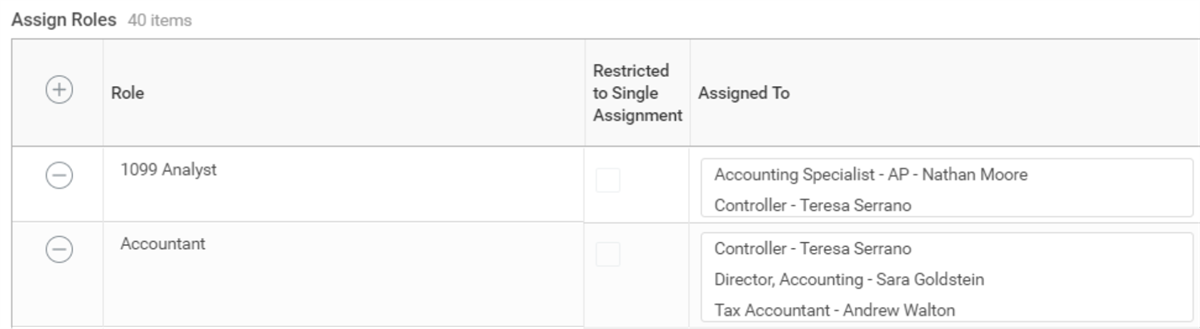
Assignable roles dictate the security tasks and involvement in business processes. Assignable roles reside in each type of organization (e.g., Company, Supervisory, Custom). Use roles in business processes to assign tasks, either by inheritance from a superior organization, by specific assignment to an organization, or by default. These role assignments and the security groups they are linked to are critical for business process routing and notifications.
Assign roles to a position created by Workday HCM. By default each organization has an owner assigned to the position that displays the position of the user who created the organization. You can assign other roles based on which type of organization you are creating. For example, you might assign the Accounting Manager role to the Chief Financial Officer position or the Senior Accountant. If a worker occupies this position, the assignment will also indicate the worker.
Workday restricts some role types to a single assignment, such as Company Costing Manager or Cost Center Manager, while you can assign other roles to multiple positions.
Memberships
Workers can reside in several organization types. You must hire them into a supervisory organization, but they can also be part of a:
- Company,
- Cost center,
- Region, or
- Custom organization.
The organizations that a worker is a member of default onto transactions that the worker creates for themselves, such as, timesheets, purchase requisitions, and expense reports.
Company Organizations
Companies are organizations within Workday that represent the internal business entities within your institution. In Workday Financial Management, companies are the primary organization for all business processes.
Set up the companies that you want to:
- Record business transactions.
- Produce financial statements.
- Create other statutory reports.
Attach at least one academic unit in your academic structure to a company. Workday posts student payments, refunds, and other accounting transactions to the company associated with a student's academic unit.
Company ID Definitions
A company ID definition specifies how Workday constructs and formats the IDs it generates for various objects. ID definitions enable you to specify a combination of text, date, and sequence numbers for Workday to use to generate these IDs. When you use the [seq] variable in an ID definition, the ID definition becomes a sequence generator that identifies each worker, position, or incident with a unique number. You can create as many ID definitions as you need and then select which ones to use for items such as invoices, orders, receipts, employees, beneficiaries, and more.
Using your own ID definitions is optional. If you do not specify an ID definition, Workday generates its own internal ID codes.
Organization Hierarchies
Workday uses organization hierarchies for reporting purposes to reflect different organizational rollups. Hierarchies also support security. You can change how you roll up organizations at any point and can have multiple views (hierarchies) of your data. Hierarchical organization types support inheritance of organizational roles down the hierarchy.
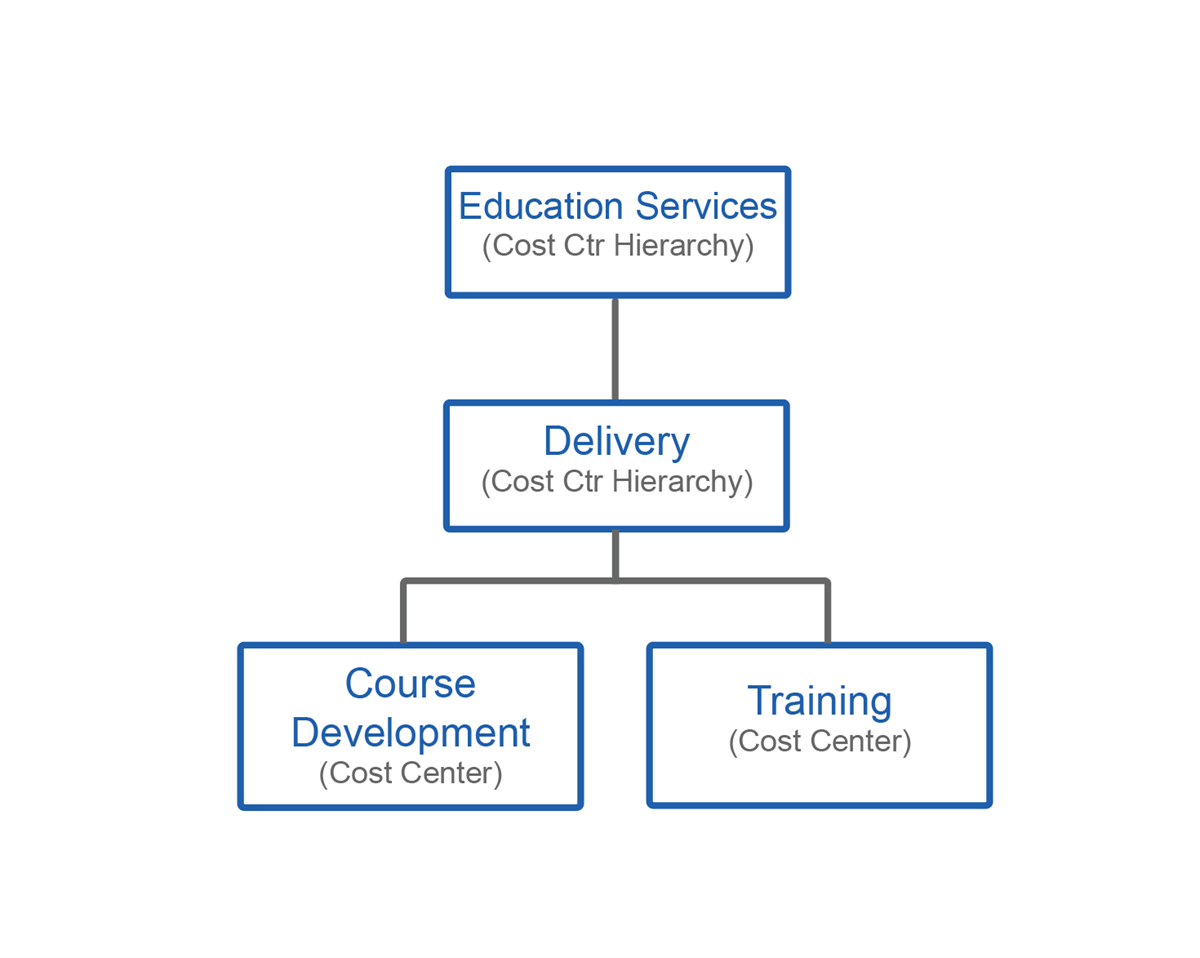
Organization hierarchies do not store transactions; Workday assigns transactions only to organizations. Based on the example above, you could record financial transactions directly to Training. However, you could not record a financial transaction to Education Services. Costs assigned to Training automatically roll up to Education Services.
Cost center hierarchies store cost centers, company hierarchies store companies, and regional hierarchies store regions.
Note
: The Hierarchy Owner of a hierarchy or Organization Administrator can assign included organizations to the hierarchy.Bank Setup
The Workday banking tools allow you to create financial institutions, branches for those institutions, and the bank accounts that your company uses. You can create both depository and source bank accounts. Account transfers, voided check recordings, and reporting give you further control of your cash.
Type | Explanation |
|---|---|
Financial Institution | Define the business entities holding the bank accounts your company uses to receive and make payments. (e.g., Bank of America) |
Bank Account | Create or update an account to capture the attributes of a financial account with which you bank. These accounts enable you to perform various financial activities in Workday, including:
You can create accounts in Workday for all external operational accounts against which you perform operational transactions. For nonoperational accounts, create an account only if you need the ability to reconcile. |
Lockbox | When companies use a lockbox, their lockbox provider checks the lockbox on a regular basis. The provider deposits the payments to the bank account associated to that lockbox. If your organization uses a lockbox to receive customer payments, you may enter your lockbox contact information. Workday will print it on customer invoices, advising customers where they can send their payments. |
Before setting up banks and other financial institutions, you must define:
- Companies and company hierarchies.
- Payment types.
It is also a recommended approach to define the following and associate with bank accounts:
- Preferred currencies.
- Check printing layout.
- Bank reconciliation rule sets.
- First notice rule sets.
Cost Center Organizations
Use cost centers to hold financial transactions, budgets, and workers. Often, cost centers are departments within a legacy system. As a general guideline to defining cost centers, they should have:
- A manager
- A financial impact
- A budget
Use cost centers to track financial transactions from both spend and revenue, as well as Workday HCM transactions with a financial impact, such as hiring or terminations. Assign employees and contingent workers to a cost center when hired. You can roll up cost centers into cost center hierarchies, which can only store cost centers for reporting purposes.
Supervisory Organizations
Supervisory organizations group workers into a management hierarchy to show a reporting structure of who reports to whom. A supervisory organization can be a business unit, department, group, or project. Jobs, positions, and compensation structures are associated with supervisory organizations, and you hire every worker into jobs or positions associated with a supervisory organization. You can create and insert supervisory organizations into a hierarchy as a single action. There is no separate action to create a supervisory hierarchy.
Tip:
In a "Workday Financial Management first" deployment, you will need to configure minimal Workday HCM tasks with a mock supervisory organization. You will load a subset of workers that will complete data entry, approval, or data analysis of financial data. The "Workday Financial Management first" approach is not feasible for self-service features like expense reports, requisitions, or timesheets, which requires you to set up every worker in Workday.Worktags
Workday provides an innovative way to capture and report financial information called worktags. Traditional accounting systems capture expenses, revenue, and more with accounting string elements. Worktags provide the ability to capture information that is not contained within the traditional accounting string such as customer and product.
A worktag is a keyword or label representing a business dimension of an enterprise. Workday uses worktags to associate business events and objects with enterprise business dimensions to organize, search, aggregate, and report on system data. Worktags enable you to mark events (transactions) and business objects to make their business purposes clear and classify their common relationships. This gives you a multidimensional view of your business that you can act upon. You can find information easier, filter searches to focus results, and analyze information in aggregated and summarized reporting. You can assign worktags to any line item that generates a financial update (e.g., journal entry lines, supplier invoice lines).
For example, many photo tagging systems use something similar. If I take a picture of a mountain in Montana, I can tag the photo with those keywords to find the picture later.
Worktag Types
Workday creates most worktags automatically. That is, when you create the corresponding Workday object, Workday automatically creates a worktag for it. For example, when you create a supplier, the supplier's name becomes a worktag for use in transactions. Workday delivers the following worktag types that you can use to tag your business transactions and supporting data:
- Delivered Organizations: Track financial transactions and group people.
- Delivered Worktags: Numerous predefined types and values with preset transaction availability.
- Custom Worktags: Fifteen delivered worktags with configurable names and values. Each custom worktag associates the worktag usage with Financial, HR, Payroll, or Time Tracking transactions or data.
- Custom Organization Worktags: Custom organizations are user-defined labels for specific areas of your business that you would like to group and create reporting for. A custom organization is a worktag by definition, to use on financial transactions. You can associate workers with customer organizations, default them into transactions based on membership, and use them to route transactions to specific people based on role. You can create an unlimited number of custom organizations, but you can identify only 10 as "Use as Financial Worktag" (i.e., made available for use in financial transactions).
- Basic Worktags: Define basic worktags if the Workday full feature is out of scope. For example, define the basic worktag Supplier for tracking contingent workers if you have not deployed supplier accounts. Currently the only basic worktags that are available are: Customers, Grants, Gifts, Projects, Supplier, and Sales Item.
Delivered Worktags
Workday delivers many worktags types that you can use to tag your business transactions and supporting data. For each of these delivered worktag types, Workday presets selection. However, you can modify the usage.
For a complete list of delivered worktags, visit Workday Community. Below are some of the delivered worktags.
Note
:* Organization is available as a worktag. You can use these organizations as worktags, but worktags cannot use them as organizations.
**Earning and Deduction (pay components) are mutually exclusive.
***Project, Project Phase, and Project Task are mutually exclusive.
Most worktag types are automatic. That is, when you create the corresponding Workday object, Workday automatically creates a worktag for it. These worktag types have some noteworthy differences:
- Cost centers and regions appear in all transactions where you can select a worktag.
- Workday creates custom organization worktags automatically only if you created the custom organization type with Financial Usage selected in theMaintain Organization Typestask. Workday allots each tenant up to 10 custom organizations as a financial worktag.
- Workday allots each tenant up to 15 custom worktags. Manually define and enable custom worktags. The steps in the next section describe how to create custom worktags.
Custom Worktags
Custom worktags are configurable worktags that give you a view into a critical dimension of your business not already covered by delivered worktag types. You can define up to 15 custom worktag types, which are available in financial, HR, payroll, and time tracking transactions.
Each worktag type has a set of valid values. For example, assume you define a Loan worktag type with valid values of Loan 1 and Loan 2. These values are available to distinguish between loans for someone who has more than one loan, or to associate a loan with its repayment, accumulations, and balances.
The custom worktag types and their values are available from prompts when workers use worktags in business transactions and supporting data definitions.
As you determine the custom worktag, consider the following items:
Item | Description |
|---|---|
Worktag Usage | Select at least one area that you want the custom worktag type to be available for in transactions and supporting data. To include worktags in payroll journal entries, you must select both Financial and Payroll usages. |
Current Count | The number of custom worktag values currently defined for this worktag. |
Custom Worktag Limit | The maximum number of worktag values that Workday allows for a custom worktag. |
You can use the
Custom Worktag Values
report to review custom worktag values and identify the number of transactions processed with each worktag value. Custom worktags do not have any security assigned, cannot have a hierarchy, and cannot have Worker members.Worktag Assignment
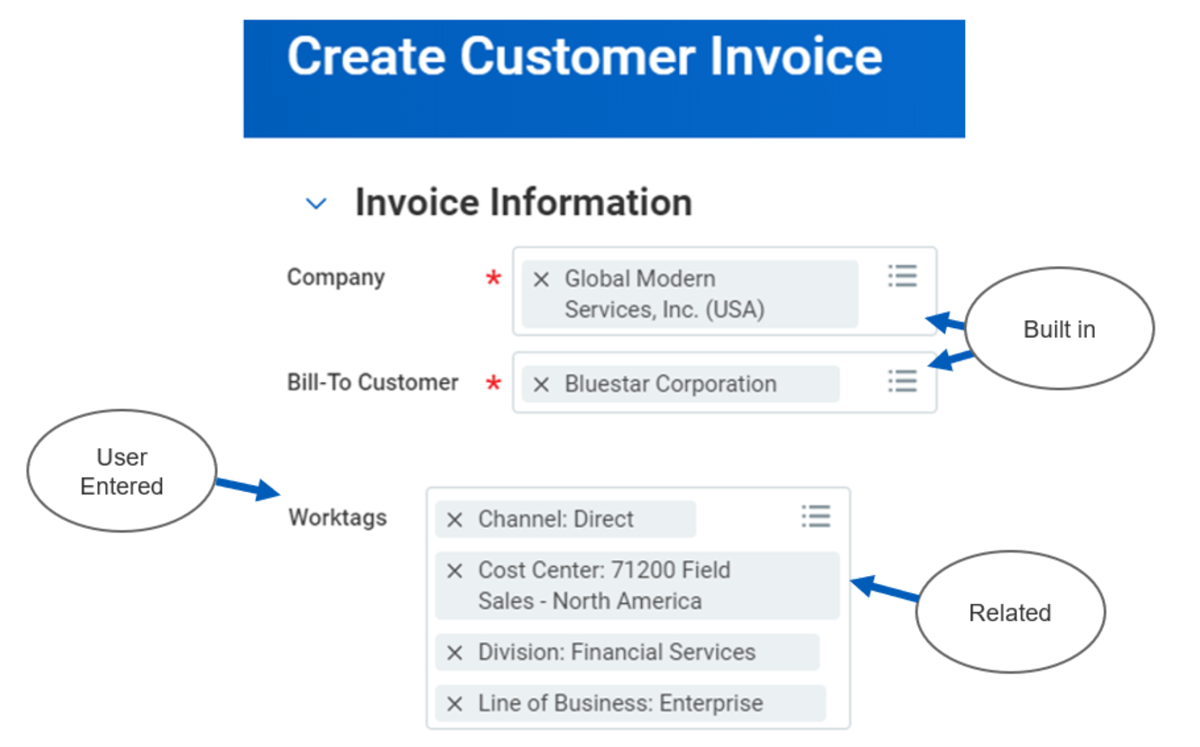
Workday sets most worktags automatically based on transactional context. For example, when you create a supplier, the supplier name becomes a worktag. There are several ways to associate worktags with a transaction or supporting data:
- Built-in Worktags: Worktags that are so essential to the transaction or supporting data that they are separate fields. For example, the supplier name or spend category on a supplier invoice are built-in worktags.
- Defaulted Worktags: Worktags that Workday automatically assigns to specific transactions based on the worker creating the transaction. For example, an expense report for a worker automatically includes that worker's organization worktags. You can remove them as necessary.
- User-entered Worktags: Ones that you select from a list of worktag types relevant to the transaction or supporting data.
- Related Worktags: When you set up certain objects, such as custom organizations, customers, and cost centers, you can associate worktags with them. When used in transactions, any worktags associated with the object will automatically carry forward onto the transaction. For example, if you create a customer invoice and that customer has a cost center, that cost center automatically becomes a worktag for the invoice. Related worktags are currently available on the following objects: cost centers, customers, custom organizations, gifts, grants, programs, projects, procurement items, regions, revenue categories, sales items, spend categories, and sponsors.
Inactive Worktags
Inactivating a worktag value does not change any historical data or affect previous transactions, only transactions dated on or after the date you inactivate it.
For worktags you use in Workday Financial Management reports and business documents, worktag values that are inactive do not display in worktag prompts. You still have the flexibility to search for inactive worktags and use them as needed.
To restrict workers from using inactive worktag values, you can create custom validations and business process condition rules to check for transactions with inactive worktag values.
Account Posting Rules
Accounting for student transactions is based on the Account Posting Rule Set maintained in Workday Financial Management. Account posting rules dictate the ledger accounts that a journal impacts.
For example, when you apply a charge item to a student's account, Workday invokes a delivered account posting rule. Workday focuses on user-defined dimensions configured for the Student Deferred Revenue account posting rule to determine the accounts to which the debit and credit should post.
Typically, Workday configures these rules during the Workday Financial Management deployment.
When you post charges, apply payments or disburse all types of financial aid, Workday generates operational journals according to your account posting rules. The following tables show 1) the types of transactions that generate operational journals and 2) the account posting rules triggered by each type.
Transaction Type | Journal Source | Debit or Credit | Account Posting Rule |
|---|---|---|---|
Record | Financial Aid Award Disbursement | Debit | Student Spend |
Credit | Student Unapplied Recorded Payment | ||
Apply | Financial Aid Award Disbursement | Debit | Student Unapplied Recorded Payment |
Credit | Student Receivables | ||
Student Unapplied On-Account Payments |
When award items change, Workday unapplieds the original posts, posts new records, and creates these journals entries:
- Unapply the original application of payments.
- Undo the original Records.
- Repost as new Records.
- Applies the payments for the new amount.
Transaction Type | Journal Source | Debit or Credit | Account Posting Rule |
|---|---|---|---|
Disbursement | Student Sponsor Contract Disbursement | Debit | Unbilled Receivables |
Credit | Student Receivables | ||
Student Unapplied On-Account Payments | |||
Invoice | Customer Invoice | Debit | Receivables |
Credit | Unbilled Receivables | ||
Sponsor Payment | Student Sponsor Payment | Debit | Unapplied Recorded Payments |
Undeposited Payments | |||
Credit | Receivables | ||
Unapplied On-Account Payments | |||
Payment Deposit | Student Sponsor Deposit | Debit | Cash |
Credit | Unapplied Recorded Payments | ||
Refund Sponsor | Student Sponsor Refund | Debit | Unapplied On-Account Payments |
Credit | Cash | ||
Sponsor Refund Payment - Payment Return Item | Student Sponsor Refund | Debit | Casch |
Credit | Unapplied On-Account Payments | ||
Sponsor Refund Payment - Escheatment Item | Escheatment Item | Debit | Cash |
Credit | Escheatment Payable |
Workday recommends processing:
- Invoices
- Record Payments
- Disbursements
When amounts for sponsor contracts change, Workday reverses the oringal transactions and creates new transactions for the new amount.
Transaction Type | Journal Source | Debit or Credit | Account Posting Rule |
|---|---|---|---|
Payment | Student Acceptance Fees | Debit | Undeposited Payments |
Credit | Revenue | ||
Deposit | Student Payment Deposit | Debit | Cash |
Credit | Undeposited Payments |
Transaction Type | Journal Source | Debit or Credit | Account Posting Rule |
|---|---|---|---|
Payment | Student Application Fees | Debit | Undeposited Payments |
Credit | Revenue | ||
Deposit
| Student Payment Deposit | Debit | Cash |
Credit | Undeposited Payments |
Transaction Type | Journal Source | Debit or Credit | Account Posting Rule |
|---|---|---|---|
Charge | Student Charge | Debit | Student Receivables |
Credit | Student Deferred Revenue | ||
Student Revenue | |||
Adjustment | Student Charge | Debit | Student Deferred Revenue |
Student Revenue | |||
Credit | Student Receivables | ||
Writeoff | Student Charges Writeoff | Debit | Student Charges Writeoff |
Credit | Student Receivables |
When increasing charges through adjustments or canceling writeoffs, Workday reverses the oringal journal entries, and creates reversal accounting entries.
Transaction Type | Journal Source | Debit or Credit | Account Posting Rule |
|---|---|---|---|
Student Credit Memo | Student Credit Memo | Debit | Student Revenue |
Student Spend | |||
Credit | Student Unapplied On-Account Payments |
When canceling credit memos, Workday reverses the oringal journal entries, and creates reversal accounting entries.
Transaction Type | Journal Source | Debit or Credit | Account Posting Rule |
|---|---|---|---|
Record Apply | Student Payment | Debit | Student Undeposited Payments |
Credit | Student Receivables | ||
Student Unapplied On-Account Payments | |||
Deposit | Student Payment Deposit | Debit | Cash |
Credit | Student Undeposited Payments | ||
Return | Student Payment | Debit | Student Receivables |
Student Unapplied On-Account Payments | |||
Credit | Student Undeposited Payments |
Transaction Type | Journal Source | Debit or Credit | Account Posting Rule |
|---|---|---|---|
Student Refund | Student Refund | Debit | Student Unapplied On-Account Payments |
Credit | Cash | ||
Student Refund Recovery | Student Charge | Debit | Student Receivables |
Credit | Receivables, if from Sponsor Contracts | ||
Student Spend, if Financial Aid Award | |||
Student Refund Payment - Return Item | Student Refund Payment | Debit | Student Spend |
Credit | Unapplied On-Account Payments | ||
Student Refund Payment - Escheatment Item | Escheatment Item | Debit | Cash |
Credit | Escheatment Payable |
Transaction Type | Journal Source | Debit or Credit | Account Posting Rule |
|---|---|---|---|
Record | Student Waiver Disbursement | Debit | Student Spend |
Credit | Student Unapplied Recorded Payment | ||
Application | Student Waiver Disbursement | Debit | Student Unapplied Recorded Payment |
Credit | Student Receivables | ||
Student Unapplied On-Account Payments |
When waiver items change, Workday unapplies the orginal posts, posts new records, and creates these journals entries:
- Unapply the original application of payment.
- Undo the original Record.
- Application of payment for the new amount.
Derived Worktags
The table below indicates which related worktags are derived on each account posting rule and where those worktags are derived from.
Account Posting Rule | Derived Related Worktags | Source |
|---|---|---|
Student Receivables |
|
|
Student Revenue/Deferred Revenue |
|
|
Student Undeposited Payments |
|
|
Student Unapplied On-Account Payments |
|
|
Student Spend |
|
|
Cash |
|
|
Unapplied Recorded Payment |
|
|