
Student Sponsor Contracts
Overview
Student sponsor contracts enable educational institutions, corporations, governmental bodies, and other third-party organizations to pay educational expenses for one or more students. Sponsor contracts have a higher precedence than student award items and are the first items to cover student charges. In this chapter, you will explore the configuration of student sponsor contracts and how you can add a student to a sponsor contract and invoice the sponsor.
Objectives
By the end of this chapter, you will be able to:
- Describe sponsors in Workday.
- Create a student sponsor contract.
- Disburse funds from a student sponsor contract to a student.
- Invoice a student sponsor.
Sponsors
A sponsor is an individual or organization you create to manage your awards. Sponsors are part of Workday Grants Management and typically configured during the Workday Financial Management deployment. The sponsor profile gives you a comprehensive, actionable view of information on your sponsor, including awards, invoices, payments, and reports. When you create the sponsor, you identify the type of sponsor (e.g., higher education or federal agency) and the payment terms for that sponsor.
Create Student Sponsor Contracts
After confirming the prerequisite configuration, access the
Create Student Sponsor Contract
task. Use this task to create a contract for an educational institution, corporation, or other third party that has contracted to pay educational expenses for one or more students in the same academic unit. The student sponsor contract has three sections to complete: general information, additional information, and disbursement information.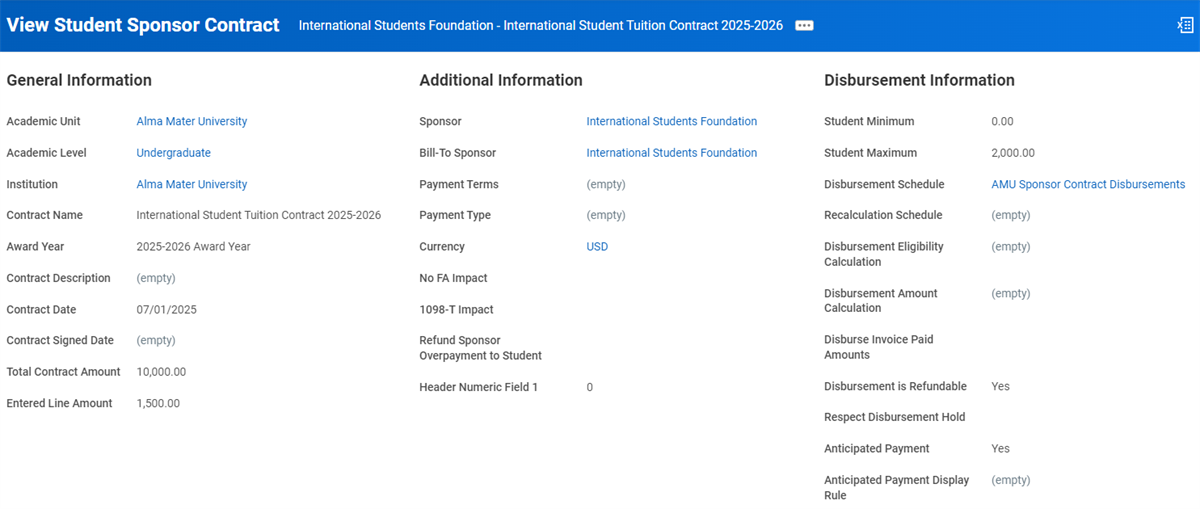
General Information Section
The general information section includes the academic unit and name of the contract, as well as the award year for which it is valid. You will also specify the contract start date and total amount of the award here.
Additional Information Section
The additional information section includes the sponsor and the bill-to sponsor, which can be a different entity. This section also includes the payment terms and payment type.
If you select the No FA Need Impact or 1098-T Impact checkbox, this contract is excluded from financial aid need or 1098-T calculations, e.g., an educational savings plan.
When you do select the Refund Sponsor Overpayment to Student checkbox, Workday will refund overpayments made against the sponsor contract invoices to the student instead of the sponsor.
Tip
: Use the Header Numeric Field 1 field to enter additional information about the contract. For example, if you are using the student sponsor contract to record an education savings plan, enter the plan type in this field.Disbursement Information Section
The disbursement information section allows you to specify rules around the disbursement of this contract. This includes a minimum and maximum per student, a disbursement schedule, a recalculation schedule, and disbursement eligibility and amount calculations that can evaluate who is eligible for this contract and for how much.
If you select the Disbursement is Refundable box, you can use unapplied sponsor funds on a student's account to refund the student. Unapplied payments can happen when other financial aid covers a student's balance. If this box is unchecked, you will return the funds to the sponsor. You can also select the Disburse Invoice Paid Amount checkbox to only disburse amounts paid by sponsors.
There are other instances where a student sponsor might overpay an invoice due to an error or a last-minute registration drop. If a contract administrator prefers you send the excess to the student, select the Refund Student Sponsor Overpayment to Student checkbox.
The Respect Disbursement Hold checkbox prevents Workday from disbursing these funds for students with disbursement holds.
The precedence group defines which charges the contract can pay. The revenue category classifies this revenue for invoicing. Also specify the fund in this section and any additional worktags as required by your worktag usage configuration.
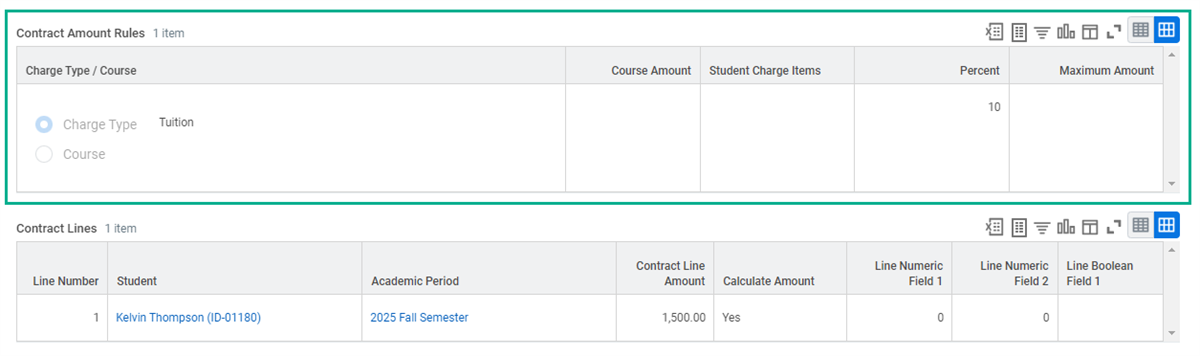
Contract Amount Rules Section
The optional Contract Amount Rules section enables you to create rules to dynamically calculate the student contract amount by courses, charge types, or a combination. Use this section when the contract amount calculation conditions apply to all students on the contract.
If the amount varies by student, use the disbursement amount calculation instead.
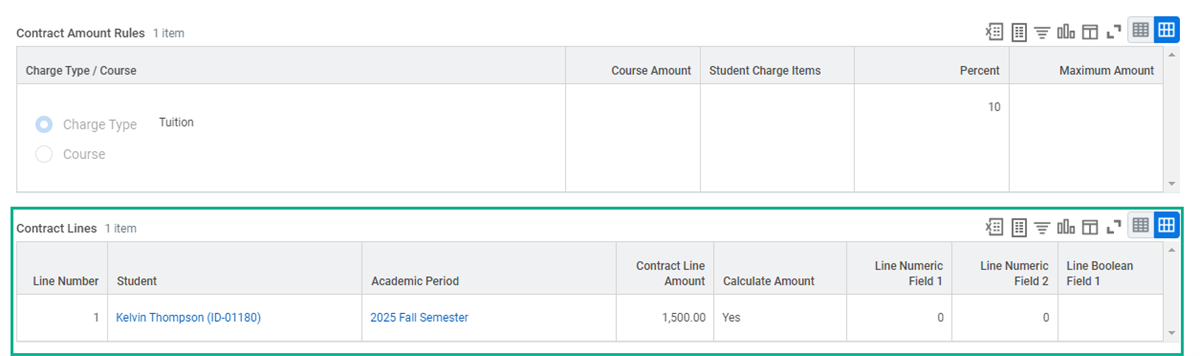
Contract Lines Section
The optional contract lines section enables you to associate students to the contract. Use the Contract Amount field to specify the amount for this student or the Calculate Amount checkbox to calculate it based on the contract amount rules or disbursement amount calculation. The Line Numeric Field 1, Line Numeric Field 2, and Line Boolean Field 1 are optional fields you can use to capture additional information about the contract line. For example, if the contract is an education savings plan, you can use these fields to record attributes like the contract year, the number of remaining units on the plan, and if the student has opted in to the plan for the academic period.
Disburse Student Sponsor Contracts
You can disburse a single contract manually from the Related Actions of a contract. When you run disbursement manually, Workday re-evaluates student eligibility for the disbursement before applying it to charges on their accounts. You can also manually disburse multiple sponsor contracts at once with the
Run Student Financial Processes by Period
report. You have the option to select specific student sponsor contracts for disbursement or process all student sponsor contracts that are ready for disbursement.Workday also allows you to disburse student sponsor contracts automatically through nightly orchestration through the
Maintain Institutional Student Financial Options
task. You can select the Process Student Sponsor Contracts in Nightly Orchestration Job checkbox to opt into this option. When creating or editing a student sponsor contract, you can select the Disburse Invoice Paid Amounts checkbox to ensure that awards only disburse if the sponsor has made payment.You may need to recalculate sponsor awards before disbursement. When creating or editing a student sponsor contract, you can add a recalculation schedule. Use the
Create Student Sponsor Recalculation Schedule
task to create these schedules.Invoice Student Sponsors
Invoice student sponsors for payments you have disbursed to students on their behalf. Generate these invoices by accessing the
Find Student Sponsor Contracts
report. Then, from the Related Actions of a student sponsor contract, select Student Sponsor Contract > Create New Invoices. Then select the contract lines you want to invoice.Record and Apply Student Sponsor Payments
Student sponsors typically send in payments after you invoice them for the funds that you have disbursed to students on their behalf. You can record the sponsor payments in Workday and apply them to the invoices that you generated for the student sponsor contracts.
The
Record Student Sponsor Payment
task enables you to record this payment. The task also optionally enables you to create the deposit (e.g., if the funds were deposited directly into your bank account). You can also apply the payment directly from this task, or apply the payment later using the Apply Student Sponsor Payment
task. You can apply this payment to one student on the contract, multiple students on the contract, or multiple students across multiple contracts.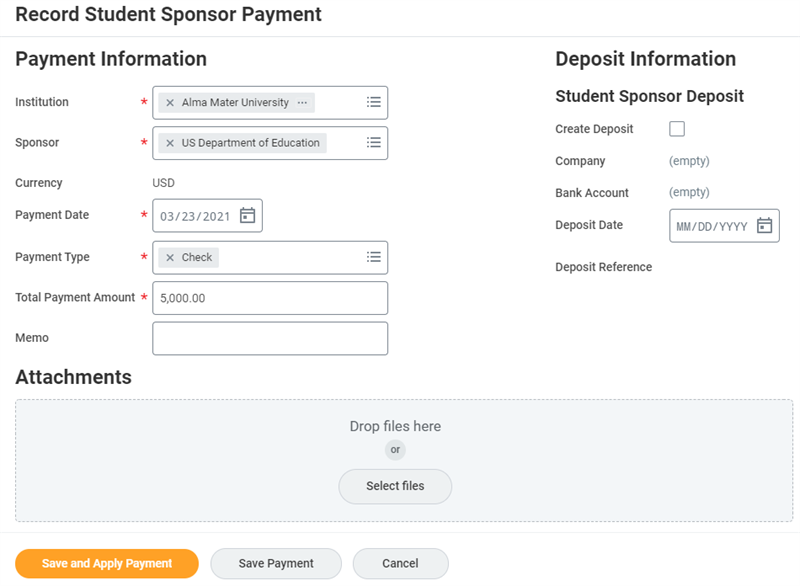
An example of a student sponsor payment from the US Department of Education.
To cancel sponsor payments, you can run
Cancel Student Sponsor Payment
or Return Student Sponsor Payment
tasks as Related Actions from the student sponsor payments. Doing so allows you to cancel student sponsor payment returns or return student sponsor payments and create accounting entries.Use the
Find Student Sponsor Payments
report to view and edit student sponsor payment details, cancel student sponsor payments, edit payments before deposit approval, and apply or unapply payments against invoices.Refund Student Sponsors
Student sponsors can overpay their invoices for various reasons, such as an error or a change in student information. For example, a student drops a course after you invoice the sponsor for an amount based on the number of registered units. You can refund the sponsor for the units of the dropped course.
Access the
Create Pending Student Sponsor Refund
task to generate the refund by selecting the sponsor and the balances to refund. If you have scheduled automatic settlement runs that pick up student sponsor refunds, you do not need to manually settle student sponsor refunds. If not, use the Create Manual Settlement Runs
task to settle these refunds.