
Student Financials Account Management
Overview
Student financials account management becomes important once you assess a student for tuition and fees. Schools want to ensure that students make payments on time and that the school can put the desired consequences in place if an account becomes past due. In this chapter, you will explore the mechanisms in Workday for managing past due charges. You will also learn about 1098-T reporting and student self-service access.
Objectives
By the end of this chapter, you will be able to:
- Explain the mechanisms for putting a student's account in past due status.
- Apply a hold to a student's account.
- Place a student in collections.
- Describe how a student consents to opt out of a printed 1098-T.
Third Party Access
Students may need their family members or other third parties to access their student information. For example, younger students frequently need their parent or guardian to make a payment or view financial aid package information on their behalf. You can grant access to student information and tasks for designated friends and family members.
Many countries have privacy requirements or regulations. For instance, The Family Educational Rights and Privacy Act, or FERPA, is the United States' federal regulation that determines how institutions manage, amend, and view student data. This law ensures not only that student data remains private, but also that parents have the right to access their children's educational records in certain circumstances. This gives some measure of control over the disclosure of personal information from the student's record.
To grant third-party access, you must first access the
Configure Privacy Release Authorization Waiver
task. Here you create a description and confirmation text for your institution to comply with FERPA regulations.Third Party Access Configuration
If you configure the privacy release authorization waiver in your system, you can designate third-party members access to student information. To do this, you first need to add them into the system via the Friends and Family tab from the student's Contact profile group. Here you identify:
- The relationship type, such as emergency contact, international agent, parent, or proxy.
- The relationship to the student, such as parent or legal guardian.
- Whether this person is a designated third-party user, which allows them to perform functions on behalf of the student.
- This person's contact information. They need a valid email address to access Workday.
After you add friends and family members to the system, use the
Manage Permissions for Third Party
task to determine which tasks the third-party members should have access to.Additionally, you can set up and manage third-party permissions that enable students to grant access to parents or other proxies to view their records, such as course registrations, grades, and unofficial transcripts by using this task.
Student Notes
The student notes feature allows you to create a note and share it across multiple departments via the student record. For example, you can create a student note to document a conversation you had with a student prospect, reminding the student recruiting administrator to contact the prospect the following week. These notes help you record relevant attributes for your students and student prospects, giving your entire institution greater context and insight into your student population.
Use the
Add Student Note
task to create a student note. When you create a student note, it is visible in the History section of a student or prospect's profile.You can also link student notes together, which helps you to more easily reference previous notes and better organize your documentation of interactions with students.
Use the
Add Linked Notes
task to link student notes. You can access the task by either:- Selecting the new Add Linked Note button that appears when viewing a student note,
- Or accessing the Student Notes tab of the Related Actions menu of an existing note.
The student notes feature also allows you to create custom reports to capture metrics. You can use these notes to create custom reports involving conversations with students. These reports provide additional insight into what questions your students are having.
Past Due Balances
When students are late paying for their charges, preventing them from accessing school services is an effective way to ensure they pay their bill. Workday provides several methods for restricting student services or dropping students from classes. Academic period date controls determine when these restrictions go into effect for each academic period:
- Anticipated Aid Consideration Deadline for Registration Soft Drop specifies the date up to which Workday considers anticipated payment amounts for a student against their past due balance.
- Registration Soft Drop Window Start and Registration Soft Drop Window End defines the window of time during which Workday soft drops students from their registered courses when their past due balances exceed configured tolerance amounts.
Student Messages
Student messages allow you to send emails to students about their past due balances. Configure these messages using the
Create Student Message
task. These messages must have a category of Student Financials and the appropriate use for in order to be available for the relevant process. The use for options include:- Holds
- Plans and Ad Hoc
- Proactive Notifications
- Refunds
- Soft Drop
- Student Collections
- Student Payment Plans
For example, if you want to alert students of upcoming payments due, create a student message with the Student Financials category and Proactive Notifications in the Use For field.
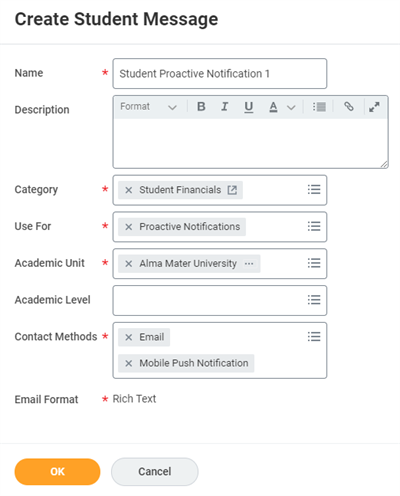
A sample proactive notification sent by email and mobile push notification.
Student Holds
Student holds block students from completing certain processes within Workday. Universities commonly use student holds to prevent students from performing actions such as registering for classes or receiving financial aid. Student holds are made up of a hold reason, a hold type, and hold context.
Student Holds Security
Use the Edit Tenant Setup - Student task to opt out of allowing Holds Applies to All (institutions) option. Workday turns this feature on by default, which allows users to select Applies to All when applying a student hold. If you turn off this feature, Workday will prompt users to associate an institution or academic record for each hold assigned to students.
Hold Reasons
The hold reason is the reason for the hold, which you must resolve to remove the hold. The institution defines the hold reason using the
Create Student Hold Reason
task. Here, you configure a hold reason for an academic unit and select what hold types the reason uses. If you select a superior academic unit for a hold reason, that hold reason will be available for any subordinate academic units.Workday displays hold reasons to students in their Workday account and explains why the student received the hold and how they can resolve it.
You can reuse a hold reason for multiple hold types, giving you flexibility in your hold configurations. Likewise, you can apply multiple holds on a student for multiple processes using the same hold reason. For example, if a student has a past due balance, the institution can prevent them from registering for classes and receiving financial aid.
Some common examples of student hold reasons include:
- Past due balance
- Undeclared major
- Incomplete registration
- Lack of attendance
- Low or failing grades
- Missing federal verification
- Noncompliance with institutional policy
You can set up segmented security for hold reasons. This will ensure that users have access to create, apply, override, and remove hold reasons.
Tip
: When creating hold reasons make sure that the hold names are descriptive, complete, and contain resolution instructions that are informative and complete.Hold Types
Hold types are the processes that Workday blocks. Workday delivers hold types. You can configure multiple hold types for a hold reason. The table below describes each of the hold types currently delivered.
Hold Type | Description |
|---|---|
Charge Assessment | Blocks the assessment of student charges. |
Diploma | A diploma is typically requested via web service in Workday. This hold type does not have any processing in Workday but can be reported on and used in your process for requesting diplomas from a third-party vendor. |
Disbursement | Blocks the disbursement of any aid packages. |
Full Registration | Blocks add, drop, and swap of courses. |
Merit Packaging | Blocks packaging for merit-based aid. |
Need Packaging | Blocks packaging for need-based aid. |
Refund | Blocks new refunds from being issued and cancels any posted but not settled refunds. Once you remove the hold, new refunds calculate the next time the refund job runs. |
Registration Add | Blocks registration in any new courses. Allows for drop of currently registered courses. |
Self-Service Payment | Prevents students or their proxies from making self-service payments encouraging students assigned to third-party collection agencies to pay the agencies directly. Also, encouraging students who repeatedly make bad payments, such as payments with insufficient funds to make payments in person at the bursar's office. |
Silent Full Registration | Blocks add, drop, and swap of courses, this hold is not visible to the student. Intended for use in the Onboarding business process. |
Hold Context
Hold context describes which group or groups of students the hold affects. Some hold types will require you to select the context of the hold. This will allow you to block processes for all institutions or just a subordinate institution. Optionally, disbursement holds will allow you to select an award year, and registration holds will allow you to select an academic period.
Past Due Balance Hold Assignments
Past due balance hold assignments enable you to automatically apply holds. Doing so prevents students with past due balances from registering for classes, receiving their diplomas, or completing other processes until they pay off their balances. You can also automatically notify students of upcoming due dates and when they have a hold on their account. The institution configures the past due balance hold assignments and all academic units in that institution share them.
The
Configure Past Due Balance Hold Assignments
task enables you to configure:- Hold types to assign: Select one or more from diploma, full registration, refund, registration add, or self-service payment.
- Student populations to exclude: Exclude international students, student cohorts, or athletic teams.
- Account tolerance amount: Define a maximum past due amount allowed before placing a hold.
- Charge tolerance settings: Select which charge types can trigger a hold.
- Notification settings: Configure the messages students receive when charges are nearing their due date and when their account is past due. You can configure multiple notifications to send leading up to the due date.
Soft Drop for Past-Due Balance
When students have a past due balance, Workday enables you to soft drop them from their registrations instead of fully dropping them. A soft drop places students in a pending registration status without actually dropping them from the course. This helps avoid dropping students unfairly from their courses due to financial aid delays. It also better accommodates student populations that would experience significant consequences for dropping courses. For example, international students might have visa issues if their enrollment drops below a minimum number of units.
Workday considers any anticipated payment amounts for a student against their past-due balance up to the date defined on the Anticipated Aid Consideration Deadline for Registration Soft Drop academic period date control. For example, if a student has a past due balance of $900 but also has an anticipated payment of $1000 before the deadline, Workday does not place them on a soft drop.
The soft drop for past due balance process uses the nightly charges aging job to set the student course registration reason to "Pending Drop for Non-Payment" when student has a past due balance. Like the past due balance hold assignments process, Workday configures this process for an institution and all its subordinate academic units. The
Configure Course Registration Soft Drop for Past due Balance
task allows you to configure:- Student populations to exclude: Exclude international students, student cohorts, or athletic teams.
- Soft drop notification message: Configure the messages students receive when placed on soft drop. Only student messages with a use for type of Soft Drop are available to select.
- Account tolerance amount: Define a maximum past due amount allowed before placing a student on soft drop.
- Charge tolerance settings: Select which charge types can trigger a soft drop.
Mass Drop Registrations for Non-Payments
Each night the aging job runs during nightly orchestration to determine if a charge item is past due. If a student has charges that are past due, then Workday updates the student's status to Pending Drop for Non-Payment. This does not drop a student.
The
Mass Drop Registration for Non-Payment
task completely drops students who have a pending drop for non-payment status. This task allows you to exclude specific students from being dropped.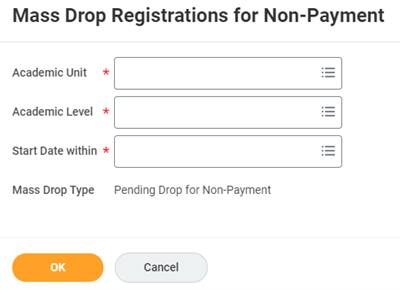
Fields for the Mass Drop Registration for Non-Payment which allows you to completely drop students for non-payment.
Student Collections
When a student has a past due balance, you can take steps to collect a payment from the student. You can either:
- Take steps to recoup the past due balance, or
- Write off the charges in a student's past due balance as a loss.
Student Collections Configurations
There are several configurations to complete before placing students in collections:
- Create hold reasons for collections, collection agreements, and writeoffs using theCreate Student Hold Reasontask.
- Create emails to send to students when you place them in collections, send them to a collection agency, or take other collection steps using theCreate Student Messagetask.
- Set up account posting rules for student charge writeoffs.
- Configure writeoff reasons with a Receivable writeoff Reason Usage of Student Financials.
Student account specialists can use the
Student Receivables Aging Summary
and the Student Receivables Aging Detail
composite reports to view:- Student charges.
- Payment plans.
- Due and overdue total amounts.
These reports help student account specialists and bursars accurately identify students with charge amounts due. Once identified, you can use this information to contact students with payment reminders, identify charges for write-off, or send information to auditors.
Place Students in Collections
After you have configured the prerequisite items, you can place students in collections. First, access the
Find Students with Past Due Charges
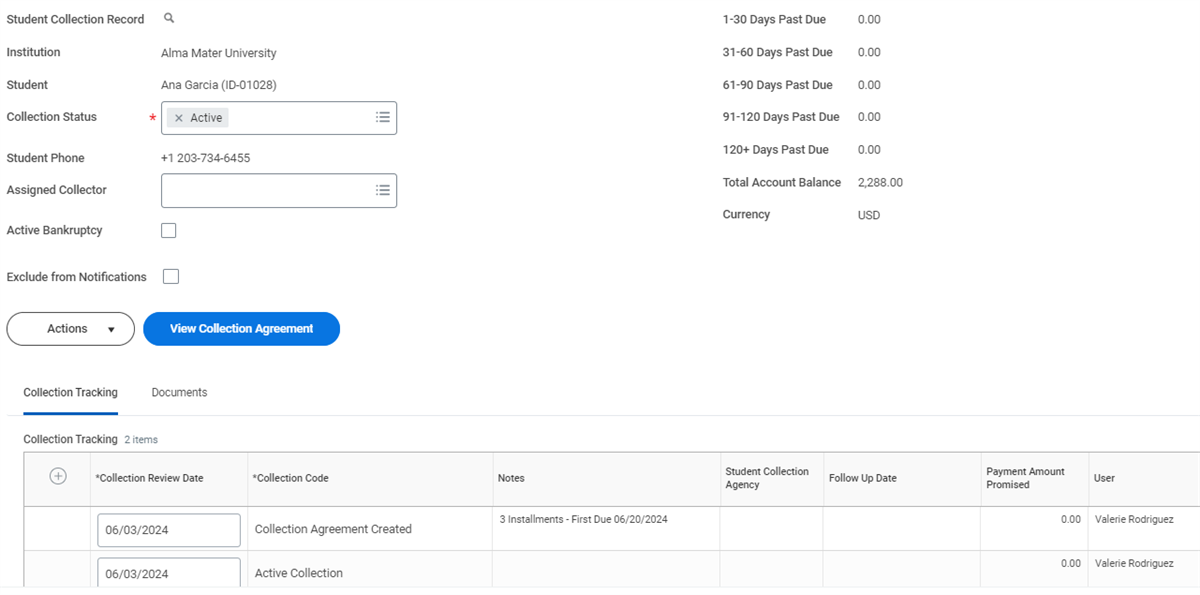
report (or a custom report you have created). From the student's Related Actions, select Financials > Maintain Collection Tracking History. This task allows you to assign a person responsible for:- Collecting the charges
- Excluding the student from notifications
- Selecting and sending an email to notify students about their collection status
Use the Collection Tracking grid to record the steps you have taken to collect on the past due charges. Workday automatically adds rows when you create collection agreements, cancel collection agreements, send engagement items related to collection agreements, or write off the student's charges.
If you send this student to a collection agency, update the Collection Status field to At Collection Agency.
Create Collection Agreements
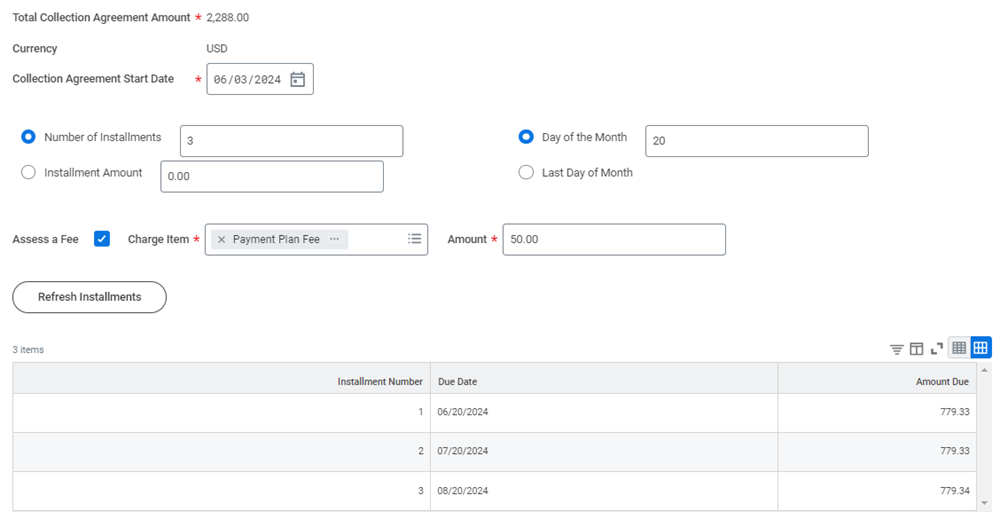
When students agree to pay their past-due charges, you can track the agreed-upon installments, due dates, and fees in Workday. A student can have a single collection agreement that applies to all of their charges that are past due at the time you create the collection agreement. Create a collection agreement by selecting the Create Collection Agreement button on the
Maintain Collection Tracking History
task.When creating the collection agreement, you can specify either the number of installments or the installment amount. You can also specify either a specific due day of the month or the last day of the month, and Workday will automatically generate the installments. You can also assess a fee for this collection agreement, which Workday spreads across the installments.
Write Off Student Charges
You can write off past-due charges that you have deemed noncollectable to properly account for them. You may consider charges noncollectable when:
- You are unable to contact the student.
- The debt is extremely old.
- A collection agency fails to recover the payments.
- The collections are otherwise not worth pursuing.
Write off the charges by accessing the
Find Students with Past Due Charges
report. From the student's Related Actions, select Financials > Write Off Student Charges, and select the charges to write off.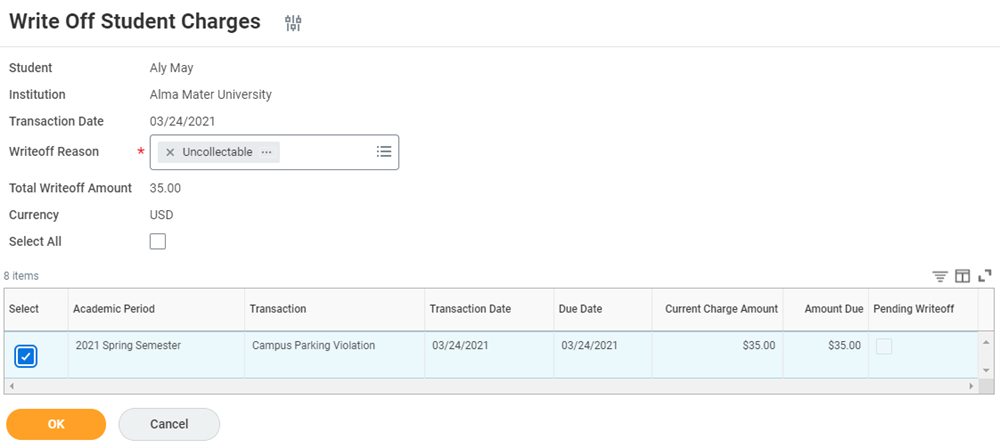
Indicate a writeoff reason, such as uncollectable, for a student charges.
Remove Students from Collections
You can remove students from collections when they pay back their past due charges or you write off their past due charges. To do so follow these steps:
- Access theFind Students with Past Due Chargesreport.
- Access Financials > Maintain Collection Tracking history from the student's Related Actions.
- Change the Collection Status field to Inactive.
- Remove any related holds from the student by accessing theFind Students with Holdsreport and selecting Holds > Remove Hold from the hold's Related Actions.
1098-T Reporting
Form 1098-T, or Tuition Statement, is an Internal Revenue Service (IRS) tax form institutions file to report payments received and payments due from a student. The institution has to report a form for every student currently enrolled and paying qualifying tuition and related expenses. In Workday, students can opt out of receiving printed copies. Workday files students' 1098-T forms electronically with the IRS whether or not they opt out of printed copies.
Note
: Workday delivers self-service security domains that enable you to manage access to 1098-T tasks and reports with more granularity.Generate 1098-T Forms
You can use 1098-T runs to generate 1098-T forms for all eligible students in your institution. The 1098-T forms are then available for printing and mailing. You can control your 1098-T layout by using the
Edit 1098-T Print Layout Rule
task and Maintain 1098-T Print Layouts
task.A 1098-T run generates forms for students who:
- Are active and enrolled in a course with units during any academic period in the calendar year.
- Have reportable transactions on their accounts.
- Are U.S. citizens with a primary home address in the U.S.
You can also use the
Generate Student 1098-T
task to generate 1098-T forms for individual students that the 1098-T run does not capture.Tip
: Use the 1098-T Audit
report to find students missing a Taxpayer Identification Number (TIN), missing an address, or with an international address.
To print the forms for all eligible students, access the
Mass Print 1098-T Forms
task. Workday merges all 1098-T forms into a single PDF file, which you can then print. Access the Print 1098-T
task to print a form for an individual student. To submit the 1098-T files to the Internal Revenue Service (IRS), configure and run the 1098-T Outbound integration. This eliminates the need to file paper documents and allows electronic filers to report the information via the FIRE (Filing Information Returns Electronically) system. This is a Workday-delivered packaged integration, which Workday also manages, maintains, and supports. Workday incorporates published updates to the IRS specifications into the integration.Students can view their form via the
View My 1098-T
report and print them from the Print My 1098-T
task.Request Consent for Removal from 1098-T Printing
Students can opt out of receiving printed copies of their 1098-T forms. Opting out removes students from the mass printing process that you can use to produce 1098-T forms in bulk to send to students. Students who opt out of printed 1098-T forms can still access electronic copies and print their forms themselves.
Administrators can set the policy duration of student electronic consent to Academic Year or Lifetime.
Student Self-Service
If they have a Workday account, Students can access to a number of financials tasks in self-service. To grant this access, add the Student as Self security group to the
Self-Service: Student Financials
security domain.The primary tasks for student financials self-service are:
- View Account Activity: Shows all of the account activity in date order, with the oldest transactions at the bottom.
- Make a Payment: Allows students to make online payments.
- View Statement: Provides a view of account activity for a single academic period and displays charges, payments, anticipated payments, and refunds in separate tables.
- Payment Elections: Allows student to designate payment elections for both student payments and student refunds. Also, it allows the student to provide bank account information.
- Sign Up for a Payment Plan: Allows a student to sign up for a payment plan and shows all payment plan activity.
Third-Party Access to Student Financial Data
Students have the option to set up a third-party user to manage their account. This third party can be a parent. It allows the third party to make a payment on behalf of a student or view a financial aid package, among other tasks.
Students or administrators can add a third party using the
Add Friends and Family
task. You can access this task from the Personal profile group and selecting the Friends and Family tab. There is an Add button that allows the user to add third-party access to their account.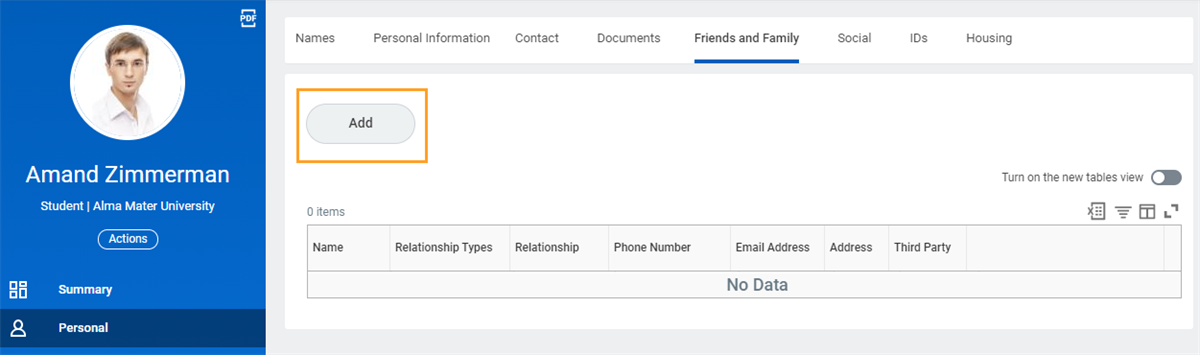
A student can use the Add button to grant access to certain tasks to a third party.
A student can also use the
Manage Permissions for Third Party
task to designate what tasks and reports that a third party can access. The options available are:- Can receive proactive past due balance notifications
- Make a payment
- View financial aid package
- View account activity
- View student statement
- View current classes
- View student grades
- Generate unofficial transcript
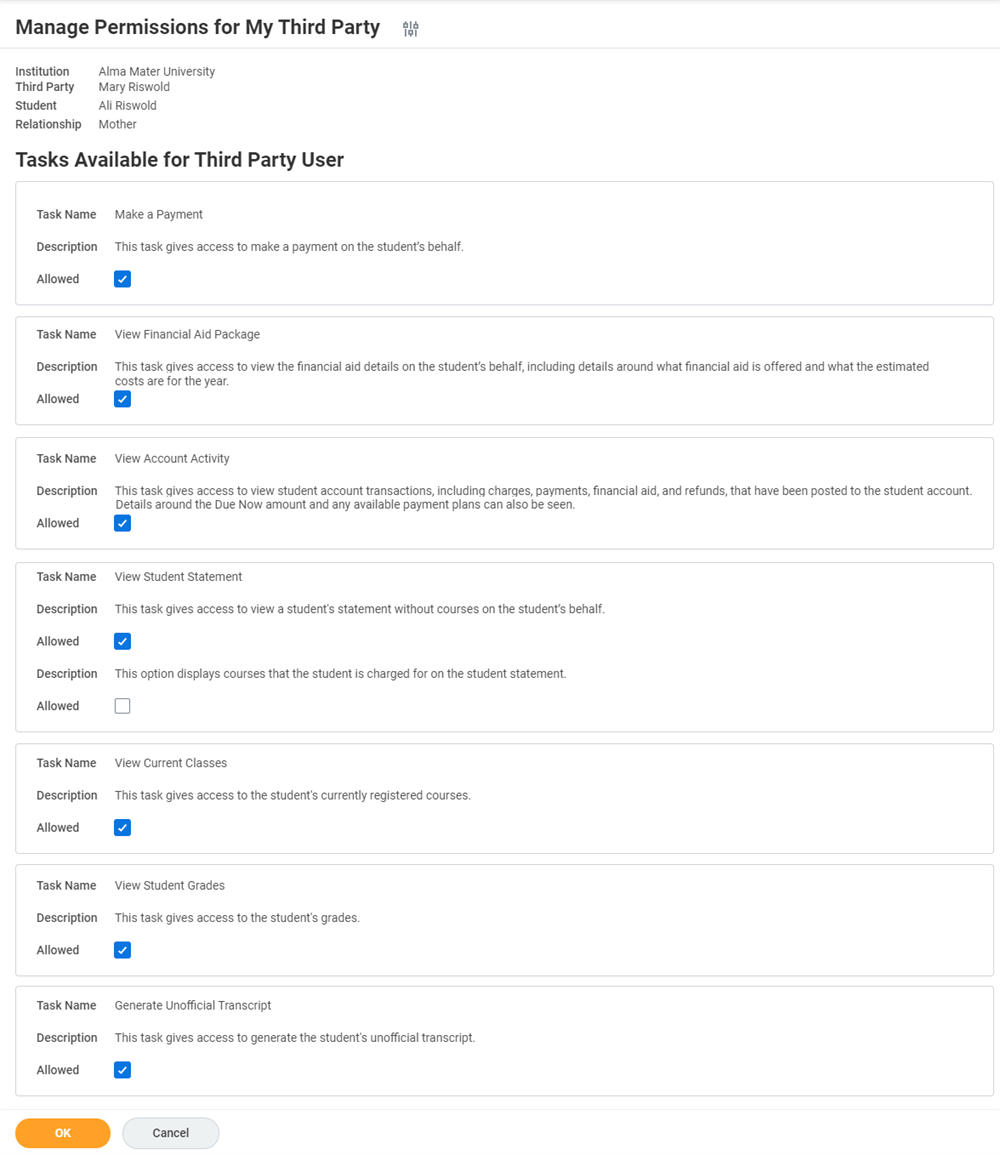
Example tasks in which a student can grant access to a third party.