
Student Refunds
Overview
Students can have a credit balance on their account for many reasons, including:
- There are excess financial credits once the student pays all charges.
- The student paid more than the amount owed.
- The student paid all charges for an academic period and then drops a class during the refund period.
- The student withdraws from school before the end of the refund period.
In Workday Student, you can create individual student refunds manually, or you can generate a batch of refunds.
Objectives
By the end of this chapter, you will be able to:
- Process a student refund.
- Troubleshoot student refund issues.
- Explain how Workday recovers refunded funds.
Bank Account Configuration for Student Refunds
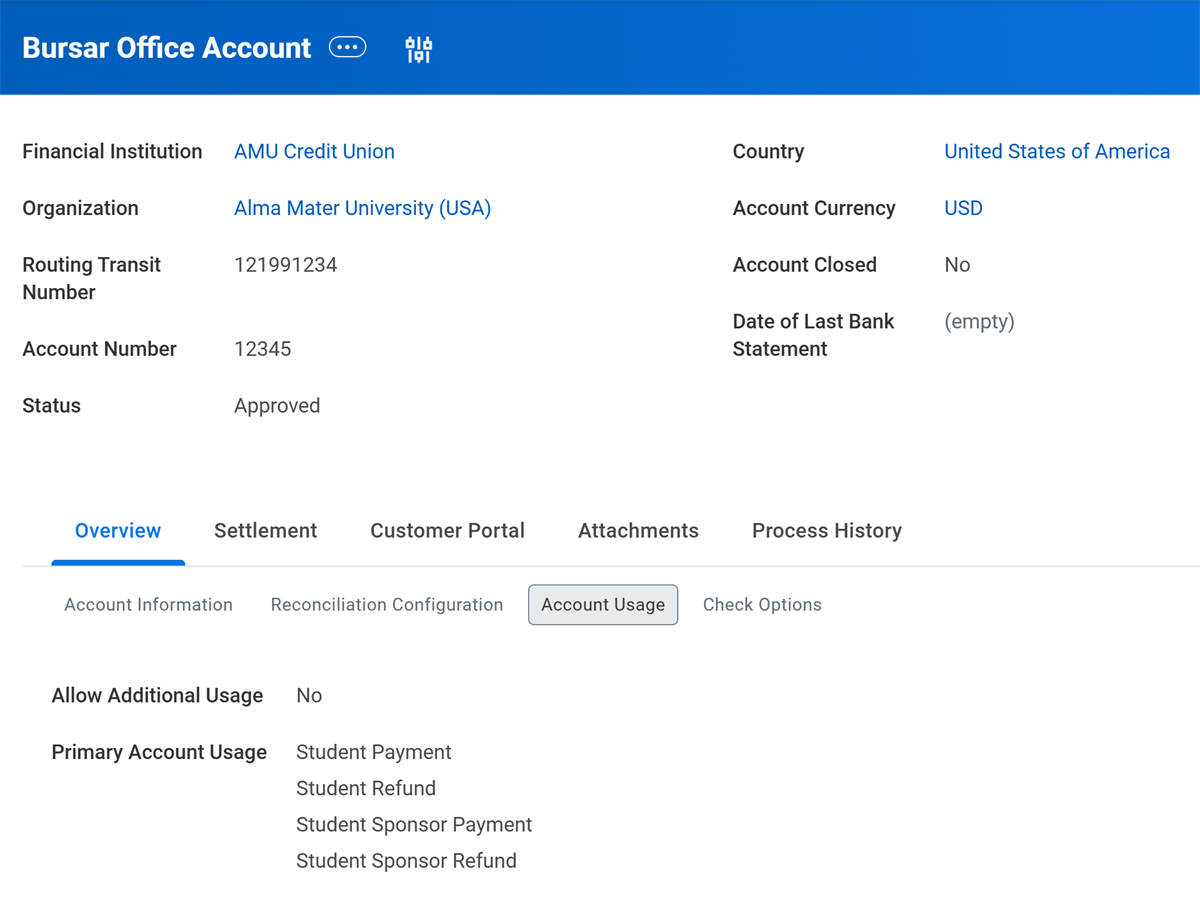
To provide refunds to students by check or direct deposit, at least one bank account must have an allowed usage of student refunds. In the following image, the Bursar Office bank account is configured for the Alma Mater University (USA) company, which is attached to the Alma Mater University academic unit. This bank account has a usage of Student Refund, so students within AMU or its subordinate academic units can receive refunds processed from this bank account.
Refund Students
You can generate refunds for students when their refundable payments, financial aid awards, and sponsor contracts exceed their total charges, resulting in a credit balance. You can also refund parent borrowers of PLUS Loans when the balance option on the loan application specifies the borrower as the payee.
To generate a refund to a specific student, access the
Create Pending Student Refund
task. To refund multiple students, use the Generate Pending Student Refunds
task. Both tasks will initiate the Student Refund Event
business process and allow you to choose to refund financial aid, sponsor contract disbursement, student payments, or a combination.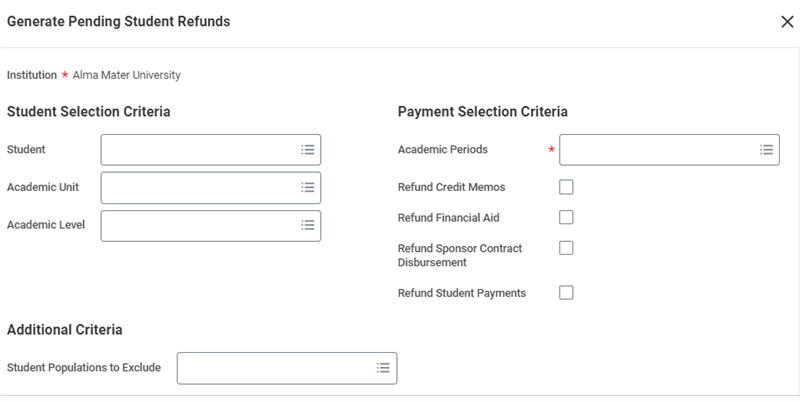
Then, settle the refund either manually, using the
Create Settlement Run
task, or automatically from a run scheduled using the Schedule Settlement Run
task. Workday creates the following operational journals when it posts settled funds to student accounts:- Debit: Unapplied On-Account Payments
- Credit: Cash
Workday issues direct deposit refunds according to the student's payment elections. If the student does not have any payment elections, Workday generates a check. Workday also generates checks when refunding parents for PLUS Loans.
For reference, the steps from payment to refund are as follows:
- Student or financial aid payments create unapplied payments.
- Create a settlement for electronic payments or create a deposit for checks and cash.
- Request a refund of student payments and/or financial aid payments.
- Complete any approvals based on your business process configuration.
- Create a settlement for any student refunds.
- Print checks for any check refunds.
Cancel a Student Refund
You can cancel a student refund that you created in error before a settlement run picks it up. If you need to cancel a refund after a settlement run picks it up, you can cancel the refund payment within 48 hours of completing the settlement. To cancel a payment after 48 hours, you must return the payment instead.
To cancel a student refund before settlement processing, access the
Find Student Refunds
report and select Student Refund > Cancel from the Related Actions of the student refund.To cancel a refund payment after settlement processing, access the
Account Transactions
report on the Student Financials profile group of the student profile. Then, select Student Refund Payment > Cancel from the Related Actions of the student refund transaction.Canceling a student refund payment does not cancel the associated student refund. If you plan to create a payment for the student refund in the next settlement run, you can leave the associated student refund alone. If you do not wish to refund the student, cancel the refund from the
Find Student Refunds
report.Resolve Student Refund Payment Issues
Workday enables you to return payments that return to you due to bank errors, bank stop payments, and escheat old, uncashed, or unclaimed payments. In each of these processes, Workday creates journal entries that reverse the original payments and updates the statuses of the original payments to returned, stopped, or escheated.
Return Student Refund Payments
To return payments that returned to you, access the
Account Transactions
report on the Student Financials profile group of the student profile. Then, select Student Refund Payment > Return from the Related Actions of the student refund transaction.Stop Student Refund Payments
To stop a payment because the student lost the check, access the
Account Transactions
report on the Student Financials profile group of the student profile. Then, select Student Refund Payment > Stop from the Related Actions of the student refund transaction.Escheat Student Refund Payments
To escheat an old, uncashed, or unclaimed payment, access the
Account Transactions
report on the Student Financials profile group of the student profile. Then, select Student Refund Payment > Escheat from the Related Actions of the student refund transaction.Refunding PLUS Loans
Workday automatically refunds excess proceeds from a Federal PLUS Loan in the same manner as refunds to students. You can refund either the borrower or the student as identified by the borrower on the PLUS application. You can generate refunds to borrowers and students at the same time. Schools using external financial aid systems can use the same refunding process.
Refund Recovery
Financial aid award amounts or student sponsor contract amounts can reduce when financial need changes, financial aid eligibility changes, or for various other reasons. If the awards or contracts reduce after you issue a refund, Workday retrieves the overpaid funds through existing charges and, when necessary, a refund recovery charge. You can configure a refund recovery charge to enable Workday to recover the excess funds when the recovery amount exceeds the existing charges.
When you reduce the amount of financial aid or student sponsor contract funds, Workday first attempts to recover the difference through existing student charges. Workday applies an adjustment to the charge up to the amount that the financial aid award or student sponsor contract applied to the charge. If the amount you need to recover exceeds what you can recover from other charges, Workday posts a refund recovery charge for the remainder.
For example, Aaron receives $2,000 in grants, which pays his $1,500 tuition charges and gives him a $500 refund. After you issue the refund, Aaron's grants reduce to $1,250. Aaron now needs to pay the remaining $250 in tuition charges and return his $500 refund. To recover the $750, Workday adjusts the tuition charge to $250 and applies a refund recovery charge of $500.
Date | Item | Amount | Balance | Description |
|---|---|---|---|---|
9/20 | Grants Recovery | $500 | $750 | Aaron needs to return a total of $750 to the Grants fund to cover the reduction. Workday applies a $500 Grants Recovery charge. |
9/20 | Grants Adjustment | $250 | $250 | Grants reduced to $1250, an additional $250 is now required to cover Aaron's tuition. |
9/5 | Refund | $500 | $0 | Unapplied grant payment refunded to student. |
9/5 | Tuition | $1500 | ($500) | Grants pay full tuition. |
9/5 | Grants | ($2000) | ($2000) | Unapplied payment, waiting for charge. |
In another example, Gina receives a $1,000 Honors Scholarship that covers her $1,000 tuition. She then receives a tuition waiver of $750. According to Alma Mater University's precedence rules, the tuition waiver applies first, which leaves $750 of the Honors Scholarship unapplied and refunded to the student. Later, Gina's Honors Scholarship reduces to $700. To recover the $300 for the Honors Scholarship fund, Workday posts an adjustment of $250 to the scholarship. This adjustment covers the portion of tuition the scholarship covered and a $50 refund recovery charge.
Date | Item | Amount | Balance | Description |
|---|---|---|---|---|
10/1 | Honors Scholarship Recovery | $50 | $300 | Gina needs to return a total of $300 to the Grants fund to cover the reduction from $1000 to $700. Workday applies a $50 Honors Scholarship Recovery charge. |
10/1 | Honors Scholarship Adjustment | $250 | $250 | Honors Scholarship reduces to $700. Workday reverses the $250 applied to tuition by an adjusting transaction created during the disbursement process, resulting in a balance of $250. |
9/7 | Refund | $750 | $0 | Unapplied scholarship payment refunded to student. |
9/7 | Tuition Waiver | ($750) | ($750) | Tuition Waiver can only apply to tuition charges according to the precedence group rule, so payment swapping occurs. $750 of Honors Scholarship becomes unapplied and $750 Tuition Waiver applied to tuition. |
9/5 | Tuition | $1000 | $0 | The scholarship pays full tuition. |
9/5 | Honors Scholarship | ($1000) | ($1000) | Unapplied payment, waiting for charge. |
Return and Cancel Student Refunds with Refund Recovery Charges
You can return and cancel student refund payments associated with refund recovery charges. Doing so:
- Prevents a student from having to cash and then repay a refund check that the student is no longer eligible to receive.
- Enables you to account for student refund payments associated with refund recovery charges that return due to bank account errors.
Once you return and cancel a student refund with refund recovery charges, Workday:
- Initiates the return process.
- Posts an adjustment in a separate row that identifies a reversal as 'With Refund Recovery.'