
Payments and Payment Plans
Overview
Payment management includes:
- The process of receiving payments.
- The application of money to the student's account.
- The deposit of received payments into the institution's bank account.
Workday uses the term 'payment' in a broad sense to include cash, credit or debit card, ACH, financial aid awards, waivers, and sponsor contracts. All of these payments must have rules to tell the system what charges to pay. In this chapter, you will review payment types and items and payment precedence groups. You will also explore student payment plan configuration and enrollment.
Objectives
By the end of this chapter, you will be able to:
- Explain payment precedence groups.
- Create student payment items.
- Record student payments as a deposit.
- Review a student's payment plan.
Student Payment Types and Items
In Workday, a payment type describes the form of payment, such as cash or check. A payment item describes the attributes of a payment, including valid payment types for the payment item.
Payment Types
Payment types include a payment type name and payment method. Your institution defines the payment type name. Workday provides the payment method. The payment method drives the processing of the associated payment item. Workday provides the following payment types:
- Cash
- Check
- Credit Card
- Debit Card
- Direct Debit
- Direct Deposit
- EFT
- Manual
- Wire
You will typically define payment types during the Workday Financial Management deployment and shared with Workday Student.
Student Payment Items
Student payment items define the types of payments that your students can make. If you want students to make payments based on the form of payment, such as cash or check, create a student payment item for each valid payment type. Additionally, the student payment item must include only that form of payment in the Valid Payment Types field. When students make a payment, they select the same, or similar, values for the payment item and the payment type.
If you want students to make payments according to categories of charges, you can create payment items for each category. You can have:
- A single payment item that can apply toward all student charges,
- A payment item for each type of student charge, or
- A combination of all.
Institutions that use this option have a broad payment item that applies to most charges, such as general payment. Also, those institutions have a few other payment items for special cases, such as application fees, private scholarships, or library fines.
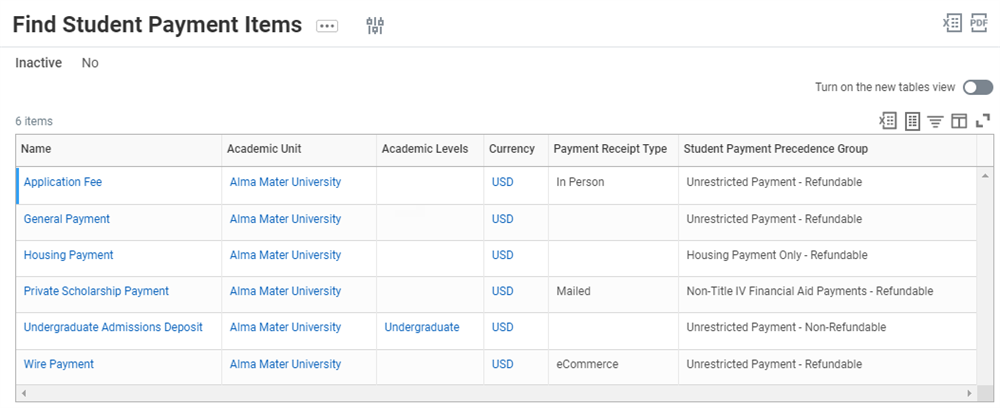
Each student payment item is tied to a payment precedence group which dictates which charges the payment can cover.
Payment Precedence Groups
Payment precedence groups control how Workday applies payments to charges. The precedence group associated with an award, payment, waiver, or student sponsor contract identifies:
- Which charges or charge types the item can cover.
- Which charges to exclude from coverage.
- The time frame for selecting eligible charges.
- The order for paying charges, such as the oldest first.
To allow Title IV financial aid to apply toward noninstitutional charges, you can use the Federal Student Aid Authorizations Event to obtain student authorization. You can also configure parent authorization for the Parent PLUS loan. The duration of the authorization can be an academic period, an academic year, or for the lifetime of a student's career. You can configure this as a step in onboarding for both new and continuing students.
Precedence groups also facilitate payment swapping, enabling you to automatically swap a new payment for one applied previously. For example, Workday applies a refundable payment to a student's tuition. A few weeks later, you receive a nonrefundable payment that can also cover tuition. Workday can automatically swap the nonrefundable payment for the refundable one.
Define your payment precedence rules using the
Maintain Precedence Groups
task. Workday associates the rules to an institution within, meaning all academic units and levels within the institution use the same rules. The Order field controls the order for payment swapping.Tip
: Workday recommends ordering precedence groups from most to least restrictive and from nonrefundable to refundable.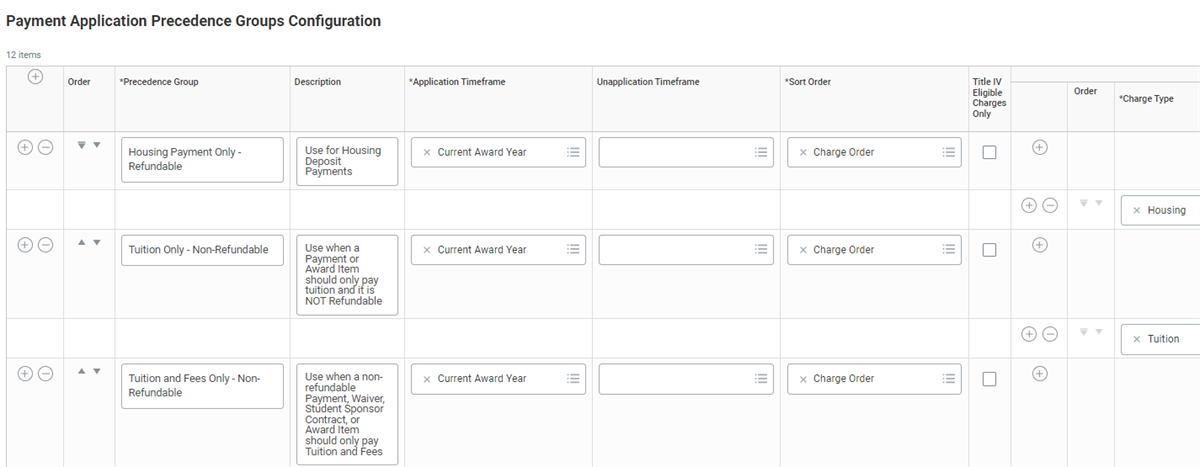
Payment Elections
Workday allows you to define election rules for two types of payments within Workday Student: student payments and student refunds. Within each of these rules, you can define the allowed and default payment types, such as direct deposit or check. After you define these rules, students can configure their payment elections for payments and refunds.
Third-Party Payment Vendors
Workday supports integrations with third-party payment vendor systems for credit card and direct debit payments. Alternatively, you can use Workday to process direct debit payments. Configure an integration with a third-party payment vendor using the
Configure Student Payment Options
task.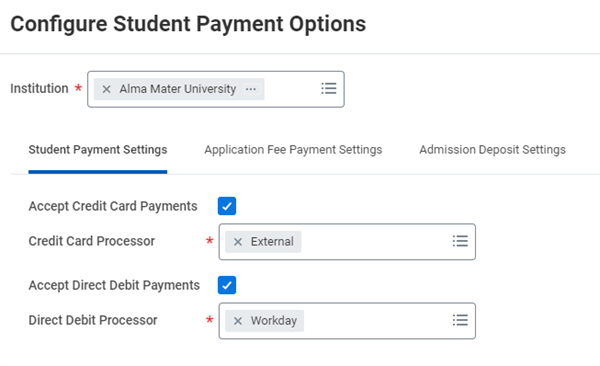
You can configure student payment options to allow or disallow certain payments. For example, this screenshot shows that credit card payments are accepted through an external processor.
When students make credit card payments or direct debit payments through an external processor, Workday routes them to the payment vendor's website to complete the payment. Once the students complete the payment, they return to Workday. If you are processing direct debit payments through Workday, students can complete their payments without leaving Workday.
Record Student Payments
Use the
Record Student Payment
task to enter a payment received from a student or organization. Workday applies the payment to charges in the student's account according to the precedence group rules for the payment item. Then, Workday posts the payment to the student's account and generates accounting entries with worktags.If you configure a payment type to apply toward certain charges and the payment amount exceeds those charges, it will cause an unapplied payment. To apply this amount toward other charges, use the
Apply Student Payment
task. You an use the Payment Application Lock checkbox to lock or unlock a payment.For external scholarship payments, you can use the
Record Private Scholarship Payment
task. Once the payment is approved, Workday will add the Private Scholarship payment to the awards list in the Total Financial Assistance tab under the Financial Aid section for the student.Student Deposits
Use the
Create Student Deposit
task to deposit student payments into a financial account. When you create a deposit, select the company associated with the appropriate academic unit and the student deposit type. Student deposit types include: student application fee deposit, student deposit, or student sponsor deposit. You can further limit the size of the payments list by specifying the types of payments or a date range.Example
: When you create a deposit, you select the company associated with the appropriate academic unit. For example, Alma Mater University (USA) is associated to the Alma Mater University academic unit.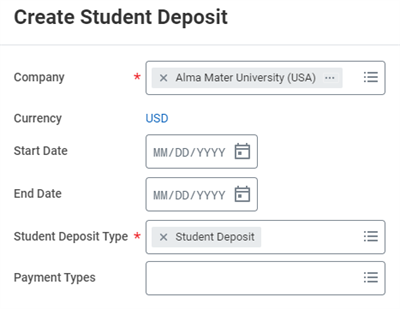
Fields under the Create Student Deposit task.
Settlement
Workday delivers a single-settlement engine to manage all payments generated across your organization's entire business for any purpose. The result is a rationalized approach to cash visibility and management that improves upon traditional approaches.
Feature | Description |
|---|---|
Single Settlement Engine | Workday provides a single settlement engine to cover all disbursements, making settlement more efficient with increased control. Disbursements include payroll, payables, direct debits, refunds, customer credit card, and expense reimbursement. |
Settlement Analytics | Workday settlement processing provides a view across all of your outstanding in-flows and out-flows, providing the tools necessary to make accurate decisions about funding, paying, and collecting money. Real-time drill-downs provide dimensional analysis of the outstanding settlements, which provide hard-to-find details in a few selects. |
Multiple Payment Methods | Workday Banking and Settlement support electronic payment processing (e.g., ACH, EDI, ISO20022), including payment returns, as well as paper checks and positive pay. |
Support for Ad Hoc Cash Transactions | Workday Banking and Settlement provides facilities the ability to capture and manage "nonbank" cash. These include petty cash, in-person customer payments, one-time payments, payments from employees, and acceptance of hard currency payments. |
Business Process | Workday Banking and Settlement use the unique business process framework to capture approvals and automate routings, integrations, and reports from bank statement reconciliation through settlement and payment release. |
Reporting | Workday provides detailed reporting, including the ability to drill into, across, and through the operational transactions-the "raw materials" of cash information. |
The unified banking model in Workday allows you to settle all incoming and outgoing payments in one place through a common settlement infrastructure. Within this unified infrastructure, you can use security to grant access to only the types of payments that apply to your uses. You also have a better overall picture of the financial in-flows and out-flows of your enterprise. From payroll to supplier and customer payments, you have the analytic data necessary to make informed decisions.
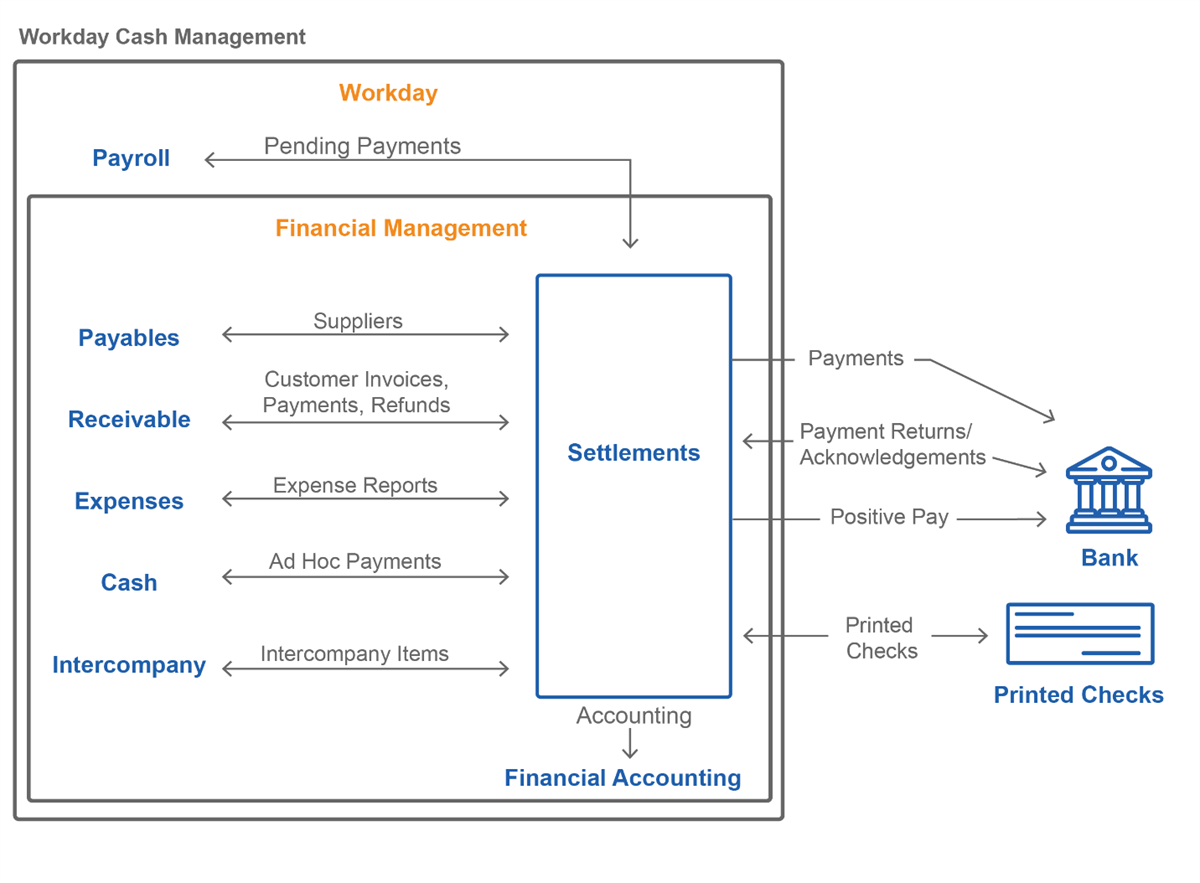
Within a settlement run, you can include any combination of these unpaid open items and pending payments:
- Supplier invoices and adjustments from payables
- Customer invoices, payments, and refunds from receivables
- Expense reports from expenses
- Ad hoc payments from cash accounts
- Intercompany items
- Pending payments from regular and off-cycle payroll
When ready, process the settlement run to settle payments. Workday interacts with banks to send outbound payments and receive inbound payments.
From a settlement, you can initiate check printing, and Workday can send positive pay data to the bank.
For electronic payments (including credit card), the banks send Workday payment acknowledgments based on the integration associated with the bank account definition in Workday.
Once the settlement processing completes payments, it generates the accounting entries associated with each payment and sends it to financial accounting in Workday.
Note
: Before you settle payments, you can create prenote runs that preauthorize bank accounts by verifying account and routing information for workers, suppliers, and customers.Adjust Student Payment
You can manually adjust a payment amount received from a student if:
- You enter the wrong amount.
- You post to the wrong student account.
- You need to make an adjustment for other reasons.
If you have already applied or deposited the payment, you will have to unapply or cancel the deposit first.
- If you have deposited the student payment, cancel the deposit from theFind Student Depositsreport using the deposit's Related Actions.
- If you have applied the student payment, unapply the payment from theFind Student Paymentsreport using the payment's Related Actions.
- Edit the payment from theFind Student Paymentsreport using the payment's Related Actions.
Workday posts an adjustment to the student account that represents the difference between the original amount and the corrected amount. It generates accounting entries that reverse the original amount and post the new amount.
Student Payment Plans
Payment plans allow students to spread out their payments over an academic period instead of paying all of their charges at once. To enable Workday payment plans, first configure the payment plan sign-up window, create a charge item for the payment plan fee, create messages to notify students of charge adjustments, and then create a student payment plan policy for an academic unit and level or program of study.

During the sign-up window for an academic period, students can use the
Sign Up for a Payment Plan
task to sign up for a Workday payment plan. When a student signs up for a payment plan, Workday adds up all of their eligible, unpaid student charges and subtracts their anticipated financial aid to calculate the payment plan balance. Workday then divides the balance by the number of months in the academic period to calculate the monthly installment amount.Cancel Payment Plans
The
Cancel Payment Plan
task removes the student from a payment plan. You can remove a student from a payment plan even if a student has payments applied to charges within the plan. When you cancel a payment plan, all charges in the payment plan revert to their original due dates. Any unpaid charges with due dates in the past become past due, even if the student was current on their installments.Student Payment Plan Recalculation Schedules
Changes to student charges, financial aid awards, and student payments may change the amount a student owes.
The amount owed may impact how much a student's monthly installment payment amount is. Workday cannot recalculate student monthly installment payments for you automatically, unless you create a student payment plan recalculation schedule. This schedule manages when the Recalculate Student Payment Plan Installment job runs during night orchestration.
To create a student payment plan recalculation schedule for the student financial services job:
- Run theCreate Payment Plan Recalculation Scheduletask.
- Enter the start and end date that your recalculation schedule remains in effect for.
- Assign the AU/AL and POS that you want to create a recalculation schedule for.
- Select the academic period that you want to nightly orchestration to recalculate student payment plan installment payment amounts for.
Use the
Edit Payment Plan Recalculation Schedule
task or the View Payment Plan Recalculation Schedule
task to edit an existing student payment plan recalculation schedule.You can manually trigger a recalculation of a student payment plan monthly installment amounts using the
Student Payment Plan Installments
task.Revenue Recognition
When you charge students before fully providing goods and services, such as tuition, you can record those charges as deferred revenue. You can then recognize the deferred revenue as you provide the goods or services over time. To mark a charge item for deferred revenue, select the Deferred Revenue checkbox on the charge item.
Revenue Recognition Schedules
Workday automatically creates revenue recognition schedules when you approve charges identified as deferred revenue. Workday divides the charge into monthly installments based on the number of months in the academic period.
When you adjust charges related to charge items marked for deferred revenue, Workday divides the adjustment into monthly installments as well. Workday backdates installments as necessary to spread the adjustment evenly over the academic period. You can use the
Find Student Revenue Recognition Schedules
and Find Student Revenue Recognition Installments
reports to track revenue recognition schedules.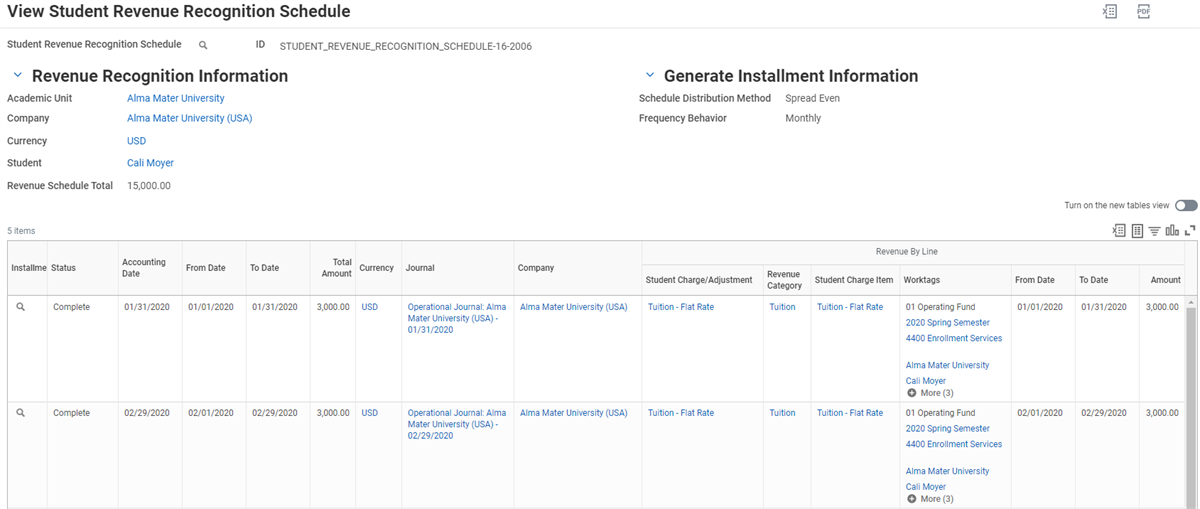
A student's revenue recognition schedule shows which journals and associated worktags are used for each student charge or adjustment.
Revenue Recognition Accounting
The
Schedule Student Revenue Recognition Accounting
task moves deferred revenue installments to recognized revenue on a regular basis. If you need to generate revenue accounting on an ad hoc basis, use the Create Student Revenue Recognition Accounting
task to process up to 1000 installments at a time.