
Charge Management
Overview
Workday Student assigns charges to students based on student and registered class information. In this chapter, you will explore the prerequisite configuration required before creating charges, such as charge due date rules. You will also explore creating charges and configuring how Workday assigns those charges to students.
Objectives
By the end of this chapter, you will be able to:
- Configure charge due date rules.
- Create a student charge item.
- Explain how Workday determines which charges to assign a student.
- Describe student charge adjustments.
Charge Due Date Rules
Charge due date rules enable Workday to automatically calculate the payment due date when it posts a charge to a student's account. Different charge items can have different due date rules. For example, tuition might be due immediately upon posting while course fees might be due at the beginning of an academic period or the course section. Each charge due date rule has an anchor date, which can be the academic period start date, course section start date, day of the month, or posted date. You can then specify the initial due date days before, on, or after that date.
You can also specify a subsequent due date for instances of a charge that follow the first instance of the same charge for the same academic period. For the rules that use the day of the month or posted date anchors, the subsequent due date setting also determines the due date of the first instance. If you select None of the Above, subsequent instances of a charge share the same due date as the first instance.
Due date rules do not apply when a charge item is in a Workday payment plan. Instead, Workday uses student payment plan policies to calculate installment due dates. Due date rules also do not apply when you use the
Apply Student Charge
task to post a single charge for an individual student. When you use this task, you must manually specify a due date.Student Charge Items
Student charge items represent each type of charge you post to student accounts, such as tuition, housing, or a technology fee.
Follow these four steps for student charges:
- Create the student charge item.
- Assign the student charge to the appropriate academic units and academic level.
- Assess student charges.
- Verify that charged applied correctly.
Note
: All institutions must have a refund recovery charge item to disburse financial aid.
Create student charge items using the
Create Student Charge Item
task. Each charge item is comprised of several options, outlined in the following table.Setting | Description |
|---|---|
Type | Group charges for reporting and searching, and for use in payment precedence rules. Workday provides these values. |
Classification | 1098-T: Make the charge item available in 1098-T tax reporting. Institutional: Make the charge item available for Return of Title IV worksheet calculations. Title IV: You can configure payment precedence rules to give higher priority to charges with this classification. |
Revenue Category | Select a worktag to use for aggregate reporting of revenue associated with student charges. Workday also uses it as a dimension in the account posting rule to drive ledger accounting. |
Deferred Revenue | Identify charges associated with the charge item as deferred revenue to account for goods and services not fully provided up front, such as tuition. You can recognize the revenue as you provide the goods and services over time. For charge items going straight to revenue, clear the checkbox. |
Override Revenue Company | (Optional) To direct revenue to a company that is not associated with the academic unit, select an override revenue company. If you do not select an override revenue company, Workday posts the revenue to the company of the academic unit. You can select a company within the same hierarchy as the company of the institutional academic unit. You can only specify override revenue companies for charge items associated with institutional academic units. You cannot edit this field after transactions exist for the charge item. Example: At your institution, revenue from housing charges belongs to a separate company. |
Charge Calculation | Select or create the calculation that computes the charge amount for a student. You can manually enter the amount for a student with the Apply Student Charge task. |
Fully Refundable | When selected, you can refund students the full amount when they no longer qualify for the charge item. To prorate student refunds instead, clear the checkbox and define charge adjustment schedules for academic period types. |
Due Date Rule | Workday uses this rule to calculate the payment due date when you use the Assign Student Charge Items task to post a charge to a student's account.Workday considers charge items included in payment plans past due based on installment due dates rather than the due date rule. Due date rules do not apply when you use the Apply Student Charge Task to post a single charge for a student. When you use this task, specify a due date manually. |
Exclude from Past Due Hold Consideration Exclude from Registration Soft Drop Consideration | When selected, Workday does not count past due charges associated with the charge item toward holds or soft drops. |
Exclude from Student Payment Plans | When selected, students must pay the entire charge amount on its due date, even if they are on a payment plan. |
Student Charge Assignments
In Workday, you can use the
Maintain Student Charge Item Assignments
task to assign student charges by the student:- Academic Unit / Academic Level
- Program of Study / Program Focus
Important
: Each subordinate academic unit or program of study inherits the student charges at the same level.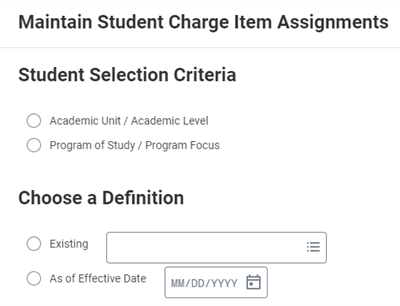
The selection criteria for the Maintain Student Charge Item Assignments task
Using a calculation in the If field will further restrict which students receive a particular charge. For example, the calculation in the following image returns students in an Off Campus Housing student cohort. Workday then uses the calculation to restrict the Commuter Meal charge item to students within that student cohort.
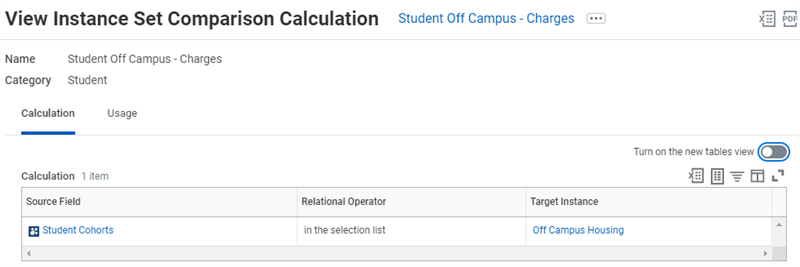
An instance set comparison calculation that ties student off-campus charges to students in the off-campus housing student cohort.
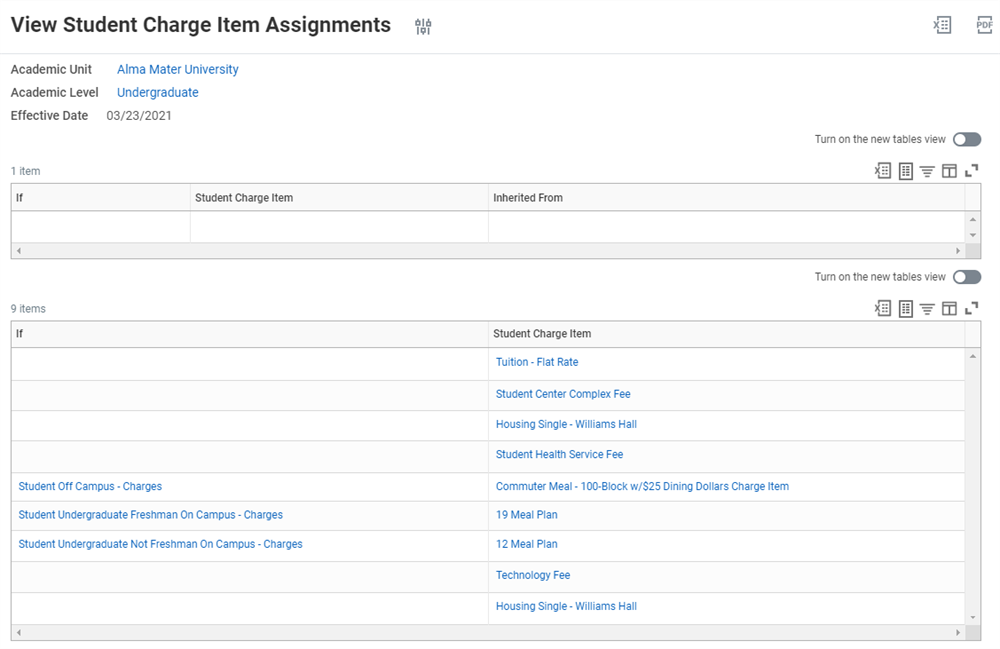
Student charge item assignments can be conditional. For example, this screenshot shows students with off-campus charges being assessed a commuter meal plan charge item.
Nightly Orchestration
During nightly orchestration, batch jobs run every night in every production and testing tenant. Nightly job orchestration consists of many processes that run in a specific order. The job scheduler enables configuration of these processes. Nightly orchestration processes students according to how you have configured the job scheduler and reaction framework.
You can use the job scheduler to configure schedules for batch jobs during nightly orchestration.
- You cannot change the processing order of batch jobs. Workday owns these processes.
- You cannot change the time that orchestration begins every evening, but you can control the types of data fed into nightly orchestration as each batch job runs.
By default, nightly orchestration starts at 1:00 am local time. If you have not configured a time zone for your tenant, the orchestration begins at 1:00AM Pacific time.
- Nightly batch jobs that run during nightly orchestration are date/time stamped. Date/time stamps are useful if you need to troubleshoot any issues that may occur during a scheduled run using a system log. The Find Financial Aid Job Runs report displays a detailed description of each individual job run.
- Some processes run every night. Others run only when you schedule them to. If you have not scheduled a process to run on a given date, the job orchestration skips to the next process.
Nightly Orchestration Background Processes
Workday allows you to schedule when some background processes will run by enabling you to configure a schedule where you can assign date ranges. If you have scheduled a process to not run on a given date, the job orchestration will skip to the next background process that needs to occur. Some background processes needs to run each night so every subsequent background process in nightly orchestration can occur. In these cases, Workday will not enable you to schedule and assign a date range.
Workday does allow you to manually update data by running specific tasks. These manual tasks update data independent of a nightly orchestration scheduled run. Additionally, these manual tasks do not launch a subsequent background process in nightly orchestration until a manual update has successfully completed.
You can test your nightly orchestration configuration (designed and dedicated solely to testing purposes) by using the
Launch Student Job Orchestration
task. To this end, this manual launch of the overnight job orchestration process is available only in your institutionally provided preview tenant. Access the task via the Manage: Financial Aid deployment domain.Background Process | Manual Tasks | Schedulable |
|---|---|---|
Financial Aid Date Based Processing | None | No |
Update Completed Activity Registration Records | None | Yes |
Process Academic Progress | Launch Academic Progress Evaluation | No |
Refresh Attendance Plan | Run Student Financial Services Processes by Student
| No |
Return of Title IV Evaluation | None | No |
Assign Student Charges | Run Student Financials Processes by Period - Assign Student Charges and Waivers button | Yes |
ISIR Progression | Run Student Financial Services Processes by Student
| No |
ISIR Action Item Evaluation | Evaluate ISIR Action Items | No |
Refresh Student Financials Period Record (SFPR) | Run Student Financials Processes by Student - Refresh SFPRs button | No |
Assign Cost of Attendance | Run Student Financial Aid Processes by Period - Assign Cost of Attendance button | Yes |
Merit Packaging | Run Student Financial Aid Processes by Period - Package Merit Financial Aid button | Yes |
Need Packaging | Run Student Financial Aid Processes by Period - Package Need Financial Aid button | Yes |
Packaging Communications | None | Yes |
Recalculate Student Sponsor Contracts | None | Yes |
Disburse Payments | Run Student Financial Aid Processes by Period - Disburse Financial Aid Payments button, Disburse Student Sponsor Contracts button | Yes |
Recalculate Student Payment Plan Installments | Recalculate Student Payment Plan Installments | Yes |
Holds, Soft Drop, Aging Group Removal | Mass Remove Holds and Soft Drop | No |
Charges and Installments Aging to Assign Holds and Soft Drop | Apply Student Hold | No |
Overview of Ordering in Nightly Orchestration Jobs
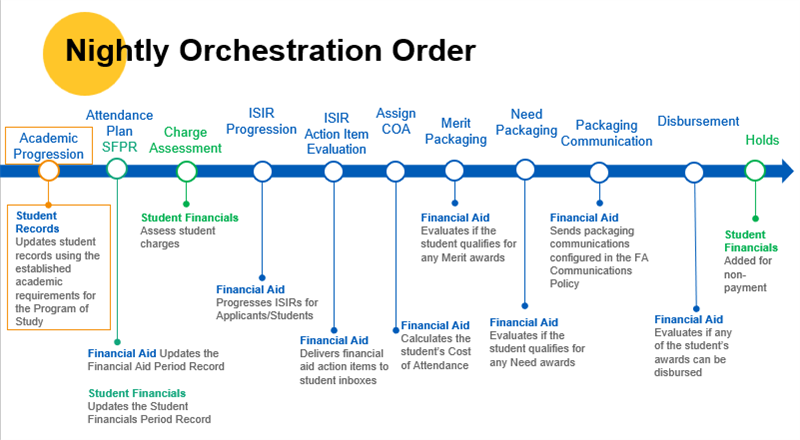
Configuring Nightly Orchestration Job Schedules
The job scheduler determines which of the seven schedulable jobs occur within the overarching nightly orchestration process. You can use job scheduler tasks to configure schedules, across a variety of metrics, for Workday to use in the overarching nightly orchestration process.
- You can create, edit, or view multiple job schedules for individual students and every student population you have created a financial aid profile group for and have associated with an AU/AL or POS.
- Workday uses the criteria that you select in every job schedule task to build logical statements that enable Workday to identify students and student populations that a scheduled nightly orchestration job will update student data for.
Workday can run nightly orchestration jobs for any configurable job processes once you configure said job schedules and remaining business processes.
Tip
: Do not configure any job schedules in your production tenant until you have tested them in a dedicated testing tenant. Job schedules should be ready for use in production before you add them to the production tenant.Student Charge Assessments
Create charge assessment schedules to control when Workday assesses charges for different student populations. Charge assessment schedules define the window of time during which students are eligible to have charges assessed for an academic period. During that window, Workday assigns and updates their charges for the academic period daily.
You can configure different activation windows for different populations of students. For example, newly matriculated students could have a different schedule than returning students.
Use the
Create Charge Assessment Schedule
task to configure the charge assessment for a given academic period and population of students. Select students by academic unit and level, program of study, or student cohort. You can also choose to restrict charge assessment only to students with registered courses in the selected period. Beginning on the start date, Workday assesses charges for the selected academic period any students who fit the selection criteria.When a student changes their registration, citizenship, residency, or program of study, the nightly job automatically updates their charges the next time it runs. If you need to update a student's charges before the nightly job runs, and they do not have any active holds, you can:
- Select theRefresh Accountbutton on theAcademic Periodreport from the Student Financials profile group of their student profile.
- Access theRun Student Financials Processes by Periodtask or theApply Student Chargetask to manually post charges to the student's account.
Note
: The Apply Student Charge
task will check that:- Students are matriculated.
- Students have a Student Institutional Financial Account (SIFA) created.
- Charge items are associated with your institution, if you are a multi-institution customer.
You can also allow students, proxies, and administrators to view and refresh a student's account. From the
Maintain Instutitional Student Financial Options
task, you can select the Allow Account Refresh button checkbox and the Display Refresh Button During Peak Registration checkbox. When you only select the new Allow Account Refresh Buttoncheck checkbox and the student financials account has charges and waivers that require processing, Workday displays the new Account Refresh button outside of peak processing periods.Student Fees
You can also configure default fees for a course. Each course can have two types of fees:
- Course fees: When a section has a course fee, Workday excludes its units from the sum of academic period units used in calculations.
- Additional fees: such as fees for materials.
A course and the charge items for its fees must belong to the same academic unit or superior academic unit. If you associate a fee with a course or course section, Workday ignores the calculation rule for charge items when it posts fees.
Note
: When you define fees for a course before creating course sections, the course sections inherit the fees defined for the course. Course sections do not inherit fees if you add fees to a course after creating the sections. You can configure fees for a course section whether or not it has inherited fees.Optionally, you can define course fees and additional fees within a group, using the Create Student Fee Group task . You can then assign the grouped fees together instead of defining fees for each course or course section individually.
You can use the
Create Student Registration-Based Fee
task to create fee tiers based on a student's number of credits. For example, you can create a tuition tier for part-time students, another tier for full-time students, and a tier for students who take credits over a certain threshold.You can assign registration-based fees to students in an academic unit, level, program of study, or program focus. When students register, Workday assesses the registration-based fees that apply to the students. To charge a student fee prior to registration, you can configure a a prebilling tier with a maximum of zero units and an amount calculation.
Use the
Maintain Student Registration-Based Fee Assignments
task to assign fees to an academic unit and academic level, or to a program of study or program area. You can restrict the fee to students who meet certain conditions by using a calculation in the If field.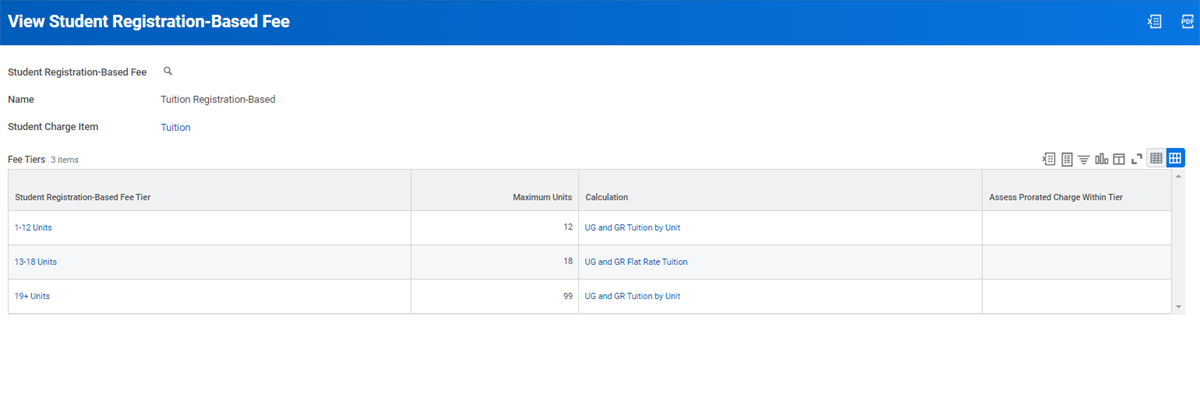
An example of student registration-based fees with three different tiers for tuition. The first tier uses a by unit calculation for 1-12 units. The second tier uses a flat rate calculation for 13-18 units. The third tier uses an overload calculation for 19+ units.
Use the Assess Prorated Charge Within Tier checkbox to determine whether you should evaluate the adjustment schedule when a student drops courses.
Student Charge Adjustments
When a change to a student's data or course registration occurs, Workday automatically reacts by reassessing the charges posted to a student's account.
Example
: Events that trigger an automatic reassessment of student charges in Workday include:- Student course registration changes, including adding or withdrawing from courses.
- Student residency status changes.
- Any other changes to a student's data that impacts the fees that you charge your students.
Automatic Charge Adjustments
Workday can reassess charges when students add or drop a class, change their residency, or makes other changes. When Workday assigns charge items to students, it:
- Compares new charges to charges already posted to the student account.
- Posts any difference (positive or negative) as an adjustment to the current period.
The initial charge amount with its original due date remains in the account transactions. The adjustment can have a different due date. Workday then generates the accounting, associates the relevant worktags, and posts the journals to the appropriate ledger accounts based on your account posting rules and posting rule dimensions.
Charge Adjustment Schedules
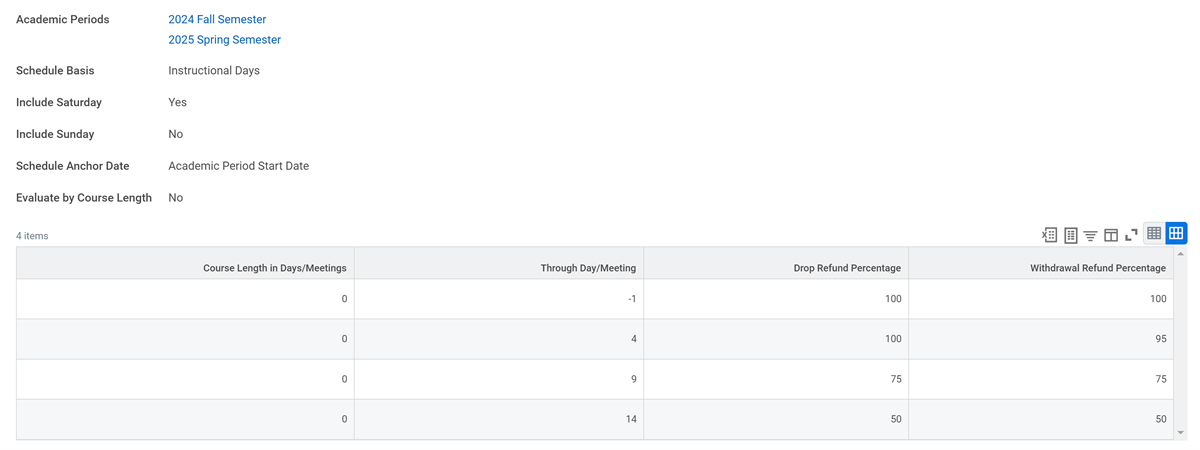
A charge adjustment schedule defines the periods of time over which student charges adjust and the refund percentages for each period. For example, a university provides students a full refund if they drop before the start of the academic period. They provide students a 50% refund if they drop after the 14th day of the period and 0% if they withdraw. You can base this schedule on calendar days, instructional days, or class meetings. Calendar days include every day of the year whereas instructional days exclude holidays from your holiday calendar. You can also choose to exclude weekend days as instructional days. Academic period start date, course section start date, or drop without record end date may anchor the charge adjustment schedules based on calendar or instructional days.
Manual Charge Adjustments
The
Create Student Charge Adjustment
task enables you to adjust charge amounts and due dates posted to a student's account. Access this task by selecting Student Charge > Adjust from the Related Actions menu of the charge. When you submit the change, Workday recalculates student account balances, reapplies the payment precedence rules, and generates accounting entries.