
Nightly Orchestration & Reaction Framework
Overview
In this chapter, you will learn about nightly orchestration, the background processes that Workday runs overnight to update financial aid data.
The purpose of this chapter is to provide you with an introduction to the key concepts associated with nightly orchestration. Later, you will practice configuring the individual nightly orchestration batch processes. This course does not practice real-time orchestration due to time limitations.
This chapter begins with an introduction to nightly orchestration and the job scheduler. You will learn about each background process that nightly orchestration runs, including the order that each background process needs to occur. At the end of this chapter, you will learn how you can monitor overnight updates that have occurred. Monitoring nightly jobs ensures that your financial aid data has updated successfully.
Objectives
By the end of this chapter, you will be able to complete the following in Workday during your deployment:
- Recognize the basic functionality of nightly orchestration and the job scheduler.
- Recall the order that nightly orchestration runs nightly jobs.
- Understand monitoring tools for overnight processing.
- Recognize the purpose of the reaction framework as part of the financial aid repackaging process.
Overview of Nightly Orchestration
During nightly orchestration, batch jobs run every night in every production and testing tenant. Nightly job orchestration consists of many processes that run in a specific order. The job scheduler enables configuration of these processes. Nightly orchestration processes students according to how you have configured the job scheduler and reaction framework.
You can use the job scheduler to configure schedules for batch jobs during nightly orchestration.
- You cannot change the processing order of batch jobs. Workday owns these processes.
- You cannot change the time that orchestration begins every evening, but you can control the types of data fed into nightly orchestration as each batch job runs.
By default, nightly orchestration starts at 1:00 am local time. If you have not configured a time zone for your tenant, the orchestration begins at 1:00AM Pacific time.
- Nightly batch jobs that run during nightly orchestration are date/time stamped. Date/time stamps are useful if you need to troubleshoot any issues that may occur during a scheduled run using a system log. The Find Financial Aid Job Runs report displays a detailed description of each individual job run.
- Some processes run every night. Others run only when you schedule them to. If you have not scheduled a process to run on a given date, the job orchestration skips to the next process.
Nightly Orchestration Background Processes
Workday allows you to schedule when some background processes will run by enabling you to configure a schedule where you can assign date ranges. If you have scheduled a process to not run on a given date, the job orchestration will skip to the next background process that needs to occur. Some background processes needs to run each night so every subsequent background process in nightly orchestration can occur. In these cases, Workday will not enable you to schedule and assign a date range.
Workday does allow you to manually update data by running specific tasks. These manual tasks update data independent of a nightly orchestration scheduled run. Additionally, these manual tasks do not launch a subsequent background process in nightly orchestration until a manual update has successfully completed.
You can test your nightly orchestration configuration (designed and dedicated solely to testing purposes) by using the
Launch Student Job Orchestration
task. To this end, this manual launch of the overnight job orchestration process is available only in your institutionally provided preview tenant. Access the task via the Manage: Financial Aid deployment domain.Background Process | Manual Tasks | Schedulable |
|---|---|---|
Financial Aid Date Based Processing | None | No |
Update Completed Activity Registration Records | None | Yes |
Process Academic Progress | Launch Academic Progress Evaluation | No |
Refresh Attendance Plan | Run Student Financial Services Processes by Student
| No |
Return of Title IV Evaluation | None | No |
Assign Student Charges | Run Student Financials Processes by Period - Assign Student Charges and Waivers button | Yes |
ISIR Progression | Run Student Financial Services Processes by Student
| No |
ISIR Action Item Evaluation | Evaluate ISIR Action Items | No |
Refresh Student Financials Period Record (SFPR) | Run Student Financials Processes by Student - Refresh SFPRs button | No |
Assign Cost of Attendance | Run Student Financial Aid Processes by Period - Assign Cost of Attendance button | Yes |
Merit Packaging | Run Student Financial Aid Processes by Period - Package Merit Financial Aid button | Yes |
Need Packaging | Run Student Financial Aid Processes by Period - Package Need Financial Aid button | Yes |
Packaging Communications | None | Yes |
Recalculate Student Sponsor Contracts | None | Yes |
Disburse Payments | Run Student Financial Aid Processes by Period - Disburse Financial Aid Payments button, Disburse Student Sponsor Contracts button | Yes |
Recalculate Student Payment Plan Installments | Recalculate Student Payment Plan Installments | Yes |
Holds, Soft Drop, Aging Group Removal | Mass Remove Holds and Soft Drop | No |
Charges and Installments Aging to Assign Holds and Soft Drop | Apply Student Hold | No |
Overview of Ordering in Nightly Orchestration Jobs
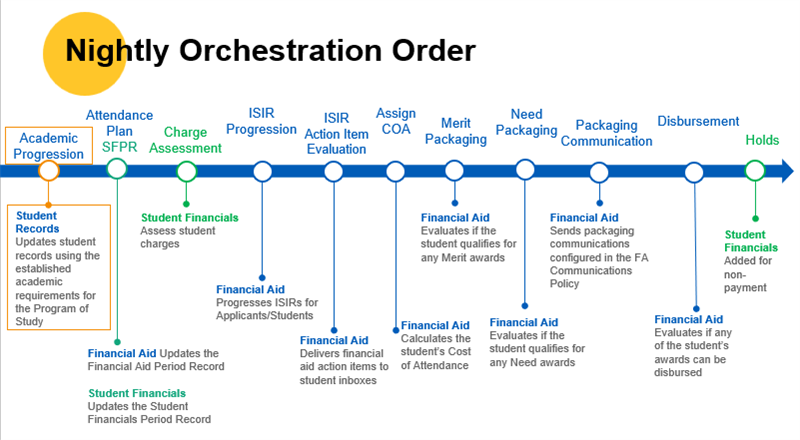
Manually Updating Financial Aid Data
You can manually initiate nightly orchestration for individual or groups of students through the
Run Student Financial Aid Processes by Period
, the Run Student Financial Aid Processes by Applicant
, and the Run Student Financial Services Processes by Student
reports. When running these reports, you can narrow your search results with faceted criteria using the left menu bar.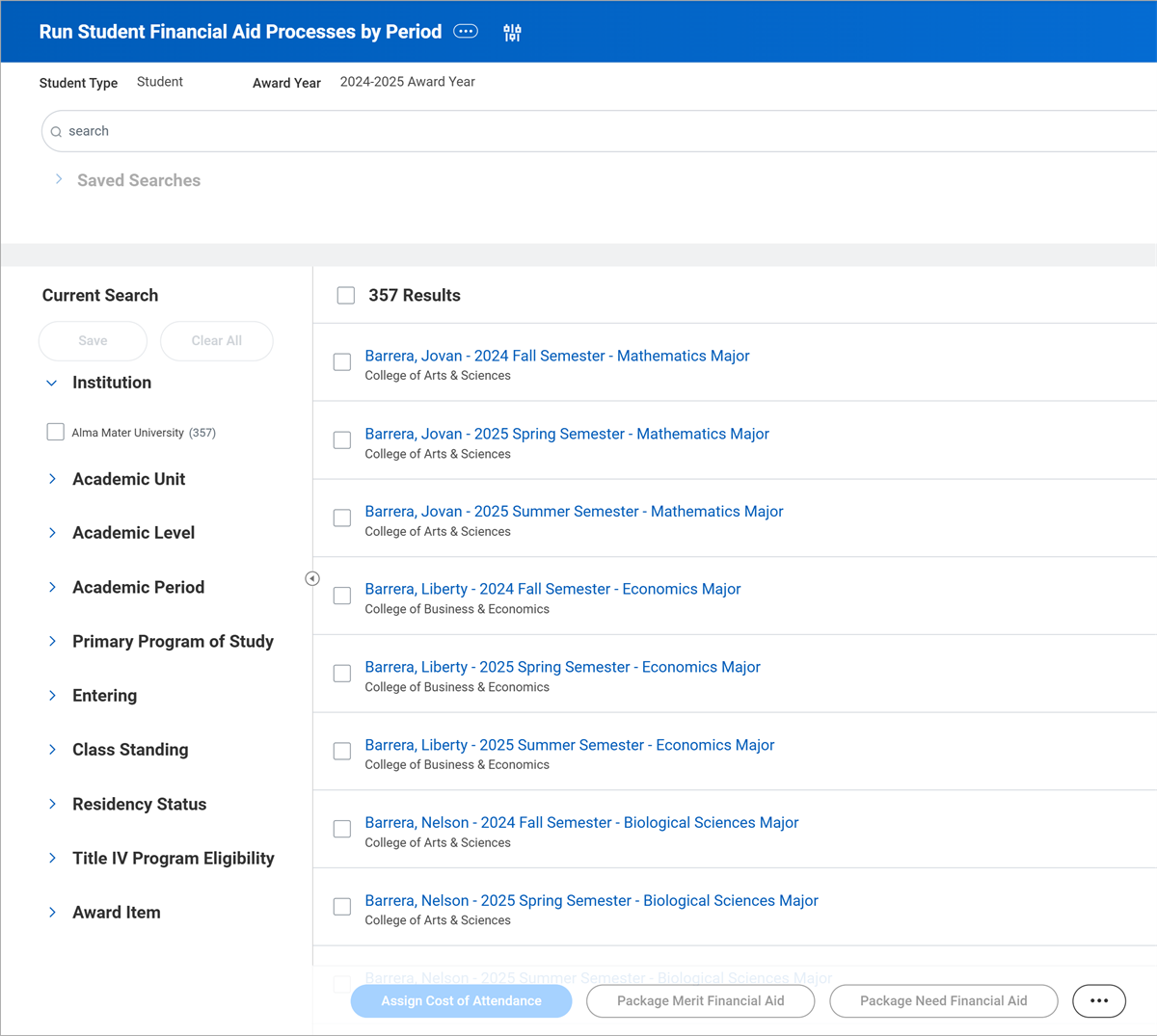
Overview of Nightly Job Monitoring
There are two tools that manage nightly job orchestration: the
Student Nightly Job Orchestration Results
report, and the Financial Aid Job Runs
report. The
Student Nightly Job Orchestration
report summarizes all processes related to nightly orchestration. Workday displays numerous data points including user run as, job process, runtime, and more. Use the Student Nightly Job Orchestration Result
s report to view an at-a-glance summary of how orchestration performed in each run occurrence. Filterable by date and specific job, this is the primary report used for monitoring nightly orchestration as you manage your financial aid operation. Workday displays messages pertaining to individual job/orchestration runs to view and resolve errors.The
Find Financial Aid Job Runs
report displays an ad hoc summary by date of individual financial aid job runs performed. This report can provide a summary of job runs across Financial Aid, even beyond nightly orchestration. Workday displays errors/warnings, and each job run is drillable for a snapshot of processing.Copy each of these standard reports to edit, then assign to a dashboard for easy and regular access.
Note
: Standard reports, such as those used for financial aid job monitoring, serve as a "base" report. Users can copy a standard report to create a new definition, one that is editable and tailored to individual preferences.Using Student Nightly Job Orchestration
Navigate to the
Student Nightly Job Orchestration Results
report. Optional parameters include timeframe, job status, and launched by nightly orchestration. When running the report, Workday displays all relevant data related to each individual run of nightly orchestration. Workday also displays the subsequent job within that run of nightly orchestration.- Filter job status to review which jobs failed.
- Use the messages field to triage each job that has a status other than completed.
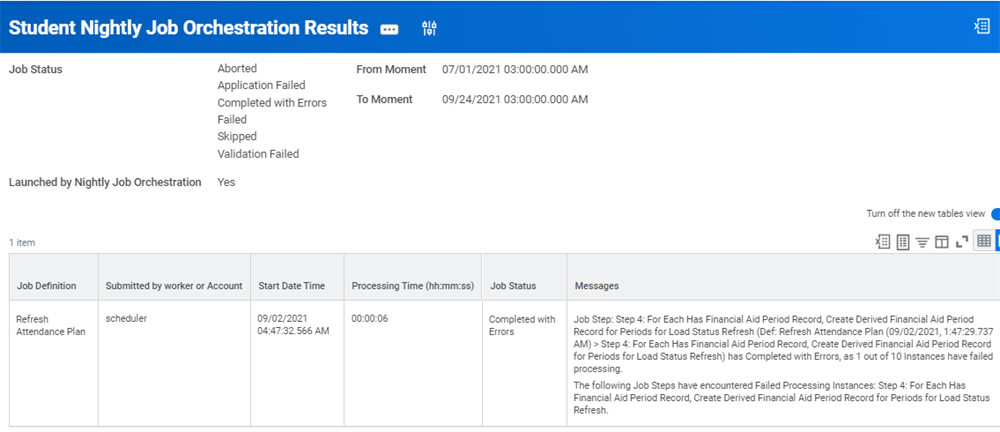
Using Financial Aid Job Runs Report
The
Financial Aid Job Runs
report provides a deeper dive into each runtime instance of a financial aid job. Workday displays all relevant information, including errors or warnings, as well as the processing user. Use this report to understand the status of each financial aid job run.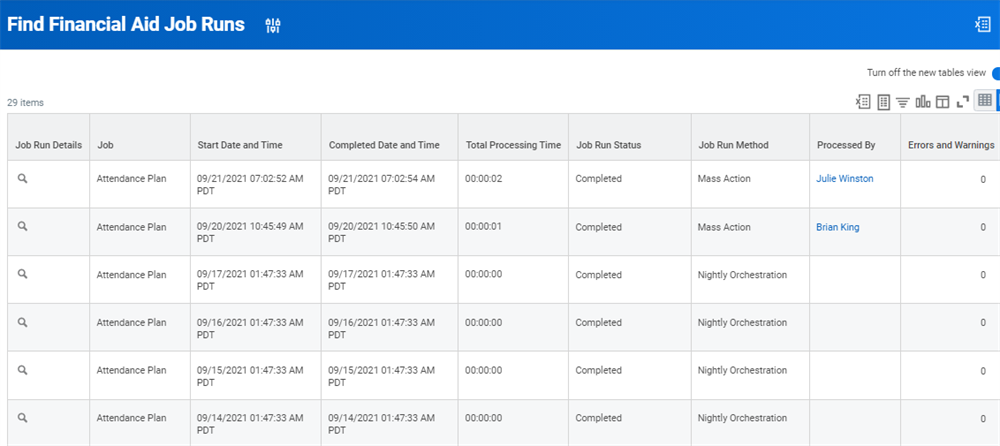
Workday captures a snapshot of all relevant processing information, including messages, process data, and any related processes. Select the magnifying glass next to the individual job, then job runtime for a summary of the background process for an individual job run.
- When the reaction framework assigns a Complete effective status to a runtime transaction audit entry, Workday successfully updated financial aid data in a nightly orchestration job that ran the night before.
- When the reaction framework assigns an Incomplete effective status to a runtime transaction audit entry, Workday did not successfully update financial aid data in a nightly orchestration job that ran the night before.
Reaction Framework
When managing financial aid, oftentimes student changes impact downstream financial aid tasks that have already completed. These changes may result in the need to recalculate cost of attendance or repackage a student. Workday provides the reaction framework to accomplish and manage these financial aid changes. The reaction framework, at its core, identifies students whose data has changed and then incorporates them into the nightly orchestration job for reprocessing financial aid.
Although both job schedules and the reaction framework are similar in the way they identify required processing of records, they have entirely different purposes. Once the student has an initial instance of COA/financial aid package for an academic period, the job schedule will never process that period again for the student. The reaction framework takes over to manage subsequent changes to financial aid data. You can summarize the job schedule vs. the reaction framework as:
- Job Schedules - Create the first instance of COA/Packages for a student in a given academic period.
- Reaction Framework - Identify data/student eligibility changes and flag them for reprocessing.
Example
: Workday identifies a status change to a student's citizenship. In this instance, a student's status changed from "Citizen" to "Non-Citizen."In this instance, the reaction reason "Citizenship" and the "Auto" reaction method setting have configurations in the COA reaction policy. You configured the reaction policy to automatically react to when it identifies as a change to citizenship. Nightly orchestration then reacts by recalculating a student's cost of attendance according to the student's updated citizenship status of "Noncitizen."
Configuring Reactions
Reactions follow the same policy framework as much of Workday Student. Creating reactions first begins with creating reaction policies for an AU or POS. Workday defines these policies into three separate reaction types:
- Maintain Cost of Attendance Reaction Policy
- Maintain Merit Packaging Reaction Policy
- Maintain Need Packaging Reaction Policy
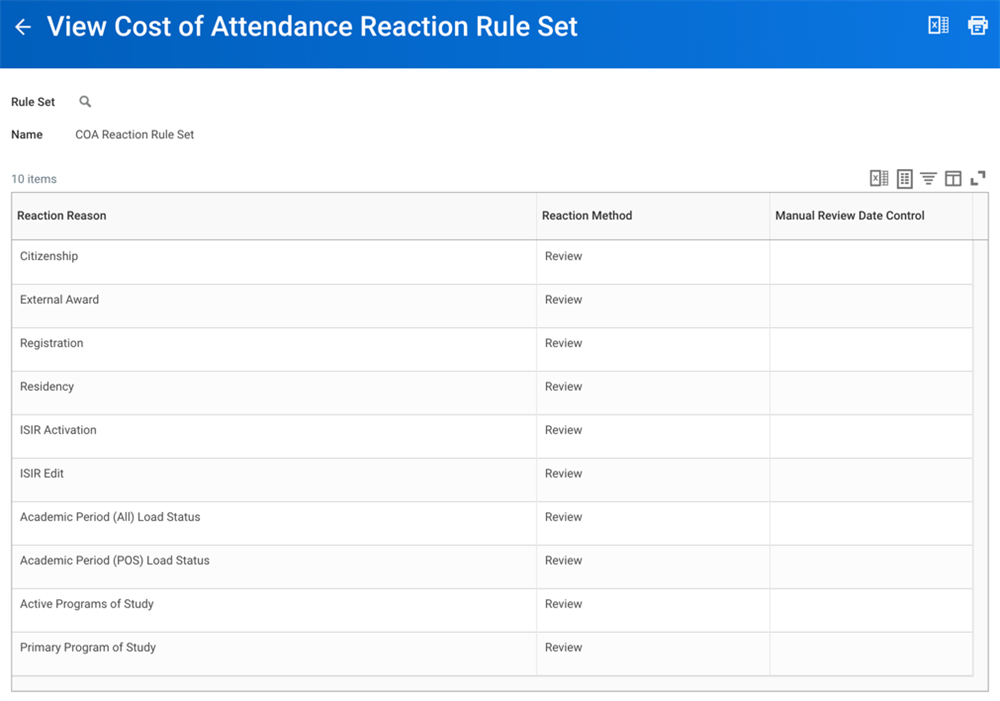
Each policy has a list of available reaction reasons, reaction methods, and a manual review date control. If you do not configure a reaction reason, Workday will not recalculate the student's COA or package. When creating reaction policies, use the following configuration notes to inform your configurations:
- Reaction Reason- Details the data that, if changed, prompts a reaction by Workday in nightly orchestration. There are a number of reaction reasons, all delivered and maintained by Workday, available for use. Visit Workday Community for a full breakdown of the triggers, events or tasks, and periods that apply to each reaction reason.
- Reaction Method- How Workday should proceed when the system detects a reaction. Workday provides two reaction methods:
- Auto - Send the record through reprocessing until the manual review date control (required). After this date, treat the reaction as a review.
- Review - Mark this record for manual review by placing it on the corresponding reaction review report.
- Manual Review Date Control- For "Auto" reaction methods, Workday will auto-process reactions until a dedicated date. Each of the available dates comes from the date controls functionality. Configure date controls via theMaintain Academic Period Date Controlstask. Available date controls include:
- Actual Enrollment Usage Start
- Census Date
- Last Add Date
- Pell Recalculation Date
Student Grouping Reactions
Student grouping reactions enable the use of student cohorts to reassess financial aid tasks across student memberships. Student cohorts allow you to group students together (by academic record) across any number of criteria in either a manual or automated fashion. Assigning student cohorts to student grouping reactions enables Workday to automatically reassess student financial aid across a variety of tasks as membership within cohorts changes. Student grouping reactions affect cost of attendance, merit packaging, and need packaging only.
Use the
Maintain Financial Aid Reaction Policy
task to determine which student groups, by academic unit/level, are a part of the student grouping reactions. On each reaction policy, add the student grouping reaction reason to then determine whether to use automated or manual review for student grouping reactions. Use the Create Student Cohort
task to create a student cohort to match your student grouping needs if one is not already available.Resolving Reactions
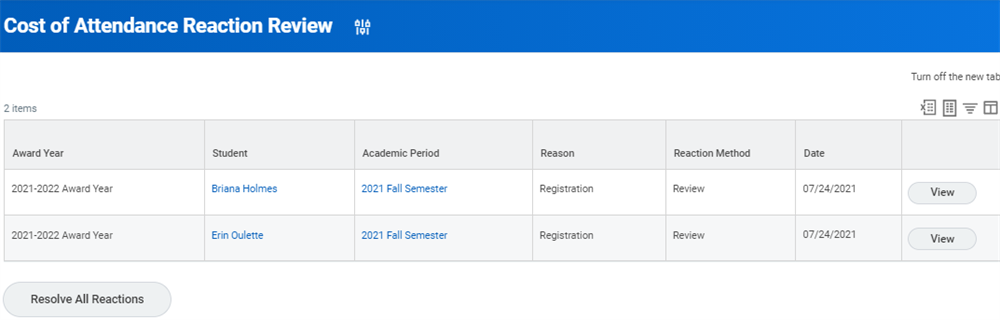
The student appears on the corresponding reaction review report when you configure the reaction reason as review, or when the date control passes for an auto reaction. Access the corresponding reaction review report to view all reactions and student financial aid records that require manual intervention:
- Cost of Attendance Reaction Review
- Need Packaging Reaction Review
- Merit Packaging Reaction Review
An administrator will need to review all students on the reaction review report to determine whether to reprocess them. To make this process easier, you can exclude either students or applicants when you create these reports. You can also select the Exclude Non-enrolled Students with an Academic Period (All) Load Status checkbox when you select Student in the Student Type prompt. This checkbox ensures that the report only returns results for students who are enrolled.
Tip
: Workday recommends to first manually test any events that you plan to set to auto in your sandbox tenant before moving to production. A test will allow you to manually verify that you are getting the expected results before switching to auto processing.Reaction Review Reports
Each of the three reaction review reports contains a variety of options for viewing relevant data for a reaction and resolving a reaction. Select the View button from a reaction review report to navigate to the appropriate page where the review can take place:
- Cost of Attendance Reaction Review- directed to the View Cost of Attendance page for the student you selected.
- Merit and Need Packaging Reaction Review- directed to the Total Financial Assistance page for the student you selected.
On each page there are two common buttons that perform different functions:
Resolve Buttons: Used to resolve the reaction if no reprocessing is necessary. Selecting this button:
- Removes ALL reactions for the associated type.
- Does NOT automatically reprocess the student.
- Removes the Resolve & Run buttons from the page.
- Removes student from the associated Reaction Review Report.
Run Buttons: Used to recalculate COA/Merit/Need Packaging. Run allows the user to view how the changed data impacts the student's values. The run option allows you to immediately reprocess the student. Selecting this option:
- Processes the student for the associated job.
- Removes the Resolve & Run buttons from the page.
- Removes student from the associated Reaction Review Report.
The Resolve All Reactions button is at the bottom of each reaction review report. This button allows users to resolve records on the review report in mass rather than having to resolve each one individually. Express caution when using this functionality - once a user decides to resolve reactions in mass, you cannot undo the action.