
Attendance Plans
Overview
You previously learned about how the start and end dates in a calendar year define standard and nonstandard academic periods. Workday provides you with the ability to determine your student's attendance pattern based on your student's attendance plan. A student's attendance plan is based on the start and end dates for the standard and nonstandard academic periods of an AU/AL academic calendar.
After completing this chapter, you will be able to:
- Configure attendance plan rules and policies that impact student attendance patterns.
- Refresh an attendance plan.
- Understand the attendance plan nightly job process refresh.
Objectives
By the end of this chapter, you will be able to complete the following:
- Recall the components of attendance plans.
- View and refresh an attendance plan.
- Identify an attendance pattern in an attendance plan to determine student eligibility.
- View and manage projected, actual, and program of study load statuses.
Overview of Attendance Plans
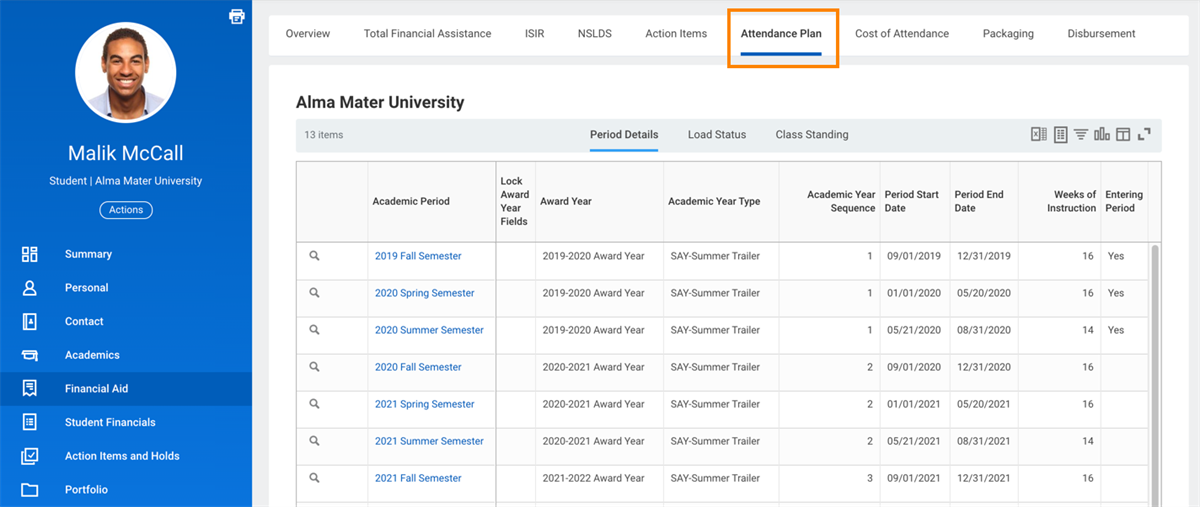
Attendance plans display enrollment information required to award financial aid and calculate student charges. This information includes past, present, and possible future course enrollment for a student. Workday uses attendance plans to offer financial aid to students before they enroll and recalculate financial aid for changes to enrollment.
A student's attendance plan will allow you to:
- View enrollment details, course load statuses, and class standings that determine financial aid amounts.
- Assess how students are progressing toward their program requirements, which impact financial aid.
- Manually update any details that Workday calculates automatically.
Module Processing
The central academic calendar within Workday Student enables functional areas across an institution to use centralized dates, academic periods, and registration to manage the educational experience. With nonstandard academic periods and dynamic courses, students can have enrollments fluctuate over the course of a standard, overarching academic period. To process financial aid for these nonstandard course dates, Workday uses module processing.
Dedicated functionality for module processing includes:
- Weeks of Instruction: The Weeks of Instruction (WOI) is used to calculate Cost of Attendance (COA) and Student Aid Index (SAI) amounts for module registration activity. Workday uses the current registration activity for the student to calculate the WOI. WOI uses the holiday calendar to account for noninstructional days. Use theRefresh Non-Instructional Days for Weeks of Instruction task to refresh instructional days when changes to calendar occur.
- Reaction Reasons:The weeks of instruction reaction reason enables set procedures for changes to student data related to calculated weeks of instruction.
- Pell Recalculation Date:The date that drives Pell load status, enabling you to award Pell after this date.
- Disbursement Activity:Selecting the Include Nonstandard Academic Periods Boolean on the disbursement schedule. This Boolean changes disbursement to also calculate based upon registration activity.
Module processing is a significant, multilevel, complex area of functionality for financial aid. For more information visit Workday Community.
Creating Attendance Plans
Attendance Plan Data
Workday derives information for your student's financial aid attendance plan from their primary POS academic policies. If your student has multiple academic records, Workday uses the primary program of study assigned in your student's reporting record. Workday refers to the rows on attendance plans as financial aid period records. Financial aid period records are objects that contain financial aid data for an academic period, such as load status or class standing details. Workday also uses these objects in financial aid processing.
Tip
: Use the Maintain Class Standing Values
task to configure custom class standing definition labels for your institution. These custom labels will automatically display on various financial aid tasks and reports.Attendance Plan Components
Attendance plans automatically generate based on policies assigned to a student's primary program of study on the reporting record. This chapter will discuss elements of this structure and how they each impact the function of the attendance plan. These configurable components are all rule sets and policies assigned to academic units or programs of study. Attendance plans consist of:
- Load Status Rule Set
- Class Standing Rule Set
- Federal Student Aid Program Rule Set (FSAPRS)
- Calendar Policy that includes the Typical Attendance Pattern
Generating Attendance Plans
Attendance plan generation occurs automatically for new students and applicants who have declared a program of study. Workday uses the configured policies assigned to the POS and related AU applicable to the student when generating attendance plans. Each attendance plan begins with an anticipated start date and ends with an expected completion date. Workday populates any academic period in between as long as the student's status is:
- In Progress
- Leave of Absence
- Pending Completion
Attendance plans include any period with a registration, sponsor contact, waiver, or ISIR transaction that might fall after the expected completion date.
Workday follows these parameters when generating an initial build of attendance for applicants and students:
- Applicants:Workday generates an attendance plan when an applicant applies to a POS. One attendance plan generation occurs for each application.
- Students:Workday generates an attendance plan when an applicant matriculates into a POS. Only one attendance plan generation occurs per institution, regardless of the application numbers or POS.
Creating Projected Academic Periods
When Workday creates your student's attendance plan, the system automatically adds projected academic periods that occur before your student's expected completion date.
Example
: A student expects to complete their undergraduate POS in Spring 2025 and start a graduate POS in Fall 2025 at the same education institution. Workday creates projected academic periods for:- The undergraduate academic periods through Spring 2025.
- The graduate academic periods beginning with Fall 2025.
Workday also automatically adds projected academic periods to your student's attendance plan when:
- Your student changes their course registration.
- A scheduled ISIR, sponsor contract, or waiver transaction occurs, but the transaction occurs during an academic period that is missing from your student's attendance plan.
Managing Attendance Plans
Refreshing an Attendance Plan
Workday automatically refreshes attendance plans every night. A refresh enables any downstream financial aid processes that you configured for your tenant to display the most current information in an attendance plan. This includes modified academic periods, load statuses, and class standing details.
Note
: Workday prevents the financial aid load status for past academic periods from updating retroactively.When your student changes their registration, program of study, or another impact event occurs that affects your student's financial aid, Workday Financial Aid flags the impact event. The flag Workday Financial Aid assigns enables you to account for the change after your student's attendance plan refreshes.
Workday runs an attendance plan refresh job every night that automatically refreshes the attendance plans for flagged students. The refresh job also automatically creates attendance plans for newly created students and admits. Workday uses delivered processes within nightly orchestration to evaluate whether the conditions in your student's attendance plan warrant a partial or complete refresh.
Resource/Glossary
: For additional information about rebuilding and refreshing attendance plans, visit Workday Community.Depending on the reason for the refresh, Workday may refresh your student's entire attendance plan or just parts of it. Workday:
- Refreshes the entire attendance plan if you edited your student's primary POS, program of study status, or reporting record.
- Only recalculates class standing and load statuses for any impacted academic periods when your student registers for courses, receives grades, or transfers credits.
- Workday only updated projected academic periods when adding ISIRs, student sponsored contracts, or waivers to your student's reporting record.
Important
: If there is a program of study change that is future-dated, the Refresh Attendance Plan job will run on the date that the program of study change is effective.Workday inactivates academic periods when the:
- Expected completion date moves backwards. Workday inactivates any academic periods that fall after the new expected completion date.
- Primary program of study changes across academic calendars. Workday inactivates any academic periods on the old calendar that overlap with academic periods on the new calendar.
- Academic record status becomes inactive. Workday inactivates any academic periods that fall after the date in which the student becomes inactive.
Automatically Refreshing an Attendance Plan
Once generated, Workday automatically refreshes the attendance plan based on updates made by a number of items across Workday Student, even updates outside of financial aid:
- Registration activity
- Grading
- Internal articulation
- Transfer credit event
- Sponsor contracts/waivers
- Program of study changes
- Reporting records changes
When a change occurs, Workday flags the attendance plan scheduled for a refresh one (or more) of the following refresh types:
- Full Refresh - Workday refreshes academic period details, load status, and class standing.
- Load Status Refresh - Workday refreshes the load status for the student/applicant.
- Workday evaluates if a student meets criteria for Full-time, 1/2-time, or other load statuses.
- Attendance plan load statuses refresh for all academic periods with registrations.
- This refresh may affect student financial aid award calculations and distributions.
- Class Standing Refresh - Workday refreshes the class standing, but only the class standing changes after the effective date of the change.
- System evaluates if a student meets criteria for a new class standing.
- Attendance plan load statuses will refresh class standing based on the number of earned units, which may affect student financial aid award calculations, disbursement, and COD.
- Combination Refresh - Workday refreshes the load status and class standing.
Workday refreshes aspects of the attendance plans automatically based upon the activity/data/ event trigger. For example, registration activity affects load status and class standing, but not period details. A POS change affects the entire attendance plan.
Manually Refreshing an Attendance Plan
Workday automatically flags attendance plans for refresh during nightly orchestration. You can, however, run a manual refresh of your attendance plan data so that updated data is available immediately, but only for exception processing. You can manually refresh a student's attendance plan if you have been assigned access to the Manage: Refresh Attendance Plan domain in the Financial Aid functional area.
After you manually refresh your student's attendance plan, you need to run, in sequence order, any downstream processes that use the attendance plan data you modified. These downstream processes must run in the order that they run during nightly orchestration.
- To manually refresh multiple students' attendance plans, use theRun Student Financial Services Processes by Studentreport.
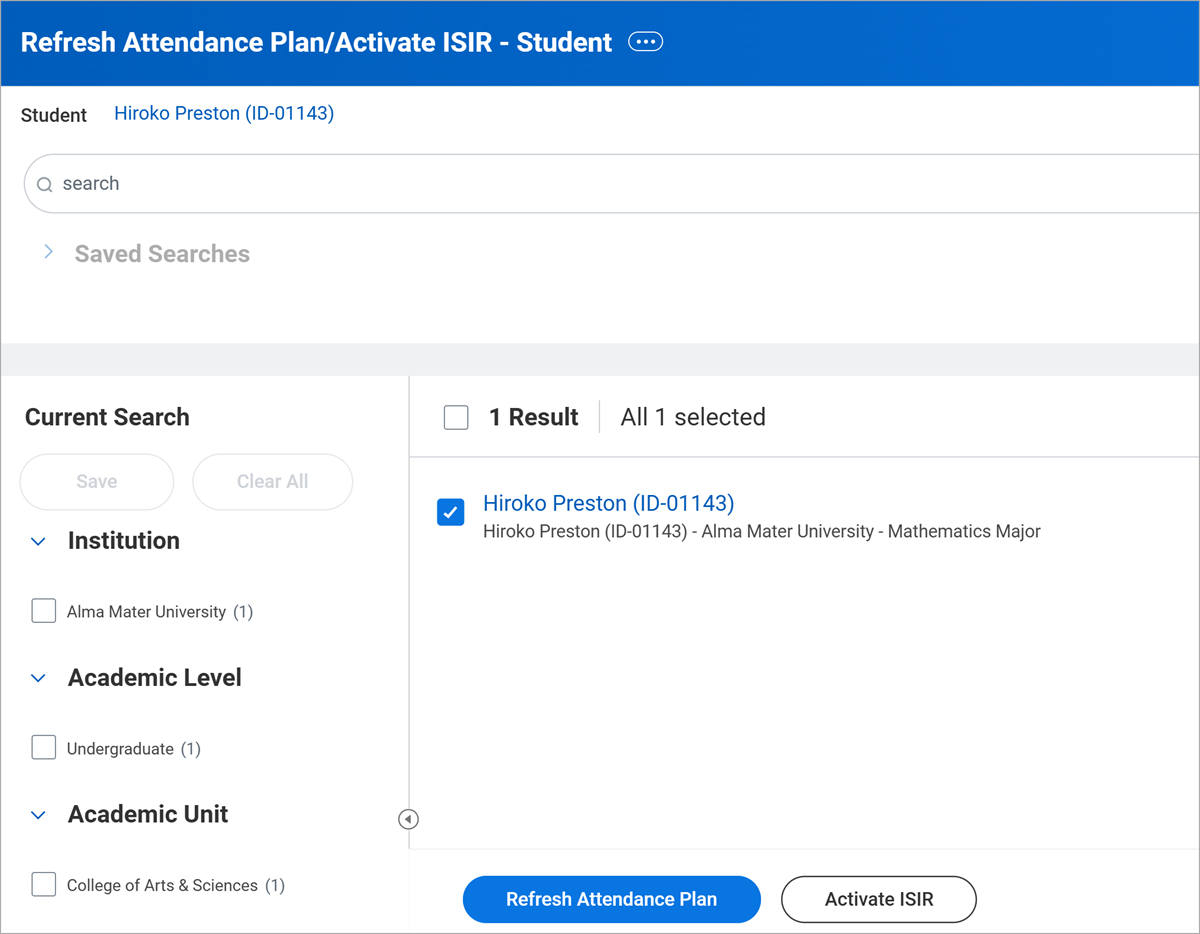
- To manually refresh a student's attendance plan, run theRefresh Attendance Plan/ Activate ISIR - Studentreport.
- To manually refresh a student applicant's attendance plan, run theRefresh Attendance Plan/Activate ISIR Student Applicantreport.
Once you have selected your students (or applicants), start an attendance plan refresh by selecting the Refresh Attendance Plan button. You can choose to refresh the load status:
- As of the current standard academic period.
- For all standard academic periods including the past academic periods.
- As of the standard academic period of the effective date (which you select).
When you refresh the load status as of the standard academic period of the effective date, Workday determines the standard academic period based on the standard end date.
Once Workday runs each process listed below, Workday displays any new updated attendance plan data from the refresh:
- Cost of attendance
- Merit packaging
- Need packaging
- Disbursement
- Charge assessments
Editing (Overriding) Nonstandard Academic Periods
When you edit an attendance plan and save the changes, you override the projected academic periods that Workday previously predicted in your student's financial aid attendance plan.
Editing your student's attendance plan is a quick fix for overriding any nonstandard academic periods that Workday projects. When the situation in the following example occurs, Workday recommends that you do not override the projected academic period start and end dates. Instead, you need to modify the calculation that Workday uses to project the start and end dates for the dynamic course section.
Example
: Your student enrolls in a dynamic course section. The projected start and end dates of a dynamic course are different from the standard start and end dates from a standard academic period.You can override the standard academic period dates of the student's primary POS academic calendar. However, it does not enable Workday to automatically recalculate the start and end dates of the attendance plans for other students registered for the same course. This system could also cause problems downstream if future modifications occur to the dates assigned in the primary POS academic calendar.
Avoid editing nonstandard academic period start and end dates in an individual student's attendance plan whenever possible. Modify the calculation used to project start and end dates for a dynamic course section instead.
Below are the fields available when overriding a nonstandard academic period.
Field Name | Field Data Usage |
|---|---|
Select an Award Year | Use the Select an Award Year field to select a financial aid award year for an academic period. |
Assign an Academic Year Sequence Number | The Assign an Academic Year Sequence Number field assigns an academic year sequence number to an academic period. The sequence number you assign identifies which academic year an academic period belongs to. |
Assign an Academic Year Type | The Assign an Academic Year Type field assigns an academic year type for federal loan processing. All academic periods in the same financial aid award year need to have the same academic year type. A summer academic period is associated with an award year based on the academic year type you assign. When you associate the summer academic period with an award year by assigning an academic year type, Workday treats the summer academic period as a standard academic period. |
Select Lock Award Year Fields | Use the Select Lock Award Year Fields field to prevent automatic reset of values in an attendance plan during a refresh. Clearing the Lock Award Year Fields checkbox enables Workday to revert to the original date values that Workday automatically calculated for your student's attendance plan. |
Important
: Once you save changes to your student's attendance plan in Workday, you need to refresh your student's attendance plan. Refreshing the plan makes changes visible elsewhere in the system.Reminder
: Modifying attendance plans:- You need to manually refresh your student's attendance plan and lock your edits after overriding your student's attendance plan. Manually refreshing and locking your edits enables Workday to use the new dates you edited in other downstream financial aid processes configured for your Workday tenant.
- Once you override an attendance plan, you will notice that Workday automatically recalculates the weeks of instruction in an academic period. Workday automatically resets the number for weeks of instruction whenever your student's attendance plan refreshes.
- You also cannot override load statuses or class standings directly within your student's attendance plan, even though you are able to view load status and class standing information within your student's attendance plan. Workday provides separate tasks that you need to use instead to edit load statuses and class standings.
Financial Aid Load Statuses
The Load Status Policy defines a student's load status and can affect financial aid eligibility. The types of load statuses used in Workday are:
- Projected
- Projected Pell Enrollment Intensity
- Academic Period (All)
- Academic Period (POS)
- Academic Period Pell (POS)
- Academic Period Pell (POS) Enrollment Intensity
- Course Start (All)
- Course Start (POS)
- Course Start Pell (POS)
- Course Start Pell (POS) Enrollment Intensity
- Verified Participation (All)
- Verified Participation (POS)
- Verified Participation Pell (POS)
- Verified Participation Pell (POS) Enrollment Intensity
Each of these load statuses is available on the Load Status tab of the Attendance Plan in the student's profile. You can find a load status under Financial Aid Period Record > View Courses for Load Status from the Related Actions menu for the academic period.
Projected Load Statuses
Workday uses projected load statuses to process financial aid for future academic periods until the actual enrollment usage start date. Projected load statuses use the typical attendance pattern and load status policy. Workday also projects Pell Enrollment Intensity and displays it as a percentage.
Actual Load Statuses
Once reaching the actual enrollment usage start date for an academic period, Workday uses actual load statuses for the calculation of financial aid. Workday adds up the units for a student's courses and compares that to the load status policy for the student's primary program of study.
There are three main types of actual load statuses:
- Academic Periodincludes units for courses for which the student has registered for the academic period.
- Course Startincludes units for courses that have started at the time of calculation.
- Verified Participationincludes units for courses for which the student has verified participation at the time of calculation.
Each actual load status type then has three subtypes:
- All: This status includes units for courses that have a status of registered or complete.
- POS: This status includes units for courses included in 'All' that also satisfy the academic requirements for the student's program of study.
- Pell (POS): This status includes units for courses:
- Included in POS.
- Registered for before the Pell Recalculation Date or the First time Awarded Pell for Actual Enrollment Date, whichever is later.
- Withdrawn from after the Pell Recalculation Date or the First time Awarded Pell for Actual Enrollment Date, whichever is later.
Program of Study (POS) Load Statuses
The program of study (POS) load status includes units that satisfy the academic requirements for a student's program of study. To view the programs of study that Workday uses to calculate a student's program of study load status for a period, select the academic period's Related Actions. Next, select Financial Aid Period Record > View Program of Study for Load Status.
In addition to courses that satisfy the academic requirements of a student's program of study, POS load statuses include units for courses that:
- Satisfy developmental units and do not exceed the developmental units maximum defined in the federal student aid program policy of the student's primary program of study.
- Repeat a previous attempt that has already satisfied an academic requirement.