
Financial Aid Structure
Overview
During this chapter, you will learn how about academic structure configurations and key elements to manage financial aid for your academic structure. This chapter also explains how to configure the core elements of Workday Student Financial Aid: programs of study, program policies, school codes, academic calendars, and communications.
Objectives
By the end of this chapter, you will be able to:
- Configure financial aid elements of the academic structure.
- Create academic calendars for financial aid purposes.
- Configure federal student aid policies.
- Create financial aid communication policies.
Overview of Workday Financial Aid Architecture
Workday Financial Aid covers a wide spectrum of features and tasks in the Workday product line. Workday uses the same user interface to house all applications, which makes it easy for you to share information between applications. Additionally, Workday uses a common business process framework to configure all the business processes within each application. You can find many applications through the Global Navigation Menu button.
Note
: The Global Navigation Menu button, located in the upper-left corner of the screen, is also referred to as the Menu button throughout this course.Overview of Academic Foundation Configuration
The academic foundation is the baseline for the functional areas in Workday Student, and includes configuration settings that you must enable for Workday Financial Aid. Each of the elements discussed in this chapter and throughout this course impact how data displays within Workday. We will also discuss how other functional areas within Workday Student use data. The structure below outlines academic units (AUs), academic levels (ALs), and programs of study (POSs) - the core building blocks in Workday Student.
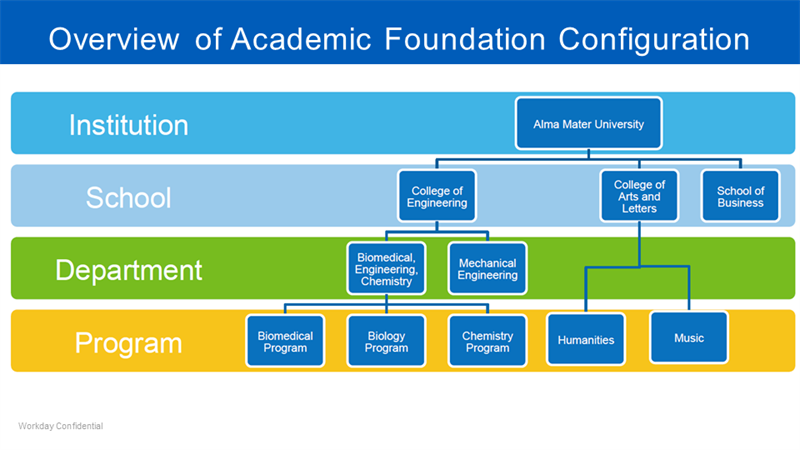
Academic Unit Structure
The academic structure in your institution's tenant should align with your institution's organizational structure. Your tenant should include academic units that represent the colleges, schools, departments, institutes, research centers, and other units of instruction within your school.
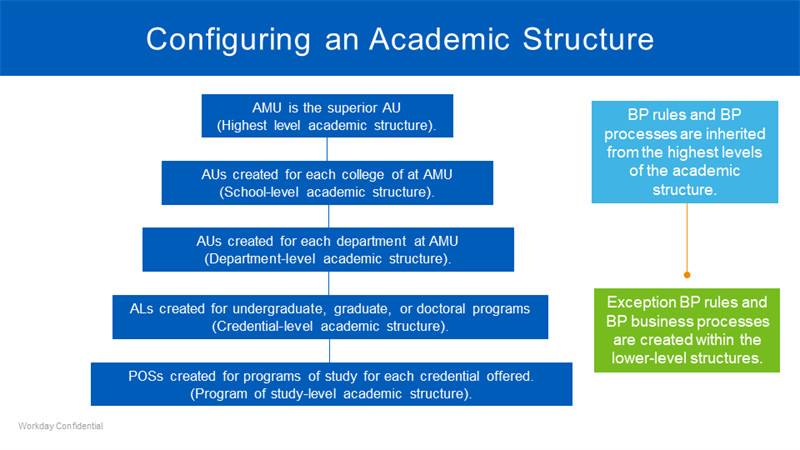
Alma Mater University's (AMU) institutional tenant reflects the following academic structure:
- AMU is the superior academic unit (AU) created at the institutional level because it is the highest level of the university's academic structure.
- AUs are within AMU at the school-level for each of AMU's colleges.
- Department-level AUs exist for some of the colleges where departments exist in AMU's organizational structure.
- Academic levels (ALs) for undergraduate and graduate programs exist at both the school and department levels according to their placement in AMU's organizational structure.
Business processes and policies in AMU's tenant exist at the highest levels of the academic structure depicted. The lowest levels of AMU's academic structure inherit these business processes, unless you create exception rules and different business processes within the lowest level.
Academic Calendars
Academic Calendar Components
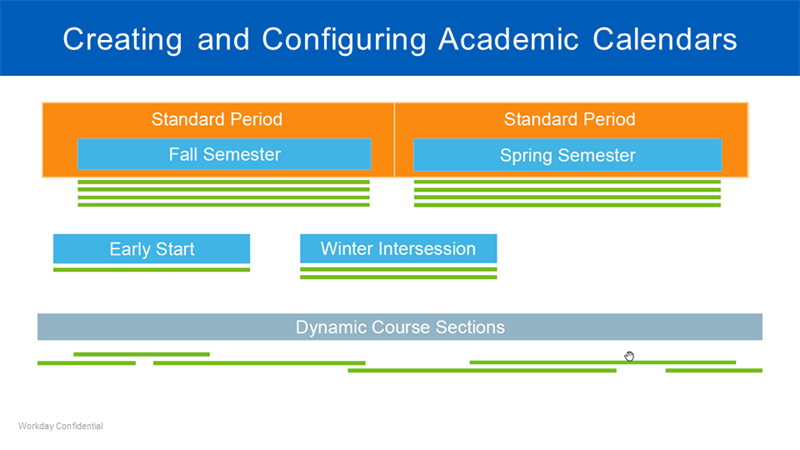
Academic periods are the fixed date ranges defined by your institution. These periods make up an academic year and typically consist of semesters or quarters. You can define these fixed periods down to a specific date. You can then associate these academic periods with an academic year. An academic calendar serves as a template that defines the standard format for an academic year, e.g., a semester containing a fall, spring, and summer period. The table below provides examples of how you can configure a semester or quarter academic calendar for an academic year.
Academic Calendar | Academic Year | Academic Periods |
|---|---|---|
Semester Academic Calendar | 2025 - 2026 Academic Year | 2025 Fall Semester 2026 Spring Semester 2026 Summer Session |
Quarter Academic Calendar | 2025 - 2026 Quarter Academic Year | 2025 Fall Quarter 2026 Winter Quarter 2026 Spring Quarter 2026 Summer Quarter |
Note
: You must assign a calendar to the program of study, academic unit, or a superior academic unit to be available for selection.To define your institution's date ranges, define, in order:
- Academic Period Types
- Academic Calendars
- Academic Years
- Academic Periods
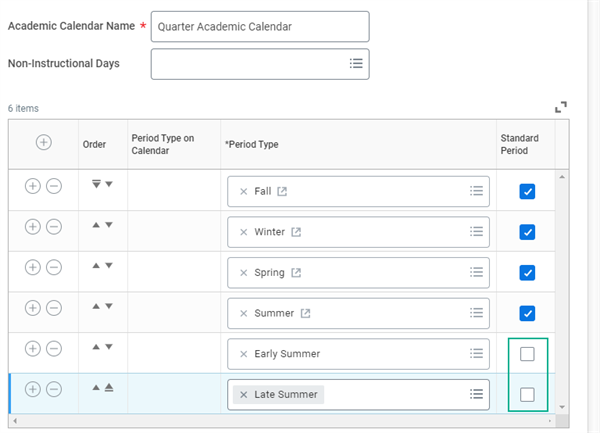
To define your institution's calendars, years, and periods, first define the academic period types that your system will use. Period types are typically a seasonal date range associated with a specific period in your academic year. These standard periods serve as the reporting window or windows for your academic calendar. They are usually the main periods, such as Fall, Spring, and Summer. Each calendar must have at least one standard period. If your calendar has multiple standard periods, they should be contiguous with no overlap.
Before you can create an academic calendar structure containing these periods, you must define these individual period types in your system. You can use the
Maintain Academic Period Types
task to configure these period types in your system before you create your calendar structures.Nonstandard periods are fixed periods that do not represent the main periods of the year. Nonstandard periods may overlap other fixed periods (e.g., intercessions or express periods). Workday defines these nonstandard academic period types in the same way as standard periods. However, you will not select the Standard checkbox when adding nonstandard periods to an academic calendar.
Creating Academic Calendars
When you create an academic calendar in Workday, you need to configure standard academic year dates and borrower based academic year dates within the same calendar. An academic calendar includes start and end dates for academic years and academic periods, and for award years and award periods.
- The dates that you define for standard academic years and academic periods are based on the academic structure in your tenant.
- There is one academic calendar at the institutional level, the superior academic unit. You can create additional calendars for any POS/AUs.
You need to define the start and end dates for each academic year before defining start and end dates for each academic period. Similarly, you need to create start and end dates for each award year before defining start and end dates for each academic period.
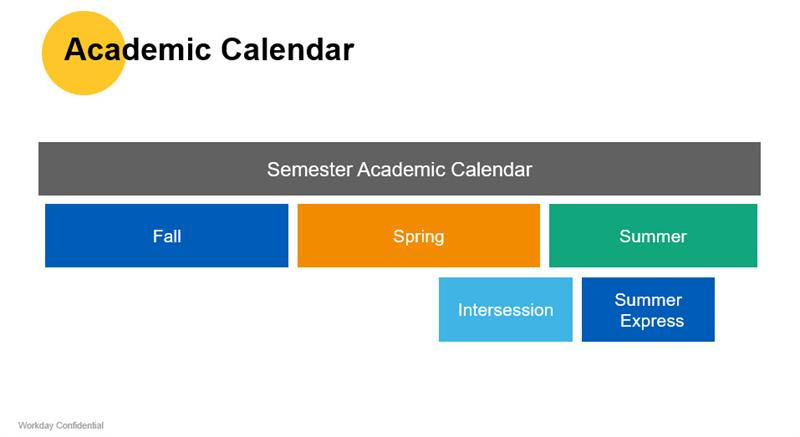
After defining the dates for a standard academic year, you can begin defining start and end dates for nonstandard academic periods.
Use the following tasks and reports to configure and maintain academic calendars:
- TheCreate Academic Calendartask: Create an academic calendar and configure academic years and academic periods.
- TheConfigure Calendar Policytask: Assign an academic calendar to either an academic unit, a superior academic unit, or an academic level.
- TheFind Academic Calendarsreport: View a complete list of all academic calendars.
Choose a calendar's
Related Actions
icon to complete a variety of additional tasks related to the calendar. Additional tasks include assigning nonstandard academic periods, assigning academic years, and managing various date controls.Academic Calendar Changes for Financial Aid
The academic calendar is a central hub for calendar-related activities across the institution, including financial aid. Changes made to existing academic calendars can have downstream financial aid impacts. When you adjust academic period dates, Workday automatically places a hold on impacted students' financial aid, and flags the students for processing.
Use the
Refresh Financial Aid Based on Configuration Changes
task to process said calendar changes for impacted students by:- Removing the assigned financial aid hold.
- Allowing financial aid period records for processing in nightly orchestration.
Use the calendar date change reaction reason to review financial aid records impacted by calendar date changes.
Note
: COD-processable awards are automatically set to a status of Ready to Transmit when there are any changes to the academic calendar that affect these dates:- Academic Year Begin and End Date
- Financial Award Begin and End Date
- Payment Period Start and End Date
- Loan Period Begin and End Date
Date Controls
Date controls indicate when certain milestones, events, or deadlines happen during an academic period, such as enrollment windows, last dates to drop with a W grade, and grade assignment. Date controls follow both inheritance and the academic unit, academic level, and program of study configuration sets.
Set up date controls with the
Maintain Academic Period Date Controls
task. This requires an academic unit and level or program of study.Date Control Rules
You can create date control rules on academic period types and define individual date controls for an academic unit level configuration or program of study. Additionally, you can apply date rules to your date controls for academic period types on a calendar. Date control rules are an optional configuration. These rules help you save significant setup time and enable you to configure multiple sets of date controls under the same academic calendar.
Date control rules may reference the academic period start/end or the academic period standard start/end for a given academic calendar. All academic period date control rules follow inheritance. Create date control rules using the
Maintain Academic Period Type Date Control Rules
task.Financial Aid Date Control Definitions
Date Control | Description |
|---|---|
Actual Enrollment Usage Start | The date Workday begins using the student's actual load status based on their enrollment information for processing financial aid. Before this date, Workday uses the Projected Load Status on the student's Financial Aid Attendance Plan for financial aid packaging, disbursement, and other downstream processes. When you do not set this date, Workday uses the standard start date on the academic period as the actual enrollment usage start date. |
Anticipated Aid Consideration Deadline for Registration Soft Drop | Workday considers a student's anticipated payments up until this date when assessing whether to assign a soft drop status to their course registrations. Workday only uses this date control when you also define the Registration Soft Drop Window Start and Registration Soft Drop Window End dates. |
Anticipated Disbursement Date (Student View) | The date when Workday displays the Anticipated Disbursement date in student self-service. When you do not set this date, Workday automatically displays the Anticipated Disbursement date to students. |
Census Date | The date when you consider a student's enrollment status official for government reporting. |
Disbursement End Date | When this date passes, Workday stops disbursing financial aid payments during the nightly job orchestration for the academic period. Workday recommends you set this date to the end of the academic year. |
Enrollment Window End | The date when you no longer allow registration appointments for an academic period. Define both this date and the Enrollment Window Start date to create registration appointments and assign them to students. |
Enrollment Window Start | The date when you begin allowing registration appointments for an academic period. Define both this date and the Enrollment Window End date to create registration appointments and assign them to students. |
Entering Student Awards Display Start | The date in an incoming applicant's or student's academic period when Workday begins displaying financial aid packages on:
|
Pell Recalculation Date | The date Workday uses for Pell Grant processing to calculate Pell (POS) load statuses. After this date, Workday adjusts Pell Grant award amounts when there are changes to a student's:
|
Returning Student Awards Display Start | The date in a continuing student's academic period when Workday begins displaying financial aid packages in student self-service. |
Programs of Study
Programs of study (POS) represent the educational objectives offered by your institution. For example, a POS could be a Biology major through which a student can achieve a Bachelor of Science degree or a Culinary Arts program that results in a certificate. Programs of study have wide-ranging implications across all of Workday Student. The programs your institution offers drive a student's academic experience and hopefully, results in a degree or credential.
Note
: When creating a Program of Study, you will need to identify the owning academic unit and the owning academic level. You can update the owning academic unit as long as the new academic unit has its own calendar policy. Access the Program of Study's Related Actions to edit.Educational Credentials
Educational credentials are the credentials a student at your institution receives upon completing a program of study, such as a Master of Arts or a Health Care certificate. Workday supports the following credential types:
- Award
- Badge
- Certificate
- Certification
- Degree
- Diploma
- License
- Licentiate
When creating a program of study, you can specify which educational credential or credentials, if any, the program confers upon completion. For example, a student with a Biology major may choose to pursue a Bachelor of Arts or Bachelor of Science degree.
You can configure the educational credentials used for entering external transcripts, student applications, and transcript eligibility rules. This enables you to print commencement bulletins, evaluate requirements, and generate reports with greater accuracy. You can also define the educational credential usage as internal or external, making it easier to maintain the educational credentials used by your institution.
Flexible Credentials
Workday enables you to configure whether programs of study can grant only a single credential. You can also specify the default and additional credentials available to confer on students when they complete their programs of study. You can configure policies that determine whether to confer credentials from a student's primary or stackable program or from all programs, including multiple credentials of the same type. This gives you more flexibility to meet your institutional policies around credentials, such as double majors with a single conferred credential or joint programs with multiple conferred credentials of the same type.
Program of Study Types
The educational objectives of programs of study offered by your institution impact the financial aid your students may receive from different federal student aid programs.
Example
: A student who majors in a Biology POS will achieve a Bachelor of Science degree. Another student in the culinary arts program achieves a culinary arts certificate.- Students enrolled in the biology program meet the Pell grant eligibility criteria because they have enrolled in an undergraduate program and can achieve a bachelor's degree.
- Students enrolled in the certificate program for culinary arts do not meet the Pell grant eligibility criteria because their undergraduate program does not lead to a bachelor's degree.
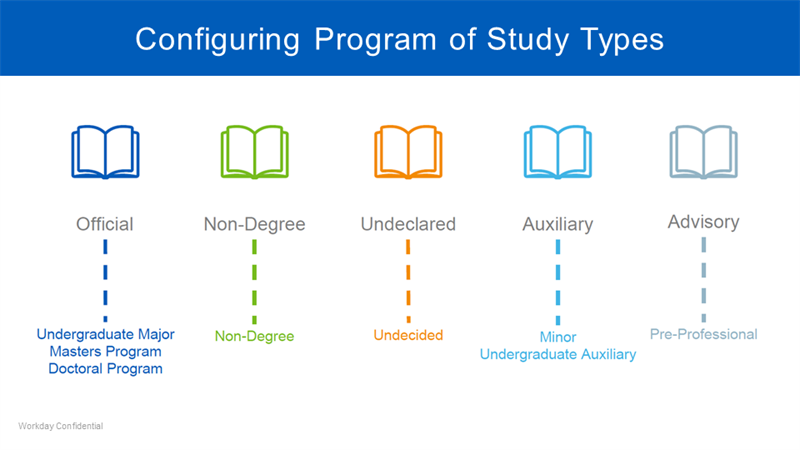
Workday Financial Aid enables you to assign one of the following POS types when you configure a POS in your tenant:
- Official: You assign "Official" when a student can achieve a degree in an undergraduate, graduate, or doctoral POS.
- Nondegree: You assign "Non-Degree" when a student can achieve a certificate in a nondegree POS.
- Undeclared: You assign "Undeclared" when a student has not decided on a POS.
- Auxiliary: You assign "Auxiliary" when a student minors in a POS and cannot achieve a degree.
- Advisory: You assign "Advisory" when you recommend that a student enrolls in a preprofessional course that is not part of their POS.
Before you can create a financial aid rule set for each program of study, the programs of study must have a POS type assigned. Use a financial aid rule set to associate rules with a POS that are based on federal financial aid guidelines. The rules you associate with a specific program of study determine whether a student is eligible for a specific type of federal student aid.
Academic Unit Policies
Academic unit policies allow you to define various policies for an academic unit. Students are subject to the policy you assign to their academic unit, level, or program of study. Academic units inherit academic policies from superior units, unless overridden.
Run the
Academic Unit Policy Viewer
report for a history of policies by academic unit or academic level across effective dates. The Academic Unit Policy Viewer allows you to select more than one policy when you select an institution. You can also select more than one policy when you select Academic Unit/Academic Level or Program of Study. Once you select your criteria, you can select multiple academic units, including their subordinate academic units and programs of study, or multiple programs of study. You can view all academic policies, except for institutional policies, if you leave the Academic Policy field blank. Additionally, you can filter by policies effective as of a particular effective date.Below is a list of the common academic unit policies, along with a brief description of each.
Academic Policy | Description |
|---|---|
Class Standing Policy | Defines rules for Workday-delivered class standings, such as Freshman, Second Year, or 3L. Class standing classifies students so that Workday can correctly process registration and financial aid. |
Load Status Policy | Defines minimum units that constitute the Workday-delivered load status values: part-time, full-time, and not enrolled. Financial aid load status determines the minimum number of units for load statuses used in financial aid packaging and the attendance plan. |
Enrollment Access and Grading Policy | Defines which students can enroll in which courses, as well as the grading scheme used for the courses. |
Enrollment Unit Limit Policy | Determines the minimum/maximum number of units students can register in during their enrollment appointment and open enrollment. |
Academic Standing Policy | Defines the rules to evaluate the academic standing of a student for an academic period. For example, define the grade requirements to identify students who meet minimum honors grade requirements. The Calculate Academic Standing for Student task can recalculate a student's academic standing at any time. You can optionally configure an Internal Review step to review academic standing changes before exposing the updated information to students. |
Student Transfer Grade Mapping Policy | Determine how grades from external institutions map to the grades at your institution. Students are subject to the grade-mapping rules you assign to their academic unit and level or their program of study. |
Course Unit Type Policy | Defines the default and allowed unit types for courses by academic unit and level. Workday uses this information in unit conversion. When the course unit type is different from the unit type of the program of study, Workday converts the units based on rules you set up. |
Course Repeat Policy | Defines the number of times a student may repeat a course for credit. |
Course Attempt Limit Policy | Defines the number of times a student may attempt a course for credit. |
Transcript Configuration Policy | Defines the transcript layouts and configuration for official and unofficial transcripts. |
Calendar Policy | Defines the calendar, typical attendance pattern, and student unit type. |
Program Credential Policy | Determines whether to grant credentials from a student's primary program of study, programs that are stackable with the student primary program of study, or from all programs of study on a student's record. Also determines whether to grant multiple credentials of the same type when applicable. |
Load Status Rule Sets and Policies
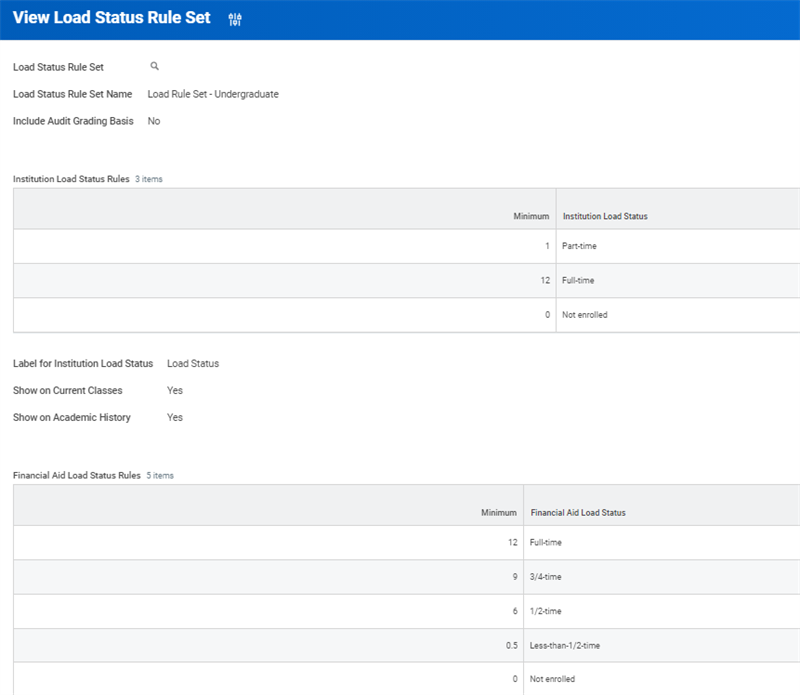
A load status policy determines your student's load status for tuition calculations, enrollment verifications, and financial aid eligibility. You configure load status policies by creating rule sets that define load status and assign the rule sets to an AU/AL combination, or a POS.
You can set up and configure load status policies if you have been assigned access to the Setup: Academic Policies domain in the Academic Foundation functional area.
Creating Load Status Rule Sets
The
Create Load Status Rule Set
task configures rule sets and policies for load status. When you create and configure rule sets and policies for load status, you can enable the following settings by selecting their corresponding checkboxes:- Include audit grading basis: Audited courses count toward the load status policy.
- Institution load status rules: The load status policy includes the minimum units of credit or clock hours that define the Workday-delivered load status values for student attendance.
- Financial aid load status rules: The load status policy includes the minimum units of credit or clock hours that define the Workday-delivered load status values for financial aid.
- Override academic period type: You can configure a load status rule set for a specific academic period type that overrides your default configuration.
Example
: Enabling the Override Academic Period Type checkbox allows you to configure a lower load status for an academic period that occurs during the summer.You can then use the
Maintain Load Status Policy
task to assign a load status rule set to an AU/AL/POS combination.Program of Study Load Statuses
A student's load status describes their course load during an academic period. Workday Financial Aid enables you to easily view your student's financial aid record across all academic periods.
A snapshot displays what your student's calculated program of study load status was at the time when your student made a load status change. If multiple changes occur on the same date, Workday displays a snapshot based on the last change made to your student's financial aid reporting record.
A POS load status snapshot only includes units (such as credit/clock hours) for some of the courses that your student has registered for. A snapshot only displays the load status unit values for the courses you defined in the POS Load Status calculation settings. The load status unit values include:
- The default load status values for a specific federal student aid program. This data is based on the federal student aid program policy for your student's POS.
- Any manual setting changes you make to your student's POS using theReview Programs of Study for Load Statusreport.
Workday additionally calculates the following types of load statuses that you can assign to a student:
- Actual load status
- Projected load status
- POS load status
The load status calculations that Workday makes are based on the rules and policies you have defined to manage load statuses in your tenant. Load status rules define whether Workday uses credit or clock hour units for load status calculations.
Viewing Load Statuses
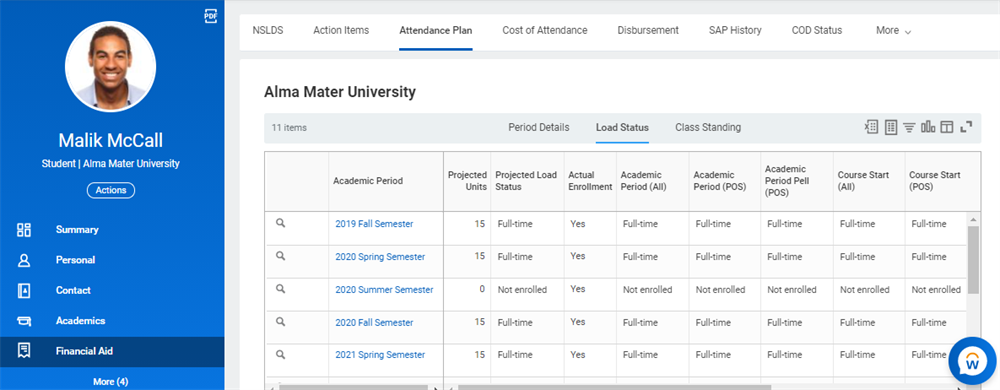
To view a student's projected load status using a student's attendance plan:
- Select the Attendance Plan tab.
- Select the Loan Status subtab.
To view how Workday calculates each load status using the Load Status subtab:
- Select the magnifying glass and select the Related Actions of an academic period in your student's attendance plan.
- Choose Financial Aid Period Record > View Courses for Load Status.
Viewing Actual Load Statuses
In Workday, actual load statuses are based on actual enrollment for the current academic period. Workday adds the units of your student's courses for you. This way, you can compare the total number of units in your student's actual enrollment to your student's primary POS load status. Actual load status effective dates are based on the current academic period's standard start date in your student's primary program of study load status policy.
You can view the three main types of actual load status statistics:
- Academic period:An actual load status statistic for an academic period is the total number of units for courses that your student has registered for during the current academic period. There are two types of academic period statistics that Workday provides:
- Academic period (POS): This statistic includes units for courses that satisfy academic requirements for your student's POS.
- Academic period (all): This statistic includes units for courses that have a status of registered, complete, or withdrawn.
- Course start:An actual load status statistic for course start is the total number of units for courses that your student has started during the current academic period. There are two types of course start statistics that Workday provides:
- Course start (POS): This statistic includes units for courses that satisfy academic requirements for your student's POS.
- Course start (all): This statistic includes units for courses that have a status of registered, complete, or withdrawn.
- Verified participation: An actual load statistic for verified participation is the total number of units for courses during the current academic period where you have verified your student's attendance for each course. There are two types of verified participation statistics that Workday provides:
- Verified participation (POS): This statistic includes units for courses that satisfy academic requirements for your student's POS.
- Verified participation (all): This statistic includes units for courses that have a status of registered, complete, or withdrawn.
Viewing Program of Study Load Statuses
POS load status includes units for completed and withdrawn courses that are related to requirements for the program of study. The number of attempts your student can make at retaking a course is based on federal student aid program policy guidelines for your student's primary POS.
Here are some examples of federal financial aid guidelines for a POS load status:
Example
: In most programs of study, a student who receives a passing grade can only make one more attempt that counts toward the limit. The first time your student completes or withdraws from a course counts toward the limit as a first attempt.When a student repeats a course where they have already passed and satisfied their POS academic requirements, their repeat attempt does not count as a second attempt. If a student withdraws from a course during a repeat attempt, the repeat attempt also does not count as a second attempt.
When a student repeats a course where they have already passed but did not satisfy their POS academic requirements, their repeat attempt counts as a second attempt.
To view which programs of study Workday uses to calculate POS load statuses for your student:
- Choose the Related Actions of your student's profile.
- Select Financial Aid > View Programs of Study for Load Status.
Holds for Program of Study Load Status Changes
As your student changes their load status, Workday automatically recalculates your student's POS load status, except when the change your student makes requires your office's approval. You can manually review your student's POS load status snapshot when one of the following events occurs:
- A change student reporting record event.
- An edit student program of study status event.
- An add program of study event.
- A change primary program of study event.
- A confer program completion event.
- A remove program of study event.
- A request leave of absence event.
- A student application withdraw event.
Be sure to review your student's POS load status whenever your student has enrolled in multiple programs of study and your student's POS load status is not automatically updating. This review is important because:
- The student has a new POS with a different credential level from the student's primary POS.
- The primary POS is not Title IV eligible, but the student's other POS is eligible.
- The primary POS is inactive, but the other POS is active. Workday considers a student's POS active when the POS has one of the following statuses in the student's reporting record:
- In progress
- Matriculated
- Pending completion
When your student's load status change requires your approval, Workday:
- Places a financial aid hold on your student.
- Flags your student's financial aid reporting record for your review.
Once you complete your manual review and approve your student's change, Workday updates your student's POS load status calculation.
Course Withdrawal Load Status Deficits and Offsets
When your student withdraws from a course that previously counted toward their load status, Workday Financial Aid creates a withdrawal deficit for your student. Any courses that your student adds after a withdrawal needs to offset any withdrawal deficits before they count toward your student's load status during the academic period.
Load Status Changes for a Program of Study
When you change your student's POS, or your student experiences other events that impact their POS, Workday flags your student for further review. Workday automatically places a load status hold on your student's record and prevents your team from running any downstream financial aid processes.
Your team will not be able to process your student's financial aid until a manager in your financial aid office manually reviews your student's enrollment changes. The following requires manual review:
- Refreshed load statuses on attendance plans
- Cost of attendance
- Merit packaging
- Need packaging
- Disbursement
- Charge assessments
Once someone reviews and approves your student's enrollment changes, Workday automatically removes the hold and enables your student's financial aid processing to resume. You can review load status changes for a POS if you have been assigned access to the Manage: Programs of Study for Load Status domain in the Financial Aid functional area.
You can review any records that count toward your student's POS load status by:
- Selecting the Overview tab.
- Choosing the Related Actions of a POS in the Educational Objectives table and selecting Program of Study > View as of.
Excluding Courses from Load Status
Workday Financial Aid uses the POS load status policy associated with your student's student profile to determine the student's primary POS load status. For situations where the calculated load status is not an accurate representation of the student's educational path, you can manually exclude withdrawn courses from the load status. When you exclude courses that your student withdrew from, Workday recalculates:
- Your student's POS load status for the projected academic period.
- Your student's credits (or clock hours).
To exclude courses from your student's load status or override a projected load status: use a Related Action from the magnifying glass on the load status page of the student's attendance plan. Manually overriding a projected load status enables Workday to accurately package financial aid for your student.
College Financing Plans
Workday enables you to create college financing plans and financial aid offers, which you can use to communicate financial aid to your student applicants and matriculated students. You can print financial aid offers for student applicants that do not have a student profile already created within Workday. Matriculated students can print their own financial aid offers by signing into their financial aid profile in Workday.
Note
: You can use the Maintain Custom Labels
task to change terms like "financial aid offer" to the term used at your institution.You can generate a standard report for your college financing plans and financial aid offers. You can also use Business Intelligence Reporting Tool (BIRT), an open-source report layout design tool within Workday, to create custom layouts. When your financial aid office prints your offer, Workday displays the custom messaging and branding you added via BIRT. Workday BIRT also displays any financial add data from your student's financial aid package.
Your financial aid offers need to present financial aid information in the standard format prescribed by the ED. Using a standard format enables your student applicants and students to easily compare education costs between your school and other education institutions.
Workday Financial Aid enables you to configure award notifications that meet the national association of student financial aid administrators (NASFAA) code of conduct. Workday uses NASFAA guidance to develop award notifications but cannot certify or guarantee compliance.
Creating College Financing Plan Configurations
College financing plans and financial aid offers enable a student and their family to make informed decisions. You can create detailed college financing plans and financial aid offers that illustrate the following for your applicants and students:
- The costs that your students will incur for each academic period in a financial aid award year.
- The financial aid awards that your students will receive for each academic period in a financial aid award year.
As you create your college financing plans, you need to configure several settings that will display the following financial aid data from Workday:
College Financing Plan Field Name | College Financing Plan Field Usage |
|---|---|
Graduation Rate Message | Refers to the time when a student enters and completes a degree at a college or university.
|
Graduate Rate Percentage | You typically express graduation rates as a percentage.
|
Graduation Rate Group | A cohort for a group of students admitted to your school at the same time. A graduation rate group compares the graduation rate of your institution to the graduation rates of others in your country.
|
School Repayment Rate Percentage | The percentage of students that borrowed student loans and have, after a three-year period, entered student loan repayment after no longer being in attendance.
|
National Average Repayment Rate Percentage | The percentage of students in your country that borrowed student loans and have, after a three-year period, entered student loan repayment after no longer in attendance.
|
Median Total Borrowing Amount | A median total borrowing amount is the average outstanding student loan debt that a student accrues for a financial aid award year at your school.
|
Median Monthly Payment Amount | A median monthly payment amount is the average payment a student loan borrower pays monthly at your school, once student loans enter a repayment status. A median monthly payment amount includes borrowers on repayment plans but does not include borrowers whose loans are in a deferment or forbearance status.
|
To configure award letters and financial aid shopping sheets for your financial aid office:
- Run theCreate College Financing Plan Configurationtask.
- Assign an AU/AL to the college financing plan that you are configuring.
- Copy the financial aid award letter orView College Financing Plan Configurationreport to a custom report to use in Workday Report Designer.
- Create a custom layout for your award letters with Workday Report Designer.
- Run theFederal Student Aid Program Policytask.
- Select the custom layout in the Financial Aid Award Letter Layout and College Financing Plan Report Layout fields.
Important
: If you do not configure Graduation Rates, Repayment Rates, or Median Borrowing fields, your college financing plan will display a message says that the information is not available.Federal Student Aid Program Policies
Federal student aid program policies define the types of financial aid programs that students in an academic unit or program of study are eligible to receive. You can use federal aid program policies to:
- Define whether an AU or POS is Title IV eligible.
- Whether students enrolled in an AU or POS are eligible for specific federal loans, grants, or work-study student award items.
- Specify the eligibility terms for each financial aid program.
- Identify an effective date for when a financial aid policy will be in effect.
You can configure policies for a top-level hierarchical node, which a lower-level hierarchical node inherits. All programs of study at your institution require federal student aid policies. You need to configure a federal student aid program policy for every AU/AL combination in your tenant.
Policies follow and inherit overriding policies within the AU/AL and POS hierarchy. You can create a separate federal student aid program policy in any lower-level node that overrides higher-level inheritance from a superior-level node. When creating a separate policy for a lower-level POS, it becomes an exception to an AU/AL rule set.
You will need to create policies for academic units and programs of study that:
- Are eligible or ineligible for Title IV student aid.
- Calculate different student award item amounts for different load statuses.
- Define different financial aid programs for different award years.
When you configure your federal student aid program policies, you need to consider whether a POS offers more than one type of credential. If a POS offers more than one type of credential, you need to create multiple policies in Workday for each credential offered.
You can set up and configure federal student aid program policies if you have been assigned access to the Setup: Federal Aid Rule Sets domain in the Financial Aid functional area.
To configure and maintain federal student aid program policies, use the
Maintain Federal Student Aid Program Policy
task. This task lets you:- Create federal student aid program policies for Title IV programs.
- Assign a federal student aid policy to an AU or POS.
- Review all federal student aid policies assigned to an AU or POS.
Touchpoint
: Federal student aid program policies interact with the following Workday touchpoints:- Attendance plans: Workday uses the default load status (POS) in load status policies to calculate a POS load status for an attendance plan.
- Award packaging: Workday Financial Aid calculates the amount of financial aid that a student is eligible to receive for a student award item during award packaging. Every student award item that you create for a Title IV financial aid award for is based on a federal financial aid program that you have created a federal student aid rule set for.
- Satisfactory academic progress: Workday Financial Aid uses the GPA, pace, and maximum timeframe standards that you configure in an SAP rule set to calculate whether a student has met each SAP requirement during an academic period.
- Financial aid reporting: Federal student aid policies include details about a POS that require transmission to the COD and NSLDS systems during disbursement.
More information about the impacts of touchpoints is available in Workday Community.
Federal Student Aid Program Policy Page Settings
When running the
Maintain Federal Student Aid Program Policy
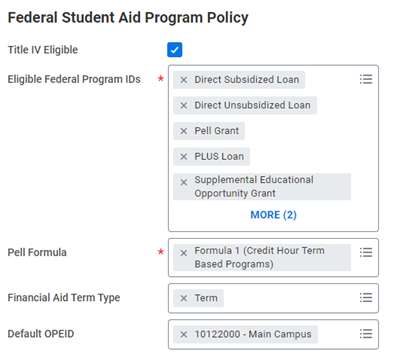
task, you need to designate whether the program is Title IV eligible. If the POS is Title IV eligible, determine if the program is subject to gainful employment reporting by the ED, if applicable. Create a new federal aid policy for each financial aid award year because the ED releases new guidelines for all federal financial aid programs each year in the financial aid handbook.You also need to complete the following fields:
- Enter an eligible federal program identification number to designate that the POS is an approved Title IV eligible POS. CPS reviews the eligible federal program ID number you assign to the POS rule set during student eligibility processing.
- Assign the correct Pell grant calculation formula if the POS is eligible for Pell grant funding. Workday Financial aid enables you to select from Pell formulas 1-5. The option you select is based on the measure you use to calculate instruction time for a POS.
Important
: You must enter the maximum and minimum Pell Grant amounts on the Maintain Pell Grant Configuration
task as soon as the U.S. Department of Education releases them.Load Status Definitions for a Federal Student Aid Program Policy
Use the
Maintain Federal Student Aid Program Policy
task to configure POS load status settings in the Load Status Definitions section:- Default load status (POS) configuration
- Repeat coursework configuration
- Developmental academic levels
Program of Study Load Status Settings
When you configure a POS load status definition for a POS rule set, Workday enables you to assign a default load status. When a student's load status includes more than one program of study, designate the primary POS. Workday Financial Aid will use this to report load status during Title IV financial aid processing.
When configuring how Title IV student eligibility inheritance functions in a POS policy, you need to select one of the following default load status class options:
- Classes toward any program: Select this option if you want any other programs of study classes for a student to inherit Title IV student eligibility.
- Classes toward any program in the reporting record: Select this option if you want only programs of study in your student's reporting record to inherit Title IV student eligibility.
- Classes toward any program in the reporting record excluding addable only: Select this option if you want to exclude a primary program of study requirement in a student's reporting record from Title IV student eligibility inheritance.
- Classes toward any program in the reporting record excluding stackable: Select this option if you want to exclude an independent primary program of study requirement in a student's reporting record from Title IV student eligibility inheritance.
- Classes toward reporting record's primary program of study: Select this option if your student has multiple academic records and you only want to include the classes for the primary POS to inherit Title IV student eligibility.
Load Status for Repeat Coursework
Workday allows you to limit the number of times a student can retake a course. To do this, you can assign a number of attempts in the POS load status definition of your POS policy. The limit value you set counts toward your student's financial aid load status for Title IV student eligibility.
When configuring repeat coursework limits, you need to select one of the following options:
- FSA Repeat Logic for All Courses - Limit the number of attempts at a course that count toward FA Load statuses. Students that receive a passing grade can only make one more attempt that counts toward load statuses.
- FSA Repeat Logic for All Courses (Exclude Courses that are Repeatable for Additional Credit) - No limit for multiple courses that have the "Repeatable for Additional Credit" attribute to count toward load status. Configured course repeat logic does not apply to courses deemed repeatable for additional credit.
- NO FSA Repeat Logic for Any Courses - Allow all course attempts to count toward the load status.
Load Status for Developmental Coursework
In Workday, you assign a developmental academic designation to determine developmental and remedial courses. When a POS policy requires that a student complete a remedial developmental course, any attempts the student makes will count toward the maximum attempts to retake the course. When configuring repeat coursework limits, you need to configure the following settings for the POS assigned to the policy:
- Weeks of instruction:Enter the number of weeks of instruction that constitute an academic year for programs of study.
- Academic periods:Enter the number of academic periods that constitute an academic year for programs of study.
- Financial aid academic year type:Select the financial aid academic year type for a student's financial aid attendance plan. Workday uses this field to determine the award year for each academic period in the program of study.
- Allow borrower based:Enable packaging financial aid for borrower-based award years.
- Academic year minimum coursework:Enter the units of credit or the number of clock hours that define the financial aid academic year in whole numbers.
Program Definitions for a Federal Student Aid Policy
You can also use the
Maintain Federal Student Aid Program Policy
task to configure the program definitions for Title IV student eligibility. You can configure program definitions in the Program Definitions section.If you select the Title IV eligible checkbox in the policy and designate that a POS is Title IV eligible, you need to assign the following program definitions before saving the POS rule set:
- Credential level
- Special indicator
- Health profession extra unsub (Workday requires that you select the health profession extra unsub checkbox if a POS is a health profession program of study that is eligible for additional unsubsidized federal student loan funding.)
- Program minimum coursework
- When you create an academic calendar for an AU and create an associated POS, use the same unit of credit or clock hours that you defined for your academic year.
Note
: The federal student aid program policy contains assignment of program minimum coursework. You can assign minimum coursework in two places: on an academic unit and on a POS. When configured on the POS, this value will override any policy assigned to the AU.Federal School Codes
Workday follows the design logic for a single tenant to contain all schools within in an education institution. The ED assigns an individual federal school code to all schools within an individual education institution.
Federal school codes enable you to exchange information with the following ED systems integrated with Workday:
- Common origination and disbursement (COD)
- Central processing system (CPS)
- National student clearinghouse (NSC)
AU locations map to federal school codes in Workday at the AU-level within Workday Academic Foundation. Once you map a federal school code to a school's AU-level, you can use the campus object to assign the federal school code to campus locations.
Creating and Assigning Federal School Codes
School code segments are linked to a program of study. Each segment of a school code comprises part of a school's federal entity IDs. You can use the following tasks to associate your academic units and campus locations with federal entity IDs. Associating AUs and campus locations with federal entity IDs enables Workday to transmit financial aid data to the COD, CPS, and NSC systems.
Mapping and assigning federal school codes is a three-step process where you use:
- TheCreate OPEIDtask to map federal school codes.
- Assign a federal school code to an AU/AL combination in a federal school code rule set.
- Workday references the federal school code when transmitting data to any integrated system in a federal student aid rule set and transmits data according to the rule settings of the policy.
- TheMaintain COD Routing ID Policytask:
- Configure the structure of entity identifiers for COD processing.
- Create the rules to route transmitted data to a ED-integrated system.
- TheMaintain Federal School Code Policytask to assign a COD routing ID for a federal school code to an AU and AL.
Note
: ISIR inbound/outbound transmissions use federal school codes.COD inbound/outbound transmissions use federal school codes, OPEIDs, source IDs, ID routing, and attending IDs.
NSC inbound/outbound transmissions use default locations.
Financial Aid Communication Policies
In Workday, you can generate print and email communications that your financial aid office can use to communicate with your prospective and matriculated students. There are two different communication methods that Workday uses to generate and send notifications to your students:
- Financial aid communications:You can manually create and send an email message to a student on an ad hoc basis, or you can configure Workday to send an email message to your student automatically. SAP, award packaging, and aid disbursement notifications all use financial aid communications. When specific financial aid events occur, or an update applies to an assigned status, Workday automatically sends notifications for SAP, packaging, and disbursement.
- Engagement plans:You can develop email campaigns (called engagement plans) for each AU/AL in your tenant. Each engagement plan you develop for a student population enables Workday to send targeted communications to your students automatically during specific time frames in an academic period.
Workday provides you with the ability to review any communications that your financial aid office has sent.
- Once Workday sends an email message to a student, Workday Financial Aid will automatically display the name that you have assigned to the message in the History tab of a student's profile.
- You can also view a historic log that records the status of each communication that your office has sent. A message that a student receives appears as a log entry.
To create and configure a financial aid communication or an engagement plan, you need to:
- Create an email message template for each email message that you want to include in your email campaign, where you have assigned a category and use for setting.
- Create a financial aid communication rule set to assign messages to particular situations like disbursement or satisfactory academic progress.
- Maintain the financial aid communication policy to assign a communication policy to an AU/AL.
Financial Aid Communication Email Message Template
You can create email templates with customized messaging within the body of your print and email communications. Using rich text, you can display images and buttons, use headers and footers, and insert social media buttons. You can also pull in financial aid data from Workday Financial Aid and display the data within the merge fields of your messages. You can use the
Maintain Email Templates
task to maintain any active email message templates in your tenant. You can also configure the Notification Designer Template to include a call to action for Financial Aid.You can configure an email message by running the
Create Student Message
task. Once your email communication or engagement plan becomes active, Workday will use the email that you have configured to automatically send a message.When you run the
Create Student Message
task, you will need to configure the following messaging settings:Messaging Setting | Messaging Setting Usage |
|---|---|
Contact Methods | You can configure whether Workday will send a message to a student as an email, mobile push notification, or use both contact methods. |
Email Format | You can configure an email format type that Workday will use to display the text in the body of your email message. Workday enables you to select plain text, rich text, or HTML to format the subject line and body of your email message or mobile push notification.
|
Category | The Category field is a role-based security setting. You need to assign a Workday Student category in the Category field. The category that you assign restricts the job roles that can view and edit your email message template.
|
Use For | After you assign a category messaging setting, Workday enables you to assign your use for settings. Use for settings enable you to restrict the business objects that Workday will be able to retrieve financial aid data from. After you have assigned the "Financial Aid" functional area as a category, you can choose either the "Disbursement" or the "Satisfactory Academic Progress" use for setting.
|
From Display Name (Email) | You can assign a name in the From Display Name (Email) field that displays when Workday automatically sends an email or push notification to a student. |
Reply To (Email) | Workday sends email responses to this email address. |
Override Email Template | For student messages with a contact method of Email , Workday will automatically use the default template configured for Student Engagements. You may override the default template using any other active Student Engagement template.Review the administrative guide table in Workday Community for reference. |
Tips
: Preview your email communication from the email's Related Actions icon.Select ' Engagement' in the Student History Item Category field, history profile group to view a list of student profiles that received an email message.
- If a student has multiple email addresses, Workday will use the priority email contact that you have assigned to an AU/AL financial aid communication rule set.
- If a student does not have priority email contact information on file, Workday will skip the student and continue sending an email message to the next student that has priority email contact information assigned.
Financial Aid Communication Rule Set
Financial aid communication rule sets are the configuration settings that manage your financial aid communications and engagement plans. Assign a student message to each of the categories within the financial aid rule set. After completing the criteria related to the message category, Workday will send a message to each student uniquely upon meeting the condition provided. You can create financial aid communication rule sets by running the
Create Financial Aid Communication Rule Set
task.Attribute settings within the Satisfactory Academic Progress tab:
- Satisfactory academic progress now passed:Select an email to send when a student who was on a warning, probation, or failed SAP status is now passing.
- Satisfactory academic progress warning:Select an email to send when a student receives a SAP warning status.
- Satisfactory academic progress status failed:Select an email to send when a student fails GPA or pace SAP standards or receives a SAP failed status.
- Satisfactory academic progress failed maximum time frame:Select an email to send when a student fails the maximum time frame SAP standard or receives a SAP failed status.
Attribute settings within the Financial Aid Packages tab:
- Financial aid package created:Select an email to send when creating a new financial aid package for a student.
- Financial aid package revised:Select an email to send when updating a student's existing financial aid package.
Attribute settings within the Disbursements tab:
- Disbursed federal loan:Select an email to send when Workday Financial Aid disburses a federal loan to a student.
- Disbursed payment:Select an email to send when Workday Financial Aid disburses a payment to a student that is not a federal loan.
Financial Aid Communication Policy
A financial aid communication policy assigns:
- A financial aid communication rule set to an AU/AL.
- An effective date to a financial aid communication rule set.
You can configure a financial aid communication policy for a financial aid communication or engagement plan by running the
Maintain Financial Aid Communication Policy
task. After you finish configuring a financial aid communication policy, Workday automatically sends emails and notifications for disbursement and SAP you disburse aid and evaluate SAP.Emails and notifications for packaging are part of the packaging communication job during the Student Nightly Job Orchestration.
Note
:
For Workday to send packaging notifications, you must additionally configure a Packaging Communications Job Schedule. Workday will only send packaging communications to students that meet the criteria specified in the job schedule and during the date range of the schedule.