
ISIR Processing
Overview
Workday uses ISIRs to assign financial aid action items, calculate costs of attendance, and create financial aid packages. When loading ISIRs into the system, Workday matches and merges ISIR data for students and applicants that already have records created within Workday.
Objectives
By the end of this chapter, you will be able to complete the following in Workday:
- Identify the purpose of an ISIR progression policy.
- Configure action items and corresponding business processes.
- Load ISIR transactions and manage ISIR data.
- Assign and process a required action item for required action item processing.
- Process reactions identified for review.
Overview of ISIRs in Workday
Workday uses ISIRs to assign financial aid action items, calculate costs of attendance, and create financial aid packages. When loading ISIRs into the system, Workday matches and merges ISIR data for students that already have student records created within Workday. In some instances, ISIR transaction data includes prospective students who do not have pre-existing student records created. You need to run and review the
Find Student Created via ISIR Load
report to determine which ISIR data does not have a matching pre-existing student record.ISIR Transactions
Maintaining ISIR transactional data involves completing the following routine maintenance tasks:
- Configuring ISIR Integrations
- Loading ISIR transactions
- Activating and inactivating pending ISIR transactions
- Correcting ISIR transactions
- Locking ISIR transactions
- Rejecting ISIR transactions
ISIR Integrations
Workday provides inbound and outbound integrations for ISIR processing. Integrations in Workday have automation based on a schedule of inbound or outbound integration events, or manual management updated to launch inbound and outbound integration processes.
- An inbound integration loads ISIR records from CPS into Workday for a specific financial aid award year. When an inbound integration runs, you can preconfigure the saving locations for inbound files.
- An outbound integration generates an output file of corrected ISIRs that are ready for delivery to CPS. Outbound integrations have preconfiguration to control file names and locations transmitted through your SAIG mailbox.
An ISIR record must have a status of "Ready to Transmit" before transmitting a corrected ISIR file to the ED for processing. Once processing of a corrected ISIR file has occurred for outbound transmission to CPS, an ISIR record's status automatically updates to a "Transmitted" status.
Workday supports systems integration for the following types of transactions:
- Institutional Student Informational Reports (ISIR)
- Common Origination and Disbursement (COD)
- Transfer Student Monitoring (TSM)
- Financial aid History (FAH)
You need to configure ISIR integrations with other ED systems and schedule ISIR batch data transmission between your tenant and each system. You can set up ISIR integrations if you have been assigned access to the Integration Build and Integration Security domains in the Integration functional area.
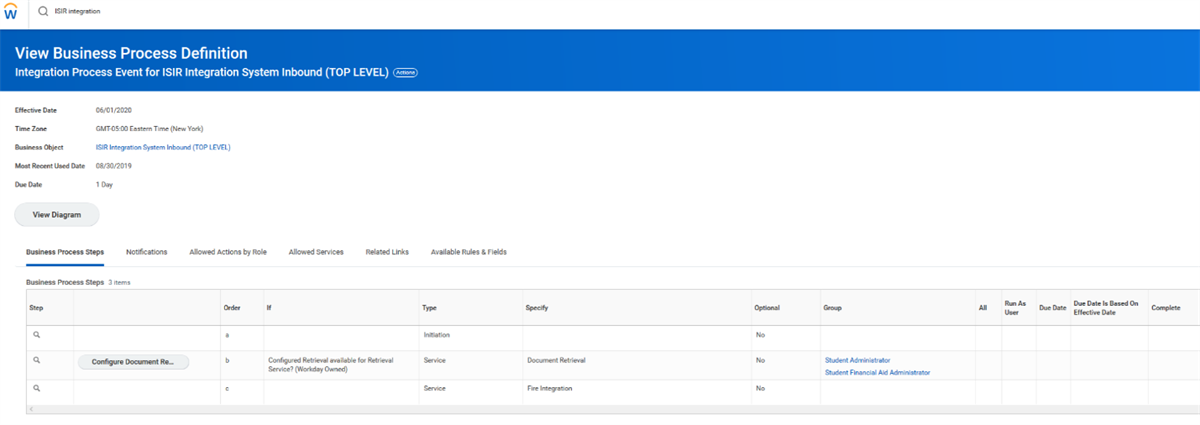
The inbound integration system configuration settings that enable Workday Financial Aid to receive documents and file data from CPS.
Use the
Create Integration System
task to:- Create integrations that export and import ISIR data to and from the ED.
- View and edit all integration services.
When you run the
Create Integration System
task, the "New Using Template" prompt will prompt you to enter the name of one of the existing templates. Integration events use request methods such as, "get," and "put." To grant this access, select the appropriate template and then associate a security group with the template. Assigning the correct domain enables the security group you selected to access the domain.Template | Domains |
|---|---|
COD Counseling Inbound |
|
COD Inbound |
|
COD Loan Application and Credit Status Inbound |
|
COD MPN Inbound |
|
COD Outbound |
|
ISIR Correction Outbound |
|
ISIR File Inbound |
|
TSM and FAH NSLDS Transaction Inbound |
|
TSM and FAH NSLDS Transaction Outbound |
|
After you finish configuring access for integration events, you need to configure the integration system and integration service attributes for your domain. You accomplish this task by:
- Selecting the Related Actions of the domain you chose.
- Selecting Integration System > Configure Integration Attributes.
The first set of attributes you need to set up are your inbound and outbound integration settings. As you configure the integration setting attributes, you add document retrieval and document delivery services to your template settings. These services allow you to retrieve (get) and post (put) integration documents between Workday and DOE's external system. You need to configure the following settings correctly so your document retrieval and document delivery between Workday and ED external systems functions properly:
- Retention and delivery policies.
- Provide security for user groups permitted to retrieve and download documents from the DOE's external systems to Workday.
- Provide security for user groups permitted to send uploaded and attached documents from Workday Financial Aid to the DOE's external systems.
- Additional file options that allow you to search for files stored remotely on the DOE's external systems.
- Transport protocol service settings that enable secure connections between Workday and the ED systems.
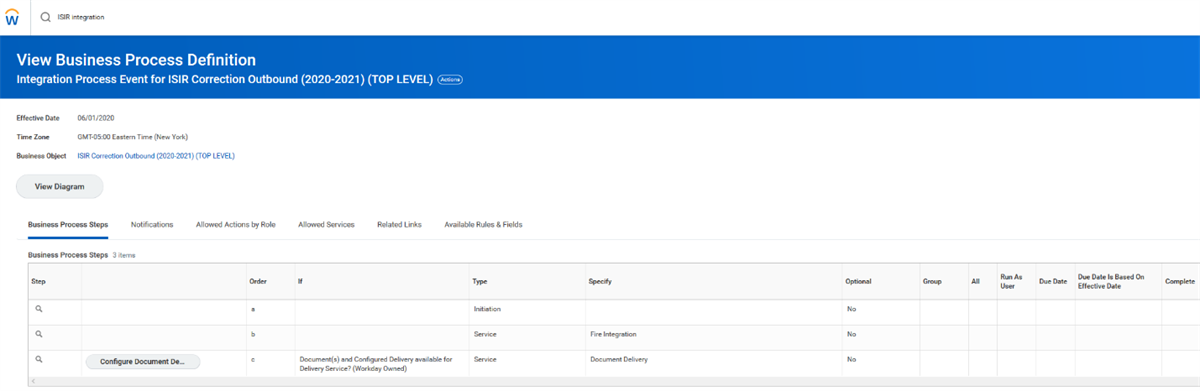
A screenshot that illustrates the outbound integration system configuration settings that enable Workday Financial Aid to send documents and file data to CPS.
Additionally, you need to configure the frequency of scheduled integration events. When an integration event takes place, Workday transmits data between it and the ED-integrated system. You need to schedule an ISIR integration event so that data will transmit immediately or transmit at specific or reoccurring times.
Configuring ISIR Processing Policy
An ISIR processing policy configures when to activate ISIR transactions for recently admitted or newly matriculated students. An ISIR transaction needs to have an active status assigned before you can assign an action item, calculate COA, or package financial aid.
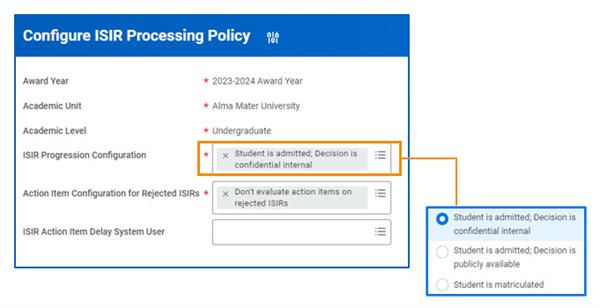
There are three options for your ISIR Progression Configuration policy.
Configuring an ISIR processing policy is optional. If you do not configure a policy, Workday Financial Aid progresses ISIRs when students matriculate. You will need to configure ISIR processing policies for each award year. If an award year does not have a policy assigned, Workday uses the policy for the previous award year until you configure a new policy.
You can set up and configure an ISIR processing policy if you have been assigned access to the Manage: ISIR Progression Policy domain in the Financial Aid functional area. Configure a policy by using the
Configure ISIR Progression Policy
task.Activating and Inactivating Pending ISIR Transactions
Active ISIRs are the ISIR transactions used for financial aid processing. A student can only have one active ISIR transaction for their primary POS. Active ISIR transactions are currently in-use in your student's reporting record for financial aid processing. Previous ISIRs will become inactive when importing an ISIR with a higher transaction number. An inactive ISIR occurs when a student:
- Has not met the conditions on the ISIR progression policy.
- Does not have at least one financial aid period record for the award year.
Workday reacts during the ISIR batch loading process by automatically flagging any new ISIR transactions added to your student's ISIR record by the ED. Workday assigns a status of Pending Review to incoming ISIRs if a student already has an incoming ISIR that:
- Has a lower transaction number.
- Has a higher transaction number and:
- Is not a correction file.
- Does not assign new action items.
- The active ISIR is locked.
- The active ISIR has created a financial aid package.
As you complete ISIR processing, you will compare a newly added ISIR flagged with a Pending Review status to the currently active ISIR. You need to compare ISIRs to identify any changes that the ED has made which may impact your student's financial aid. Use the Pending ISIRs for Review report to identify these ISIRs.
Workday automatically overrides an active ISIR transaction and replaces it with a new ISIR transaction for your review when:
- Both ISIR transactions have the same financial aid award year, primary POS, and federal school code assigned.
- The ISIR transaction sequence numbering and the conditions found in the newly added ISIR transaction require an override.
Correcting ISIR Transactions
You can update your student's ISIR so that your student's data is up to date. As changes that impact your student's financial aid arise, you can also update your student's ISIR data at any time throughout the year.
You need to verify your student's data to ensure data accuracy before submitting your student's award package to CPS for processing. If any of your students' reporting information is incorrect, you need to correct your student's ISIR transaction. Once you correct your student's ISIR data, Workday automatically sends the ISIR transaction to CPS for additional processing. CPS will either approve or reject the changes you made to your student's ISIR record.
You can make corrections to your student's ISIR transactions at any time provided that the ISIR transaction has a status that is:
- Active
- Pending review
- Ready to transmit
When you edit your student's ISIR transaction, you can select one of the following Workday provided indicators that identify the reason why you made a correction:
- Professional judgment indicator: Select the professional judgment indicator when you use professional judgment to correct an ISIR transaction data element that impacts an EFC or SAI calculation.
- Dependency override indicator: Select the dependency override indicator when you change your student's dependency status to dependent or independent.
The
Edit ISIR
task enables corrections to a student's ISIR transactions. On the ISIR tab, select the Related Actions of the magnifying glass of an active ISIR transaction to edit. Select ISIR Transaction > Edit.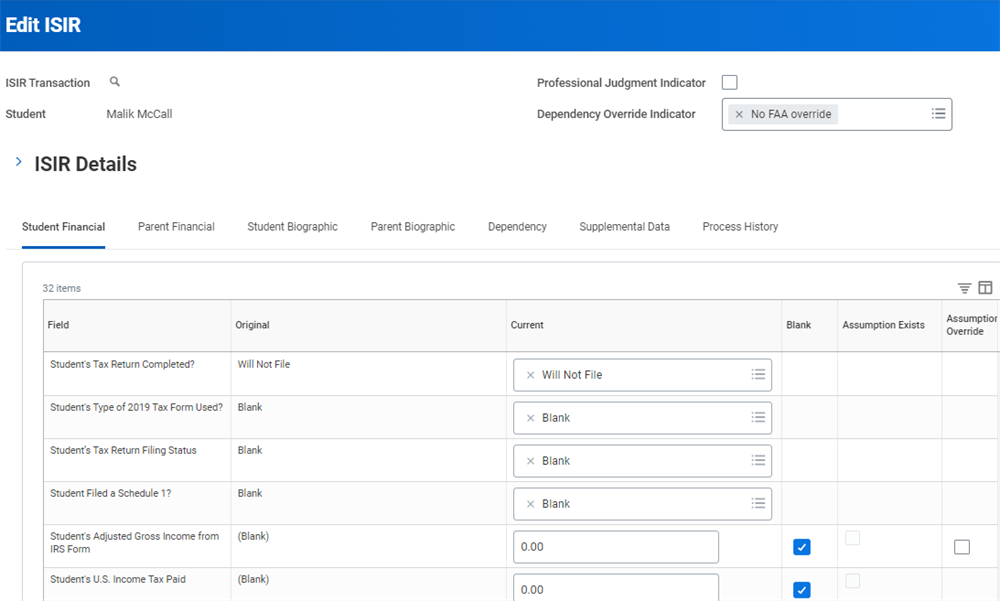
Reminder
: The corrections you make to your student's ISIR may impact your student's SAI calculation. After you save your correction, select the Calculate SAI button to recalculate your student's SAI.Tip
: As a best practice, Workday recommends that you add ISIR Activation and ISIR Edit as reaction reasons to your financial aid reaction rule sets. Doing so enables Workday to automatically update your student's financial aid each time you correct or activate an ISIR transaction.Locking ISIR Transactions
Manually locking an ISIR transaction allows you to continue processing your student's financial aid when triggering a federal verification event or ISIR action item event. You can manually lock an ISIR to prevent deactivation when importing an ISIR transaction with the same federal school code and award year. However, the ISIR must have one of the following statuses:
- Active
- Transmitted
- Ready to Transmit
To manually lock an ISIR transaction, select the ISIR tab and access the
Lock/Unlock ISIR Transaction
task via the Related Actions of an active ISIR transaction.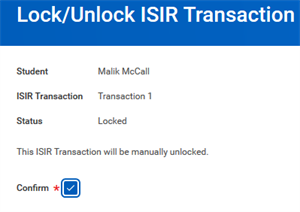
Workday flags an incoming transaction for further review when:
- A student receives another ISIR transaction for the same award year and federal school code as the locked transaction, and;
- The locked transaction is for the primary program of study of the student's reporting record.
Workday inactivates the incoming transaction when:
- The student receives another ISIR transaction for the same award year and federal school code as the locked transaction, and;
- The locked transaction is not for the primary program of study of the student's reporting record.
An incoming ISIR transaction for the same award year and school code can override the lock if the incoming ISIR transaction:
- Has a higher transaction number.
- Contains a correction.
- Initiates new action items.
- Was not previously used to create an award package.
When you manually unlock an ISIR transaction, Workday automatically:
- Unlocks and inactivates the previously active transaction.
- Activates the incoming transaction.
Rejecting ISIR Transactions
Workday uses the student aid report (SAR) ID to match your student's existing ISIR record to the importing ISIR record. If Workday matches an ISIR transaction to a student incorrectly, you can inactivate the matched ISIR transaction to prevent any impact to your student's financial aid processing.
You can inactivate any:
- Inactive ISIR transaction.
- Active ISIR transaction when the only ISIR transaction is the active ISIR transaction and both have the same award year.
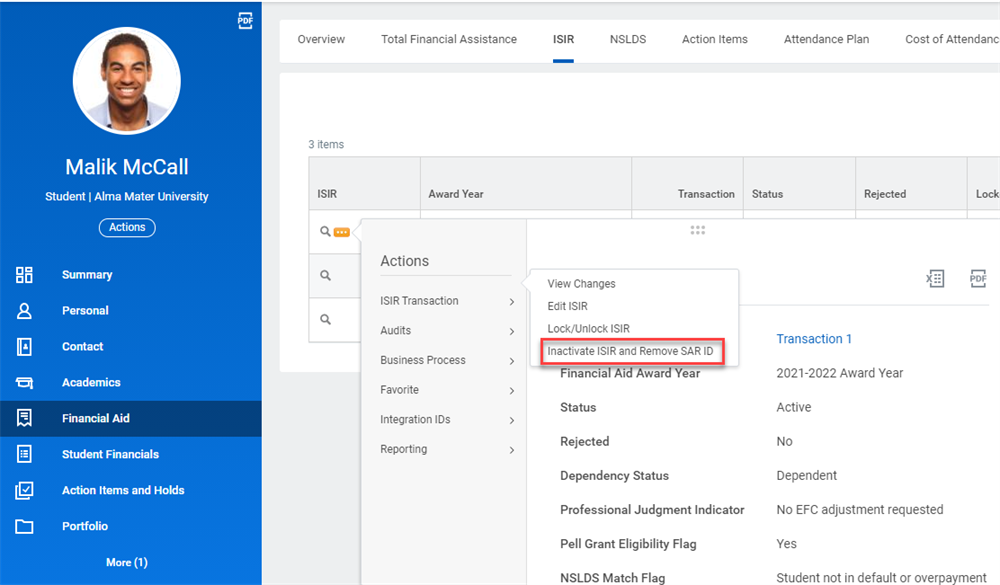
When you inactivate an ISIR transaction, Workday:
- Deletes the SAR ID from a matched ISIR transaction.
- No longer associates an uploaded ISIR transaction to a student.
To inactivate an ISIR transaction, navigate to an active ISIR's Related Actions and select ISIR Transaction > Inactivate ISIR and Remove SAR ID.
Loading ISIR Transactions
Workday imports and associates ISIR transactional data with your student financial aid records. If both ISIR records match during the process, Workday can merge student data and ISIR transactions in both ISIR records. When a pre-existing ISIR record does not exist in Workday, the system:
- Creates a new financial aid reporting record for your student or prospective student.
- Completes the import of a newly uploaded ISIR record.
A student aid report identification number (SAR ID) is the primary key used by Workday for matching. During the matching process, Workday uses the SAR ID to match your student's or applicant's existing ISIR record to the imported ISIR record. If both SAR IDs are a match, Workday verifies the SAR ID match between both ISIR records by comparing:
- Your student's or applicant's original Social Security number
- Your student's or applicant's original name ID
Workday reacts when the secondary identifying information in both ISIR records matches, by merging the student/applicant and ISIR transaction data within both ISIR records. As Workday starts to merge the ISIR transactions with ISIR records, Workday updates any ISIR transactions with the same award year. Workday compares the transaction numbers and federal school codes found in each ISIR transaction of both ISIR records. Transaction numbers and federal school codes are the primary and secondary keys used by Workday Financial Aid during the merging process.
- If the transaction numbers and federal school codes in both ISIR transactions of both ISIR records for the same award year are a match, Workday reacts by:
- Associating the newly imported ISIR data with a student or applicant.
- Updating student/applicant and ISIR transaction data.
- Importing any new student/applicant data and any ISIR transactions where there is the same award year.
- Not logging a match and merge error.
- If the transaction number or federal school code in both ISIR transactions of both ISIR records for the same award year are different, Workday Financial Aid reacts by not merging student data or ISIR transactions. Because Workday Financial Aid is unable to merge both ISIR transactions, Workday reacts by logging a merge error in the Workday error log.
Use the
Find Students Created via ISIR Load
report to view any students and prospective students.Configuring Action Items
The Department of Eductation requires students to meet certain criteria and provide proof of eligibility before awarding federal financial aid. You define and assign proof of eligibility via action items to your students. Action items are configurable requests for information that follow a configurable workflow via the business process framework. Action item business processes control how Workday reacts when an action item event occurs.
Workday automatically creates and assigns action items to your students when an ISIR batch load occurs. You can also manually assign an action item to your student to request additional documentation. With either of these methods, Workday automatically triggers action item business processes. Workday assigns action items to ISIR records according to how you configured the business processes that control ISIR action items in your tenant. The type of action item Workday automatically assigns impacts what you need to review in your student's ISIR record, award package, and disbursement data.
As you continue verification, you need to review whether the documents that your student returns satisfy the Department of Education's acceptable documentation guidelines for the current academic year. If the documents meet the Department of Education's Financial Aid Handbook standards, you can proceed with transmitting your student's financial aid package to the Department of Education for disbursement processing approval.
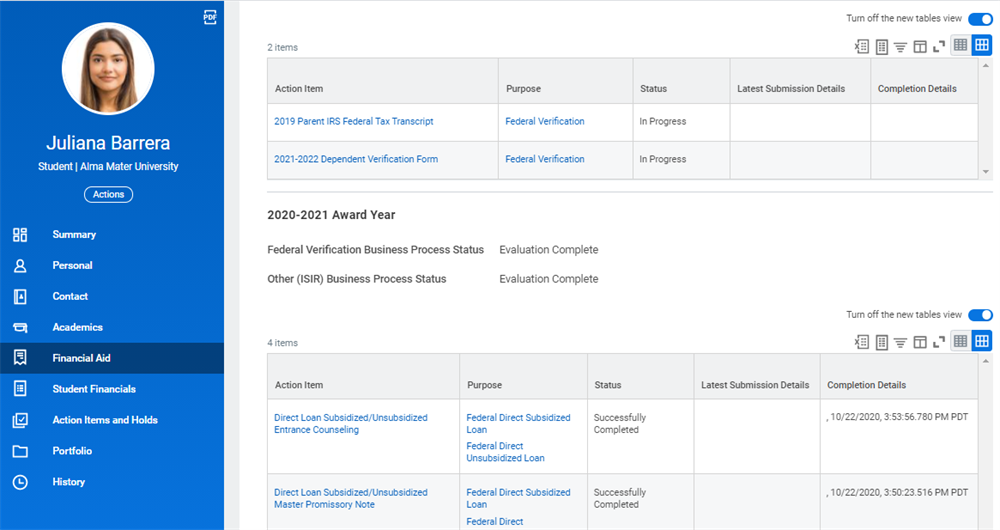
Action items table data on the requirements page. Any action items and disbursement and need packaging holds that are assigned to a student are displayed, including whether the student successfully completed each action item.
Configuring Required Action Item Events
Every action item in Workday has a business process definition. An individual business process routes an action item notification to a recipient, such as a student or a team member, in your financial aid office. In every action item business process:
- Your student receives an action item notification containing instructions to complete actions.
- Personnel in your office run the appropriate reports to review completed action items.
- Personnel in your office manage any further steps in the process to complete the business process.
Creating and configuring the business process for financial aid action item events is a three-step process. Once you have configured each step, Workday will be able to react when an action item event happens. To configure an action item event, you need to:
- Use theMaintain Student Document Typestask to create an action item document type.
- Use theCreate Financial Aid Action Itemtask to create a new action item.
- Add the new action item you created in the previous step to the financial aid action item event business process definition and security policy.
Creating Required Action Item Document Types
Use the
Maintain Student Document Types
task to create an action item document type. Once created, Workday automatically assigns an action item your student then completes.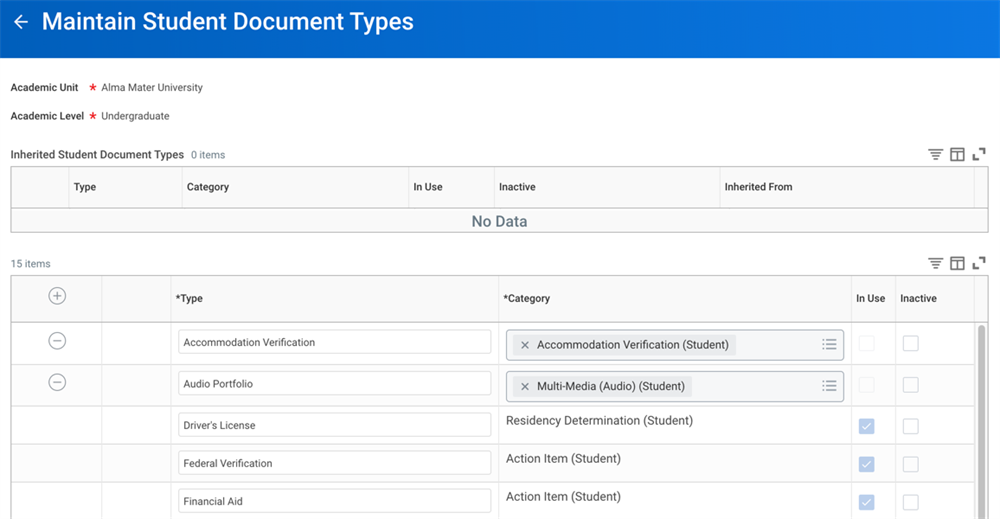
You can create new student document types with categories such as accommodation verification, residency determination, and action items.
Assigning an action item document type to a document enables you to easily identify that a document is associated with an action item.
Creating Required Action Items
Use the
Create Financial Aid Action Item
task to create a new action item in Workday. You need to associate the action item you are creating with a public action type. Public action type settings enable students to complete action items directly within Workday or within a ED-integrated system that then integrates with Workday.Select the "Document Upload - Student to Upload" public action type setting to enable students to complete action items directly. Workday then displays the attachment section within the action item in your student's tasks. For students to upload document attachments directly into a ED-Workday integrated system, you need to select the "Completed via Integration" public action type setting.
Example
: Common use cases for when to use "Completed via Integration":- To enable students to sign MPNs through Workday, you need to select the "Completed via Integration" public action type setting and then enable the " Autocomplete Criteria" option.
- Selecting the "Completed via Integration" setting and enabling the "Autocomplete Criteria" option allows your students to sign MPNs through Workday, rather than having to log directly into the ED system where the MPN document resides.
Workday suggests you provide instructions for completing action items to your students. Instructions help your students understand your request for information. Your instructions should explain what kind of information each document needs to provide. The Public Description field provides instructions to your students.
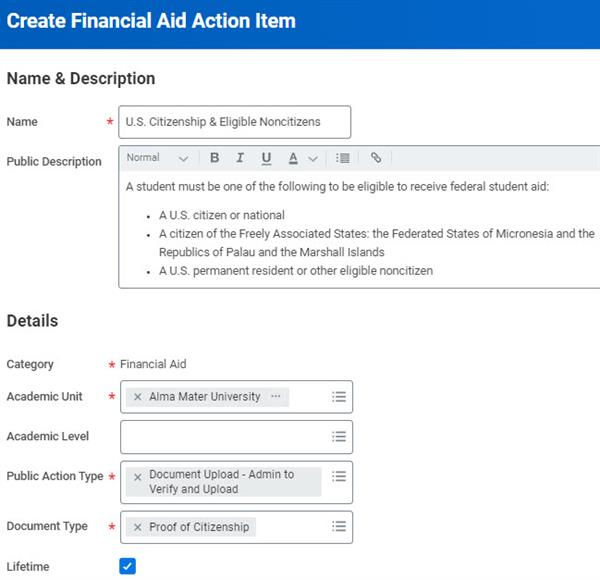
You can select the Lifetime checkbox to carry over the document in the future. This functionality eliminates the need for students to provide the same financial aid information more than once. In the example below, proof of citizenship item has the Lifetime checkbox selected so that students do not need to submit documentation every year.
Action Item Business Processes
Creating Action Item Business Processes
Setting up and configuring business processes for action item events is a three-step process:
- Create the financial aid action items that Workday will assign to your students as an action item event happens. When an action item event occurs, Workday will automatically place a hold on your student's financial aid processing until your student completes the action item requested and you review it.
- Configure action item event settings to define how Workday reacts when certain conditions exist in a student's ISIR record. You need to configure each of the following action item business processes:
- ISIR action items: Used during institutional validation. The ISIR action item business process controls how Workday reacts when an ISIR action item event occurs. This business process includes a subprocess called Complete Action Items that you will also need to configure.
- Federal verification action items: Used during the federal verification process. The federal verification action item business process controls how Workday reacts when a federal verification action item event occurs. This business process includes a subprocess called Complete Action Items that you will also need to configure.
- Ad hoc action items: Used throughout the financial aid process. The ad hoc action item business process controls how Workday reacts when manually assigning an action item to a student.
- Professional judgment action items: Used throughout the financial aid process. The professional judgment action item business process controls how Workday reacts when manually waiving an action item for your student.
- Use the Apply Student Hold service step to conditionally apply ISIR action item holds. You can apply multiple holds within a business process and choose whether they apply to only applications or matriculated students.
- Create role-based security groups and policies that control who can access, create, assign, and waive action items.
ISIR Action Item Events
An ISIR action event occurs when an ISIR batch load begins. During an ISIR action event, Workday reacts to a batch load by executing your event settings in step order. Workday only sends a notification about a required action item to your student if the conditions you defined in a step are true. If the conditions you defined in a step are false, Workday does not react.
Federal Verification Events
A federal verification event occurs when the verification status in your student's ISIR record changes. Workday reacts based on the verification status assigned to your student:
- CPS flags your student's federal verification status as " Not Selected:" Workday does not react and sends no federal verification notifications.
- CPS flags your student's federal verification status as " Selected:" Workday reacts and sends a verification action item (or items) to your student.
- Once the system successfully sends an action item to your student, Workday reacts and updates your student's verification status as "Selected Not Verified."
- Once your student responds by uploading a required federal verification document, Workday sends a notification accordingly via the next step in the configured business process.
- Workday reacts by updating your student's verification status as "Review."
- Once approval of the student's documentation occurs, Workday reacts to the approval of the uploaded document by updating your student's verification status as "Verification Complete."
- If your student is unable to provide documentation, you need to use theChange Federal Verification Statustask to manually change your student's verification status to "Verified Without Documentation." Workday automatically reacts to the status change by updating your student's verification status as "Verification Complete."
Ad-Hoc Action Item Events
Workday initiates the ad-hoc action item business process on an as-needed basis. An ad-hoc action item event occurs when you manually assign an action item to your student. You can configure the Non-ISIR Ad-Hoc Action Items Event business process to meet your needs.
You initiate an ad-hoc action item event when you use the
Assign Financial Aid Action Items
task to send a specific action item to your student. This task includes a Purpose field enables you to send financial aid action items for special circumstances. Examples include when students do not have an active ISIR, or when you want to hold a single award item without impacting the student's entire financial aid package.Professional Judgment Events
Workday initiates the professional judgment events business process on an as-needed basis. A professional judgment event happens when you make a professional judgment decision and manually waive an action item for your student.
Complete Action Item Subevents
When uploading a document in response to an action item notification, a complete action item subevent takes place. Workday automatically reacts and sends an action item notification according to the steps configured in the associated business process. The individual that you identified in your subevent settings receives the notification.
Award Year Business Processes
ISIR and verification processing often require changes to action items/business processing for each award year. The ISIR and verification business processes in Workday can follow an optional calendar-based configuration, enabling a business process definition for each award year. Workday automatically processes ISIRs and verification accordingly, matching the award year on the documentation to the award year in the appropriate business process.
The Rule Based Business Process Configuration determines the award year definition that Workday uses for processing. Update the
Federal Verification
and ISIR Action Items
business processes with each new award year and configuration. By updating each award year, you ensure proper routing of ISIRs and verification through the proper aid year business process.To create a rule-based business process definition, navigate to the business process default definition and complete the following steps:
- Use theRule-Based Calendar Configurationtask to create an award year rule. In your condition rule, use the Financial Aid Award Year field.
- Use theCopy or Link Business Process Definitiontask to create a new version of the BP for your designated award year.
- Use theRule-Based Business Process Configurationtask to associate the calendar configuration and the new BP definition you created.
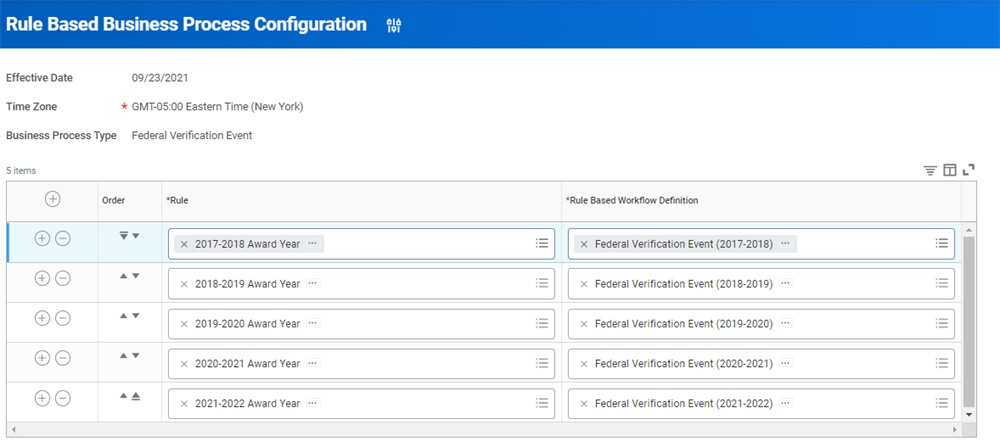
A screenshot that lists each award year and its associated rule based workflow definition.
Schedule Review of ISIR Action Items
Workday supports scheduled action item processing and review. This functionality is meant for institutions that review action items during given periods.
On the federal verification event and ISIR action item event business processes, use the action item evaluation delay service to delay automatic review of action items. Configure the
ISIR Action Item Evaluation Job Schedule
to determine timing for review of action items. Add the Evaluate Financial Aid Action Items
mass task to a custom report copied from the Run Student Financial Aid Processes by Period
report to push action items past the delay step. Any changes made to the job scheduler during the delay will not impact past action items. To apply changes to all relevant action items, use the Refresh Action Items
task.Viewing ISIR Data
Each time the Department of Education completes FAFSA processing for a student, the Department of Education updates the student's ISIR record with any new data your student provided. Workday refers to each of these submission and processing occurrences as an ISIR instance. Each ISIR instance generates a new ISIR transaction. Workday displays each ISIR instance in an ISIR table on the ISIR page of the financial aid profile. When an ISIR instance occurs, the Workday match and merge process prevents loading any duplicated ISIR records.
Navigate to the financial aid profile group on the student profile to access the ISIR tab.
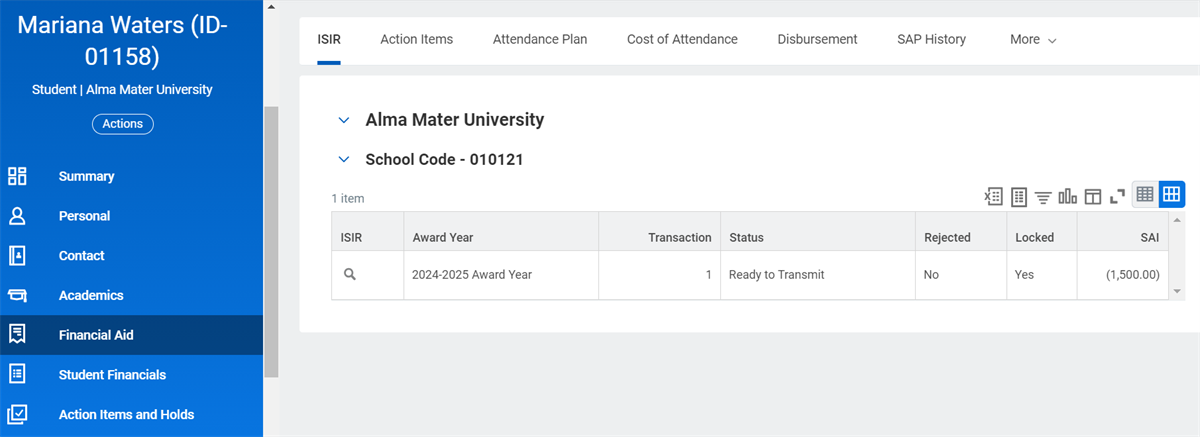
Because students complete FAFSAs and apply for student aid annually with the Department of Education, all ISIR instances displayed in an ISIR table are sorted by award year by default. Sorting by award year is useful when you routinely verify and validate a student's ISIR data for two or more award years at a time.
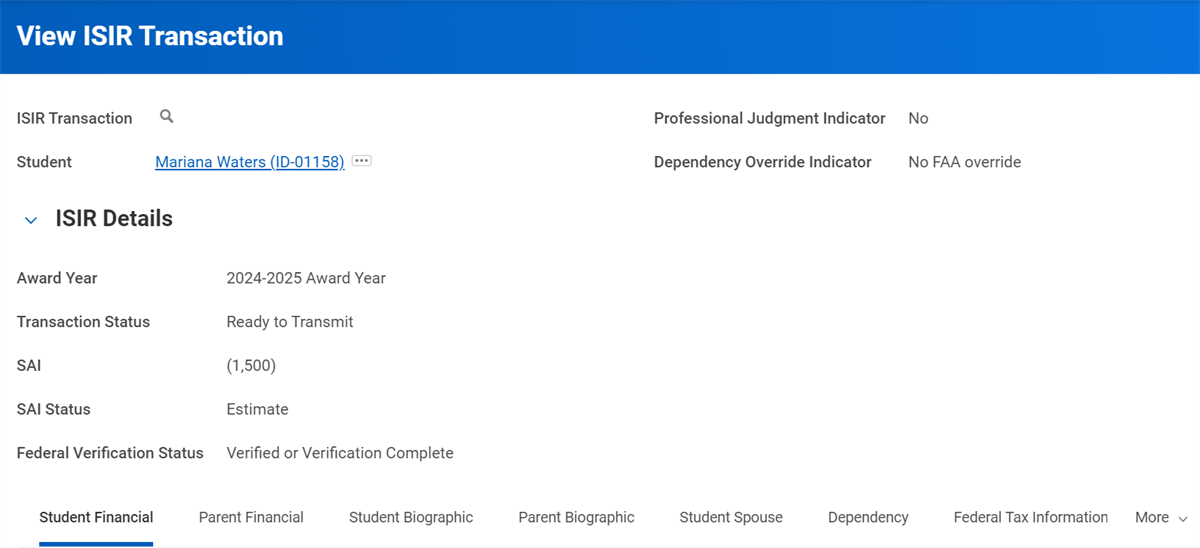
When loading an ISIR into Workday, the ISIR table on the ISIR Dataload Report page automatically updates with the following field data for each ISIR instance:
Field Name | Field Data Usage |
|---|---|
Award Year | The academic year associated with this ISIR transaction. |
Transaction | CPS assigns a number to each ISIR as updates are made. |
Transaction Status | CPS assigns on of the following statuses:
|
Selected for Verification | Tells you if a student was selected for federal verification review. |
Pell Eligible | Tells you whether a student is eligible to receive the federal Pell Grant. |
EFC/SAI | Displays the calculated EFC or SAI for the award year. An SAI can be negative up to -1500. |
Dependency | Indicates whether a student is considered Dependent or Independent. Dependent students must include parent information on the FAFSA. |
Date Loaded | The date ISIR Inbound Integration loaded the transaction. |
Processing Action Items
As you verify and validate your student's ISIR, you can review created action items using the
Find Financial Aid Action Items
report.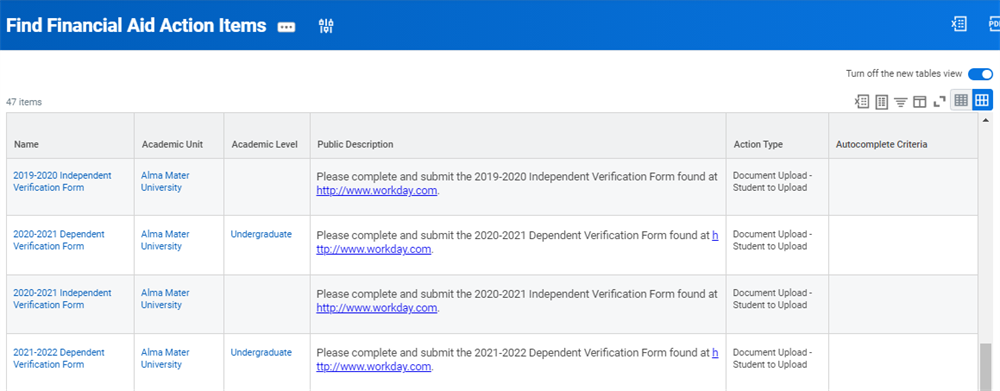
During verification and validation, you will update the following required field data in the Action Items tab on an as-needed basis:
Field Name | Field Data Usage |
|---|---|
Award Year | Action items are associated with an award year in the Action Items tab. You update the financial aid award year associated with a required action item in the award year column. |
Action Item | Workday can automatically send preconfigured email notifications to a student as verification and validation take place. |
Purpose | The verification tag in the Impact column is what CPS flagged as an item required for verification. |
Hold | Displays any active packaging or disbursement holds. |
Status | The status displayed in the status column indicates whether your student has submitted documentation for an action item. When your student receives an action item notification during verification, you update the status column with a "Requested" status. As your student submits action item documents, you update the status column with a "Received" status. If the document your student supplies is acceptable, you update the status column with a "Successfully Completed" status. If the document your student supplies is not acceptable, you update the status column with a "Rejected" status. |
Last Updated | The last time an update to an action item occurred. |
Updated By | The name displayed in the Updated By column is the name and Workday role of the last individual who updated an engagement action item. |
Select the magnifying glass icon in the assignment column of the action items table to view additional details about an assigned action item.
Automatically Assigning Action Items
Action item assignment occurs automatically for the majority of instances when a student needs to complete an action item. Action item assignment also occurs automatically when a business process contains an action item as part of the process. The financial aid action item business processes that enable automatic action item assignment are:
- ISIR Action Item Assignment Event
- Federal Verification Event
- Ad Hoc Action Items Event
- Financial Aid Action Item Event
Configure definitions containing relevant action items, steps, and assignment logic. Upon meeting criteria for the BP initiation and subsequent steps, Workday will automatically assign and process action items according to these configurations.
Manually Assigning an Action Item
You can assign action items using the
Assign Financial Aid Action Items
task. To assign action items, a student must have matriculated or be an applicant with an active ISIR in Workday.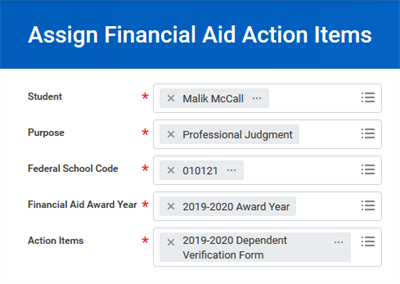
Verification and ISIR Review Report
You can build custom reports similar to the one below that will display all action items related to ISIR verification processes.
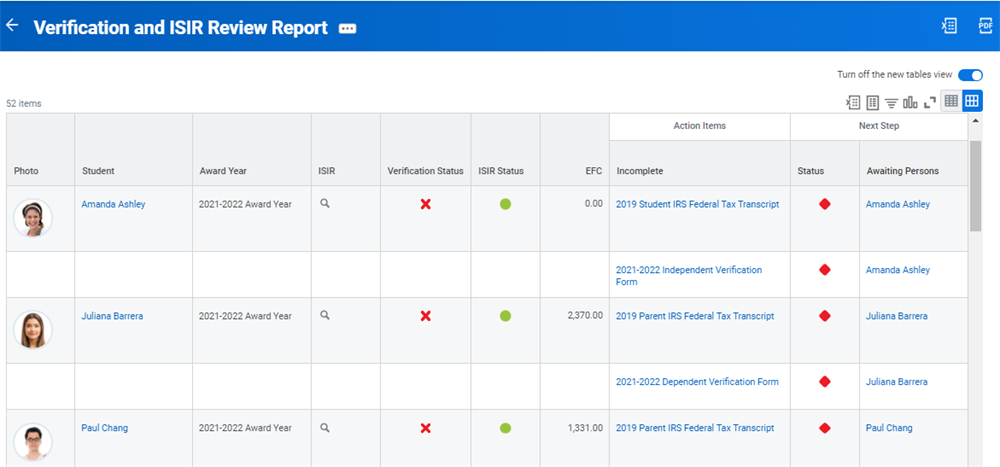
An example of the Verification and ISIR review report that a Financial Aid Manager uses to approve changes made to a student’s ISIR data. The report includes federal verification statuses, ISIR review statuses, and EFC amounts for each student.
Here are some examples of field data you can to build a similar report:
Field Name | Field Data Usage |
|---|---|
Academic Unit | The academic unit assigned to a student's ISIR data file. |
Academic Level | The academic level assigned to a student's ISIR data file. |
Academic Year | The standard academic year for both academic periods. |
Award Year | Any standard academic years (SAY), including borrower-based academic year (BBAY) trailer periods. |
Verification Status | This column indicates if the student is selected for verification. FAAs update the Federal Verification Status column with one of the following federal verification statuses for professional judgment decisions:
|
ISIR Status | This column indicates if your financial aid office has institutionally validated a student's ISIR data. FAAs update the ISIR Review Status column with one of the following ISIR review statuses upon completion of the verification process:
|
SAI | The most recent Student Aid Index from the student's ISIR. |
Action Items | The documents displayed in the Action Items Incomplete column are verification and validation documents with remaining processing tasks. These include documents assigned to a student, which the student still needs to submit, and documents pending review. |
Next Step | This column displays a symbol and document status and name of the next individual who must complete an assigned action item. |
Action Item Correspondence
As you assign action items to your student, a great deal of correspondence occurs between your financial aid office and your student. Your student may have three to five required engagement action items by the time disbursement processing (the end of the financial aid process) concludes. As notifications between a student and the institution flow, your student manages all action item correspondence via My Tasks. All correspondence flows according to the corresponding action item business process.
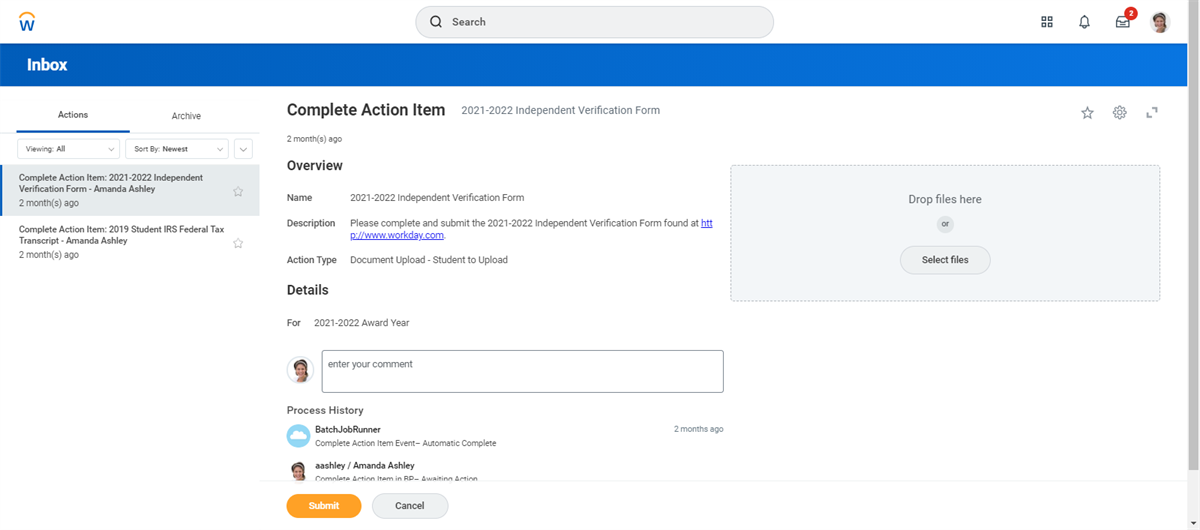
Reviewing and Approving Action Items
Workday contains a central area for both reviewing and evaluating action items for financial aid. There are two automatic-linking tasks that help you review action item documentation:
- Review Financial Aid Action Items: This task lets you review document validity, not eligibility. With this task, you can check if the uploaded document provides the correct information.
- Evaluate Financial Aid Action Items: This task lets you review document eligibility. With this task, you can check if the contents of the reviewed document meet the necessary requirements of the document.
For example, your student uploads tax documentation. The review stage would let a person review if the document is, in fact, tax-related, and not a mistakenly uploaded document. The evaluate stage would let a person review the actual content of the taxes.
Automatic linking applies to both tasks, enabling separation or combination of stages. As action items follow the business process framework, document routing options enable administrator management of documentation as review occurs.
During the review stage, you can send a document back to a student if it is incorrect or requires more information. Reviewers can input notes and select Send Back while reviewing the item, or by using the item's related action after review.
You can also review financial aid action items for rejected ISIRs. Use the
Configure ISIR Progression Policy
task to determine the evaluation of action items for rejected ISIRs.Evaluating Action Items
After reviewing and approving financial aid action items, the
Evaluate Financial Aid Action Items
task enables you to formally review documentation content. This evaluate task is the only way to complete an approval of an action item. The evaluate task provides a central task for all action item documentation approval, regardless of type.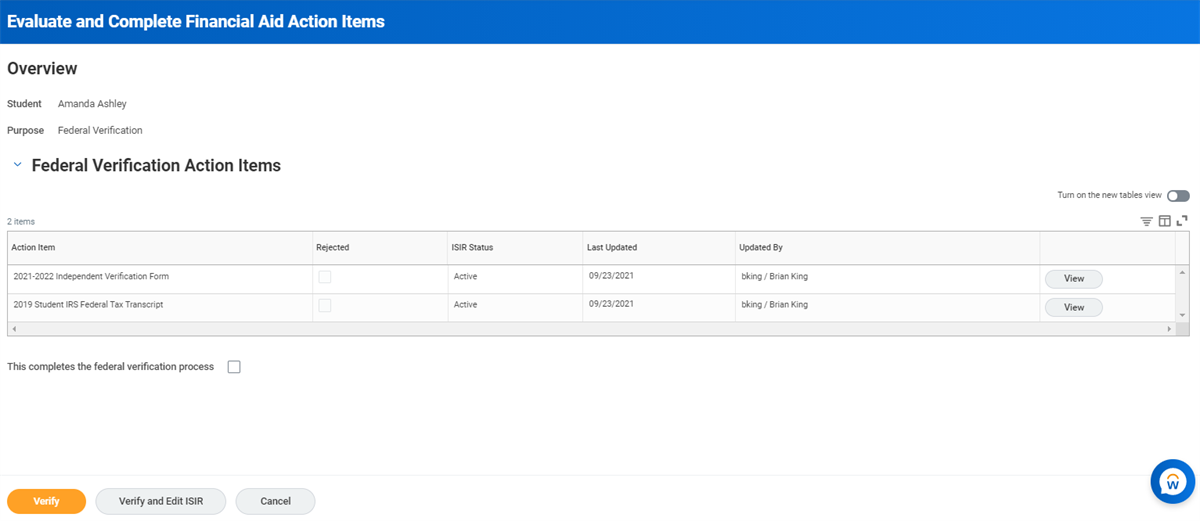
Through the
Evaluate Financial Aid Action Items
task, you select a confirmation for verification-related action items. Upon selection, Workday provides two options:- Verify: Verify that the documentation submitted meets the criteria.
- Verify and Edit ISIR: Verify that the documentation submitted meets the criteria after making manual adjustments to ISIR.
Upon selecting
Verify and Edit ISIR
, you can manually adjust ISIR data points to reflect the documentation provided. Typically related to Federal Verification, manually adjusting ISIR data often follows heavy individual user security. Workday tracks all ISIR edits for audit purposes, and tracks changes for COD submission.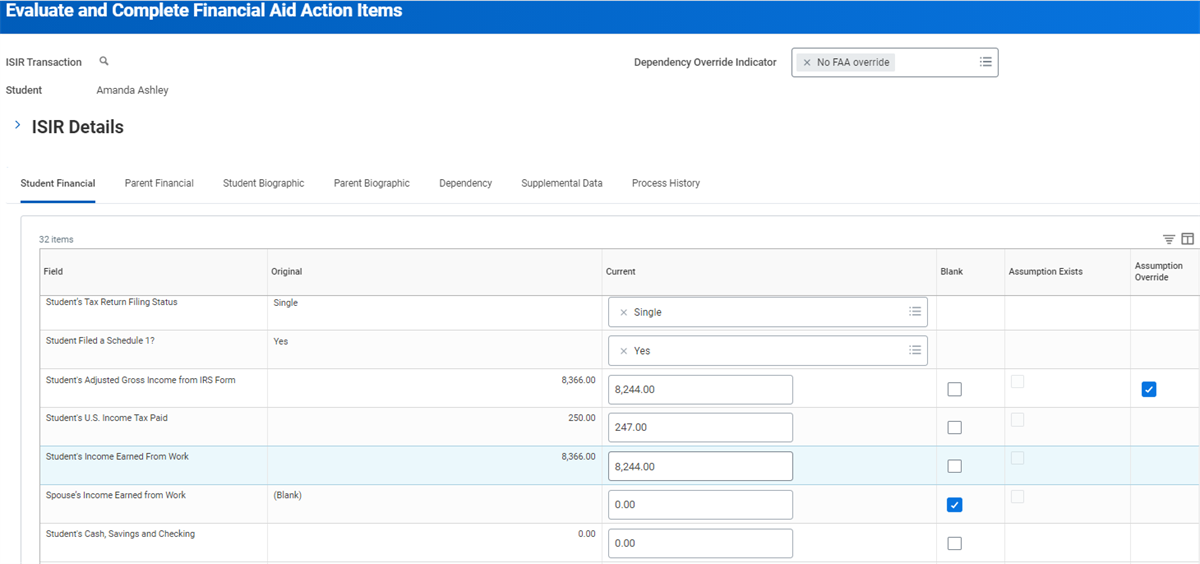
Placing Financial Aid Holds for Action Items
Workday automatically places a hold on your student's financial aid processing until one of the following:
- Your student completes a required action item.
- You have manually reviewed and approved your student's document submission.
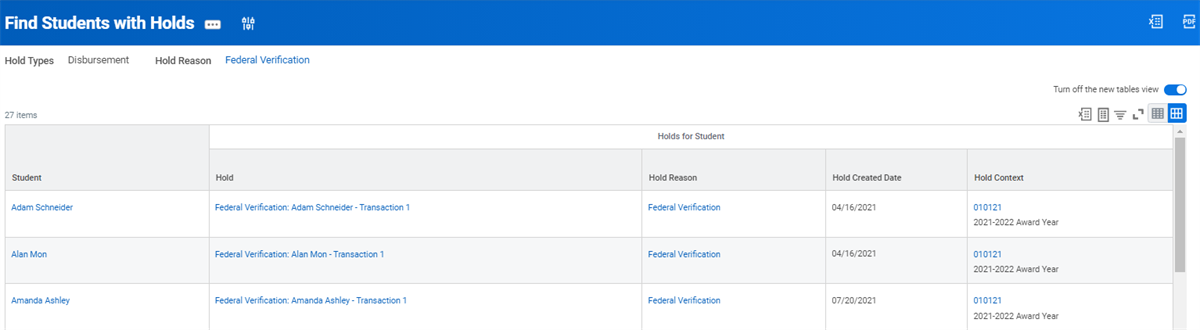
Use the
Find Students with Holds
report to locate students who have been assigned federal verification holds.You can manually assign action items to a student for the following reasons:
- Verification
- Conflicting information resolution
- Professional judgment
- Ad hoc
Example
: Examples of a financial aid action item hold include "Needs Packaging" and "Disbursement."
Before Workday can automatically place action item holds, you must configure and set up student hold service on any applicable business process. Workday automatically lifts a hold on your student's financial aid processing once:
- Your student fulfills the action items.
- You complete the review and approval business process.
You can manually place a hold by selecting the Related Actions of your student's financial aid profile and selecting Action Items > Assign Financial Aid Action Items.
You can view current holds by:
- Selecting the action items tab on a student's financial aid profile group.
- Running theFind Financial Aid Action Itemsreport.
Once resolved, Workday captures and displays this date in the resolution date column.
Important
: Workday enables you to define security requirements when managing student hold assignments and determine whether to allow holds to apply to all students.Waiving Action Items
Occasionally, you might request a document from a student that they cannot provide. Other times a document you might have requested is irrelevant to your student's circumstances. You can waive these action items when these situations occur, if permitted under federal program guidelines.
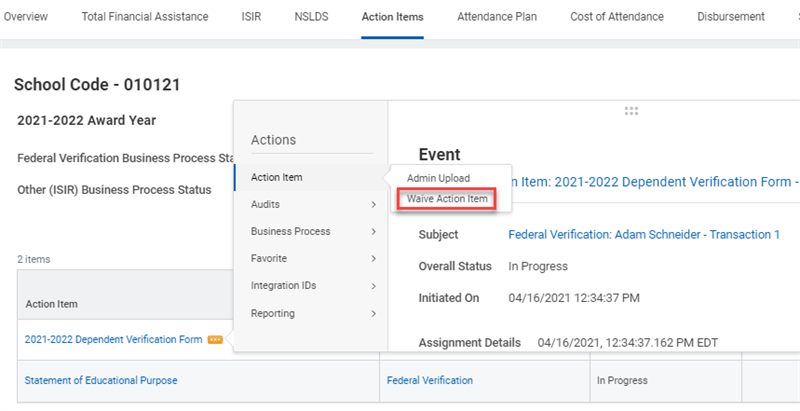
To waive an action item for a student, navigate to the action items tab on the financial aid card of the student profile. From the Related Actions, select Waive Action Item.
If submitted action item documentation is a part of federal verification, Workday reacts to the waiver by automatically updating your student's federal verification status. Approval triggers the federal verification event business process. Workday automatically updates your student's federal verification status from a "Selected" status to a "Waived" status.