
Cost of Attendance
Overview
This chapter explains how to configure cost of attendance (COA) calculations, configure student cost items, and manage COA calculations for cost items. Cost of attendance (COA) is an estimate of all expenses that a student incurs while attending your school. After completing this chapter, you will be able to use key concepts to configure, calculate, automatically assign, schedule, and update COA for your students.
Objectives
By the end of this chapter, you will be able to complete the following in Workday:
- Recall the purpose of cost of attendance calculations.
- Create and assign student cost items.
- Calculate cost of attendance.
- Review and edit cost of attendance items.
Overview of Cost of Attendance
Cost of Attendance (COA) is the estimated educational-related expenses for one or more academic periods. Workday uses a student's COA to estimate their financial aid award package for need-based awards and merit-based awards that require COA. The cost of attendance is separate from charge items and a student's account does not include cost items.
Workday creates both a standard and a Pell COA for students. A standard COA includes the cost items associated with estimated expenses for a specific academic period. A Pell COA includes estimated expenses for the entire academic year. In order to include a cost item in the Pell COA, but not in the institutional COA, you can utlize the Pell Cost Eligibility Override field on the cost item.
Workday uses a student's attendance plan to calculate most COA items. If a student does not have an attendance plan when you calculate COA, Workday will create one. You can request information on a student's housing plans using the Financial Aid Housing Plan Request Event business process. To edit a student's plan, use the
Edit Financial Aid Housing Plan
task.Before you can begin calculating your student's COA, you need to complete the following in Workday:
- Create student cost items.
- Assign student cost items.
- Create cost of attendance job schedules.
- Create cost of attendance reaction policies.
Creating Cost Items
Workday allows you to create student cost items for tuition, books, and other educational-related expenses to estimate their cost of attendance. Use the Create Student Cost Item task to create cost items.
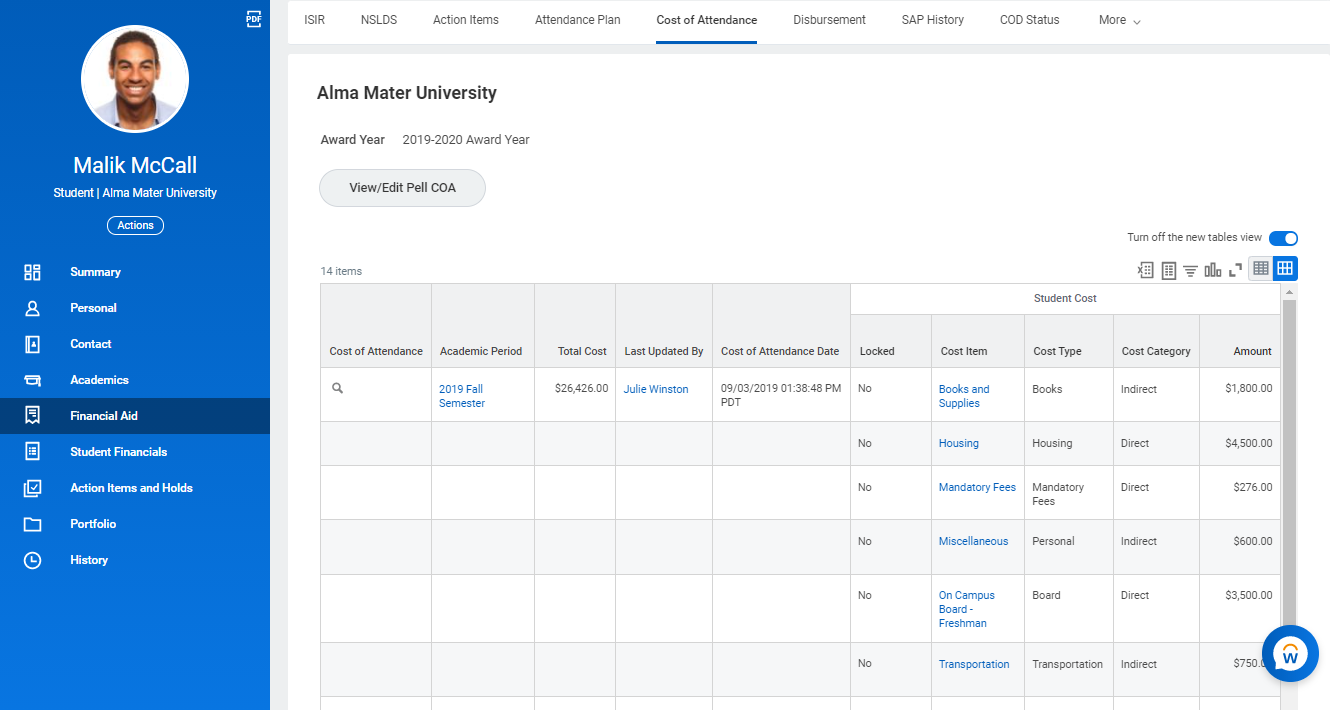
An example of a student's direct and indirect cost items on the cost of attendance tab of the Financial Aid profile group.
The cost items configuration table provides the following field data details about a cost item. When you create a student cost item, you assign/associate the following fields with a student cost item:
Field Name | Field Usage |
|---|---|
Academic Unit (AU) | The cost item will only be available for assignment in the indicated or subordinate academic units. |
Academic Level (AL) | The cost item will only be available for assignment to the indicated academic level. If you do not indicate a level, it will be available to all academic levels. |
Type/Classification/ Cost Category | These options do not affect processing and are for searching and reporting purposes only. |
Cost Calculation | Create or select a numeric calculation that returns the cost for an academic period. |
Full-time Full-year Pell Cost Basis | Create or select a numeric calculation that returns the Pell cost for the full academic year. |
Less Than Half Time
Pell
Cost of Attendance | Clear the checkbox to exclude this cost item from Pell COA when a student's academic load is less that half-time. |
Pell Cost Eligibility Override | Enables you to create eligibility conditions for a cost item to be included in the Pell COA when the cost item isn't eligible to be included based on cost item assignment conditions. |
Creating Cost Item Assignment Policies
After you create student cost items in Workday, you must assign the cost items to an academic unit and level or program of study. The student cost items assigned to an academic unit and level will be inherited by subordinate academic units and programs of study. Use the
Maintain Student Cost Item Assignment
task to assign cost items to an academic unit or program of study.To limit assignment of cost items to specific student groups, create an eligibility calculation.
Example
: Only students that live on campus should receive a charge for campus housing. Workday enables you to create and assign a Boolean calculation that returns a result of true for students that live on campus. Then Workday will only assign the housing cost item to students living on campus.Cost items are additive, and inheritance is not broken by assigning the same cost item to a subordinated academic unit.
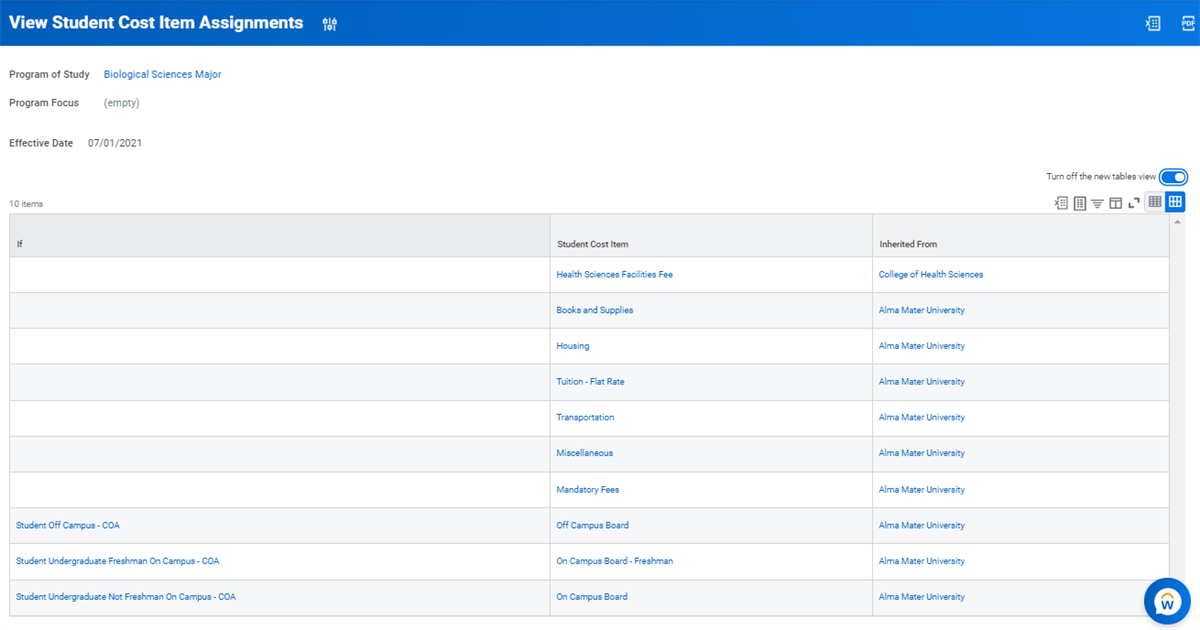
In the example above, Board cost items are assigned using conditional calculations. The cost item assignment was created at the Alma Mater University superior academic unit level and is inherited by the Biological Sciences major at the program of study level.
As you complete the student cost item assignment, consider:
- Effective dates:Workday recommends using the standard start date of the academic period in which the assigment should take effect.
- Program of Study / Program Focus or Program Area:Students in the program of study are subject to cost items assigned to their POS or Program Area and cost items associated with their academic unit and level.
- Academic Unit/Academic Level:Cost items apply to the designated academic unit and all subordinated units for the indicated level.
- If statements:To restrict the cost to students who meet certain conditions, select or create a calculation that evaluates the student's eligibility. If left blank, Workday assigns the cost item to all students.
Assigning of Cost of Attendance
The nightly orchestration COA job automatically calculates the initial cost of attendance for a student. You will need to create a job schedule to tell Workday when to calculate the COA of students for each academic period.
If a student's data changes after creating the initial cost of attendance, Workday will recalculate the cost of attendance according to the configured cost of attendance reaction policy.
For exception processing, you can manually create the cost of attendance using the
Run Student Financial Aid Processes by Period
report for multiple students. You can create cost of attendance for individual students using the Related Actions button on the student's profile. It is important to note that nightly orchestration jobs should be run in order, even when running jobs manually. Therefore, the attendance plan, charge assessment, and ISIR progression jobs should run before the cost of attendance job.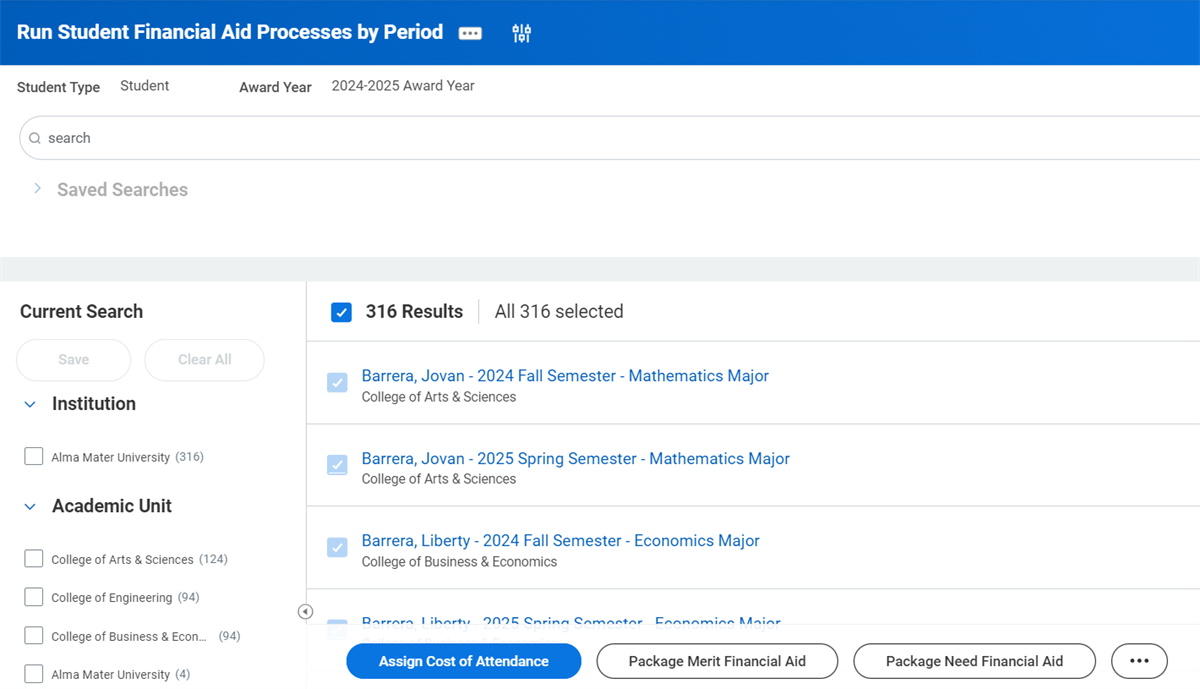
Viewing Cost of Attendance
You can view a student's cost of attendance from the Cost of Attendance tab on the financial aid profile group on the student's profile. The standard COA displays by award year and displays all periods calculated in the award year. You can view the Pell COA using the View/ Edit Pell COA button. The Pell COA displays for the award year. The total Pell COA for the award year is the amount transmitted in the COD outbound file, not individual item amounts.
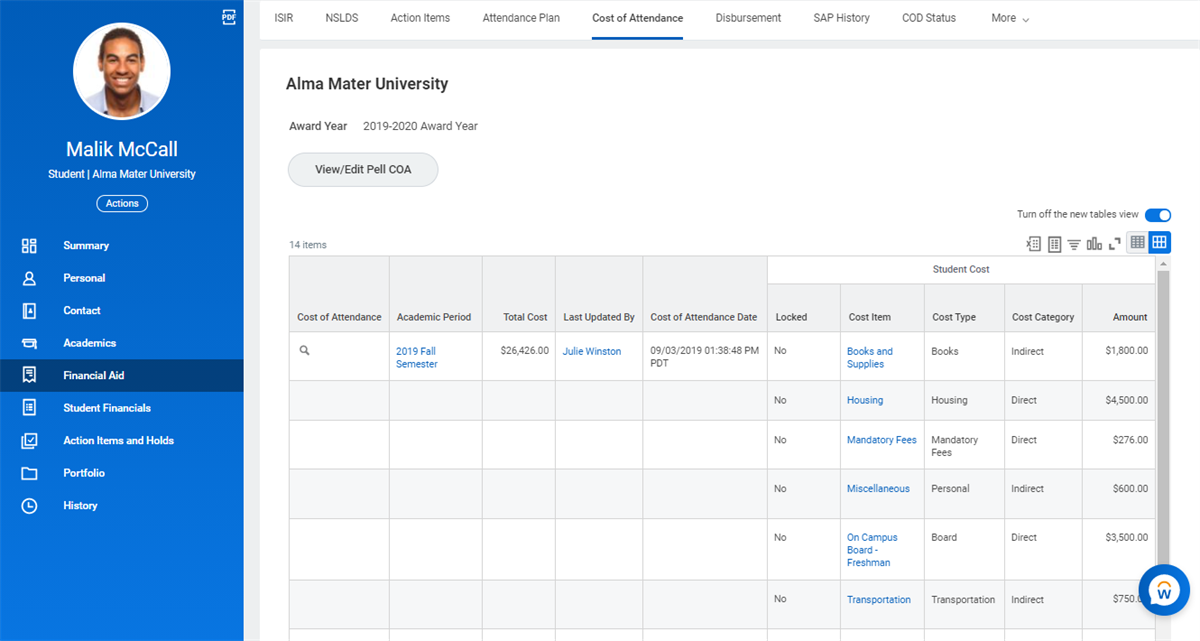
Selecting the magnifying glass icon in the cost of attendance column allows you to view additional details associated with a specific cost item.
Manually Assigning Cost of Attendance
While viewing a student's cost of attendance, you may take a Related Action on an academic period to edit or add cost items to the standard COA. You have the option to lock a cost item when manually editing. Nightly orchestration will ignore locked cost items when calculating COA. Pell COA cost items have a status of either locked or edited.
You can also assign COA manually to multiple applicants and students using the
Calculate COA/Package Financial Aid - Student
or the Calculate COA/Package Financial Aid - Student Applicant
tasks.Important:
Once you save your COA changes, you need to recalculate COA and repackage students.