
Calculations
Overview
During this chapter, you will practice configuring and creating some of the calculations that Workday uses during financial aid processing.
This chapter begins with an overview of financial aid calculations. You will then learn how to configure several key calculation types that the calculation engine uses to calculate financial aid for your students. You will also learn about the different data types that the calculation engine returns values for when the calculation engine completes financial aid calculations.
Objectives
By the end of this chapter, you will be able to complete the following in Workday:
- Recall the basic functionality of the calculation engine.
- Configure and create instance set comparison calculations.
- Configure and create value comparison calculations.
- Configure and create conditional calculations.
- Configure and create lookup tables and lookup table calculations.
Overview of Financial Aid Calculations
Workday-delivered calculations enable you to determine the amount of Title IV financial aid program assistance your students are eligible to receive. Workday Financial Aid and Workday Student Financials use calculations to calculate awards, costs, limits, charge items, and conditions for action items, student eligibility, packaging, and disbursements.
When you create financial aid calculations with the student calculation engine, you use business logic to construct simple or complex calculation formulas. Workday also enables you to create calculations that are flexible, expandable, and customizable.
- Simple calculations: A simple calculation formula (algorithm) returns a single value.
- Complex calculations: A complex calculation formula is pieced together using multiple calculation types.
- Flexibility: There are multiple ways that you can define calculations, so they are obvious, easy to maintain, and support performance.
- Expandability: You can create baseline calculations that are reusable with other calculations for a variety of circumstances.
- Customizability: You can create your own custom calculations in Workday Financial Aid using custom fields.
Over the course of an academic period, your financial aid office updates and validates the financial aid calculations that your office has configured in your tenant. Updating and validating your calculations ensures that your office remains in compliance with the latest ED guidelines for financial aid management.
Examples of Calculations for Financial Aid Processing
You can run the following types of financial aid calculations using the financial aid tasks you learn about throughout this course:
- Award item eligibility and amounts
- Charge item assignment and amounts
- Cost item assignments and amounts
- Course fee amounts
- Student Aid Index (SAI) amounts
- Fee group assignments
- Disbursement eligibility and amounts
- Packaging strategy assignments and amounts
- Pell cost eligibility and amounts for every cost item that is eligible for Pell funding
- Waiver amounts
- Work-study assignments and amounts for Workday Human Capital Management (including payroll and absences)
Creating Financial Aid Calculations
Unlike other financial aid management systems where you develop calculations using object-oriented programming, you develop calculations in Workday using a graphical user interface (GUI). In Workday, you can visually select calculation types, operators, and variables to build a calculation. With most calculations that you will configure, you will need to select the following:
- A calculation type: Every calculation type that you can select is an individual building block you can use to construct a different type of calculation formula.
- An operator: An operator is the equivalent of an Excel calculation function. An operator performs a specific calculation function in a calculation operation (such as less than, greater than, or equal to).
- A variable: The variable that you select in a calculation formula is a Workday business object that a calculation type performs an operation against. In financial aid calculations, a calculation type performs an operation against the financial aid period record business object or a dependent business object.
When you select a calculation type and perform an operation against a variable in a financial aid calculation, the calculation engine runs your calculation. The calculation engine then returns a data value called a data type.
Depending on the calculation type selected for your calculation, the calculation engine will return one of the following data types:
- A dollar amount from a currency field
- A numeric value
- An instance value
- A Boolean value of "1" for a condition that is true
- A Boolean value of "0" for a condition that is false
- A default value of a field
- A default date value in the format of MM/DD/YYYY, unless you extract a date type in your calculation.
- An alphanumeric text metadata value from a custom field
Once you have created a calculation, use the
Evaluate Student Calculation
task to test validity and ensure your configurations meet your requirements. Access the evaluate task via a Related Action off of the calculation. To test, you will need to determine a specific student who meets your calculation requirements to test the calculation on. Overview of Workday Calculation Types
Workday recommends that you review the table of Workday calculation types before you begin creating calculations for the first time within your tenant. For more information on calculations, consider enrolling in the Calculation Engine for Workday Student learn independent course.
Calculation Type | Purpose | Numeric Data Type | True/False Data Type | Date Data Type |
|---|---|---|---|---|
Aggregate | An aggregate calculation type allows you to determine the sum, average, maximum, or minimum value for your underlying data. In an aggregate calculation, you calculate an aggregate on a dataset to return a single value that represents what the underlying data is. An example of an aggregate calculation type formula is A+B+C+(D-I) = an aggregate value. Use the Create Aggregate Calculation task to create an aggregate calculation. | X | ||
Arithmetic | An arithmetic calculation type allows you to take numeric values and add, subtract, multiply, or divide them. An example of an arithmetic calculation type formula is A+B+C/3= an average value. Arithmetic calculations often include an aggregate, conditional, or lookup table calculation in a calculation formula. Use the Create Arithmetic Calculation task to create an arithmetic calculation. | X | ||
Build Date | A build date calculation type pulls numeric values from Workday so you can construct start and end dates for academic periods. Build date calculations are useful when you need to create a date to display for a specific point in time, such as:
Workday delivers several build date calculations used primarily in calculating Student Aid Index (SAI) in financial aid. Use the Create Build Date Calculation task to create a build date calculation. | X | ||
Conditional | A conditional calculation type displays a calculated amount upon satisfaction of required financial aid conditions in your student's financial aid record. Conditional calculations:
Use the Create Conditional Calculation task to create a conditional calculation. | X | X | |
Constant Date | A constant date calculation type is similar to the build date calculation. You use a constant date calculation to calculate the difference between two dates, but in a constant date calculation the variable used to calculate your date remains constant. Subtract the dates contained within two or more fields to calculate a date. Enter the date variable that does not change into your formula.
Use the Create Constant Date Calculation task to create a constant date calculation. | X | ||
Constant Value | A constant value calculation type returns a constant value that does not change. You can return a numeric value that is positive, negative, or decimal. For example, in "x + 5 = 9", five and nine are constants. Use the Create Constant Value Calculation task to create a constant value calculation. | X | ||
Date Difference | A date difference calculation type allows you to pull two dates and then check the number of days between both dates by subtracting them. A date difference calculation allows you to calculate the difference between two days, weeks, months, or years. The date difference value that you calculate will vary depending on the dates you use in your calculation. For example, 01/01/2020 to 01/04/2020 = 4 days and 01/01/2020 to 01/04/2021 = 369 days. Use the Create Date Difference Calculation task to create a date difference calculation. | X | ||
Date Extract | A date extract calculation type allows you to extract part of a date from Workday. You can use a date extract formula to extract the day of the week that an event takes place. For example, when you extract the day of the week for 01/01/2020, the value of the day extracted can be either Wednesday or January. Use the Create Date Extract Calculation task to create a date extract calculation. | X | ||
Date Increment/ Decrement | A date increment/decrement calculation type allows you to calculate the increase or decrease of days, weeks, months, or years from a given date. For example, a 5-day increment from 01/01/2020 is 01/06/2014. Use the Create Date Increment Decrement Calculation task to create a date increment/decrement calculation. | X | ||
Instance Set Comparison | An instance set comparison calculation type compares two object row values to determine if they are the same instance. Use the Create Instance Set Comparison Calculation task to create an instance set comparison calculation. | X | ||
Instance Value | Instance value calculations return numeric, Boolean, or date values depending on the instance value calculation that you select. Instance value type calculations are unique because they are:
Use the Create Instance Value Calculation task to create an instance value calculation. | X | X | X |
Logic | A logic calculation type allows you to combine the following calculations using 'AND' or 'OR' operators to determine whether any or all value comparisons are true or false:
You cannot combine 'AND' or 'OR' operators in the same logic calculation. | X | ||
Lookup Table | A lookup table calculation type finds the values of a field based on the criteria that you specify. Use the Create Lookup Calculation task to create a lookup calculation. | X | ||
Value Comparison | A value comparison calculation type compares a calculation against a value from Workday Financial Aid. Use the Create Value Comparison Calculation Field task to create a value comparison calculation. | X |
Boolean Calculations
Boolean calculations return a true or false value. You can use the following Boolean calculations to define student charges, award items, and eligibility:
- Instance set comparison calculation
- Logic calculation
- Value comparison calculation
You can nest Boolean calculations in:
- Conditional calculations
- Logic calculations
Value Comparison Calculation
The value comparison calculation compares numeric, Boolean, or date values. Operators permitted include:
- Equal to
- Not equal to
- Greater than
- Greater than or equal to
- Less than
- Less than or equal to
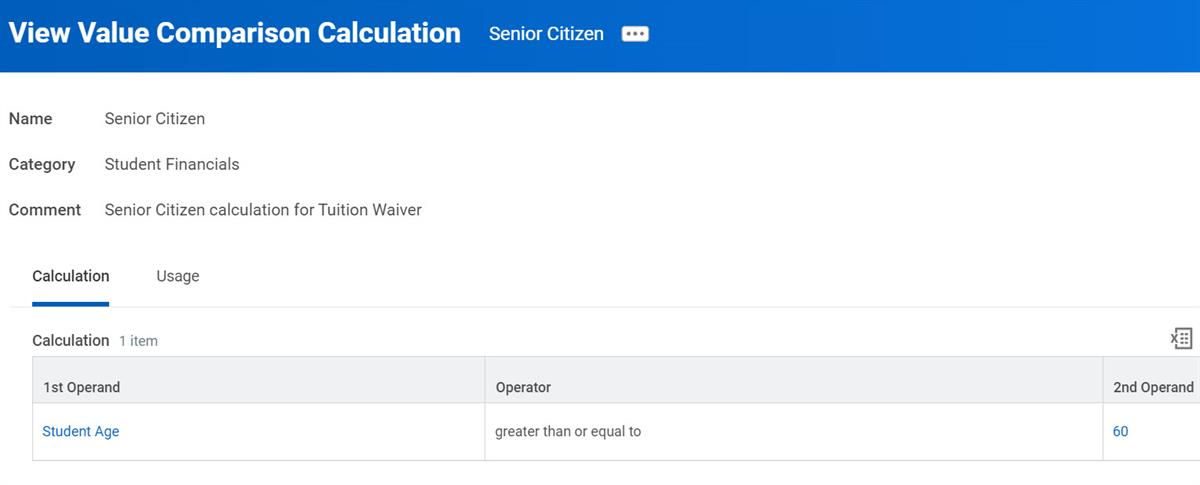
Value comparison calculations allow you to define relationships between other calculations and student values, such as GPA or test scores.
In the screenshot below, the calculation determines whether a student's age is greater than or equal to sixty.
Logic Calculation
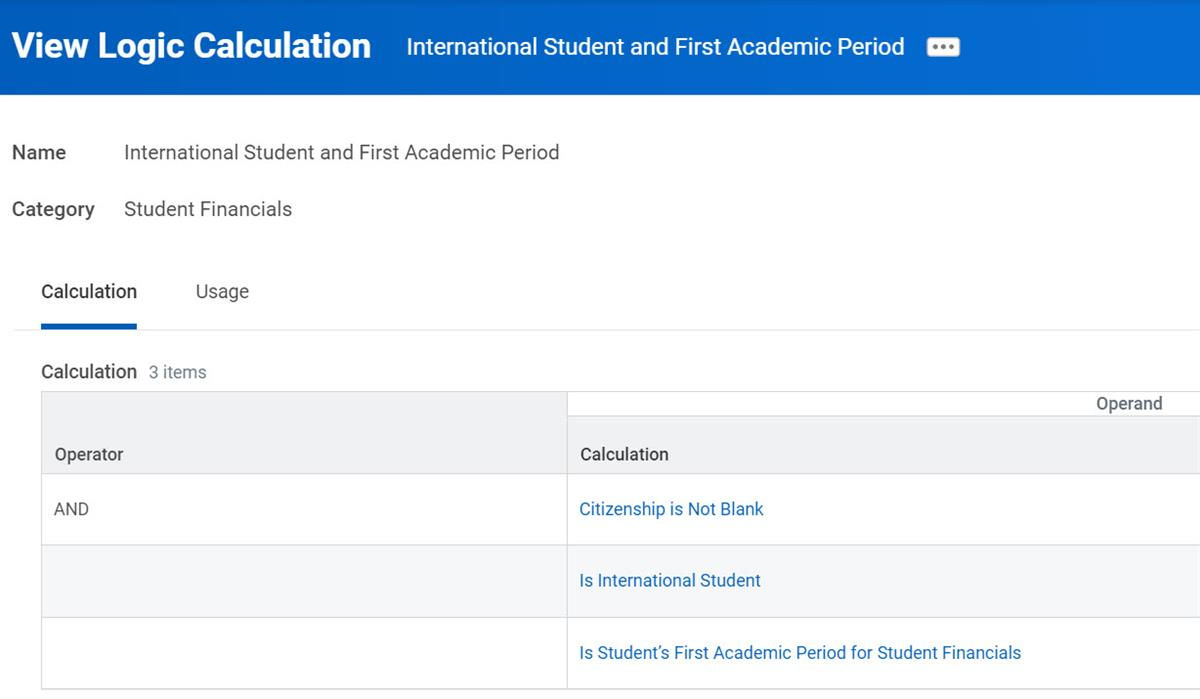
The logic calculation defines AND or OR logic to return a true/false value. To get to the result, it uses a combination of the following calculations:
- Instance Set Comparison
- Value Comparison
- Instance Value
- Logic Calculations
Operators permitted include:
- AND
- OR
Note
: You cannot combine AND and OR logic in the same Logic Calculation.In the screenshot below, the calculation determines whether a student has a citizenship status that is not blank, is an international student, and is in their first academic period. If a student meets all three criteria, the calculation will return a value of True.
Numerical Calculations
Numeric calculations return a numeric value. This calculation type includes the following:
- Aggregate Calculation
- Arithmetic Calculation
- Constant Value Calculation
- Date Difference Calculation
- Date Extract Calculation
- Lookup Calculation
Aggregate Calculation
The aggregate calculation returns the sum, average, minimum, or maximum of two or more values. The operand is typically the value being aggregated. The Instances for Operand Calculation field is the value aggregated when the operand is non-numeric (e.g., a logic calculation).
Arithmetic Calculations often include an aggregate calculation as a component.
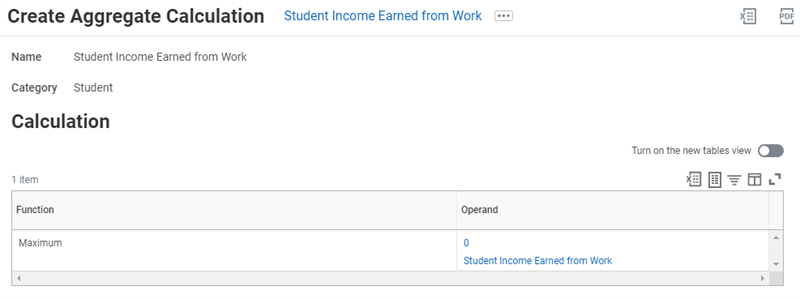
Create Aggregate Calculation task for Student Income Earned from Work
The calculation in the example returns the maximum of two values: 0 or the student's income earned from work multiplied by .0765.
Arithmetic Calculation
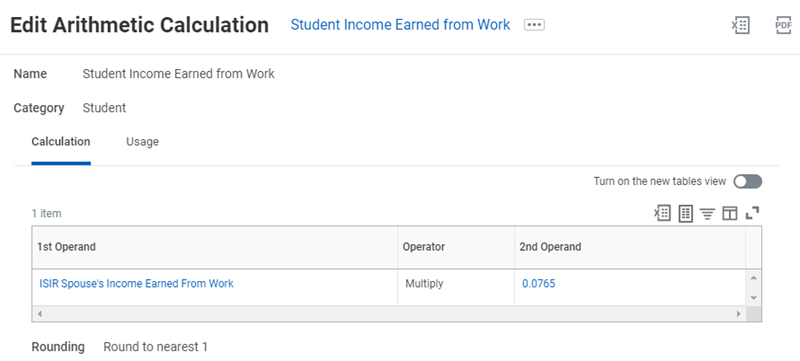
The arithmetic calculation adds, subtracts, divides, or multiplies two (and only two) numeric calculations. You can use any calculation returning a numeric value, including another arithmetic calculation, as an operand.
The following calculations often use an arithmetic calculation as a component:
- Aggregate Calculation
- Conditional Calculation
- Lookup Table Calculation
This calculation below returns the student's income earned from work reported on the ISIR multiplied by 0.0765. Notice that this calculation also has rounding, so the system will round the result to the nearest 1.
Constant Value Calculation
The constant value calculation returns the number assigned to it. The numbers can be positive, negative, or decimal.
Note
: Workday delivers many commonly used integer and decimal values.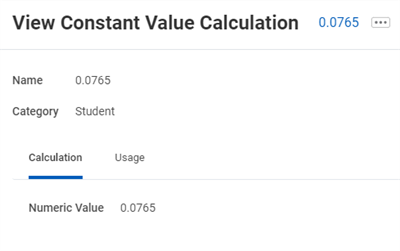
In the example above, the constant value calculation returns the number 0.0765. The Name field in the
Create/Edit/View Constant Value Calculation
task is commonly the actual numeric value the constant value calculation returns.Date Difference Calculation
The date difference calculation returns the number of days, months, or years (the interval) between two dates. This calculation performs a simple subtraction between the two periods defined. For example, you can use a date difference calculation to determine a student's age by subtracting a student's date of birth from today's date.
Date Extract Calculation
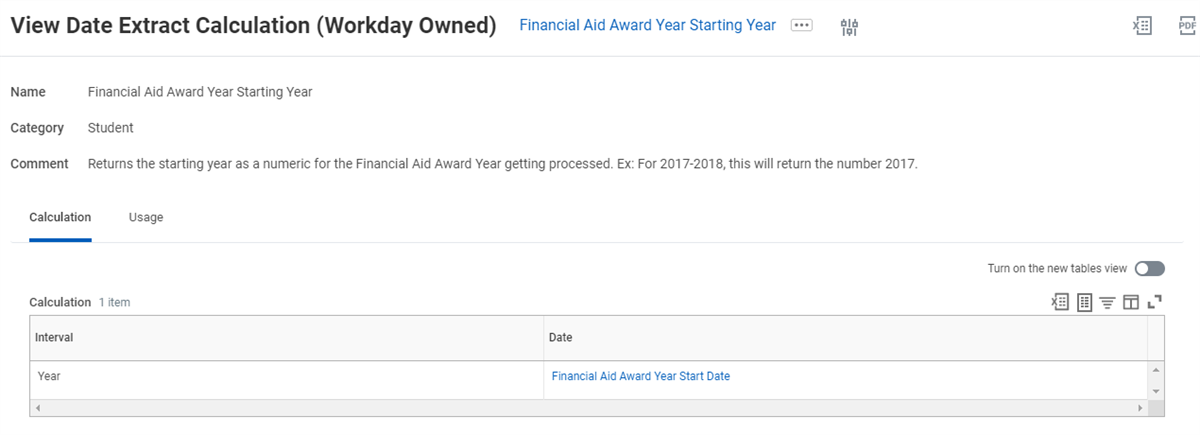
The date extract calculation allows you to pull out the year, month, or day from a date. This calculation is useful when you need to determine the exact day or month of an event. For example, when returning the starting year as a numeric for the Financial Aid Award Year. For the 2025-2026 award year, the system returns the number 2025.
An example of a date extract calculation would be Financial Aid Award Year Starting Year. You can build a calculation that returns the starting year as a numeric (e.g. 2025-2026 would return 2025).
Lookup Calculation
A lookup calculation returns a numeric value based on criteria the system matches. The system can base the criteria on a report field or a numeric range. For example, returning the correct tuition based on a table that stores tuition by academic level and residency status.
Lookup calculations require a lookup table. Although you can create lookup calculations with basic lookup tables, Workday strongly recommends that you use advanced lookup tables. Advanced lookup tables can handle high volumes. In addition, they provide one place to update data for easy maintenance.
Advanced lookup tables allow you to:
- Create up to 10 columns. You can then use each column for a different calculation.
- Assign an effective date for search and return values.
- Define search criteria based on:
- Instance or text report fields.
- Numeric calculations.
When you access the
Create Lookup Table
task, you can select from the following options:Option | Description |
|---|---|
Advanced Lookup Table - Report Field Search Criteria | Returns values based on the results of a single-instance or multi-instance report field. |
Advanced Lookup Table - Numeric Calculation Search Criteria | Returns values based on the results of numeric calculations. |
Advanced Lookup Table - No Search Criteria (default value only) | Returns default values. |
Advanced Lookup Table - Text Report Field Search Criteria | Returns data based on the results of a text report field. |
The lookup calculation below uses a lookup table to determine undergraduate tuition based on residency status.
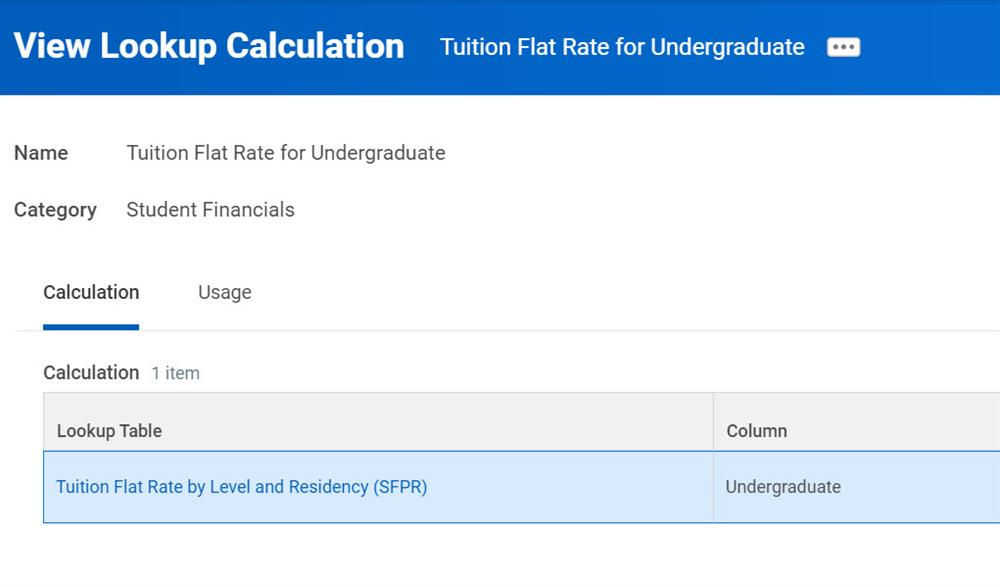
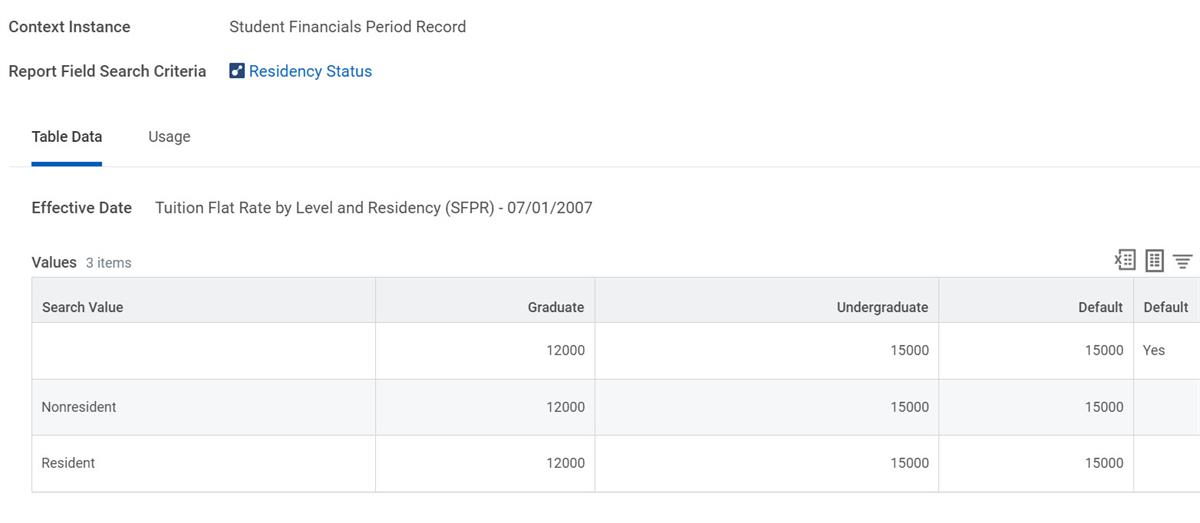
In this example, the lookup calculation uses a student's residency to determine tuition.
Date Calculations
Date calculations return date values. This calculation type includes the following:
- Build Date Calculation
- Constant Date Calculation
- Date Increment/Decrement Calculation
Build Date Calculation
The build date calculation allows you to create dates as of specific points in time. The calculation combines year, month, and day from other dates (using date extract calculation) or constant value calculation. Workday delivers several build date calculations primarily used in calculating the Student Aid Index (SAI) in financial aid.
Constant Date Calculation
The constant date calculation allows you to create dates as of specific points in time, defining the year, month, and day. You use this calculation for scheduling logic and grandfathering eligibility.
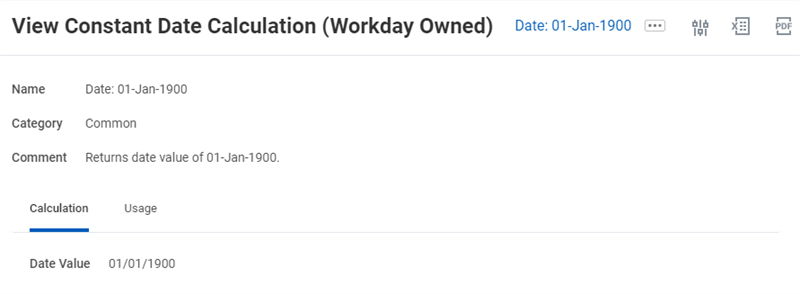
The Constant Date Calculation in the example above identifies "January 1, 1900" as the point in time.
Date Increment/Decrement Calculation
The date increment/decrement calculation allows you to start with a date and then add or subtract years, months, or days from that date.
Here is an example of a date increment/decrement calculation:
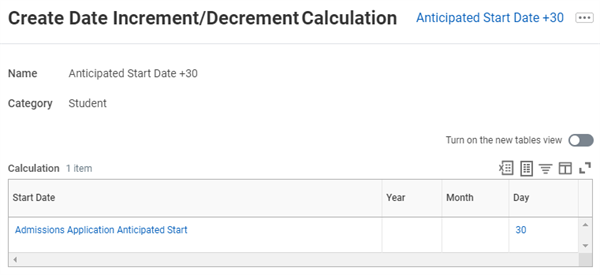
The date increment/decrement calculation in the example above adds 30 days to the student's anticipated start date.
Configuring an Instance Value Calculation for a Custom Field
An instance value calculation (IVC) is also different from the other calculation types that you can use for financial aid management. An IVC is a Workday-delivered application. Because Workday owns IVCs, you cannot edit an IVC the way you can with other calculation types that you can create. You can select calculated fields on the Custom Field prompt of the
Create Instance Value Calculation
task when you select any or all of these categories:- Admissions
- Student
- Financial Aid
- Student Financials
- Student Residency Evaluation
For financial aid purposes, the calculated field you use must originate from the Financial Aid Period Record business object. However, you can use calculated fields from other business objects within this calculated field definition.
Once you add the custom field to an IVC, the calculation engine accesses the value from your custom field object and returns the value. Depending on your instant value calculation configuration, the calculation engine searches for and returns either a numeric, Boolean, date, or text metadata value. You can then use the return value in a custom report or use the returned value in a secondary calculation.
Example
: You create a custom field object that is related to the financial aid reporting record business object and include the custom field object in the complex logic of your IVC search. You can include the value that returns in the business process definitions for the following:- Award item eligibility
- Award item amounts
- Charge item amounts
Once you modify your business process definitions and include the returned value of an IVC, the calculation engine automatically updates the details for award item eligibility, award item amounts, and charge amounts in Workday Financial Aid.
Creating a Custom Field Object
Use the Custom Object Management Security domain to assign role-based security access for custom objects. Once an administrator assigns role-based security privileges to you, you can set up and configure custom report field objects to retrieve a value from an instance value calculation. Use the
Create Custom Object
task to create a custom field object. If you need to edit a previously created custom field object, use the Edit Custom Object
task. If you need to delete a custom field object from your Workday tenant, use the Delete Custom Object
task.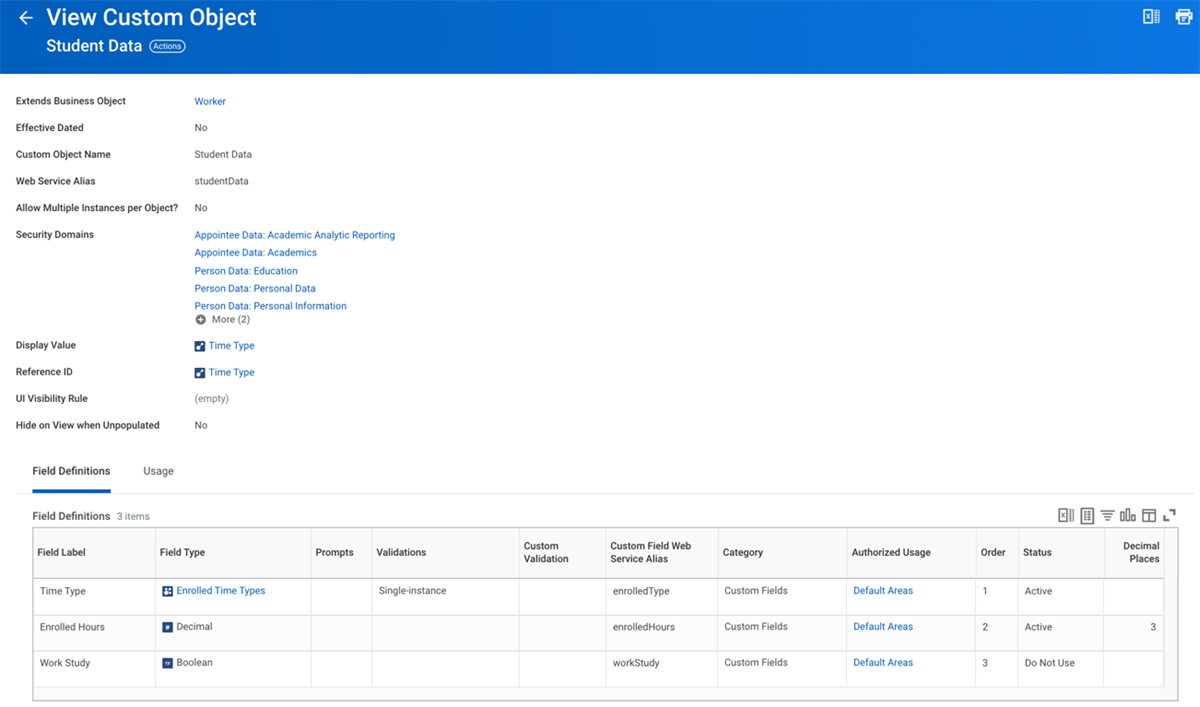
Once you have created your custom object, you need to use the
Custom Object Definition
task to define business processes for your custom object. When you create a definition for your custom object, you must assign rules and policies for your custom object business processes.As you create your custom field object, you need to configure the following settings unless a setting is optional:
- Custom field types:Used to optionally create custom field types. You can assign a custom field type to classify any custom field objects that you create.
- Custom objects:Allows you to create one or more custom field objects in the financial aid period record or a dependent business object.
- Assign field labels:Allows you to name your custom field object.
- Enable calculation engine authorization usage: You can authorize the custom object field to be a reporting field by enabling calculation engine authorization. When you authorize the calculation engine to use a custom field object, you are enabling the calculation engine to access and return a data value from the custom field object.
- Choose security domains:Security domains are important because they allow you to access custom field objects with theCreate Custom Objecttask.
- Activate custom objects:Activating your custom field object enables roles with security access to use your custom field object in an instant value calculation.
Creating an Instance Value Calculation
Use the
Create Instance Value Calculation
task to configure an IVC. If you need to edit a previously created IVC, you need to use the Edit Instance Value Calculation
task.Tip
: Before you use an IVC to retrieve the value of a custom field object, you should consider the following:- Review your setup for role-based security.
- Custom fields are not effective dated. Workday strongly recommends that you backdate your data before assigning effective dates.
- A business object currently supports up to 100 custom fields that your financial aid office and business partners can use to capture and return data values.
Calculations for Eligibility
Workday Student categorizes calculations in two ways: to determine eligibility or to determine an amount. Workday uses Eligibility Calculations to determine eligibility for several items throughout Workday Student. The Eligibility Calculations are looking for a true or false result, also known as a Boolean result.
Use Eligibility Calculations when you need to determine whether a student is eligible for:
- Student award items
- Cost of attendance items
- Charge items
- Waiver items
You can also find Eligibility Calculations in the If column of a variety of maintain tasks in Workday Student, including:
- Maintain Student Cost Item Assignments
- Maintain Student Charge Item Assignments
- Maintain Student Packaging Strategy Assignments
Additional Detail: Calculations for Student
It is easy for you to create calculations with the calculation engine once you understand what each calculation type is and how Workday constructs each one. There are a number of calculation types in Workday that you can use as building blocks for creating your calculations. However, the four most common calculation types used for student calculations are:
- Instance set comparison calculations
- Value comparison calculations
- Conditional calculations
- Lookup table calculations
Tip
: You can additionally use Workday-delivered instant value calculations (IVCs) to create calculations that use custom report fields (CRFs) to generate custom reports with Workday Report Writer.Workday recommends that you use the following best practices when configuring calculations for Workday Student:
- Mind map your calculations before creating them within your tenant. Before you begin configuring your calculations, mind map the formula that you need to configure.
- Determine the best method for constructing your calculation business logic. Start by identifying the business definitions and rules that are associated with your calculation. In a top-down approach, you create your final calculation first and then create nested calculations within your final calculation.
- Develop consistent naming conventions for your calculations that are obvious and intuitive. The naming convention you use for your calculations should enable you and your team members to easily identify the purpose of each calculation that you create.
- Use comments to note the purpose of your calculations. When you initially create and configure a calculation, you should document the purpose of a calculation within the comments section. Using comments helps you identify the calculations you need to modify and update on an ongoing basis. Entering a comment in the Comment field is a useful way to document:
- Why you created a calculation.
- What the logic of your calculation was.
- What award items were associated with your calculation.
- Test a calculation thoroughly in a testing tenant before recreating it in your production tenant. Once you have created and configured your calculation, you can test your calculation from the calculation name's Related Actions, then select Calculation > Evaluate.
- Every calculation you can create in Workday has an associated view task. If you need to deactivate a calculation within Workday, confirm where you are first using a calculation in your Workday tenant by using a view calculation task.
- Do not delete a calculation after you create it. Instead, modify the name of your calculation by relabeling it as "DNU" for Do Not Use.
- You can also run theCalculation Exception Auditreport to locate previously created calculations that you are no longer using in your tenant.
Resource
: To learn more about calculations, consider taking the Student Calculation Engine for Administrators course.Class Report Fields (CRFs)
Workday defines and delivers data sources. Workday delivers zero, one, or multiple data sources for business objects. The report data source is the view or selection of instances of a given primary business object. For financial aid, the primary data source is the Financial Aid Period Records (FAPR). For student financials, the primary data source is the Student Financials Period Record (SFPR). Each data source has many Class Report Fields (CRFs). Workday has made several CRFs available to the Calculation Engine. CRFs are not calculations, but you can use them in two types of calculations: instance set comparison and advanced lookup table calculations.
You can create a report that lists all available CRFs:
- From the Fields data source's, Related Actions select custom report > create. (Use the defaults unless you need to share the report, which requires an Advanced report type.)
- Add fields of:
- Field
- Business object
- Description
- Add a filter with the following information:Field NameEntry ValueFieldAuthorized UsageOperatorany in the selection listComparison ValueCalculation Engine (Payroll/Absence)
- Run the report.
Performance Considerations
There are some performance considerations when building calculations. The complexity of the calculation can impact the process using it. The more calculations involved, the longer it will take the process to run.
To maximize performance when building calculations, Workday recommends the following:
- Conditional Calculations: Put the most common conditions first.
- Logic Calculations:
- For AND logic calculations, put the least common conditions first.
- For OR logic, put the most common condition first.
- Lookup Tables:
- Limit the number of rows for Basic tables.
- Advanced tables do not need to limit rows for performance.
Inactivating Calculations
If you need to delete a calculation, check what the calculation is referencing and used in first. The best practice is to label it as "Do not use," and change the category to common so it does not populate in future searches.
Other Design Considerations
Here are some additional factors to consider when designing and deploying calculations:
- Before building a calculation in the system, agree upon a final design. This design should include which kinds of calculations you will use to accomplish each part of the business requirements.
- Design and build the calculations from the top down or from the bottom up:
- Top down: Create the final calculation first and then create its component calculations from within that calculation.
- Bottom up: Create the component calculations first and then combine into the final calculation.
- Always test your calculations.
- Find orphaned calculations using theCalculation Exception Auditreport.
- Consider future maintenance. How much effort will it take to adjust rates or eligibilities when rules or rates change?