
Award Items
Overview
Before you can package a student, you will create award items. This chapter explains the prerequisite configurations and award item creation.
Objectives
By the end of this chapter, you will be able to:
- Configure payment precedence groups.
- Create disbursement schedules and rules.
- Create student award items.
- Configure packaging strategies.
Configuring Disbursement
When you create a disbursable student award item, you need to configure several fields in Workday, such as eligibility for disbursement.
When establishing disbursement eligibility conditions, you can choose to hold disbursement when certain situations exist. Examples include:
- There is a disbursement hold on the account.
- The student's SAI is not official.
- The student is not meeting SAP or does not have a SAP status for the term.
- Federal Direct Loan MPN Requirements have not been met, such as when there is an expired MPN on file.
Note
: You can apply or remove a disbursement hold for a single award item using the Apply Student Hold
(for a single student) or the Mass Operation Management
task (for multiple students).You will also configure disbursement schedule rules and optional disbursement proration rules that enable prorated disbursements based on actual student load status. You will establish payment precedence groups that enable Workday to determine which student award items the system can use to pay for specific student charge items. Finally, you will determine whether you can refund a remaining credit balance on a student's account after disbursement occurs.
Before Workday can manage disbursement of financial aid, nightly orchestration and the academic payment period need to be configured properly.
- Nightly orchestration: The number of days that you want nightly orchestration to run the disbursement job process. Use theMaintain Financial Aid Disbursement Job Processtask to configure when nightly orchestration identifies and evaluates student awards ready for disbursement.
- Academic payment period: Each anticipated disbursement schedule that you configure for an academic period contains an academic period payment period. The academic period payment period:
- Manages when disbursements of student awards occur within an academic period.
- Allows you to define when disbursements and payments within an academic period can occur.
- Allows you to define how many days there are within the academic period payment period.
Disbursement Schedules
Each anticipated disbursement schedule that you configure calculates what the disbursement payment period timeframe is in your academic calendar. As you configure your anticipated disbursement schedule settings, you need to select a disbursement schedule type and enter an anticipated disbursement date.
When you make a disbursement schedule type selection, you are selecting a payment period. A payment period is a point in time during an academic period when you permit making payments via student award item disbursements and sponsor contracts.
There are two types of disbursement - disbursement schedules and disbursement calendars. Below are the main differences between the two types:
- Create Disbursement Scheduletask: Configure an anticipated disbursement schedule by AU/AL that aligns against payment periods.
- Create Calendar Disbursementtask: Configure an anticipated disbursement schedule by AU/AL that aligns against calendar dates.
Example
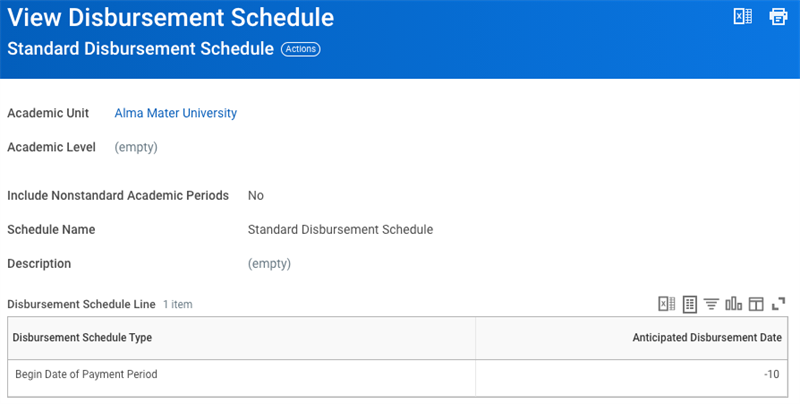
: With a calendar disbursement schedule, you can disburse an $8,000 award so that a student receives $2,000 biweekly for 8 weeks instead of in a lump sum.The image below is an example of a standard disbursement schedule. The aid disburses 10 days prior to the begin date of the payment period.
Disbursement Schedule Rules
Once you have finished creating an anticipated disbursement schedule, you need to create your anticipated disbursement schedule rules.
Once nightly orchestration determines student award items are ready for disbursement, nightly orchestration then reacts to each disbursement condition that you have created to manage disbursement. Workday evaluates each condition in your disbursement rule to determine whether a student award is ready for disbursement.
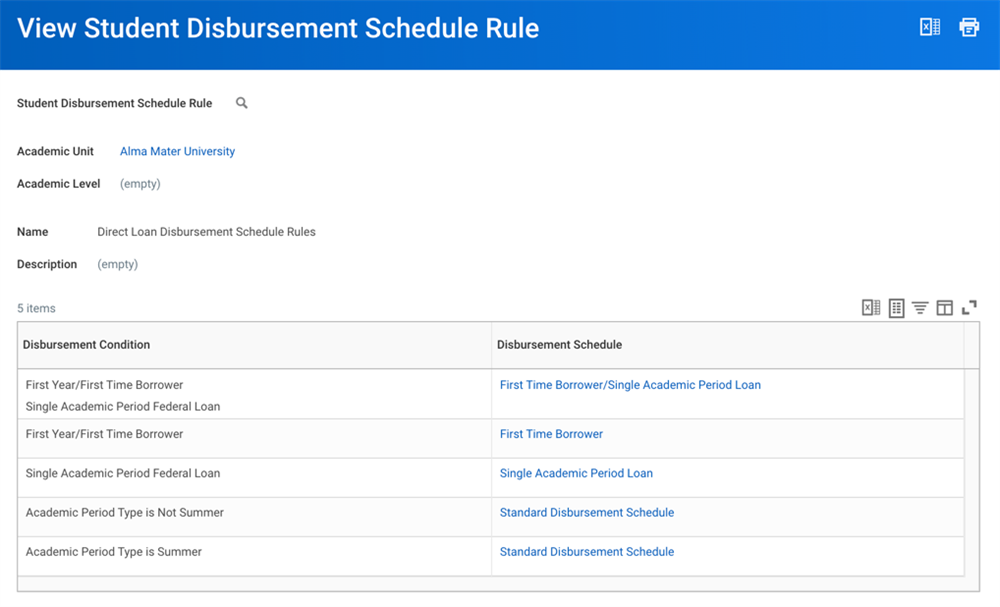
In this example, a disbursement schedules have been configured for conditions such as being a first time borrower or having a loan for a single academic period.
Use the
Create Disbursement Schedule Rule
task to configure an anticipated disbursement schedule rule. This will assign a disbursement schedule and any disbursement eligibility conditions to an AU/AL using the student disbursement schedule rule table.Disbursement Schedule Proration Rules
A disbursement proration rule compares the load status at the time of packaging to the load status at the time of disbursement to determine a value award percentage. Disbursement proration rules ensure that each student award item amount in the package is correct before a disbursement occurs. Disbursement schedule proration rules are optional and based on enrollment.
If a student's load status differs between packaging and disbursement, the disbursement job process prorates your student's financial aid. Your student's load status may be different during the aid disbursement stage if your student has added or dropped courses after packaging took place.
Once you have created and configured your disbursement proration rules, you need to assign your rules to each student award item. Workday then reacts to your student's current load status in the next nightly orchestration run:
- If the projected load status between packaging and disbursement is the same, then Workday disburses the total amount to your student's account.
- If the projected load status between packaging and disbursement amounts differs, then Workday prorates the total amount to the award percentage you configured.
You can also configure an anticipated disbursement schedule proration rule to prevent Workday from disbursing when packaging and disbursement load statuses differ at the time of disbursement.
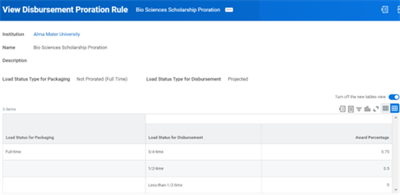
Use the
Create Disbursement Proration Rule
task to configure your anticipated disbursement schedule proration rules. When you select a load status for disbursement using this task, your selection determines which load status units the disbursement job processes at the time of disbursement.Anticipated Payment Display Rules
An anticipated disbursement date is a negative numeric value that represents the beginning date of an anticipated disbursement payment. You can optionally display a scheduled disbursement as an anticipated payment that Workday displays when nightly orchestration processes disbursement. As you configure your anticipated payment display rules, you will configure the settings that control the conditions that enable Workday to display an anticipated payment.
Once Workday displays anticipated payments, you and your students are able to view what the anticipated payments will be for a future academic period. Students will be able to view their anticipated payments by signing into their financial aid profile.
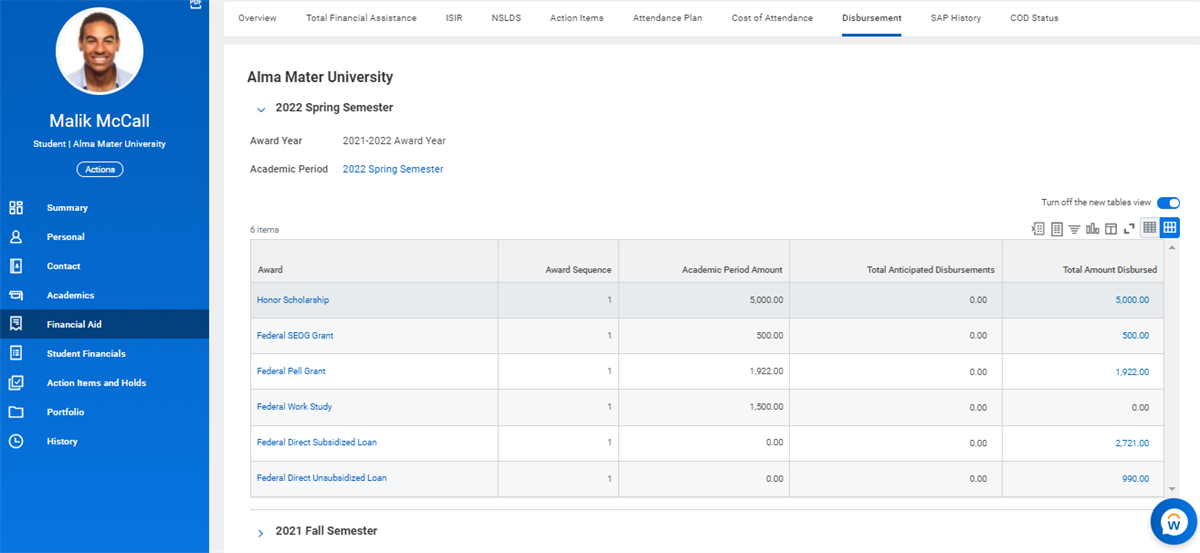
On the Financial Aid profile group, select the Disbursement tab to review total anticipated disbursement payments for an academic period.
Workday displays the student's remaining balance upon application of student loan disbursements and institutional awards.
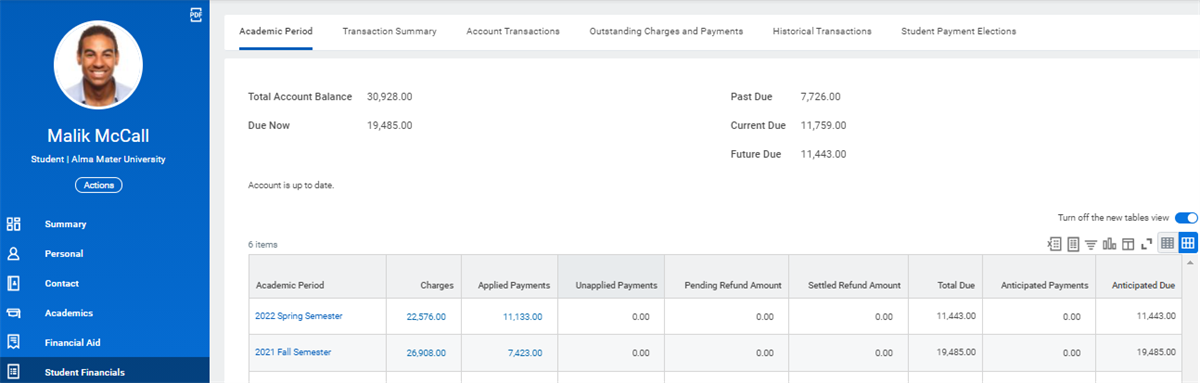
Review a student's total account balance, past due amount, current due amount, future due amount, and due now amount from the Student Financials profile group.
Once you have assigned an anticipated payment display rule to a student award item, the rule determines how long an anticipated payment displays. Workday will display an anticipated payment of a student award item until a disbursement happens or the display period that you have configured in your rule ends. Use the
Create Anticipated Payment Display Rule
task to assign anticipated payment display conditions to an AU/AL.Payment Precedence Groups
Payment precedence groups enable Workday to determine which student award items can pay which student charge items. When you configure a payment precedence group, you can also configure the charge item payment processing order for disbursement processing in nightly orchestration. You can assign a payment precedence group to a student award item by running the
Create Student Award Item
task.Award Items
Student award items are the individual awards that you add to your student's award package. Every student award item that you create in Workday represents a different financial aid line item that your education institution offers to students.
- Each individual student award item represents a type of financial aid payment available to students (other than a sponsor contract or waiver).
- Award items that you will create in Workday are for need packaging, merit packaging, or both.
Workday will use the need or merit packaging strategy you have configured to add a student award item to your student's financial aid package. Once you have finished creating a student award item in Workday, you will create and assign an award item to one or more packaging strategies. A packaging strategy supports the mass evaluation and assignments of student award items for student populations during award packaging. Nightly orchestration will ignore existing or locked awards based on the settings you have configured for an award packaging strategy.
The types of packaging strategies that you configure will differ in Workday because each student award item that you package for an AU/AL is different. The reaction framework will react differently during need and merit packaging because the reaction framework reacts to two separate types of financial aid data that update overnight.
Creating Award Items
When you create a student award item, you configure several award attributes. These attributes impact how a student award item behaves once assigned to an award packaging strategy. The following table lists the award item attributes that you will configure during student award item creation before Workday Financial Aid can establish award item relationships:
Award Item Attribute Type | Award Item Attribute Usage |
|---|---|
Award Calculations | The calculations you create will determine student eligibility and award amounts. |
Award Types | You need to create award types for grants, loans, and work-study, which you will assign to a student award item. |
Precedence Groups | You need to define the order that student award items in a student's award package will be disbursed by creating and configuring precedence groups. You can also use precedence groups to establish relationships between student charge items and student award items that offset student charge item costs. |
Fiscal Limits | You need to define what the monetary caps are for each student award item that you create and include in award packages. |
Loan Fees | You need to configure whether Workday applies any loan fees during loan disbursement and define what amounts are charged. |
Disbursement Schedule | You need to create a schedule for each student award item, which will manage when disbursement to a student account occurs. |
Disbursement Proration Rules | Disbursement proration rules prorate the amount disbursed to your student's account if your student's load status is less than full-time. A disbursement proration automatically occurs when you manually release a disbursement to a student's account. |
Anticipated Payment Display Rules | An anticipated payment display rule determines if the amount in an award item counts as an anticipated payment. |
Once you have finished preconfiguring each award item attribute, you can begin creating student award items in Workday Financial Aid. Use the
Create Student Award Item
task to create a student award item. Use the Find Student Award Items
report to locate previously created award items.Considerations for Award Item Creation and Maintenance
Effective Dating
Creating award items follows the Workday concept of effective dating. Through effective dating, Workday tracks all changes made to an award item. Each change matches against the previous version of the award item, thus allowing a single award item to exist in multiple versions across time. As award items and academic periods both follow effective dating, it is critical to be aware of a distinction. The effective date of an award item must the start date of the academic award year (i.e. 07/01/XXXX).
Maintenance
As you begin to create award items for assignment to financial aid packaging, it is important to develop a philosophy and plan for award item maintenance. Institutional changes to award items, typically on an annual basis, can be time-consuming and problematic for maintenance if not handled properly. Workday recommends using a single award item for financial aid award items that change regularly, rather than creating an entirely new award item for each calendar year. As Workday applies effective dating to any changes, updating an award item each year enables the same award item to have different versions that exist across time.
Configuring the Award Item Header
The award header contains the Details section and the Award Information section. As you create your student award item, you must configure settings for each of the following fields:
Field Name | Field Data Usage |
|---|---|
Effective Date | The Effective Date field is the date that your award item will be available for award package processing. The effective date that you should assign is the first day of your financial aid award year. For example, an effective date of 07/01/2021 represents the first day of the 2021-2022 borrower-based financial aid award year. Avoid modifying the effective date of a student award item once you have assigned it to a packaging strategy.
|
Inactive | Selecting the Inactive checkbox prevents you, other team members in your office, and Workday from adding a student award item to an award package. |
Type | The Type field determines whether the award item is for a grant, scholarship, federal loan program, or work-study. Type is a required field. Workday uses the type you assign to identify whether an award item you are creating is a scholarship, Pell grant, direct loan, or work-study student award item. Once you select the type of financial aid program for a student award, additional fields will display on your configuration page. You need to configure the additional settings that display after you have selected a type. For example, if you select the work-study type, additional fields will display that allow you to assign allocations to your work-study student award item. |
Disbursable | Selecting the Disbursable checkbox indicates that Workday can automatically disburse a student award item to a student's account. Selecting the Disbursable checkbox also enables any disbursement rules and disbursement schedules that you have configured for your student award item.
|
Federal Program ID | For award items funded by a federal financial aid program source, you need to assign the federal program ID that the ED has issued to your school. Workday uses the federal program ID to identify whether the student award item you are creating is a Pell grant, direct loan, or federal work-study. |
State Program ID | For award items funded by a state financial aid program source, you need to assign your school's state program ID. |
Code | Only used during financial reporting, the Code field does not affect financial aid processing within Workday. |
IPEDS Category | Integrated Postsecondary Education Data System (IPEDS) is the system that the National Center for Education Statistics (NCES) uses to collect financial aid data from schools that participate in IPEDS.
You can assign an IPEDS category to a student award item that you are creating:
|
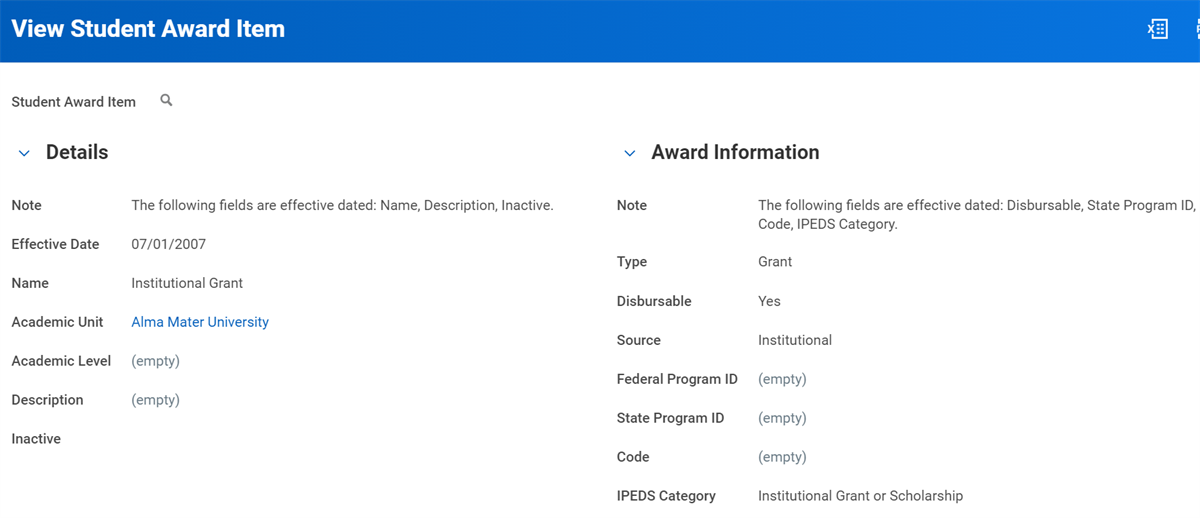
In the example below, an award at AMU, effective 07/01/2007, is classified as a institutional grant or scholarship.
Configuring the Packaging Tab
The Packaging tab is where you configure the setting used when assigning the award item to a financial aid package for a student.
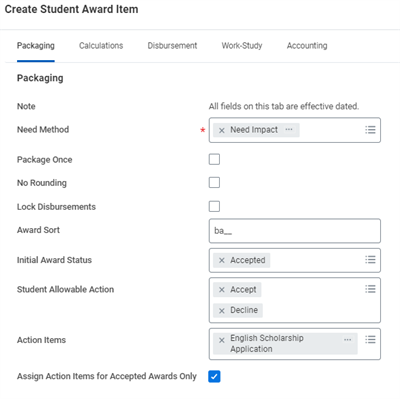
The need method that you select in the need method field impacts the award packaging strategy that you will create after you have created your student award item. The need method you assign also determines whether your student award item impacts the unmet need amount that Workday calculates for your student.
Note
: The formula that Workday Financial Aid uses to determine your student's unmet need is:COA - need - SAI - financial aid = unmet need.
Selecting a need method enables nightly orchestration to react during merit and need package processing. During processing, nightly orchestration uses the need method that you have assigned to determine whether:
- Workday reduces your student's unmet need amount after assigning a student award item to your student's award package.
- Workday excludes the amount from 1098-T box 5 in a student's tax statement from your student's award package.
As you configure the Packaging tab for your student award item, consider the following settings:
Option | Description |
|---|---|
Need Method | This field works with the packaging strategy to determine how the award impacts the student's unmet need and unmet cost of attendance (COA). On a merit packaging strategy:
On a need packaging strategy:
|
Do Not Package if Parent has Loans in Default | Select to prevent Workday from packaging the award when the parent who applied has loans in default. This checkbox only displays when the award item has a Federal Program ID of PLUS Loan. |
Package Provisionally | Select to package students with PLUS Loan awards provisionally, even when they do not have a PLUS Loan application associated with the award. This checkbox only displays when the award item has a Federal Program ID of PLUS Loan. |
Package Once | Select to lock the award after Workday packages it once. |
No Rounding | Select to prevent Workday from rounding award amounts when packaging financial aid. If not selected, Workday rounds award amounts to the nearest whole number and applies any variances to the final disbursement of the award. |
Lock Disbursements | Select to prevent Workday from reducing the amount of a disbursed award, even if the student's award eligibility changes when you rerun packaging. Example: The student was eligible for and received a Federal Direct Unsubsidized Loan disbursement. They drop courses and go from being a full-time to a half-time student. When you repackage the student's financial aid, Workday does not change the amount that is already disbursed, even though the student might not be eligible anymore. Workday overwrites your Lock Disbursements configuration with any changes that you manually make to an award and lock. Because Pell Grant disbursements might vary based on the Pell Recalculation Date, Workday recommends that you do not select the checkbox for Pell Grant award items. |
Award Sort | Identify the order in which you want to display the award items. You can view the order on the Find Student Award Items report. You can use up to 4 characters. The order is alphabetical. Example: a before b , ab before ba , and aaa before aab . |
Initial Award Status | The status of the award when you first package it. The status changes if you select the Package Provisional Awards checkbox when you run the Package Merit Financial Aid or Package Need Financial Aid tasks. If you leave the field empty, the status automatically populates to Accepted, unless the award item type is Loan or Work-Study. When the award item type is Loan or Work-Study, the status automatically populates to Offered. |
Student Allowable Action | Specify how students can respond to the award offer. Select Accept Partial if students can accept less than the full award amount. |
Action Items | Select the action items that you want to assign to students. When students receive this award in a financial aid package, they receive the selected action items in their Inbox. Select the Direct Loan Subsidized/Unsubsidized Entrance Counseling and Direct Loan Subsidized/Unsubsidized Master Promissory Note boxes if the award item is a Federal Direct Loan. |
Assign Action Items for Accepted Awards Only | Select this checkbox if you only want to assign an action item after a student accepts the award. |
Configuring the Calculations Tab
Earlier during this course, you learned how to configure calculation types for financial aid management. The Calculations tab is where you configure the calculation settings of a student award item that you are creating.
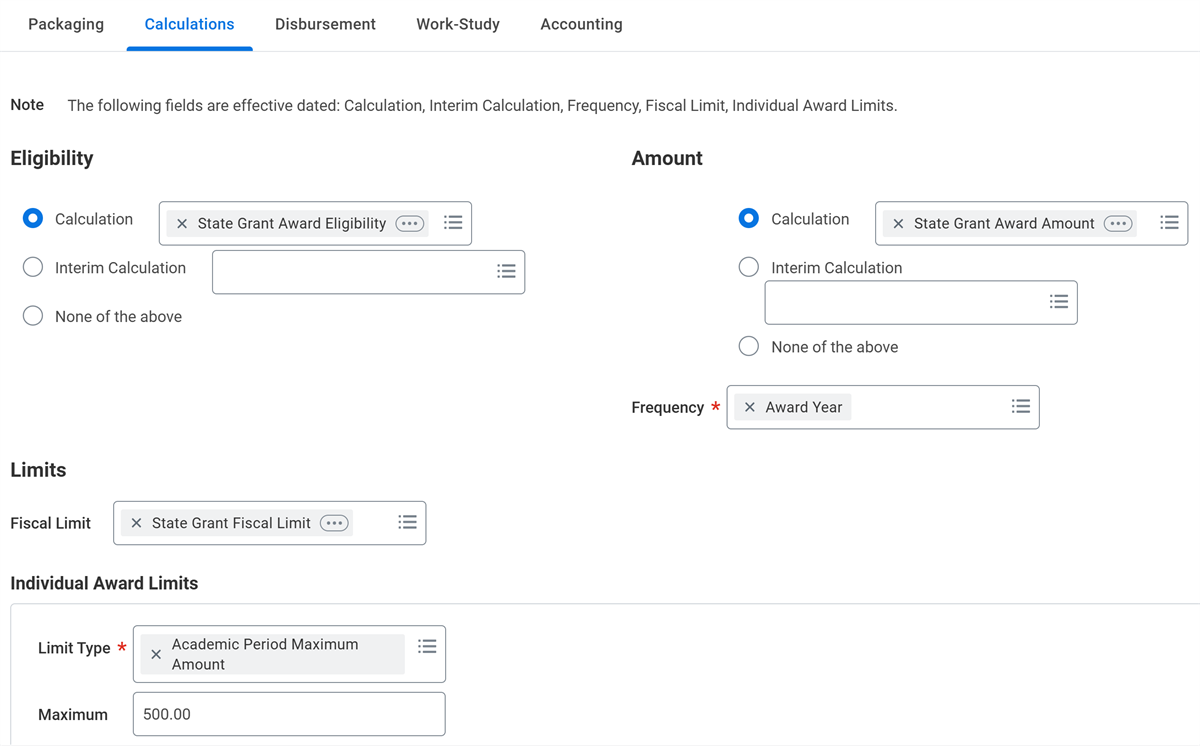
You can use the Calculations tab to configure:
- A student award eligibility calculation.
- The calculation details of an award item (for example, Pell).
- Effective dates for an award amount calculation.
- Frequency (for example, award year).
- Any fiscal or individual award limits.
To access the calculation details of an award item, select each calculation's Related Actions from the award's Calculations tab.
Note
: As you configure the attributes found within the Calculations tab:- Using Workday-owned calculations for student award item calculations is optional.
- You can opt instead to develop your own lookup tables and lookup table calculations for your student award items for an award year.
- Workday only supports rounding percentages by a half of a percentage (0.05%).
- An award item lookup table is useful when you begin your packaging for the next award year, and you have not had the opportunity to create new lookup tables for your student award item calculations in your tenant.
- If you have not had the opportunity to create new lookup tables for the next award year, you can package your student award items for the latest award year by using the award item lookup table from the previous award year.
- The value supplied in the default response field of a Workday-owned calculation is the award item lookup table for the latest award year.
- A conditional calculation displays the award year and lookup table for an award item.
Overview of Fiscal Limits for Student Award Items
Fiscal limits enable you to assign overarching limits to packaging of an award item across all package lines. With fiscal limits, you can limit:
- The total amount that your student can receive in an award year for the student award item.
- The total number of students eligible for awarding of an award item during an award year.
To create a fiscal limit to a student award item, you first have to configure an annual maximum amount that a student can receive for an award item. If a student reaches the fiscal limit setting you configured, Workday prevents any packaging from exceeding these limits.
If you need to package your student's awards manually, you must review your student's award package to ensure that you are requesting the maximum amount of financial aid that your student is eligible to receive for each student award item. Configuring caps for maximum amounts of student award items prevents you from requesting financial aid assistance that is above what the federal student aid (FSA) limits are for each student award item.
Creating a Fiscal Limit for an Award Item
Use the
Create Fiscal Limit
task to create a fiscal limit for an award item. You need to configure the maximum amounts eligible across awards packaged, accepted, and disbursed for a student award item for a financial aid award year. A fiscal limit will not count toward any cap of an award when said award items have one of the following statuses:- Declined
- Canceled
- Provisional
You need to enter the following values in the following fields:
- Amount to package:The total maximum amount of all student award items that a student can receive during a financial aid award year. Workday will stop packaging an individual student award item once a student reaches the fiscal limit of an award item.
- Maximum number of students to award:The maximum number of students Workday will package of an individual student award item for an award year. Workday stops packaging an individual student award item upon reaching the maximum numbers of students packaged.
- Amount to accept (an information-only field):The total maximum amount that you expect your student is willing to accept for all student award items.
- Amount to disburse (information-only field): The amount of a student award item that you expect the ED will approve for disbursement.
Configuring the Disbursement Tab
The Disbursement tab is where you configure your disbursement rules and a disbursement schedule for a student award item that you are creating. As you assign a packaging strategy for disbursement to an award item, you need to establish a relationship between a packaging strategy and a student account that funds disburse to.
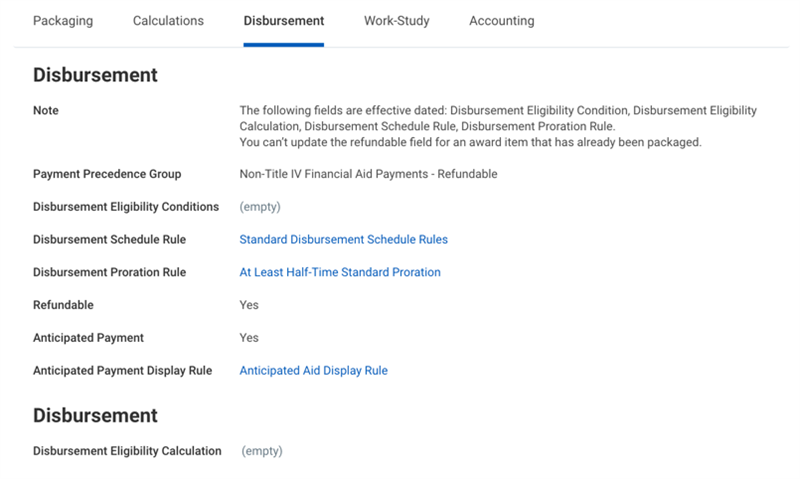
Example
: When you create a Parent PLUS loan application in Workday Financial Aid, Workday Financial Aid automatically links the data from your loan application with:- The PLUS loan student award item in your student's package.
- Your student's account.
Because Workday Financial Aid automatically links a loan application with an award item and a student's account, the anticipated payment amount displayed for the Parent PLUS loan in your student's award package will automatically update if you later modify the Parent PLUS loan application.
- If you have opted to configure an anticipated payment display rule for the PLUS loan student award item, Workday can also automatically determine whether to apply an anticipated aid disbursement or billing adjustment when a PLUS loan is ready to disburse.
- If you have opted to configure a disbursement schedule for your PLUS loan student award item, Workday can also automatically determine when a disbursement or billing adjustment should occur.
Configuring Student Loan Fees
A loan fee is the origination fee associated with a federal loan. Use the
Create Loan Fee
task to configure a loan fee type and loan fee percentage for an academic year. Loan fees are automatically effective dated for October 1 of the financial aid award year that you specify. Workday assigns a loan fee percentage in the Loan Fee Percent column, and in the academic year assigned in the year (Effective October 1) column of the loan fee table.Additional Award Item Types
Loans
You can use the
Create Student Loan Application
or the Create PLUS Loan Application
task to create and maintain a student loan application for a student loan. When you create a student loan application, you need to specify citizenship status, date of birth, and Social Security number in a loan application.Upon receiving a new or updated loan application, the loan submission triggers need packaging automatically.
- Need packaging awards a loan amount based on the loan amount requested or based on the maximum loan amount request indicator. When a loan application does not exist for a student or parent, need packaging awards a PLUS loan as a provisional award.
- Once you have manually reviewed and approved the loan application, need packaging will either package a newly accepted PLUS or update a provisional award for acceptance.
- Workday Financial Aid will then use COD outbound and inbound integration to update and report a Parent or Graduate PLUS loan to COD.
To identify the borrower for a loan application, Workday uses the Relationship to Student field. This field will have a value of Biological Parent, Legal Adoptive Parent, Spout of the Biological or Legal Adoptive Parent, or Other.
Teach Grants
Workday provides comprehensive support for TEACH (Teacher Education Assistance for College and Higher Education) Grants. Delivered functionality supports creation and collection of necessary documentation for awarding of TEACH Grants, award calculations, and integration templates to supported automated management of TEACH Grants. Functionality includes the following areas:
- Action Items: Use theCreate Financial Aid Action Itemtask to create TEACH Grant Agreements to Serve and TEACH Grant Counseling.
- COD Processing: Inbound/outbound integrations to support action item processing and related ISIR data needs.
- Calculation: TEACH grant calculation used to determine grant awarding as part of financial aid package.
Health Professions Loans
Workday provides dedicated functionality in support of health professions loans. Health professions loans contain specific needs regarding packaging amount, program designation, and automatic award limits. Additionally, health professions loans have the following configurations:
- Federal Student Aid Program Rule Set: Selecting the Health Professional Additional Unsubsidized Loan checkbox triggers validations for program length and approved accreditation tier. You can create a Class Standing Override grid when each year of a program has a different length.
- Packaging: Automatic packaging and disbursement of additional unsubsidized loans up to the highest aggregate limit.
Packaging Strategies
You can configure a packaging approach for a merit and a need packaging strategy that you assign to a student. The order you assign to award items within a packaging strategy determines the order of award item packaging during nightly orchestration.
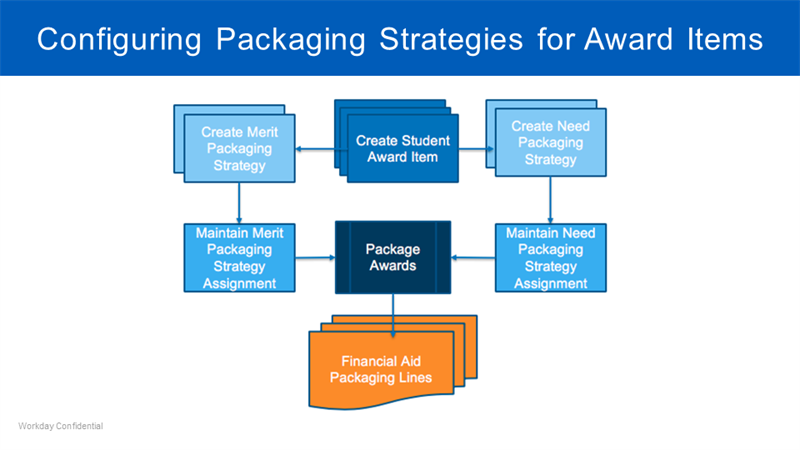
Creating and configuring a packaging strategy is a three-step process.
- During the first step, run theCreate Student Award Itemtask and create each of your need-based and merit-based student award items.
- During the second step, run theCreate Need Packaging Strategytask andCreate Merit Packaging Strategytask and create your conditional logic "If" statements for your packaging strategy.
- Configure the order that nightly orchestration packages each student award item by selecting the up and down arrow icons.
- As you configure a need packaging strategy, you can also configure whether nightly orchestration should recalculate a student's SAI calculation for any need-based student award items.
- You can require COA for a student award item by selecting the COA required checkbox.
- During the third step, use theMaintain Need Packaging Strategy Assignmentstask and theMaintain Merit Packaging Strategy Assignmentstask to assign each need-based and merit-based student award item that you have created.
Tip
: Workday suggests that you consider the following before you begin creating and configuring packaging strategies for nightly orchestration:- Consider why you need a packaging strategy and simplify your strategy before developing your conditional logic for whether to package need-based and merit-based student award items.
- Limit your packaging strategies and always try to control award item eligibility. Create conditional calculations for your student award items instead of using conditional logic statements in a packaging strategy.
- In situations where you do decide to add conditional logical statements to a packaging strategy, you should always include a default condition that captures any student who does not meet an "If" condition.
- Limit creating custom packaging strategies for AUs/ALs or POSs whenever possible. The Maintain Packaging Strategy Assignment configuration does not evaluate like the policy framework feature.
After you manually create your student award items, you need to associate each student award item with an award packaging strategy. The packaging strategy determines assignment of award items to students. After generating an award package for a student and the amount of total financial assistance (TFA), Workday also updates the financial aid profile of each student.
- An updated TFA amount reflects any additional amounts of aid for each student award item added to a student's award package.
- If you modify the maximum amount or calculated amount of a student award item at a later point in time, your student's total financial assistance will automatically update to reflect the changes you have made.