
Award Packaging and Disbursement
Overview
This chapter explains how to complete disbursement processing in Workday. After completing this chapter, you will be able to:
- Manage Packaging Strategies.
- Create and View a Financial Aid Package.
- Configure disbursements.
- Use disbursement tasks to manage disbursement payments.
- Initiate common origination and disbursement.
- Transmit loan data during the aid disbursement financial aid processing stage.
After creating student award items and adding them to award packages, Workday automatically transmits each students award package to the ED for approval. The ED will evaluate and approve each transmitted award package. Once the ED approves any federal student loans that you have included in each award package, the ED will send your office an approval notification for each individual student. Once you have received a disbursement approval for an individual student, your office can begin the aid disbursement stage and disburse funds to your individual student.
As your office completes disbursement processing, your school credits institutional financial aid funding awarded to your student's account before crediting Title IV financial aid program funding. The award amounts that you credit need to offset any academic period student charge items applied to your individual student's account.
Objectives
By the end of this chapter, you will be able to complete the following in Workday Financial Aid:
- Manually package financial aid.
- Simulate and edit financial aid packages.
- Identify total financial assistance for an award package.
- Configure student financial aid self-service.
- Create and configure student charge items.
- Manually disburse financial aid awards.
Financial Aid Packaging in Workday
Unlike many other financial aid management systems, you need to package your student's aid for an academic year in Workday on a period-by-period basis. This is because Workday segregates the borrower-based academic year into separate academic periods. Workday refers to each of these separate academic periods as packaging instances. You cannot package aid for a student for an academic period until you have finished processing any assigned action items with a hold step of packaging.
Touchpoint
: Packaging also includes Student Financials touchpoints where funds, student contract waivers, refunds, and disbursements post to a student's account. More information about Student Financials touchpoints is available in Workday Community.Holds on Award Packaging
Financial aid packaging holds prevent you from packaging awards in Workday Financial Aid. Use the
Apply Student Hold
task to manually apply holds to your student's record. You can also apply a disbursement hold by accessing the Create Student Award Item
task and selecting Disbursement Hold Exists from the Disbursement Eligibility Conditions field.Note
: When you remove a need or merit hold, Workday automatically reevaluates a student's financial aid package.Workday also enabling you to lock or unlock large volumes of awards using Mass Operation Management (MOM). This increases your productivity by removing manual effort and lowers the risk of errors.
Packaging for Applicants
To be competitive, many institutions require a way to provide a complete financial aid offer before matriculation. Financial aid packaging for applicants provides a holistic picture for the prospective student to make an informed decision regarding their institution of higher learning. Packaging for applicants enables prospective students to compare institutions across all aspects of the educational offerings, including a relative final cost for each institution. Packaging for prospective students is only available at the applicant stage. An industry norm is to provide financial aid packages to students an institution chooses to admit.
Workday provides dedicated financial aid functionality for prospective students. The ISIR Progression Policy allows you to configure when Workday activates an ISIR against certain enrollment milestones:
- Student is admitted - decision is confidential internal:ISIR activates upon an applicant having a final admission decision of admit, but this decision is not publicly available.
- Student is admitted - decision is publicly available:ISIR activates upon an applicant having a finalized admission decision of admit and this decision is publicly available.
- Student is matriculated:ISIR activates upon matriculation.
Use the
Configure ISIR Progression Policy
task to create and assign an ISIR progression policy by award year, AU, and AL. ISIR progression at the applicant stage enables an applicant to flow through your financial aid processes just as a matriculated student would. The ISIR then flows through nightly orchestration via the same processing order discussed earlier in this course. The reaction policies that you use for students also apply to applicants.Once applicants reach an admissions status of Admit - Publicly Available, they can manage their action items in the external student site. Applicants use the external student site to manage their recruitment, application, and financial aid functions before matriculation.
For applicants, there are a few miscellaneous differences in the financial aid operation:
- There is no financial aid overview page on an applicant profile (administrator view).
- COD outbound integration will not pick up applicant awards.
- Since there are no charges for applicants, there is no anticipated aid for applicants.
- Applicants cannot have sponsor contracts or waivers.
Upon matriculation, Workday then copies the items listed below to the student record:
- ISIR
- Action Items
- Attendance Plan
- Cost of Attendance
- Merit Packaging
- Need Packaging
The copy begins at the point of matriculation. At that point in time, the financial aid overview becomes available on the student profile. The ISIR and action items also move from the external student site to the student record. The student then manages their financial aid tasks in Workday via their provided sign-in credentials. The student completes action items via tasks sent to their My Tasks. At this point, any future financial aid processing happens via the student record.
External Site for Financial Aid
An important and versatile feature of the Workday Student system is the external student site. The external student site is a customizable portal that student prospects can use to interact with your institution without having to sign in. Institutions can create and set up the external student sites to allow prospects and applicants to view and perform a variety of tasks. You can create multiple external student sites based on academic unit and academic level.
You can use the external student site to grant users access to public and authenticated tasks. A public task does not require sign-in credentials or an account. For example, viewing a recruiting event calendar is a public task. The recruiting event calendar is available for anyone to view, so anyone can view the calendar, whether signed in or not. Whereas authenticated tasks need sign-in credentials or an account. For example, filling out an application for admission and viewing a financial aid application summary are both authenticated tasks.
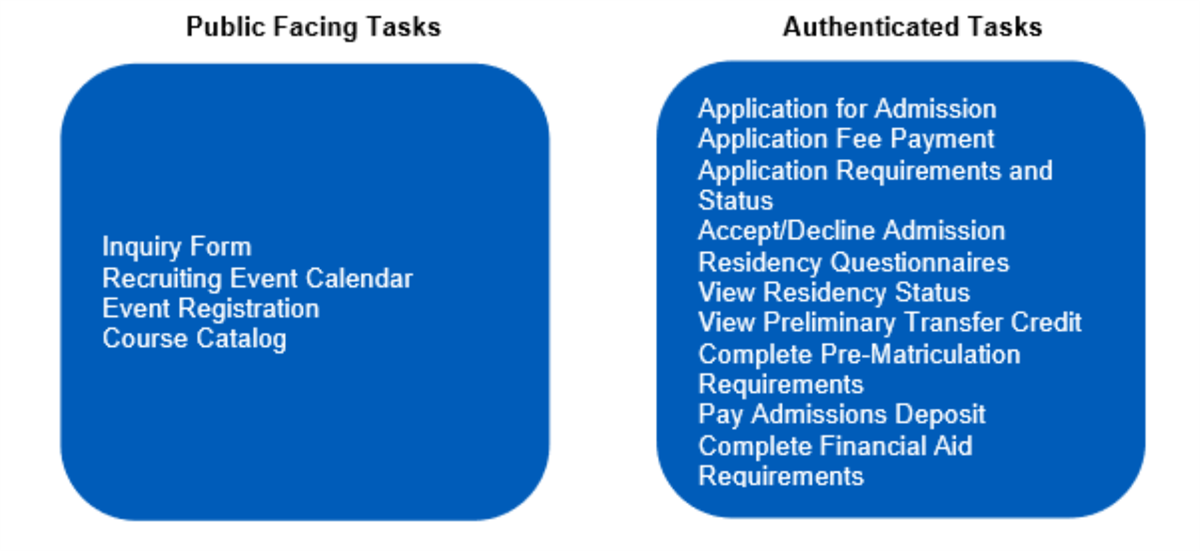
You can easily configure the external student site to include your institution's branding, and terms and conditions. You can include links to your institution's social media and include any help text to display on the site. This feature makes it easy for prospects and students to interact with your institution. The system pulls any information entered on the external student site directly into your tenant, eliminating the need for duplicate data entry efforts.
Use the
Configure Financial Aid for External Student Site
task to configure financial aid management for the external student site:- Allow applicants to print a College Financing Plan.
- Allow applicants to view and print an Award Letter.
- Enable financial aid action items.
- Configure help text.
- Determine display of indirect costs.
Financial Aid Configuration Tool
The confluence of financial aid policies, academic units, configurations, attendance plans, and packaging strategies create a complicated structure that leads to the ultimate goal: awarding financial aid. Use the
Financial Aid Configuration Tool
to assess financial aid configuration across:- Academic Unit / Academic Level
- Program of Study
- Students
When selecting an AU/AL/POS, Workday runs the selected academic policy to determine its status and application. When selecting student (or applicants), you can use the tool to determine what data Workday applied to financial aid packaging/attendance plan for a given academic period.
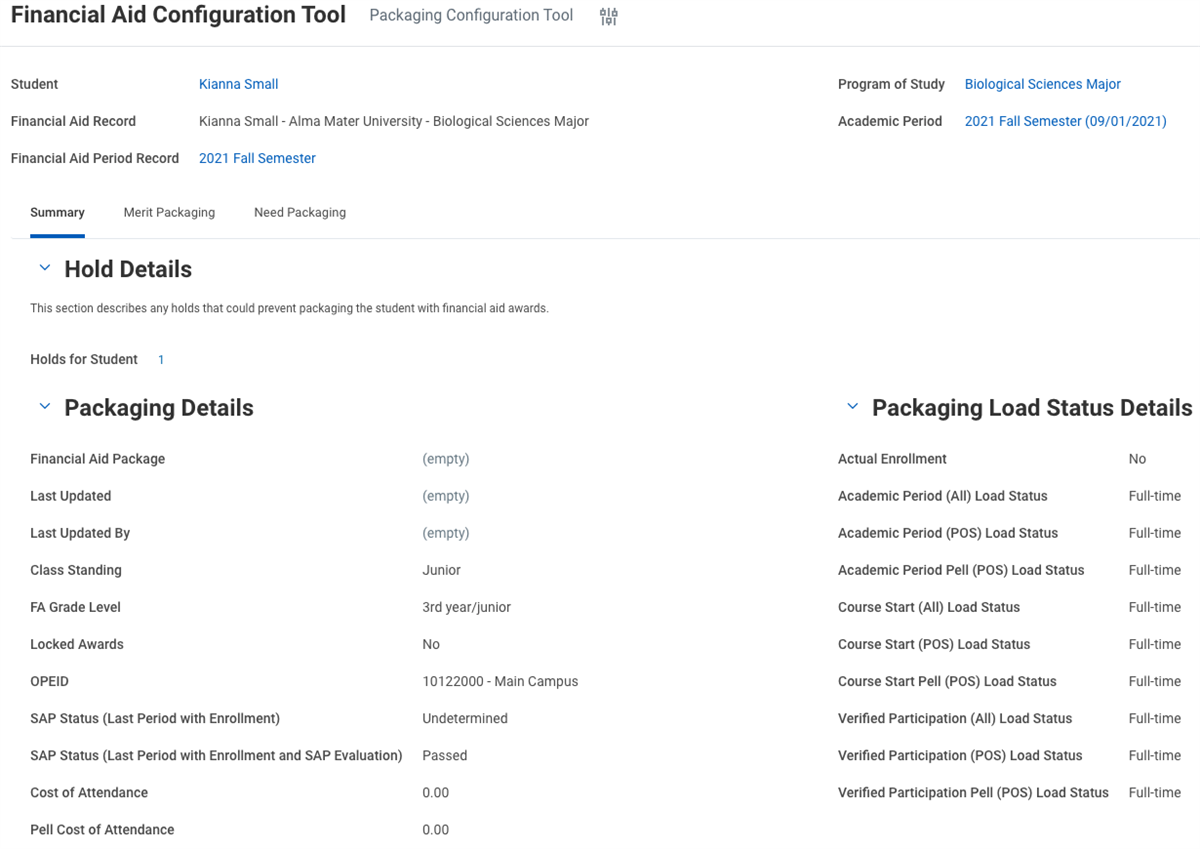
In the example above, the student has one hold, a Junior class standing, a Passed SAP status, and was packaged based on a full-time load status.
Updating an Award Package
After you package financial aid for your student, other Workday Student touchpoints use this financial aid package to determine your student's anticipated aid. Once your student accepts an award item, your student's award package automatically updates when nightly orchestration runs. Nightly orchestration updates the amount on the student award item and in TFA. A student's anticipated aid influences a student's account after:
- Student packaging.
- A student has accepted an award amount.
- Workday Financial Aid has updated a student award item's status to "Accepted."
There are three methods for adding a new student award item to an award package:
- Initiating the packaging job manually or through nightly orchestration.
- Importing an award item from a Workday Enterprise Interface Builder (EIB) web service. Workday automatically updates the external object data of the student award item and adds the item to an award package.
- Adding a new student award item manually to an award package by editing Total Financial Assistance (TFA).
Tip
: You can manually add a Federal Direct Unsubsidized Loan for students who have a rejected FAFSA if they are flagged as having a special circumstance. An example would be a case where parents refuse to provide information on the FAFSA.Total Financial Assistance
You can review each award item in the award package by:
- Selecting the Total Financial Assistance tab.
- Selecting the award year instance that you need to review, then the edit button to make changes.
TFA displays all student award items that a student has within their aid package for an academic period, including scholarships received from external sources.
The Total Financial Assistance (TFA) is a comprehensive summary of the financial aid that your student is receiving, as well as all relevant financial aid assignment data. Navigate to TFA on the financial aid tab of a student's profile. The following columns display the TFA for each award item within a student's award package:
Total Financial Assistance Field Details Columns | Column Details Purpose |
|---|---|
Awards | Displays the name of an award item. |
Award Year Amount | Total amount awarded during an award year. |
Current Award Year Amount | Total amount awarded to the student for the current award year. |
Sequence | Primarily used to manage multiple loans in an award year. |
Academic Period | Academic period for a packaged or received award item. |
Lock | Locking prevents Workday changing a student's award package during nightly orchestration. |
Manual | Identifies any past manual updates to TFA. |
Academic Period Amount Awarded | Amount awarded for the academic period. |
Academic Period Amount Accepted | Amount of an award that a student accepted for the academic period. |
Academic Period Disbursed Amount | Amount disbursed to a student for the current academic period. |
Loan Application | Displays PLUS and private loan applications. |
Student Award Status | Identifies the status of the award item. |
Selecting the magnifying glass in an award item row displays the details for a student award item selected. Select the Edit button to launch the
Edit Total Financial Assistance
task. Choose the Add Row icon to manually add a new award row to the award package.To find the reason for a change to an award package, select the View History button under the Total Financial Assistance tab on a student's profile. Select the Compare Data Used button and then choose the two award packages you would like to compare. Attendance plan information will display side by side, or you can select the View Data Used Changes subtab to only view the data that changed between the two packaging plans.
EIB for External Award Items
The second method for adding an award to a student's award package is when Workday automatically imports external award item data from an Enterprise Interface Builder (EIB).
- External awards are awards that are noninstitutional forms of financial aid assistance, such as student loans, sponsored scholarships, and sponsored grants.
- A Workday EIB is a tool that supplies users with both a guided and graphical interface. Inbound EIBs import data from a specific source and transfer data directly into Workday.
When Workday adds an external award to your student's award package, nightly orchestration automatically reassesses your student's award package and recalculates your student's TFA. Workday also follows any reaction reasons that you assigned when you configured nightly orchestration for need and merit packaging.
- The reaction framework automatically checks the EIB data repository of external award components. External award components are objects in the EIB repository that contain data about an external financial aid student award item.
- When you create an external award item, Workday automatically creates an external award object in the EIB repository that contains the settings that you configured for your external award item.
- Workday uses settings that you configured during external student award item creation to manage outbound and inbound transmissions of financial aid data between Workday and an external award financial management system.
Configuring Student Financial Aid Self-Service
Student self-service tasks and reports enable your students to access and update their own information in Workday. Students can access student self-service tasks and reports from:
- The landing page through the student's Finances hub.
- A student's Related Actions menu.
- Within a student's profile.
The Finances hub on the student's landing page provides quick access to financial aid action items, recent account activity, outstanding charges, and SAP information. There are also links to items on the student profile.
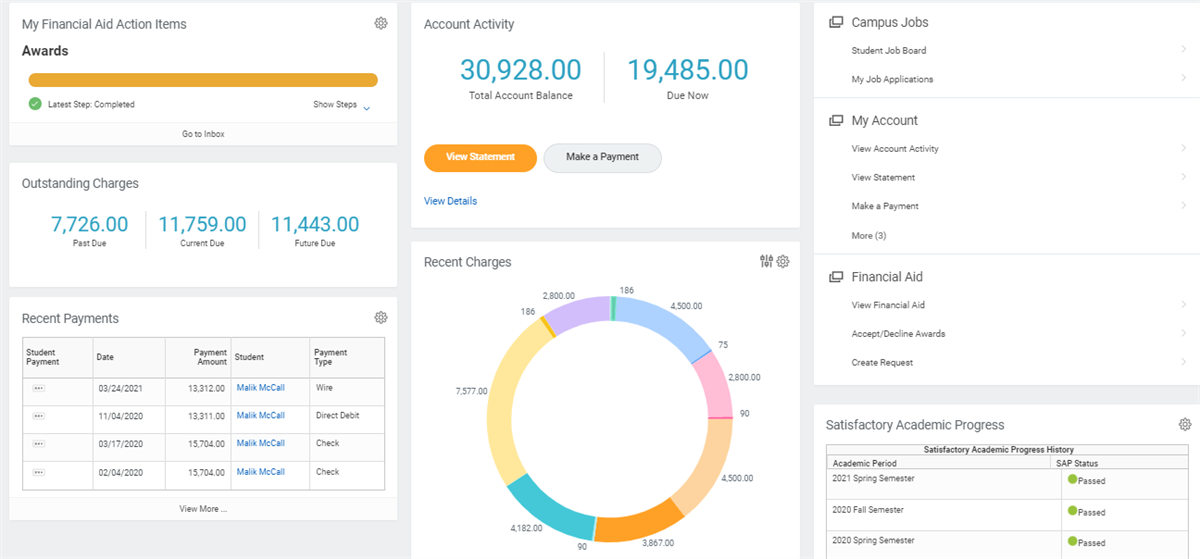
The student profile provides detailed personal, academic, and financial information for a student.
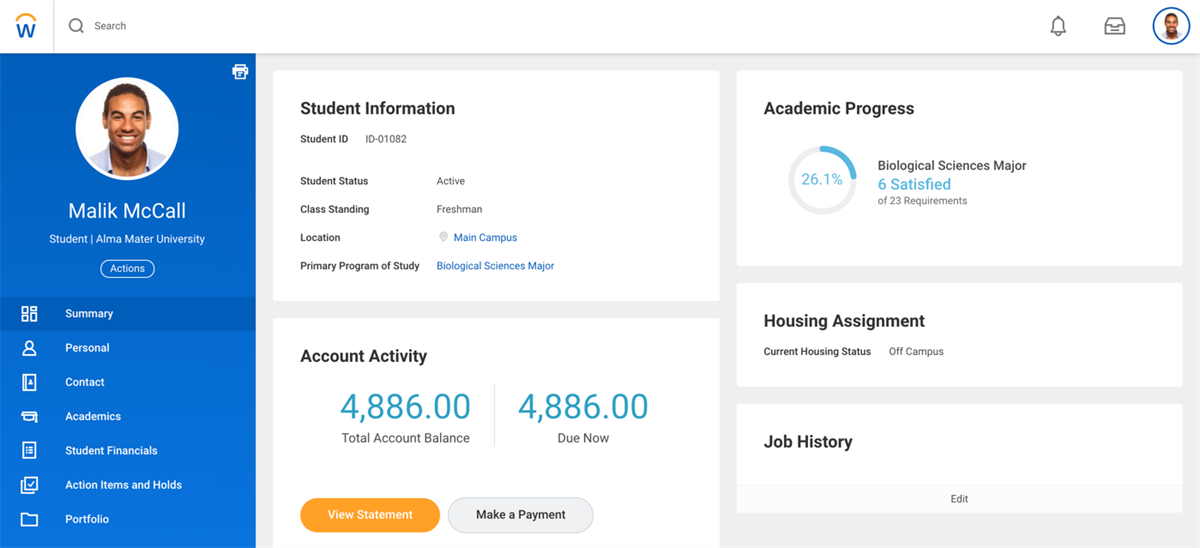
The Financial Aid portion of the student profile displays:
- An overview.
- Total Financial Assistance and Cost of Attendance.
- ISIR information.
- NSLDS transactions and aggregate usage.
- Action Items and their current status.
- Attendance plan information.
- Disbursement information and COD status.
- SAP history.
Creating and Configuring Charge Items
A student award item offsets a student charge item in Workday. Student charge items are based on the types of charges that your school's institutional policies permit you to charge students. You need to create student charge items for every AU/AL in your tenant's academic structure. Student charge items impact the types of adjustments that you can make within a student's account.
In addition to charge types, Workday also enables you to assign due dates to charge items as you create them. Workday calculates a due date of a charge item according to the settings that you configure in a due date rule for a student charge item. If a charge item has no due date assigned, Workday automatically assigns the standard academic period start date as the default due date.
You can create and edit student charge items for an AU/AL by running the
Create Student Charge Item
task or the Find Student Charge Items
report. To create and configure a student charge item assignment, run the Maintain Student Charge Item Assignments
task.Note
: Workday automatically assigns a student charge item cost when a charge item is missing an "If" statement in the cost assignment table.Use the
Run Student Financials Processes by Period
report to assign student charge items to students outside of nightly orchestration. For in-depth knowledge on student charge items and charge item assignments, review the Student Financials for Administrators course offered by Workday.Disbursing Financial Aid
Workday disburses financial aid on the days that you configured the disbursement job process to run during nightly orchestration and your disbursement schedules. However, in certain situations you may need to manually initiate aid disbursements before nightly orchestration has an opportunity to run the disbursement job process.
Workday reevaluates student eligibility requirements. When you manually disburse payments for a selected student, Workday performs the following steps in the order provided:
- Workday locates all packaged student awards for a selected award year and academic period.
- Workday determines which disbursements to make by confirming that:
- The anticipated disbursement date is on or before the current date.
- The student has met all disbursement eligibility criteria.
- All action items assigned to the student through a disbursement hold are complete.
- Workday applies the disbursement to student charge items in a student's account according to how you configured your payment precedence rules.
Note
: Use the Maintain Federal Student Aid Authorizations Policy
task to configure authorizations for Title IV aid to apply toward noninstitutional charges. You can configure student authorizations and parent authorizations for the PLUS loan.- Workday prorates payments based on a student's load status at the time of disbursement:
- Workday prorates any student award item award amounts in your student's financial aid package before applying a disbursement to your student's account.
- After disbursement, every award amount should offset an existing related student charge item on your student's account.
- Workday reports disbursements that exceed a student's charges as unapplied payments on a student's account.
- Workday automatically adjusts anticipated and actual disbursement amounts when you repackage a student award after an award amount changes.
You can configure business processes for the disbursement job process to require approval of a disbursement. You can also manually run a bulk disbursement for all students in Workday by using the
Run Student Financial Aid Processes by Period
report.Overriding Disbursement Payments
You may need to exercise professional judgment in deciding whether to waive a student eligibility requirement so a disbursement can take place. Workday enables you to use professional judgment and override an eligibility condition that prevents an awarded amount from disbursing to a student's account. Once you override any disbursement conditions, Workday will immediately disburse the amount awarded to your student.
Example
: You can override eligibility conditions when:- Workday automatically assigns a disbursement hold to your student that prevents an awarded amount from disbursing.
- Your student demonstrates a justification for a change in financial circumstances and needs to receive a disbursement payment before the anticipated date scheduled.
You can review the details of a disbursement payment override by:
- Selecting the Disbursement tab.
- Choosing a dollar amount for an award item in the Total Anticipated Disbursements column. Selecting the award item amount opens a pop-up window.
- Selecting the Related Actions of the magnifying glass next to the award item amount displayed in the pop-up window and selecting Student Anticipated Disbursement > Override Disbursement Conditions.
Note
: If you override an eligibility condition with a disbursement failure reason of COD, COD will then likely reject the disbursement payment override.Disbursement Integrations
You use Workday to monitor Title IV loan and grant data transmitted between your financial aid office and the ED for disbursements. You can additionally use Workday to manage repayments, deferments, delinquencies, and closures for students who stop attending school. Workday enables you to report each type of disbursement transaction to the ED through systems integration.
Federal loan program participants are federally mandated to transmit disbursement data to the ED as disbursements are processed for students.
During disbursement processing, your financial aid office loads, receives, and acknowledges COD and NSLDS disbursement records. Once you have integrated the COD and NSLDS systems to communicate with your Workday tenant, you can use Workday to transmit COD and NSLDS disbursement data notifications to the ED.
Before you can begin updating COD and NSLDS data with Workday, you need to configure inbound and outbound disbursement processing between Workday and both systems. Once your institution begins transmitting data between Workday and COD or NSLDS, you can use transfer monitoring in Workday to monitor integrations between Workday and each integrated system.
Integrating Third-Party Systems for Disbursements
Workday can integrate with third-party vendor systems that manage financial aid disbursements.
If you decide to use a third-party disbursement application, you need to configure Workday so that the system will not check COD eligibility when nightly orchestration runs the disbursement job. When you deactivate eligibility checks in Workday, the system no longer automatically verifies whether award packages are ready for disbursement. You will also need to configure Workday so that it will only import awards into your third-party system that are ready for disbursement. Use the
Create COD Routing ID Rule Set
task to configure your COD integration.You can stop Workday from completing COD eligibility checks by using the
Configure Disbursement Eligibility Condition Policy
task to deactivate eligibility checks.Common Origination and Disbursement (COD)
The COD system is the financial management system that the Department of Education (ED) uses to process, store, and reconcile financial aid data for Title IV loans and grants. Your office and student loan servicers use the COD process to originate, disburse, and report Title IV loans and grants to the Department of Education. Use the
Find COD Data
report to view COD disbursement information from financial aid awards.Your financial aid office completes the following tasks to transmit an award package to the Department of Education for loan processing:
- Review each award item in a student's award package using the Total Financial Assistance tab.
- Update and lock the award item amounts using the Total Financial Assistance tab.
- Update the COD originating status of each award item using the Total Financial Assistance tab.
Transmitting a COD Package
To transmit an award package to COD, you need to use the
Edit Total Financial Assistance task
to:- Lock any award items by editing the award package.
- Update the COD originating status of each award as 'Ready to Send.'
When you update the COD originating status of an award item with an originating status of "Ready to Send," the COD business process in Workday runs. The award package data transmits to the COD and:
- The ED receives a notification upon completion of your transfer.
- COD system begins processing your student's award package file after data transmission.
- COD system sends a notification back to your Inbox upon completion of award packaging processing. The notification alerts you that your student's aid is ready for disbursement.
To review the information that Workday transmitted to COD, use the
View COD Event History
task. You can use the Find COD Counseling Import Records
report and the Find COD MPN Import Records
report to find errors and troubleshoot issues.