
Satisfactory Academic Progress and Return of Title IV Funds
Overview
In this chapter, you will configure the settings and tools for satisfactory academic progress (SAP). Later, you will use these configurations, with attendance plans and academic progress, to process SAP for a student. Then, you will configure and process Return to Title IV (R2T4) funds for an additional student.
Your configured satisfactory academic progress rule sets and policies determine whether your returning student's SAP will meet the federal standards for student eligibility. Generally, most colleges and universities have SAP policies that are stricter than what the Department of Education has set as the minimum for SAP requirements.
Return of Title IV funds only applies if a student withdraws from an institution prematurely. Your financial aid office must return student aid funds to the federal government using the return to Title IV funds (R2T4) process.
Objectives
By the end of this chapter, you will be able to complete the following in Workday Financial Aid:
- Recall the basic purpose of satisfactory academic progress.
- Configure satisfactory academic progress policies and communications.
- Configure and process satisfactory academic progress appeals.
- Create return to Title IV worksheets.
Overview of Satisfactory Academic Progress
When configuring SAP, you are ensuring that the GPA, pace, and maximum timeframe standards of every AU/AL POS course meets the minimum Title IV FSA program requirements for financial aid assistance. Under Department of Education regulations, your students need to demonstrate that they have met the following SAP standards to continue receiving Title IV student aid to pay for school:
- Quantitative satisfactory academic progress:Your students demonstrate quantitative SAP when they satisfy the minimum rate of progress for their program of study.
- Qualitative satisfactory academic progress:Your students demonstrate qualitative SAP when they satisfy the minimum cumulative grade point average (GPA) for their academic level.
- Maximum timeframe:Your students meet the maximum timeframe for satisfactory academic progress when they complete their degree within the 150% of the standard timeframe for their program of study.
Determining Student Eligibility with an Attendance Pattern
Workday Financial Aid uses your student's pattern in their attendance plan to project the load status and class standing needed to be eligible for federal student aid.
Once Workday creates an attendance plan, the
Find Typical Attendance Pattern
report identifies the attendance pattern your student needs to maintain to be eligible for federal student aid.The
Find Typical Attendance Pattern
report enables you to identify which academic calendar and academic period type is associated with your student' s attendance plan. You can also use the start period in an attendance pattern to determine when eligibility for financial aid starts for both combined periods of an academic year. Workday automatically uses registrations from previous financial period records so that graduate coursework taken as an undergraduate is counted toward graduate SAP.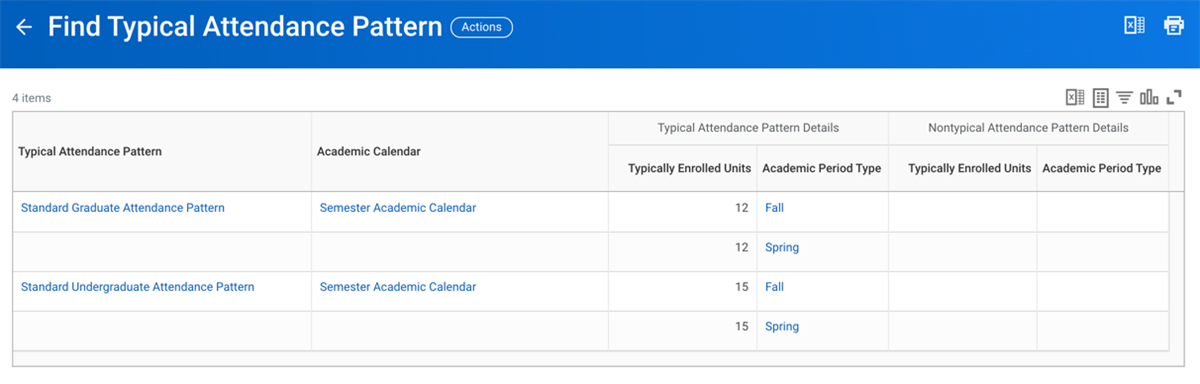
A screenshot that illustrates how to identify a student’s attendance pattern using the Find Typical Attendance Pattern report. The academic calendar and typical attendance pattern details that Workday Financial Aid used to determine a student’s attendance pattern is also displayed.
The
Find Typical Attendance Pattern
report captures the following about an academic period and academic period type:- Typical attendance periods for the academic calendar associated with the student's attendance plan.
- A typical attendance pattern for the enrolled units and academic period types associated with the student's attendance plan.
- Start period date to determine when financial aid eligibility for consecutive academic periods in an academic year begins.
The image above illustrates the number of projected academic periods that make up an academic calendar for a standard academic year. The academic calendar in the image provided shows how projected academic periods determine a student's attendance pattern. This image also illustrates the number of enrollment units (by credit or semester hour), within an academic period type (such as fall or spring).
To create an attendance pattern for an academic calendar for an AU/AL or POS, run the
Create Typical Attendance Pattern
task.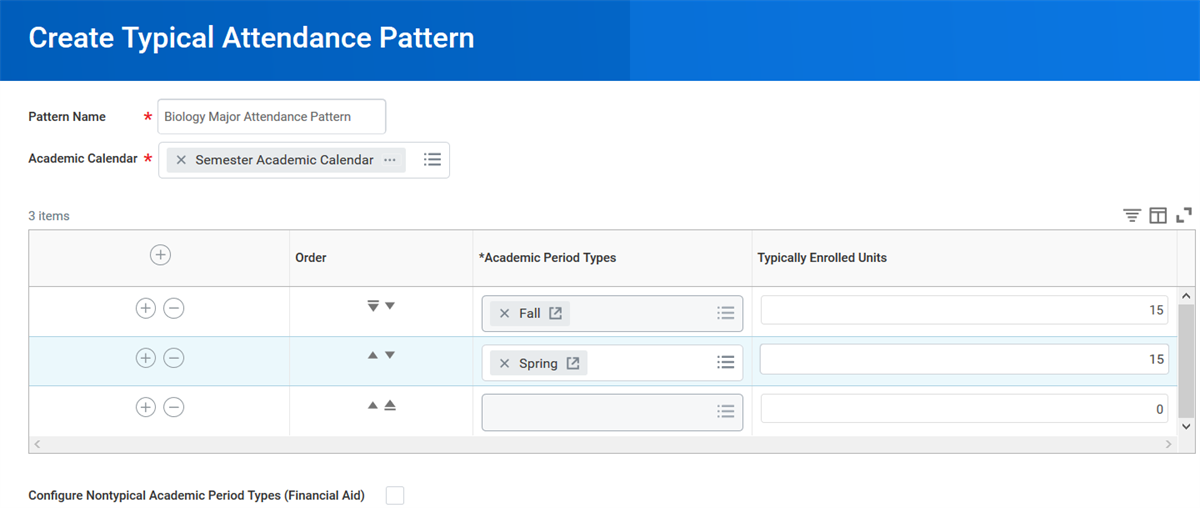
A screenshot that demonstrates how to create a typical attendance pattern using the Create Typical Attendance Pattern task.
Viewing a Current SAP Status
You can view your student's current SAP status by using the
View Satisfactory Academic Progress
task or from the student profile.Note
: Your students can view their own SAP status through self-service by signing in to your education institution's tenant with their sign-in credentials.To view a student's current SAP status from their student profile:
- Select the Overview tab.
- Locate the current SAP status.
- If your student has met all the standards that you have configured for SAP, Workday Financial Aid will display the "Passed" SAP status for your student.
- If your student has not met all the standards that you have configured for SAP, Workday Financial Aid will display either a "Warning" or "Failed" SAP status for your student.
- If Workday Financial Aid has not assessed your student's SAP for an academic period, your student's SAP status will display as blank when you locate your student in the Overview tab.
Viewing SAP History by Period
To view your student's SAP status for a specific academic period:
- Select the SAP History tab.
- Find the specific academic period and its SAP Status.
- For more information, select the Related Actions for the appropriate period and choose Financial Aid Period Record > View Satisfactory Academic Period Progress History for Period.
Choose the View Details button to display all data used to calculate the SAP status for each particular SAP instance.
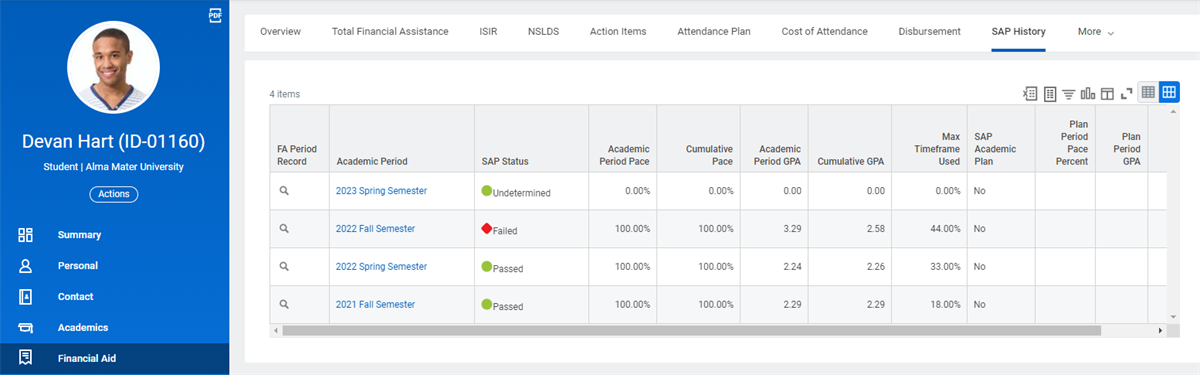
Devan Hart failed SAP for the 2022 fall semester. If his appeal is approved, the status will change to probation and there may be a SAP Academic Plan.
Evaluating SAP
You can evaluate SAP for individual students or for a student population. There are two means of assessing SAP:
- TheRun Student Financial Aid Processes by Periodtask evaluates SAP using your configured logic. This task can occur for any number of students in a single run. When you measure SAP using theRun Student Financial Aid Processes by Periodtask, Workday Financial Aid evaluates all your student's coursework up to and including the current academic period. You can evaluate SAP by:
- Maximum Timeframe.
- Official SAP Calculation
- Unofficial SAP Calculation.
- The Assign Financial Aid Satisfactory Academic Progress Related Action allows you to assign a SAP status directly, bypassing the evaluation process.
Note
: Use the Run Post-Grading Jobs
task after all grading is complete. Run the official SAP calculation after this job to ensure a student's academic standing is correct.You can review a student's SAP status from the SAP History tab on their student profile. You can also review the status of a student's SAP appeal using the SAP Appeals tab.
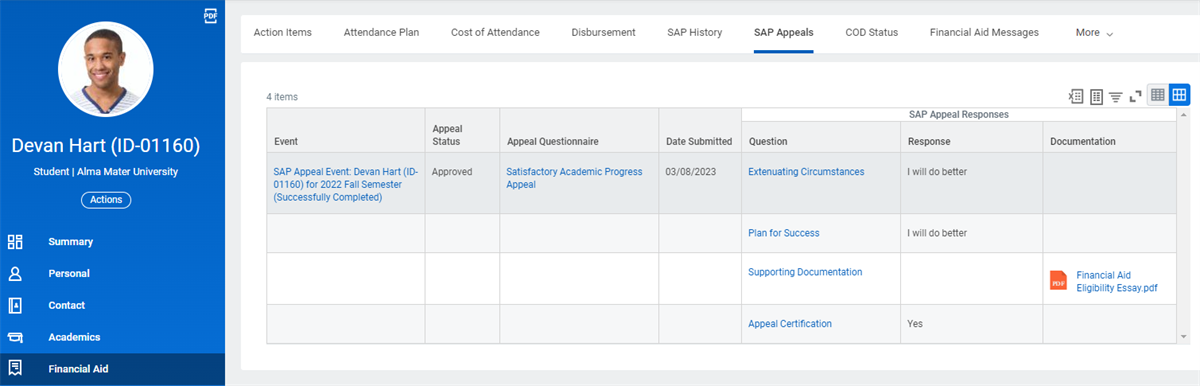
Devan Hart has an approved SAP appeal for the 2022 fall semester. You can review his SAP appeal responses and supporting documentation from the SAP Appeals tab on a student's profile.
Updating a SAP Status
Academic progress updates for your student are based on configured SAP requirements for an AU/AL, POS, or program area that you assigned to your student's financial aid profile group. When you manually update a SAP status for your student, nightly orchestration does not overwrite the status change that you have made in Workday Financial Aid.
To update your student's SAP status for an academic period using the Attendance Plan tab:
- Select the Load Status subtab.
- Select the Related Actions in the first column and choose Financial Aid Period Record > Edit Satisfactory Academic Period Progress.
- Depending on how you have configured disbursement eligibility conditions in your tenant, your student might not receive financial aid if you change your student's SAP status to "Failed."
- If you change your student's SAP status to "Undetermined," your student's SAP status will revert to a Workday-calculated SAP status.
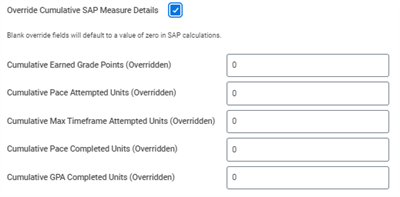
A screenshot that illustrates the fields available when overriding cumulative SAP measure details.
You can override the student's overall SAP status or the following cumulative SAP measure details:
- Earned grade points
- Pace attempted units
- Max timeframe attempted units
- Pace completed units
- GPA completed units.
Configuring SAP
Creating Student Eligibility for SAP
Before you can begin evaluating student eligibility for returning students based on SAP standards, you need to configure SAP settings in Workday Financial Aid.
You need to configure:
- Whether to include or exclude SAP requirements for each course that your institution offers to your students.
- SAP policies associated with an AU/AL or POS that contain the standards you need to use to calculate GPA, pace, and maximum timeframe.
- SAP communications so you can notify students who become at risk of not meeting a specific SAP standard.
- Business processes so that a student who has failed SAP can appeal when the student has experienced an undue hardship.
Once you have configured each of these SAP settings, you will be able to:
- View, evaluate, and update SAP statuses for your students.
- Initiate and review SAP appeals on behalf of your students.
Touchpoint
: You will create student grading schemes and configure academic requirements for your courses, academic units, academic levels, and programs of study before configuring academic progress policies.Grading schemes and academic requirements are Workday touchpoints that are beyond the scope of this training. More information about how to configure touchpoints is available in Workday Community.
Configuring SAP Requirements for Courses
You can create SAP smart lists in Workday Financial Aid, which use course tags to include or exclude SAP requirements for specific courses. The exclude and include tags are the only two tags that you can assign to a course when you configure an SAP smart list.
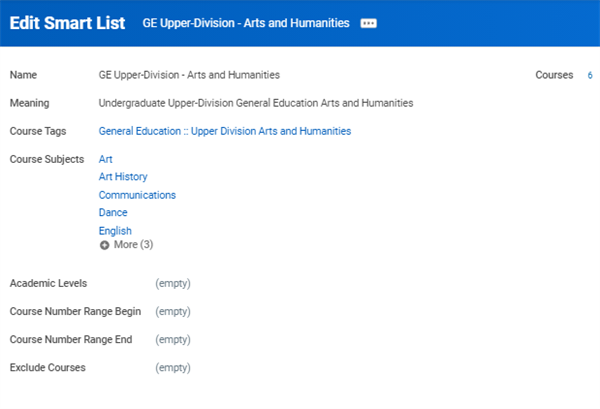
In the example above, a smart list that has been created for the Undergraduate General Education (GE) Upper-Division (UD) for Arts and Humanities.
You need to create, exclude, and include course tags and course categories for an AU before creating a SAP smart list. You will then assign both to a specific course in a POS.
- Once you have created (or edited) your course tags for an AU, you need to associate the course tags with the SAP policy by updating your course's definitions.
- You associate the course tags with a SAP policy by updating the definition of a course.
- Once you have updated your course definitions, Workday Financial Aid will automatically attach your course tags to a SAP financial aid policy.
You can use the
Maintain Course Tags
task to assign a course tag and course category to an AU. When you run the Maintain Course Tags
task, select the Maintain Course Tag Categories
tab to assign an existing course tag and course category.You can also create SAP smart lists in Workday, which use course tags to exclude SAP for a group of courses. You can use the
Create Smart List
task to assign course tags that include or exclude SAP for a group of courses. You can also assign course tags to course subjects or a range of courses that begin and end with a specific course numbering sequence.Example
: Your Financial Aid Manager has asked you to exclude SAP from the financial aid policy assigned to a developmental, noncredit course called EOP 17. Before you create an exception that excludes SAP for EOP 17, you need to create a "SAP Exclude" course tag and a "Financial Aid Exclude" course tag category.- To begin, enter the SAP Exclude course tag in the course tag column of the course tag table using theMaintain Course Tag Categoriestask.
- Next, enter the Financial Aid Exclude course tag category in the course tag category column of the course tag table.
After creating a course tag and course tag category to exclude SAP, run the
Find Definitions
report to search for and edit the course definition for EOP 17.- Assign an effective date of 07/01/2021, which coincides with the start of the 2021-2022 financial aid award year.
After you choose OK and scroll down to the Course Tags field on the edit course page, Workday will automatically assign " Financial Aid Exclude: SAP."
- The system will exclude SAP for EOP 17 in Workday Financial Aid on 07/01/2021.
Configuring SAP Policies
When you create or edit a SAP policy, you can include or exclude:
- GPA, pace, or maximum timeframe for developmental courses.
- Articulated registrations.
- SAP smart lists.
Before creating or editing a SAP policy, you will create a constant value calculation for your qualitative GPA requirement. You will also set your completion rate as a percentage. The Department of Education defines what the clock or credit units are that you need to enter for a maximum timeframe for a student's program of study.
Example
: The College of Arts and Sciences has revised the GPA, pace, and maximum timeframe requirements for all undergraduate courses. As of the 2024-2025 financial aid award year, the college will no longer use the minimum SAP requirements for Title IV aid. Your Financial Aid Director asks you to create a new SAP financial aid policy for the College of Arts and Sciences.Prior to the 2024-2025 financial aid award year, undergraduate students in the College of Arts and Sciences had to:
- Pass all undergraduate courses in one course attempt.
- Earn a minimum cumulative GPA of 2.0.
- Satisfy a minimum rate of progress of 67%.
- Complete their degree within a 150% credit hour maximum timeframe.
Starting 07/01/2024, undergraduate students in the college of Arts and Sciences AU/AL need to:
- Pass all undergraduate courses in two course attempts.
- Earn a cumulative GPA of 3.0.
- Satisfy a minimum rate of progress of 75%.
- Complete their degree within a 133% credit hour maximum timeframe.
You need to run the
Maintain Satisfactory Academic Progress Policy
task to create a new SAP rule set for the College of Arts and Sciences AU/AL.Use the
Maintain Satisfactory Academic Progress Policy
task to create a new SAP policy.As you configure your SAP policy, you need to configure each of the settings in the following table, unless the setting is optional:
Field Name | Field Data Usage |
|---|---|
Evaluation Frequency | Select whether you want to evaluate SAP for students each:
|
Exclude Courses Not Satisfying Program Requirements Exclude Developmental Courses Exclude Articulated Registration Exclude Smart Lists | (Optional) Identify coursework to exclude from SAP evaluation and select the standards to exclude them from:
You can configure SAP exclusions for up to 2 different smart lists. If you exclude multiple smart lists, make sure that they do not share any courses. Otherwise, Workday might exclude the shared courses from SAP standards in unexpected ways. |
Exclude Smart List | (Optional) Identify groups of students to exclude from:
|
GPA Repeat Processing | Select the attempt to consider when assessing the GPA for a student who repeats a course. |
Qualitative GPA | Create a calculation that returns the minimum cumulative GPA students need to meet. |
Quantitative Pace | Enter the minimum pace for completing the program of study. It represents the total units completed divided by the total units attempted for all academic periods. You can specify up to 2 decimal places. When calculating quantitative pace, Workday also rounds to the second decimal place. Example: A quantitative pace of 67% means that students with a rate of 66.99 fail the standard. |
Maximum Timeframe | Enter the maximum timeframe for completing the program of study. The maximum timeframe represents total units completed divided by the clock or credit units for the program of study (as defined by its federal student aid program policy). When you run the Assign Satisfactory Academic Progress task, Workday rounds to the second decimal place. Example: A maximum timeframe of 150% means that students with a rate of 150.01 fail the standard. |
Do Not Place on Warning | (Optional) Bypass the Warning status when students fail to meet 1 or more SAP standards and send them straight to Failed. |
Auto Failed if All F's | (Optional) Automatically assign students a Failed SAP status when they fail all courses in the current or most recent period. Any grade elements on a grading scheme that you assign a grade category type of Administrative Failure or Failure count as failures for SAP. |
Configuring SAP Communications
Workday Financial Aid generates and sends SAP notifications to your student when one of the following SAP events occur:
- SAP warning status changes occur:The first time your student fails a SAP quantitative or quantitative requirement, your student receives a warning notification.
- SAP status now passed:If your student was failing a SAP quantitative or quantitative requirement during the previous academic period, your student will receive a SAP status now passed notification if they meet the SAP requirement at the end of the current academic period.
- SAP status failed:If your student fails a SAP quantitative or quantitative requirement for two consecutive academic periods, your student will receive a SAP status failed notification at the end of the current academic period.
- SAP failed maximum timeframe:Once your student meets 150% of their program requirements, they no longer meet the maximum timeframe requirement and will receive a SAP failed maximum timeframe notification. They can submit a SAP appeal to be placed on probation, but can never return to a passed SAP status.
You need to configure financial aid communication rule sets for each SAP notification before Workday Financial Aid can begin generating and sending SAP communications to your students. Currently, the Post-Grading Job is the only means by which the system sends SAP communications.
Tip
: Test SAP communications by creating four different students in Workday Financial Aid to confirm whether each SAP communication in a SAP financial aid rule set is functioning correctly.To always exclude student groups from SAP communications, configure the options on the Financial Aid Communication rule set. To exclude student groups from communications for an individual SAP evaluation, define the recipient population when you configure an Official SAP Calculation or Evaluation for Maximum Timeframe run. If the configuration conflicts with a Financial Aid Communication policy, the policy takes precedence.
Initiating and Reviewing SAP Appeals
Students need to maintain a minimum satisfactory academic progress (SAP) status to receive financial aid each academic period. Workday Financial Aid enables you to configure a process for students to appeal Failed SAP statuses and continue receiving financial aid.
When you approve SAP appeals, students continue to receive financial aid for the defined academic periods, and their SAP status changes to "Probation." At the end of that academic period, students who earn a SAP status of:
- Passed: Receive financial aid for the next academic period.
- Failed: Do not receive financial aid for the next academic period. You can decide whether to reinitiate the appeal process.
- Failed, but satisfy the temporary measures:Receive financial aid and a SAP status of " Probation."
To initiate a SAP appeal: You configure questionnaires that students need to complete during the appeal process and assign these questionnaires as part of the satisfactory academic progress appeal definition. After your students receive a My Tasks item, they can complete the SAP appeal questionnaire. After a student completes an SAP appeals questionnaire, you will receive a review satisfactory academic progress appeals notification in your My Tasks.
- Run theInitiate SAP Appeal for Students with Failed Statustask.
- Select the students who will receive a SAP appeal questionnaire.
- When reviewing a completed questionnaire, you can choose to approve or deny the appeal. If approved, you can place a student on probation or an academic plan.
Note
: After running SAP, Workday displays the View Satisfactory Academic Progress Job Run Details
report. This report can be used to find students who Workday processed successfully and those Workday did not process. The Students Not Processed grid lists reasons why Workday did not process a student so that you can troubleshoot and issues.SAP Appeals Business Processes
If your student experienced an undue hardship during an academic period and fails to meet a SAP requirement, your student can submit a SAP appeal. Acceptable types of hardship can include the death of a relative, severe personal injury or illness, or any other special circumstance your financial aid office will accept.
During a SAP appeal:
- You select your student and initiate the appeal process.
- Your student receives and completes a questionnaire.
- You review your student's questionnaire and decide whether to approve your student's SAP appeal.
- If a student no longer wishes to complete the process, you can rescind the appeal.
- If a student is missing documentation, you can choose the send the appeal back to the student. You will need to manually send an ad-hoc communication to the student letting them know what is needed.
- If you do not approve your student's SAP appeal, you do not need to take any further action because your student's SAP status will remain as failed.
- If you approve your student's SAP appeal, you can place the student on probation if it is likely they will meet SAP requirements after the following academic term.
- If it is unlikely that a student will meet SAP requirements after one academic term, you can place the student on an academic plan. An academic plan allows you to assign temporary measures for the current academic period that your student needs to complete. If your student completes the temporary measures at the end of the academic period, your student will continue to receive financial aid until they meet the overall SAP requirements.
Note
: There may be times when you need to override a component of SAP for a student. From the SAP History tab on a student's profile, take a Related Action on a term and choose Financial Aid Period Record > Edit Satisfactory Academic Progress.There is a checkbox to override cumulative SAP measure details, which overrides cumulative GPA, pace, or max timeframe units.
The Satisfactory Academic Progress Appeal Event is the workflow you create for SAP appeals. To view the definition for a SAP business process, enter Satisfactory Academic Progress Appeal Event (Default Definition) in search. Configure each step in the SAP appeals workflow to match your institutional needs.
The appeal questionnaire you create and assign to this business process is important. This questionnaire is where students will provide information required for their appeal request. Use the
Create Questionnaire
task to create a SAP appeal form. On the questionnaire, select the Satisfactory Academic Progress Appeal Event in the allowed on business processes field.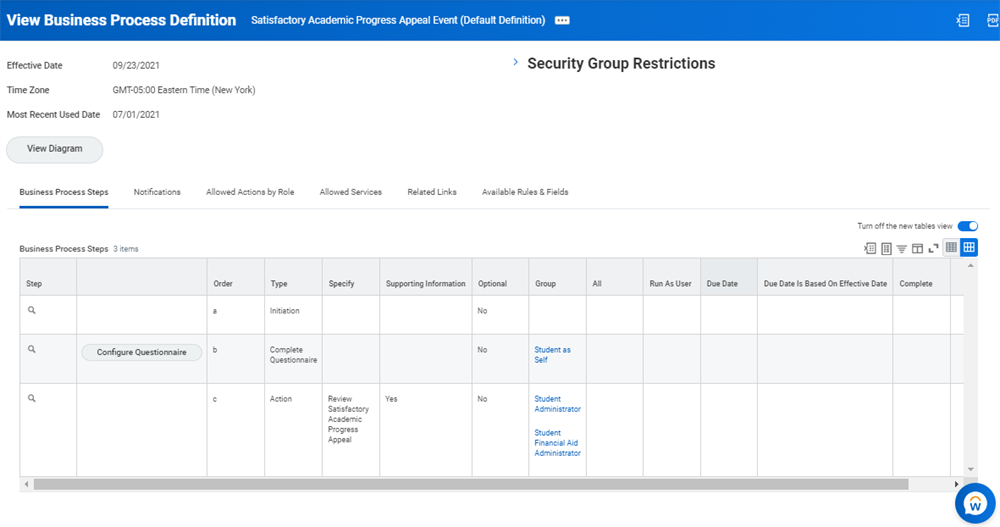
The example above shows a SAP appeals business process where the initiation step triggers a complete questionnaire event for the student, which is then reviewed by a Student Administrator or Student Financial Aid Administrator.
After you configure the business process for each step of the SAP appeal workflow, you need to configure your SAP appeals workflow notifications. Create the student notification the system sends to your student when you approve or deny their SAP appeal.
The student notification the system sends to your student will list the temporary measures that you have assigned to your student for GPA, pace, and maximum timeframe.
To configure SAP appeal workflow notifications for the
Satisfactory Academic Appeal Event
business process, select the Notifications tab.Configuring the business process for each step of the SAP appeal workflow. The financial aid office will receive a My Tasks item when your student completes the SAP appeal questionnaire. A Financial Aid Administration in your office can approve or deny a SAP appeal through My Tasks.
Overview of Return to Title IV Funds Processing
A student that receives Title IV federal financial aid funding needs to remain enrolled for the entire academic period. If a student withdraws from classes during the academic period, your school uses the withdrawal date to calculate a prorated amount of aid that your school needs to return.
Before using R2T4 worksheets, modify the
Student Institutional Withdrawal Event
business process definition by adding a Return of Title IV Worksheet Event
subprocess.To edit the business process definition of the student institutional withdrawal event:
- Search for BP: Student Institutional Withdrawal Event.
- Choose the Related Actions of the Student Institutional Withdrawal Event and select Business Process > Edit.
Once complete, Workday automatically sends you an item in My Tasks to create a Return of Title IV worksheet because your student has withdrawn from the institution. You can build an approval process into the Return of Title IV Worksheet Event subprocess so that the worksheet is reviewed after you submit it. The reviewer can either approve it, or send it back with a comment explaining what corrections need to be made.
Important
: Use the Maintain Return of Title IV Configuration
task to specify the order in which to return federal loans and grants for an award year.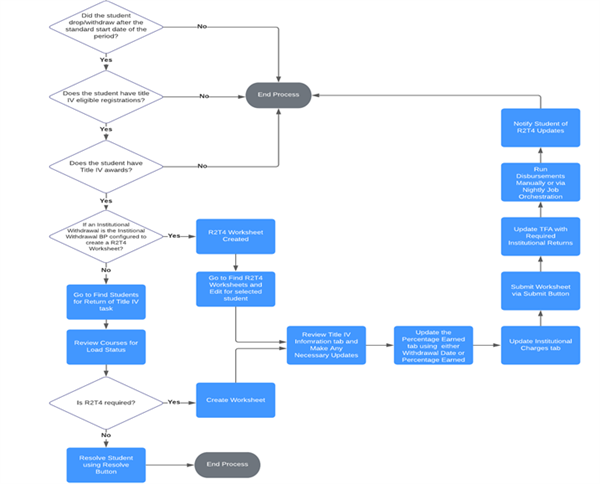
This flow chart is a step-by-step guide to the Return of Title IV Aid process.
Creating Return to Title IV Worksheets
Use the
Find Students for Return of Title IV
report to identify students for whom you need to create a return of Title IV worksheet. You can select the Include Official Withrawal checkbox to review students who did not have a worksheet created upon withdrawal. Select the Create Worksheet button to complete a Title IV worksheet.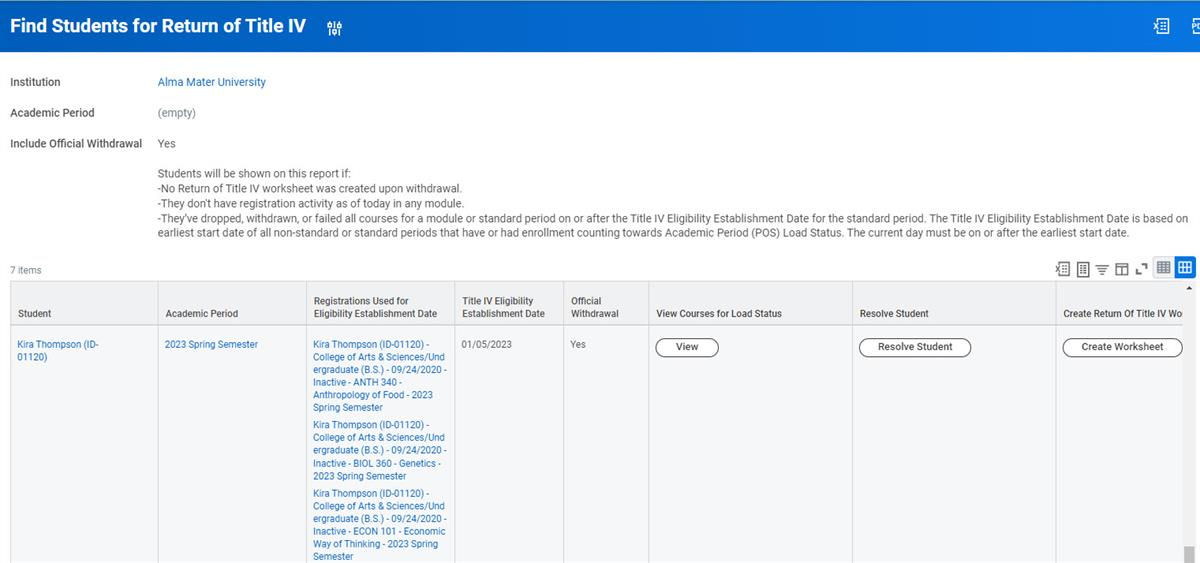
The
Maintain Return of Title IV Worksheet
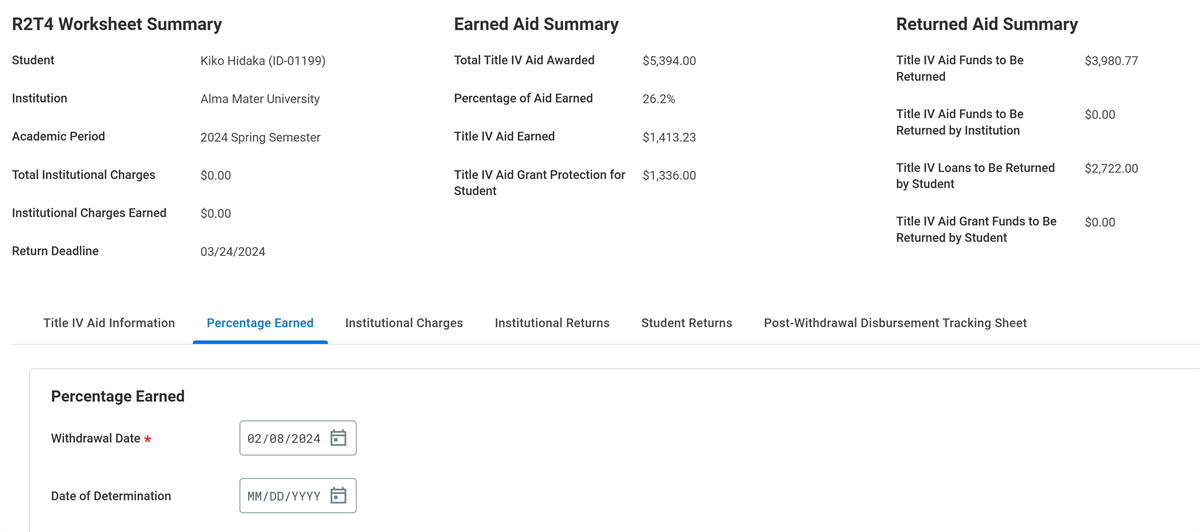
task also creates a worksheet to calculate the amount of Title IV funding your school needs to return ED. You can also manually create an R2T4 worksheet for a student that has not officially withdrawn from courses.When creating a worksheet, enter a withdrawal date and a date of determination to calculate the percentage of aid earned. You can select to from the following options:
- Use program of study dates and breaks
- Override program of study dates and break
- Manually enter percentage earned
Using this information, Workday will automatically calculate the prorated amount of Title IV funds to be returned by your institution and the student. The worksheet will also display the return deadline for the funds to meet federal regulations.
Because withdrawn students may no longer have access to their instutional email or Workday accounts, you can use Workday engagements to communicate with them. Use report fields from the Return of Title IV Worksheet business object as merge fields on student engagement items with a category of Financial Aid and a "use for" of Plans and Ad Hoc.