
Security Policy Configuration and Activation
Overview
This chapter introduces the steps for configuring security. You will edit the permissions of domain and business process security policies to give or take away access in Workday. Adding a security group to a security policy allows members of that group to access the items secured within the policy. This chapter also introduces security policy activation and change control. Edits to security policies remain pending until you explicitly activate the changes.
Objectives
By the end of this chapter, you will be able to:
- List the steps for configuring security.
- Modify domain and business process security policy permissions.
- Activate pending security policy changes.
- View past security policy changes.
- Identify the impacts of activating a previous security timestamp.
Steps for Configuring Security
Here is a summary of the steps for configuring security access:
- Identify users: Plan what access users will need.
- Identify security groups: Identify an existing security group or create a new one.
- Edit security policies: Grant permission to domains and business process types.
- Activate pending security policy changes in order for them to take effect.
- Test changes: Verify that the changes made provide the expected access.
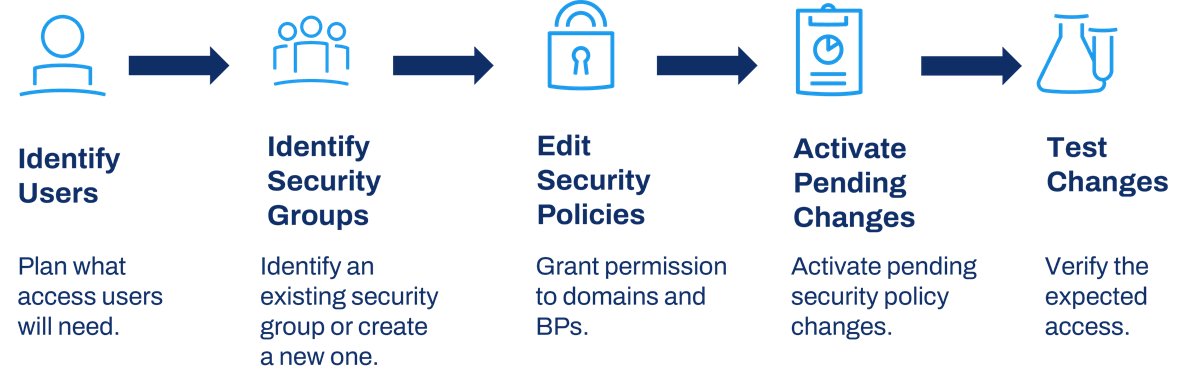
Steps for configuring security.
Activate Pending Security Policy Changes
When you change a security policy, Workday displays a message indicating that your changes are saved but will not take effect until you activate the changes. Security policy changes (e.g., adding or removing a security group, changing View to Modify permission) are pending until someone runs the
Activate Pending Security Policy Changes
task. Changes to security groups themselves (e.g., membership, security group definition) do not require activation.Security Note
: You can allow different security groups to edit security policies vs. activate security changes. To see this segregation of duties, run the Domain Security Policies for Functional Area
report for the System functional area. Review the security-related domains, such as Security Administration, Security Configuration, and Security Activation. View the secured items in these domains and the permitted security groups. The Edit Domain Security Policy Permissions
task is in the Security Configuration domain. The Activate Pending Security Policy Changes
task is in the Security Activation domain.Security Policy Change Control
Security policy change control serves two purposes:
- It allows you to keep your security policy changes in a pending, or inactive, state until you are ready to deploy them. This process can be useful for complex or far-reaching security changes that require a coordinated activation.
- It allows you to revert back to a previous version of your security configuration, if there are errors, so that you can resolve the errors and reactivate. Use theActivate Previous Security Timestamptask to revert back.
Note
: Security policy change control is not designed to keep alternate, valid security configurations. Once you revert from a security configuration, it is no longer available.How Change Control Works
Four elements make Workday security policy change control possible:
- Workday records the time of every security change.
- Workday evaluates security as of a timestamp, ignoring later changes that are pending.
- When you activate pending security policy changes, Workday time-stamps the new security policy configuration.
- You can activate a previous timestamp.
Activate Previous Security Timestamp
Use the
Activate Previous Security Timestamp
task to revert to a previous timestamp.Example
: Suppose you activate security policy changes in March, June, and September. Then, in October, you discover a serious error in the September security configuration. You can activate the previous timestamp from either March or June.When you activate a previous timestamp, any changes made to security policies after that timestamp will be pending, but not deleted. In the example above, if you revert back to the March timestamp, security policy changes activated in June and September will no longer be active. Once you have corrected the errors, run the
Activate Pending Security Policy Changes
task again. Activation makes all pending changes active and establishes a new timestamp.Important
: Security timestamps are for changes made to domain or business process security policies only. Security timestamps do not affect security group definitions or user assignments. Changes to security groups always take effect immediately and remain as defined, even if you activate a previous timestamp.Reports
The
View All Security Timestamps
report shows all timestamps, both active and inactive versions. To change the comment on any timestamp, such as to indicate problems, from the timestamp's Related Actions, select Security Timestamp > Edit.To see what an edited security policy would look like if activated, from the security policy's Related Actions, select Domain Security Policy or Business Process Policy > View Latest Version.
To see a comparison of the currently activated security policy vs. the pending changes, from the security policy's Related Actions, select Domain Security Policy or Business Process Policy > View Pending Changes.
Other useful reports include:
- Domain Security Policies with Pending Changes
- Business Process Security Policies with Pending Changes
- Domain Security Policy History
- Business Process Security Policy History
- Domain Security Policies Changed within Time Range
- Business Process Security Policies Changed within Time Range
- Audit Trail - Security
Chapter 3 Summary
- When you add or remove a security group from a security policy, the change is pending until someone runs theActivate Pending Security Policy Changestask.
- Changes to security group definitions or membership do not require activation.
- Workday automatically timestamps activations, and you can revert to a previous timestamp of your security configuration.