
Security Group Membership
Overview
This chapter introduces the available security group types and the three ways users become members of security groups. You will study the Workday-assigned security groups, which automatically provide users with a base level of access in the tenant (e.g., home page, public items, self-service items). Although Workday controls the membership and assignment of these security groups, you can change what permissions they have to domain and business process security policies.
Objectives
By the end of this chapter, you will be able to:
- List the ways users become members of security groups.
- Identify security groups that grant users access to their own data instance.
- Identify domains that grant users access to public items.
- Identify the configurable aspects of Workday-assigned security groups.
- View the security access of a user.
Membership in Security Groups
The following table displays the three ways users become members of security groups in Workday:
Method | Security Group Type Examples | Security Group Examples |
|---|---|---|
Workday-assigned | Self-service, public | All Employees, All Contingent Workers, Employee As Self |
Manually assigned | User-based, integration system | Report Writer, Payroll Administrator, Finance Administrator |
Derived (Membership is based on security group criteria) | Role-based, job-based, location membership | HR Partner (role-based), VPs (job-based), U.S. Locations (location membership) |
The manually assigned and derived security groups are configurable. You can create, edit, and delete these security group definitions to define your needed criteria for membership.
The Workday-assigned security groups are not configurable. Workday defines and delivers these security group definitions. Workday determines their members criteria and maintains the members in each. You cannot create, edit, or delete these security groups, but you can configure access to security policies.
Security Group Types
A given user will be a member of many security groups, and their permissions will be a union across all the permissions of all of those security groups.
Some security group types enforce constraints on the target instances of data its members can access. For example, self-service security group types provide users with constrained access to only their own instance of data (e.g., the ability to edit their own email addresses). Some security group types constrain access to target data in certain organizations (e.g., a recruiter may only be able to access open positions in their own organization). Other security group types constrain access by management or compensation level.
The following table summarizes the security group types available in your tenant. It shows how a user becomes a member of the security group, and whether the security group type enforces a constraint on secured items.
Security Group Type | When would you use this type? | How does a user become a member? | Context Type (Members are...) |
|---|---|---|---|
Self-Service | To give access to self-service items.
Examples: Employee as Self, Retiree as Self, Contingent Worker as Self | Workday-assigned. | Constrained to their own instance of data. |
Public | To give access to public information.
Examples: All Employees, All Retirees, All Contingent Workers | Workday-assigned. | Constrained to public data. |
Other Workday-Assigned | Uses vary by security group.
Examples: Implementers, Initiator, Manager's Manager, Role Maintainer | Workday-assigned. | Constraints vary by security group. |
User-Based | To identify a specific user in a specific responsibility and give them unconstrained access to a given area of Workday.
Examples: HR Administrator, Finance Administrator | Manually assigned. Follows user. | Unconstrained. |
Role-Based (Constrained) | To individually identify your support and leadership staff and constrain their target access to the organizations that they each support or lead.
Examples: HR Partner, Manager, Accountant | Derived based on role assignments. Workers in a position (or job) assigned to the role used in the security group are automatically members. | Constrained to target data in the organizations where they have the role assignment. |
Role-Based (Unconstrained) | To identify your support or leadership staff and give them unconstrained access to certain areas of Workday. Example: Manager (unconstrained) | Derived based on role assignments. Workers in a position (or job) assigned to the role used in the security group are automatically members. | Unconstrained. |
Conditional Role-Based | To determine how many subordinate levels of target access to grant Managers depending on the location of the worker. | Derived - Evaluates a condition based on the target worker's location and applies one of two constrained, role-based security groups to the member. | Constrained to a configured number of subordinate organization levels. |
Job-Based (Constrained) | To identify workers in a given job criterion, and constrain them to target data for organizations they themselves are in.
Example: Identify Vice Presidents based on management level and constrain them to target data in the company they themselves are in. | Derived based on job details (e.g., job profile, management level). | Constrained to target data in organizations that they themselves are in. |
Job-Based (Unconstrained) | To identify workers in a given job criterion (e.g., job profile, job family, exempt jobs) that do not require a target constraint.
Examples: Chief Financial Officer, IT Workers | Derived based on job details (e.g., job profile, management level). | Unconstrained. |
Segment-Based | To configure access to values (e.g., values in a prompt).
Example: Documents - Benefits Categories, Manager - Integrations | Derived based on included security groups. | Constrained to allowed segments of values. |
Location Membership | To identify members based on their location.
Example: All Workers in Tokyo | Derived based on worker's location. | Unconstrained. |
Organization Membership (Constrained) | To identify members based on their membership in given organization types (e.g., pay group, committee) and constrain their access to only target data in that organization.
Example: Committee Members | Derived based on organization membership in any organization type (includes hierarchies). | Constrained to target instances in the organizations to which they themselves are in. |
Organization Membership (Unconstrained) | To identify members based on their membership in given organization types (e.g., pay group, cost center, location hierarchy).
Example: All European workers | Derived based on organization membership in any organization type (includes hierarchies). | Unconstrained. |
Aggregation | To combine membership across several included security groups.
Example: Workbench Users | Derived - Members are workers in any of the included security groups. | Mixed - Included security groups retain their target access constraints. |
Intersection | To determine members that are common to all included security groups where their target constraints are also common.
Example: Identify HR Partners and constrain their target access to those instances in a given supervisory organization that are also in a given location hierarchy. | Derived - Members are workers in all of the included security groups. | Mixed - Intersection of constraints of the included security groups. |
Rule-Based | To determine members who are a subset of an existing security group, based on a defined rule.
Example: Self-service access for only employees in Tokyo. You can apply a rule to the Employee As Self security group to only include those members in Tokyo. | Derived via membership in a specified baseline security group and meeting the defined rule condition. | Constrained to target instances, as defined in the baseline group. |
Service Center-Based (Constrained) | To identify third-party users (not workers in your organization charts and headcounts) and constrain their target access to a defined organization.
Example: Third-party help desk that only supports workers in Europe. | Derived based on service center. Service center representatives in the service center will automatically be members. | Constrained to target instances in configured organizations. |
Service Center-Based (Unconstrained) | To identify third-party users with unconstrained access.
Example: Third-party help desk that supports all workers. | Derived based on service center. Service center representatives in the service center will automatically be members. | Unconstrained. |
Integration System (Constrained) | To identify Integration System Users (ISUs) that integrations run as and constrain target access to defined organizations.
Example: Export data only for workers who are members of a specific supervisory organization. | Manually assigned to Integration System Users. | Constrained to target data in configured organizations. |
Integration System (Unconstrained) | To identify Integration System Users (ISUs) with unconstrained access.
Example: Credit Card System. | Manually assigned to Integration System Users. | Unconstrained. |
Compensation Level Based | To identify members based on compensation grade levels and constrain their access to targets in lower levels regardless of organization.
Example: Identify workers in the Executive compensation grade and constrain their target access to workers in lower compensation grades. | Derived based on included levels. | Members can access targets in lower compensation grades regardless of organization. (You must define a compensation grade hierarchy.) |
Manager Level Based | To identify members based on management levels and constrain their access to targets in lower levels regardless of organization. Example: Identify workers in a Director management level and constrain their target access to workers in lower management levels. | Derived based on included levels. | Members can access targets in lower management levels regardless of organization. (You must define a management level hierarchy.) |
Most Common Security Group Types
The most common security group types are Workday-assigned, user-based, and role-based constrained.
Reports for Viewing a User's Security
Many Workday-delivered reports provide security-related information. Here are a few simple reports you can use to view the security access of a user and information about each security group.
Report | Description |
|---|---|
View Security Groups for User | Lists all the security groups on a given Workday account. The user's access is a union across all the security group permissions. |
Security Analysis for Workday Account | Provides a comprehensive view of a user's access given all their security group permissions. |
View Security Group | Shows details of a security group, including the description, type, and the domain and business process security policies that the security group has permissions to. |
View Security Groups | Displays configuration details about all security groups of a selected type. |
Action Summary for Security Group | Lists the domain and business process security policies the security group has permission to and details about each security policy. |
Workday-Assigned Security Groups
Workday owns and automatically assigns some security groups. For example, when you create a new Workday account for a new hire, Workday automatically assigns self-service (e.g., Employee-as-self) and public (e.g., All Employees) security groups to the account. These security groups allow the user to perform self-service tasks and to access public information.
Examples of Workday-delivered (Workday-assigned) security groups include:
Public | Self-Service | Other |
|
|
|
You can also run the
View Security Group
report and select Workday-Delivered Security Groups from the prompt to see the complete list.Self-Service
Self-service security groups, such as Employees As Self and Contingent Worker As Self, provide users with constrained access to only their own instance of data. Workday automatically assigns these security groups to workers in order to provide them with access to self-service tasks.
Some examples of domain security policies that self-service security groups may have access to include:
- Self-Service: Home Address
- Self-Service: Emergency Contacts
- Self-Service: Beneficiaries
- Self-Service: Expense Report
Public Groups
Public security groups, such as All Employees and All Retirees, provide users with access to public data appropriate for their employment status. Workday automatically assigns these security groups to workers in order to provide them with access that all members need.
Some examples of domain security policies that public security groups may have access to include:
- Worker Data: Public Worker Reports
- Worker Data: Worker Summary Reports
- Worker Data: Organization Information
- Worker Data: Management Chain
Security Policy Permissions
While you cannot remove a Workday-delivered security group from a Workday account, you can add or remove these security groups from domain or business process security policies.
Security Policy Permission Example 1
For example, you can remove the Employee As Self security group from the
Photo Change
business process security policy. This change would stop allowing employees to access tasks that let them change their photos.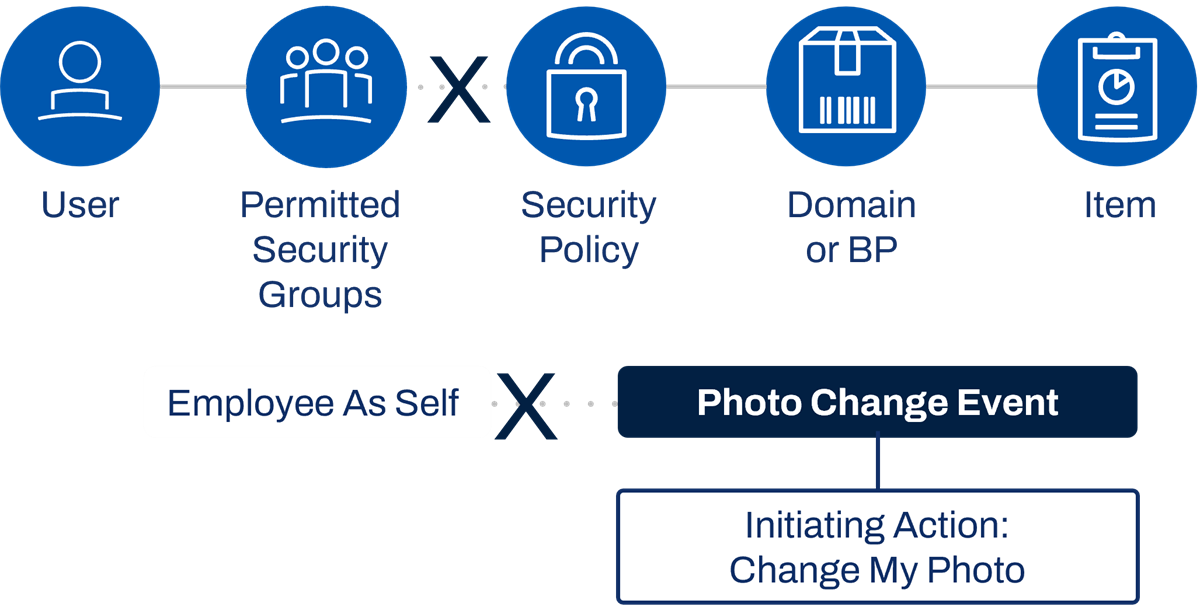
Security policy permissions - Example 1.
You could, similarly, add a Workday-delivered security group to a security policy to extend self-service functionality to a group of workers.
Security Policy Permission Example 2
Self-service for expense reports may initially be available to employees only. You could extend the functionality by adding the Contingent Worker As Self security group to the
Expense Report Event
business process security policy and related domain policies.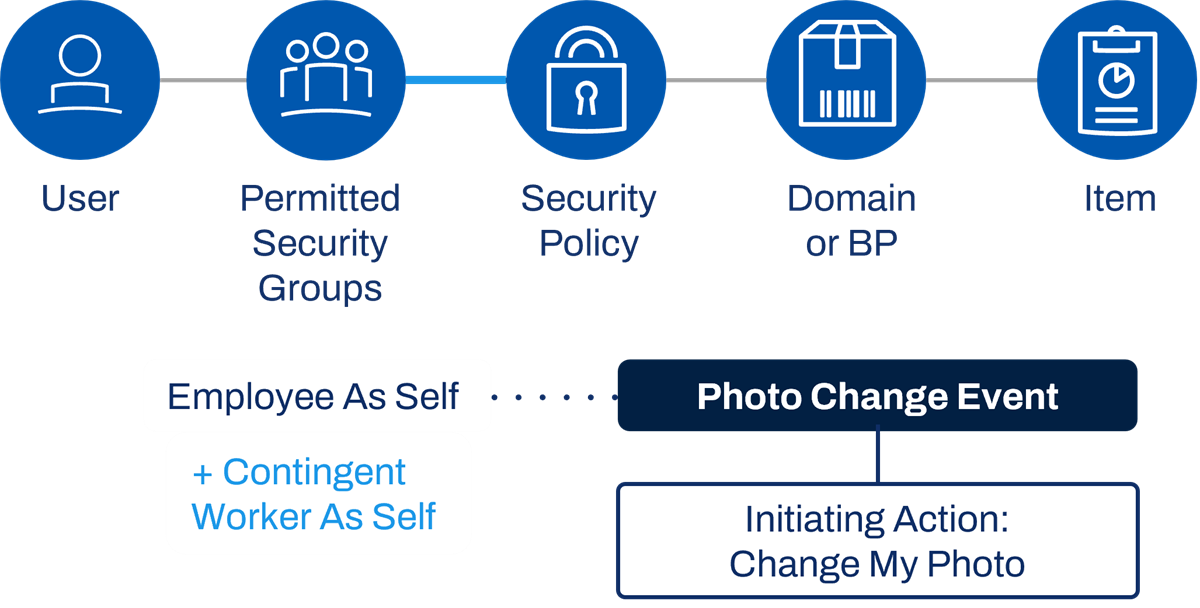
Security policy permissions - Example 2.
Restrictions
Some domain security policies have restrictions on the security group types that are allowed permissions to the domain. Self-service domains only allow self-service security group types, such as Self-Service - Worker or Self-Service - Pre-Worker.
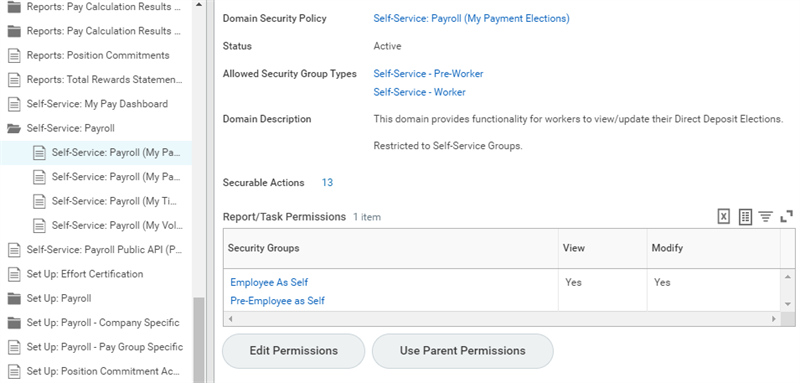
Self-Service: Payroll allows Self-Service Pre-Worker and Worker security group types.
Other security policies that contain items relevant across the organization may allow only unconstrained groups.
Chapter 2 Summary
- Workday delivers many security group types.
- Security groups are either Workday-assigned, manually assigned, or derived.
- Security groups can enforce constraints on what target data members see when accessing items.
- A user's Workday account has many security groups associated with it.
- The user's access is a union across all the permissions granted by all the security groups on the account.
- You can configure what domain or business process security policies any security group has permissions to.