
Security Group Configuration and Constraints
Overview
This chapter begins to study the individual security group types that you can configure in Workday. You will see how some security group types enforce constraints on what target data members see when accessing secured items. You will learn how to create, edit, and even copy security group definitions, starting with the user-based security group type. You will also use tasks to allow you to more easily maintain permissions for security groups.
Objectives
By the end of this chapter, you will be able to:
- Identify a user's target access constraints, based on security group type.
- Identify use cases for the user-based security group type.
- Manually assign workers to an existing user-based security group.
- Maintain permissions for a security group.
Target Access Constraints
By configuring a security group in a domain or business process security policy, members can access the secured items in those policies, such as reports, tasks, or events. However, some security group types can enforce constraints on what target instances of data members see when accessing an item.
Each security group type has a predefined context type: constrained, unconstrained, or mixed. For example, the user-based security group type has a context type of unconstrained. Members will not have a context or constraint enforced on what target data they can view when accessing permitted items.
Examples of security group types with constrained context include:
- Self-service groups constraining members to their own instance of data.
- Role-based groups constraining members to target instances in assigned organizations.
- Segment-based groups constraining members to values in defined segments.
The following table summarizes the available context types:
Context Type | Definition |
|---|---|
Unconstrained | Users can access all target instances of a securable item. |
Constrained | Users can access a subset of data when accessing a securable item. Which target instances they can view is typically based on organization. |
Mixed | Users can access a subset or all data when accessing a securable item, depending on the combined constraints in intersection or aggregation security group types. |
Union of Constrained and Unconstrained Access
What if a user is a member of both a constrained and unconstrained security group with access to a given secured item? The target instances that are visible will be a union of the user's access.
Constrained vs. Unconstrained Access Example
Brady McCormick is a member of the Employee As Self self-service security group with access to the
Total Rewards
report. Due to the constraints of this type of security group, he can only run the report for his own instance of data. Brady cannot run the Total Rewards
report for other workers.Brady's manager, Jared Ellis, is a member of the Manager role-based constrained security group as well as a member of the Employee As Self group. The Manager security group can access the Worker Data: Total Rewards domain, which gives Jared the ability to run the
Total Rewards
report for his team, as well as for himself.Logan McNeil is a member of an unconstrained security group, Compensation Administrator, as well as the Manager and Employee As Self security groups. Therefore, Logan can run the
Total Rewards
report for any worker because of her unconstrained access.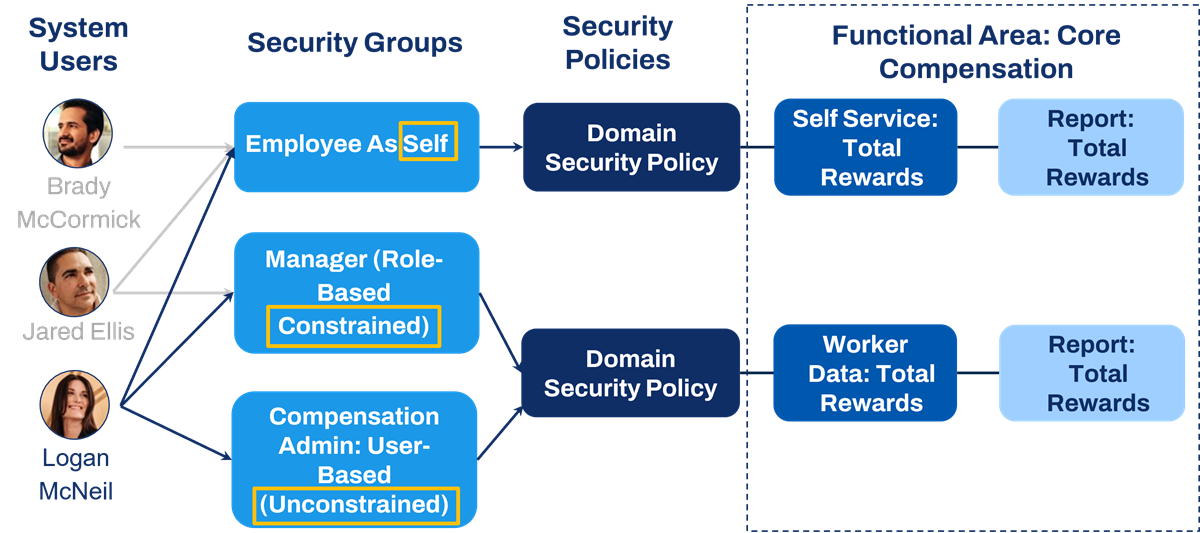
Example of constrained vs. unconstrained access.
User-Based Security Groups
User-based security groups are the least restrictive security group type, providing members unconstrained access to items in permitted security policies. This security group type is appropriate for administrators or specific individuals who need system-wide access for their areas of responsibility. If you manually assign user-based security groups to a user, they stay with that user regardless of position or job changes, until manually removed.
Examples of user-based security groups include:
- HR Administrator
- Payroll Administrator
- Finance Administrator
- Security Administrator
- Report Writer
- Auditor
Workday provides several default user-based security groups as a starting point. You can also create your own user-based security groups, as needed.
Who Can Assign Users
You can assign users to a user-based security group under one of two conditions:
- If you are a member of a security group with Modify access to the User-Based Security Group Administration domain, you can assign users to any user-based security group.
- If you are a member of a security group included in the Administered by Security Groups field, you can assign members to that particular security group.
Assign Users
If authorized, you can assign users to user-based security groups in several ways:
- Run one of these delivered tasks from the Search box:
- Assign Users to User-Based Security Group.
- Assign User-Based Security Groups for Person.
- View a user-based security group and use the Related Actions to select User-Based Security Group > Assign Users.
- View a user and use their Related Actions to select Security Profile > Assign User-Based Groups.
- Use a web service with Put permissions. Two web services are available:
- Put Assign User-Based Security Group: Replaces all users in the specified user-based security groups with the configured users.
- Put User-Based Security Assignment: Replaces all user-based security groups for the specified users with the configured security groups.
Update User-Based Security Group Assignments
You can also use the following tasks to assign user-based security groups to users via workflows:
Task | Usage |
|---|---|
Update User-Based Security Group Assignments | Modify user-based security groups for a user via workflow. |
Update User-Based Security Group Membership | Modify the users in a user-based security group via workflow. |
When enabled and configured, these workflows allow you to create your own approval processes for the assignment or removal of user-based security groups. Initiate these workflows through the Workday user interface or with a web service task.
With a configurable review process, a security administrator can assign themselves additional user-based security groups. The approval/review can then route to another security administrator to ensure compliance with security procedures. The below steps explain how to set up these workflows:
- Enable theProcess: User-Based Security Group Eventdomain security policy in the System functional area.
- To configure theUpdate User-Based Security Group Assignmentstask, do the following:
- Run theCreate Business Process Definitiontask.
- For Business Process Type, selectUser-Based Security Group Event For User.Note: Contextual routing of constrained security groups is available for the User-Based Security Group Event for User business process. When you configure the business process definition and security policy, you can route to constrained role-based security groups and roles assigned to Company, Company Hierarchy, Supervisory, Cost Center, Cost Center Hierarchy, Custom, and Location Hierarchy.
- Select the Business Process Definition'sRelated Actions, and selectBusiness Process Policy > Edit.
- Update the business process security policy as needed.
- Search for theUpdate User-Based Security Group Assignmentstask. Running this task will trigger the workflow.
- To configure theUpdate User-Based Security Group Membershiptask, do the following:
- Run theCreate Business Process Definitiontask.
- For Business Process Type, selectUser-Based Security Group Event for Group.Note: You can select the User-Based Security Group Administrator security group as the Initiator, Approver, or Reviewer of the User-Based Security Group Event for Group business process. When you update a user-based security group's membership, the User-Based Security Group Administrator group will dynamically route to members of the updated group's Administered by Security Groups field.
- Select the Business Process Definition'sRelated Actions, and selectBusiness Process Policy > Edit.
- Update the business process security policy as needed.
- Search for theUpdate User-Based Security Group Membershiptask. Running this task will trigger the workflow.
- (Optional) You can disable existing tasks for adding members to user-based security groups so that all user-based security group assignment changes go through the new business process.Run theMaintain FeatureOpt-Instask. For the Disable User-Based Security Group Assignment Tasks feature, selectOpt In To Feature.
Remove Users
Since user-based security groups follow the user, it is important to address user-based security group assignments in your staffing events when workers change jobs or leave the company. You can manually remove users via the assign users tasks.
Workday delivers a business process Service step that automatically removes users from security groups:
Remove User-Based Security Groups
. Workday also delivers a business process Service step that automatically disables the accounts of terminated workers or non-workers: Terminate User Account
. You can add these steps to the following business processes:- Termination
- End Contingent Worker Contract
- End Academic Appointment
The below steps overview how to add these Service steps to a business process:
- Edit the business process definition.
- Add a new step. This step will remove the worker or non-worker from user-based security groups.
- Assign the order number for the step in the business process.
- Under Type, selectService.
- Under Specify, selectRemove User-Based Security Groups.
- Select theDue Date Is Based On Effective Datecheckbox.
- SelectOK.
- (Optional) Under the Step column, from the magnifying glass icon'sRelated Actionsmenu, selectBusiness Process > Maintain Step Delay. Select theEffective Dateand selectOK. In the Delay Is Based On section, selectField, and selectEffective Datefrom the prompt.
- Edit the business process definition again and add another new step. This step will disable the Workday account of the worker or non-worker.
- Assign the order number for the step in your process to be the next step after the Remove User-Based Security Groups service.
- Under Type, selectService.
- Under Specify, select theTerminate User Accountservice from the prompt.
- Select theDue Date Is Based On Effective Datecheck box.
- SelectOK.
- In the row of the newly created step, select theConfigure Terminate User Accountbutton.
- Specify the Effective Date. When you do not specify an effective date, Workday deactivates the account at midnight on the day of termination. For example, you terminate a worker on April 7. Workday deactivates their account on April 7 at midnight if you do not specify an effective date.
- SelectOKto display additional options.
- Select either theUse Termination DateorUse Last Date Workedas the expiration date of the user account.
- Specify the Account Termination Time.
- SelectOK.Note: You can configure a To Do step to have someone review user-based security group assignments:Review User-Based Security Group Assignments.
Configure Security Groups
Task | Usage |
|---|---|
Create Security Group | When creating a security group, you must select the Type of Tenanted Security Group, such as user-based or role-based constrained. Each type will have its own criteria, constraints, and configurations. |
Edit Security Group | Editing a security group definition allows you to change the name of the security group and modify the configuration details. The configuration details vary, depending on the type of security group. You cannot modify security group permissions using this task. |
Maintain Permissions for Security Group | Use this task to add or remove a security group from multiple domain security policies in one action.
This task also allows you to copy the security policy permissions and user assignments from one security group to another. You can copy permissions to an existing security group, of any type, or to a new security group of the same security group type. |
Delete Security Group | You can only delete security groups that have never been used in a security policy or for membership. If you no longer need a previously used security group, inactivate the definition using the Edit Security Group task. |
Resource/Glossary
: Membership in security groups is time zone sensitive. Setting up time zones in your tenant ensures that your business process steps (e.g., with onboarding) and your authentication policies accurately reflect when the user became a member.Maintain Permissions for Security Group
The
Maintain Permissions for Security Group
task allows permitted users to add or remove a security group from multiple domain security policies in one action. This task also allows you to copy the security policy permissions and user assignments (for user-based) from one security group to another. You can copy permissions to an existing security group, of any type, or to a new security group of the same security group type. Select only the domain security policy permissions you want to include.If the target security group is the same type as the source security group type, this task will also copy all business process policy permissions. The ability to select and deselect business process permissions is not currently available.
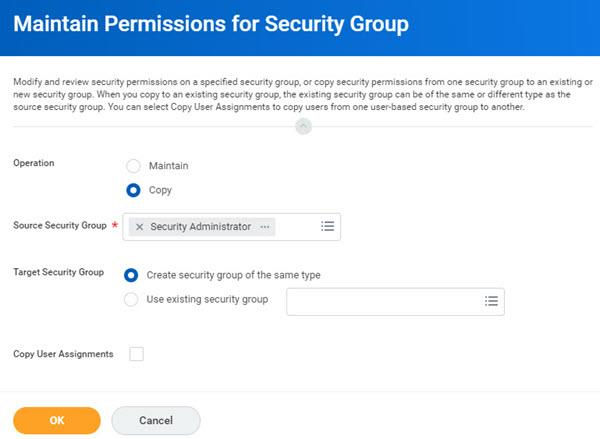
The Maintain Permissions for Security Group task.
The
Maintain Permissions for Security Group
task is secured to the Security Configuration domain.Important
: Activate pending security policy changes after modifying or copying permissions using this task.Chapter 4 Summary
- User-based security groups provide unconstrained access to a given area of Workday.
- You manually assign a user-based security group to a user and it stays with that user, regardless of position or job changes.
- You can create, edit, copy, delete, and inactivate tenanted security group definitions.
- You can add or remove a security group from multiple domain security policies in one action, as well as individually.