
Role-Based Security
Overview
This chapter covers role-based constrained security groups, which are one of the most common ways to configure security in Workday. Role-based constrained security groups use assignable roles to define membership and constrain members' access to assigned organizations. For example, you can constrain access for your support and leadership staff (e.g., managers, benefits partners) to only those organizations to which they have role assignments. You will learn how to create and configure assignable roles and role-based security groups. You will also see the importance of maintaining role assignments in your staffing transactions.
Objectives
By the end of this chapter, you will be able to:
- Identify the purpose of role-based constrained security groups.
- Configure a new assignable role and role-based security group.
- Compare and contrast methods of assigning roles.
- Examine options for constrained access to subordinate organizations.
- Identify the importance of maintaining role assignments.
Role-Based Security Groups
Role-based constrained security groups are used frequently in Workday because they allow you to configure access for your support and leadership staff (e.g., managers, HR partners, accountants, recruiters). You can allow these workers to access needed tasks, reports, and business process steps, but constrain them to just the organizations that they support or lead. Only role-based constrained security groups allow you to individually assign worker positions to a role for a specific organization that they are not in.
Organizations
An organization is a basic building block in Workday. Use organizations to group workers and financial transactions for business process routing, security, analytics, and reporting purposes.
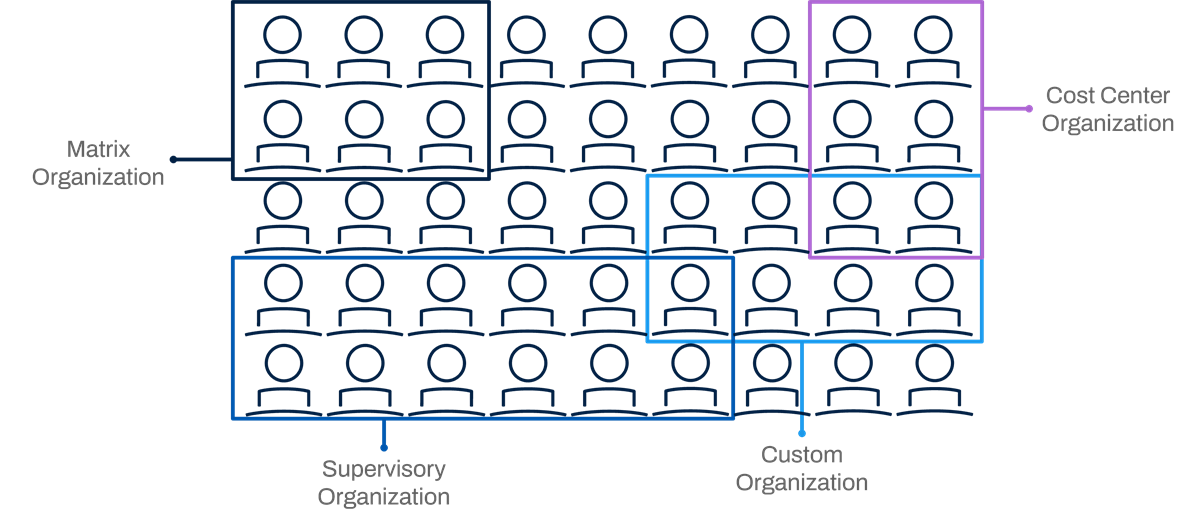
Organization Types
An individual worker or target instance or data can (and will) be associated with multiple types of organizations, as each organization applies to different business functions. For example, workers are hired into a supervisory organization, but can also be part of a:
- Company
- Cost center
- Region
- Custom organization
When it comes to configuring security in Workday, organizations play a large part in your security design. Organizations are a very common way to enforce target constraints on members of a security group. For example, you can constrain members to only see data for those workers in a given organization when running reports or tasks.
Organization Hierarchies
An important benefit of the organization model is the ability to arrange organizations into parent-child hierarchies. Organization hierarchies ease reporting requirements and also allow you to enforce target access constraints by hierarchy level. For example, with a location hierarchy organization, you can allow access to subordinate organizations without needing to individually specify each organization.
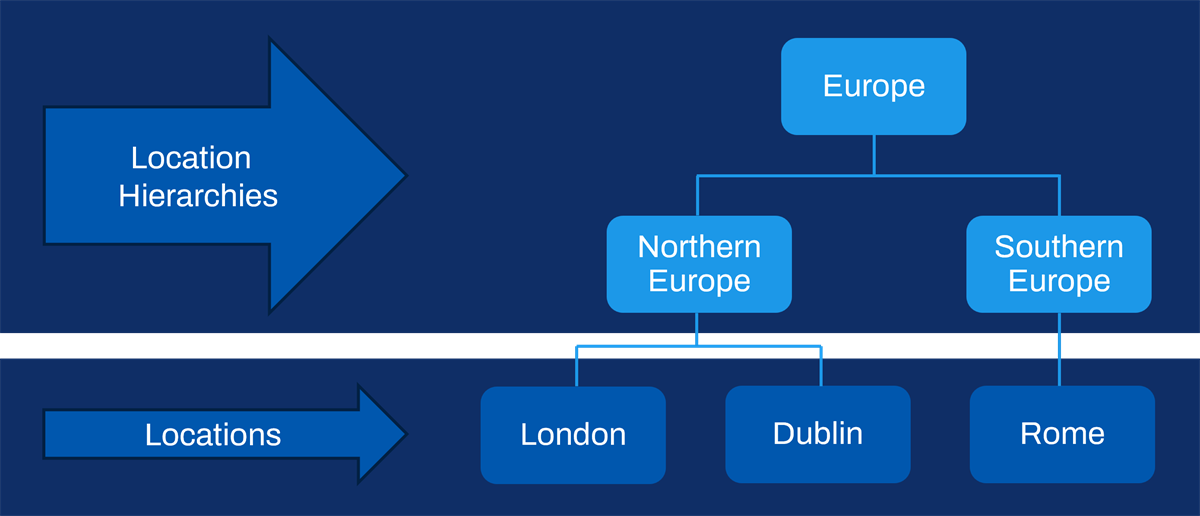
Organization hierarchy example.
Assignable Roles
Role-based security groups use a concept called an assignable role (or "role") as the criteria for membership. A role represents the responsibilities a given assignee has for viewing, reporting, or managing data related to a given role-enabled instance, such as for an organization.
For example, using assignable roles, you can allow a controller for a particular company to only access financial transactions and accounts related to the company they support. You can allow a payroll partner to only access employee pay data based on the pay group they support.
You can think of assigning the role to the "chair" that the worker is in, rather than to the worker. Workers become members of a role-based security group when someone assigns their "chair" (position or job) to the assignable role referenced in the security group definition. Tying the role assignment to the worker's "chair," and not directly to the worker, allows for easier maintenance. For instance, if a worker changes jobs or leaves the company, you can leave the role assignments on the unfilled position. That way, the worker who back-fills the position will assume those role assignments.
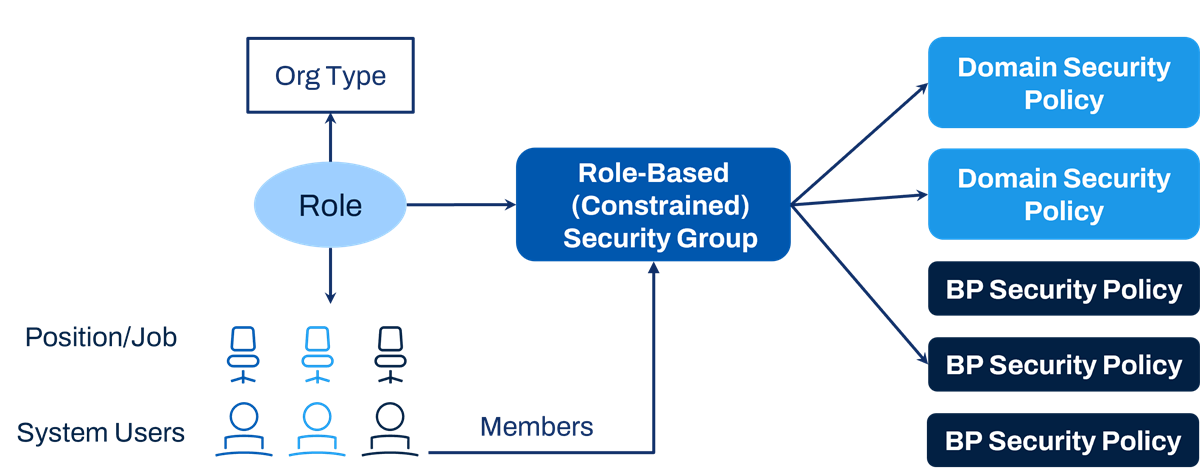
How role-based security groups work.
Some examples of assignable roles and their assignments in GMS are:
Assignable Role | Enabled for Organization Type | Role-Enabled Instance | Position / Job |
|---|---|---|---|
Manager | Supervisory | IT HelpDesk Department | Manager, IT HelpDesk - Jared Ellis |
Accountant | Company, Company Hierarchy | Global Modern Services, Ltd (Canada) | Tax Accountant - Andrew Walton |
Payroll Partner | Pay Group | GBR Monthly | Director, Payroll Operations - Ella Phillips |
Cost Center Manager | Cost Center, Cost Center Hierarchy | 33000 Global Support Center | Vice President, Global Support - Susan Steinberg |
HR Partner by Location | Location Hierarchy | Japan & Asia/Pacific | HR Manager - Fumi Endo |
Configuring Role-Based Security
The steps for configuring role-based security are as follows:
- Create an assignable role (or identify an existing role), enabled for a specific organization type (or role-enabled instance).
- Create a role-based (constrained or unconstrained) security group, specifying the assignable role as the group criteria. If constrained, specify the access to subordinate organizations as needed (e.g., COUS, COAS).
- Assign roles to a specific position (or job) for each target organization (or instance).
- Edit security policy permissions to include the security group.
- Activate the pending security policy changes.
- Test access.
View and Maintain Assignable Roles
Run the
View Assignable Roles
report to access assignable roles already configured in your tenant.Use the
Maintain Assignable Roles
task to add, remove, and maintain assignable roles. The required fields are Role Name, Enabled For, and Assigned by Security Groups.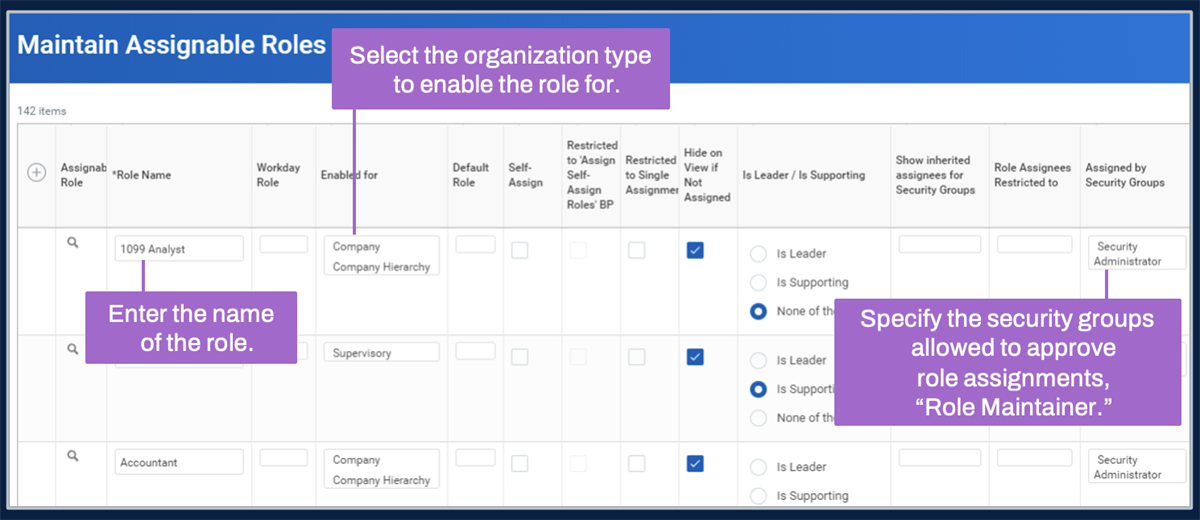
Maintain Assignable Roles
Note
: The Assigned By Security Groups field establishes the role maintainers, which are security groups whose members can approve assignments for this role. Role maintainers can assign members of the role only within the organizations they support.The available fields in the
View Assignable Roles
and Maintain Assignable Roles
tasks are:Field | Definition |
|---|---|
Role Name | This field allows you to provide a name for your assignable role. Common names include the terms "partner," "manager," or "analyst." |
Workday Role (Optional) | There are certain Workday-provided roles, such as the Manager or Benefits Partner roles, that Workday uses for nonsecurity purposes, such as populating worklets or generating reports. Only the roles that appear in the prompt are available to map. Once you have mapped them, they no longer appear in the prompt list. |
Enabled for | This field allows you to select the types of organizations for which you want to maintain and assign this role. Note : Configure a single role for a single organization type, when possible. Configuring a role for multiple organization types can make it difficult to determine how a user is able to access a particular secured item. The exception is for organization types where there is role inheritance between a hierarchy and its included organizations, such as cost center hierarchy and cost center. |
Default Role | An unassigned role can inherit from a superior organization. This field allows you to select another role as the default assignment. Available default roles are other roles that are valid for the same organization type. |
Self-Assign | Select this option to default the role assignment to the organization creator's primary position. If you select Yes for Self-Assign, you can also select the Restricted to 'Assign Self-Assign Roles' BP field. |
Restricted to 'Assign Self-Assign Roles' BP | With this option selected, Workday automatically assigns the creator of an organization to fill the role for the organization they are creating. |
Restricted to Single Assignment | This field allows you to restrict the role assignment to one position. Do not select this option for the Workday Manager role if you wish to allow the assignment of multiple managers to a supervisory organization. |
Hide on View if Not Assigned | When viewing an organization, you can determine the roles enabled for that organization type and the assignments. With this option, you can choose to hide unassigned roles. If selected, noninherited unassigned roles will not display on the following reports:
There is no impact on the Unfilled Assigned Roles Audit report.Do not hide roles you need to audit, such as roles used in your business process routing. |
Is Leader / Is Supporting | Select for roles whose assignees should display as leaders in the organization chart and organization preview. Workers assigned to an Is Leader role display in the supervisory or matrix organization name when you select Include Manager Name. These options also drive the delivered My Leadership Roles and My Support Roles reports. |
Show inherited assignees for Security Groups | Displays all inherited role assignments for the selected security group when viewing the Support Roles page of the Worker Profile and the Roles tab of the organization. |
Role Assignees Restricted to | This field allows you to restrict a given role to members of a defined security group. When assigning the role, only members of the security group specified will be available. |
Assigned by Security Groups | This field allows you to specify all security groups whose members can approve role assignments for this role. Workday automatically assigns members of this designation to the Role Maintainer security group for the given role. |
Assignable Role Usages | This Usage button displays:
|
Role-Based Security Groups | This field contains the number of role-based security groups associated with this role. You may select the number for a list of those security groups. |
Security Note
: The Set Up: Assignable Roles security domain secures the View Assignable Roles
and Maintain Assignable Roles
tasks.Methods of Assigning Roles
Role assignments involve associating a worker's position or job with a given assignable role for a given organization or role-enabled instance (e.g., project, fund, supplier contract).
You can assign roles in several ways:
- At the organization or role-enabled instance level.
- At the worker position or job level.
- To an unfilled position.
- As a step in a business process.
- Via a web service (e.g., integration).
Assign Roles to an Organization
To assign roles for a given role-enabled instance (e.g., an organization): Navigate to an organization's Related Actions, then select Roles > Assign Roles.
When assigning roles using this method, keep these considerations in mind:
- Only members of the Role Maintainer security group can assign roles at the role-enabled instance or organization level.
- Users can only access roles they can assign.
- The assignment does not involve a business process. Therefore, you cannot enforce approvals with this method.
Assign Roles to a Worker's Position or Job
To assign roles directly to a worker's position or job, navigate to their Related Actions, then select Security Profile, and choose one of the following actions:
Related Action | Definition |
|---|---|
Assign Roles - Add/Remove | This option enables you to add roles, remove selected roles, remove all roles, and copy role assignments from another worker. |
Assign Roles - Change Assignments | This option enables you to propose multiple roles for multiple assignees. The role assignment grid initially populates with the worker's primary position, and then you can propose changes. |
These tasks provide:
- Common actions such as add, remove, copy, and maintain roles.
- Visibility into the role assignments of a worker.
- The option to update later-dated assignments.
If the worker assigning the role is not in the Role Maintainer security group, the system routes an approval step for the role assignment to the Role Maintainer.
Note
: Configure security groups permitted to access these actions (and more) by editing the security policy permissions for the Assign Roles
business process.Assign Roles via an Integration
Workday provides a web service operation for role assignments. Configure permitted security groups in the
Assign Roles
business process security policy to control who can access the web service operation.Role Assignment Considerations
Role Inheritance
When you assign a role for an organization to a worker's position or job, subordinate organizations without an existing role assignment typically inherit that assignment. Role assignees' target access depends on the security group configuration.
Report
: Use the Roles for Organization and Subordinates
report to view roles and role assignments for a particular organization and up to two subordinate levels. The report lists the worker who fills each role, and whether the role is assigned or inherited.Time Zone Settings
Use the
Edit Tenant Setup - System
task to configure the time zone setting for role assignments. You can use the assignee's location or a tenant-configured default time zone as the time zone option. Once you select a time zone option, the effective time zone field will show in role assignment tasks and reports. If you do not configure time zone options in the tenant, you will not see the effective time zone field around role assignments. The system will use the Workday default Pacific time zone.Resource
: See Appendix B for more information.Access Rights to Organizations
For constrained role-based security groups, there are four options for configuring access rights to organizations:
Access Rights | Definition | |
|---|---|---|
Current Organization Only (COO) | Constrains members to organizations where they have the role assignment. | 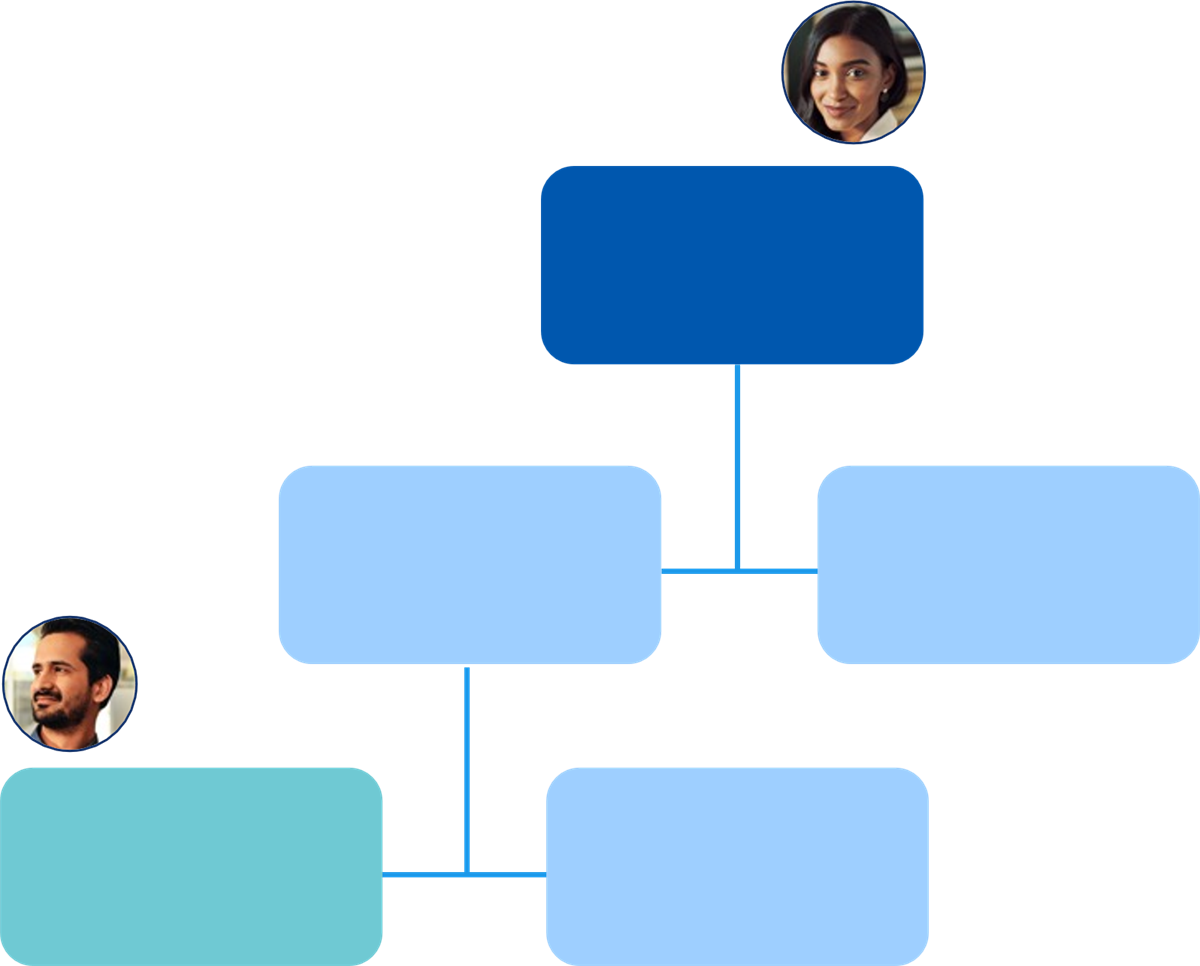
|
Current Organization and Unassigned Subordinates (COUS) | Constrains members to organizations where they have the role assignment and subordinate organizations that do not have someone assigned to the role. | 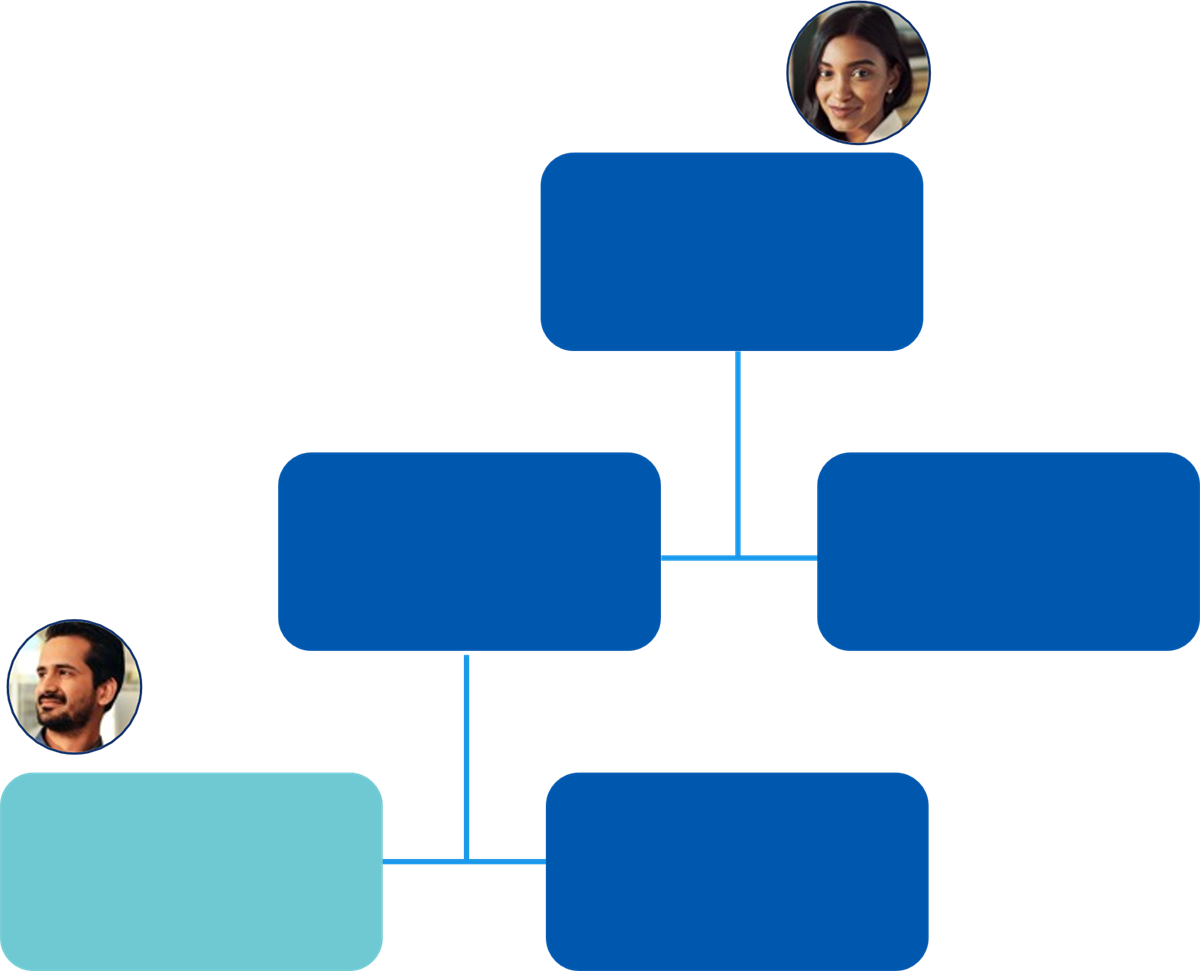
|
Current Organization and All Subordinates (COAS) | Constrains members to organizations and subordinate organizations, regardless of whether they have someone assigned to the role. | 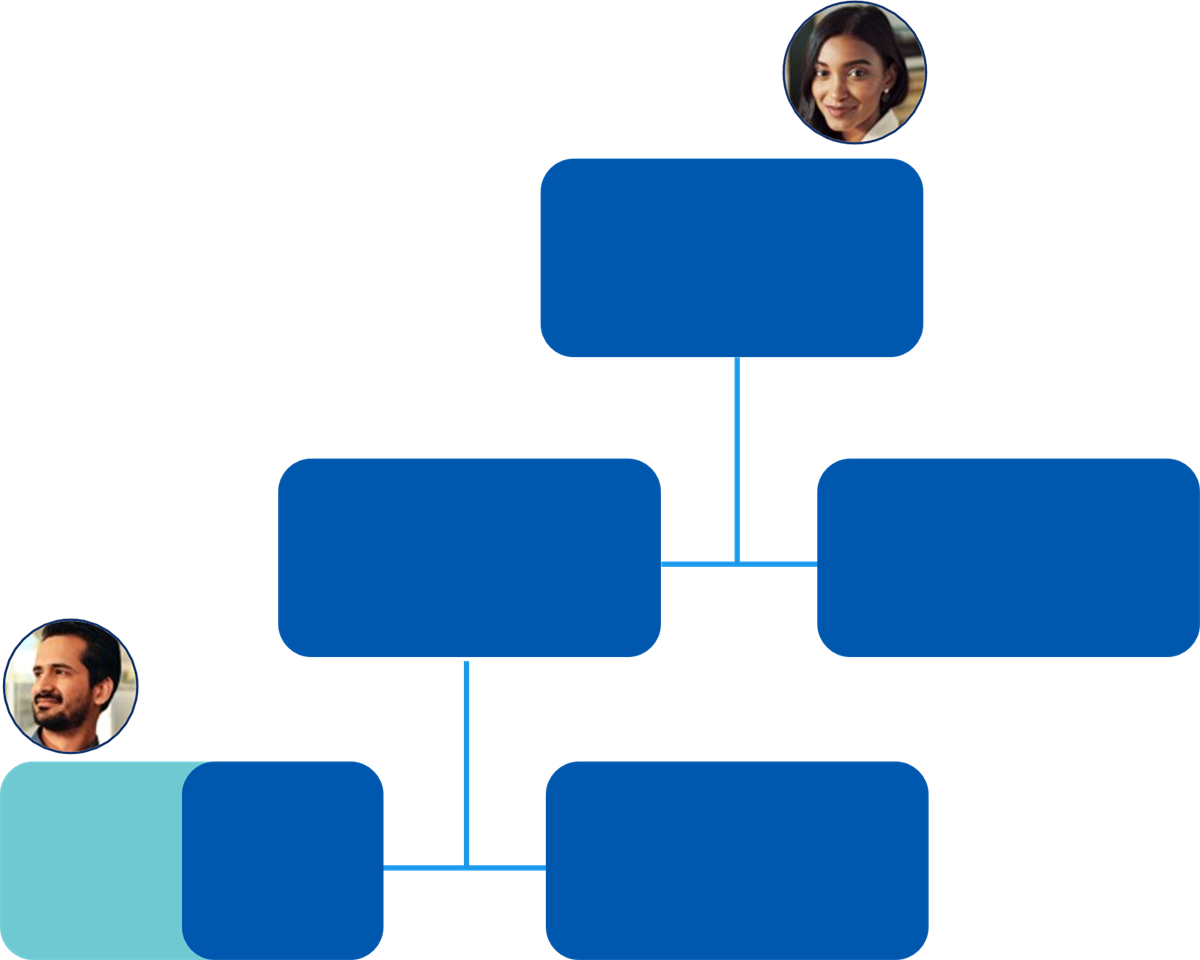
|
Current Organization and Subordinates to Level | Constrains members to organizations and subordinate organizations, down to a number of levels in the hierarchy. | 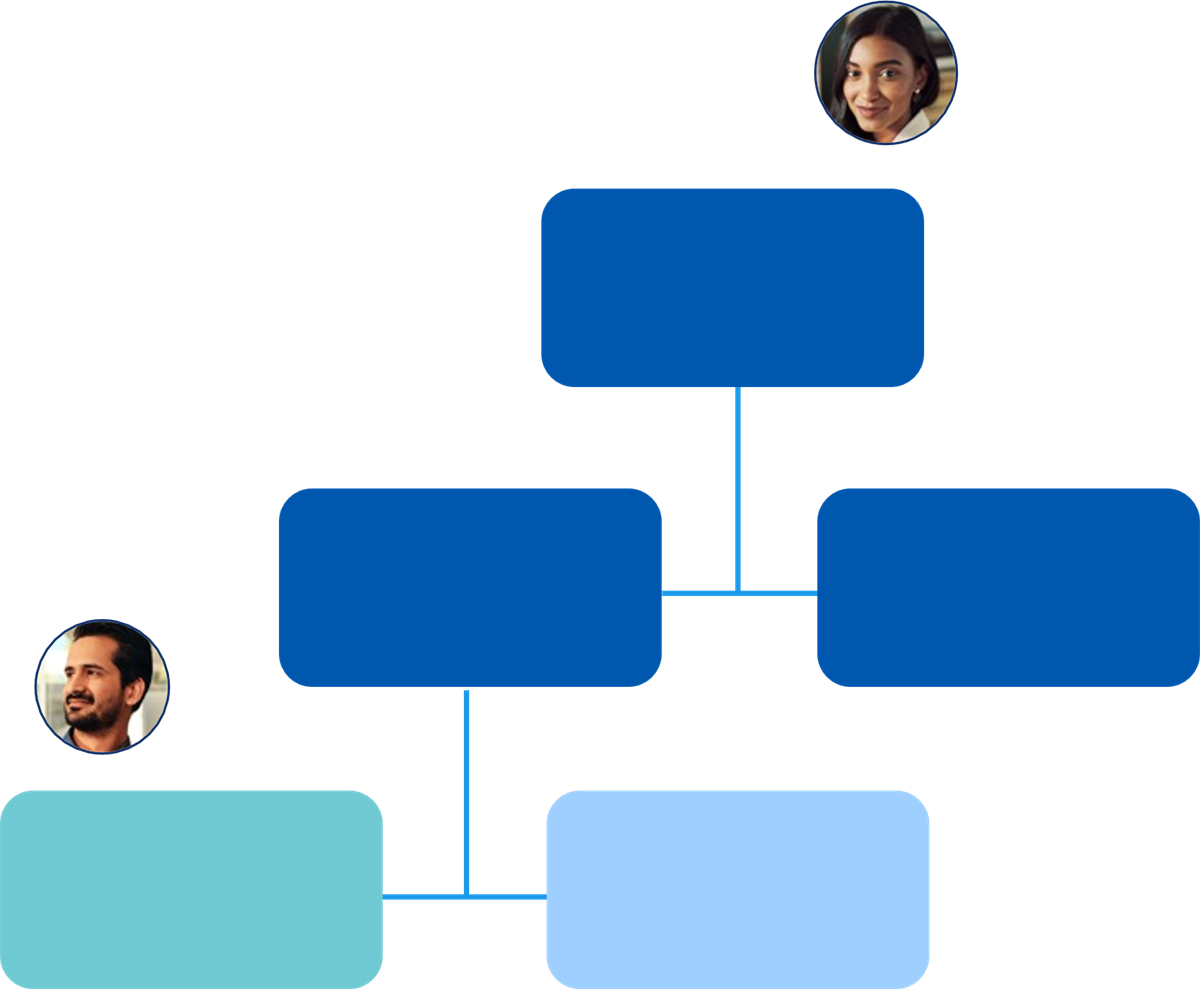
|
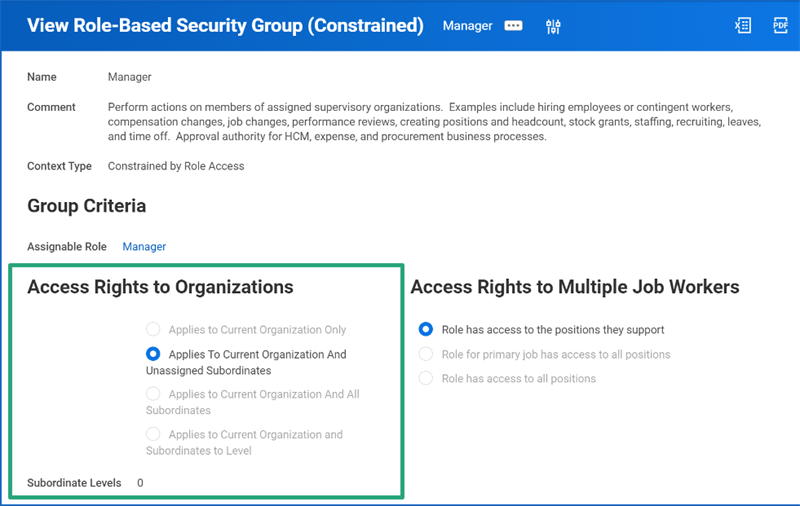
Access rights to organizations section of the View Role-Based Security Group task.
Access Rights to Multiple Job Workers
There are three options for configuring access rights to workers who have multiple jobs:
Option | Description |
|---|---|
Role has access to the positions they support | Grants access only for the job or position that you assign to the role in the specified organization. Example: Sarah has a primary position at Company 1 that Mark manages and a secondary position at Company 2 that Susan manages. When you select this option:
|
Role for primary job has access to all positions | Grants access to assignees who have a role in the organization associated with the primary job or position. Denies access to assignees who have a role in the organization associated with an additional job or position. Example: Sarah has a primary position at Company 1 that Mark manages and a secondary position at Company 2 that Susan manages. When you select this option, only Mark can access Sarah's:
|
Role has access to all positions | Grants access to assignees who have a role in the organization associated with the primary or additional job or position. Example: Sarah has a primary position at Company 1 that Mark manages and a secondary position at Company 2 that Susan manages. When you select this option, both Mark and Susan can access Sarah's:
|
One Role, Multiple Security Groups
Each role-based security group can only reference one assignable role. However, you can have several role-based security groups for the same role, with different access rights for each security group.
For example, you can use the same Manager role in a number of role-based security groups to express whether the user:
- Has a direct relationship to the worker (role-based constrained security group: Manager).
- Is in the organization chain for the worker (role-based constrained security group: Management Chain).
- Has a direct relationship to the worker's primary position (role-based constrained security group: Primary Manager).
- Is anyone in the role (role-based unconstrained security group: Manager (Unconstrained)).
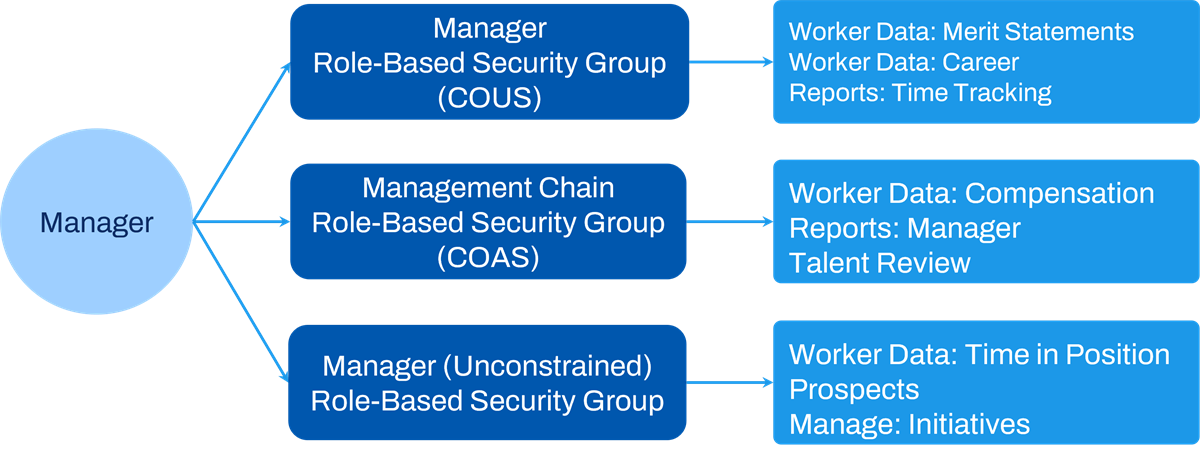
One role with multiple security groups.
Each role-based security group that uses that same assignable role will have varying access rights to organizations to distinguish the different target access constraints desired.
Exercise: Organization Access Rights
For the following organization charts, consider which organizations each manager supports, for each access right option (COO, COUS, COAS, and Unconstrained). Use the tables below to check your answers.
Original manager role assignments:
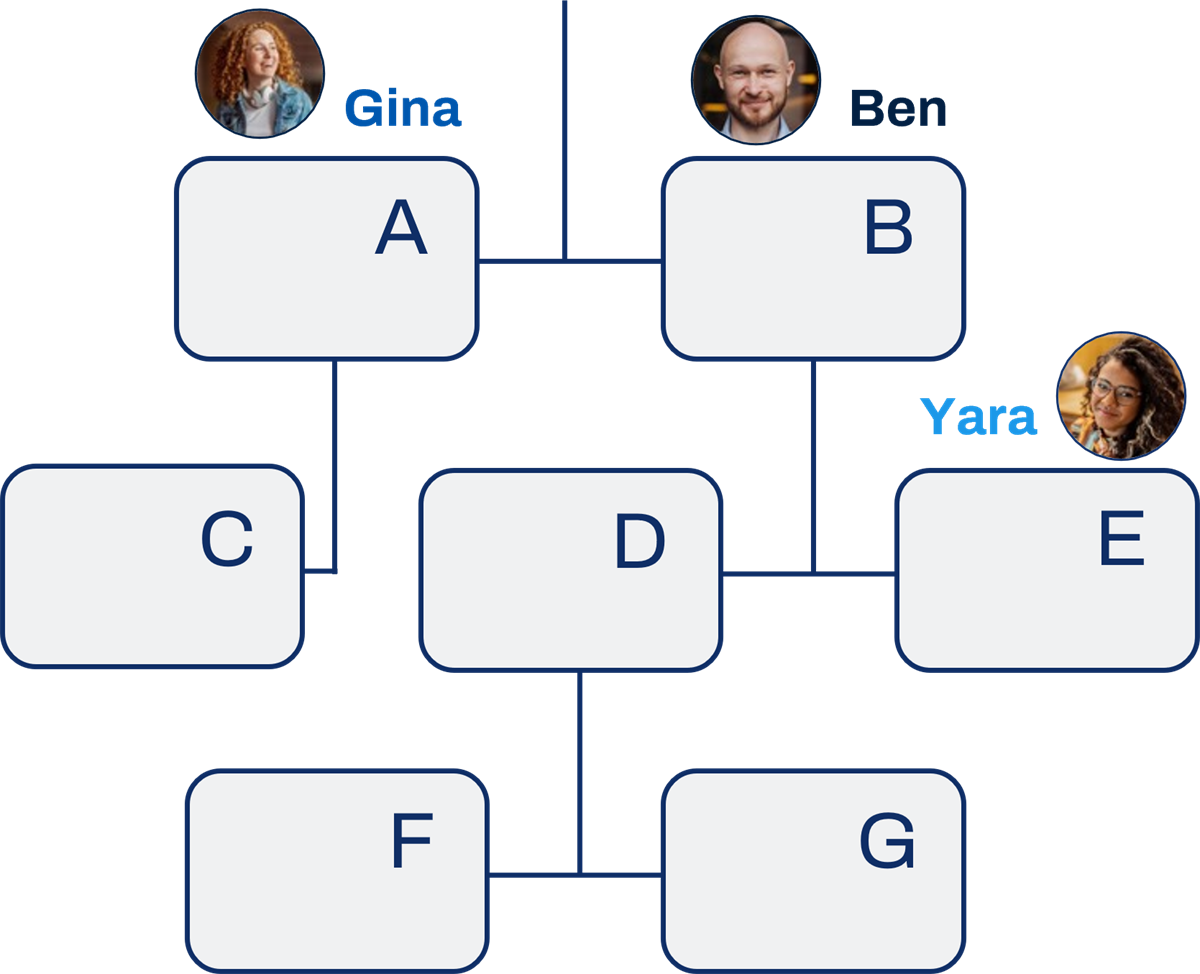
Organization access rights - original manager role assignments.
Summary of the role assignees' target access:
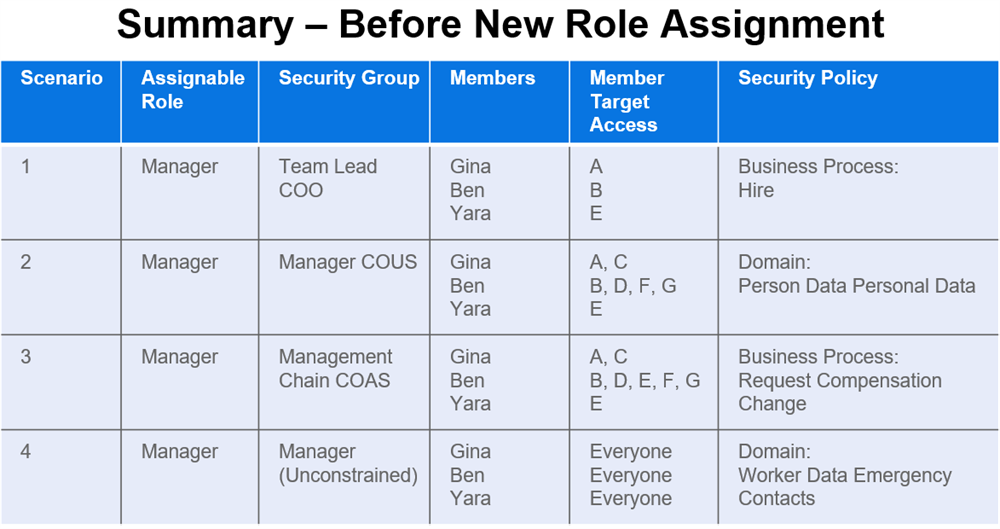
New manager role assignee:
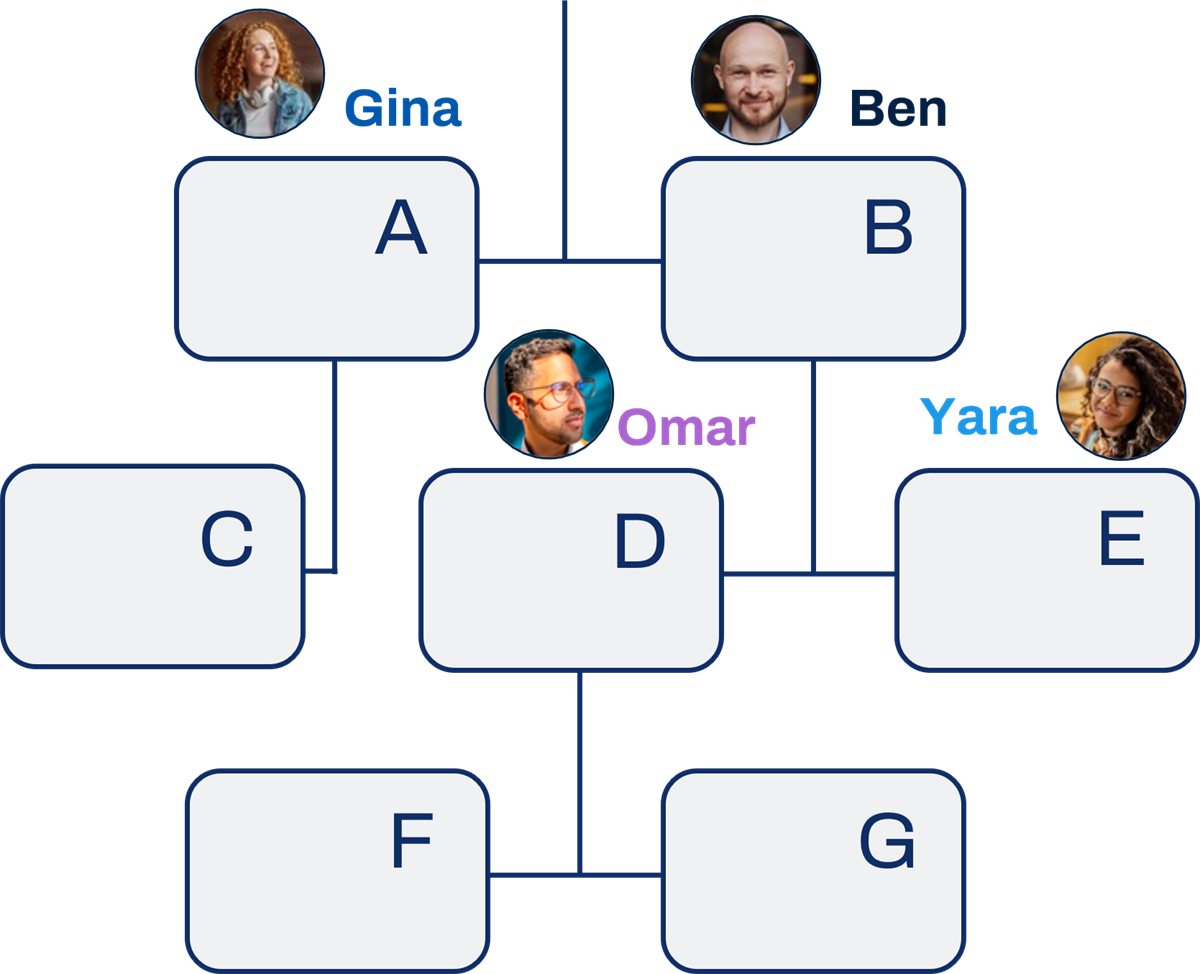
Organization access rights with new assignee.
Summary of the role assignees' target access:
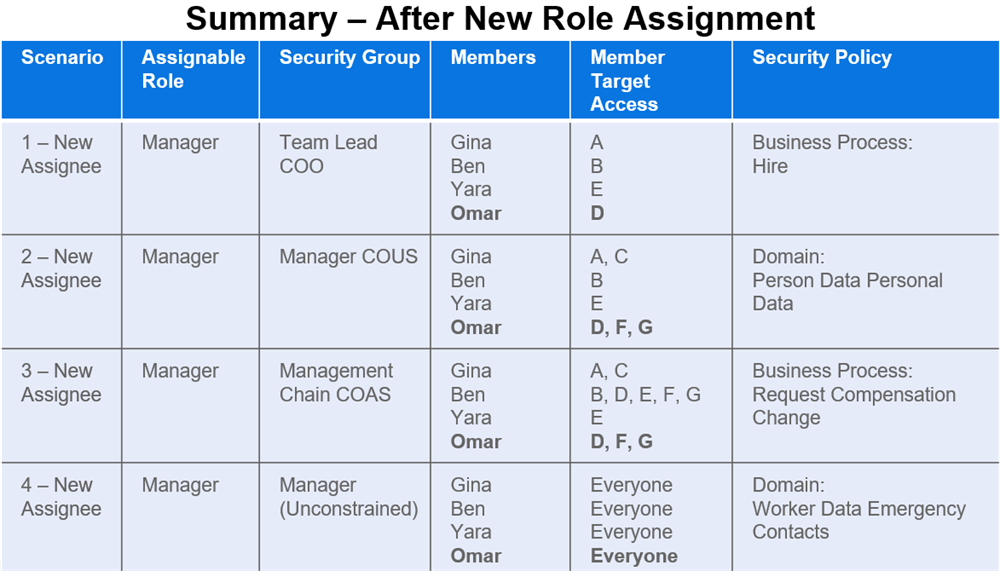
Role Maintenance
It is important to maintain your organization's role assignments, as these assignments directly drive membership in role-based security groups. Unassigned roles can result in unassigned tasks since the system could send business process steps to role-based constrained security groups with no members for an organization.
The best way to avoid unassigned roles and tasks is to set up processes to ensure you are monitoring and maintaining role assignments and security groups.
Assign Roles Subprocess
Workday allows Action steps in certain business processes that can trigger subprocesses for assigning roles. These subprocesses ensure that someone reviews and reassigns role assignments during worker staffing changes.
The primary subprocess for assigning roles on a staffing transaction is Assign Roles - Change Assignments for Worker.
Security Note
: This subprocess initiates the Assign Roles
business process. Remember to configure permitted security groups for these initiating actions in the Assign Roles
business process security policy. The action step in the staffing business process definition must route to a permitted security group.Example: Change Job
The following image shows an example of the
Change Job
business process definition. Notice how we have configured two of the steps to address needed changes in role-based and user-based security groups for the worker changing jobs.Note that you can configure entry condition rules so that the system executes a step only when certain conditions are true. In this case, the worker must have at least one existing role-based or user-based security group for those steps to execute.
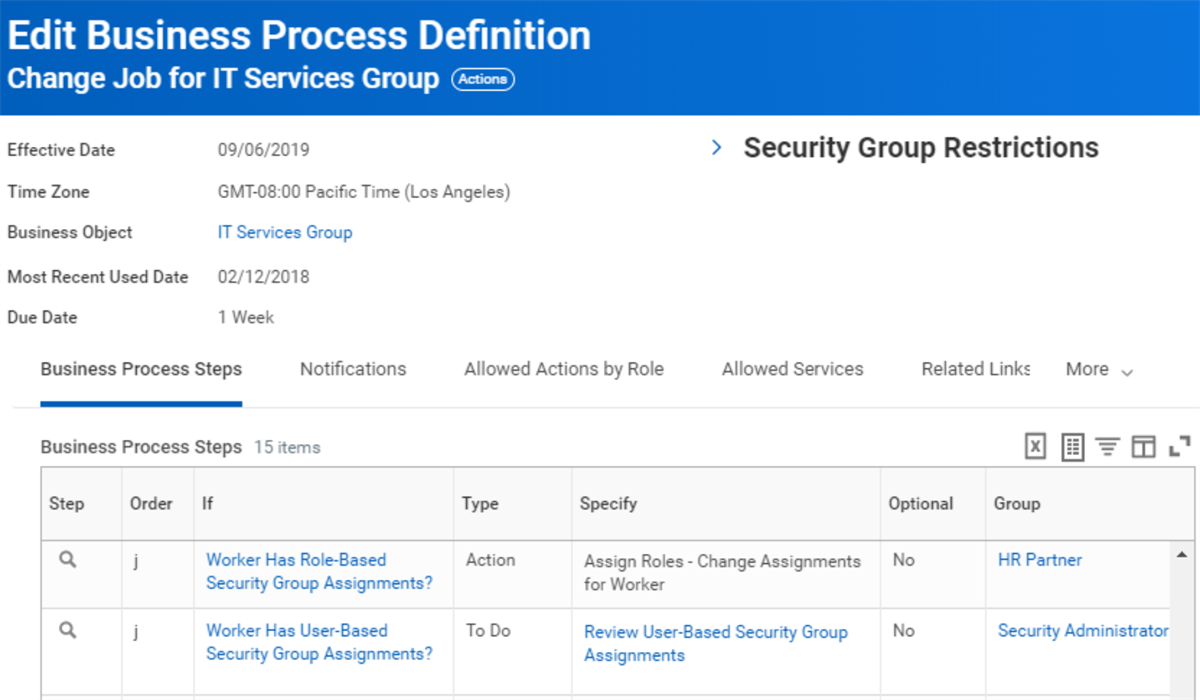
Change Job business process definition with steps to review user-based security groups and assign roles.
The action step Assign Roles - Change Assignments for Worker initiates the
Assign Roles
business process as a subprocess. This step allows you to determine what to do with the role assignments of the transferred worker. The options are:- Transfer role assignments from the old position to the new position.
- Copy role assignments from the old position to the new position.
- Copy role assignments to the new position from another position.
- Remove role assignment from the old position.
- Manually specify assignees for each role.
Important
: Assign Roles - Change Assignments for Worker is the recommended subprocess for Change Job. It allows you to determine what to do with the role assignments regardless of the staffing model in use.Position Management vs. Job Management
Changes to role assignments as a result of
Change Job
business process events differ when using position management vs. job management staffing models.If the transferred worker is in a position, the roles can remain unfilled on the position. Then, when another worker backfills that position, they will assume the role assignment.
If the transferred worker is in a job, you can optionally transfer the role assignments with the worker. You may be using the tenant setting: Change Job Use Default Organizations for Job Management, which removes role assignments for workers moving between job management organizations. If so, you can also use the Copy Role Assignments service step to automatically reassign roles to the worker. Configure the step after the Complete step of the business process definition. You cannot use the Copy Role Assignments step with future-dated role assignments or workers with multiple jobs.
Reminder
: Whether using job management or position management, it is important to audit for unassigned roles or roles left on unfilled positions. If the security group access rights include unassigned subordinates, the assignee in the superior organization will automatically fill an unfilled role.Audit Role Assignments
You can audit your role assignments using the
Unassigned Roles Audit
report. You can also find tasks that are unassigned due to empty security group membership using the Unassigned Tasks
report.Reports
Report | Description |
|---|---|
My Leadership Roles | Displays your position's assigned leadership roles. (You will also appear on the organization chart as the leader of any organizations to which your position has a leadership role.) |
My Supporting Roles | Displays your position's assigned supporting roles. |
Role Assignments for Worker Position | Displays an overview of assignable roles, security group membership, and access rights for the specified worker. The role information includes whether the role is inherited or directly assigned, and whether the role is active or inactive. You can limit results to specific roles as well as filter out inactive organizations and inherited role assignments. |
Role Assignment Permissions | Displays the security group whose members can administer each role. Enables you to view or edit which security groups can assign workers to each assignable role. |
Roles for Organization and Subordinates | Displays the organization hierarchy of subordinate organizations. Enables you to select an organization in the hierarchy to view all the assignable roles, the worker in each, and whether they fill that role by assignment. |
Unassigned Roles Audit | Displays roles for which no positions are assigned. Details include the organization type, unassigned roles, and the minimum roles to assign to each role. |
Unfilled Assigned Roles Audit | Displays roles assigned to unfilled positions. Enables you to include or exclude inactive roles in the results. |
View Assignable Roles | Displays an overview of all assignable roles, including: the types of organizations for which each role is enabled; the default role, if any; and whether the role is restricted to single assignment, is hidden if not assigned, or is a leadership role. You can also see which security groups may assign specific roles. This report also includes security group and access right information associated with each role. |
Worker Roles Audits | Displays the workers in a specified organization and any assignable roles, user-or job-based security groups, or process-maintained roles to which they belong. |
Chapter 5 Summary
- Use Role-based constrained security groups to grant your support and leadership staff access to targets in assigned organizations.
- Membership in role-based security groups occurs via role assignments for the assignable role defined in the security group.
- Access rights to subordinate organizations are dependent on the configuration of the role-based constrained security group.
- It is important to maintain role assignments in your staffing transactions, such as change job or termination.