
Report Security
Overview
This chapter examines how security domains and security groups control access to reports and report data. You will learn to share custom reports with authorized users and troubleshoot report access issues. You will also configure security for dashboards.
Objectives
By the end of this chapter, you will be able to:
- Describe the security features that control access to reports and report fields.
- Share a report with other users.
- Troubleshoot report access issues.
- Configure dashboard security.
Workday Security Model
The Workday security model controls access to reports and report data.
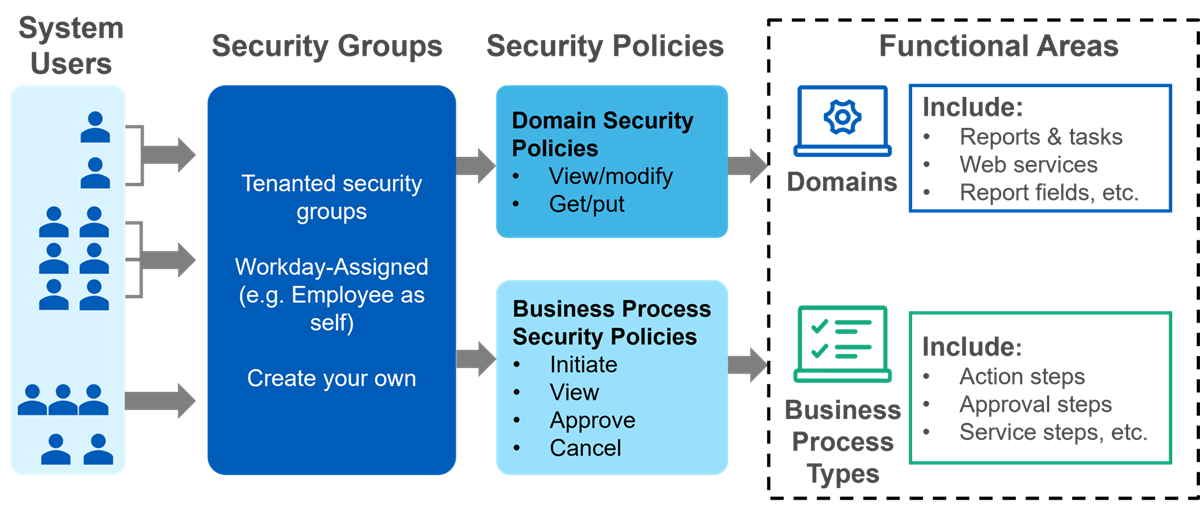
How security controls access for users ( )
Term | Definition |
|---|---|
Security Domain |
|
Security Group |
|
Domain Security Policy |
Note : Domains secure all delivered items (including data sources, report fields, delivered reports, and tasks). To access an item, users must belong to a security group with access to the domain securing the item. The security administrator can configure the domain security policies and add or remove security groups as needed. |
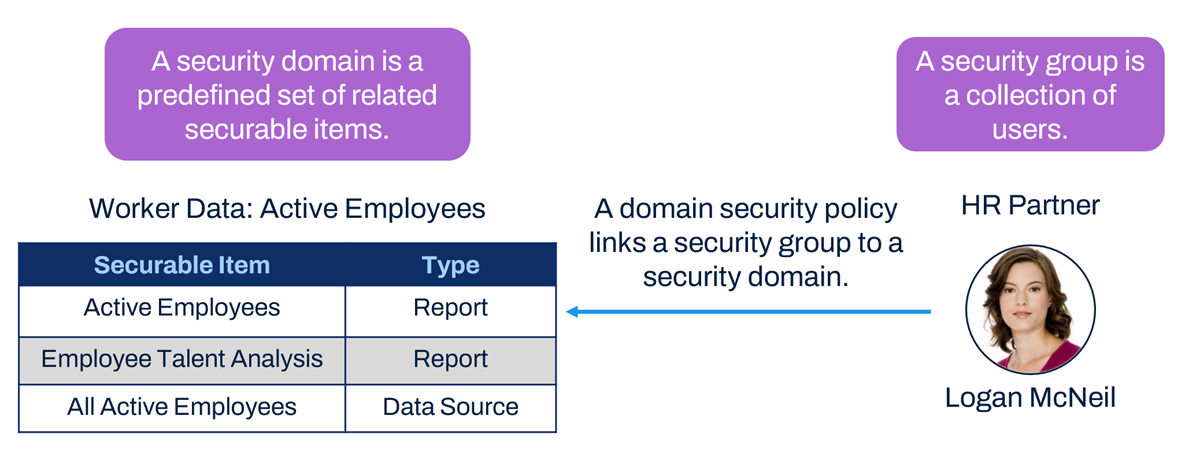
This example shows the Worker Data: Active Employees security domain. This security domain contains three securable items:
- Active Employees, a report.
- Employee Talent Analysis, another report.
- All Active Employees, a data source.
The HR Partner security group has one member, Logan McNeil. This security group identifies users with positions assigned to the HR Partner role.
In this example, Logan can:
- Run the Active Employees and Employee Talent Analysis reports.
- Run a report that uses the All Active Employees data source.
The following table shows examples of using security domains and permitted security groups to control access to reports, tasks, data sources, and report fields.
Securable Item | Security Domain | Permitted Security Groups | Impact |
|---|---|---|---|
Standard Report: Find Journal Lines | Process: Journals | Accountant Accounting Manager Company Financial Analyst Controller Finance Auditor Financial Management System Implementers | Members of these security groups can run this standard report. |
Task: Create Custom Report | Analytics Data: Report Fields and Values | Implementers Manager (Unconstrained) Report Writer Setup Administrator Temporary Report Writer | Members of these security groups can create custom reports. |
Data Source: All Customer-Owned Deductions | Set Up: Payroll (Calculations - Payroll Specific) | Implementers Payroll Administrator Payroll Auditor Payroll Calculations Administrator Payroll Partner | Members of these security groups can create and run reports that use this data source (assuming the report is shared with them). |
Report Field: Billing Schedule | Process: Billing | Accountant Accounting Manager Billing Specialist Cash Analyst Cash Manager Company Financial Analyst Controller Customer Contract Specialist Customer Contracts System Finance Auditor Implementers Revenue Specialist | Members of these security groups can access this report field and create reports with it. |
Unconstrained vs. Constrained Security Groups
A security group can be unconstrained or constrained. Users in an unconstrained security group have access to all data for a given object. Users in a constrained security group have contextual access to a subset of data for a given item. For constrained security groups, a user's access to specific data is controlled either by their individual role or their organization.
In the following example, Beth Liu is a member of both the Payroll Administrator and Manager security groups. Jack Taylor is a member of the Manager security group. Let us assume that both the Payroll Administrator and Manager security groups have access to the Base Pay Amount report field. Beth sees all data for this report field, since she belongs to an unconstrained security group with access to the report field. Jack only sees his employee's (Jeff Gordon) data for this report field, since he belongs to a constrained security group with access to the report field.
Security Note
: A user can be a member of many security groups. A user's access is the union of all their security group access.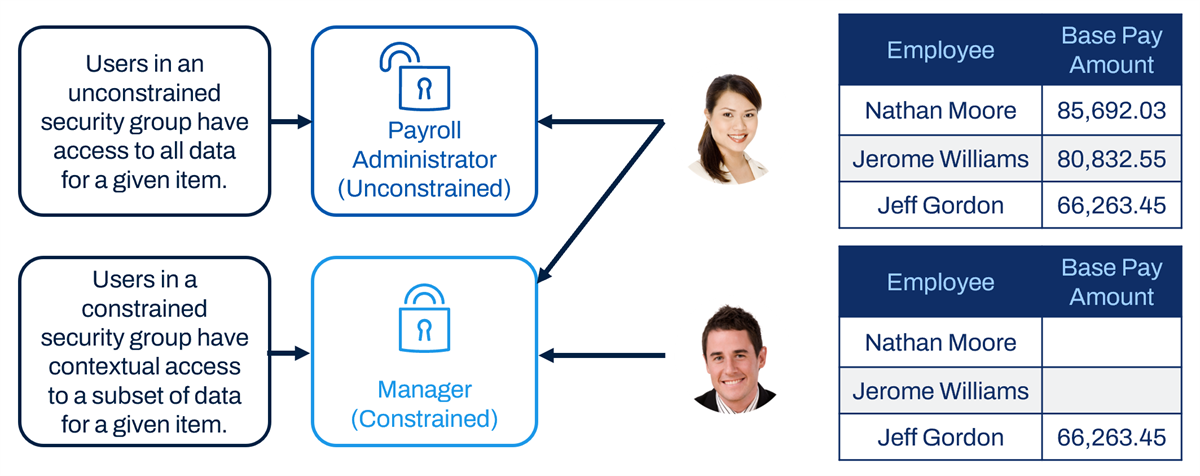
User-based and role-based security groups are the most common security group types. User-based security groups are unconstrained security groups manually assigned to users. User-based security groups are often used for administrators that need to see and set up data in the tenant for a given area. Role-based security groups are usually constrained and allow you to identify members based on role-assignment as well as constrain members to target access in organizations assigned to the role.
Custom Report Structure
Custom reports include several components. The report definition tabs contain components that are relevant to security (e.g., columns, filter, prompts).
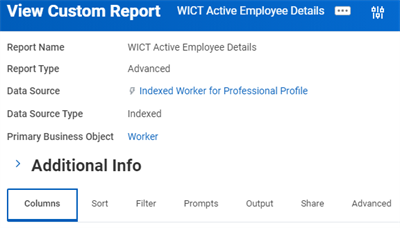
View Custom Report definition tabs.
Columns Tab
The fields in the Columns tab are the displayed report columns. The report's primary business object determines the fields the report can use. Advanced custom reports also commonly contain fields from related business objects.
Filter and Subfilter Tabs
The Filter and Subfilter tabs filter the data, based on logic within the primary business object (Filter) or any related business objects (Subfilter). These filters can contain fields that are not in the Columns tab.
Prompts
Prompts request information to output a particular set of data. The report data source may predetermine prompts. Otherwise, you can set prompts in the Filter tab. For predetermined prompts that are not already displayed in the Filter tab, you can view the Prompts tab to identify the securable items.
Share
The Share tab determines who can view the report. A user or group must be able to view custom reports before you can share a report with them.
Sharing Reports
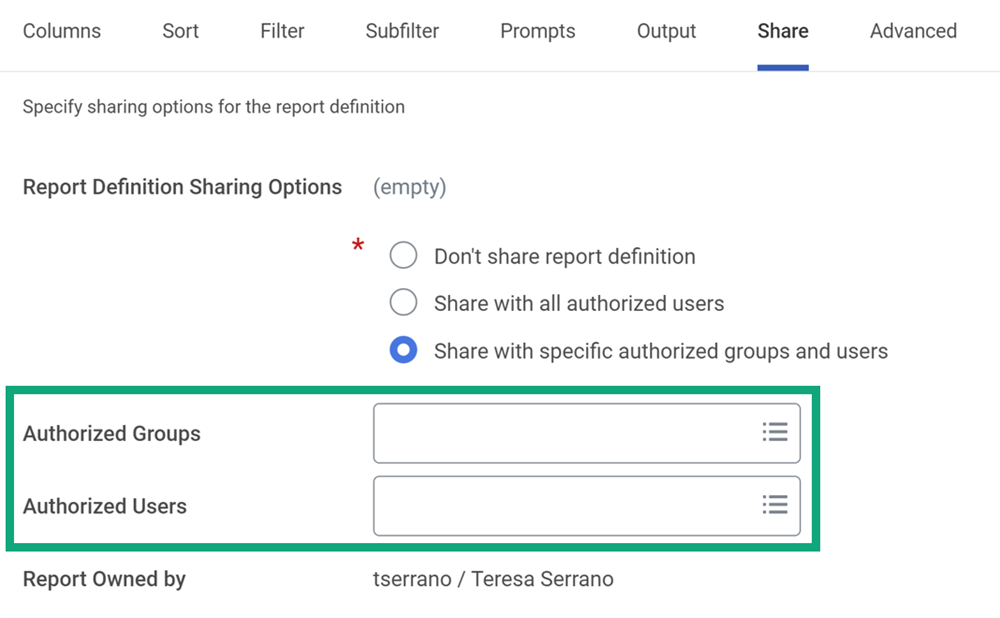
Custom reports are not shared by default. A custom report is visible only to its owner (and to users who have access to manage all custom reports). The Share tab lets you share a custom report with authorized users. You can share a custom report with all users who have access to the report data source and data source filter. You can also share a report with specific groups and users who have access to the report data source and data source filter. The domain securing the custom report's data source determines which security groups you can share the custom report with.
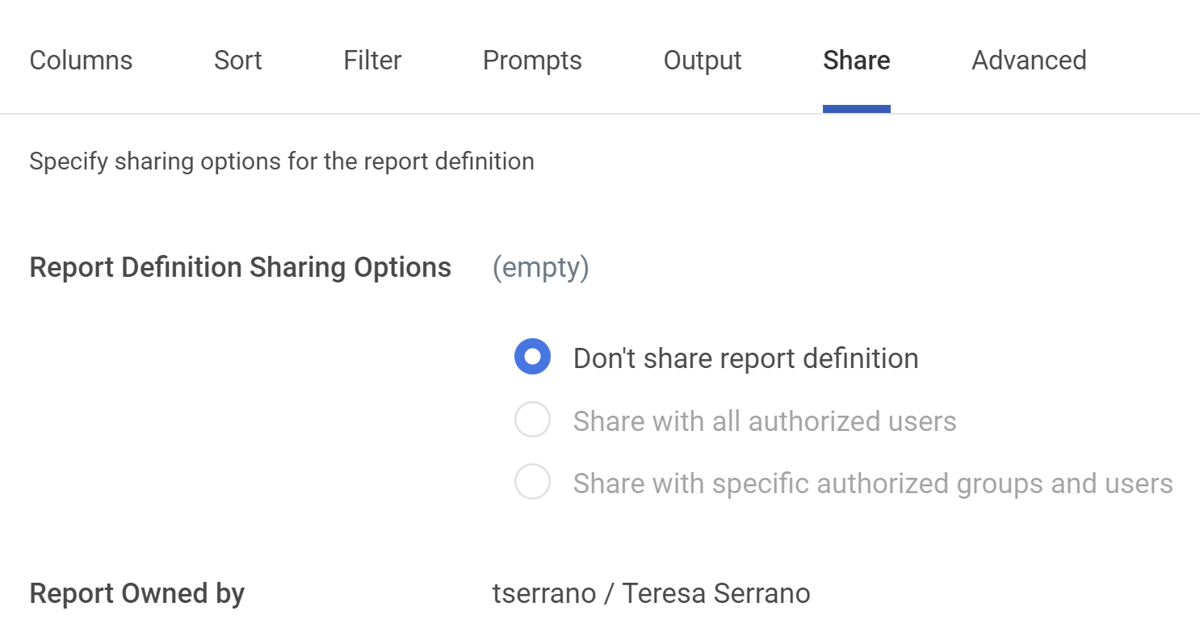
Sharing options
Security Note
: You can control if report writers can use the different sharing options. Report writers must have access to these security domains to use the sharing options:- Domain: Report Definition Sharing - All Authorized Users
- Domain: Report Definition Sharing - Specific Groups
- Domain: Report Definition Sharing - Specific Users
When you share a report, users can run the report, but they cannot edit it. Only the report owner (and those who can manage all custom reports) can edit custom reports. However, a shared user can view the report definition and copy the report definition if the shared user is also a report writer.
Note
: You can use the Start Proxy task to easily test the report as a shared user. This lets you verify that a user can view the appropriate data in the report.What Can Users View on a Shared Report?
A user running a shared report can view the report results based on their security to the data source, data source filter, and report fields. The following example shows the report output when Jack Taylor runs a shared report.
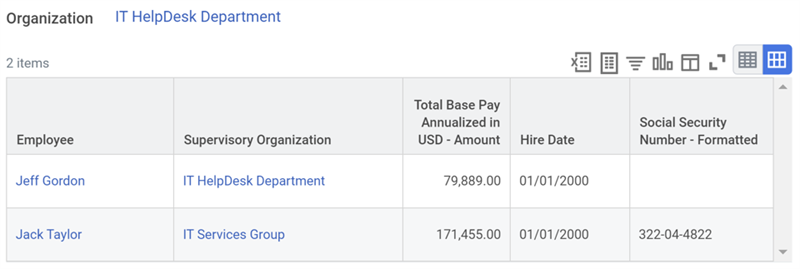
The Workday security model determines what Jack can view on the report:
- He can only view two instances (rows) based on his access to the data source. Jack can only view employees in his organization (IT HelpDesk Department).
- He cannot view the Social Security number for his employee Jeff Gordon. Jack has constrained access to this report field, so he can only view his own Social Security number.
- He cannot view the Age and Emergency Contacts report fields at all in the output. Jack does not have any access to these report fields.
The following example shows the report output when Logan McNeil runs a shared report. Logan McNeil has unconstrained access to the report.
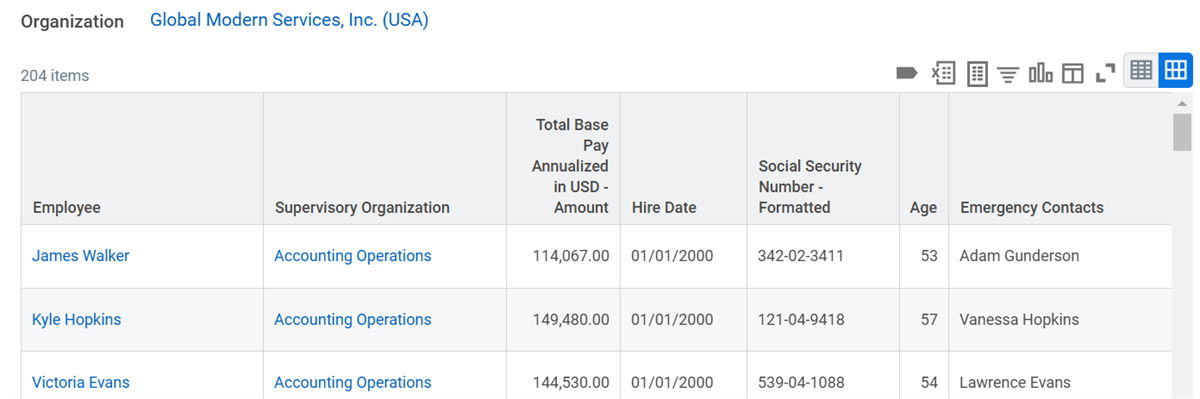
Data Source and Data Source Filter Security
Security domains contain both report data sources and data source filters. You need to identify which domains contains a data source and data source filter in order to determine if a user has access to report data. Using that information, you can grant the user security access to the necessary domain to display the report data. You can use the
View Security for Securable Item
report to view the security configurations for any object in the Workday system. This includes data sources and data source filters.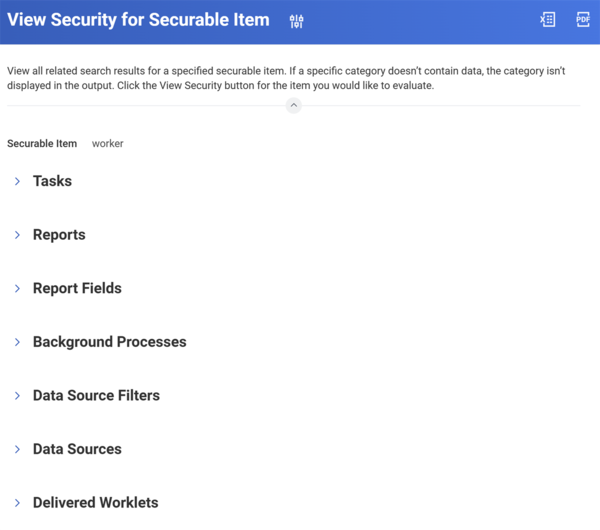
Remember, to share a report with a user, they must have security access to both the report data source and the data source filter used in the report. The "Share with specific authorized groups and users" option prompts you to select which authorized security groups or users you wish to share the report with. Only security groups and users authorized to access both the report's data source and data source filter are selectable from these prompts.
Note
: You may receive an error when sharing a report with an allowed security group if you later change the data source filter for the report. This happens when the security groups you have selected do not have access to the newly selected data source filter.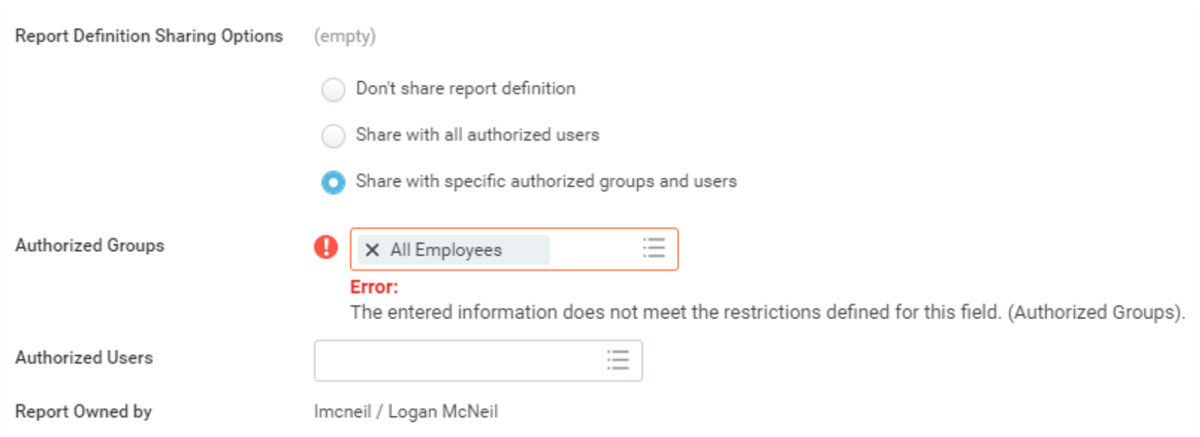
Common Report Access Issues
The following table shows common report access issues that users face when running a shared report.
Issue | Root Cause |
|---|---|
A user cannot run a standard report. | The user does not have access to a domain securing the standard report. |
A user cannot run a custom report. | The custom report is not shared with the user. |
Report field data for certain instances does not display. | The data is missing for these instances or the user belongs to a security group that has constrained access to the report field. |
A report field does not display at all. | The user does not belong to a security group that has access to the report field. |
A different number of instances display for one user compared to another. | The user belongs to a security group that has constrained access to the data source or to report fields used in filters. |
A user gets an error that they do not have access to a report field when running a report. | The user does not belong to a security group that has access to a report field used to generate the report, such as in a filter or subfilter. |
These are the basic steps you should take when troubleshooting report access issues:
- Verify that the user should have access to the report or data.
- Determine which domains secure the standard report, data source, or report field and the permitted security groups.
- Determine which security groups the user belongs to.
- Add the user to a security group that already has access to the domain or edit the domain security policy to include a security group to which the user belongs.
You need to work with your security team to view security groups, view security domains, and change the domain security policy. The security team can use these Workday standard reports to troubleshoot report access issues:
Standard Report | Description |
|---|---|
View Security for Securable Item | Shows the security policies and permitted security groups for a securable item, such as a data source or report field. |
Security Analysis for Securable Item and Account
| View the security policies and security groups that grant a specified user access to a specified delivered securable item. |
View Security Groups for User | Shows which security groups a user belongs to. |
Below are the specific steps to take to troubleshoot each report access issue. Remember to first check that the user should have access to the report or data.
Issue - A User Cannot Run a Standard Report
Root Cause | The user does not have access to a domain securing the standard report. |
|---|---|
Resolution |
|
Issue - A User Cannot Run a Custom Report
Root Cause | The custom report is not shared with the user. |
|---|---|
Resolution |
|
Issue - Report Field Data for Certain Instances Does Not Display
Root Cause | The data is missing for these instances or the user belongs to a security group that has constrained access to the report field. |
|---|---|
Resolution |
|
Issue - A Report Field Does Not Display at All
Root Cause | The user does not belong to a security group that has access to the report field. |
|---|---|
Resolution |
|
Issue - A Different Number of Instances Display for One User Compared to Another User
Root Cause | The user belongs to a security group that has constrained access to the data source or to report fields used in filters. |
|---|---|
Resolution |
|
Issue - When Running a Report, A User Gets an Error That They Do Not Have Access to a Report Field.
Root Cause | The user does not belong to a security group that has access to a report field used to generate the report, such as in a filter or subfilter. |
|---|---|
Resolution |
|
Who Can Create, Edit, Copy, and Delete a Custom Report?
Users with access to the Analytics Data: Report Fields and Values security domain can create a custom report. Security domains control access to data sources and report fields. When creating a custom report, you must have view permissions for:
- A security domain for the data source you want to use.
- Security domains for the report fields you want to add.
Prompts only show the data sources and report fields you have access to.
The report owner and users with modify access to the Manage: All Custom Reports security domain can edit and delete a custom report. You cannot delete a custom report definition in use anywhere, such as a worklet on a dashboard.
Transferring Ownership of a Report
You can use the
Transfer Ownership of Custom Reports
task to change the owner of one or more reports to a different user. This task is useful when people leave the company or change jobs. The new owner must have access to the report's data source and data source filter and have access to the Custom Report Creation security domain.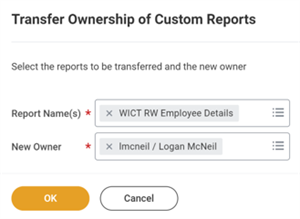
Transfer Ownership of Custom Reports task
Security Note
: You must have access to the Custom Report Administration or Manage: All Custom Reports security domain to transfer ownership of reports owned by other users. While you can transfer ownership without granting access to the fields in the report definition, the new owner cannot save changes to the report without access to all fields in the report definition.Dashboards
Dashboards allow you to easily organize and deploy data to target audiences. You can configure Workday delivered dashboards, and custom dashboards to display groups of custom reports enabled as worklets. You can also use Workday dashboards for more than worklets and analytics. Configure menus and announcements to allow users to access not only reports, but also key tasks, links, and announcements.
Dashboard Security
Workday secures dashboards and landing pages to domains. A user must belong to a security group with permissions to the domain securing the landing page or dashboard in order to view the page.
To determine the domain securing a given dashboard, select Edit and access the Settings tab from the
Maintain Dashboards
report.You can also get security information for the dashboard using a valuable security report called
View Security for Securable Item
. This report will also show you the securing domain as well as the permitted security groups for the domain. Remember that security in Workday is configurable.You can edit domain security policies to add or remove security groups to meet your requirements.
- Run theView Security for Securable Itemreport.
- Enter the name of the landing page or dashboard.
- SelectOK.
- Find the desired landing page or dashboard.
- SelectView Security.
- Delivered dashboards show as: (Report (XpressO))
- Custom Dashboards show as: (Custom Dashboard)
- View the Permitted Security Groups.
- To add security groups, use theRelated Actionsicon for the domain security policy shown.
- SelectDomain Security Policy>Edit Permissions.
Custom Report Exception Audit
Run the
Custom Report Exception Audit
standard report to view warnings and errors for custom reports. This report is helpful when transferring ownership of a report to another user. You can transfer a report to another user as long the new owner has access to the data source. However, an error will appear if the new owner tries to edit the custom report without access to all of the report fields. Running this report can identify these errors ahead of time.Chapter 11 Summary
- Security domains control access to standard reports, data sources, and report fields.
- You need access to the Custom Report Creation security domain, the data source, and the report fields to create a custom report.
- Users running a shared report can view the report results based on their security.
- Workday secures dashboards to domains. A user must have a security group with permissions to the domain securing the dashboard to view it.