
The Job Application Business Process
Overview
The
Job Application
business process is the framework for moving candidates dynamically through the recruiting process. In this chapter, you will learn how to configure dynamic action labels and the Job Application
business process.Objectives
After completing this chapter, you should be able to:
- Configure dynamic action labels.
- Configure theJob Applicationbusiness process.
The Job Application Business Process
To review, the
Job Application
business process connects phases of the recruiting hiring process. You can define the phase order. Each time you select a phase of the process, Workday engages the supporting recruiting subprocess.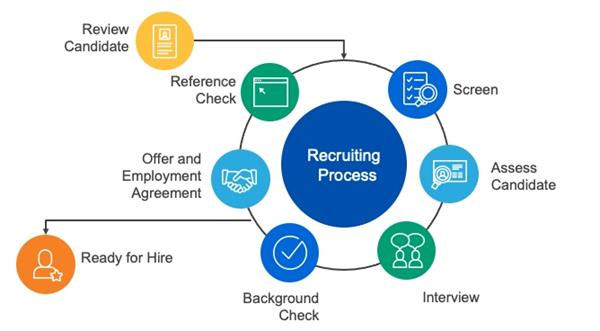
Workday Recruiting Business Process
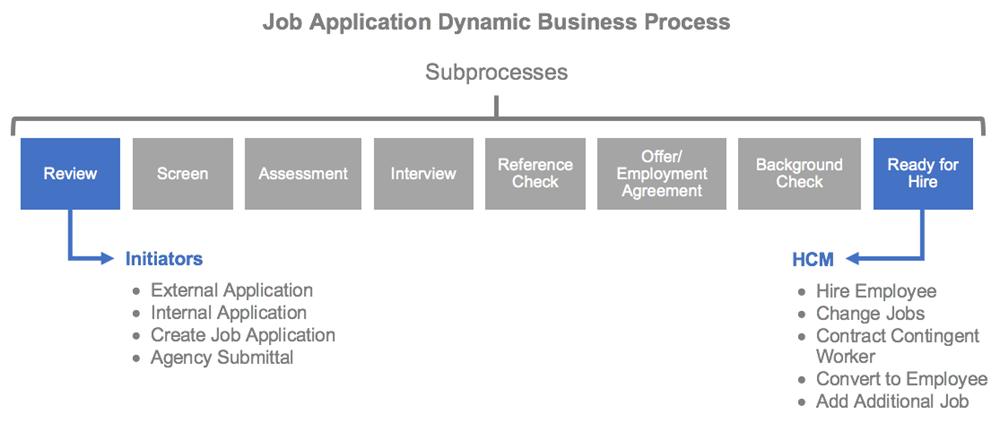
Review is the Initiation step, and Ready for Hire is the Completion step. All steps are subprocesses with their own unique security policies.
The navigation of the
Job Application
business process definition is unique from other business processes in Workday. When you navigate to the Job Application
business process, you have the option to Edit Dynamic Definition or View Dynamic Definition. The Edit Dynamic Definition option brings you to the Edit Business Process Definition
task.You can configure the
Job Application
business process dynamically with a list of possible next steps and dispositions for each stage. You can also configure the business process with only one move forward option per stage; this configuration is the linear option.You can define the following configurations in the
Job Application
business process:Section | Description |
|---|---|
Initial Step | Definition of the security groups responsible for moving new applicants out of the Review Candidate stage and into a subsequent step. Individuals can also disposition candidates from that step. |
Possible Next Steps | For each recruiting subprocess, you can define next possible steps to route a candidate. Configurations include:
|
Possible Parallel Steps | Candidates can have a job application in more than one recruiting stage at the same time. |
Possible Disposition Reasons | For each recruiting subprocess, you can define the possible reasons for declining a candidate during that stage. Configurations include:
|
Elements of the Job Application Business Process
Initial Step
The initiating step in the business process is Review Candidate. There are four ways you can initiate the
Job Application
business process:- An external candidate applies.
- An internal candidate applies.
- Someone creates a job application for a prospect.
- An agency submits a candidate.
You can have one or more security groups defined in the initial Review Candidate step. These security groups are the individuals responsible for moving new candidates from the Review Candidate step and into subsequent steps. You can configure a security group on the first step of the Review Candidate business process. You can also configure a security group in the Initial Step of the
Job Application
business process.Possible Next Steps
You can define possible next steps for each stage in the recruiting process. The Possible Next Steps configured on each tab determines different paths your candidates can take. Although Workday displays each subprocess in a specific order, you can determine when the subprocesses occur. If you do not perform a phase (e.g., Reference Check), no possible next steps display.
You can have different steps reference themselves as next possible steps. For example, a second interview could be a next possible step from the Interview. This feature allows you to conduct multiple rounds of interviews. You may also have the same stage assigned to different groups listed more than once as the next possible steps. For example, you may have two Screen steps: one assigned to the Recruiter and one assigned to the Manager. Use the Step Label Override function to allow the person assigned to decide whether to move the candidate to a Manager Phone Screen or Recruiter Phone Screen step. This action triggers the
Screen
subprocess.Parallel Stages
Parallel stages allow candidates to have a job application in more than one recruiting stage at the same time. For example, you can have a candidate in the review and interview stages simultaneously.
Note
: You can have only one offer or employment agreement in progress at a time.Possible Disposition Reasons
As a recruiter, when you decline a candidate, you select from possible disposition reasons for declining the candidate at that step (e.g., Assessment - Candidate Withdrawn, Assessment - Unsuccssful assessment result).
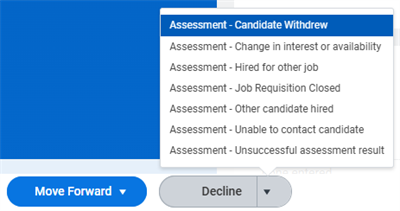
Decline options
Depending on your configuration, notice that you may find disposition reasons that are specific to the step. For example, if you decline a candidate during the
Offer
subprocess, you may view the "Declined Offer" disposition reason. You will not, however, view the "No show for interview" disposition reason because that is not a logical reason for declining a candidate during the Offer
step.
Use the Maintain Recruiting Disposition
task to define possible reasons.Label Overrides
Step Label Overrides
You can change the name of a business process step. Configure the Step Label Override feature to allow recruiting users to view your organization's terminology, not the delivered step titles.
Consider this scenario: The
Interview
subprocess is the next step when a candidate is in the Screen stage, and you want the label to read "Schedule Interviews." Additionally, you want the Interview
subprocess available on the Interview stage. You can schedule multiple interviews until you are ready to make a decision. In this case, you may want the step to read "Another Interview."Note
: This configuration only changes the name that recruiting users view in transactions. It does not change the name of the step in reports.Dynamic Action Label Overrides
You can configure the
Configure Dynamic Action Labels
task to create action labels and external label overrides. This feature overrides the Workday-delivered terms. Use Action Label Override to change the name in reports and on tabs in the Job Application
business process.Use External Label Override in communications sent to candidates or agencies. For example, instead of Review, Screen, or Interview, "In Progress" displays for candidates.
Note
: Action Label Overrides affect your entire tenant. If you override a label using the Configure Dynamic Action Labels
task, the labels change for all Job Application
business processes in your organization.The Completion Step
Ready for Hire is the final stage in the
Job Application
business process. A recruiting user can initiate Ready for Hire from any step in the Job Application
business process. Once initiated, a staffing business process begins in Workday HCM.There are five potential completion events:
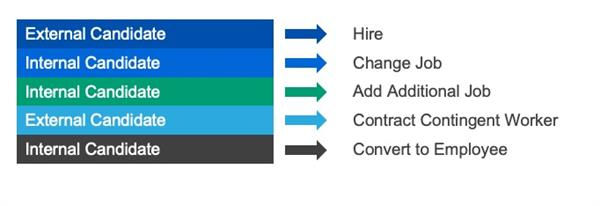
Workday Recruiting Completion Events
Condition Rules and Notifications
Once you configure steps on the
Job Application
business process, you can complete additional configurations to ensure recruiting users and candidates receive the tasks and notifications you define.Condition Rules
You can set up conditional logic on a step or disposition to determine if a recruiting user can select it. For example, you would like to ensure internal candidates do not receive reference checks or background checks. Create a condition rule to define anyone who is not an internal candidate. Attach the condition rule to all Reference or Background Check steps in the
Job Application
business process.When Workday executes the
Job Application
business process and the condition is true, these steps display as next possible steps. If the condition rule is false and it is an internal candidate, there is no option to perform reference checks or background checks on the candidate.Notifications
You can configure notifications on a business process definition. Use this feature to notify recruiting users of business process actions. You can send notifications to internal accounts or outside of Workday.
Since external candidates do not have Workday accounts, select the Do Not Include Notification Details Link checkbox when configuring the notifications. The details link navigates the recipient to sign in to Workday. When you select this configuration option, Workday will not display a link in the notification.
The
Job Application
business process is dynamic. Candidates can enter steps or change statuses at various points during the process. You can customize similar notifications for different situations. For example, "Thank you for applying, we will now schedule your interviews." and "Your phone screen was successful, we will now schedule your interviews."Once configured, the notification preview feature allows you to send a preview to your My Tasks. The preview notification contains field names, not values. You can select the user language of the sample notification. Workday sends the sample notification in your preferred language.
Delay Notifications on Recruiting Business Processes
You can delay notifications. This feature allows recruiters to control when candidates receive their notifications. Delaying notifications helps when using Automatic Stage Routing. Candidates do not receive notifications immediately if they are declined from a job application. Use the
Edit Tenant Setup Notifications
task to enable reminders. You can configure the delay when creating or editing a notification. The minimum delay is one day.Note
: If you cancel or rescind the business process, Workday does not send the delayed notifications.Business Process Effective Dating
When a candidate applies to a requisition, Workday initiates the
Job Application
business process and all subprocesses as of the date of the application. You can use the Maintain Business Process Definition Selection
report to enable the business process effective dating feature. Once enabled, changes to the Job Application
business process are immediately available to all in progress candidates.Viewing Business Process Event History
You can use the
Business Process Event History
task to view details of a candidate's job application history. In addition to the Job Application
business process history, this task displays information about the candidate and current steps awaiting action.Automatic Stage Routing and Dispositioning
You can set up conditional logic on a step to automatically move a candidate to another stage or automatically disposition a candidate. For example, if a candidate answers "No" to "Are you 18 or older?", you can select Configure Automatic Stage Routing to automatically disposition the person. You can use the reason "Does not meet job qualifications."
Workday-Delivered Reports
Workday Recruiting has several Workday-delivered analytical reports. You can use these reports to help with job tasks or gather helpful information. Below are Workday-delivered reports about topics discussed in this chapter.
Report Name | Description |
|---|---|
Active Candidates by Stage | Find candidates in a particular stage of a job application. Use this report with the Offer Letter report to identify candidates in the Offer, Background Check, or Ready for Hire stage. |
Compare Candidate Assessments | Displays a candidate's assessment results for one or more job requisitions and job applications. |
Candidate Time Per Stage | View the average number of days a candidate was in a stage for filled requisitions. |
Candidate Interview Feedback History | View all interview feedback submitted for a candidate historically grouped by job requisition. Recruiters can only view results for job requisitions they own. |
Candidate Pipeline | Displays job requisitions and the number of active candidates connected to the steps within the recruiting process. |
Business Process Configuration Options Report | View a specific business process and how you can use it. |