
Prospects and Candidates
Overview
This chapter covers how to define, create, and manage prospects and candidates.
Objectives
After completing this chapter, you should be able to:
- Create prospect records.
- Create a job application.
- Manage prospect and candidate records.
- Manage candidate communication and engagement.
Statuses within Workday Recruiting
Creating a prospect record is a quick way to get people into Workday Recruiting. Often, recruiters and managers meet potential candidates with whom they want to nurture a relationship. Workday Recruiting uses the following candidate statuses:
- Prospect
- Active Candidate
- Pre-Hire
- Worker
Prospect
Prospects are individuals you want to track. They are not yet connected to a specific job posting. Prospects can come from inside or outside your company. Each recruiter can create their own list of prospects. An individual can appear as a prospect on multiple recruiter prospect lists.
Prospects can submit a resume and basic contact information to your career site. Prospects do not have to apply to a job. These submissions create the prospect's record in Workday.
Once you identify a prospect as a potential candidate, recruiting users can use the prospect record to invite them to apply.
Prospect Consent Collection
Prospects can choose whether to accept or decline your terms and conditions. Use the
Maintain Prospect Consent
task to enable the prospect consent collection feature and to create the default terms and conditions message. Workday allows you to report on details regarding prospect consent. You can also purge prospects who decline to give consent.Note
: Individuals with the appropriate security can add the Prospect Consent Status facet as a filter on the Find Candidates
report.Active Candidate
Prospects become active candidates by applying for a job. If a candidate applies for a job without first being a prospect, they will not have a prospect record in the system. You can convert a prospect to an active candidate using the
Create a Job Application
task.
When you create a job application, all information carries over to the active candidate record except Personal Notes. You can change or add to the resume data in this task. You cannot change candidate contact information.
If configured, you can share notes and collaborate with other recruiting users. You can add and view notes on both the candidate's profile (Candidate Notes) and their job application (Candidate Job Application Notes).Note
: Candidate job application notes display only for recruiting users who have access to those job applications. Use the Manage: Candidate Notes domain for security access.Pre-Hire
A pre-hire is someone you track before employment. In Workday, all workers must have a pre-hire record. Workday creates a pre-hire object for a candidate when they reach the
Offer
, Employment Agreement
, Background Check
, or Ready for Hire
subprocess.Candidate Lifecycle

Candidate Lifecycle
Prospect Types and Statuses
Recruiters can use prospect types and statuses to help manage prospects.
Prospect statuses help define what stage a manager or recruiter is with a prospect (e.g., Nurturing, Contacted, On hold). Use the
Maintain Prospect Statuses
task to define the stages.
Prospect types help define the relationship the recruiter has with the prospect. Use the Maintain Prospect Types
task to identify the types.Creating Prospects
Creating a Prospect from an External Contact
Before you create a new prospect, Workday first allows you to review potential duplicates. You can search on contact details (e.g., first name, family name, email address, phone number). If you discover a duplicate, you can work with the existing record rather than create a new one. Use the
Create Prospect
task.
You can create a new prospect by entering all information manually or by uploading a resume or CV. You can enter basic prospect information (e.g., name, contact information).You can edit the prospect to add the following details:
- Social networks
- Websites
- Skills
- Experience
- Education
- A resume
- Other documents
Creating a Prospect from an Internal Worker
You can create a prospect from an existing worker record. There are two methods. You can use the
Create Prospect
task to select Add from Existing Workers and search for the worker. For an internal worker to display on the My Candidates
report, use the Create Prospect
task. You can also use the worker's Related Actions > Recruiting > Add to Prospects.Information from the worker's data (e.g., Work Experience, Skills, Education, etc.) defaults from the worker profile; this information is editable. The source (current employee) defaults in as well. Additionally, if you have set up prospect types and statuses, those will default in, too. You can edit a prospect record to include additional details; use the
Edit Prospect
task.The Name and Contact Information defaults when Workday saves the record; this information is not editable. You may view the worker's address, email, and phone from the worker profile in the
Edit Prospect
task if you have access to these domains:- Person Data: Home Address
- Person Data: Home Email
- Person Data: Home Phone
Workday does not populate the candidate pool and succession pool membership for internal prospects.
Important
: If you apply on behalf of an employee, a prospect object must exist.Navigating between Prospect and Worker Records
If an internal worker has a prospect record, you can view the Worker Profile from the prospect record. Select the Related Actions > Candidate Actions > View Worker Profile.
From the prospect record, you can:
- View the worker's profile.
- Find duplicates.
- Invite to apply.
- Create job application.
- Send the prospect a message.
- Set the prospect to Do Not Hire or Withdrawn status.
- Review communication with the prospect.
- Execute another candidate communication.
You can find additional tasks under Prospect Actions:
- Edit Prospect
- View Prospect Profile
- Share Prospect
- Inactivate Prospect
Prospect Actions
You can take action on a prospect record from the Related Actions > Candidate Actions. Common actions include:
- Share Prospect
- View Prospect Profile
- Edit Prospect Manually
- Inactivate Prospect
Navigating a Candidate Profile
Candidate Profiles have personal information and job application details about the candidate. Workday organizes the records into profile groups. You can rearrange or remove the profile groups to meet your business needs.
Use the following tasks to configure the candidate and prospect profiles:
- Configure Profile
- Configure Profile Group
- Configure Profile Summary
- Configure Profile Header Card
Candidate Communications
You can configure notifications on business process steps and statuses to automatically send messages to users and candidates. In addition to business process notifications, there are additional candidate notification types that you can create using message templates.
Message Templates
Send messages to candidates using the
Invite to Apply
task or the Send Message
task. When creating a message, you can choose to create a custom message or select a message template. Use the Create Message Template
task to create a new template or the Edit Message Template
task to modify an existing template. Use the notification type of Active Candidates or Recruiting Marketing.From this task, you can:
- Define the From display name.
- Identify the Reply To email address.
- Provide the subject and body of the email.
- Create or select the push notification message for mobile devices.
- Attach documents as needed.
When completing the subject and body fields, select the Insert Tag icon to include dynamic report fields in your template. For example, you may use the Job Posting Title field in the subject of your message and the Candidate Name field in the body of your message.
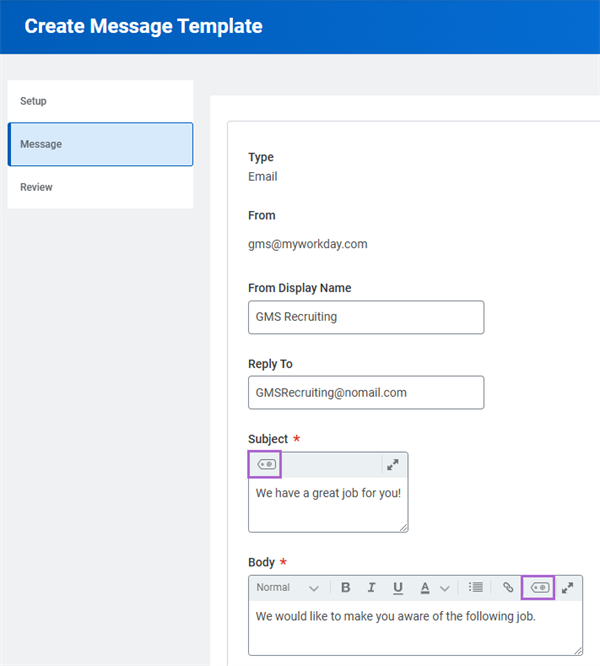
Edit Message Template Task
Use the
Edit Email Template
task to define branding and layout elements on your notifications (e.g., logos, URLs).Recruiting Marketing
You can create recruiting marketing notifications to target prospects that do not have any active job applications. For example, recruiters in your organization may send emails to potential prospects they find on sites (e.g., LinkedIn). The difference between recruiting marketing notifications and other types of notifications is that candidates can opt out to help you comply with anti-spamming regulations.
To allow users to opt out of recruiting marketing messages, use the
Edit Tenant Setup - Notifications
task and configure your notifications with compliance verbiage and unsubscribe links:- Email Compliance: Configure email footer information and unsubscribe page display text. These options display in recruiting marketing email notifications.
- Notification Delivery Settings: Select the Recruiting section to allow both internal and external candidates to unsubscribe from recruiting marketing notifications. Enable Override Notification Parent Type Settings, which allows external candidates to unsubscribe by displaying an Unsubscribe link. You can also configure a Routing Rule and Delivery Override.
To create a recruiting marketing notification template, use the
Create Message Template
task and select Recruiting Marketing as the notification type, or use Notification Designer, an Innovation Service.To use and access Notification Designer, you must opt in to the Innovation Service and have access to Workday Drive. Notification Designer enables you to customize notification templates and content. After creating the notification template, select Recruiting Marketing to maintain the notification type.
For
Invite to Apply
and Send Message
tasks, the selected Notification Template field value determines the layout and format of the message. The selected Message Template field value determines the content and message type (e.g., email and mobile) the recipient will receive. Also, when sending messages to candidates using the Send Message
task, you cannot message more than 1000 candidates at once. For larger groups, use Candidate Pools.Resource/Glossary: Search for "notification designer" on Workday Community Administrator Guide for more information.
Workday Messaging
Workday Messaging is an Innovation Services product that provides recruiters with an SMS channel to communicate with candidates. You can use Workday Messaging to send SMS messages to:
- External candidates
- Internal candidates
- Prospects
Enable Workday Messaging in
Edit Tenant Setup - Notifications
. Use the Create Message Template
task to create predefined messages for efficient communication.Prospects and candidates can opt in to receive Workday Messaging. The SMS Text icon displays on the candidate's profile if the candidate has opted in. To send a message, access the candidate's Related Actions > Send Message.
Note
: Workday limits your SMS messages to 160 characters. If templates exceed the character limit, prospects and candidates will receive multiple messages.Important
: Workday Messaging only supports U.S., Australia, Denmark, Finland, and Sweden based mobile numbers.Candidate Engagement
Candidate Engagement provides additional capabilities to Workday Recruiting. You can customize campaign-specific landing pages and attach those to external career sites.
Reminder
: To use Candidate Engagement, you must purchase this product's license.Recruiting Campaigns
When using Candidate Engagement, you can create and schedule branded marketing communications to attract internal and external talent. Use condition rules and set an automated schedule for targeted messaging and delivery. Prospect and candidate pools will receive these campaign messages.
To manage Candidate Engagement, use these tasks:
- Maintain Candidate Engagement
- Manage Recruiting Campaigns
Note
: Workday sends the campaign at 11:00 AM in the tenant's default time zone. If the campaign start date is today but publishes after 11:00 AM, Workday will send messages the following day.Recruiting Landing Pages
Using the Candidate Engagement recruiting landing pages, you can design and publish external web pages. These recruiting landing pages market your organization and source candidates. You can configure the layout by adding text, buttons, images, videos, links, and forms. Use the
Manage Recruiting Landing Pages
task.Candidate Engagement Analytics
Candidate Engagement also includes analytics to track candidate messaging and engagement.
Recruiting campaign analytics provides data on:
- The number of emails sent, delivered, and bounced.
- Click-through rates.
- Conversion rates for campaign recipients' job applications.
Recruiting landing pages analytics provides data on:
- Page views.
- Prospects created.
- Job applications submitted.
Candidate and Job Application Actions
After a candidate submits an application, there are several actions available on the application from the Related Actions.
Candidate Actions
Candidate Actions | Description |
|---|---|
Send Message, Create Reminder, Invite to Apply & Candidate Communication | Allows you to communicate with candidates through Workday. You can create templates using the Create Message Template task. If no templates exist, use ad hoc messages. Workday stores messages and invitations to apply in the Candidate Communication section. |
Share Candidate, Add to Prospects & Add to Pool | Allows you to share details from the candidate record with other Workday users. Security determines what the user can view. |
Personal Reminders | Enables you to set personal reminders about specific candidates and prospects. |
View Reminders | Displays the personal reminders that you create. |
Find Duplicates | Allows you to find multiple profiles for a single candidate. |
Set Withdrawn Status & Set Do Not Hire Status | Use the Set Withdrawn Status to indicate that the candidate is not interested in working for your organization. Use the Set Do Not Hire Status to flag a candidate's record. |
Job Application Actions
Job Application Actions | Description |
|---|---|
Move Candidate | Allows a role other than the "awaiting action" person to move the candidate forward or assign a disposition. |
Undo Move | Allows recruiting users to move a candidate to the previous stage of the Job Application business process in the event a recruiting user moved them forward in error. Additionally, Workday:
|
Create Job Application | Allows recruiters to manually create a job application for a candidate. |
Edit Job Application | Allows you to add or edit details such as source, recruiting agency payout, job application details, or attachments on a job application. You cannot modify questionnaire answers. |
Note
: If you decline a candidate's application, you can select Reactivate Job Application to make the candidate active again. The candidate displays in the last stage they were in before dispositioning.Internal Job Applications
When internal workers apply to a job requisition through the internal career site, details from the Worker's profile default into the job application. Workers can modify these details on their profile, not on an application.
If opted into the HCM Machine Learning GA Features service, you can enable Skills Cloud to help internal candidates identify relevant skills to add to their job applications. To enable, use the
Maintain Skills and Experience Setup
task and select the Populate Suggested Skills for Internal Candidates checkbox. The suggested skills are based on the worker's profile (e.g., skills, job history, and completed Learning courses). An internal candidate cannot apply to the same job more than once if they are still an active candidate on that requisition. Once an employee applies for a job, the Apply button does not display on the Job Posting Details page. If you decline them from the requisition, they can reapply.
When an internal worker applies for a job, Workday initiates the
Manage Internal Career Apply
business process. You can add approval steps to this process.Workers can monitor the status of their job applications using the
My Applications
report. Internal workers can withdraw their candidacy using the Withdraw Application
task.External Job Applications
External candidates can search for jobs on your corporate career site or job boards. Applicants can filter their search results to find jobs that fit their skills and interests. If configured, applicants can also choose to view the job application form in a preferred language. Once they identify a desired job, applicants can apply to jobs in multiple ways.
Workday presents applicants with the option to attach a resume. The parsed data includes:
- Personal and contact information
- Work experience
- Education
- Languages
Alternatively, a prospect can skip attaching a resume and apply to jobs manually. LinkedIn and Seek offer integrations for candidates to upload their information from their social profiles.
Once a candidate applies to a job, Workday assesses the content of the application and resume, and from that content, Workday suggests skills. Candidates can decide to keep or remove these prepopulated skills. Additionally, Workday has the Candidate Skills Cloud feature. If configured, this feature enables Workday to score candidate applications. Recruiters can use this information to understand and compare candidates' skills and determine how well they align to their job requisition.
Workday also presents candidates with suggested jobs. The job requisition a candidate applies to and their corresponding experience determines which suggested jobs Workday displays.
Candidates can create a Candidate Home account, which stores their contact information and qualifications.
When signed in to Candidate Home and applying to another job, Workday prompts the applicant to choose between "Use my last application" or "Upload a new Resume or CV." If configured, external candidates must complete questionnaires, Personal Information, and Voluntary Self-Identify Disability questions. Applicants can attach a resume or cover letter when they choose the option of "Use My Last Application."
Recruiting Addresses
You can require certain address components for your candidates and prospects based on their location. For example, you can require a postal code for all addresses in the United States. Workday reflects recruiting address configurations in several tasks that gather address information. Examples include:
- Creating or editing the external career site.
- Editing candidate contact information.
- Referring a candidate.
- Creating a prospect.
Use the
Maintain Address Components by Country
task to configure allowed or required recruiting address components by country.Schools
Workday maintains a list of commonly used schools. If enabled in the Edit Tenant Setup - Recruiting, external candidates can search for their school on the job application in the external career site.
Customers can edit or delete schools using the
Maintain Schools
task.Candidate Home Overview
Your published external career sites include Candidate Home. Candidates can register for an account to track their application progress. Workday uses the candidate's email address as an identifier. This identifier helps reduce duplicate candidates in the system.
When candidates navigate to your external career site, they have the option of signing in to their Candidate Home account. You can configure the tenant to make a Candidate Home account required. Use the
Edit Tenant Setup - Recruiting
task.Once signed in to their accounts, candidates can:
- View a welcome message from your company.
- View their active and inactive job applications.
- Complete outstanding tasks.
- Monitor the status of their job applications.
- Withdraw their candidacy to a job posting.
- View similar and suggested jobs.
- Create job alerts.
- Update contact information.
If a candidate applies to at least one job, Workday uses the information from the most recent job application for any subsequent job applications.
To help manage your account sign ins, Workday delivers two reports:
Candidate Invalid User Sign on Attempts
and Candidate Signons and Attempted Signons
.Additional Candidate Actions
You can configure the job application subprocesses with additional tasks for the candidate to complete (e.g., offer letter review and e-signature). You can also configure a step notification delay for updating application statuses. Candidates can view and complete these tasks from their Candidate Home account under My Applications.
At any step in the business process, you can configure an additional questionnaire. To facilitate background checks, you can request government or national ID information from candidates. You can also collect additional personal information at a defined point in the business process (e.g., gender, ethnicity).
To ensure tasks reach the Candidate Home accounts, configure the recruiting subprocesses with the necessary steps assigned to the Candidate as Self security group.
When a candidate has a pending task, a notification icon displays on their Candidate Home page. A candidate can open the job application to view and complete the pending tasks.
Candidate Home Configuration
You can configure Candidate Home features and functionality to meet your business needs.
Tenant Setup
You can configure the
Edit Tenant Setup - Recruiting
task to require all candidates to have a Candidate Home account. When you select this feature, candidates must create an account before they can submit a job application from an external career site. From this task, you can also configure a Candidate Home Intro Message. Password rules from the tenant display on the Candidate Home account creation page. Workday provides clear error messages if candidates do not use passwords that meet the expected criteria.The
Tenant Setup - Notifications
task includes configuration for business process notifications.Additional Configuration
Use the
Create External Career Site
or the Edit External Career Site
tasks to configure messaging for Candidate Home.You can configure, manage, or view the Candidate Home sidebar with these tasks:
- Create Sidebar Configuration
- Copy Sidebar Configuration
- Delete Sidebar Configuration
- Edit Sidebar Configuration
- View Sidebar Configuration
External candidates can view the status of their job applications from their Candidate Home accounts. You can configure external labels with the
Configure Dynamic Action Labels
task to ensure candidates do not receive internal terminology (e.g., Interview, Offer). External Label Override text can consist of 20 characters for the My Applications table. Edit labels to circumvent truncation.The Candidate List
The Candidate tab of a job requisition allows recruiters and administrators to take mass actions on candidates. Recruiting users can advance, decline, or send communications to one or more candidates. Additionally, they can:
- Add multiple candidates to a candidate pool.
- Share multiple candidates at once.
- Invite multiple candidates to apply for a job.
- Move multiple candidates' applications to another job requisition.
Recruiting users can view the Candidate List on the Recruiting Hub or on a job requisition. The Candidate List allows recruiting users to take action on multiple candidates simultaneously.
When a candidate is awaiting action, recruiters can select the task in the Awaiting Me column to navigate directly to the task. After selecting the All Active Candidates button, the candidate list displays.
Navigating the Candidate List
Recruiting users can use the candidate list to scroll through a list of job applications and act on candidates. Recruiters can select a candidate from the list and use navigation arrows to move through candidates.
If a candidate is awaiting action, recruiters can use the Move Forward and Decline buttons to give candidates a status. With the appropriate security access, recruiting users can use the Jobs Applied to field to view and navigate to the candidate's jobs and job applications.
Bundling Resumes
From the candidates list, recruiters can bundle any number of resumes from a job requisition to support recruiting events (e.g., campus and executive recruiting). Once selected, this action generates a zipped PDF file of all selected candidate documents and sends the file to the
My Reports
report.
To avoid processing delays and file size limitations, Workday limits the number of resumes in each output file to 100. When you bundle more than 100 resumes, Workday generates multiple files for each batch of resumes as needed.
For example, if you bundle 320 resumes, Workday will generate four files (three files with 100 resumes and one file with 20 resumes).Copy Candidates' Job Applications to Another Job Requisition
From the candidate list, recruiters can select multiple individuals and copy their applications from one job requisition to another. Recruiters can use this feature when they fill a job requisition and there are dispositioned candidates who qualify for other job requisitions. When the recruiter copies the application, the candidate does not have to apply for that job requisition.
Workday copies the candidate's resume and the initial application questionnaire answers and scores if the questionnaires are the same on the requisitions. Workday does not copy questionnaire answers and scores from other recruiting business processes. If configured, personal information flows to new applications when copying candidate applications from one requisition to the other.
Saved Filters for Job Requisition Candidate Grids
Recruiters can save frequently used filters on the candidate grid. This feature provides a more personalized experience, and it saves time when reviewing candidates on job requisitions. Recruiters can apply one or more filters to the candidate grid. They can find their saved filters on the Saved Filters pull-down menu. Workday stores the recruiter's applied filter and column sorting selections on the candidate list grid of a specific job requisition. The selections remain after refreshing the page or navigating to a different page.
Saved filter considerations:
- Column sorting is not included.
- Recruiters cannot share saved filters across different candidate grid configurations.
- Recruiters cannot share saved filters with other recruiting users.
- Recruiters can save up to 10 groups of filters for future use.
- Recruiters can delete or edit a filter.
- Workday links saved filters to specific job requisitions. These saved filters are not applied across other job requisitions.
Candidate Pools
Candidate pools allow recruiters to create groups of candidates based on a specific criteria. These candidate pools can include workers and external candidates. You can create multiple candidate pools, and workers can belong to multiple pools.
There are two types of pools: dynamic and static.
- Create a dynamic pool to have Workday automatically and continuously add candidates that match your search criteria. These pools can have up to 50,000 members.
- Create a static pool to add candidates manually. These pools can have up to 25,000 members.
Note
: Once you create a pool, you cannot change its type.Resource
: Explore the Workday Community Administrator Guide for configuration information on candidate pools. Search: manage candidate pools, set up candidate pool security.You can customize the Candidate Pool grid fields and order to meet business needs. Use the
Maintain Candidate List Assignments
task to modify columns and save filters.Important
: Some additional fields to the Candidate Pool grid may impact performance, e.g., causing a slower loading time. Run the Tenant Analyzer
report for information on improving grid performance.Create a Private Candidate Pool
Recruiters can use the
Create Private Candidate Pool
task to add a pool accessible only by the person creating it. Workday restricts access to candidates and prospects.Prospect and Candidate Tags
Recruiters can add tags to candidates and prospects to identify important qualities. This feature allows recruiters to find and identify key talent and fill roles quickly. You can add tags as facets in reports to help recruiters locate talent quickly. Candidates can have multiple unique tags.
Use the
Maintain Candidate Tags
task to configure the tags. Use the Add to Pool
task to tag candidates in bulk from the Find Candidates
report or individually using the Candidate Profile's Related Actions.Purging Prospect and Candidate Data
Certain regulatory requirements may restrict you from retaining prospect or candidate information in Workday. To satisfy this requirement, Workday allows you to purge:
- Prospect and candidate information and documents.
- Job application data independently from your candidate's data.
- Data for any active worker, former worker, or candidate.
- Events awaiting action.
- Active My Tasks items for a candidate's job application.
- Candidate interview details.
Important
: You cannot recover purged data.You can create an advanced custom report to use the purging functionality. Use the
Purge Person Data
task to capture records identified in your custom report.Note
: If a candidate has a pre-hire object, delete it before deleting the candidate object. Both transactions use the Purge Person Data process.Resource
: Search for "data purging" in the Workday Community Administrator Guide for more information.Delete My Information
If enabled, candidates with a Candidate Home account can request to have their information purged.
Access the
Edit External Career Site
task, and select the Enable Delete My Information checkbox in the Candidate Home section. When a candidate requests to have their information purged, they will display in the Candidates with Purge Request
delivered report. Workers with appropriate security can purge the candidate's information.