
Career Sites
Overview
In Workday Recruiting, you can create internal and external career sites to post and market your open jobs. Career sites developed in Workday are mobile-ready and have a responsive design. You can view the sites on desktop and mobile devices. You can also use integrations to connect job postings to third-party sites (e.g., Indeed, Monster, or LinkedIn).
You can extend Workday Recruiting with Candidate Engagement, which enables:
- Automated recruiting campaigns
- Tailored landing pages
- Insightful analytics
In this chapter, you will learn how to create job posting templates, how to manage internal and external career sites, and how to manage candidate engagement.
Objectives
After completing this chapter, you should be able to:
- Create a job posting template and content.
- Modify career sites.
Job Posting Templates
Job posting templates allow you to standardize job posting elements (e.g., layout and messaging). You can assign default job posting templates on internal or external career sites. You can also assign job posting templates to requisitions by creating rules in the tenant.
Content
You can use the
Create Job Posting Template Content
task to add content to your job posting templates.Job posting templates may contain:
- Text
- Fields
- Videos
For each element of content in your job posting, you can add a new section using static text or an external field. Use fields from requisitions, job profiles, or other areas of Workday. You can configure the sections to meet your business needs.
Formatting
When entering section text, you can select:
- Font style and color
- Bold, italics, and underline
- Bullets
- Links to other sites
Tip
: Add spacing between lines in the text box to control the layout.Embedded Videos
You can embed videos into the job posting templates. Use the videos to:
- Showcase your company image, brand, and culture.
- Provide candidates insight into a specific role.
Note
: To use the embed video feature, you must sign up for Workday Media Cloud.Assigning Job Posting Templates
You can assign one job posting template to a career site. Each job posting template includes a default template. You can default alternate job posting content based on defined rules. Use the
Create Job Requisition Condition Rule
task to create a rule. Once you create the rule, use the Create Job Posting Template
task to select a default template and condition rules.Recruiting Sources
Recruiting sources help track where you post jobs. You can also track the sites to which candidates apply. Candidates can apply for jobs through different channels.
Recruiting sources can include:
- Websites
- Job boards
- Newspapers
- Referrals
Maintain Recruiting Sources
The
Maintain Recruiting Sources
task defines the tenanted source categories and sources for candidates. Workday prompts you to choose a recruiting source from the following tasks or reports:- Create Prospect
- Create Job Application
- Maintain Job Posting Sites
- Edit External Career Site
Source categories can include a grouping of sources. For example, Social Network is a category that includes sources such as Google, Twitter, and LinkedIn.
When configuring the
Maintain Recruiting Sources
task, you can identify only one internal application source. Workday allows you to have multiple employee referral sources for external candidates.Additionally, you can map your sources to Workday-delivered referral type sources. You can use these delivered sources to create condition rules.
Resource
: Search for "maintain recruiting sources" in the Workday Community Administrator Guide for a list of delivered referral sources.When creating job applications, you must complete the Referred By field with the following Mapped To referral types:
- Employee Referral
- Self-Identified
- Create a Referral
Recruiting Sources for Auto-Tracking
You can automatically track recruiting sources using the recruiting sources for auto-tracking feature. This feature allows you to automatically track recruiting sources for external job boards.
When the recruiting source automatically populates for an external application, Workday tracks that source on the job application. Configure the values on your external site setup page using the
Create External Career Site
task or the Edit External Career Site
task.Career Sites
Workday hosts internal and external career sites for each customer. You can have one internal and multiple external career sites.
Internal Career Site
You can configure an internal career site so that hiring teams can source internal talent.
From this site, workers can:
- Search, filter, and apply for open jobs.
- Refer others.
- View jobs similar to their interests.
- Track their job applications.
- Withdraw their applications.
- Create job alerts.
Use the
Create Internal Career Site
task to select your default job posting template. Once you create the site, use the following tasks to modify or view details:- Edit Internal Career Site
- View Internal Career Site
- Delete Internal Career Site
Workers can use the Jobs Hub, a centralized hub, to access job postings, job alerts, and referrals. From the Jobs Hub, workers can access the
My Applications
report to manage all of their job applications and complete awaiting tasks. To configure the Jobs Hub, use the Maintain Hubs
task.Security Note
: Ensure the Employee as Self security group has access to the Manage Internal Career Apply
business process security policy and the Internal Careers
domain security policy in the Recruiting functional area.Additionally, workers can:
- Add jobs to their job interests.
- Navigate to potential team member Worker Profiles.
- Share the job.
- Refer a candidate.
Use the Jobs Hub, the
Browse Jobs
report, or the Career Hub to search, view details, and apply for jobs.Job Alerts
Workers in your organization can create custom job alerts for internal job openings.
Workday delivers
Job Alert Insights
and Job Alert Reporting
reports to help talent seekers understand how internal workers are using job alerts. You can create and view these reports to identify effective job alerts and search criteria.Internal Career Site for Non-Workers
You can create a career site for non-workers. Use the
Create Internal Career Site for Non-Workers
task to configure the site. External students and contingent workers can apply for jobs through a separate process.- Personal information.
- US Voluntary Self-Identify Disability form information.
- Terms and conditions acknowledgment.
Resource
: Search for "create internal career sites for non-workers" in the Workday Community Administrator Guide for more information.External Career Sites
You can create multiple external career sites to help attract top talent to your organization. Having multiple external career sites allows you to support specific countries, locations, or populations. If configured, candidates can translate the pages of the job application into another language.
To allow candidates outside the United States to enter dates in their local formats (like DD/MM/YYYY or YYYY/MM/DD), you can choose non-US English options on your external career site. For example, if you select "Preferred Locale: English (United Kingdom)", the date fields will automatically adjust to the UK date format (DD/MM/YYYY). So, a candidate's date of birth would appear as 02/12/2025.
Manage External Career Sites
Use these tasks to help manage your external career sites:
- Create External Career Site
- Edit External Career Site
- Delete External Career Site
Security Note
: Recruiting users must have access to the Recruiting > Set Up: Career Sites domain to perform the above tasks.General Setup
The general setup of your external career site includes:
- Site name
- An alphanumeric identifier (ID)
- Languages
- Publishing information
Resource
: Search for "create external career sites" in the Workday Community Administrator Guide for more details on configuration options.Creating an External Career Site
As you create an external career site, you can define the following elements:
- General information
- Company branding
- Job details and social networking sites
- Sections of the job application
- Candidate Home
You can prevent search engines from indexing your job posting data and making it available for third-party websites to find. This feature prevents your job postings from being accessed, used, or reposted without your knowledge. Use the
Create External Career Site
or the Edit External Career site
tasks to access the Exclude Site from Third-Party Indexing checkbox. Elements of an External Career Site
An external career site has three primary modules:
- Job Listing page
- Job Details page
- Application form
Job Listing Page
The Job Listing page lists all active jobs posted on the career site. This page includes:
- List of jobs
- Primary location
- Requisition number
- Days posted
- Search facets
- Keyword searching capabilities
Job Details Page
The Job Details page displays the configured job posting information (e.g., primary location, job requisition number, posted date, employee type, and description). This page also displays:
- Social media links
- Apply button
Application Form
This application wizard guides candidates through the application process. The form may include:
- Contact information
- Experience
- Application questions
- Voluntary disclosures
- Terms and conditions
- Final review
If the applicant signs in to Candidate Home or applies with LinkedIn, Workday preloads existing contact information and experience into the form.
EU Cookie Policy
The European Union (EU) Cookie Policy allows you to configure a privacy policy message across the top of your career site. The message provides candidates with information on your cookie policy and how it affects their data storage. To support your compliance and analytics requirements, candidates can explicitly accept or decline cookies.
Tracking and Analytics
Google Analytics allows you to track data on how candidates interact with your external career sites.
Branding
Branding allows you to create a custom banner, logo, and header name for your career site. You have flexible branding options for the header, buttons, and progress bar.
Use the
Create Brand
task to create your initial brand. Use the Edit Brand
task to modify an existing brand. Access the View All Brands
report for a list of all the brands configured for your organization.Prospect Introduce Yourself
The prospect introduce yourself feature allows candidates to submit a resume and basic contact information to your career site. Prospects do not have to apply for a job. These submissions create prospect records in Workday.
Note
: You must have a custom branded external career site to use the prospect introduce yourself feature.Job Alerts
If enabled, candidates can create job alerts and receive a message when you post a job. Workers in your organization can create custom job alerts for internal job openings. Workers can use this feature with the job interest feature.
Job Details
The Job Details displays the job posting template in a split view. You can configure the job posting template to include an organization's logo, videos, and sidebar. For sidebar configuration, use these tasks:
- Create Sidebar Configuration
- Edit Sidebar Configuration
- Copy Sidebar Configuration
Note
: To include videos, you must have media services.Apply – Social Profiles
If enabled and configured, candidates can apply with the details stored in their Seek or LinkedIn profile.
Apply – Intro
The introduction of the job application form asks candidates for their contact information, where they heard about the job posting, and recruiting sources for auto-tracking (if configured).
Apply – Background
The background section prompts users to optionally enter social network URLs when they apply for a position. Use the
Maintain Social Network Types
task to select the social networks to capture. You can also configure the question text.Apply – Personal Information – U.S.
When the primary location is within the U.S., you can configure this section to collect voluntary disclosures about ethnicity, gender, and veteran status.
When configuring, you should complete the Title or Instructions. For each question, you can also include an explanation that displays above the question.
Apply – Personal Information – Non-U.S.
If you are a global organization and operate outside the United States, you can capture personal information from candidates on their initial application. You can ask candidates to answer questions based on the primary location of the requisition. You can override the questions by country to meet local regulatory requirements.
Use the
Maintain Localization Settings
task to configure the fields.Note
: You can collect additional personal information for U.S. and non-U.S. countries after the initial job application. Configure the Personal Information Change within a recruiting subprocess.Apply – Previous Worker
If enabled, candidates can identify themselves as a previous worker on the external career site. If a candidate provides an answer, Workday considers the answer when identifying previous workers against duplicate records.
To use this feature, request one or more of the following:
- Employee ID
- Email
- Location
- Manager
The job application shows the questions and the candidate's answers. Recruiters can use this data to identify previous workers. If a candidate did not answer any questions, the Previous Worker Identification does not display for that job application.
Apply – Terms and Agreements
The Terms and Conditions section allows you to:
- Enter text to display on the job application.
- Enter terms and conditions by country.
- Include a candidate consent and confirmation message.
Apply – Voluntary Self Identify Disability (U.S. Only)
U.S. candidates applying for a job through the external career site can view and respond to the Voluntary Self-Identification of Disability form. If the candidate applies for a job in the United States, Workday presents the eForm during the initial application process. Enable the eForm and make it required.
The form displays after Personal Information Collection and before the candidate submits the application. The candidate views the form in English or Spanish.
Apply – Inline Assessments
If you configure an Inline Assessment for candidates as part of the job application, this text displays on the assessment page of the job application.
Candidate Home
If you enable Candidate Home, a Sign In link will display at the top of the external applicant's application form. They also have the option to create an account after submitting an application.
When a candidate creates and signs in to their account, they have the option to use information from their last job application in a new job application. Fields in the new job application will prepopulate.
From their Candidate Home account, applicants can:
- View pending and completed tasks.
- View draft and submitted applications.
- View scheduled events.
- Update contact information.
- Edit account settings.
Note
: The Candidate Home page automatically uses red and green highlighted text to signal task and application statuses.Candidate Home
Candidate Home contains the fields listed in the table below:
Field | Description |
|---|---|
Sidebar | Allows organizations to display a configured Candidate Home sidebar. Use Create Sidebar Configuration and Edit Sidebar Configuration tasks. |
My Tasks Intro Text | This message displays at the top of My Tasks. |
My Applications Intro Text | This message displays when candidates view their application. This message is static and always displays. |
Withdraw Confirmation Message | This message displays to candidates to confirm their request to withdraw an application. |
Enable Delete My Information, Delete My Information Message, and Delete My Information Confirmation Message | This configuration allows a candidate to request purging of their information.
The Delete My Information Message displays above the request submission in Candidate Home.
The Delete My Information Confirmation displays to candidates to confirm their request to delete an application. |
Enable Interview Schedule on Candidate Home | Allows candidates to review scheduled interviews from their Candidate Home account. This setting does not apply to candidate self-scheduling events. |
Save for Later
Workday automatically saves job applications for candidates. External candidates will have a My Draft Applications section on their Candidate Home account page. This section displays all saved, not submitted applications. Draft applications are only visible to the external candidate.
Workday saves:
- Applications when the candidate selects the Next button.
- Candidate draft applications that are abandoned after they reach the My Information page.
- Draft applications for up to two years.
- Up to 200 draft applications per candidate in order of the most recent edit.
Previewing the External Career Site
When you edit an external career site, Workday presents a link to preview the site. You can also access this link when you select OK after creating or editing your career site.
Candidate Drop Off for External Career Sites
You can track and report on when an external candidate starts the job application process but does not complete and submit their application. The candidate drop off for external career sites feature allows you to:
- Analyze the candidate drop off and completion rates by different reporting dimensions.
- Identify the point at which candidates are dropping off from the external career sites.
- Identify career site configuration settings that may be contributing to the unintended drop off.
Use the
Candidate Drop Off Details
report to understand the percent of candidate drop off that occurs on each external career site page by job posting.Maintain Job Posting Sites
The
Maintain Job Posting Sites
task displays customer-defined third-party sites for job postings (e.g., CareerBuilder). You can enter sites manually. Workday can also automatically populate the sites if created through integrations.In the
Maintain Job Posting Sites
task, you can enter:- The name of the career site.
- Any costs associated with a job posting.
- The recruiting source.
- The job posting template.
Once created, you can select one of these sites on the Job Postings tab of a requisition. You can also use the
Post Job
task.Important
: You also need to configure the integration for the third-party vendors.Integrations to Third-Party Job Boards
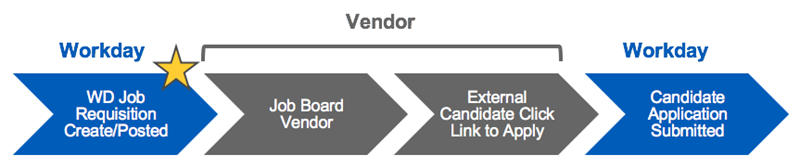
Workday offers integrations with third-party vendors. These integrations can post jobs to additional career sites while still maintaining Workday as the system of record.
You can configure integrations for job boards and job board aggregators. Job board aggregators allow the user to post jobs to multiple career sites at once.
Once you create a requisition, an integration point brings the data to the configured job board vendor. From the job board, external candidates can access a link to the job. This link brings them to a Workday external career site to submit the application.
Workday-delivered Reports
Workday Recruiting has several delivered analytical reports. You can use these reports to help with job tasks or gather helpful information. Below are Workday-delivered reports about topics discussed in this chapter.
Report Name | Description |
|---|---|
Source Effectiveness | Displays a pie chart of the recruiting source types and the number of active candidates associated with the source. |
Source to Pipeline | Provides a list of recruiting sources and the number of active candidates connected to the recruiting process steps. |
Candidate Drop Off Details | Recruiters can use this report to understand the percent of candidate drop off that occurs on each external career site page by job posting. |