
Edit Dataset Transformations
Overview
This chapter introduces the concept of derived datasets, and the transformation stages you can use to manipulate data. You will explore how to use the Manage Fields stage to modify existing field types in preparation for future joins and transformations. You will also learn about using Prism calculated fields to generate new values based on a calculation or condition, returning a value for each input row.
Objectives
By the end of this chapter, you should be able to:
- Identify when to create a derived dataset.
- List the available types of transformation stages.
- Identify the uses of the Manage Fields stage.
- Add a Manage Fields stage to modify field types to prepare for joining and performing calculations.
- Add Prism calculated fields to transform and derive new columns of data in dataset.
- Recognize where and when you can use windows functions.
Derived Datasets
You create a derived dataset by importing an existing dataset or table. You can create a derived dataset from a table or from another derived dataset. Derived datasets will blend and transform existing datasets and tables into one final dataset for publishing. The number of derived datasets you need depends on the degree of modularity and reuse required , as well as the complexity for maintenance, testing, and troubleshooting.
Edit Dataset Transformations
You can change a derived dataset with the
Edit Dataset Transformation
task. Using this task, you can add transformation stages or Prism calculated fields to a derived dataset. This page acts like a single page application. You can dynamically interact with elements on the page as if it were its own application. Make changes and then select Save to save all changes to the dataset.If you have permission to edit a dataset, you can access the Edit Dataset Transformation task using these methods:
- Right-click the dataset name on the Data Catalog page and selectEdit Transformations.
- Select theEdit Transformationsbutton from the Quick Actions on the View Dataset Details page.
- Run theEdit Dataset Transformationtask and select the dataset name you want to edit.
The Edit Dataset page contains the following components:
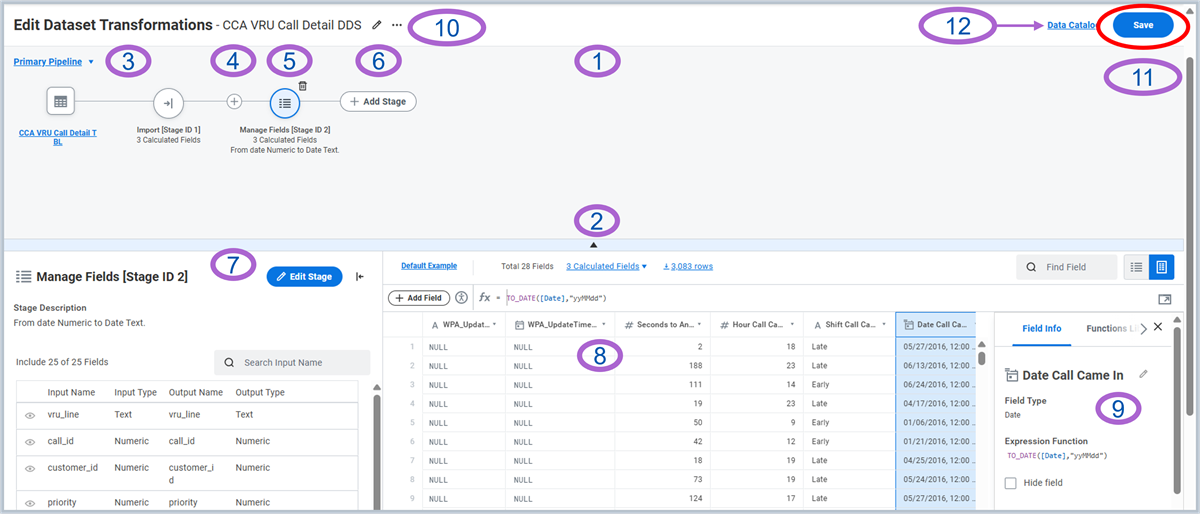
Edit Dataset page components
- Transformation Canvas: This is the main visual workspace that displays your dataset's stages in a graphical pipeline. It provides an intuitive way to understand and manage the flow of data.
- Show/Hideand Resize the Canvas:Collapse and expand the canvas by selecting the arrow icon to create more space for the data table below. Resize the area by dragging the bar at the bottom of the canvas up or down.
- Pipelines List:When editing a derived dataset, you can select the Change Pipeline button to open the pipeline list. This selector allows you to toggle between the different pipelines that comprise your dataset. It lists all datasets you have imported and enables you to manage primary and disconnected pipelines.
- Add a Stage Between Stages:Select the plus icon to add a stage between existing stages.
- Delete a Stage:To delete a stage, select the trashcan icon. Hovering below the pipeline displays the stage description. If a stage includes calculated fields, you can display their names by hovering over the calculated fields label.
- Add a Stage:Select the Add Stage button to add a stage to the pipeline.
- Stage Configuration Panel:When you select a stage on the canvas, this panel appears. It provides detailed information and configuration options for the selected stage, enabling you to:
- View and edit stage descriptions.
- Modify stage parameters (e.g., configure a join or set filter criteria).
- Manage dataset fields.
- Expand or collapse the panel as needed.
- Example Data Table:This table provides a live preview of your data at the currently selected stage of the pipeline. The example data shown and downloadable is only for a maximum sample size is 20K rows from tables. Additional features in this section include:
- Change Default Example:Modify the default data sample that is displayed.
- Download Sample Rows:You can download the sample data currently shown in the table for external analysis.
- Field Management:Use the available tools to manage fields in your dataset:
- Find Fields:Quickly search for specific fields within the dataset.
- Toggle View:Switch between a Table View and a List Field View to display your data differently.
- Add Fields:Add new fields to your dataset.
- Calculated Fields:The data table is integrated with calculated field functionality. Select the link to view all calculated fields in the stage. You can also create or modify calculated fields in this space. You can enter a full display mode for a larger workspace when configuring complex calculated fields.
- Inspector Panel:This panel displays when you select a field in the example data table. You can collapse it to expand the example data table.
- Field Info Tab- This tab displays detailed information about the selected field, including statistics on the field values. All statistics are based on the data currently shown in the example data table. For more precise numbers, increase the number of example rows.
- Functions Library Tab- This tab displays the functions that you can use in a Prism calculated field expression, including description, syntax, and an example.
- Edit Dataset Details:Change the dataset name, tags, or description. You can also use Related Actions to View Dataset or View Dataset Lineage.
- Save:Select Save to save your work.
- Data Catalog:Use this link to return to the Data Catalog.
Transformation Stages
Add a stage to a dataset to transform the data into a new format.
There are different types of stages, each with a unique purpose and configuration. You can add stages from the pipelines list using the
Edit Dataset Transformation
task.Stage | Purpose |
|---|---|
Filter | Reduce the number of records in a dataset by removing rows. |
Group By | Reduce the number of records by summarizing groups of records within the dataset. |
Join | Connect two datasets by merging matching rows and appending columns. |
Manage Fields | Change field names, types, visibility, and field order. |
Union | Connect two datasets by appending rows from one dataset to rows from another and lining up corresponding columns if applicable. |
Explode | Transform multi-instance fields into single-instance fields. |
Unpivot | Reshape data by converting columns to rows. |
Once you add a stage, you can edit or delete it later; however, use caution when editing stages mid-pipeline as the changes may impact later stages.
Y ou can import tables into derived datasets for needed transformations. After creating a derived dataset, you can change the input of source data, as necessary.
This table summarizes the tasks you can use with Prism tables and derived datasets:
Edit | Copy | Delete | Share | |
|---|---|---|---|---|
Table | Edit the table schema, e.g., Add field, delete field, rename. | No | Yes, if not imported by any dataset or used by a data change task. | Yes |
Base Dataset | Edit Transformations to configure single pipeline transformation stages and calculated fields. | No | Yes, if not imported by any dataset. | Yes |
Derived Dataset | Edit Transformations to configure single and multi-pipeline transformation stages and calculated fields. | Yes | Yes, if not imported by any dataset. | Yes |
Note
: You can import a given table or dataset into different derived datasets.Manage Fields
The Manage Fields stage enables you to modify field names, types, and visibility in later stages.
Available actions include:
Action | Description |
|---|---|
Select/Deselect field | Choose which input fields to include in the output of the Manage Fields stage. |
Output Name | Enter a name for the output field. |
Output Type | Change the field type. Available field types depend on the input type. |
Business Object | Available for Instance fields only. Select the business object for the field. |
Digits Before and Digits After | Available for Decimal fields only. Change the number of digits before and after the decimal. |
Change Field Order | Change field order in your derived dataset for ease of accessibility. |
Field Types
Each dataset field has a field type attribute. The field type defines what kind of values the field can hold. Workday has several built-in field types that apply to dataset fields. Additionally, the field type determines which functions can use the field as an argument when creating Prism calculated fields. For example, the CONCAT function only accepts Text fields as arguments.
When you create a dataset using external data, Workday attempts to guess the field type of each field by examining some of the data. When you create a dataset from a custom report, Workday maps the Workday field types to dataset field types. For Prism calculated fields, the expression result determines the field type for that field.
Datasets use these field types:
Dataset Field Type | Description | Range of Values |
|---|---|---|
Text | Variable length non-unicode text data. Also known as a string. | Maximum text length of 2,147,483,647 characters |
Date | Date combined with a time of day with fractional seconds based on a 24-hour clock. | Date range: January 1, 1753, through December 31, 9999 Time range: 00:00:00 through 23:59:59.997 Internally, Workday stores all Date type data in UTC format (coordinated universal time). If importing external data with time zone information, Workday converts the data to UTC. If importing external data with no time zone information, Workday does not convert the data and stores it as UTC. |
Decimal | A variable length decimal value that supports a total of 38 digits before and after the decimal point, but a maximum of 18 digits after. | Decimal values can represent any valid positive or negative value given the specified number of digits before and after the decimal point. All Decimal fields have an associated number of digits before and after the decimal point (also known as precision and scale). For Decimal fields that come from a Workday report, Workday assigns the digit values. For Decimal fields that come from external data, you can specify the digit values. |
Integer | 32-bit integer (whole number) | -2,147,483,648 to 2,147,483,647 |
Long | 64-bit long integer (whole number) | -9,223,372,036,854,775,808 to 9,223,372,036,854,775,807 |
Double | Double-precision 64-bit floating point number | 4.94065645841246544e-324d to 1.79769313486231570e+308d (positive or negative) |
Instance | A Workday-specific field type that contains Instance values. Each field retains information about the business object the Instance field is based on. | A hexadecimal value that references a WID |
Best practices when you use the Manage Fields stage include:
- Review all fields to determine if you should convert them to text to allow for manipulation, such as Substring and Extract functions.
- Review Date fields.
- Review Integer fields.
- Review Join fields to ensure a matching field type. For example, if there is a text field 001234 and you convert it to an integer, you will get 1234 and it may not join if you needed the 00 to match/join on.
- Review field names for uniqueness and usability.
Hiding Fields
A Prism Data Administrator security group member can control what fields of a dataset are visible to Prism users. If you hide fields, they are not visible later in the development process. In other words, if you hide a field in a stage in a pipeline, that field is not visible in a later stage. Hidden fields are not visible in the Prism data source of a published dataset, nor are they visible in an imported dataset of a derived dataset.
Reasons for hiding fields include:
Reason | Description | Example |
|---|---|---|
Protect sensitive data | Prism data administrators may want to hide fields to protect sensitive information. You can hide detailed fields that have sensitive information without hiding the summary information. | There is a dataset that contains detailed employee salary information. The prism administrator may want to hide the salaries per person and still allow the prism data writers to view average salaries by cost center. |
Hide unpopulated or sparse data fields | Prism data writers may have unpopulated fields in their raw data or may have limited data that is too sparse to include for analysis. | The web application has a placeholder for comments that you never deploy on the website. As a result, that field is empty. Hiding the field prevents analysts from using a field with mostly null values when they analyze the data. |
Use computed values instead of base values | Analysts may need to add a Prism calculated field to transform the values of the raw data. They may need to analyze the transformed values and not analyze the raw values. | A customer may have a Return Reason Code field where the reason codes are numbers like 1, 2, and 3. You can transform the numbers to the actual reason, like Didn't Fit (1), Changed Mind (2), and Poor Quality (3) so the data is more usable during analysis. |
Hide Prism calculated fields that do interim processing | As Prism data writers cleanse and transform the data in a dataset, they may need to add interim Prism calculated fields to achieve a result. These calculated fields are necessary for a processing step but not intended for final consumption. Users can hide the working fields to avoid cluttering the dataset details or the later stages. |
Schema Changes and Manage Fields
Where changes occur in a dataset can affect other dataset components. Schemas change when you add new fields or remove existing fields, such as when you:
- Add a Prism calculated field.
- Hide or expose a field.
- Add a stage that adds or deletes fields in that stage.
Schemas can also change when you:
- Upload an external file.
- Import a file from an SFTP server or custom report.
Changes to dataset schemas can break components that were based on the original schema. Where changes occur can also affect how you manage changes. Workday recommends that you ensure that the dataset is up to date and includes the fields you want. In most cases, you use the Manage Fields stage to manage dataset schema changes. This way, new fields trigger warnings of an unexpected field, and missing fields trigger an error in the Manage Fields stage.
Important
: When you change the schema and Workday imports the new source file into a base dataset, you must open the dataset and save the changes. If you do not save the dataset, Workday continues to use the old schema definition. The next time you publish the dataset, you might get inconsistent data in the Prism data source.Workday recommends the following best practices:
- Add a Manage Fields stage to derived datasets to change field names or field types for needed joins or transformations.
- Review all input field types; focus on date field types and ID fields needing field type changes for planned joins and transformations.
- Review field names.
- Add a Manage Fields stage to derived datasets to change field order.
- Add to datasets used for publishing to catch unexpected field or field type changes to published fields.
- Add a maximum of two Manage Fields stages to a single dataset.
Prism Calculated Fields
Prism includes its own language called Prism Expression Language that you can use to create Prism calculated fields. You can add these fields to any stage of any dataset. The Prism calculated fields you create in datasets are different from the Workday calculated fields you can create on Workday business objects. They are similar however in that both allow you to manipulate existing data using available functions, such as taking substrings or doing date manipulations.
A Prism calculated field is a user-created field that generates its values based on a calculation or condition and returns a value for each input row. These fields compute values based on expressions that can contain values from other fields, constants, mathematical operators, comparison operators, or built-in row functions. Prism calculated fields use an extensive function library and regular expression language.
Sometimes you need several steps to achieve a specific result. You can use the output of one Prism calculated field in the expressions of other Prism calculated fields, allowing you to define a chain of processing steps. Prism expression language also allows for nesting of functions.
You can use Prism calculated fields to:
- Derive meaningful values from base fields, such as calculating someone's age based on their birthday.
- Cleanse data, such as by substituting one value for another.
- Compute new data values based on several input variables, such as calculating a profit margin value based on revenue and costs.
You can add a Prism calculated field to any stage of any dataset. When you add a Prism calculated field, Prism includes the field and its data in the output of that stage. The field is available for other Prism calculated fields or transformations that come after that stage. Prism calculated fields can only access values from within the same record and will evaluate for every record in a dataset.
Important
: Prism determines values for dataset-calculated fields when you publish the dataset, as opposed to Workday calculated fields, where the system determines the value at report runtime. As such, Prism calculated fields are better performing, and you should use them in Prism datasets instead of Workday reports where possible.Add Field
- To create a Prism calculated field, select the Add Field link in the needed stage from the Edit Dataset Transformations page. When you create the field, the inspector panel displays the new field. Here, you can enter a name for the new field.Note: Determine field names before defining Prism calculated fields. Changing a field name later will break Prism calculated field expressions that rely on that field name. Ensure the field name is unique within the dataset, as well as unique to any potential future field names. If future source files add a field with the same name, unexpected results can occur in the dataset.
- After entering a name, define an expression. The expression describes a processing task you want to perform on other fields in the dataset. The expression builder displays above the example data grid. It displays the available fields in the dataset, as well as the list of Prism functions. It validates the expression for correct syntax, input field types, etc. You can also expand the expression editor to aid in building multiline expressions. When you expand the editor, you can view the entire expression while maintaining access to the Function Library.
- You can add comments into your Prism expressions by containing them within /* and */.
- After you define the expression, you can use the inspector panel to review the statistics and distribution of values to verify if any unexpected Null values result.
- To delete a Prism calculated field from a dataset, select the Prism calculated field from the Edit Dataset Transformations page, select the field actions, and select Delete Field. If another Prism Calculated field references the deleted Prism Calculated field, errors can occur. You can only edit or delete a calculated field in the stage the field was created.Important: If you add a Prism calculated field to a dataset that comes before a join or manage fields stage in the pipeline, you must edit the join to include the newly added field.
Functions
Select the Functions Library tab of the inspector panel to review a list of functions you can use within Prism calculated field expressions. This tab displays a list of functions grouped by category, including the description, syntax, and an example of each. Search for a specific function, or hover over a function name and select the plus (+) icon to insert the function at the current location in the expression.
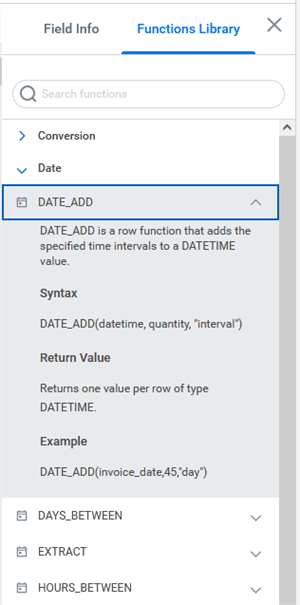
Prism Functions Library
Functions take one or more input values and return an output value. Input values can be a literal value or the name of a field that contains a value. In both cases, the function expects the input value to be a particular field type such as Text or Integer. For example, the CONCAT function combines Text inputs and outputs a new Text field. The expression determines the output field type of a Prism calculated field. To change the output field type, you can nest the expression inside the appropriate data type conversion function.
Example
: You can use the CONCAT function as an argument to the TO_DATE() function. The result is a Date value in the format 10/31/2014.TO_DATE(CONCAT(month,"/",day,"/",year),"MM/dd/yyyy")
When you specify a field name in an expression, you can refer to the field by its name if it contains no spaces or special characters. Enclose field names with square brackets ([ ]) if they contain spaces, special characters, reserved keywords (such as function names), or start with numeric characters.
Commonly Used Functions
Function | Definition |
|---|---|
Logical | CASE - Provides "if then else" logic. COALESCE - Returns the first non-Null value. |
Conversion | TO_DATE - Converts string values to datetime. TO_STRING - Converts values to string. TO_INT - Converts a numeric type field to an integer. |
Text | TRIM - Removes leading/trailing whitespace. SUBSTRING - Returns a portion of a string. LENGTH - Returns the length of a text. CONCAT - Combines multiple strings. |
Date | DATE_ADD - Adds or subtracts from a date. TRUNC - Truncates a date to a specified format. TODAY - Returns system date. Note : Workday sets the Time to midnight of the day it returns. |
Window | ROW_NUMBER - Returns the ordered number of each row in a partition. SUM - Displays the total number of all values in the group. AVG - Returns the average of all valid numeric values in the group. MIN - Returns the minimum (lowest) value in the group. MAX - Returns the maximum (highest) value in the group. |
Resource
: For more operations and functions, refer to Workday Community and search for "Prism Expression Language" in the Workday Administrator guide.You can also view the Administrator Guide for Prism Analytics by selecting the Help button at the bottom of the Data Catalog.
Tips for Using Prism Calculated Fields
- Select the function in the type-ahead search.
- Select the field from the list by entering a left square bracket [ to view the list of fields in the dataset.
- Refer to the Prism Expression Language Reference documentation in Workday Community for syntax and help.
- Use the expanded editor for longer expressions.
- Use the inspector panel to review statistics and verify results.
- Changing a field name or deleting upstream fields breaks calculated field definitions.
Window Functions
Window functions perform calculations across a set of rows within a partition "window" that is related to the current row. They execute according to a dimension value and a defined field controls the function's order. These functions use a particular syntax in which you specify the partition and order criteria.
Window functions are like aggregate summarizations, but do not group multiple rows into a single output row. When using window functions, the number of rows remain unchanged. Window functions can remove the need for joins, for example, when making current year vs. last year comparisons and performing running sum and percent of total calculations.
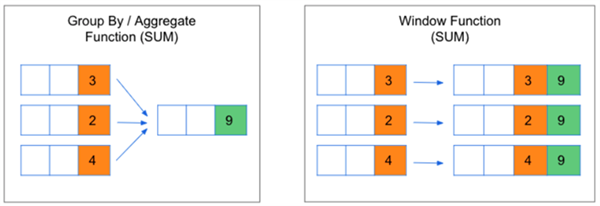
Group By / Aggregate Function (SUM) vs Window Function (SUM)
This table lists and defines window functions available in Prism:
Window Function
| Description
|
|---|---|
LAG | The LAG window function looks backward within a partition and returns a single value from that row. |
LEAD | The LEAD window function looks forward within a partition and returns a single value from that row. |
FIRST | The FIRST window function looks at the first row within a partition and returns a single value from that row. |
LAST | The LAST window function looks at the last row within a partition and returns a single value from that row. |
MIN | The MIN window function returns the minimum value from a field within a window. |
MAX | The MAX window function returns the maximum value from a field within a window. |
SUM | The SUM window function returns the sum of all values from a field within a window. |
COUNT | The COUNT window function returns the number of rows within a window. |
AVG | The AVG window function returns the average value of a field within a window. |
RANK | The RANK window function returns the rank of a value in a row within all rows in a window. |
ROW_NUMBER | The ROW_NUMBER window function returns a unique integer for each row in a window. |
Example 1
To achieve the running total for an amount over time, you could use the SUM window function.
SUM ([Trans Amount]) OVER (PARTITIONED BY [Account No] ORDER BY [Trans Date] ROWS UNBOUNDED PRECEDING)
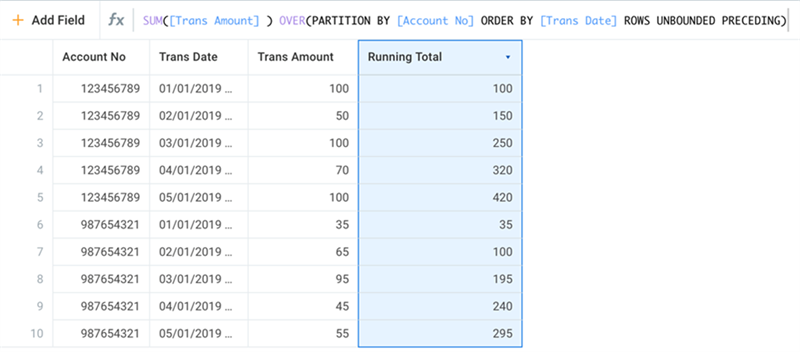
SUM window function for running total over time
Rows unbounded preceding means that the function includes all rows in the partition. You could enter a number instead of "unbounded" to limit how far back the function calculates the total.
Example 2
To achieve the trailing average over, you could use the AVG window function.
AVG ([Trans Amount]) OVER (PARTITIONED BY [Account No] ORDER BY [Trans Date] ROWS 2 PRECEDING)
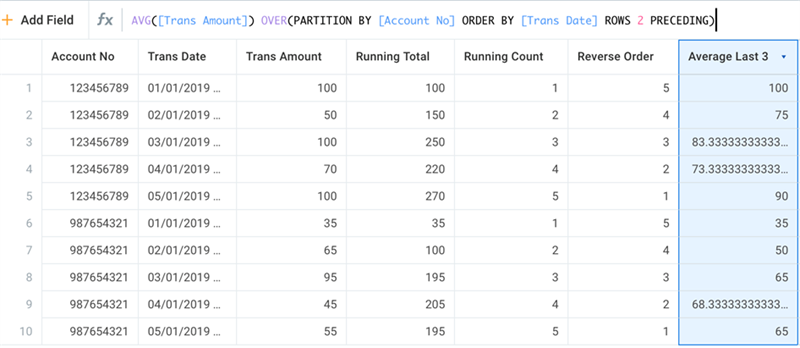
Trailing average
Resource
: For additional information, please reference the primer on Windows Functions in Workday CommunityChapter Summary
- You create a derived dataset from an existing dataset or table to apply transformations.
- When editing a dataset, you can add stages and Prism calculated fields. Available transformation stages include Manage Fields, Filter, Join, Group By, Union, Unpivot, and Explode.
- The Manage Fields stage allows you to modify input field types and names and select fields to include in the results. It also allows you to reorder your fields.
- You can add Prism calculated fields to Prism datasets to perform calculations or transformations of the data.
- Prism calculated fields perform better than Workday calculated fields, as Prism determines the value at the time of publishing (vs. at run-time).