
Data Acquisition
Overview
This chapter introduces the use case that you will configure as you complete the course activities. First, you will become familiar with the data and import it into the Data Catalog through a variety of methods. These methods include sFTP as well as a Workday custom report. You store the data you import into Prism tables that you then use as the source of all future transformations.
Objectives
By the end of this chapter, you should be able to:
- Identify the methods for ingesting data into the Data Catalog.
- Create and store imported data in tables.
- Upload external files and parse the data.
- Create Data Change Tasks to load data into Prism using Table Operations.
Naming Convention
Workday recommends instituting a naming convention for your datasets and tables to allow for greater organization and to ease searching for data catalog items. In this course, we use the following naming convention:
[Use case] + [Source] + [Description] + [Type of dataset or table]
Below is a description of each name component. We use an example in which you report on employees in Workday and contractors from an external system.
Component | Description | Examples |
|---|---|---|
Use Case | An acronym for the use case that indicates the use case the dataset is associated with. | CCA (Call Center Analysis) |
Source | The source of the data, such as Workday or an external system. | CCA Workday CCA VRU |
Description | A description of the data and, if applicable, the function of the dataset. | CCA VRU Survey Data CCA Call and Survey Data Joined |
Type of dataset or table | An acronym for the type:
| CCA VRU Survey Data TBL CCA Call and Survey Data Joined DDS |
A published dataset is a derived dataset that becomes the Prism data source when you publish the dataset. Name the dataset with the PDS indicator to distinguish it from derived datasets that you are publishing.
Tip:
For commonly used tables or datasets, like Workday worker data or mapping data, consider using a prefix of "Common" instead of a specific use case.Data Catalog Tagging
You can create tags for datasets and tables to organize your data in the Data Catalog. You can then group and filter them by tags.
Datasets and tables can also have more than one tag, allowing you to reuse them in multiple scenarios. Instead of assigning them to a specific purpose, you can use multiple tags and reuse them in many ways.
Tags, together with a naming convention, give you a powerful way to organize your datasets and tables.
Import Methods and Storage
There are multiple ways to bring data into Prism, including:
- File Upload
- REST API
- sFTP Integration
- Workday Custom Report
- Amazon s3 integration
- Salesforce
- Snowflake
- Azure Synapse
When you import data into Prism, Workday stores it in a table. A table is a Prism Analytics object that materializes data and represents it in a tabular format. A table has a schema and contains data that is valid against the schema. A table schema can support up to 1000 fields. The WPA fields do not count against this limit.
Parse Data
When you create a table by importing an external file, or you load data into a table from an external file, you must tell Prism how to read and interpret the file. You can do so by completing the parsing options.
The external file must meet the following file requirements before loading:
- Be in plain text file format (CSV or TXT).
- Have one record per line.
- Have the same sequence of fields for every record separated by a common delimiter (e.g., comma or tab).
Line breaks separate delimited records, and a special character called the delimiter (usually a comma or tab character) separates fields within a line. If the delimiter also exists in the field values, it must be exempt from delimiting by using escape characters. Datasets and tables support single character escapes, such as a backslash, as well as enclosing field values in double quotes.
Important
: The maximum file size requirement when loading rows into a table is 256 MB. Best practice is to zip large files before uploading to the Data Catalog. Prism Analytics supports Gzip compression.During a file upload, Prism automatically unzips and loads the data. When using gzip, you can run the command "gzip<filename>" to zip and delete the original file, or "gzip -k<filename>" to keep the original file.
Note
: Text is the "catch-all" data type. When parsing data into a table, Prism will set any column with conflicting data types as text.You can use the following parsing options:
Option | Description |
|---|---|
Row Delimiter | Specifies the single character that separates rows (or records) in your source data files.
In most delimited files, a new line separates rows, such as the line feed character, carriage return character, or carriage return plus line feed. Line feed is the standard new line representation on UNIX-like operating systems. Other operating systems (such as Windows) might use carriage return individually, or carriage return plus line feed. Selecting Any New Line causes Workday to recognize any of these representations of a new line as the row delimiter. |
Field Delimiter | Specifies the single character that separates the fields (or columns) of a row in your source data files. Comma and tab are the most common field delimiters.
Prism attempts to interpret and set this automatically. For most CSV files, Prism appropriately sets this to a comma. Other valid options are comma, tab, space, double quote, colon, semicolon, forward/backslash, CTRL+A, and ASCII-29. |
Field Names | Specifies the default name of each field. You can change the field names in the Parse stage after you define the parsing options.
If your source data files have a header row as the first line in the file, select the checkbox to "Use values from first row." When you select this option, Workday treats the first line in each source file as a header row instead of as a row of data. |
Escape Character | Specifies the single character used to escape the quote character or another instance of the escape character when you specify a quote character. Workday reads an escape character as data only if you escape it with another escape character.
If your data values contain quote characters as data, you must escape those characters and enclose the entire field value with the quote character. If not, then Workday assumes that the quote character denotes a new field.
For comma-separated values (CSV) files, it is common practice to escape field delimiters by enclosing the entire field value within double quotes. If your source data uses this convention, then you should specify a quote character. |
Quote Character | Some delimited files use the quote character to enclose individual data values. The quote character is typically the double quote character (").
Suppose that you have a row with these three data values:
If the field delimiter is a comma, the quote character is a double quote, and the escape character is a backslash. Then, a correctly formatted row in the source data displays as: "weekly special","wine, beer, and soda","\"2 for 1\" or 9.99 each" |
Rows to ignore | Specifies the number of lines at the beginning of the file to ignore when reading the source file while creating and publishing the dataset. To use this with the From First Table Row option, ensure that the line containing the field names is visible and is the first remaining line. |
Field values contain new lines | Select this option if your source data might contain new line characters as part of a field value.
When you enable this option, Workday reads the new line characters inside quote characters as part of the field value instead of as a row delimiter. Workday interprets any row delimiter character outside of quote characters as a new record. Enabling this option might impact the time to publish a dataset if Workday reads large source files.
Note : You may get unexpected results if you enable this option when the source file has malformed data - i.e., when a field value has an opening or closing quote character, but not both. Try to ensure that you format your data source well when using this option. |
Trim trailing and leading whitespace characters in Text fields | Select this checkbox to remove whitespace characters at the beginning and end of Text fields. |
WPA Fields
When you create a table, Workday automatically creates extra reserved fields in the table. You cannot modify or delete these fields. The system uses these fields for several purposes, for example to track when a given row of data was updated in a table. These fields help you uniquely identify rows from different integration runs:
- WPA_LoadID: This field returns a value of type Text containing a unique identifier of the integration run that imported the current row of data.
- WPA_LoadTimestamp: This field returns a value of type Date (to the millisecond) containing the date and time of the integration run that imported the current row of data.
- WPA_RowID: This field returns a value of type Text containing a unique row identifier for each row in a data load or integration run.
- WPA_UpdateID: This field returns a value of type Text containing a unique identifier of the integration run that updated the current row of data.
- WPA_UpdateTimeStamp: This field returns a value of type Date (to the millisecond) containing the date and time of the integration run that updated the current row of data.
Use these fields with the other dataset fields to uniquely identify rows of data in the dataset from multiple loads. You can also use these fields to group data together from a single load.
Tables
A table is a Workday Prism Analytics object that stores (materializes) data and represents it in a tabular format. A table has a user-defined schema and only contains data that is validated against its schema. You define the table schema before you load data into the table.
You can create a table as follows:
- Manual: Manually add the fields you need to define the schema.
- File Upload:Upload and parse a file that has the needed schema and load the data from that file. You can create a table by uploading one or more delimited files. Workday uses the field information in the first file to define the table fields, then it loads the data in the files into the table. When you upload multiple files, each file must use the same schema. Workday supports delimited files that are RFC 4180-compliant. The file must be plain text, delimited within size limits.
- From an existing dataset or table: Choose an existing dataset or table in Prism that has the needed schema definition for the new table. No rows load when you choose this option. The system uses just the schema to create the new table definition. You can further modify the schema as needed for the new table requirements (e.g., add additional fields or change field constraints). Once the system creates the schema, you can then use data change tasks to load data into the table. You can further modify the schema as needed for the new table requirements (e.g., add additional fields or change field constraints). Once the system creates the schema, you can then use data change tasks to load data into the table. The file must be plain text, delimited within size limits.
- From aWorkday Custom Report:Choose a Workday custom report that has the needed schema definition for the new table. This custom report must be an advanced report type, enabled for Prism Analytics, and enabled as a web service. The user performing the retrieval must own or share the custom report. No rows load when you choose this option. The system uses just the schema to create the new table definition.
For table and field names, enter a Table Display Name when you create a new table. Workday automatically selects an API Name based on the table display name you enter, modifying it to meet naming requirements.
You cannot change the API name after you create the table, but you can change the display name at any time. Table fields also have a display name and an API name. You can change the display name anytime, but you cannot change the API name after you create the field and save the table.
Table Field Types and Constraints
Prism tables support the following field types:
- Numeric
- Text
- Instance
- Multi-Instance
- Currency
- Boolean
- Date
- Integer - 32-bit integer (whole number). -2,147,483,648 to 2,147,483,647
- Long - 64-bit long integer (whole number). -9,223,372,036,854,775,808 to 9,223,372,036,854,775,807
- Double - Double-precision 64-bit floating point number. 4.94065645841246544e-324d to 1.79769313486231570e+308d (positive or negative)
A single table can support up to 1,000 fields.
When defining fields in a Prism table, you can also configure additional constraints. Table field constraints enable you to ensure the accuracy and reliability of data in tables. To define these constraints, define these fields when you create or edit a table schema:
- Default Value- Use the Default Value field to define a value for a field when loading files that do not include that field. When you load a source file that does not include a field, Workday uses the default value for all rows in the source file. The system only uses the Default Value when the source file schema is missing, not when a particular field value is NULL.
- Required- Marking a field as required ensures that it does not contain a NULL value when you insert or update data in the table.
- Use as External ID- This attribute marks a single field in a table as a key. Define a field as the external ID to update or delete data in the table based on data in an external file.
Note
: Tables must be empty to assign or change these field attributes. You can define them when you first create the table or after truncating existing data from the table.Data Change Tasks
A Data Change Task is a Prism Analytics object that defines how to change the data in a Prism Analytics table using data coming from a specified source, such as from an uploaded file and configuring the needed table operation and mapping of fields to effect the change in a target table. You can save and reuse data change tasks to edit and rerun them at any time.
Using data change tasks, you can:
- Insert new rows.
- Update specific rows based on an external ID key field.
- Delete specific rows based on an external ID key field.
- Insert unique rows and update existing rows in the same activity, known as an upsert operation.
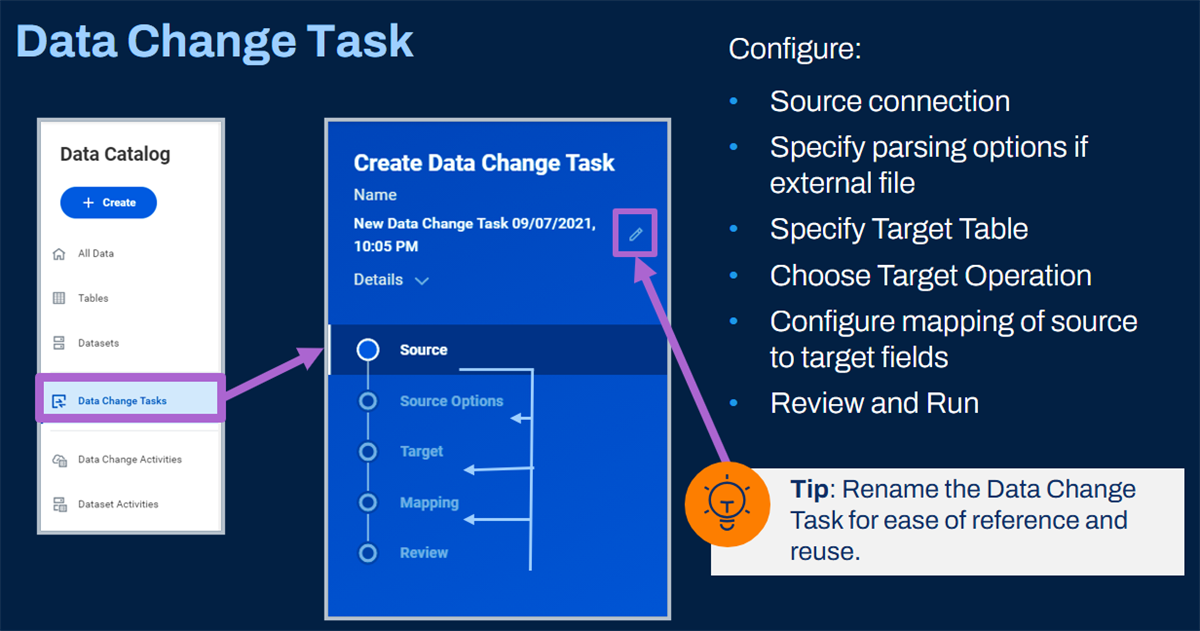
Data Change Task features
Security Note
: To attach a file to a Data Change task, you must configure permissions to the domain: Prism: Manage File Containers.Data change tasks define these components:
Component | Definition |
|---|---|
Source | Define from where the data comes that you want to load into the target table. You define the source as a delimited file you upload, a Data Catalog object, such as an existing dataset, an sFTP connection that connects to the source data, a Workday custom report, or an Amazon s3 connection. If the source is a file to upload or a file to retrieve from sFTP or Amazon s3, you must configure parsing options. |
Source Options | Define the options for the source data and how it parses. |
Target Table
| The table with the data you want to change using the source data. The table must already exist in the Data Catalog before you create a data change task. |
Target Operation | You can specify insert, truncate and insert, delete, update, or upsert. |
Mapping | You can define how to match source fields to the target table fields. You can match a source field to 1 or more target table fields. Data is loaded only for what you map. |
The process of running a Data Change Task is known as a Data Change Activity. When you run
Data Change Tasks
to 'change' data in a Prism table, you can track all the data change activities in several ways:- Data Change Activities tab on the Data Catalog
- Viewing the activities tab on the target table
- Process Monitor, Process type: Prism Execute Data Change
- Prism Activities Dashboard
You can schedule data change tasks if using an existing dataset or table as the source, using an sFTP or Amazon s3 connection as the source, using a Workday custom report as the source, or REST API. You can create one active schedule per data change task. You can define schedules to run daily, weekly, monthly, or dependent. To create a data change schedule, view the
Data Change Task.
Then, use the Related Actions to select the Create Schedule
option.Table Operations
There are several table operations you can use to add or remove data to a table:
Operation | Description |
|---|---|
Insert | Leave existing rows in the table and insert new rows - even if duplicate. |
Truncate and Insert
| Remove all existing rows and insert new rows. |
Update | Update existing rows based on a matching External ID field. |
Upsert | Update existing rows based on a matching External ID field. If an existing row is not found, insert the new row. |
Delete | Delete an existing row based on a matching External ID field. |
Mapping Note
:
On the mapping step, select a field in the target table to use as the operation key for delete, update, or upsert operations. You can specify one of these target table fields:- The field configured as the external ID in the table. You can use this field for delete, update, or upsert operations.
- WPA_LoadID: You can use this field for delete or update operations only.
- WPA_RowID: You can use this field for delete or update operations only.
Table Validation and Error Handling
When you load data into a table, Workday validates imported data against the table schema. Map fields from the source to corresponding fields in the target table. You decide which source fields to map to which target table fields and which to leave out.
The mapping requires that field types match. For example, you can only map a text field from the source to a text field in the target table. If the schema matches, but a field value in a given row does not match the expected field type for that column, you cannot map that field. Consequently, you cannot import the data. If the schema in the file does not match the table schema (e.g., there is one extra column in the file than there is in the table), you can choose which fields from the source file to map to the table schema. Only the data that maps to the schema will load.
Field constraints provide additional validation such as requiring certain field values in the load.
Resource
: For more information on the table error file and error codes, access the Administration Guide in Workday Community.Table Delete Options (Optional)
From the Related Actions on any table, you can delete rows or truncate data on your table.
- The Delete Rows option will allow you to delete rows of data associated with a given Load ID.
- The Truncate option allows you to delete all rows of data in your table, resulting in zero total rows.
Alternatively, you can delete rows based on a given External ID using a Delete Table operation.
Edit Table Schema
When a table contains data, you CAN:
- Add fields.
- Delete fields even if there is data in that column.
- Change the field display name.
When a table contains data, you CANNOT change field types or field constraints if there is existing data. (Truncate Rows to change field types and constraints, then reload data).
sFTP Connections
To import data into a Prism table from an sFTP connection, you must first create a connection in Prism. Then you can use that connection as the source in a data change task. You must define the Prism table before you can use an sFTP connection to load data into the table.
Security Note
: Only those with access to the domain: Prism Manage Connection can create connections.Create Connection
In the Data Catalog, create a connection to specify the integration details for how to connect to an sFTP server and the details about the source data to retrieve (e.g., the file name).
The options in this section include the following:
Option | Description |
|---|---|
sFTP Address | Use this format: sftp://domain_name or sftp://IP_address To specify a port number, add it to the end of the domain name or IP address. If you do not specify a port number, Workday uses port 22. |
Directory | (Optional) The directory on the server that contains the files. Directory names are case-sensitive. Only include a leading slash (/) to specify a full path, not a relative path. |
Use Temp File | Select this option to write the imported data to a temporary file in Workday with a randomly generated name. After the data import is complete, Workday automatically renames the file to the correct name. Note : Enable this option if the data import takes a long time and might not finish before the next scheduled time to import data from the same server. |
Authentication Method and Details | Select the type of security authentication that the sFTP server uses:
|
File Utilities
Optionally, select the following configurations when necessary:
Option | Description |
|---|---|
Delete After Retrieval | Deletes the files on the sFTP server after you import the data into the dataset. If Workday is unable to delete the files from the sFTP server, the data retrieval fails. |
Decompress | Do not use this setting at this time. You can retrieve Gzip files without selecting the Decompress option. |
Decrypt Using | If you want to decrypt the imported files using Pretty Good Privacy (PGP), select a PGP Private Key Pair. To create a PGP Private Key Pair, use the Create PGP Private Key Pair task. |
Environment Restrictions
Optionally, specify one or more target environments in the Restricted To field. If the field is empty, Workday applies the transport protocol to each environment in which the integration runs. Each environment (e.g., Production, Sandbox, Deployment) can have only one transport protocol.
Important
: Workday strongly recommends that you create a separate transport for each environment and restrict each transport to its intended environment. This process avoids inadvertently uploading test data to or from a nontest endpoint.The sFTP functionality supports compression and PGP encryption using the Workday tenant keys. The data retrieval frequency from the server is configurable.
Resource
: For more information regarding PGP certificates in Workday, refer to the Workday Administrator Guide in Workday Community and search for the topic "PGP Certificates in Workday."A data change task using an sFTP connection must meet the following criteria:
- The number of files must be fewer than 5,000.
- The time to transfer the data must be less than five hours.
- Each file from the server must be less than 1 GB compressed or less than 10 GB if uncompressed.
- Prism currently supports the Gzip compression format.
Important
: When loading external data from an sFTP connection, you must still attach a file to the data change task to designate the parsing options. This attached file is only for parsing instructions. The attached file loads no data.Considerations:
- You can reuse a Prism sFTP Connection in multiple data change tasks.
- You can schedule a data change task that uses an sFTP connection as the source.
- You can view, edit, and test sFTP connections.
Connections
Workday offers many connection types, including those displayed below.
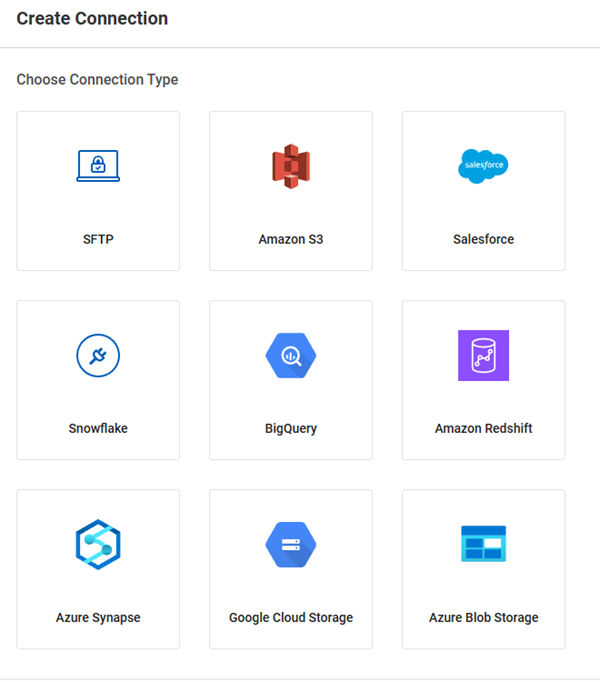
Resource
: For more on available connection types, visit Workday Community.Workday Custom Reports
To import Workday data into Prism, you must first build a Workday custom report that has the schema and data you need for import. Configure the custom report for the retrieval as follows:
- Advanced report type
- Enable as a web service
- Enable for Prism Analytics
Important
: The user performing the import of the report data should own the report, or you can share the report with this user.Once the table schema is created, you can use data change tasks to load data from custom reports into the Prism table. Keep performance in mind when you create reports to import into Prism. Use indexed data sources where possible and select a data source that provides the smallest set of data that meets your needs.
Example:
If you report on compensation-related transactions, use Employee Compensation Events instead of All Business Process transactions.Workday Instance Fields
As you plan what Workday data you want to import into Prism, it is important to consider including needed Workday instance field values. These include worker or cost center. As a result, when you publish the Prism data source, end users have the option to act. Also, they will drill into Workday instance field values as part of their decision analysis.
Instance fields also allow for row-level security configuration of the data source. We discuss Prism data source security in chapter 6.
In addition to importing needed Workday instance field values into Prism, include additional fields needed for blending with external data where field types must match.
Example
: If your use case involves blending Workday and non-Workday data by location, include the Location instance field type. Also use the Location Name text field in the custom report that you import into Prism. This way you have both fields available in Prism. First, the Location instance field value for end actionability once published. And the Location text field value to join with the non-Workday data that is coming in as type Text.If the text-equivalent field is not Workday-delivered, use calculated fields to derive the text equivalent (e.g., use the Concatenate Text or Substring Text calculated field function).
Report Field Types to Table Field Types
Prism creates a field in the Table for every field in the custom report using a supported field type. This process also assigns a field type to each field. After you create a table from a custom report, verify that the assigned field types are correct for your requirements. You can change a field type in the table before loading data. You may also need to use the Manage Fields stage in a derived dataset to change a field type in preparation for a join (e.g., change the field type from Decimal to Integer, if the matching field is an Integer field).
Report field types map to table field types as follows:
Report Field Type | Table Field Type |
|---|---|
Numeric | Numeric, Integer, Long, or Double |
Boolean | Boolean |
Text | Text |
Rich Text | Not supported |
Date | Date |
DateTimeZone | Not supported |
Time | Not supported |
Currency | Currency Note : The data must be in a certain format for Prism to recognize it as a Currency field. |
Multi-Instance | You can import multi-instance fields into Prism if the field is from:
|
Limitations
You have limitations when using custom reports and Workday fields in Prism.
- Workday supports currency fields, but not currency translation.
- Workday limits custom reports to 2 GB of data.Resource: For details on integrations limitations, search for "Integrations and Web Service Limits" in Workday Community.
- If a data change task using a custom report source takes longer than 24 hours, Workday cancels the activity.
Review the weekly service update notes on Workday Community for the latest information on field support.
Editable Report Prompts for Data Change Tasks
Workday enables you to create a data change task from a custom report. If your report has prompts, you can select report prompt values when defining the data change task that uses a custom report as the source. In the Prompts section, you can specify the default value or tell Workday to determine the value at runtime.
You can use the Reset from Report button to replace all prompt properties with the default prompt values set in the report definition. This can be helpful when there is a change in the custom report properties that you want reflected in the data change task.
The Report Definitions Usages field on the
View Custom Report
and Edit Custom Report
tasks enables you to view all data change tasks that use the report. The field appears on reports used as a source for one or more data change tasks.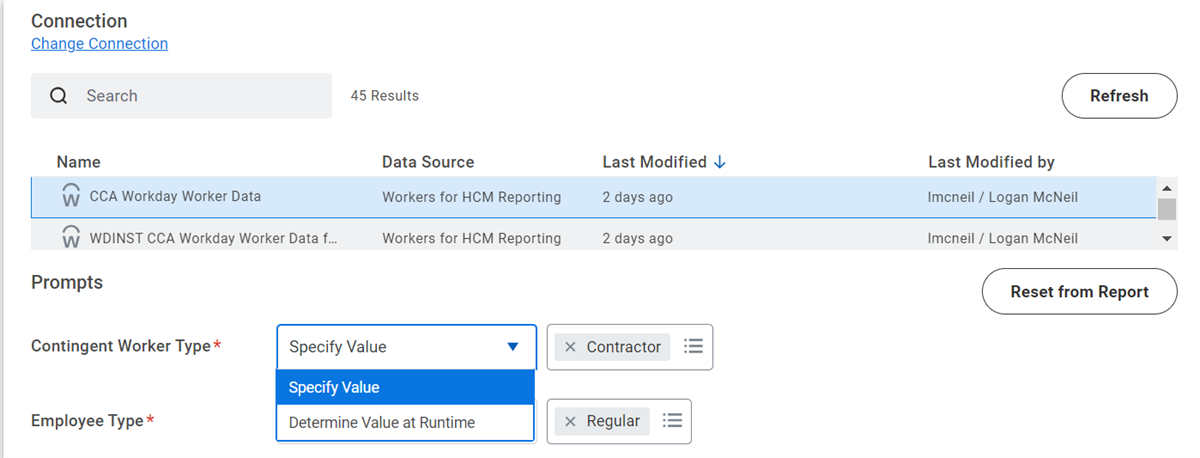
Prompt options on the data change task
Tables Key Points
- Workday validates the data against the defined schema.
- You can view the exact number of rows.
- You can rename the table display name.
- You can edit the schema adding or deleting fields.
- You can insert additional rows with subsequent loads.
- You can change data in a table using different methods, e.g., from sFTP, file upload, or custom report.
- You can truncate all rows or delete the rows from a previous load id.
- You can define field constraints to make fields required, have default values, or be key fields (External ID).
- You can update, upsert, or delete specific rows based on a specified External ID field.
REST API
The REST API allows you to programmatically create and load external data into Prism tables. Using the REST API, you can configure formatting and parsing, as well as truncate the data in the table.
Workday provides the Prism Analytics REST API web service that works with Prism Analytics tables, data change tasks, and datasets. You can develop a software program that uses the different resource endpoints to programmatically create Prism Analytics tables and datasets and modify data in them.
Workday provides these versions of the Prism Analytics REST APIs:
Version | Description | REST Resource |
|---|---|---|
1 | You can use version 1 to:
| /datasets /wBuckets |
2 | You can use version 2 to:
| /datasets /wBuckets When you use v2 with the datasets resource, Workday creates a table instead of a dataset. |
3 | Workday recommends using version 3. You can use version 3 to:
| /tables /buckets /fileContainers /dataChanges |
Each version uses different resources and resource endpoints. Versions 1 and 2 use the same resources (datasets and wBuckets), but version 2 creates and edits tables, not datasets. Version 3 uses different resources: tables instead of datasets, and buckets instead of wBuckets. Version 3 also includes additional resources that enable you to change data in a table: fileContainers and dataChanges.
This Administrator Guide includes the documentation for the version 1 and version 2 resources. You can find the resources for version 3 online in the Workday Community.
Version 3 includes multiple approaches for changing data in a table:
- Use the fileContainers and dataChanges resources together.
- Use the buckets resource.
Resource
:Access documentation in Workday Community and search for " Prism Analytics REST API Web Service" for the latest information on:
- File Parse Options
- File format requirements
- External Data Limits
Chapter Summary
- Import data into the Data Catalog by uploading an external file, using the REST API, retrieving from an sFTP server, or importing from a Workday custom report.
- You can schedule data change tasks that use the connection type of sFTP, Workday Reports, Data Catalog, and Amazon s3. You can also schedule imports using REST API.
- Tables store imported data.
- Consider schema changes when importing data. Tables can validate against the defined schema.
- Tables provide greater functionality and load operations.
- You can share tables in the Data Catalog, allowing others to view or edit them.