
Blend Datasets
Overview
Joins and unions are transformation stages that blend data together. The activity use case requires multiple joins to bring together the worker, agent, call detail, and call survey data together into a single dataset.
Objectives
By the end of this chapter, you should be able to:
- State the outcome of each type of join.
- Join multiple datasets into a blended dataset.
- Identify when dataset changes flow downstream to later datasets.
- Describe table and dataset sharing within Prism.
- Recognize the purpose of adding a union stage.
Pipelines
Datasets contain one or more pipelines. A pipeline is a container of stages that models the flow of how data transforms. A pipeline consists of an ordered list of one or more stages, each of which defines how to modify the data at that point in the pipeline.
Tables contain one pipeline, and derived datasets can contain one or more pipelines. The first stage in a pipeline brings in data from a source. Stages occurring after the first stage in a pipeline take the output of the previous pipeline as the input to the current stage. In terms of ETL (Extract, Transform, Load) workflows, each stage is one step in a development pipeline. The last stage of any pipeline is the output for that pipeline. The output of the primary pipeline is the output of the entire dataset. Therefore, when you publish a dataset, the output of the primary pipeline materializes as the data in the Prism data source.
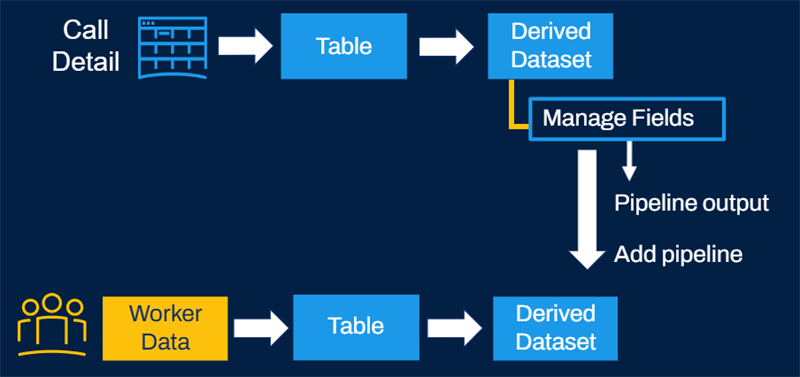
When you add a join or union stage to a derived dataset, the output of the previous stage is the primary pipeline. Select another pipeline to blend with the primary pipeline. Workday uses the last stage of that pipeline as the input to the join or union stage.
Join
Joins can enrich a dataset with attributes from another dataset that meet a match condition. A join transformation can occur between existing pipelines within a derived dataset only.
Joins require a common field by which to join. Join fields are case-sensitive and the field type must be the same. Joins attempt to link rows from both pipelines on common column/field values. After you perform a join, validate that there are no missing or duplicate rows.
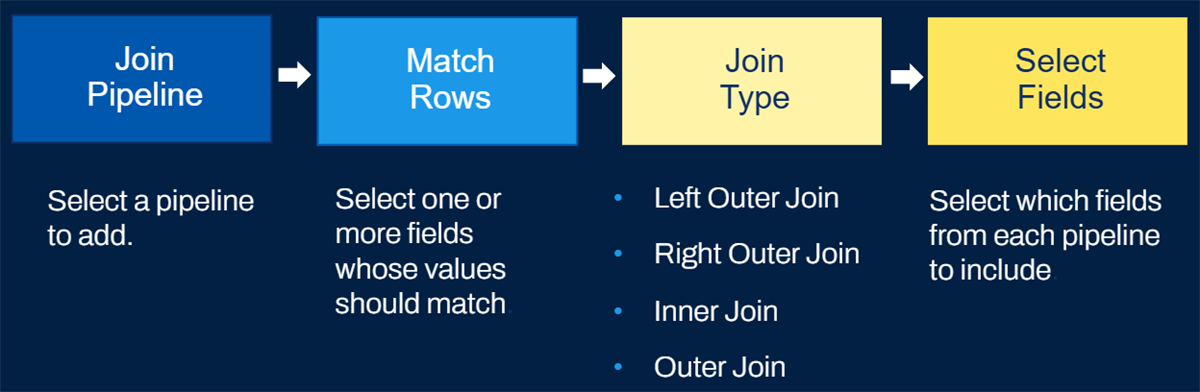
Join process
To define a join, add a join stage to a derived dataset:
- Select a dataset pipeline to join with the primary pipeline. SelectAdd Another Pipelineto import another dataset or table.
- Select one or more fields for which the values should match between the two pipelines. Defining matching rows is like defining a primary key or foreign key relationship in relational database terms. You can match on fields that are the same field type only .
- Workday also supports Join Stage Suggestions. If you find a good pair of matching fields between from each pipeline, you can selectAdd Fieldto automatically populate those fields under the match rows section.
When you select the Suggestions link, Workday displays:
- Suggestions for join key fields based on the pipelines you select.
- The number of distinct values.
- The percentage of null values.
- The percentage match between the join keys.
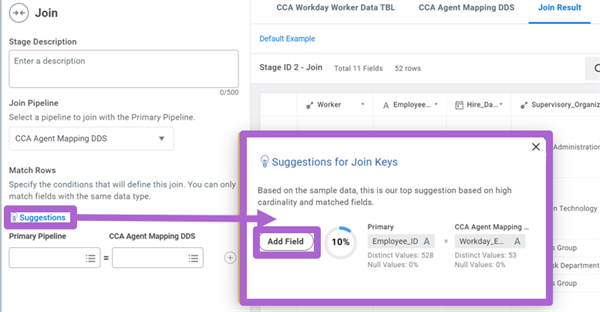 Suggestions for join keys
 - Select the join type to determine which rows from each dataset pipeline to include in the join result.
- Select the fields from each pipeline to include in the join result as necessary. Any field you do not include here drops from this stage in the pipeline and all later stages.
Tip:
In the field selection section, clear the matching fields from one of the pipelines to avoid duplicate fields in the join result.Available Join Types
Join Type | Description |
|---|---|
Left Outer Join 
| Workday includes all rows in the primary pipeline, and searches for a matching row in the other pipeline. If there is no matching row in the other pipeline, Workday populates each field from the other pipeline with a NULL value. When the imported pipeline includes multiple matching rows, then Workday includes both rows in the join result. |
Right Outer Join 
| Workday includes all rows in the imported dataset pipeline and searches for a matching row in the primary pipeline. If there is no matching row in the primary pipeline, Workday populates each field from the primary pipeline with a NULL value. When the primary pipeline includes multiple matching rows, then Workday includes both rows in the join result. |
Inner Join 
| Workday includes rows that have matching values that exist in both pipelines. If a row from one pipeline does not match a row in the other pipeline, the system omits the row from the join result. |
Full Outer Join 
| Workday includes all rows from both pipelines. If a row from one pipeline does not match a row in the other pipeline, Workday populates each field from the nonmatching pipeline with a NULL value. When there are multiple matching rows, Workday includes all rows in the join result. |
Once you complete the configuration, the join output displays in the sample data panel and the join transformation is visible.
Note
: Prism does not support non-equal joins such as: >, <, !=, <>, and BETWEEN.Dataset Lineage
As you create derived datasets to transform and blend imported data for a given use case, you must track the data flow and lineage. Users can view the lineage of a given dataset to explore all preceding or upstream datasets and tables flowing into that dataset. From the Data Catalog, right-click a dataset and select Lineage, or run the
View Dataset Lineage
report.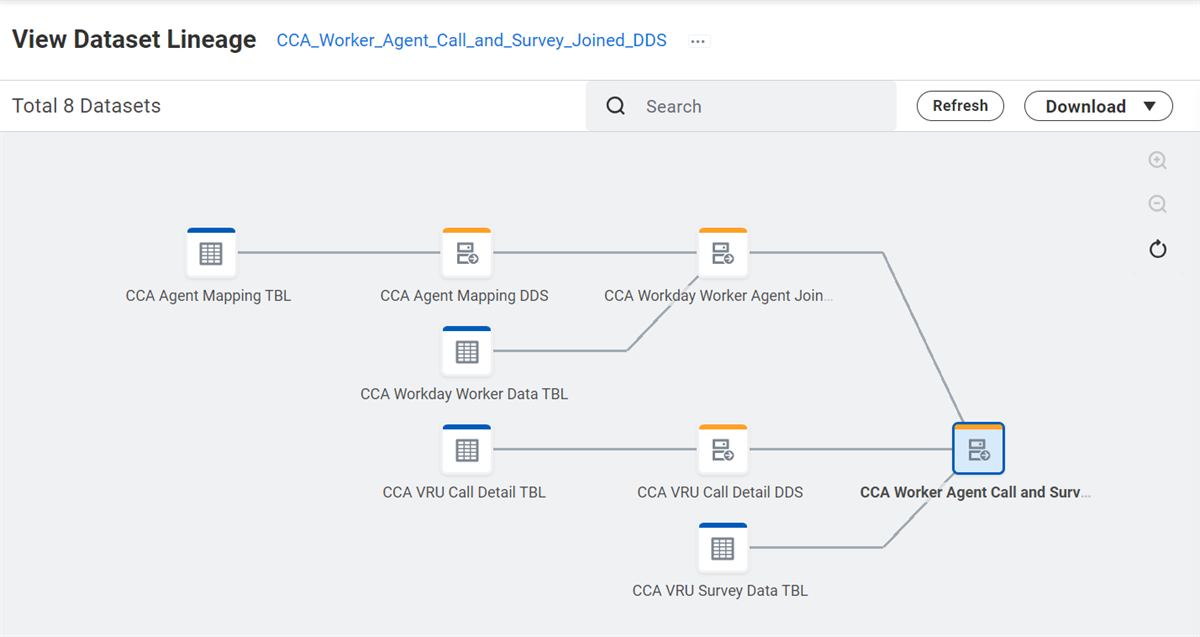
View Dataset Lineage
The dataset lineage displays, with starting sources, such as tables in blue, and derived datasets in orange. Select a dataset to view the details in the side panel. The Details section contains security and publishing information, as well as any datasets that import the current dataset. The Fields section lists the fields in the dataset with an icon indicating the field type. You can search for datasets in the lineage using the Search box. Right-click a dataset to perform Related Actions such as viewing, editing, or sharing. When viewing a given Table, you can view corresponding data change tasks.
Dataset Field Lineage
Workday highlights the path that a dataset field takes from where it originates to its currently selected location in the pipelines of a derived dataset. This enables you to easily visualize dependencies and trace the origin of a dataset field within the derived dataset. You can view the highlighted path when you select a dataset field in the inspector panel on these reports:
- View Dataset Lineage
- View Table Lineage
To view the full path from the absolute first occurrence of the field within the derived dataset, you must have permission to view transformations or edit transformations on all the datasets in the field's lineage up to and including its first occurrence. Note that a dataset field could originate outside the lineage of the dataset you are viewing. Workday only displays the path for the dataset you are viewing.
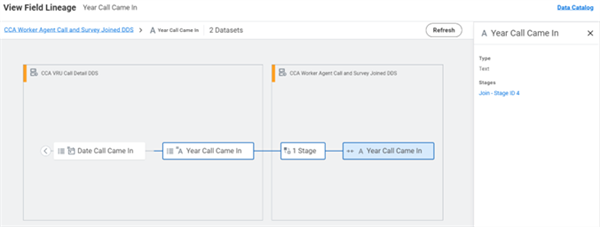
When running the dataset lineage report, you can also select the View Field Lineage option on a given field. When you view the field lineage, you can view field details in the inspector panel including:
- Field type
- Stages that the field is used in
- Origin expression for a Prism Calculated Field
Download Calculated Field Expressions
You can easily download Prism calculated field expressions, to view them or share with others who are not using Prism Analytics. You can extract and export the expressions used in dataset pipelines as CSV files from the
View Dataset Lineage
task. The CSV file only displays datasets upstream from the selected dataset, and only datasets that you have permission to view.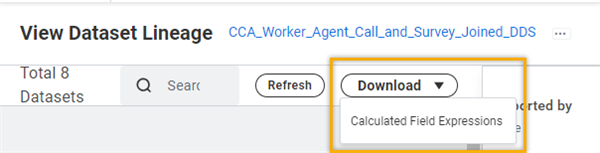
Download calculated field expressions
The file displays the:
- API Name: The unique name used to reference the dataset in the API.
- Stage Type: Examples of stage types include Group by or Join.
- Stage ID: The unique ID that Workday assigns to the stage based on the order you added the stage to the dataset. For each stage you add, the stage ID increases.
- Field Name
- Field Expression: The expression consisting of Prism calculated fields.
- Field Type: Examples of field types include Currency or Text.
- Field Error
- Stage Error
- The CSV file name consists of the dataset name and the date and time you downloaded the file.
Errors in Dataset Lineage
Errors in dataset stages show in the dataset lineage.
Note
: Errors in calculated field expressions do not show in lineage.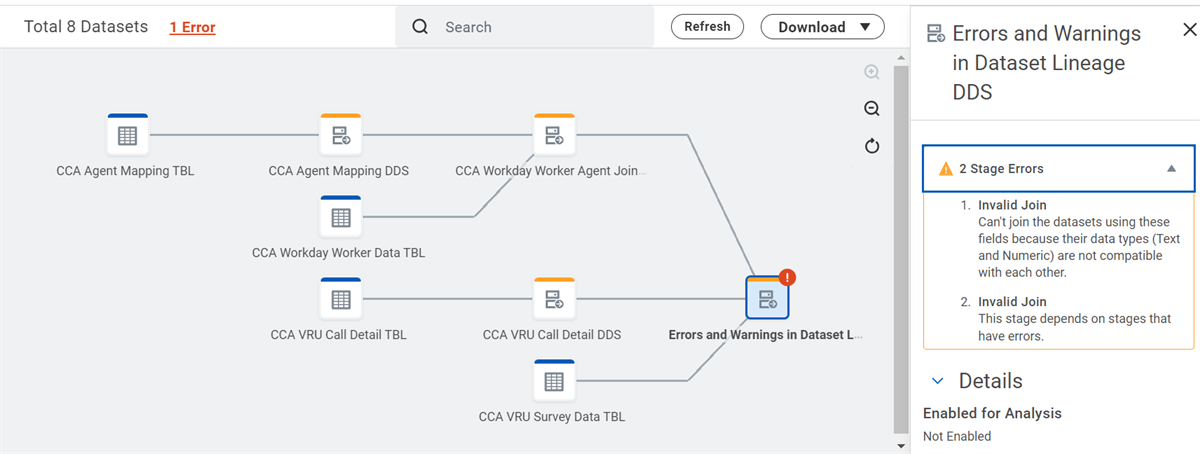
Errors in dataset lineage
Warnings and disconnected pipelines also appear in the dataset lineage.
- Changing the imported pipeline in a join stage disconnects the original imported pipeline and generates a warning.
- The lineage still shows the disconnected pipeline and warning until you resolve the issue.
- You can delete the reference to the pipeline to resolve the warning.
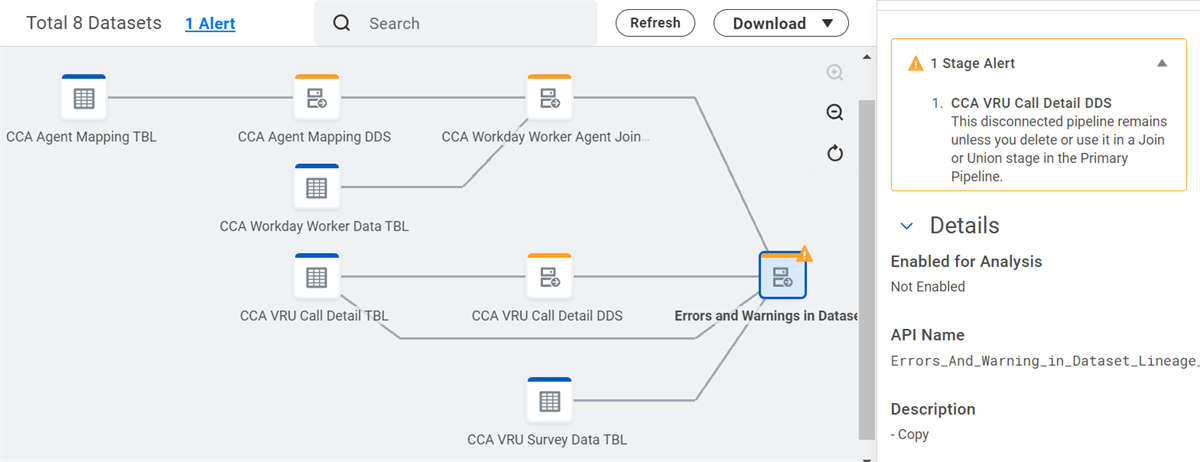
Warnings in dataset lineage
Transformation Flow
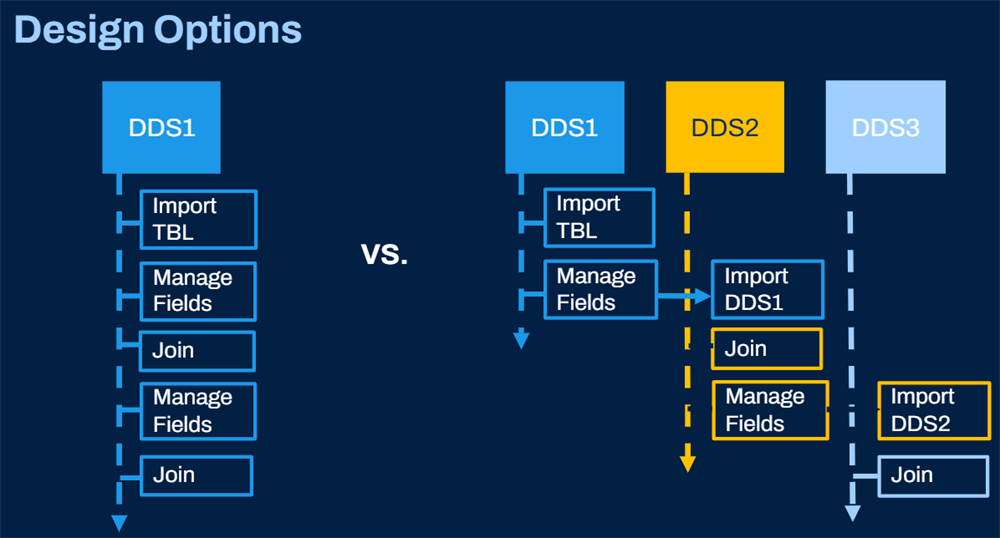
Prism applies data transformations from one stage to the next. The output of each stage is the input to the next stage. The output of a dataset is the output of the final stage. As you design your lineage for a use case, consider reuse, maintenance, and troubleshooting to determine whether to use several transformation stages in one dataset vs. across multiple datasets.
Dataset/Table Ownership and Sharing
You can configure the Prism domain security policies to allow users to share their datasets and tables with other users. If you configure the Prism Data Writer security group and the Prism Dataset and Prism Table assignable roles, the Prism Data Writer automatically becomes the owner of datasets and tables they create. They can then optionally share the datasets and tables with other users.
Prism Assignable Roles and Role-Based Security Groups
Workday delivers assignable roles and corresponding Workday-owned role-based constrained security groups that you can use in your Prism security configuration. The security groups allow you to control access at a dataset-by-dataset or table-by-table level. This means one data writer can share their dataset or table with another data writer. These role-based constrained security groups have inherent ('"behind the scenes") permissions to the necessary Prism domains. When you share a dataset or table with others, Workday automatically assigns those users to the relevant roles, making them members of the corresponding Workday-owned role-based constrained security groups.
You can also create tenanted role-based constrained security groups using assignable roles. Use these groups to grant members permission to publish their own datasets.
Table and Dataset Sharing
- You can share tables and datasets with other Prism users.
- Each table or dataset has a designated owner.
- Dataset owners can share a dataset they own and are able to view in the Data Catalog, regardless of upstream permissions.
- Owners can share a table or dataset with others to allow editing or viewing.
- Shared users must have access to all imported datasets or table references.
- You can relax sharing rules to not require access to all underlying datasets or tables.
- You can prevent relax sharing to prevent others from sharing derived datasets.
Note
: To allow dataset viewers to view transformations in a dataset shared with them, go to the Edit Tenant Setup Reporting & Analytics
task, and enable that option.Relax Sharing Rules
To access a dataset, you must have access to all upstream datasets and tables from which the dataset derives data. However, you can relax these permission requirements to grant users access to a dataset without also requiring access to the upstream datasets it contains.
There are two options.
Option Name
| Description | Benefit |
|---|---|---|
Relax Sharing Rules
| When you enable Relax Sharing Rules on a table or dataset:
| Protect sensitive data in upstream datasets and tables by eliminating the need for access by using Relax Sharing Rules in downstream datasets. |
Prevent Relax Sharing on Derived Datasets
| When you enable Prevent Relax Sharing on Derived Datasets, Workday revokes the Relax Sharing Rules functionality on all downstream derived datasets.
Note : The Relax Sharing Rules option is only functional when no dataset or table upstream from it has Prevent Relax Sharing Rules on Downstream Datasets enabled. | Prevent others from sharing derived datasets they own without requiring your permission on this table or dataset. |
To Enable Relax Sharing and Prevent Relax Sharing on Derived Datasets, you must have access to the
Prism: Manage Relax Sharing
domain through:- Unconstrained security groups: Prism Data Administrator
- Role-base constrained security groups:
- Dataset owner
- Table owner
Resource
: For more information and example scenarios refer to Workday Community and search for "Concept: Relax Sharing Options" from Documentation.Union
In simple terms, joins combine data into new columns and unions combine data into new rows. A union stage can combine data from similar fields in different datasets into a single field.
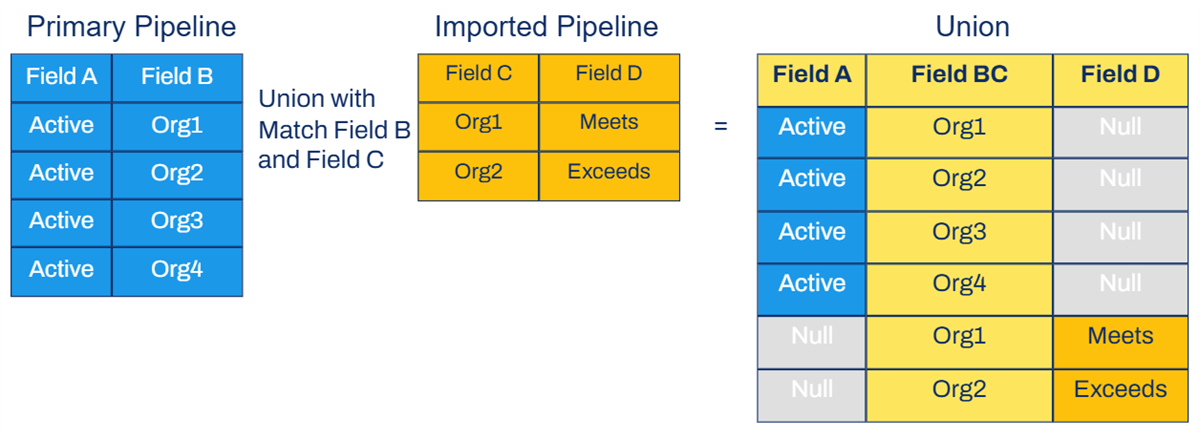
You typically perform unions to transform disparate datasets into one uniform layout and append them together. You can include two datasets (dataset pipelines) in a union stage and add additional union stages in the pipeline if you need to combine multiple datasets.
Add union stages to:
- Combine datasets that have similar, but not identical schema.
- Combine datasets with the same schema but with source data from different locations, such as different SFTP servers.
You can only add union stages to derived datasets and can add or delete them anywhere in the Primary Pipeline of the derived dataset.
Example
: A common use case for a union is to append historical legacy data with current Workday data for a full picture.Configuration
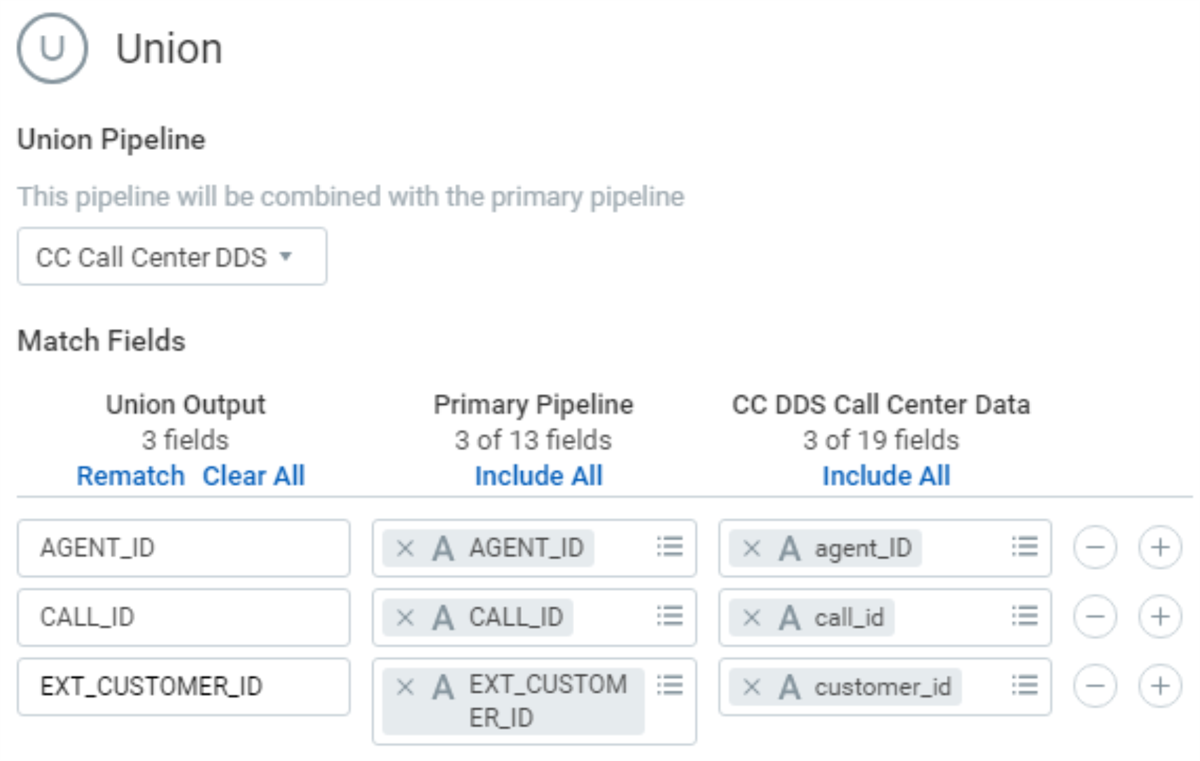
Add a union stage to an existing derived dataset and select a union pipeline to combine with the primary pipeline.
Union stage
In the Match Fields section, choose which fields from the primary pipeline to match with a field from the union pipeline. Workday provides a default list of mappings. Add or subtract fields from this list as needed. You can use the following options when matching fields:
Option | Description |
|---|---|
Union Output | Enter the name of the field that outputs from the union stage for each field mapping. |
Rematch | This option discards all field mappings and returns to the default field mappings that Workday detects and configures. |
Clear All | This option discards all field mappings. |
Include All | This creates a field mapping for each field in the input dataset pipeline. You then select which fields to match from the other input dataset pipeline. |
Define at least one set of matched fields in a union stage before saving it. If you do not specify a field in an input dataset for a field mapping, Workday uses a NULL value in that field from that input dataset. Unions do not remove duplicate rows.
Chapter Summary
- The join stage blends two or more pipelines on common field(s) to create a derived dataset of joined instances.
- The union stage transforms disparate datasets into one uniform layout and appends them together.